
In This Article
Understanding the KPI Configuration Panel
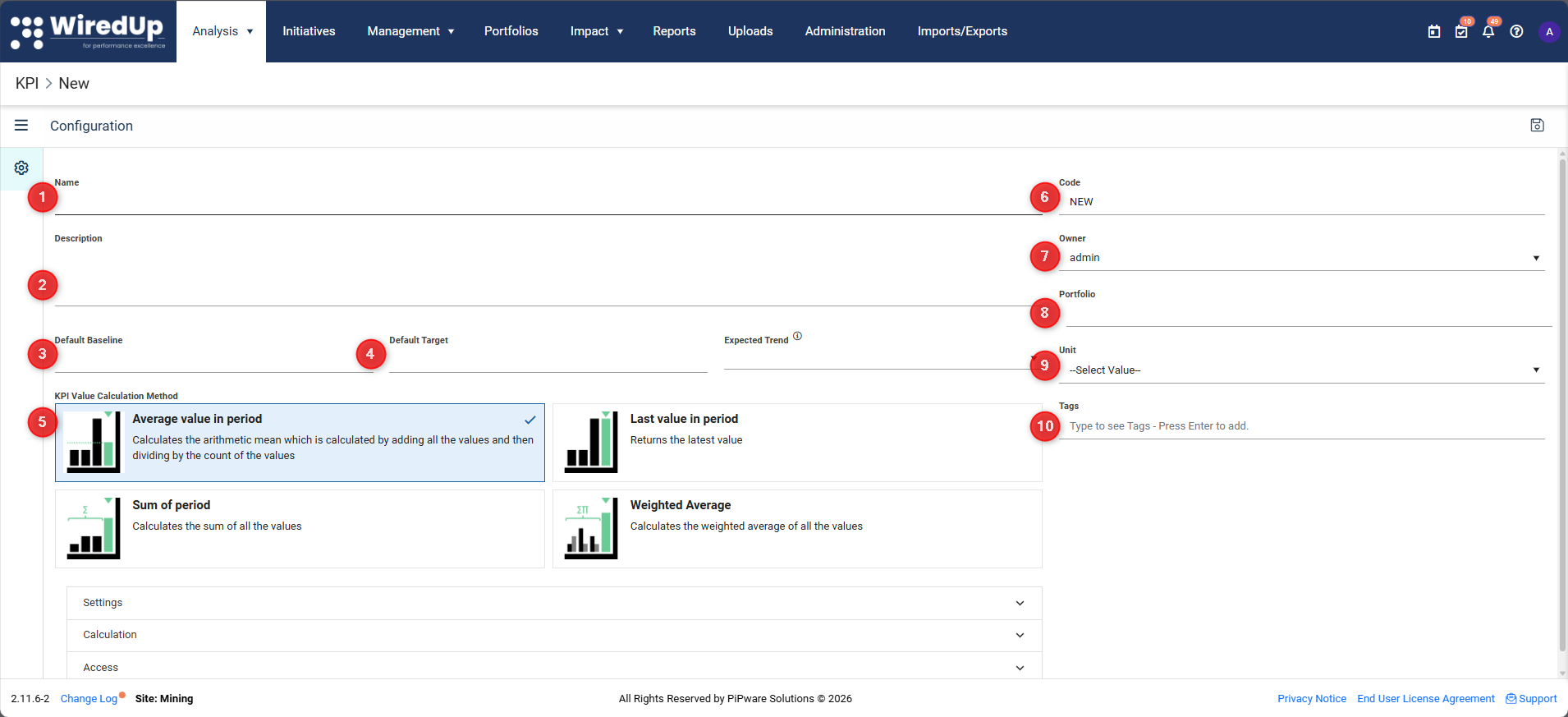
- 1. Name (Required)
- 2. Description
- 3. Default Baseline
- 4. Default Target
- 5. KPI Value Calculation Method
- 6. Code
- 7. Owner
- 8. Portfolio
- 9. Unit (Required)
- 10. Tags
Overview
Adding a KPI (Key Performance Indicator) in WiredUp allows you to track and measure important metrics for your organization. This article provides step-by-step instructions on how to create a new KPI, configure its essential settings, and save it to your KPI List.
Accessing the Add KPI Screen
To begin creating a new KPI: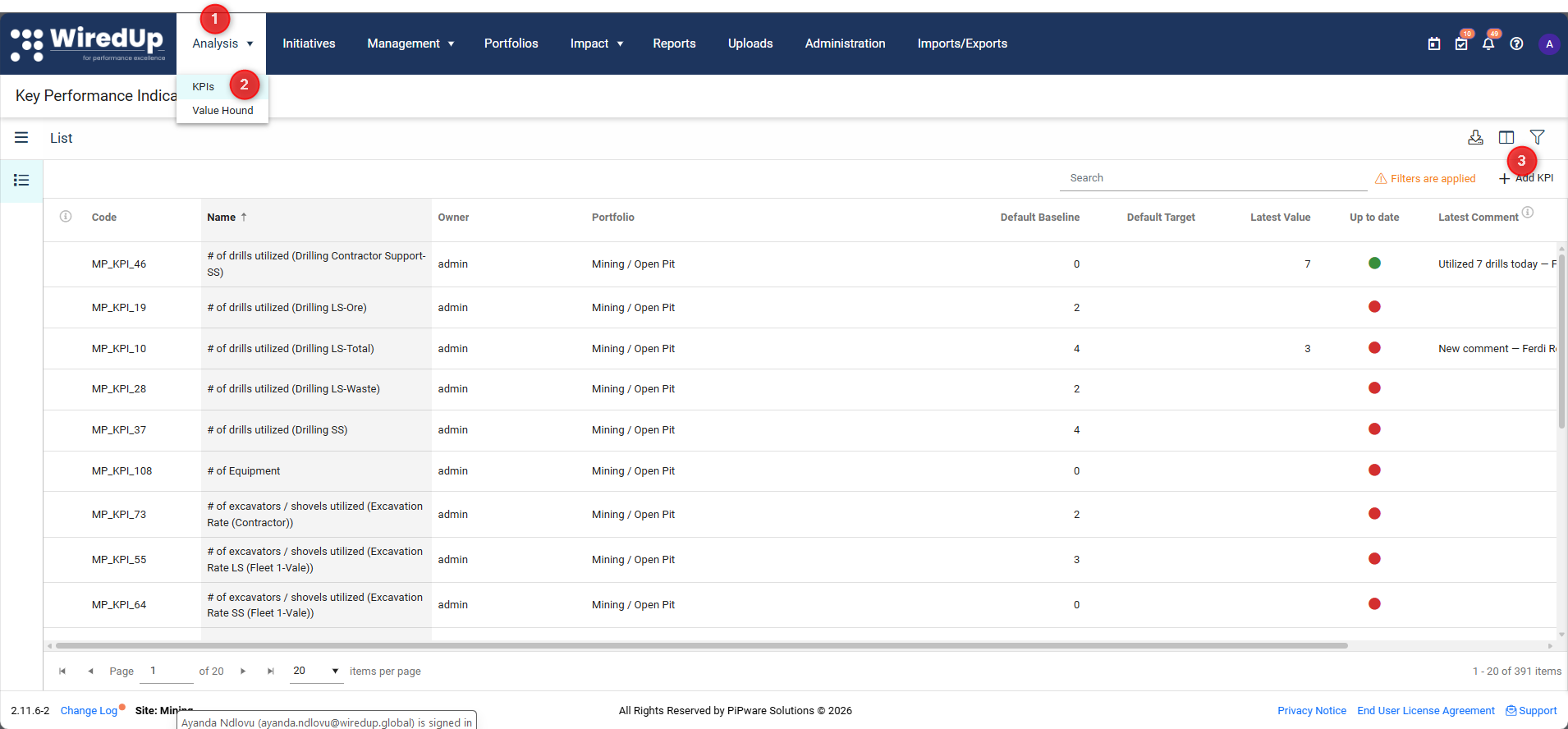
- Navigate to Analysis in the main menu
- Select KPIs from the dropdown options
- Click the "+Add KPI" button located at the top-right of the KPI List screen
- The New KPI configuration screen will open
Understanding the KPI Configuration Panel
When you click "+Add KPI," the KPI configuration screen appears with a three-bar (hamburger) menu icon to the left of the Configuration title. This panel contains all the fields and settings needed to create your new KPI.
The configuration screen is divided into two main areas: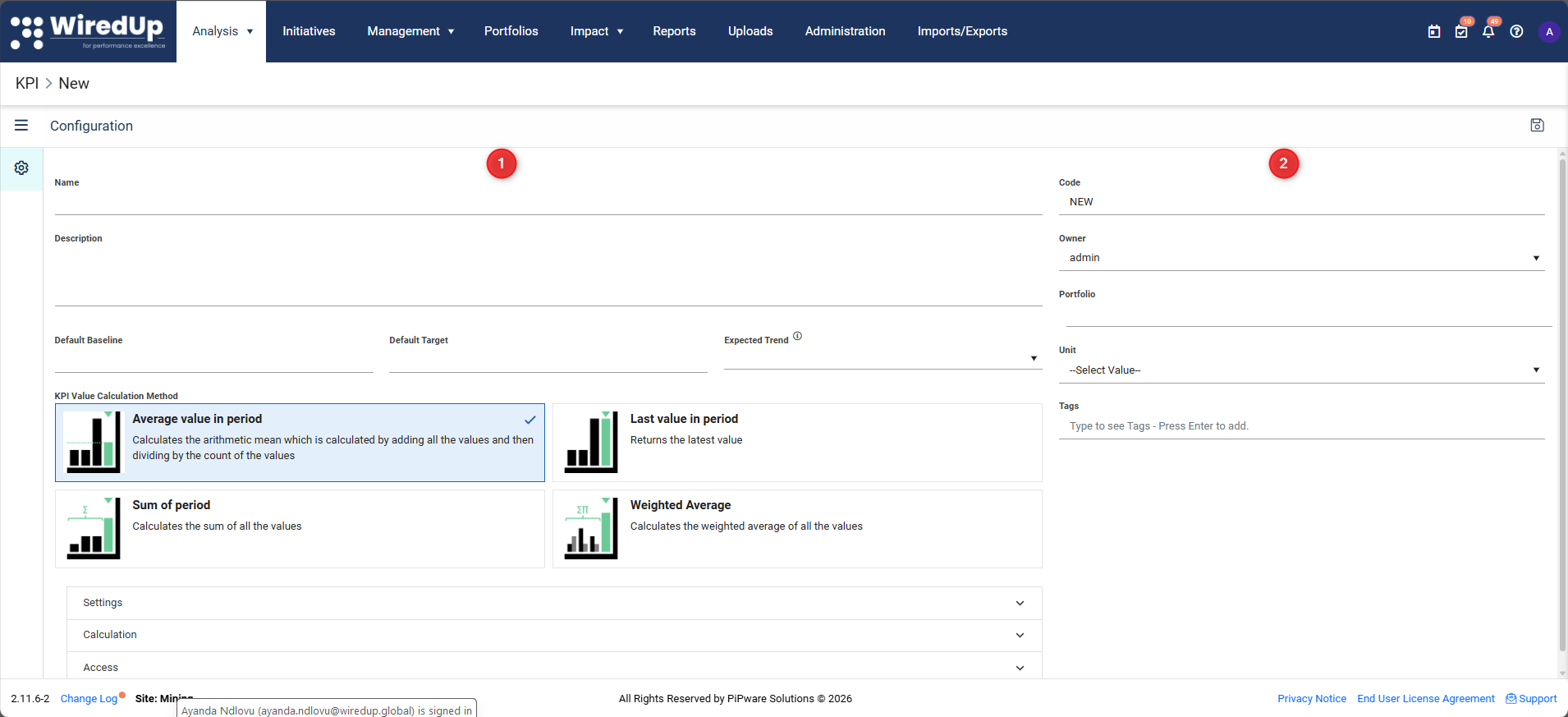
- Left side: Main KPI details (Name, Description, Baseline, Target, Calculation Method)
- Right side: Identifier, ownership, and categorization fields (Code, Owner, Portfolio, Unit, Tags)
Configuring Main KPI Details
Complete the following fields on the left side of the configuration panel:
1. Name (Required)
Enter a clear, descriptive name for your KPI that identifies what is being measured.
Example: "Customer Satisfaction Score" or "Monthly Revenue Growth"
2. Description
Provide a detailed explanation of the KPI's purpose and importance. This helps other users understand why the KPI matters and how it should be interpreted.
Tip: Include information about what the KPI measures, why it's important, and how it supports organizational goals.
3. Default Baseline
Enter the baseline value for the KPI. This represents the starting point or current state before improvement efforts begin.
4. Default Target
Enter the target value you want to achieve for the KPI. This represents your desired performance level.
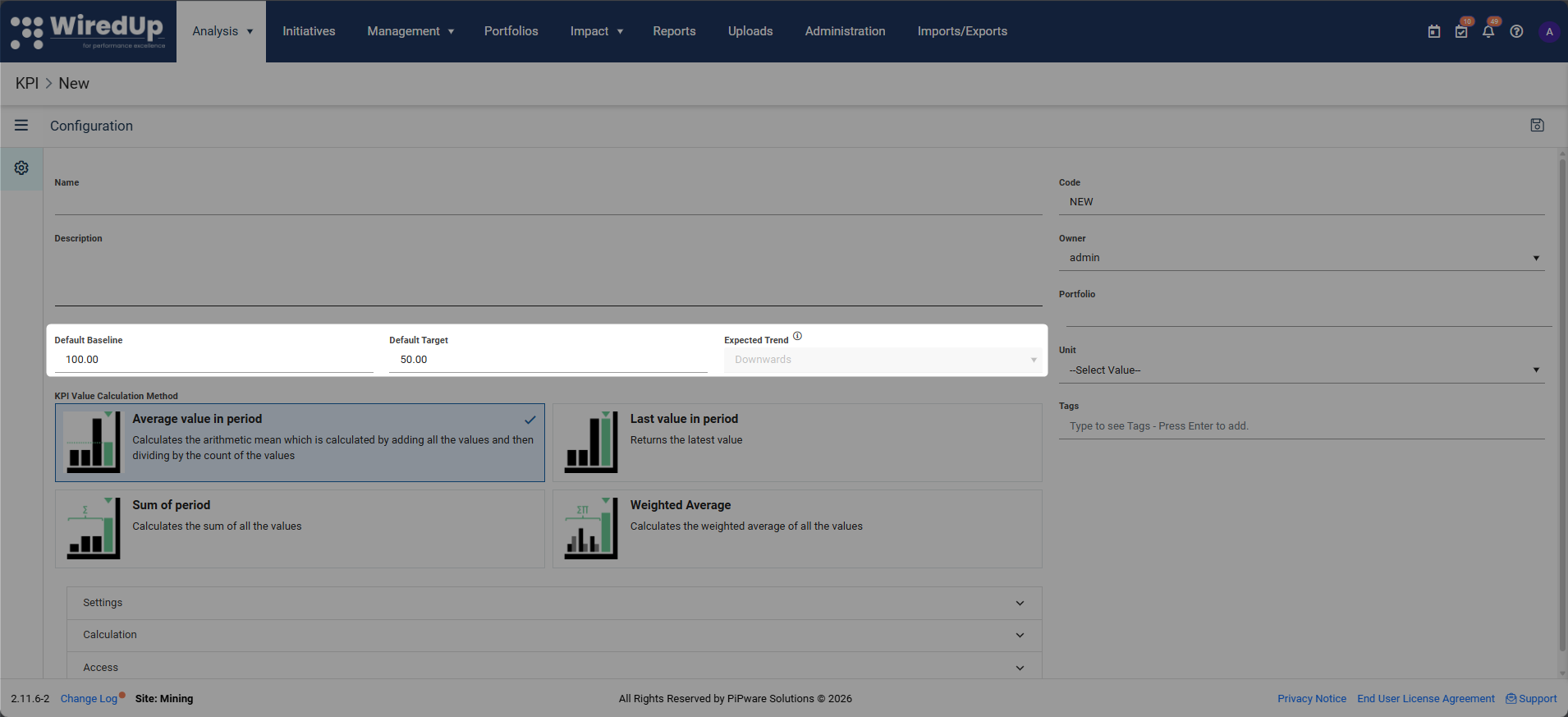
Important: The relationship between default Baseline and Target automatically determines the Expected Trend:
- Baseline > Target = Downward trend (you want the value to decrease)
- Baseline < Target = Upward trend (you want the value to increase)
Example:
- If your baseline is 100 defects and your target is 50 defects, the expected trend is downward (fewer defects is better)
- If your baseline is 75% customer satisfaction and your target is 90%, the expected trend is upward (higher satisfaction is better)
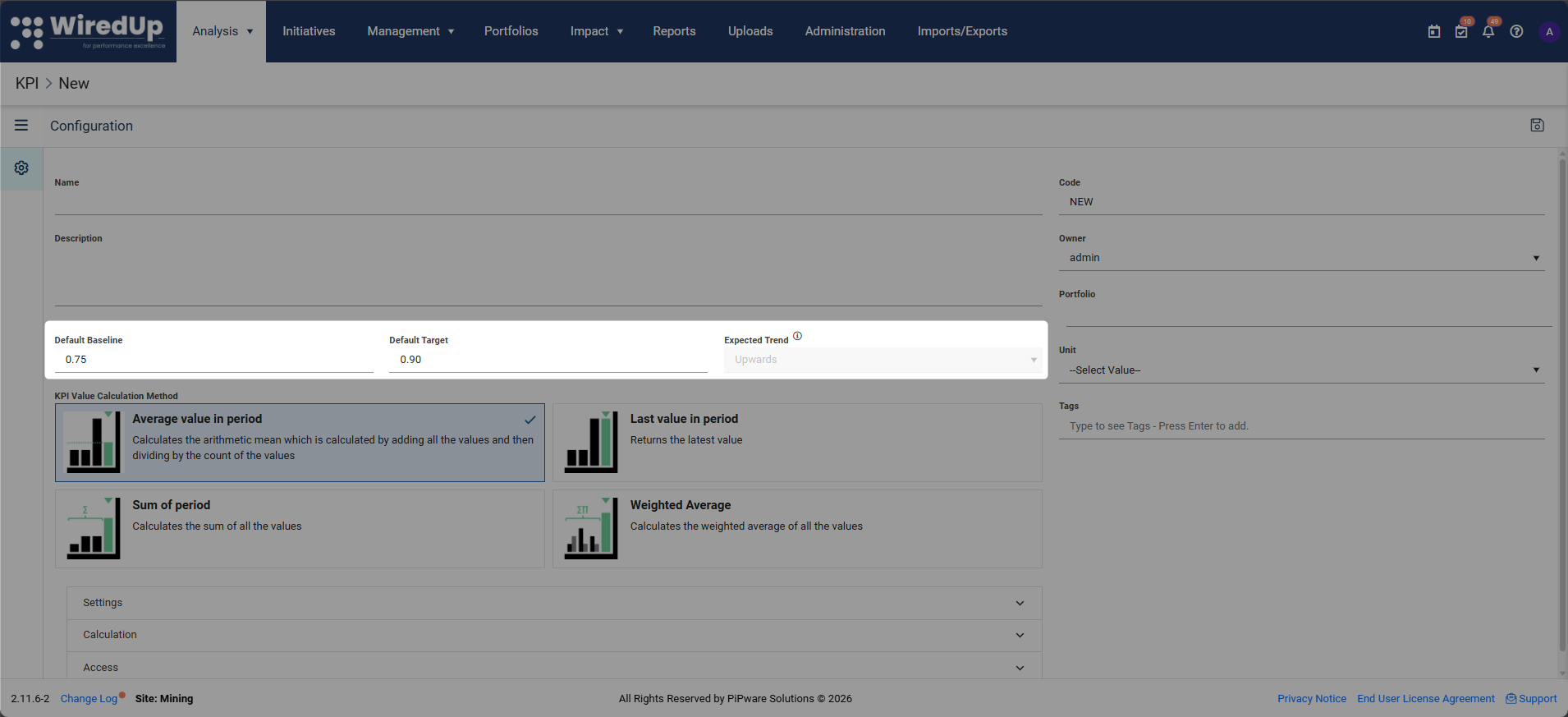
5. KPI Value Calculation Method
Select the appropriate calculation method for how the KPI should be computed. This determines how WiredUp will calculate and aggregate KPI values over time.
Common calculation methods include:
- Sum
- Average
- Latest Value
- Weighted Average
Choose the method that best represents how your KPI should be measured and reported.
For more information on how each of the value calculation method work, please see this article: Ho do the different KPI Value Calculation Methods WorkComplete the following fields on the right side of the configuration panel:
6. Code
Enter a unique identifier for the KPI. This code helps you quickly reference the KPI in reports and searches.
Tip: You can use KPI Sequences (configured in the Administration module) to auto-generate codes following your organization's naming conventions.
7. Owner
Assign an owner to the KPI. By default, the KPI creator (you) is set as the owner, but you can change this to assign responsibility to another user.
The owner is typically the person accountable for monitoring and improving the KPI's performance.
8. Portfolio
Select the portfolio to which this KPI belongs. Portfolios help categorize and organize KPIs according to your organizational structure or strategic themes.
9. Unit (Required)
Select the unit of measurement for the KPI (e.g., %, $, hours, units, etc.).
Note: Units must be configured in the Administration module before they can be selected here.
10. Tags
Add relevant tags to help categorize and filter the KPI. Tags make it easier to group related KPIs and find them quickly using filters.
Example tags: "Customer Service," "Financial," "Quality," "Safety"
Saving Your New KPI
Once you have completed all required fields:
- Review your entries to ensure accuracy
- Click the Save button in the top-right corner of the screen
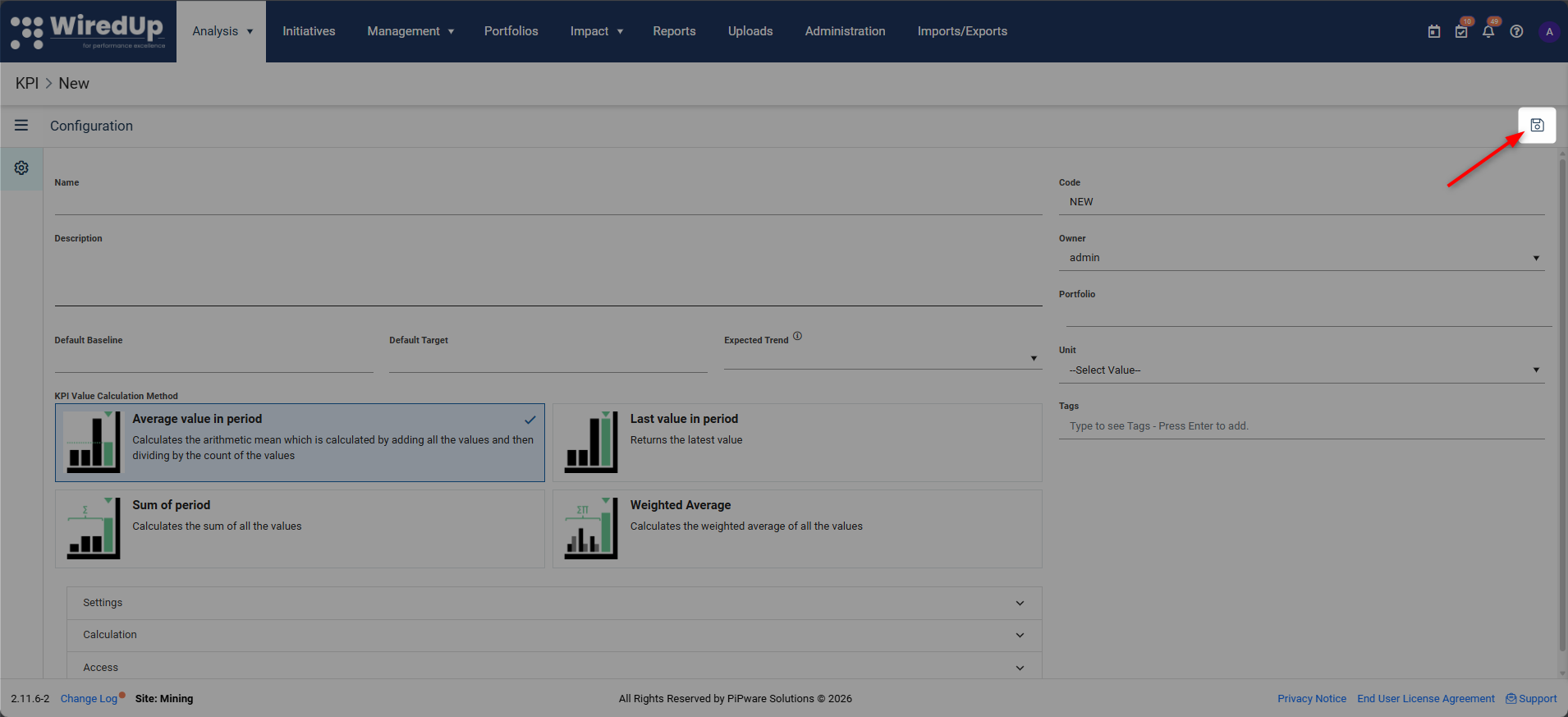
- Your new KPI will be created and added to the KPI List
- You will be able to view and manage it from the KPI List screen
Warning: If you navigate away from the screen without saving, all your changes will be lost. Always click Save before leaving the configuration screen.Understanding Expected Trend
The Expected Trend is automatically calculated by WiredUp based on the relationship between your Default Baseline and Default Target values. This trend indicates the desired direction of performance for your KPI.
How Expected Trend is Determined
WiredUp uses the following logic to set the Expected Trend:
Upward Trend (↑):
- Occurs when Baseline < Target
- Indicates that higher values represent better performance
- The goal is to increase the KPI value over time
Examples of Upward Trend KPIs:
- Customer Satisfaction Score (Baseline: 75%, Target: 90%)
- Revenue Growth (Baseline: $100,000, Target: $150,000)
- Employee Engagement (Baseline: 60%, Target: 80%)
Downward Trend (↓):
- Occurs when Baseline > Target
- Indicates that lower values represent better performance
- The goal is to decrease the KPI value over time
Examples of Downward Trend KPIs:
- Defect Rate (Baseline: 100 defects, Target: 50 defects)
- Customer Complaints (Baseline: 25 complaints, Target: 10 complaints)
- Production Costs (Baseline: $50,000, Target: $40,000)
Why Expected Trend Matters
The Expected Trend is important because it:
- Guides performance interpretation: Helps users understand whether increasing or decreasing values indicate improvement
- Affects status indicators: Influences how WiredUp displays performance status (on-track, off-track) in reports and dashboards
- Supports accurate analysis: Ensures that performance comparisons and trend analysis are interpreted correctly
Note: Once you set your Default Baseline and Default Target values, the Expected Trend is automatically determined. You cannot manually override this setting. It is always based on the Baseline-Target relationship.After Creating Your KPI
After successfully creating your KPI, you can:
- Add KPI values: Enter actual performance data for different time periods
- Configure advanced settings: Set up calculation rules, access permissions, and other detailed configurations
- Link to initiatives: Connect the KPI to relevant projects or improvement initiatives
- Create dashboards: Add the KPI to visual dashboards for monitoring
Next Steps
Now that you've created a new KPI, you may want to explore:
- Edit KPI: Learn how to modify KPI settings, configure advanced options, and manage access permissions