
In This Article
Understanding the Configuration Screen
- Configuring a KPI Source
- Setting Up Manual Input
- Setting Up Initiative Output
- Setting Up a Calculated KPI
Tips for Editing KPIs Effectively
Overview
Editing a KPI in WiredUp allows you to modify its configuration settings, update calculation methods, and manage access permissions. This article provides step-by-step instructions on how to access the KPI configuration screen and update various settings including baseline dates, target frequency, performance periods, calculated formulas, and user access controls.
Accessing the Edit KPI Screen
To edit an existing KPI: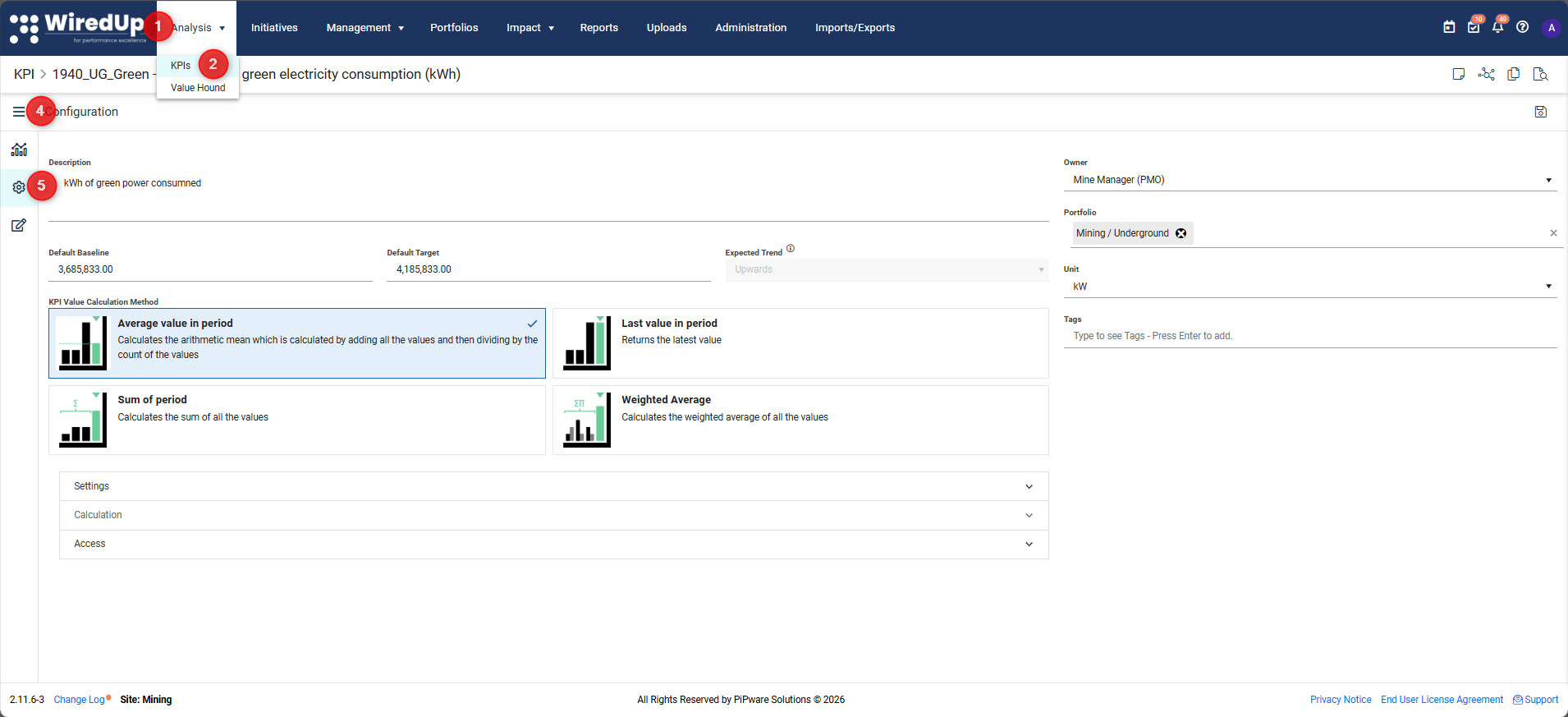
- Navigate to Analysis in the main menu
- Select KPIs from the dropdown options
- Click on the Name of the KPI you want to edit
- Click the three-bar menu (hamburger icon) on the left side of the title
- Select Configuration from the menu
- The KPI Configuration screen will open
Understanding the Configuration Screen
The Configuration screen is organized into expandable sections that allow you to modify different aspects of your KPI:
- Main KPI Details: Name, Description, Baseline, Target, Calculation Method, Code, Owner, Portfolio, Unit, Tags
- Settings: Advanced configuration options for dates, frequencies, display options, and chart settings
- Calculation: Formula setup for calculated KPIs
- Access: User and role permissions
Editing Main KPI Details
You can update the following main configuration fields:
- Name
- Description
- Default Baseline
- Default Target
- KPI Value Calculation Method
- Code
- Owner
- Portfolio
- Unit
- Tags
Note: For detailed information about each of these fields, refer to the Add a KPI article.Configuration: Source
Use Source to define how your KPI values are populated. WiredUp offers three different source types, each serving a distinct purpose in your performance management strategy.
Configuring a KPI Source
To configure your KPI source:
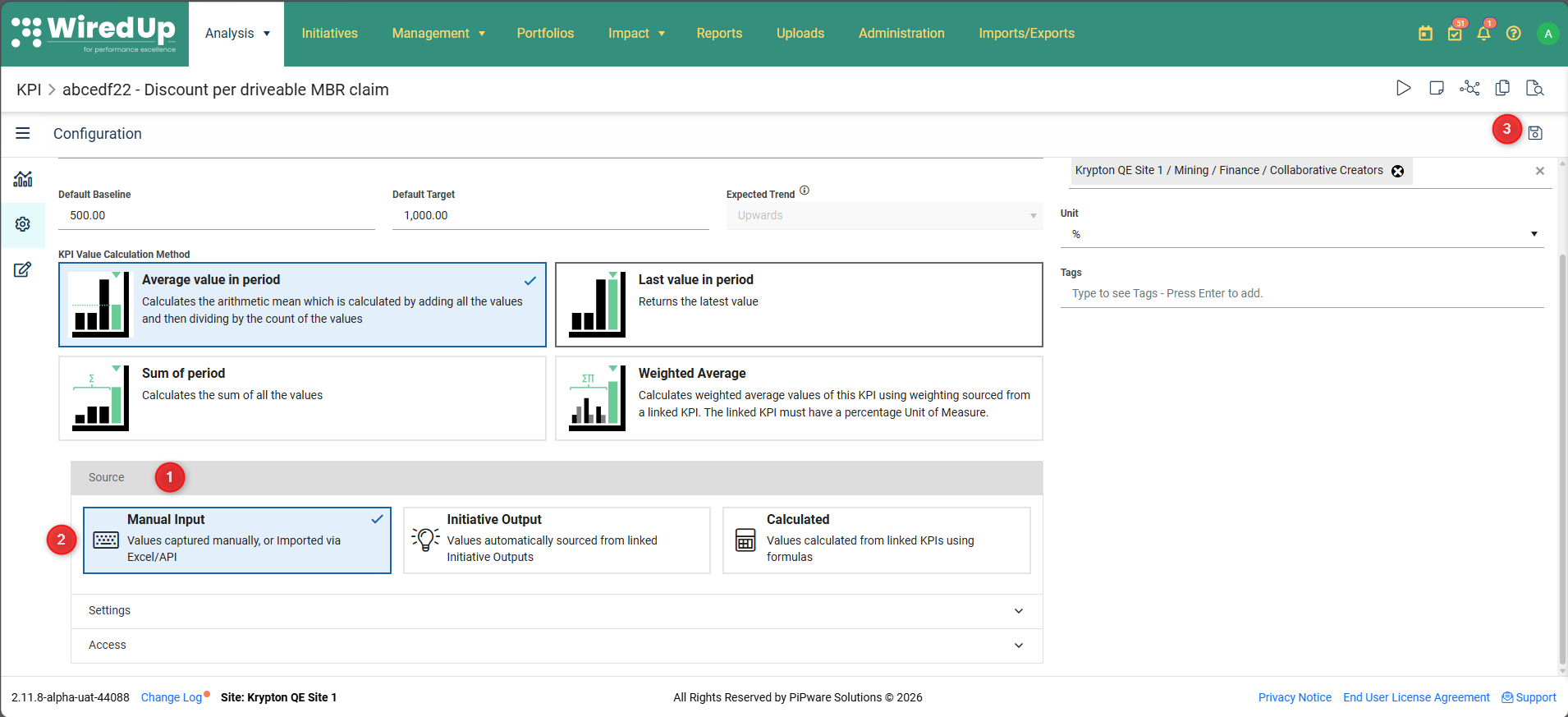
- Expand the Source section in KPI Configuration.
- Select one of the three source types:
- Manual Input (default)
- Initiative Output
- Calculated
3. Save your changes.
Setting Up Manual Input
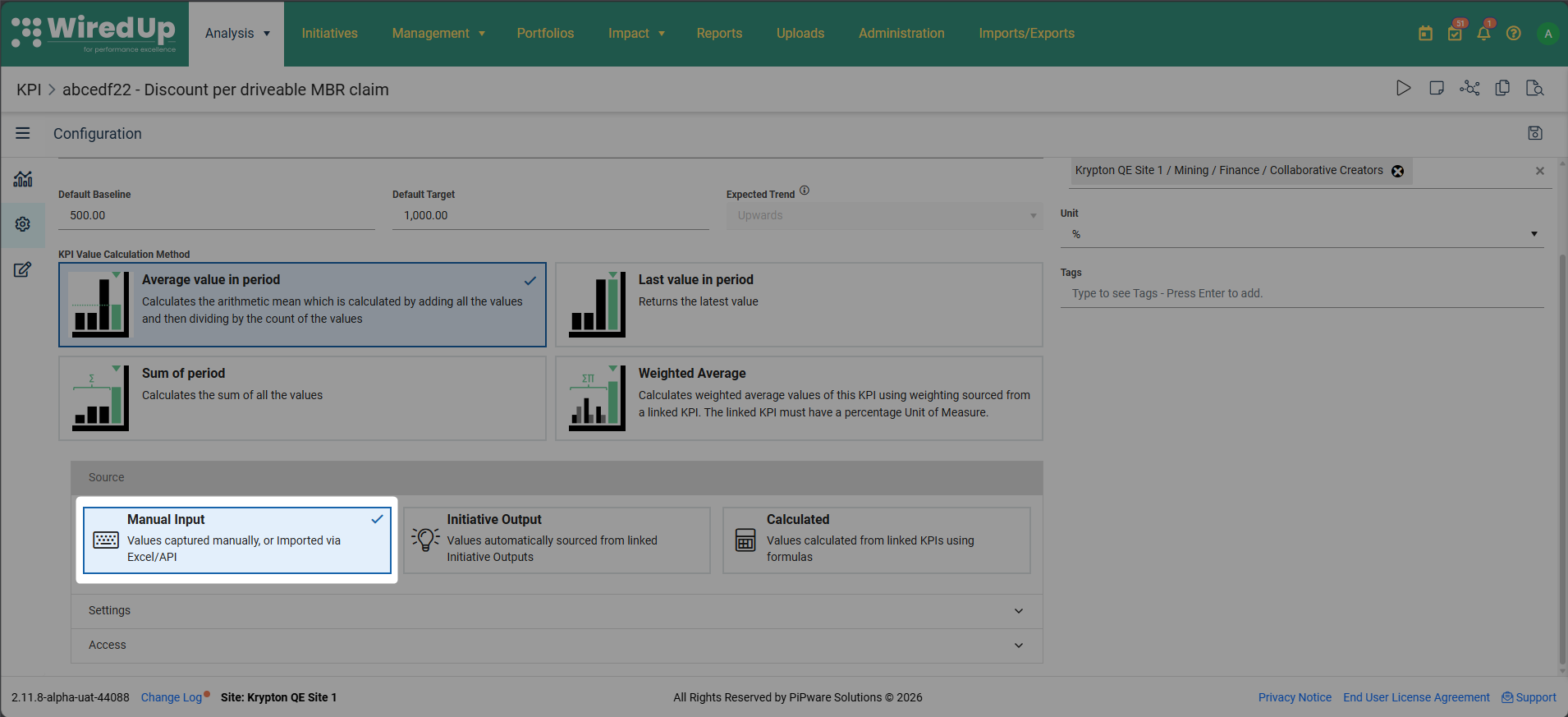
- Select Manual Input as the source type.
- Values can be entered via:
- The KPI Values page (manual entry)
- Excel import
- API integration
4. Save your changes.
Setting Up Initiative Output
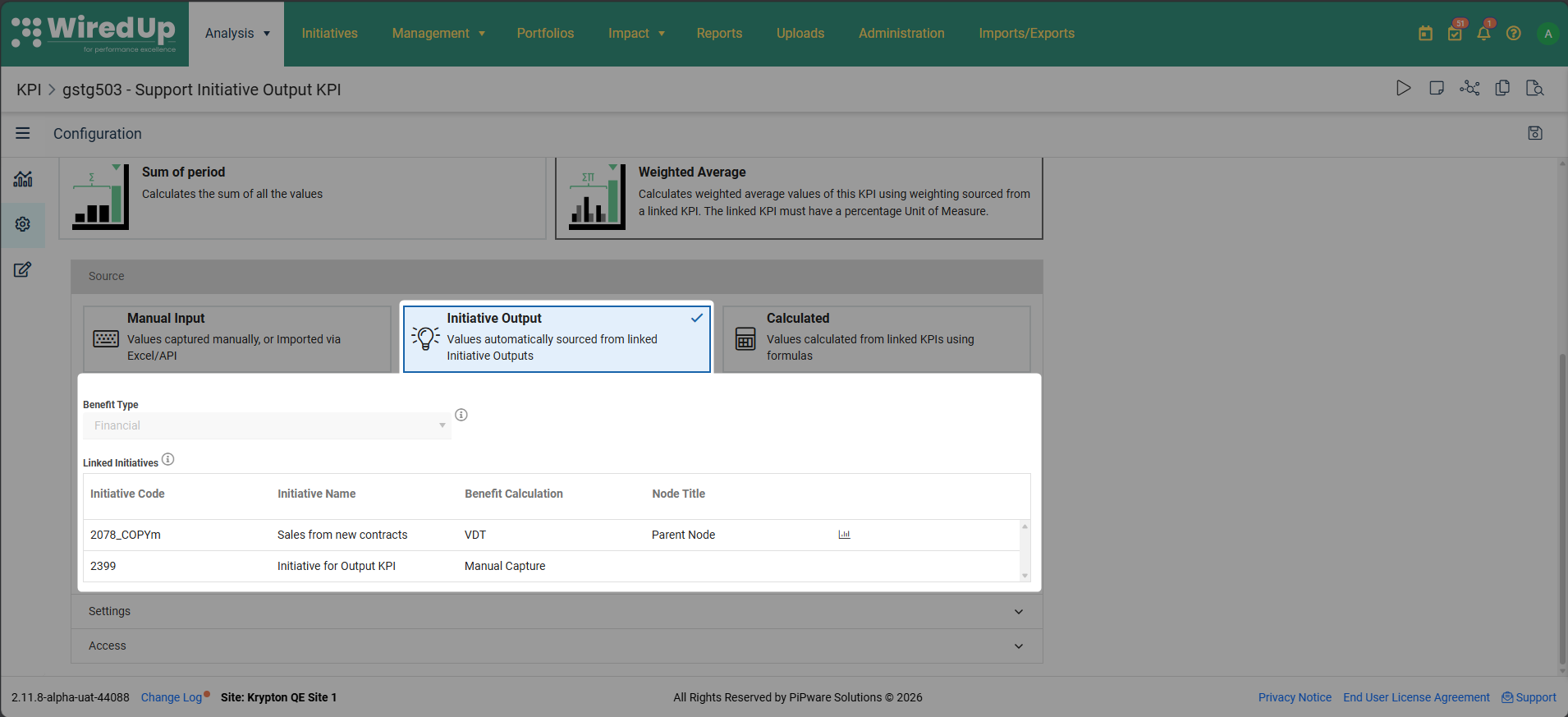
- Select Initiative Output as the source type.
- If there are any linked initiatives, the KPI will automatically display the Initiatives that have been linked to the KPI. If no initiatives have been linked to the KPI, an information box will be displayed informing you of no linked initiatives.
- Important: Once configured:
- All value fields become read-only
- Manual entry, Excel imports, and API updates are disabled
- A background job automatically aggregates values from linked Initiatives
4. Save your changes.
For more information: See the "Initiative Output KPI" article for detailed guidance on configuring and managing Initiative Output KPIs.Setting Up a Calculated KPI
To configure a calculated KPI: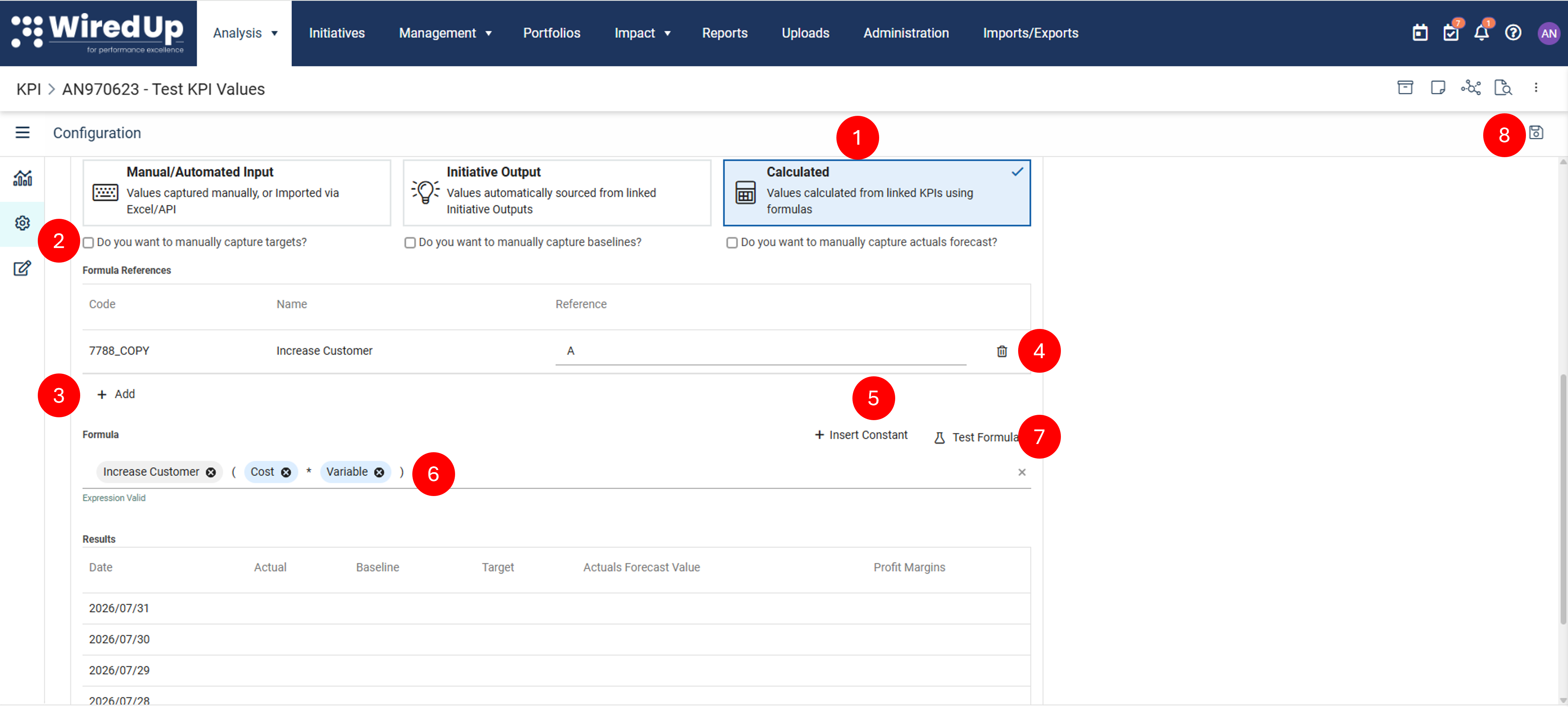
- Select the Calculation option
- Choose which values can be manually entered (optional):
- Allow manual Targets: Enable if you want to manually set target values instead of calculating them
- Allow manual Baselines: Enable if you want to manually set baseline values instead of calculating them
- Allow manual Forecasts: Enable if you want to manually set forecast values instead of calculating them
- Click +Add under Formula References to add KPIs that will be used in your formula
- Select the KPIs you want to reference in your calculation
- Click + Insert Constant to add global constants to your formular (for more information on Global Constant, please see this article: Managing Global Constants). You can also type the constant name and the constant will appear in the list to add.
- Build the formula using the KPI references and any required Global Constants.
- Click Test Formula to verify that your formula works correctly
- Save your changes
Important: Once a KPI is set as calculated, the values in the Values section become read-only and are automatically computed based on the formula.
Tip: For detailed guidance on creating calculated KPIs, refer to the How to configure a calculated KPI article.Configuration: Settings
The Settings section contains advanced configuration options that control how the KPI behaves and displays. Click the dropdown arrow to expand this section.
The following settings are available:
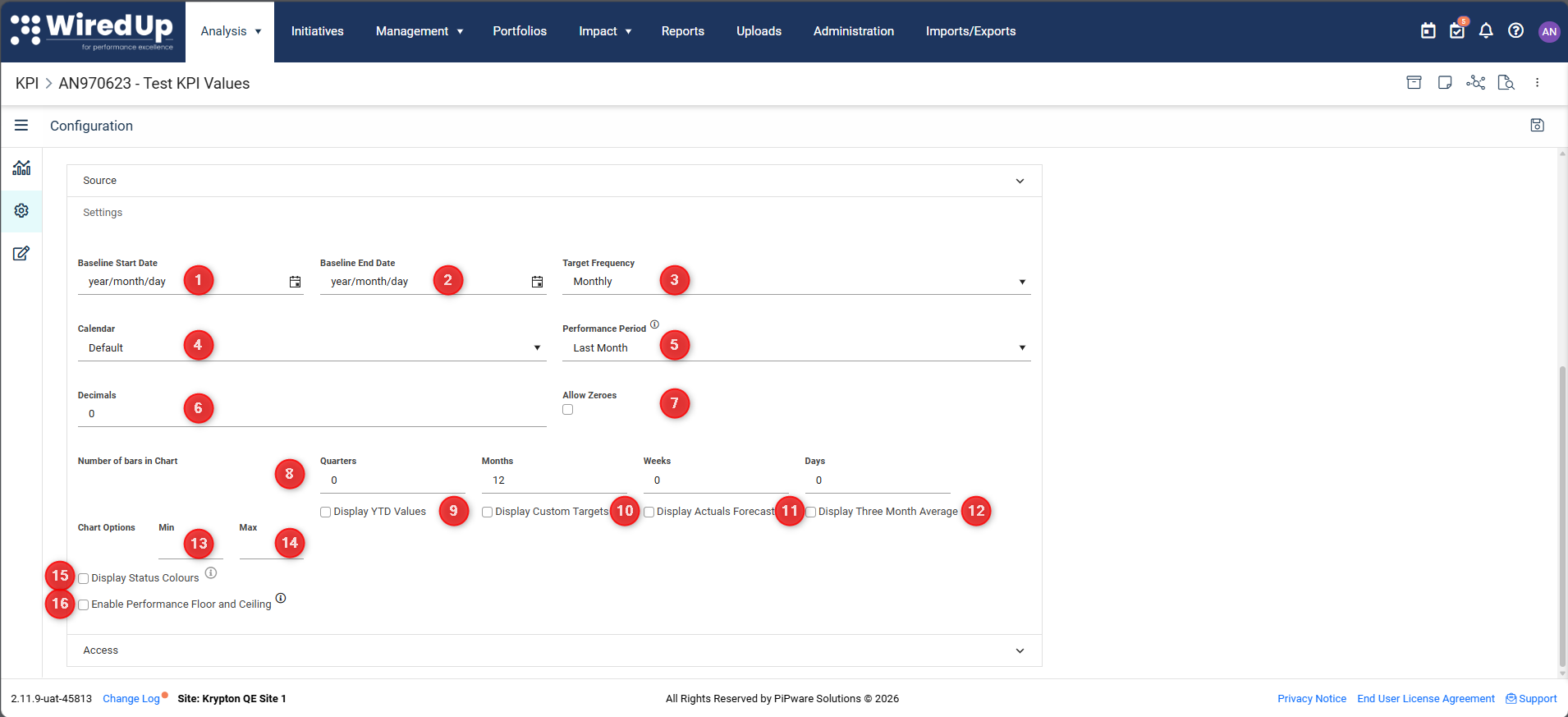
- Baseline Start Date: Set the start date that defines the baseline period for your KPI
- Baseline End Date: Set the end date that defines the baseline period for your KPI
- Target Frequency: Select the reporting frequency for your KPI (e.g., Daily, Weekly, Monthly, Quarterly, Annually)
- Calendar: Select the calendar to be used for the KPI reporting periods. Note that Calendars are configured on Portfolio/Org Structure settings
- Performance Period: Define the performance period used to calculate actual and target values relative to a reporting date
- Decimals: Specify the number of decimal places to display for KPI values
- Allow Zeroes: Enable or disable the display of zero values on the KPI chart
- Number of bars in Chart: Set how many bars to show on the KPI chart to control the amount of historical data visible
- Quarters: Specify the number of quarters to display on the chart
- Months: Specify the number of months to display on the chart
- Weeks: Specify the number of weeks to display on the chart
- Days: Specify the number of days to display on the chart
- Display YTD Values: Check this box to show Year-to-Date values on the chart
- Display Custom Targets: Check this box to show custom target values on the chart
- Display Actuals Forecast: Check this box to show forecasted actual values on the chart
- Display Three Month Average: Check this box to show a 3-month rolling average line on the chart
- Chart Options (Min): Set the minimum value for the chart Y-axis to control the scale
- Chart Options (Max): Set the maximum value for the chart Y-axis to control the scale
- Display Status Colours: allow you to quickly identify which periods are meeting targets, which are at risk, and which are off track without manually interpreting values. For more information, please see this article: KPI Chart : WiredUp
- Enable Performance Floor and Ceiling: allows you to define the minimum (Floor) and maximum (Ceiling) achievable values for a KPI. For more information, please see this article:
Configuration: Access
The Access section allows you to control who can view and interact with the KPI by setting permissions for specific users and roles.
Setting Access Permissions
To configure KPI access: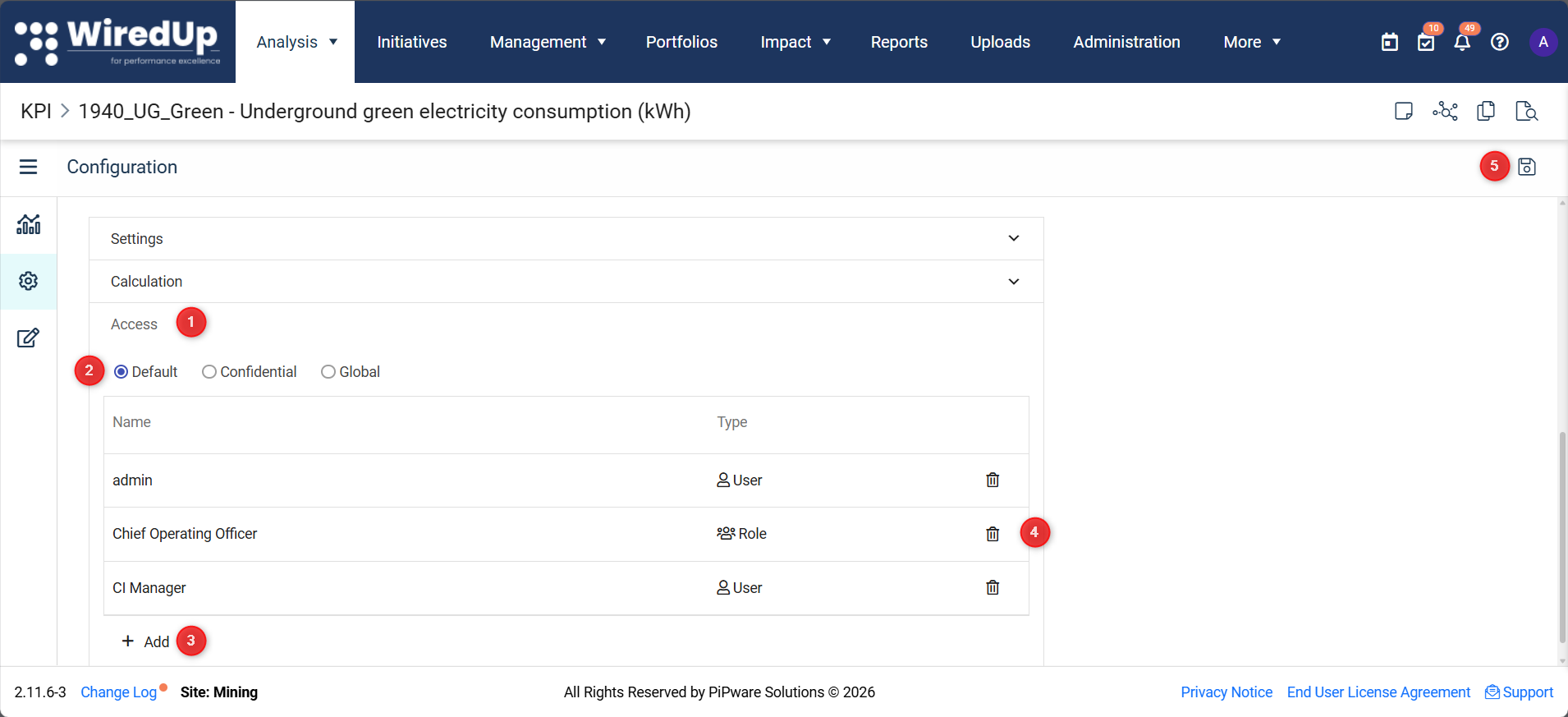
- Expand the Access section
- Select an Access Profile from the dropdown:
- Default: Standard access based on user roles
- Confidential: Restricted access to specific users only
- Global: Available to all users in the system
- Click +Add to add specific users or roles
- Select the users or roles you want to grant access to
- Save your changes
Why it's useful: Access controls ensure that sensitive KPI data is only visible to authorized personnel, maintaining data security and confidentiality.
Tip: Use the Confidential access profile for KPIs containing sensitive financial or personnel information.Saving Your Changes
After making any changes to the KPI configuration:
- Review all your modifications to ensure accuracy
- Click the Save button in the top-right corner of the screen
- Your changes will be applied to the KPI
Warning: If you navigate away from the Configuration screen without saving, all your changes will be lost. Always click Save before leaving the screen.Tips for Editing KPIs Effectively
- Check References first: Before making major changes, use the References icon to see where the KPI is used
- Test calculated formulas: Always use the "Test Formula" function to verify that calculated KPIs work correctly before saving
- Document changes: Use the Notes and Attachment icon to document why changes were made
- Review the Audit log: After editing, check the Audit icon to confirm your changes were recorded
- Update related KPIs: If you change a KPI that's referenced in calculated KPIs, verify that dependent KPIs still calculate correctly
- Communicate access changes: When modifying access permissions, inform affected users about the changes
Next Steps
Now that you understand how to edit KPIs, you may want to explore:
- KPI Toolbar: Discover additional tools and features available for KPI management
- How to configure a calculated KPI: Get detailed guidance on creating formula-based KPIs