
In This Article
Understanding KPI Source Types
Configuring an Initiative Output KPI
How Initiative Output KPIs Work
Viewing Initiative Output KPI Values
- KPI Values Page
- How values are sourced:
- Calculation Methods:
- Settings:
- All value entry fields are disabled:
- Displayed Labels:
- Last Calculated Timestamp:
- Adding an Initiative Output KPI to an Idea VDT
- Node Display:
- VDT Legend:
- Circular Reference Prevention:
Adding an Initiative Output KPI to a Value Hound VDT
Configuring Initiative Output KPI Node Colour
Use Cases for Initiative Output KPIs
Benefits of Initiative Output KPIs
Overview
The Initiative Output KPI feature provides an automated way to aggregate and track benefit values from multiple Initiatives into a single KPI. This capability enables organizations to measure the collective impact of their Initiative portfolio without manual data entry.
When a KPI is configured as an Initiative Output KPI:
- Values are automatically sourced from linked Initiative calculations (VDT or Manual Capture)
- Multiple Initiatives can contribute to the same KPI
- Values are aggregated (summed) by period across all linked sources
- The KPI values become read-only — no manual value entry is permitted
- A background calculation job keeps values up-to-date automatically
Initiative Output KPIs are ideal for tracking portfolio-level metrics such as total financial benefits, cumulative emissions reductions, or aggregated safety improvements across your Initiative portfolio.
Prerequisites / Requirements
Before using the Output KPI capability, ensure the following conditions are met:
System Configuration
- The user must have appropriate Administration permissions to configure KPI source types
- At least one active Initiative with a configured VDT or Manual Capture benefit must exist
User Roles
Role | Permission Required |
KPI Configuration | KPI Edit permissions |
Initiative Linking | Initiative Edit permissions |
VH VDT Configuration | VDT Edit permissions |
KPI Setup
- A KPI must be created and its source type set to "Initiative Output" via the new Source accordion on the KPI Configuration page (see Understanding KPI Source Types section for more information)
- The KPI must be linked to a parent/root node in an Initiative VDT, or to a Manual Capture idea's benefit value
Understanding KPI Source Types
KPIs in WiredUp can source their values in three different ways, each serving a distinct purpose in your performance management strategy:
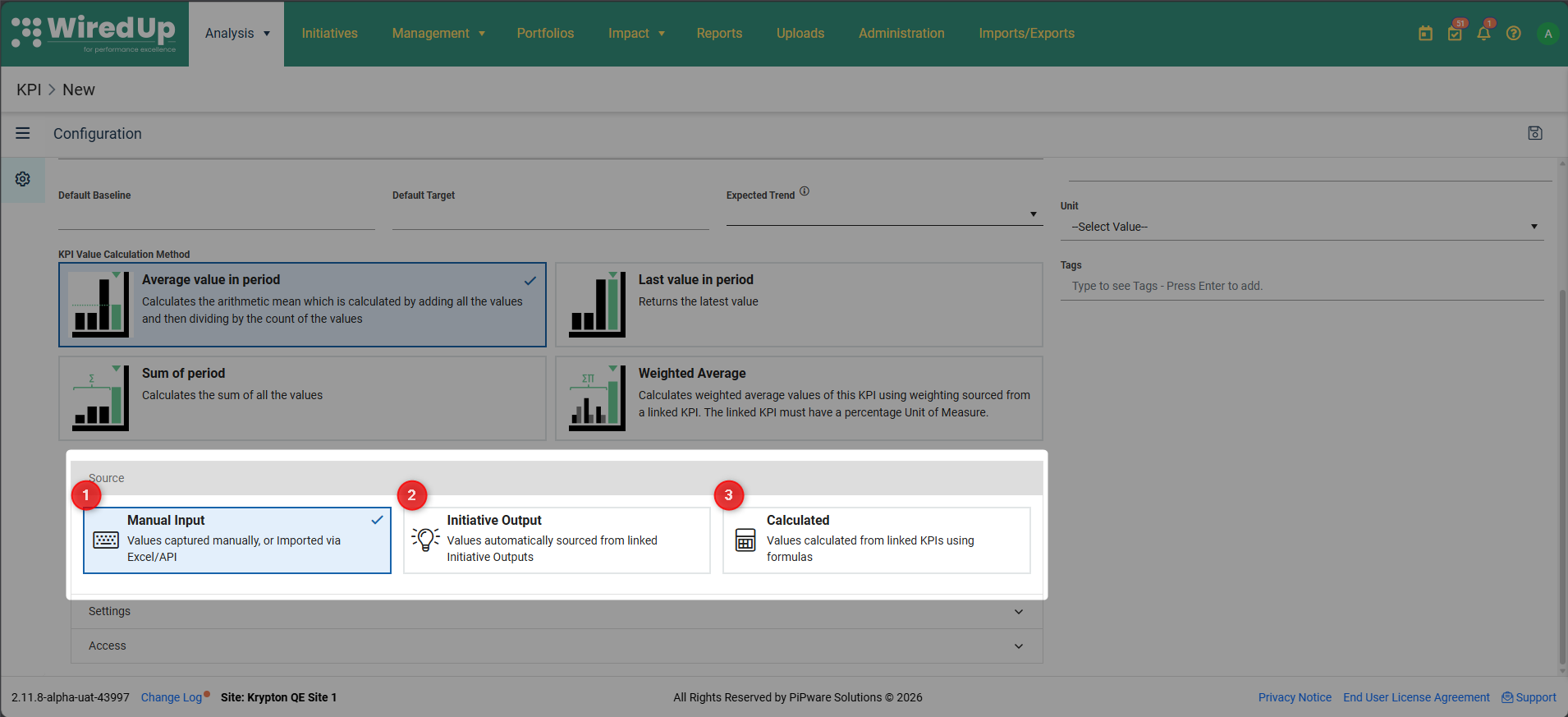
1. Manual Input (Default)
- Values are captured manually, imported via Excel or API integration
- Users enter Actual, Baseline, Target, and Actual Forecast values directly into the KPI Values page
- This is the traditional approach where you maintain full control over data entry
- Standard KPI behavior applies, including all editing, importing, and API update capabilities
- Best suited for metrics that come from external systems or require manual validation
2. Initiative Output
- Values are automatically sourced from linked Initiative Outputs, eliminating manual data entry
- The KPI acts as an aggregation point, collecting and summing benefit values from multiple Initiatives
- All value fields become read-only — the system prevents manual entry, Excel imports, and API updates
- A background calculation job runs automatically to collect, aggregate, and update values
- Ideal for portfolio-level metrics where you want to see the combined impact of multiple Initiatives
3. Calculated
- Values are calculated from other linked KPIs using custom formulas
- Formula references and calculation logic are defined by the user through the Formula References table
- Values update automatically whenever any of the referenced KPIs change
- Perfect for creating composite metrics or performing mathematical operations across multiple KPIs
Configuring an Initiative Output KPI
Setting the Source Type
Configuring a KPI as an Initiative Output KPI transforms it from a manually-managed metric into an automated aggregation point for Initiative benefits.
To configure a KPI as an Initiative Output KPI:
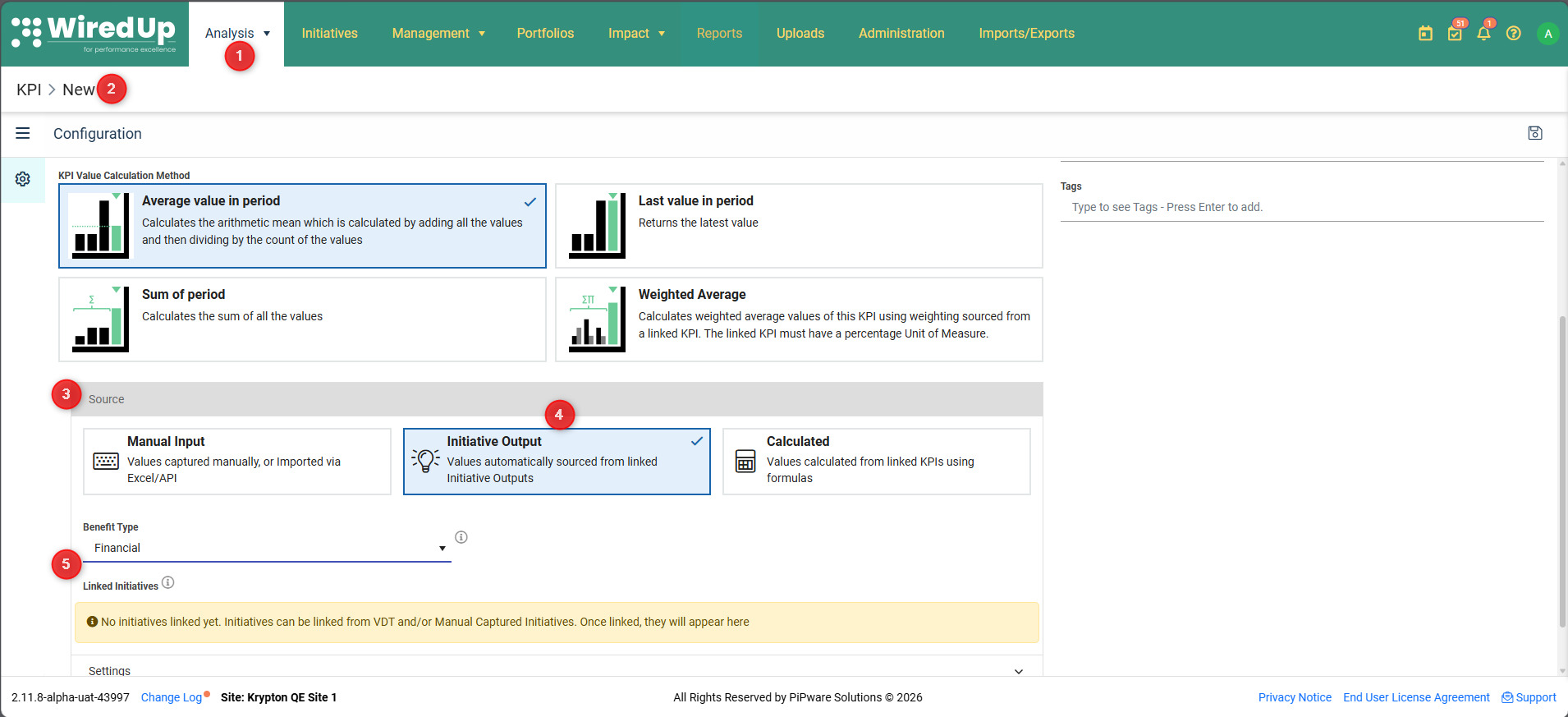
- Navigate to Analysis → KPI
- Click on the KPI you want to configure (or create a new KPI)
- Open the Source accordion at the top of the Configuration page
- Select the Initiative Output tile from the three available source type options
- The Source accordion expands to display two configuration fields:
- Benefit Type dropdown — determines which type of Initiative benefits can contribute to this KPI
- Linked Initiatives table — displays all Initiatives currently contributing values to this KPI
Selecting the Benefit Type
The Benefit Type is a critical configuration that determines which Initiative sources can contribute values to this KPI. Think of it as a filter that ensures only compatible benefit types are aggregated together.
Available Benefit Types:
- Financial Benefit — for monetary impacts such as revenue, cost savings, or profit
- All configured Non-Financial Benefit types — such as Emissions (environmental impact), Gold (quality metrics), Safety (incident reduction), or any custom benefit types configured in your system
Important Constraint: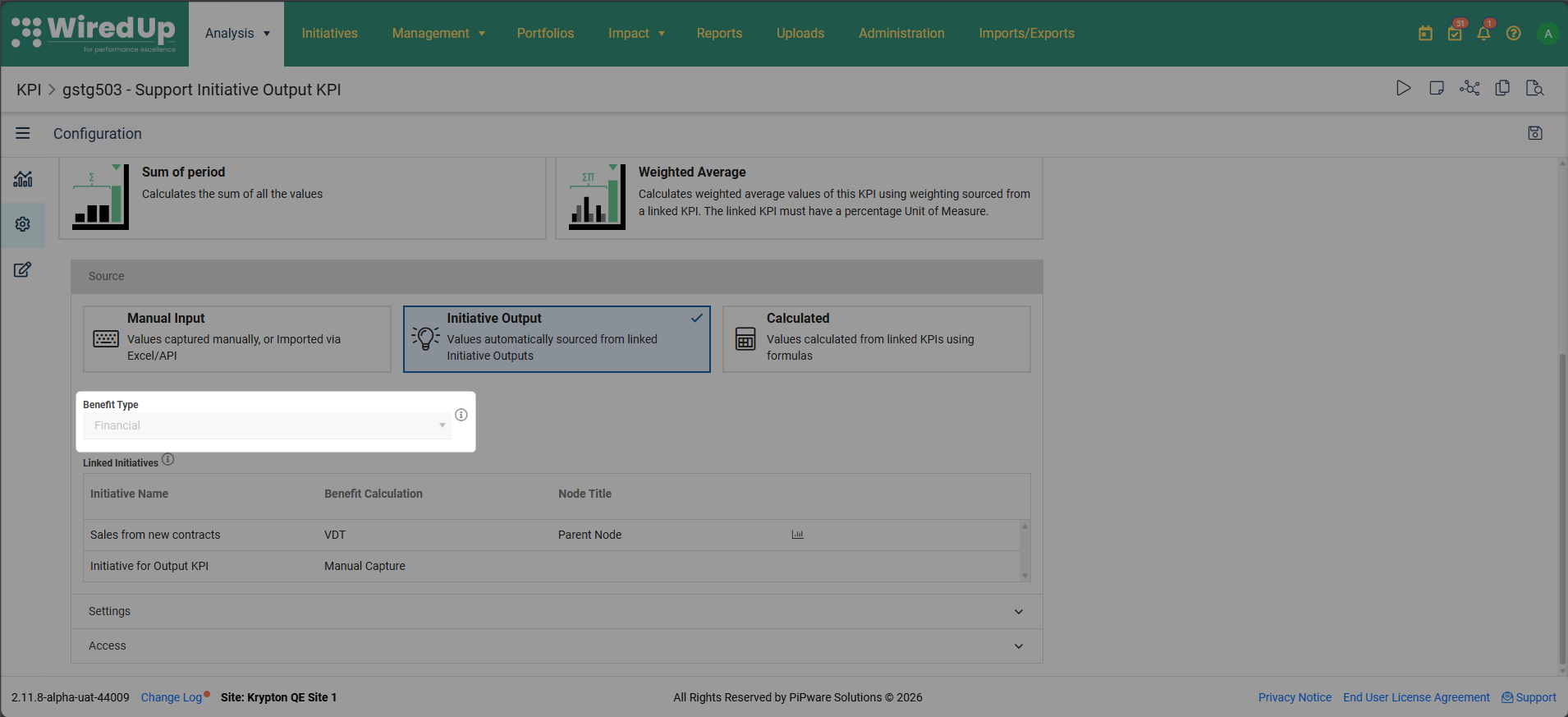
The Benefit Type dropdown becomes disabled and locked once any Initiatives are linked to the KPI. This prevents accidental changes that could corrupt your aggregated data. To change the Benefit Type, you must first unlink all Initiatives from the Initiative side, then return to the KPI Configuration page to modify the Benefit Type.
When you click the information icon next to the Benefit Type dropdown, a tooltip is displayed with the following information: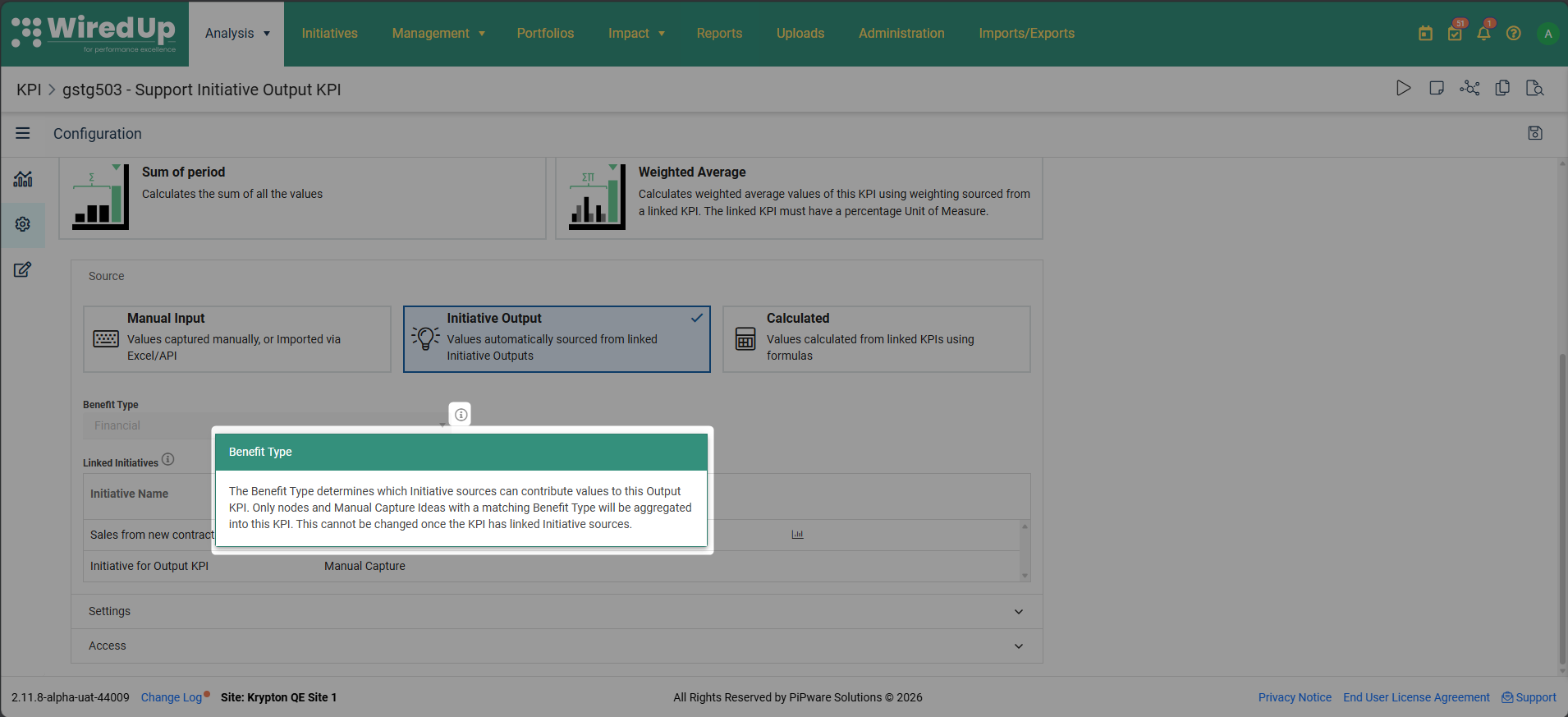
- Header: Benefit Type
- Content: The Benefit Type determines which Initiative sources can contribute values to this Output KPI. Only nodes and Manual Capture Ideas with a matching Benefit Type will be aggregated into this KPI. This cannot be changed once the KPI has linked Initiative sources.
Viewing Linked Initiatives
The Linked Initiatives table provides a real-time view of all Initiatives that are currently contributing benefit values to this Output KPI. This table is automatically maintained by the system and updates whenever Initiatives are linked or unlinked from the Initiative side.
Table Columns:
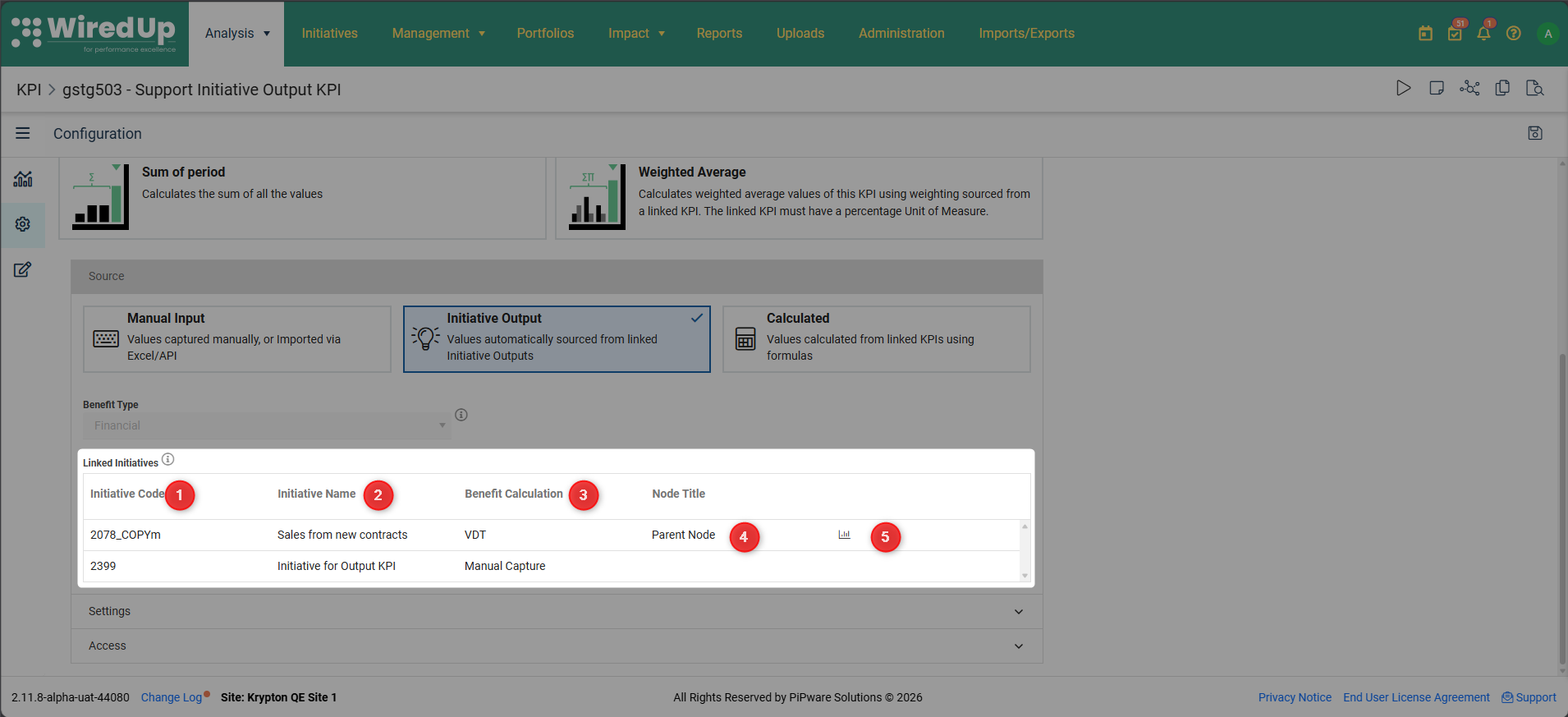
- Initiative Code — The code of the linked initiative, allowing you to identify which initiatives are contributing to this KPI
- Initiative Name — The full name of the linked Initiative, allowing you to identify which Initiatives are contributing to this KPI
- Benefit Calculation — Shows either "VDT" (for Value Driver Tree-based calculations) or "Manual Capture" (for manually entered benefit values), helping you understand the source of each contribution
- Node Title — (For VDT only) Displays the title of the specific parent node that is linked to this KPI, useful when an Initiative has multiple parent nodes
- Chart Icon — (For VDT only) Click this icon to open the parent node chart, allowing you to visualize the benefit calculation structure
When you click the information icon next to the Linked Initiatives table header, a tooltip is displayed with the following information:
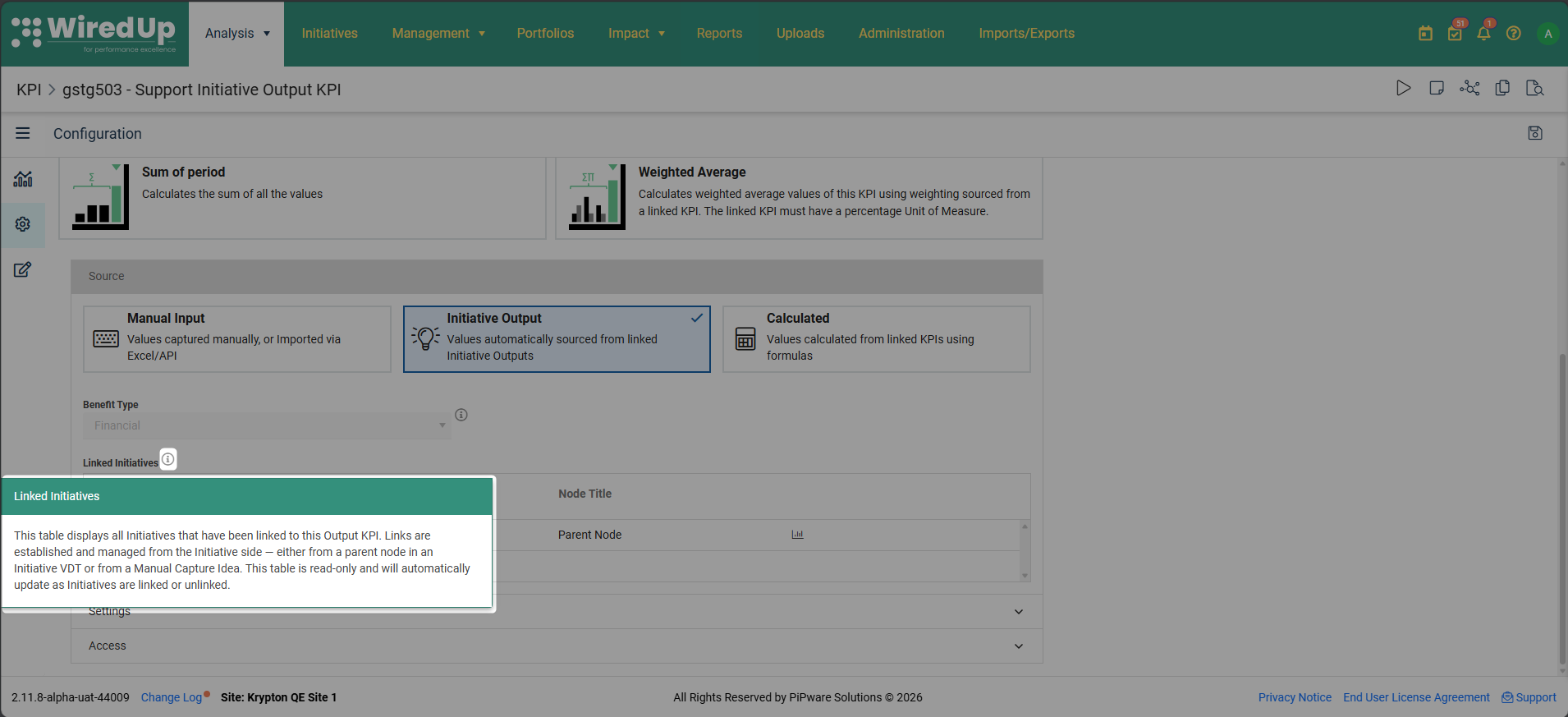
- Header: Linked Initiatives
- Content: This table displays all Initiatives that have been linked to this Output KPI. Links are established and managed from the Initiative side — either from a parent node in an Initiative VDT or from a Manual Capture Idea. This table is read-only and will automatically update as Initiatives are linked or unlinked.
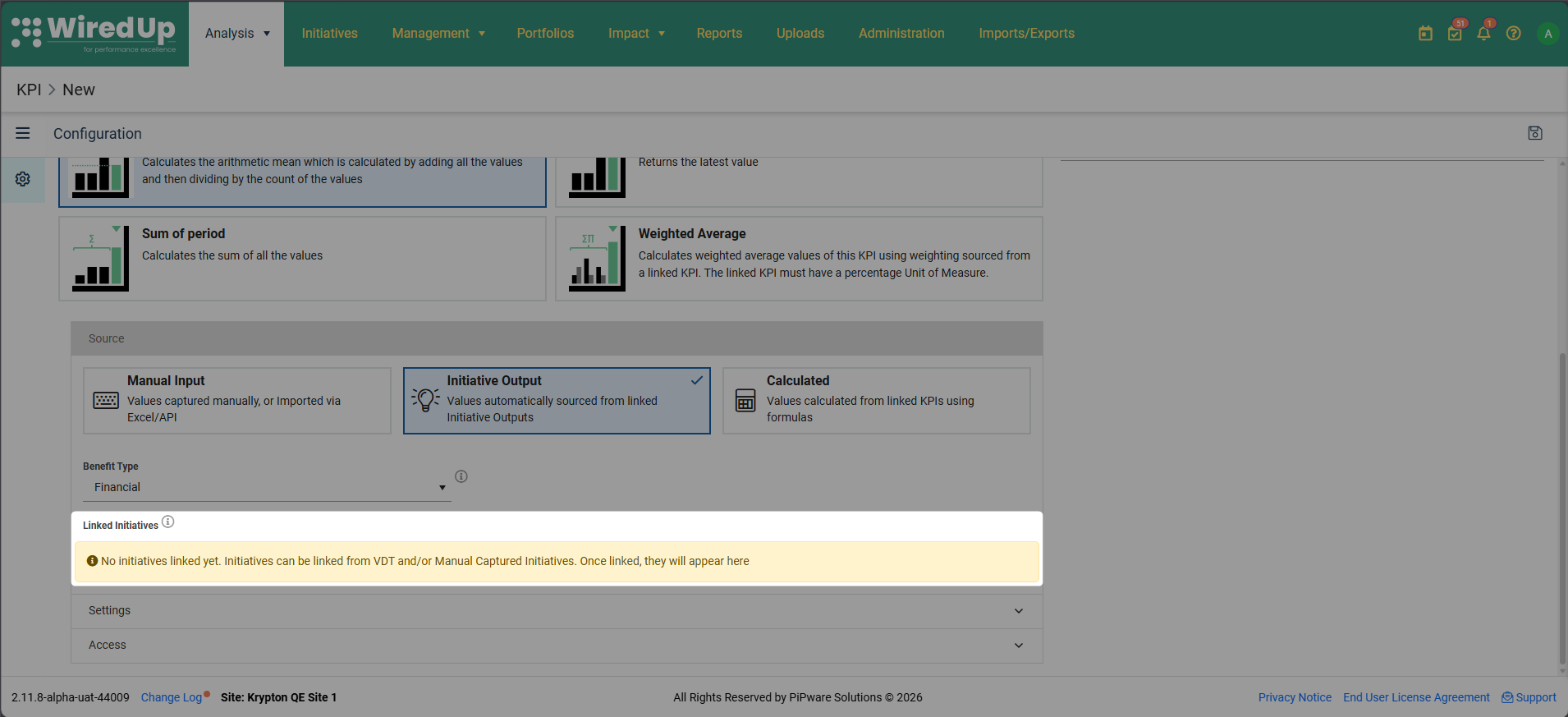
Empty State: When no Initiatives are linked, the table is replaced with a helpful message: "No initiatives linked yet. Initiatives can be linked from VDT and/or Manual Captured Initiatives. Once linked, they will appear here."
Note: The Linked Initiatives table is read-only from the KPI Configuration page. You cannot add, edit, or delete links directly from this view. All linking operations must be performed from the Initiative side — either from the Initiative VDT parent node configuration or from the Manual Capture Idea Overview page. This design ensures that Initiative owners maintain control over which KPIs receive their benefit values.Linking Initiatives to an Output KPI
From an Initiative VDT (Parent Node)
When working with VDT-based Initiatives, you can link a parent or root node's calculated benefit values directly to an Initiative Output KPI. This creates an automated data flow where the node's benefit calculations are automatically aggregated into the KPI.
To link a parent node in an Initiative VDT to an Initiative Output KPI:
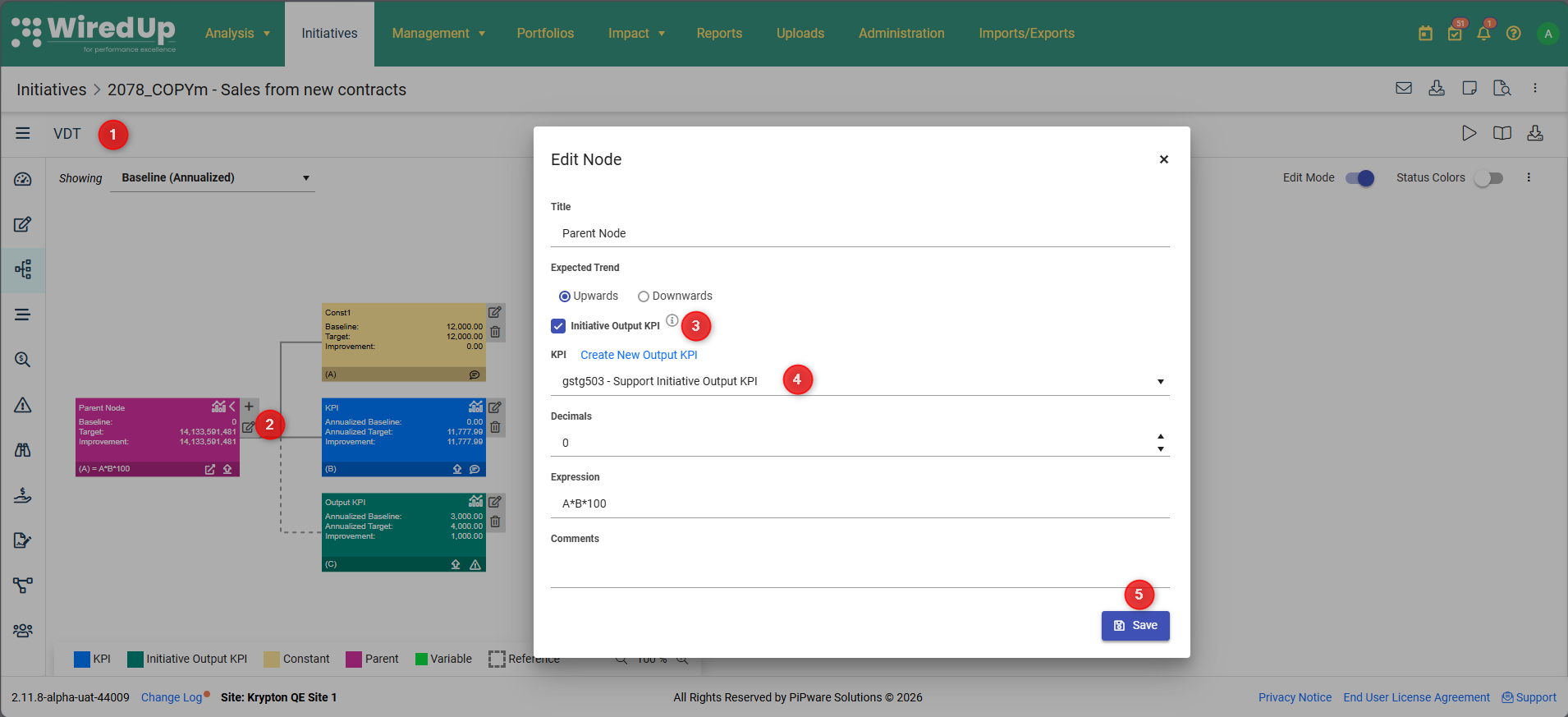
- Navigate to the Initiative and open its VDT
- Click the edit mode on the parent/root node you want to link — this should be the node whose benefit calculation you want to contribute to the Output KPI
- In the node configuration dialog, locate and check the "Initiative Output KPI" checkbox
- The Initiative Benefit Output KPI dropdown appears below the checkbox. Select the target KPI from the dropdown
- Click Save to establish the link
The dropdown intelligently filters to show only Initiative Output KPIs whose Benefit Type matches this node's Benefit Type (e.g., a Financial node will only see Financial Initiative Output KPIs)Each node can be linked to only one Initiative Output KPI at a time.Once linked:
- An Initiative Output KPI icon appears on the node in the VDT canvas, providing a visual indicator that this node is contributing to an Output KPI. Hover over the icon to see the full KPI code and name in a tooltip (e.g., "KPI_001 – Revenue Growth and Customer Satisfaction")
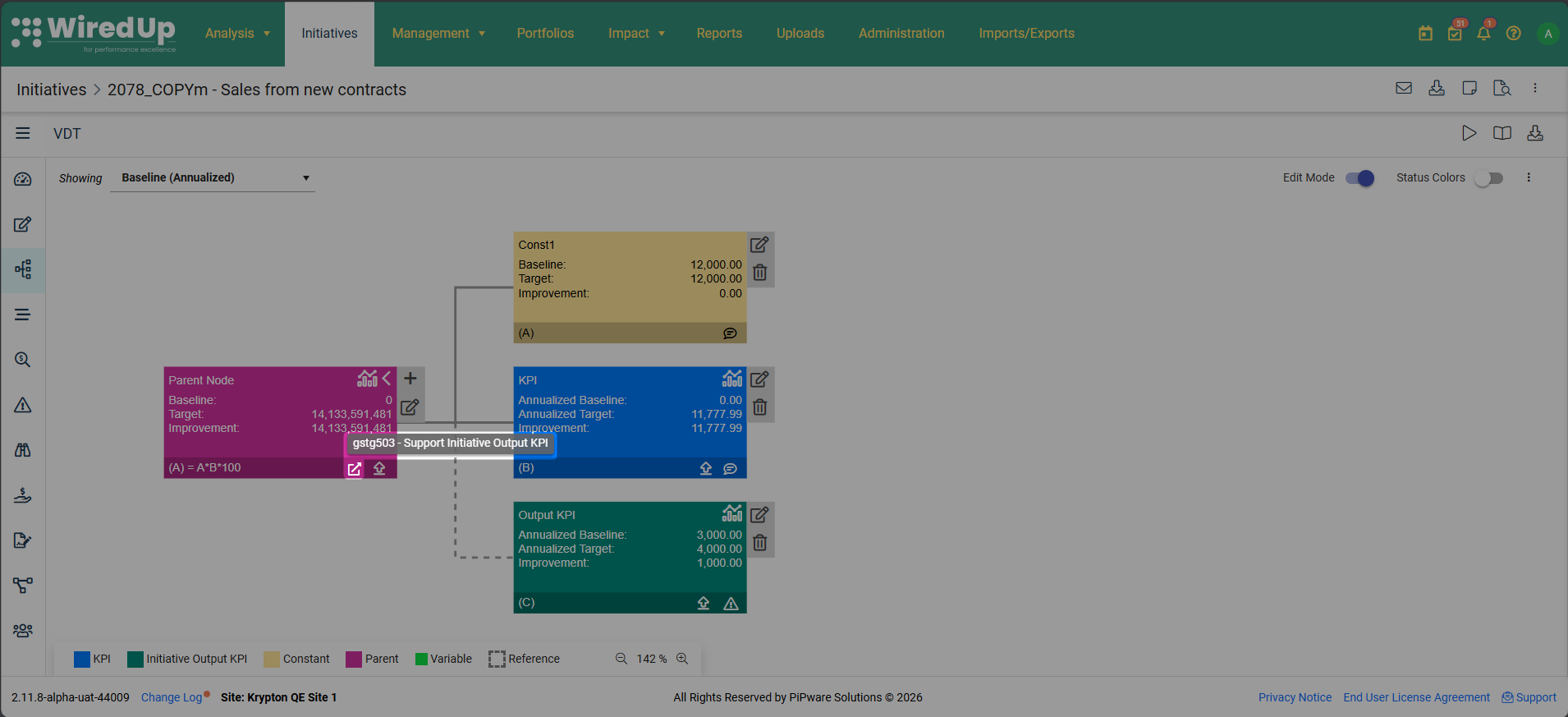
- The node's benefit values will now be automatically collected by the background calculation job and aggregated into the linked KPI
When you click the information icon next to the Initiative Benefit Output KPI dropdown field, a tooltip is displayed with the following information:
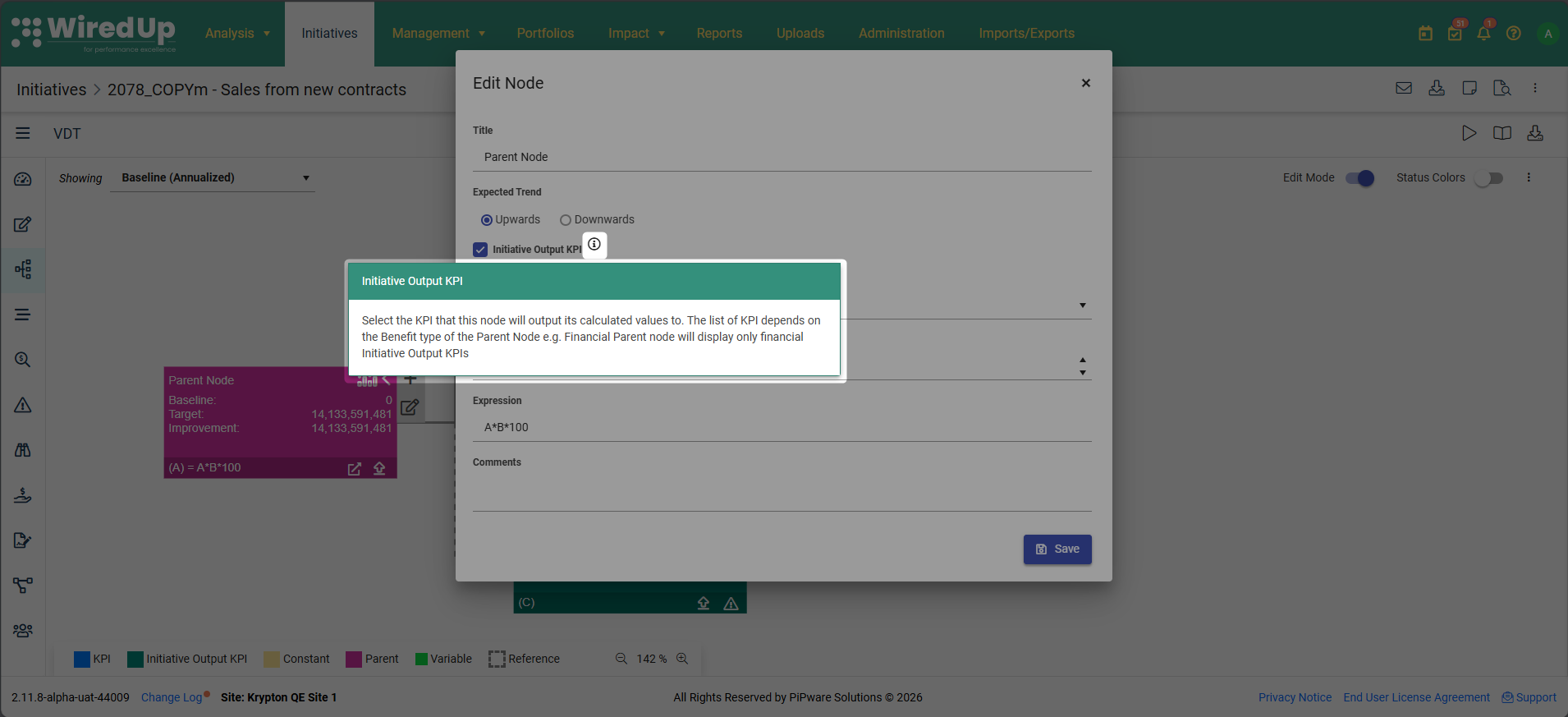
- Header: Initiative Benefit Output KPI
- Content: Select the KPI that this node will output its calculated values to. The list of KPI depends on the Benefit type of the Parent Node e.g. Financial Parent node will display only financial Initiative Output KPIs.
From a Manual Capture Idea
For Initiatives that use Manual Capture instead of VDTs, you can link the Idea's benefit values directly to an Initiative Output KPI from the Idea Overview page. This allows manually-entered benefit values to contribute to portfolio-level KPIs.
To link a Manual Capture Idea to an Initiative Output KPI:
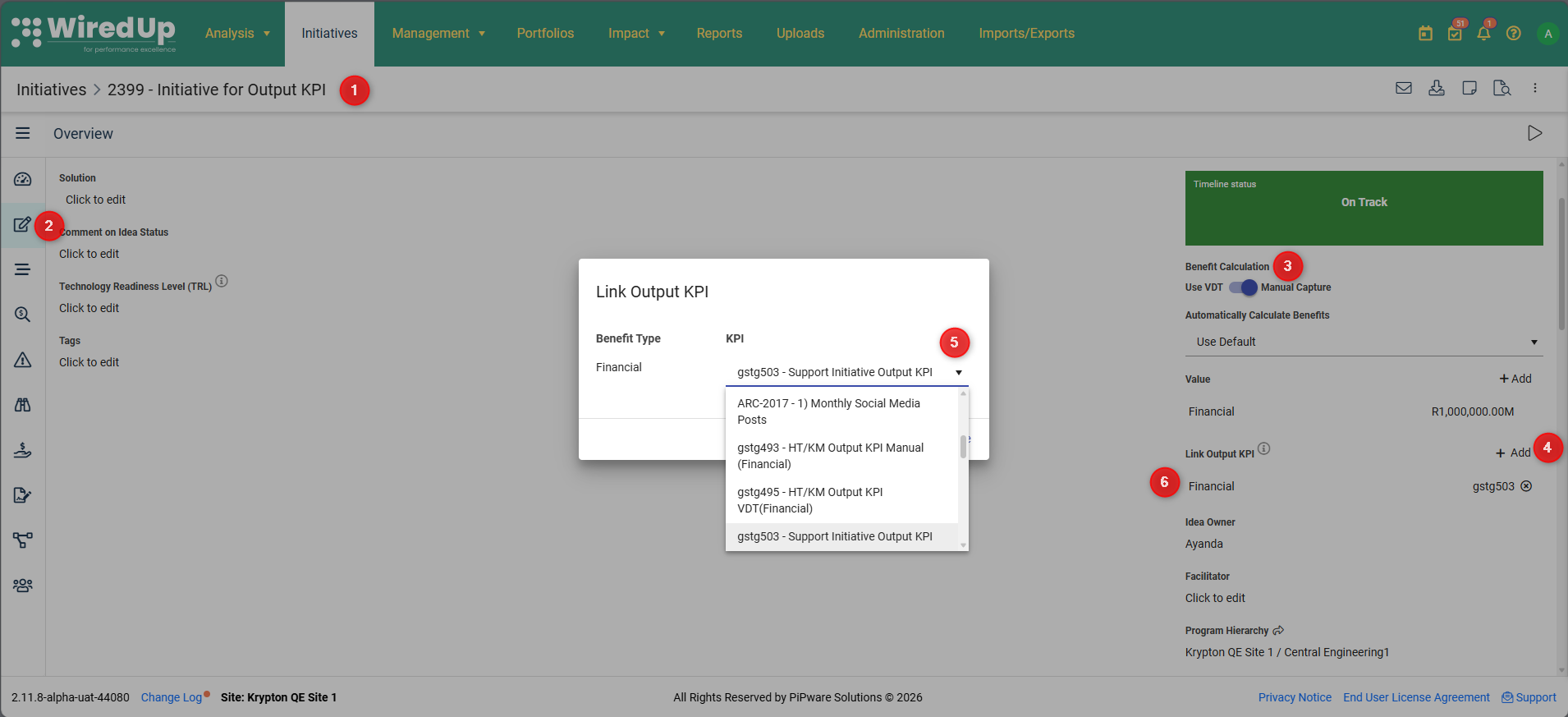
- Navigate to the Initiative (Manual Capture Idea)
- Open the Idea Overview page
- Locate the Benefit Calculation area, which displays all configured benefit types for this Idea
- Click the "+Add" icon next to the Link Output KPI title to link the initiative to the Initiative Output KPI.
- The Link Output KPI screen will be displayed. Under the KPI column, Select the target KPI from the dropdown list of Initiative Output KP. This list is automatically filtered to show only KPIs whose Benefit Type matches the selected benefit.
- After the selection, a row appears immediately below the Link Output KPI heading, confirming the link has been established
To remove a linked Initiative Output KPI: 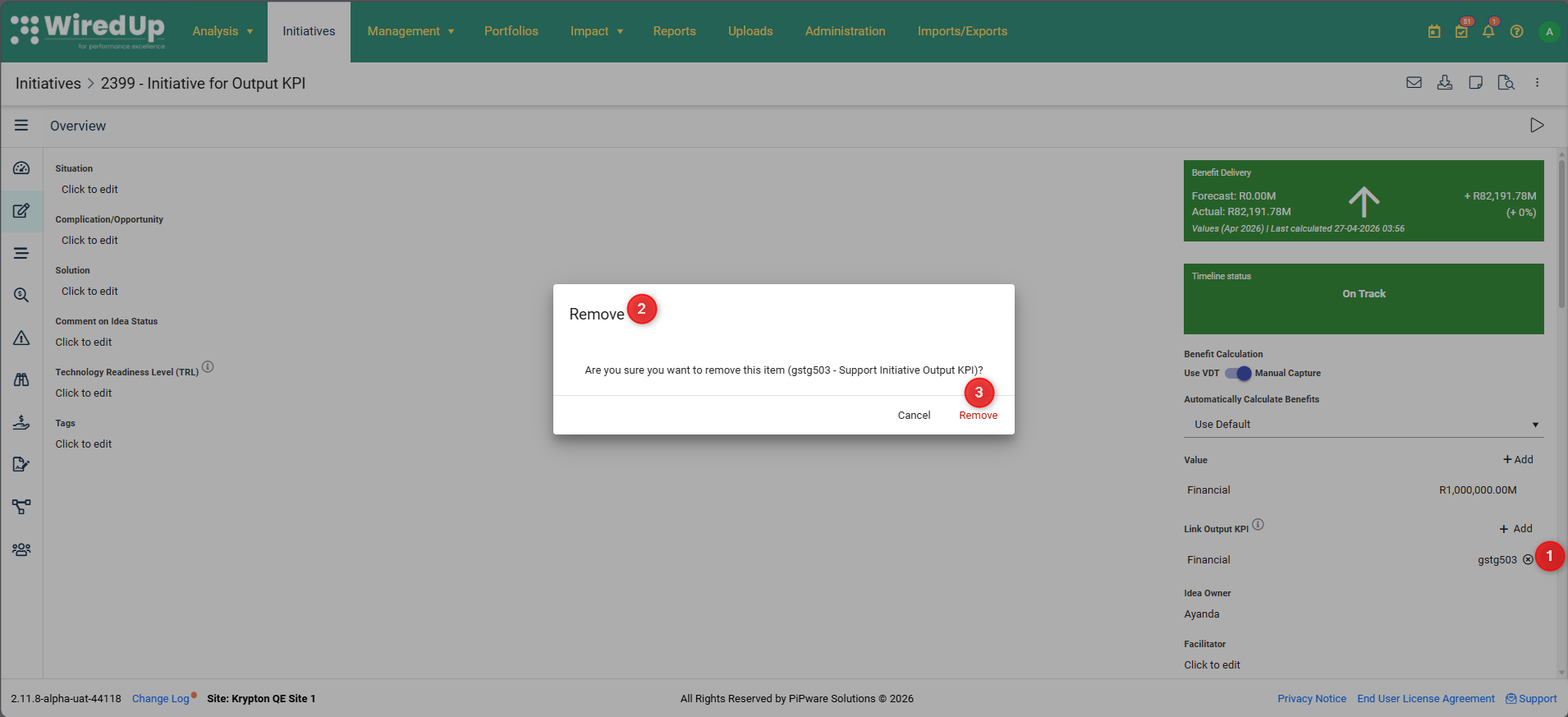
- Click the remove icon (X) next to the linked KPI
- A confirmation modal appears to prevent accidental deletion:
- Click Remove to confirm and break the link between the Manual Capture Idea and the Output KPI
Once unlinked, the background calculation job will automatically subtract this Idea's contribution from the Output KPI values during its next run.
How Initiative Output KPIs Work
Value Mapping Rules
Initiative Output KPIs automatically collect benefit values from linked Initiatives and map them to the appropriate KPI value fields. The mapping rules differ depending on whether the Initiative uses a VDT or Manual Capture for benefit calculation.
VDT-Based Ideas (Parent/Root Nodes):
When a parent or root node in an Initiative VDT is linked to an Output KPI, the system reads the benefit values from the VDT's Benefit View and maps them to the corresponding KPI value fields:
- KPI Actual Value → sourced from the Actual Benefit value calculated by the parent/root node in the VDT Benefit View. This represents the realized benefit that has actually been achieved by the Initiative.
- KPI Baseline Value → sourced from the Baseline Benefit value calculated by the parent/root node in the VDT Baseline View. This represents the starting point or reference value before the Initiative's impact.
- KPI Target Value → sourced from the Target Benefit value calculated by the parent/root node in the VDT Variance View. This represents the planned or expected benefit that the Initiative aims to achieve.
- KPI Actual Forecast Value → Not included in the current scope. This field remains hidden for Initiative Output KPIs.
- KPI Custom Targets → Not included in the current scope. These fields remain hidden for Initiative Output KPIs
Manual Capture Ideas:
For Initiatives that use Manual Capture instead of VDTs, benefit values are entered directly on the Idea Overview page. These values are mapped to KPI fields as follows:
- KPI Actual Value → sourced from the Ongoing Benefit value entered on the Idea Overview page. This represents the current, realized benefit that the Initiative is delivering.
- KPI Target Value → sourced from the Forecast Benefit value entered on the Idea Forecast page. This represents the expected future benefit that the Initiative is projected to deliver.
- KPI Baseline Value → Not populated. Manual Capture Ideas do not have a Baseline concept, so this field remains empty and does not contribute to the aggregated Baseline value in the Output KPI.
This mapping ensures that Manual Capture Ideas can contribute meaningful benefit data to Output KPIs even though they don't use the structured VDT calculation approach.
Aggregation Logic
The true power of Initiative Output KPIs lies in their ability to aggregate benefit values from multiple Initiatives across your portfolio. The background calculation job collects values from all linked sources and sums them by date/period, giving you a consolidated view of total impact.
How Aggregation Works:
For each date/period in the KPI's reporting timeline, the system performs the following aggregation:
- All Actual values from all linked sources (both VDT parent nodes and Manual Capture Ideas) are summed together to produce the KPI Actual Value for that period. This gives you the total realized benefit across all contributing Initiatives.
- All Baseline values from all linked VDT parent nodes are summed together to produce the KPI Baseline Value for that period. Note that Manual Capture Ideas do not contribute to Baseline, so only VDT-based Initiatives affect this value.
- All Target values from all linked sources (both VDT parent nodes and Manual Capture Ideas) are summed together to produce the KPI Target Value for that period. This gives you the total planned benefit across all contributing Initiatives.
Practical Example (Financial Initiative Output KPI):
Imagine you have a Financial Initiative Output KPI called "Total Cost Savings" that aggregates savings from multiple cost reduction Initiatives. For the period January 2026:
- Initiative 0001 Node A (Financial VDT): Actual = $100,000, Baseline = $80,000, Target = $120,000
- Initiative 0001 Node B (Financial VDT): Actual = $50,000, Baseline = $40,000, Target = $60,000
- Initiative 0002 Node C (Manual Capture): Actual = $200,000, Baseline = N/A, Target = $250,000
The background calculation job aggregates these values:
- Total Cost Savings KPI for January 2026: Actual = $350,000, Baseline = $80,000, Target = $430,000
This aggregated view immediately tells you that your portfolio of cost reduction Initiatives has achieved $350,000 in actual savings against a target of $430,000, starting from a baseline of $270,000.
Benefit Type Scoping:
- Aggregation is strictly scoped by Benefit Type to ensure data integrity. An Initiative Output KPI only receives and aggregates values from sources whose Benefit Type exactly matches its own configured Benefit Type. This prevents mixing incompatible metrics (e.g., financial savings with emissions reductions).
- Cross-Benefit Type aggregation never occurs under any circumstance. This scoping is enforced both at the UI level (through filtered dropdowns) and at the calculation job level (through Benefit Type matching logic).
Background Calculation Job
The background calculation job is the engine that powers Initiative Output KPIs. It runs automatically to collect, aggregate, and store benefit values from all linked Initiatives, ensuring your Output KPIs always reflect the latest Initiative data.
Job Triggers:
The calculation job runs in two modes to balance efficiency with real-time accuracy:
- Scheduled Mode: The job runs automatically on a daily schedule, processing all Initiative Output KPIs in the system. This ensures that even if no specific events occur, your KPIs are refreshed at least once per day.
- Event-Based Mode: The job is immediately triggered for specific affected KPIs when any of the following events occur:
- A parent/root node is linked to an Initiative Output KPI — the job runs to add the node's contribution to the KPI
- A parent/root node is unlinked from an Initiative Output KPI — the job runs to subtract the node's contribution from the KPI
- A Manual Capture Idea is linked to an Initiative Output KPI — the job runs to add the Idea's contribution to the KPI
- A Manual Capture Idea is unlinked from an Initiative Output KPI — the job runs to subtract the Idea's contribution from the KPI
- An Initiative is deleted — the job runs to remove all contributions from that Initiative across all affected KPIs
- An Initiative benefit calculation is updated (values change) — the job runs to recalculate the affected KPI with the new values
Event-based triggers ensure that your Output KPIs stay up-to-date in near real-time, reflecting changes as they happen rather than waiting for the next scheduled run.
Viewing Initiative Output KPI Values
KPI Values Page
When you navigate to the Values page of an Initiative Output KPI, the interface clearly indicates that this KPI is automatically managed and cannot be manually edited. This read-only behavior protects the integrity of the aggregated data.
How values are sourced:
- Initiative benefits are calculated on a monthly basis — one value entry is automatically created per month for each linked Initiative:
- For example, 6 months of Initiative benefits will create 6 value rows on the Values page
- Each value row is recorded on the last day of the month (e.g., 31 January, 28 February, etc.)
- If multiple Initiatives are linked, their values for the same month are combined into a single total
Calculation Methods:
- Since Initiative benefits produce one value entry per month, the selected Calculation Method will always operate on a single value per period:
- Average value in period — returns the single monthly value as-is
- Last value in period — returns the single monthly value as-is
- Sum of period — returns the single monthly value as-is
- All three methods will produce the same result for Initiative Output KPIs — the monthly value itself
Settings:
- Target Frequency and Performance Period are only applicable when configured for Monthly, Quarterly, or Year to Date (YTD) intervals
- Daily and Weekly configurations are not applicable for Initiative Output KPIs as benefits are calculated on a monthly basis
All value entry fields are disabled:
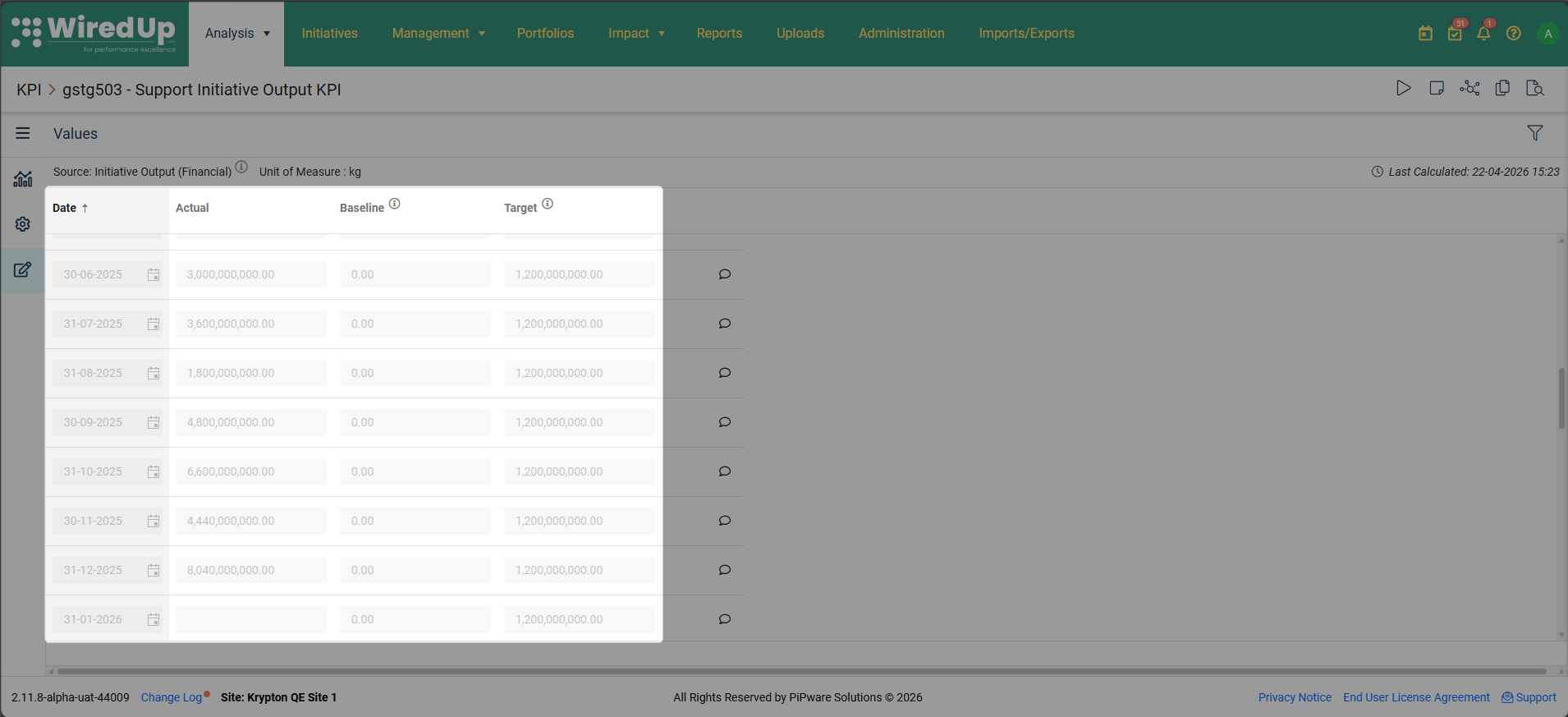
- The Actual, Baseline, Target, and Actual Forecast fields are displayed but are completely read-only
- You cannot click into these fields to enter or modify values
- No manual entry, Excel import, or API updates are permitted — the system will reject any attempts to manually modify values
- The disabled state is visually indicated through greyed-out fields and disabled input controls
Displayed Labels:
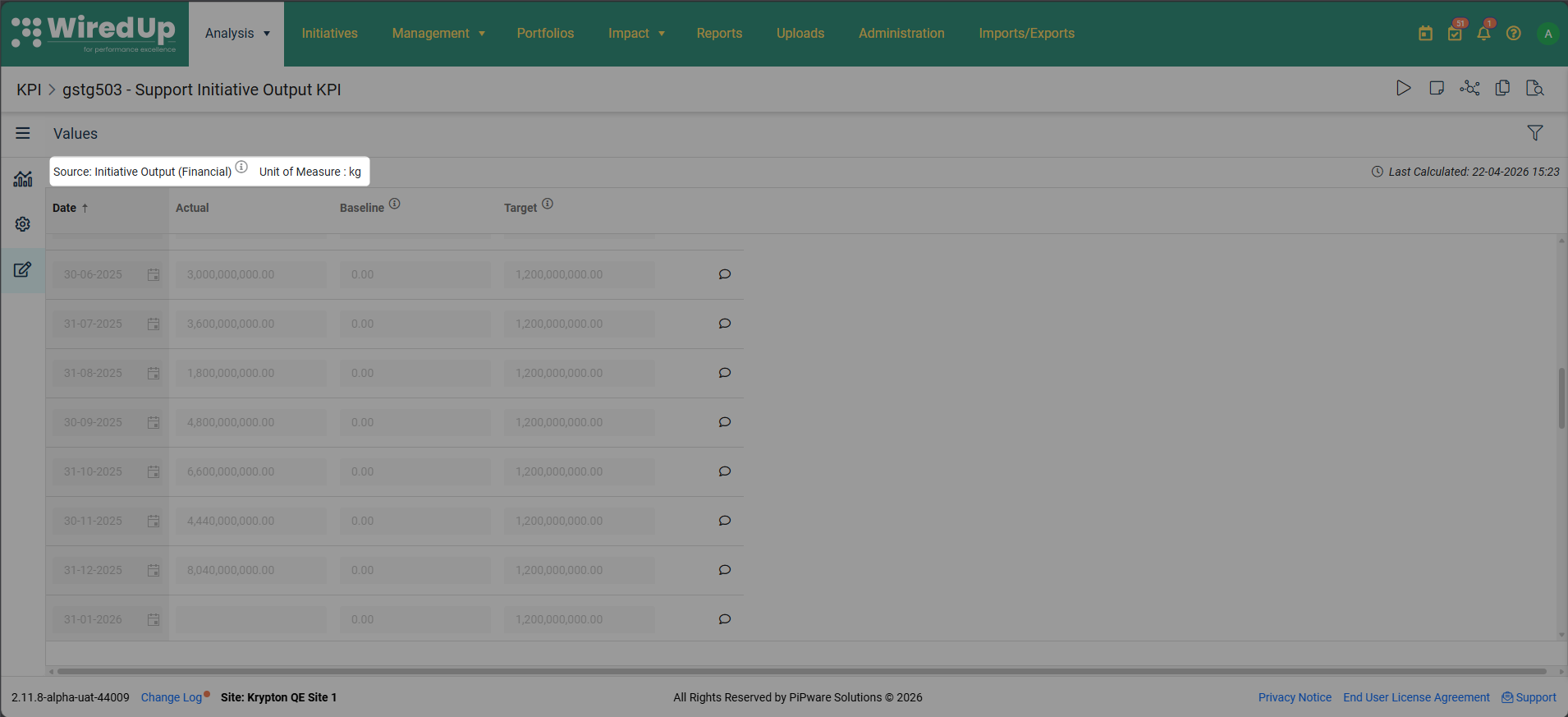
- Source: Initiative Output — Shows the configured Benefit Type (e.g., "Financial Benefit", "Emissions", "Gold") so you can immediately see what type of benefits are being aggregated into this KPI
- Unit of Measure — Shows the KPI's unit of measure (e.g., "$", "tonnes CO2e", "incidents") to provide context for the aggregated values
When you hover over the information icon next to the Initiative Output Benefit Type and Unit of Measure labels, a tooltip is displayed with the following information: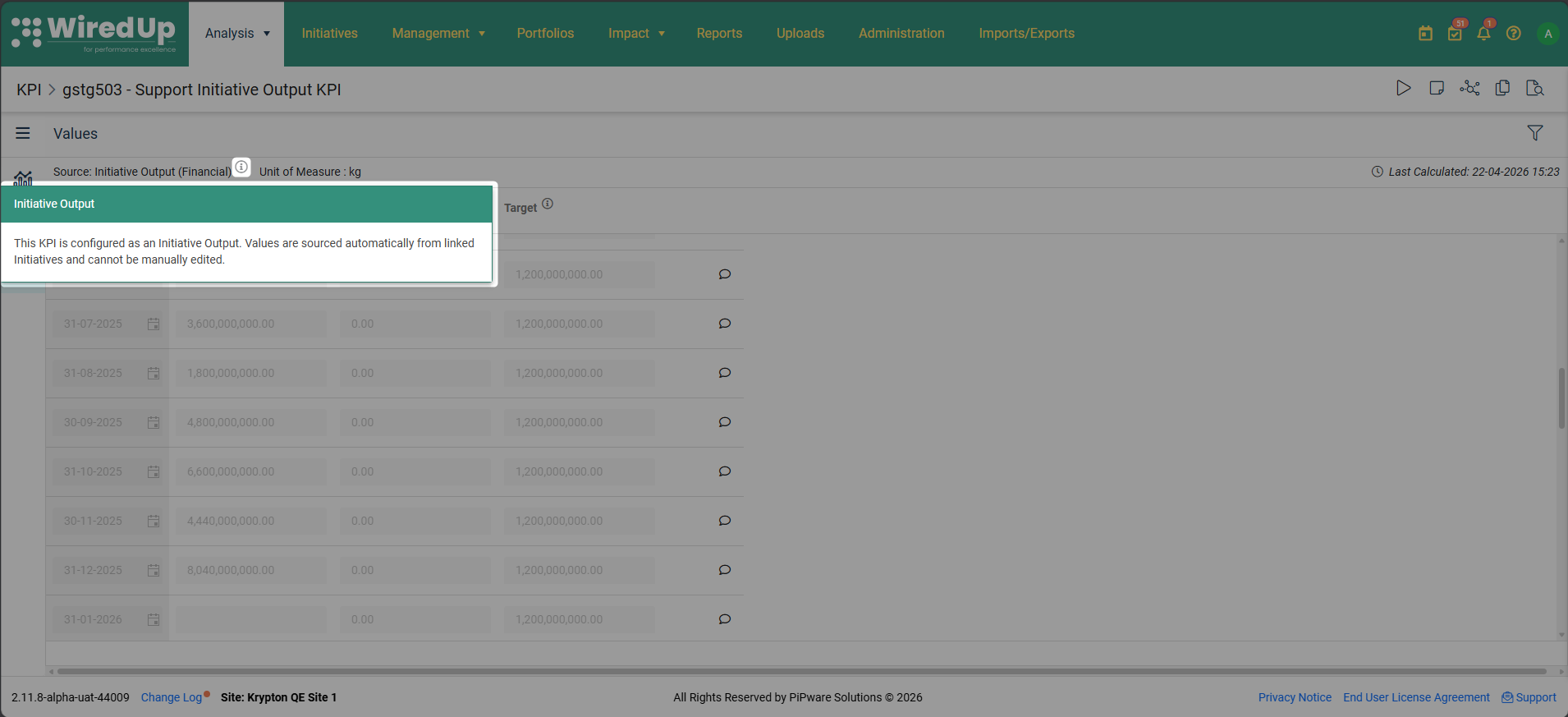
- Header: Initiative Output
- Content: This KPI is configured as an Initiative Output. Values are sourced automatically from linked Initiatives and cannot be manually edited.
Last Calculated Timestamp:
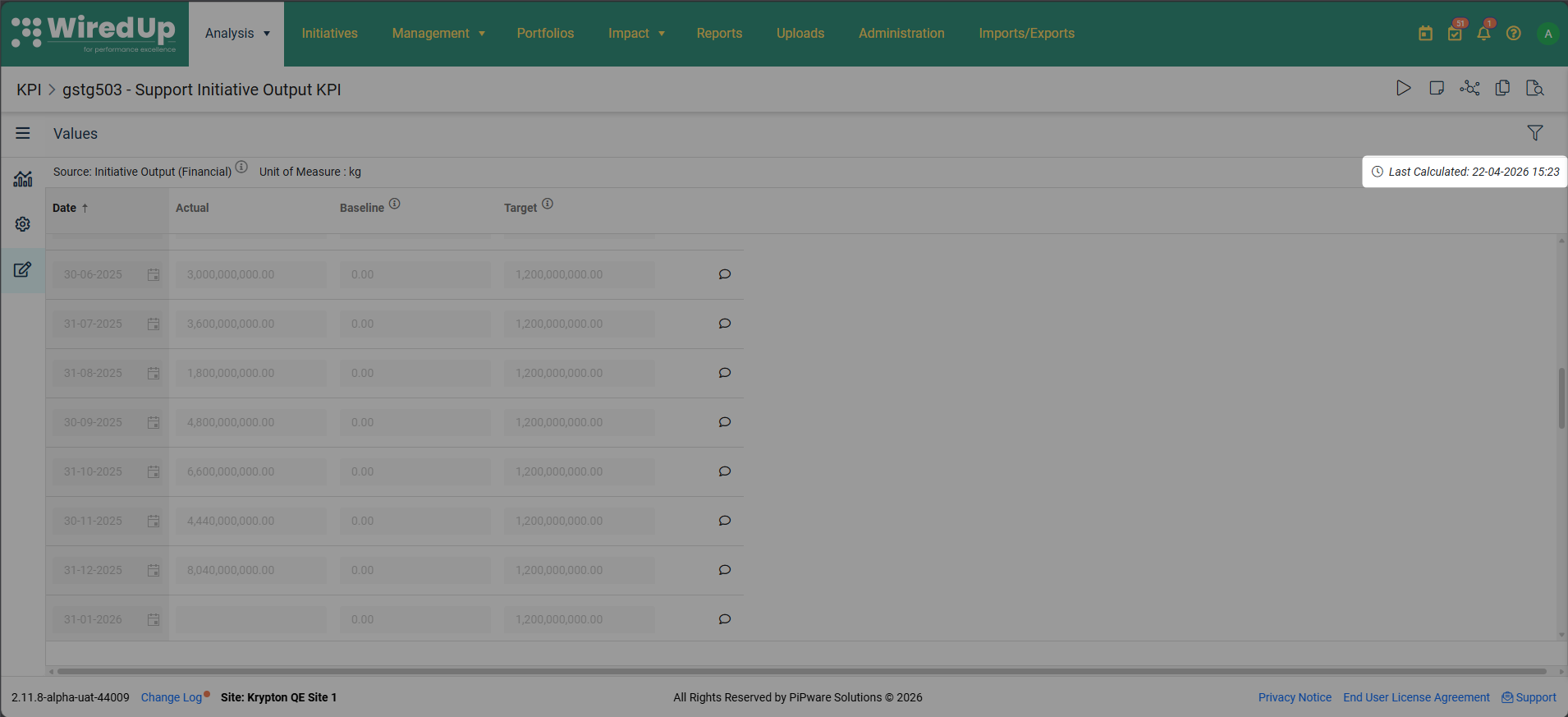
At the top of the Values page, a "Last Calculated: [Date] [Time]" label displays when the background calculation job last ran and updated the aggregated values for this KPI. This timestamp helps you understand how current the data is.
For example: "Last Calculated: 21 Apr 2026 09:15 AM" tells you that the values you're viewing reflect all linked Initiative data as of that specific date and time.
Initiative Output KPI in VDTs
Adding an Initiative Output KPI to an Idea VDT
Initiative Output KPIs can be added as nodes to Idea VDTs in exactly the same way as regular KPI nodes. This allows you to visualize portfolio-level aggregated metrics alongside Initiative-specific calculations within your Value Driver Tree.
To add an Initiative Output KPI node: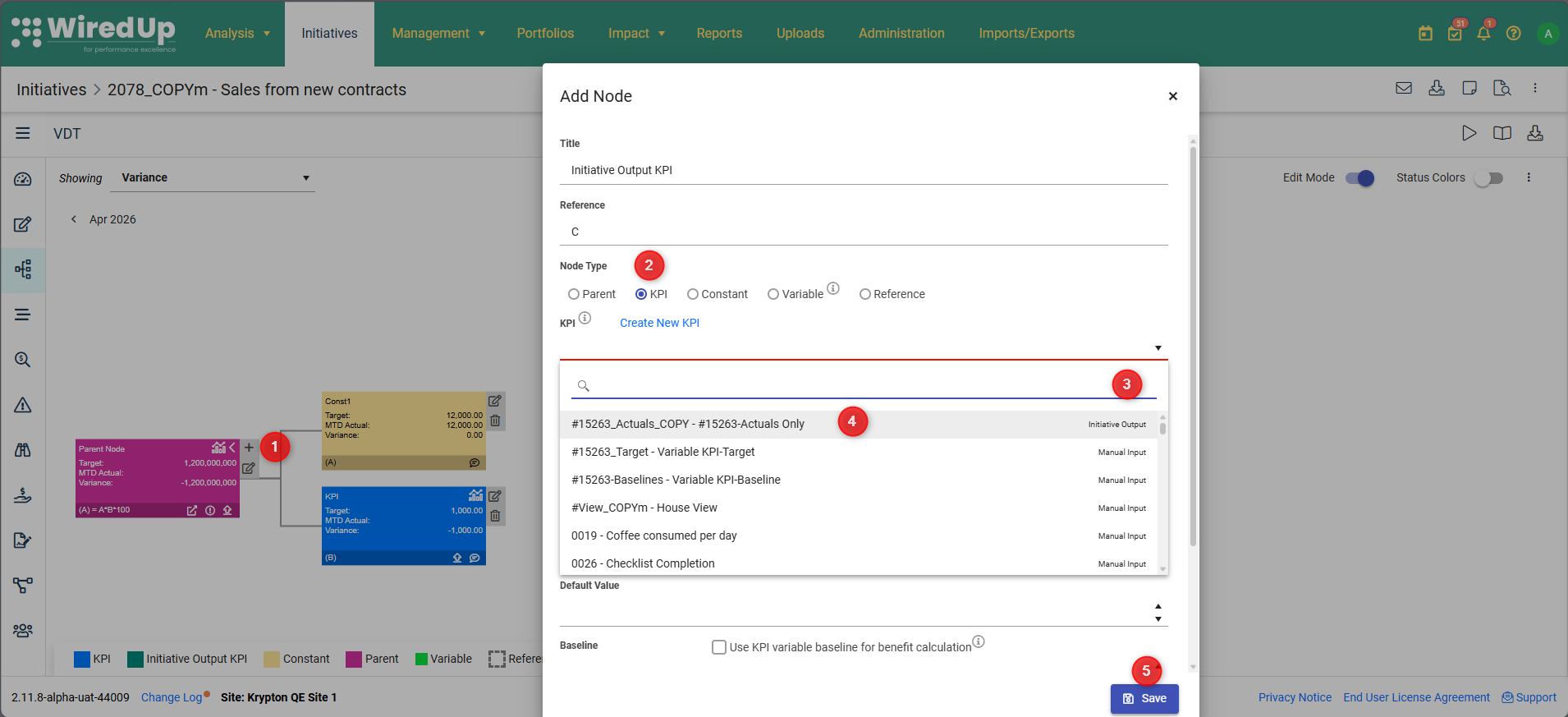
- Open an Idea VDT and click Add Node where you want to add the Initiative Output KPI.
- Select KPI or Variable as the node type
- In the KPI dropdown, all available KPIs are displayed with their source type labels:
- Initiative Output — indicating automated sourcing from Initiatives
- Calculated — indicating formula-based calculation
- Manual Input — indicating manual data entry
- Select the Initiative Output KPI you want to add from the dropdown.
- Click Save to add the node to your VDT
Node Display:
Once added to the VDT canvas, Initiative Output KPI nodes display with the following characteristics:
- The node structure is identical to regular KPI nodes, showing the KPI name, current values, and any configured thresholds or targets
- The node renders in the configured Initiative Output KPI colour (default: Teal #00897B) instead of the standard KPI node colour, providing immediate visual differentiation
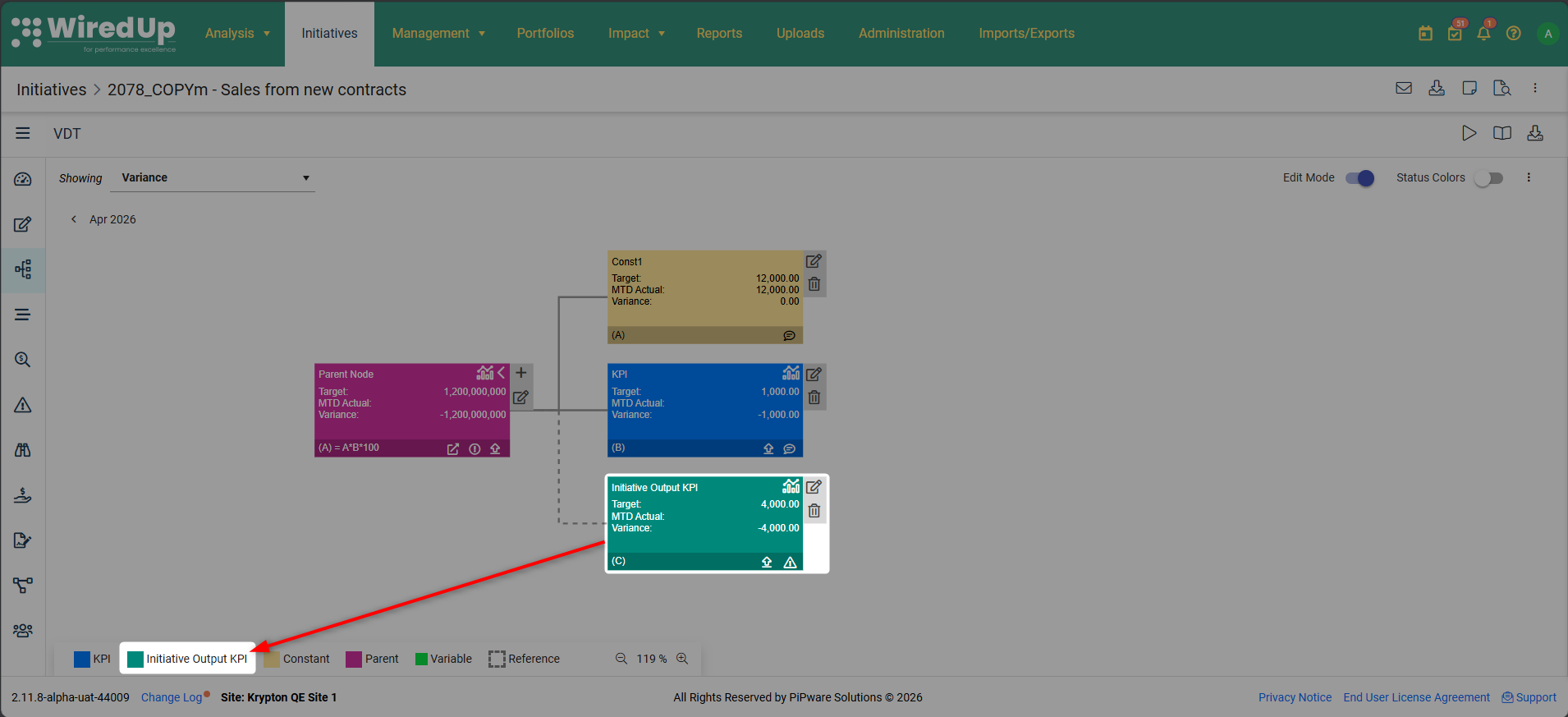
- The colour alone distinguishes the node type — no additional text label or badge is displayed on the canvas to keep the visual clean
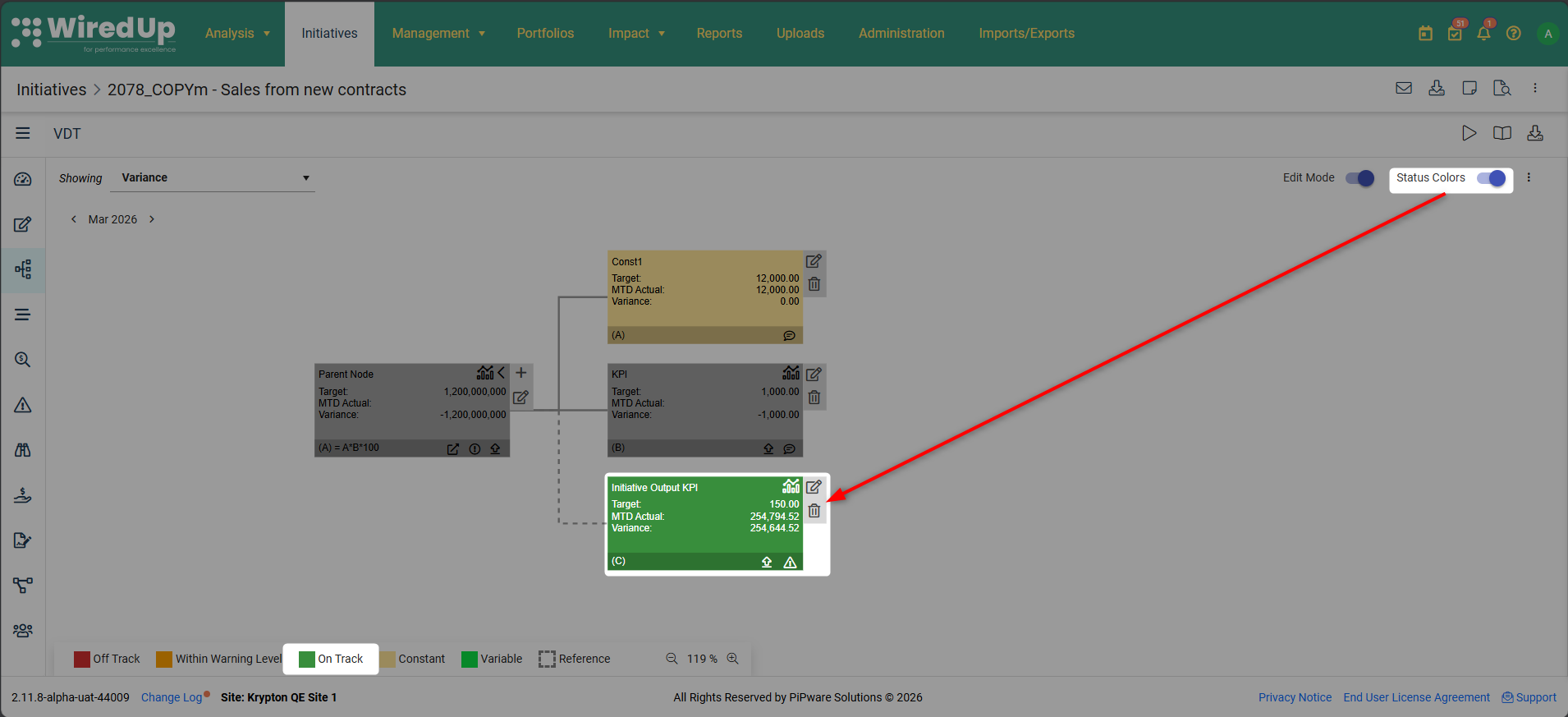
- When the Status Colors toggle is turned ON, the node renders in the standard red/amber/green status colour based on performance against targets, overriding the Initiative Output colour
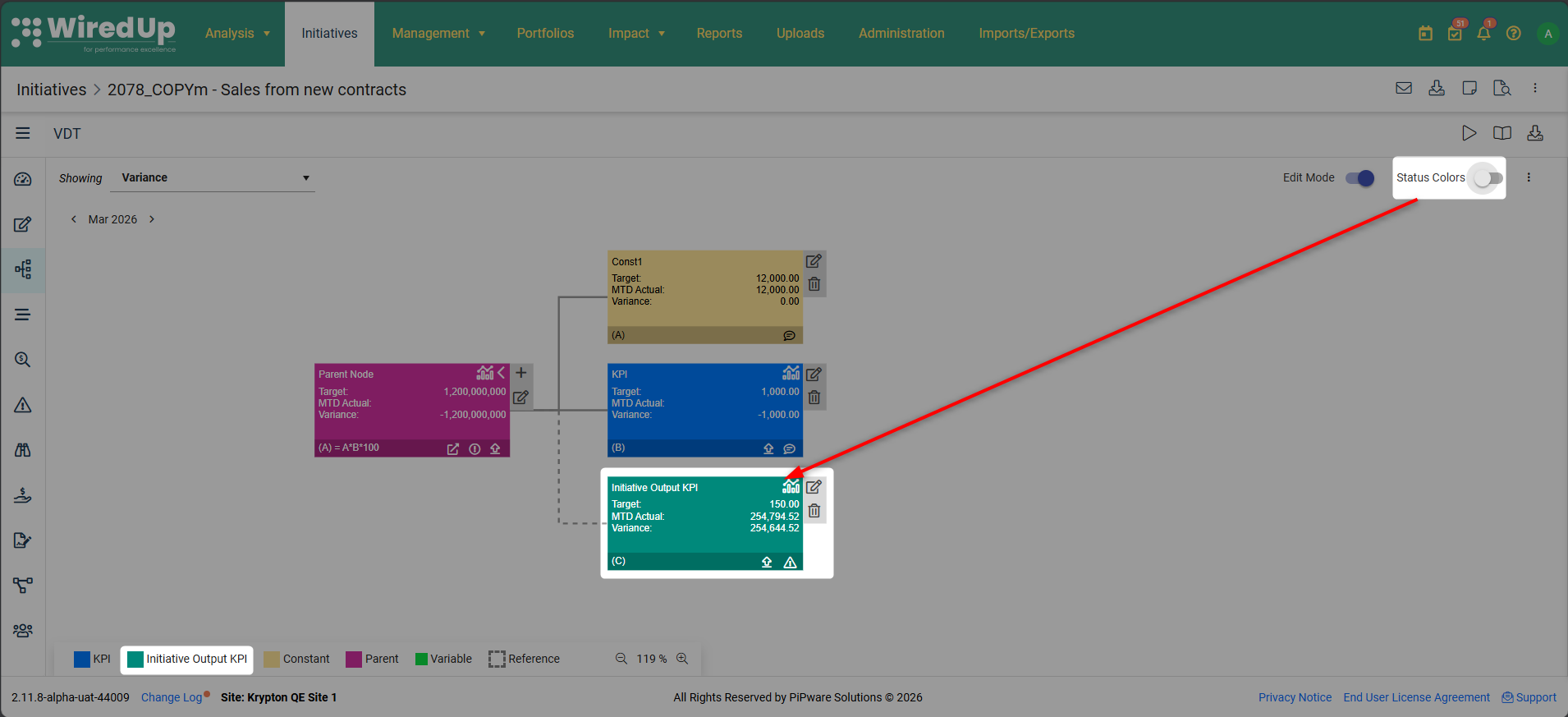
- When the Status Colors toggle is turned OFF, the node returns to rendering in the configured Initiative Output KPI colour
VDT Legend:
The VDT legend automatically updates to include an Initiative Output KPI entry when at least one Initiative Output KPI node is present in the tree. The legend entry displays:
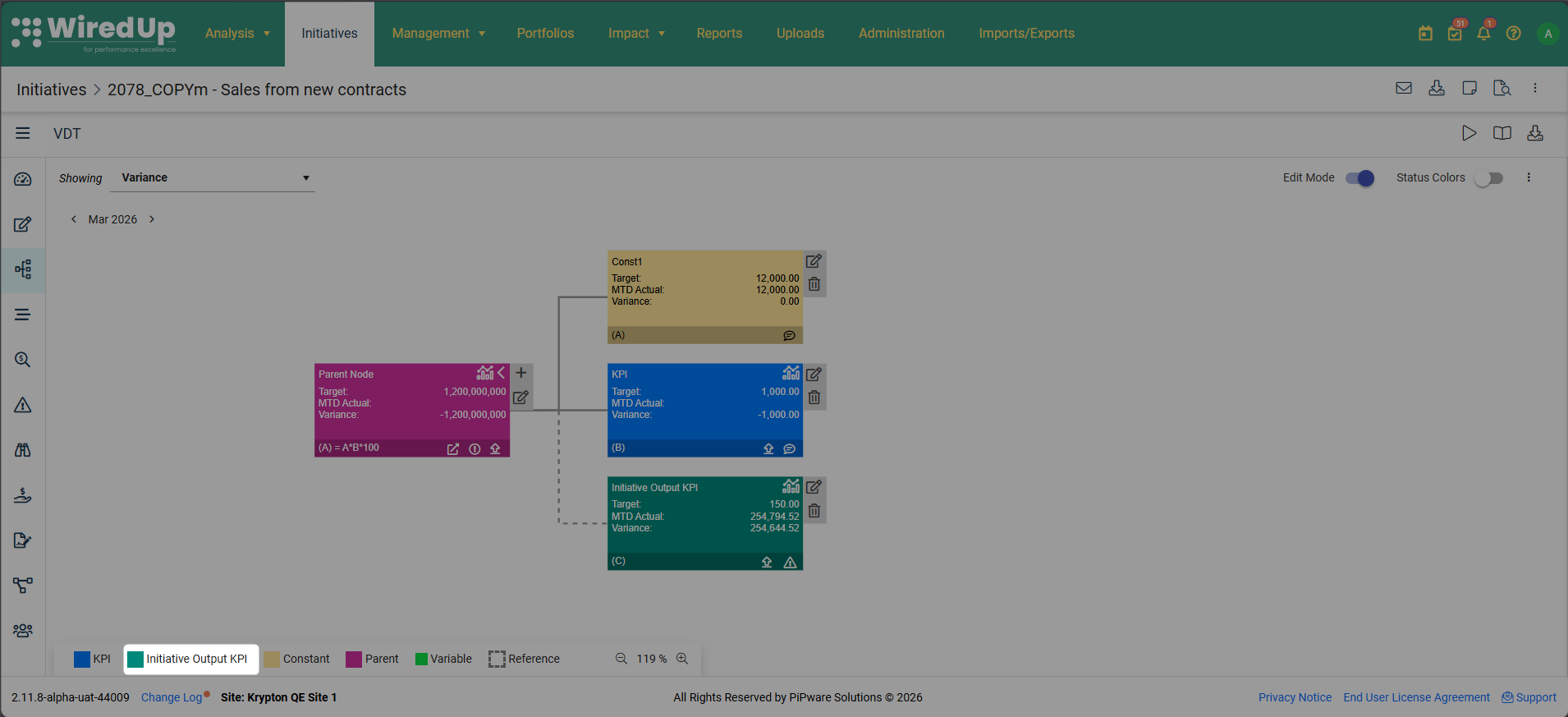
- A colour swatch showing the configured Initiative Output KPI node colour
- The label "Initiative Output KPI"
This legend entry helps users understand what the teal-coloured nodes represent when viewing the VDT.
Circular Reference Prevention:
The system automatically prevents circular references when adding Initiative Output KPIs to Idea VDTs. KPIs that would cause a direct or indirect circular reference are filtered out from the dropdown and cannot be selected.
For example:
- Direct circular reference: If Idea VDT "A" has a parent node outputting to KPI 1111, you cannot add KPI 1111 back to Idea VDT "A" as a node
- Indirect circular reference: If Idea VDT "A" outputs to KPI 1111, which is used in Idea VDT "B", which outputs to KPI 2222, you cannot add KPI 2222 back to Idea VDT "A"
This prevention ensures that your VDT calculations don't create infinite loops or dependency conflicts.
Adding an Initiative Output KPI to a Value Hound VDT
Initiative Output KPIs can also be added as nodes to Value Hound VDTs, allowing you to incorporate portfolio-level aggregated metrics into your Value Hound analysis and scenario modeling.
Node Behavior:
Initiative Output KPI nodes behave exactly like regular KPI nodes in Value Hound VDTs, with full participation in all Value Hound capabilities:
- Sensitivity Analysis — The Initiative Output KPI appears as a row in the sensitivity table and as a bar in the tornado chart, showing how changes to this KPI impact the overall outcome. This helps you understand the relative importance of the aggregated Initiative portfolio metric.
- Attribution Analysis — The Initiative Output KPI appears as a row in the attribution table and as a bar in the attribution chart. Its values contribute to the Outcome row totals, showing how much of the total outcome is attributable to the aggregated Initiative benefits.
- Variance Analysis — The Initiative Output KPI appears as a row in the variance table and as a bar in the variance chart. It participates in auto-run calculations when you change scenario assumptions, and its variance contributes to the Outcome row totals, helping you understand how Initiative portfolio performance affects overall variance.
Value Sourcing:
Values displayed in all three analysis pages are sourced from the Initiative benefit calculations according to the VDT Definition field configuration. For example:
- If the VDT Definition is set to "This Month", the analysis uses the current month's aggregated values from all linked Initiatives
- If the VDT Definition is set to "Last Month", the analysis uses the previous month's aggregated values
Visual Indicators:
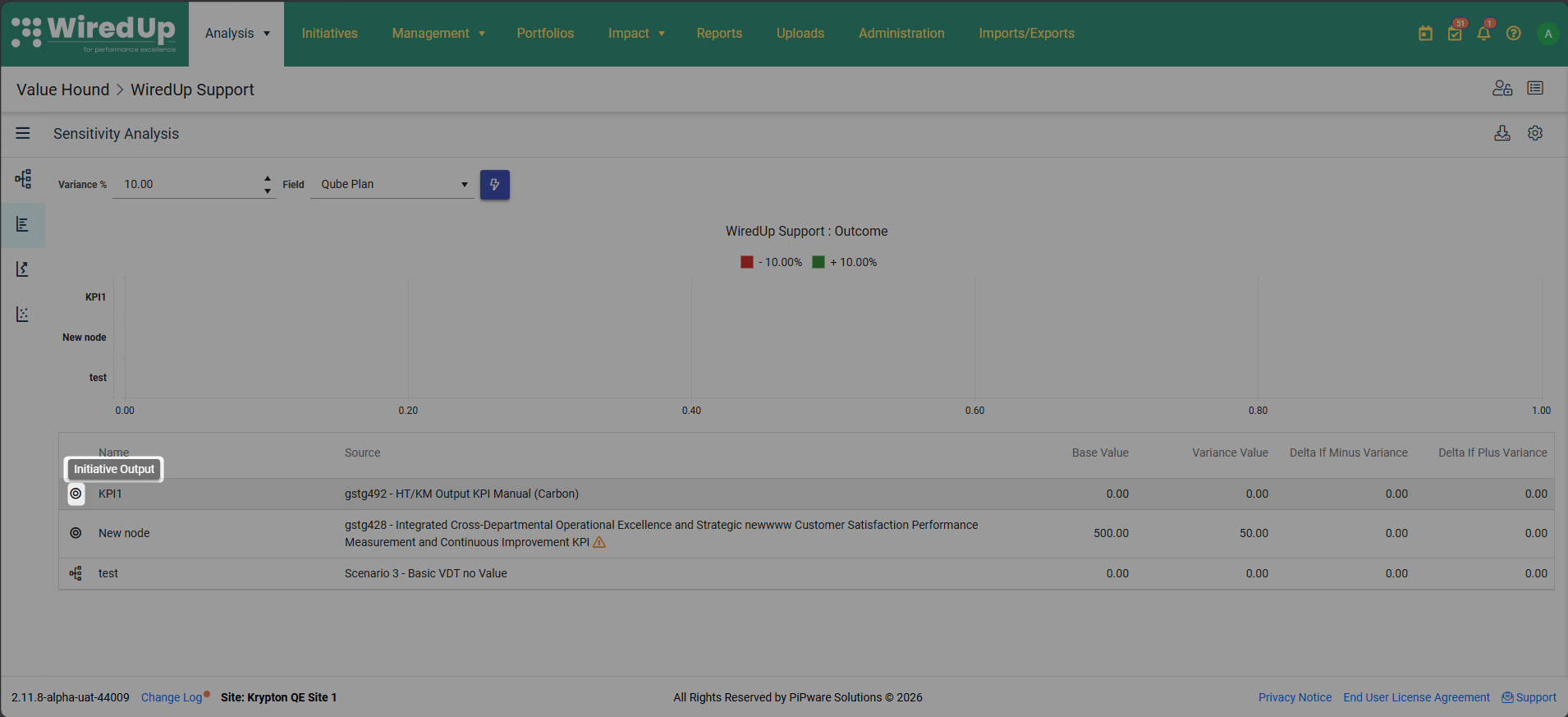
The icon column in all three analysis pages displays the Initiative Output KPI icon (light bulb) next to the KPI name, consistent with the existing icon pattern used throughout the system. This provides a visual cue that this metric is sourced from aggregated Initiative outputs rather than manual entry or calculation.
Note: Unlike Idea VDTs, no circular reference filtering is applied in Value Hound VDTs. All Initiative Output KPIs are available for selection regardless of any potential circular dependencies. This is because Value Hound VDTs are used for analysis and scenario modeling rather than benefit calculation, so circular references don't create the same logical conflicts.Configuring Initiative Output KPI Node Colour
Administrators can customize the colour used for Initiative Output KPI nodes in VDTs to match your organization's visual standards or to improve visual differentiation from other node types.
To change the Initiative Output KPI node colour: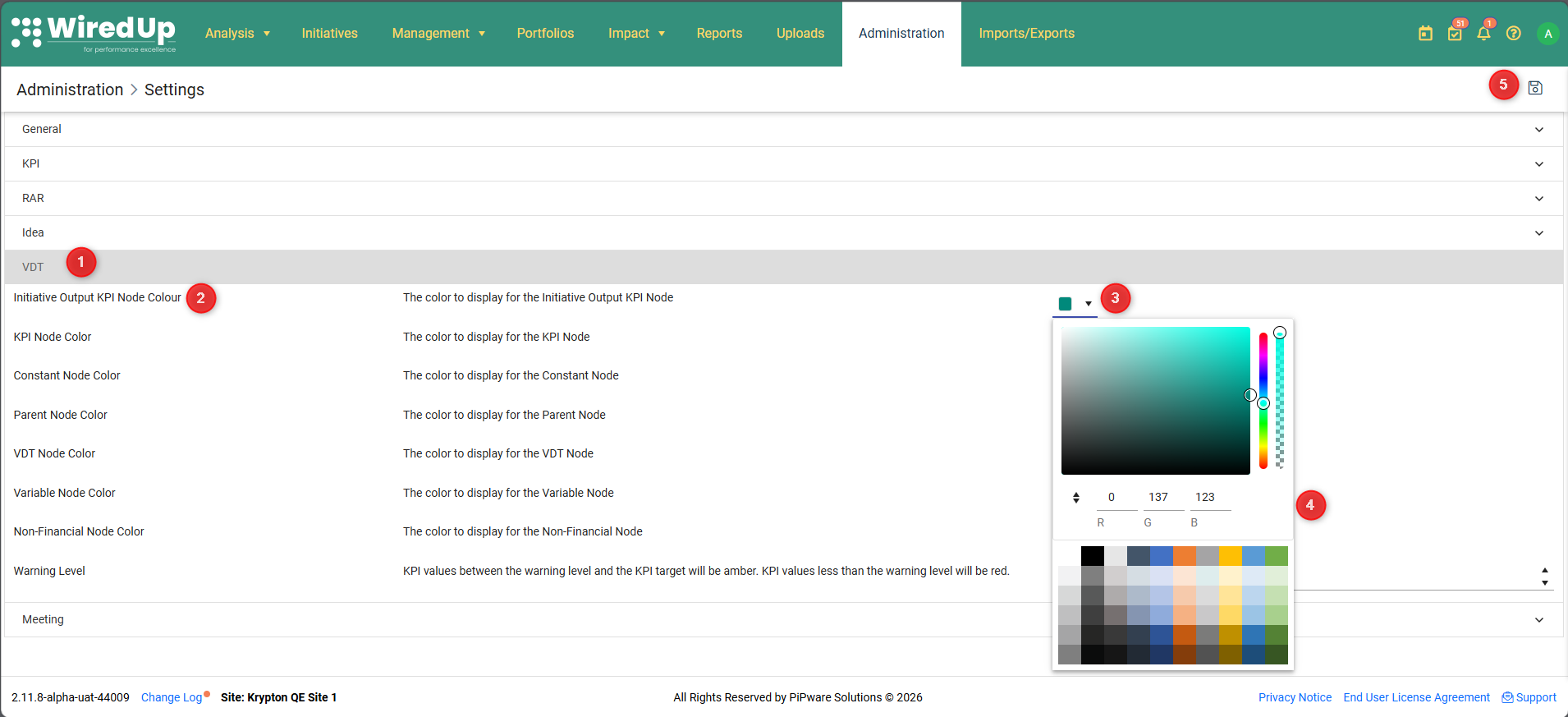
- Navigate to Administration → Settings → VDT
- Locate the Initiative Output KPI Node Colour setting in the node colour configuration section
- Click the colour picker control to open the colour selection dialog
- Select a new colour using the colour picker, hex input, or RGB sliders
- Click Save to apply the new colour across the system
When the colour is updated, The colour change takes effect immediately across the entire system:
Note: The Initiative Output KPI node colour setting is shared across both Idea VDT and Value Hound VDT. There is no separate colour setting for each VDT type — changing the colour in Administration → Settings → VDT affects both VDT types simultaneously. This ensures visual consistency across your entire WiredUp environment.Permissions
Initiative Output KPIs involve multiple user roles and permission levels across different parts of the system. Understanding who can perform which actions helps ensure proper governance and data integrity.
Who can configure a KPI as Initiative Output:
- KPI Admin users — Users with the KPI Admin role have full permissions to configure any KPI in the system, including changing the source type to Initiative Output
- KPI Owner — The specific user designated as the owner of a particular KPI can configure that KPI, including setting it as an Initiative Output type
Only these users can access the Source accordion and change a KPI's source type from Manual Input or Calculated to Initiative Output (or vice versa).
Who can link Initiatives to an Initiative Output KPI:
- Users with permissions to edit Initiative VDT node configuration — These users can open parent/root nodes in Initiative VDTs and check the "Output to Initiative Output KPI" checkbox to establish links
- Users with permissions to edit Idea Overview page configuration — These users can click the "Output to KPI" icon on Manual Capture Ideas to link benefit values to Output KPIs
Initiative linking is controlled by Initiative-side permissions rather than KPI-side permissions. This ensures that Initiative owners maintain control over which KPIs receive their benefit data.
Background Calculation Job:
- The background calculation job runs as a system process with elevated privileges
- No user permission is required for the job to run — it operates automatically on its scheduled and event-based triggers
- Users cannot manually trigger the job — it runs only on its defined schedule and in response to specific system events
Initiative Output KPI Values:
- All Initiative Output KPI values are read-only to all users, regardless of their permission level
- No manual entry is permitted, even for KPI Admins or KPI Owners
- Excel imports are blocked for Initiative Output KPIs
- API updates are rejected for Initiative Output KPIs
- This read-only enforcement protects the integrity of the automatically aggregated data
Use Cases for Initiative Output KPIs
When to Use Initiative Output KPIs:
Initiative Output KPIs are ideal for scenarios where you need to track the collective impact of multiple Initiatives on a single metric:
- Portfolio-Level Tracking: Measure the combined impact of your entire Initiative portfolio on strategic metrics. For example, create a "Total Cost Savings" KPI that aggregates savings from all cost reduction Initiatives, giving executives a single number that represents portfolio-wide impact.
- Automated Aggregation: Eliminate the manual effort and error risk of consolidating benefit values across multiple Initiatives. Instead of manually summing values in spreadsheets or reports, let the system automatically aggregate values as Initiatives update their calculations.
- Real-Time Visibility: Automatically update portfolio-level KPI values as Initiative calculations change. When an Initiative updates its VDT or changes its Manual Capture benefit values, the Output KPI reflects those changes within minutes through the event-based calculation job.
- Cross-Initiative Reporting: Track cumulative metrics that span multiple Initiatives, such as total financial benefits across all Initiatives, cumulative emissions reductions from all sustainability Initiatives, or aggregated safety improvements from all safety programs.
- Executive Dashboards: Display high-level portfolio metrics on executive dashboards that automatically aggregate from detailed Initiative calculations. Executives see the big picture without needing to drill into individual Initiative details, while still having confidence that the numbers are current and accurate.
When NOT to Use Initiative Output KPIs:
Initiative Output KPIs are not appropriate for every scenario. Consider alternative approaches when:
- Single Initiative Metrics: If you're tracking a metric for just one Initiative, use regular KPI nodes within the Initiative VDT instead. Initiative Output KPIs are designed for aggregation across multiple Initiatives, so they add unnecessary complexity for single-Initiative tracking.
- Manually Entered Values: If your metric comes from an external system or requires manual validation before entry, use Manual Input KPIs instead. Initiative Output KPIs are fully automated and don't allow manual entry, so they can't accommodate metrics that need human review or external data sources.
- Complex Formulas: If you need to perform mathematical operations beyond simple summation (e.g., weighted averages, ratios, conditional logic), use Calculated KPIs instead. Initiative Output KPIs only support straightforward aggregation (summing) of values from linked Initiatives.
Benefits of Initiative Output KPIs
Initiative Output KPIs offer significant advantages over traditional Manual Input KPIs for portfolio-level metrics:
Aspect | Initiative Output KPI | Manual Input KPI |
Data Entry | Fully automated — values flow automatically from linked Initiatives with no manual intervention required | Manual entry or import required — someone must enter or upload values for each period |
Accuracy | Always in sync with Initiative calculations — values are mathematically guaranteed to match the sum of linked Initiative benefits | Risk of manual entry errors, copy-paste mistakes, or stale data if updates are missed |
Maintenance | Self-updating via background job — once configured, the KPI maintains itself automatically as Initiatives change | Requires ongoing manual updates — someone must remember to update the KPI whenever Initiative values change |
Audit Trail | Automatically tracked via linked Initiatives — you can always drill down to see which Initiatives contributed which values | Depends on manual documentation — unless someone documents the source of each value, the audit trail is lost |
Portfolio Visibility | Aggregates across multiple Initiatives automatically — provides instant portfolio-level view without manual consolidation | Requires manual consolidation — someone must gather values from multiple Initiatives and sum them |
Real-Time Updates | Values update automatically when Initiatives change — event-based triggers ensure near real-time accuracy | Requires manual refresh — values remain stale until someone manually updates them |
Related Articles
Adding a Value Driver Tree : WiredUp