
In This Article
Linking Initiative Output KPIs
Overview
The Overview tab is where most of the information about the Idea/Initiative is recorded during the initial (e.g. Evaluating) stage.
Navigation
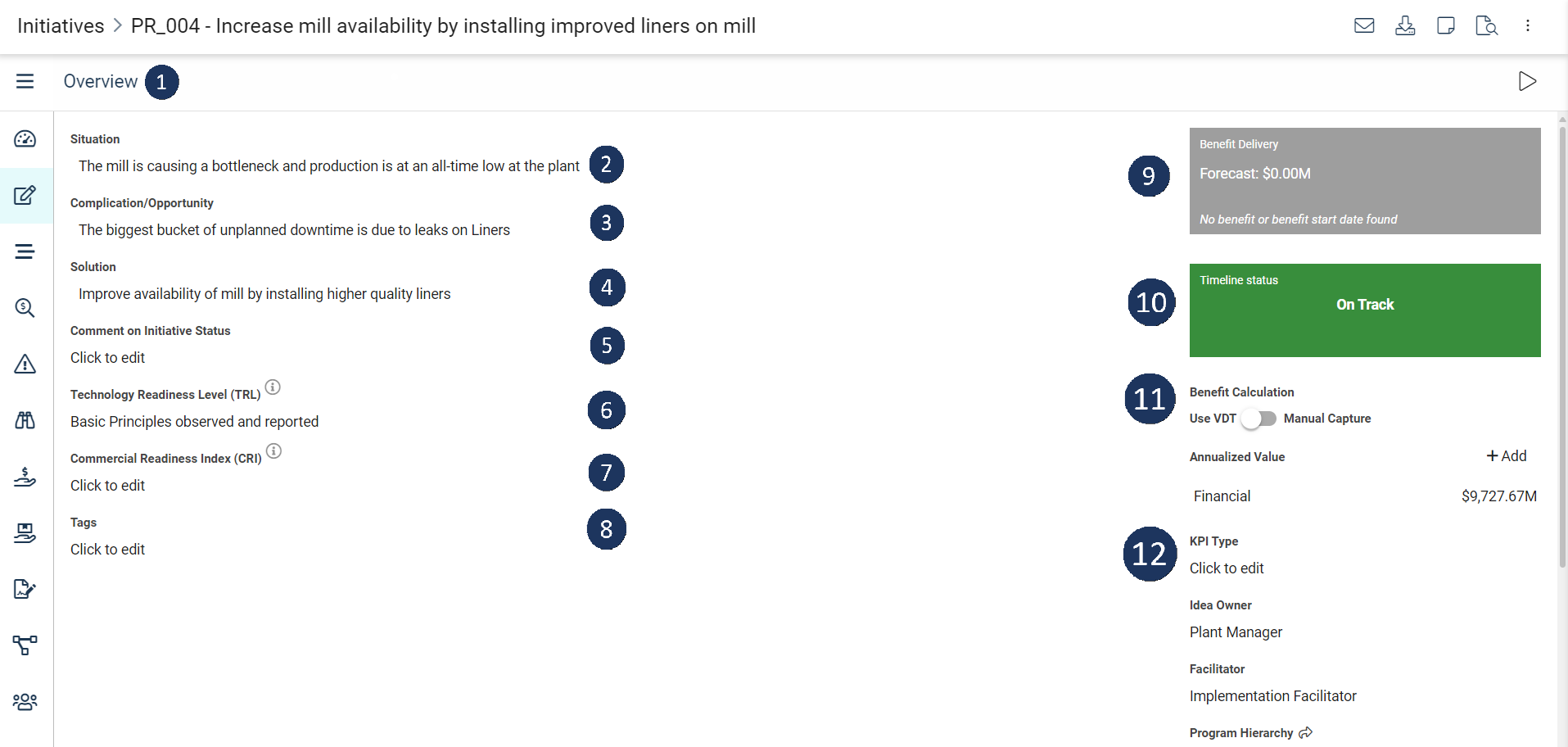
 | Use the burger menu to navigate to other areas of the Ideas/Initiatives module. |
 | Situation - A description to report what the purpose of the idea/initiative is. |
 | Complication - What issue(s) need to be resolved and what is the effect of it. |
 | Solution - How the situation will be solved or improved. |
 | Comment on idea/initiative status - if any other relevant information needs to be added. |
 | Technology Readiness Level is a method for estimating the maturity of technologies during the acquisition phase of a program. Note: this field is only available when the Emissions Module is active. |
 | Commercial Readiness Level is a measure of how ready a technology is to be made commercially available. Note: this field is only available when the Emissions Module is active and a Technology Readiness Level is selected. |
 | Input any tags associated with the idea/initiative. |
 | The current benefit delivery forecast for the idea/initiative. Provides a continuous focus on benefits during the implementation stage. |
 | The timeline status bar displays if the idea/initiative is on or off track and by how much. It will appear green if on-track and red if the idea/initiative is off-track. |
 | Determine whether the benefits of the idea/initiative will be inputted manually or use a VDT. |
 | This section will show additional benefits that can be tracked in an idea/initiative, to customise this, see article - Idea/Initiative Fields. |
Adding Non-Financial Benefits
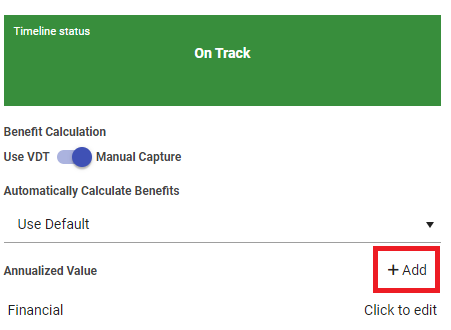
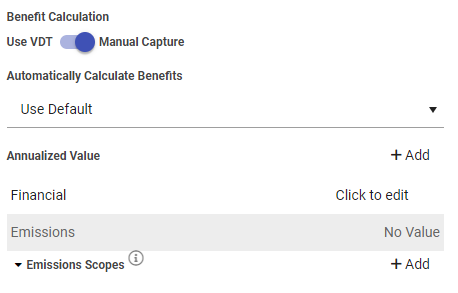
When using Manual Capture, you have the option of attaching additional Non-Financial benefits to an idea/initiative, e.g. emissions, by clicking the "Add" button:
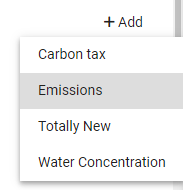
In this example, since tracking emissions from an idea/initiative will directly affect the overall emissions module by introducing new data, a warning will appear:
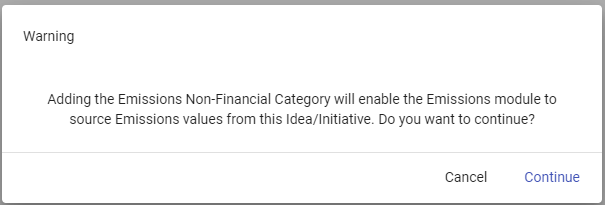
After clicking "Continue", you will be able to input the benefits manually:
Linking Initiative Output KPIs
For Initiatives that use Manual Capture instead of VDTs, you can link the Idea's benefit values directly to an Initiative Output KPI from the Idea Overview page. This allows manually-entered benefit values to contribute to portfolio-level KPIs.
To link a Manual Capture Idea to an Initiative Output KPI:
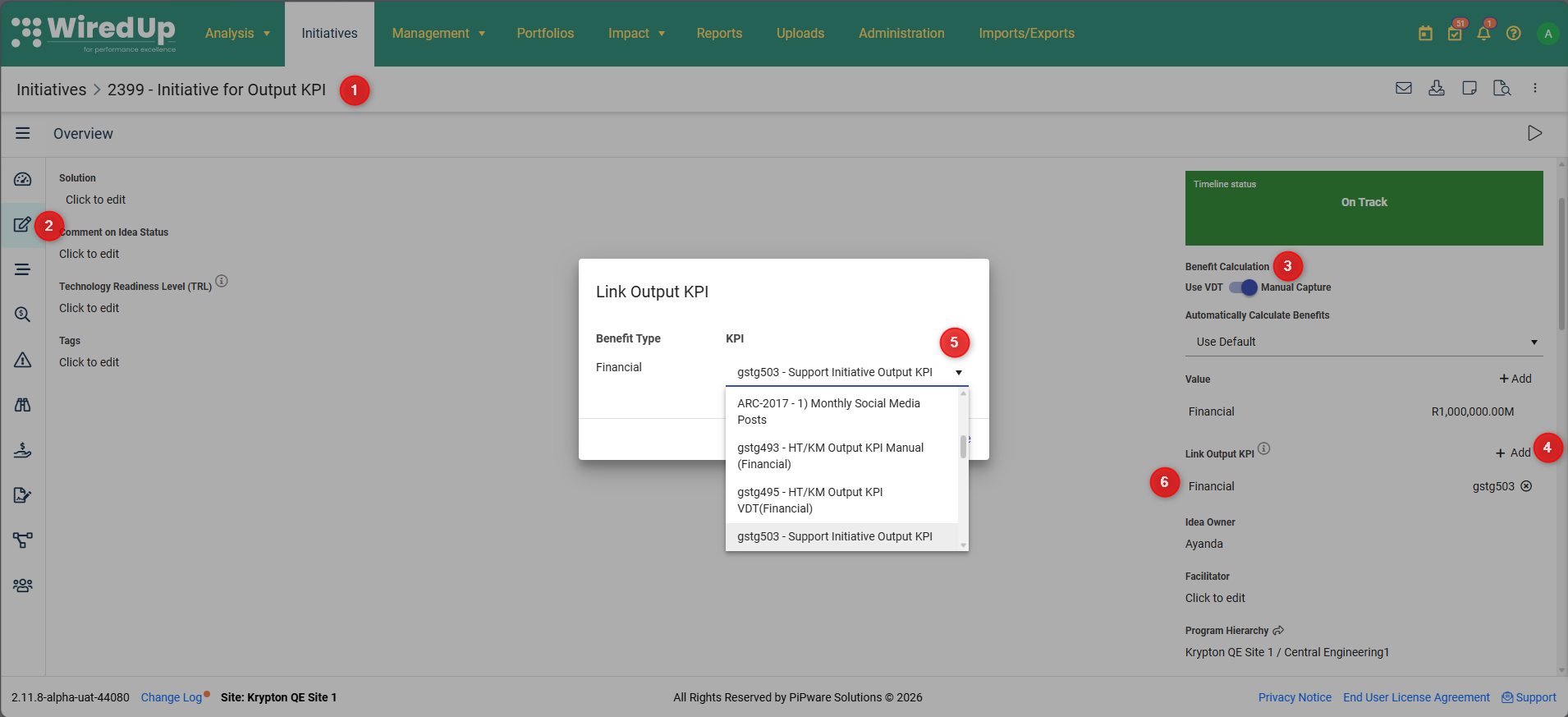
- Navigate to the Initiative (Manual Capture Idea)
- Open the Idea Overview page
- Locate the Benefit Calculation area, which displays all configured benefit types for this Idea
- Click the "+Add" icon next to the Link Output KPI title to link the initiative to the Initiative Output KPI
- The Link Output KPI screen will be displayed. Under the KPI column, select the target KPI from the dropdown list of Initiative Output KPIs. This list is automatically filtered to show only KPIs whose Benefit Type matches the selected benefit
- After the selection, a row appears immediately below the Link Output KPI heading, confirming the link has been established
To remove a linked Initiative Output KPI:
- Click the remove icon (X) next to the linked KPI
- A confirmation modal appears to prevent accidental deletion
- Click Remove to confirm and break the link between the Manual Capture Idea and the Output KPI
Note: Once unlinked, the background calculation job will automatically subtract this Idea's contribution from the Output KPI values during its next run.
For more information on initiative output KPIs, please see the following article: Initiative Output KPI : WiredUp
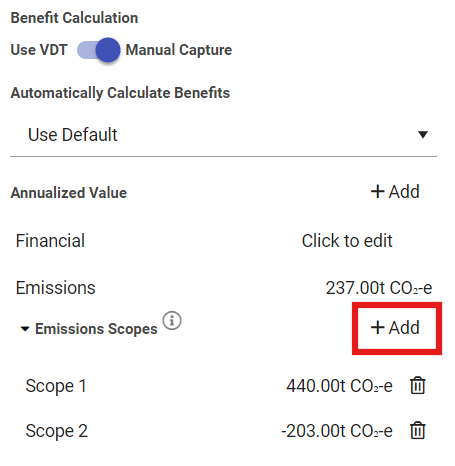
Emissions Scopes
It's possible to include multiple emissions scopes in one idea/initiative. In the following example, the total Emissions benefit is calculated by aggregating Emissions Scopes 1 and 2:
Next Steps
Now that you can navigate the Overview tab, see article Idea/Initiative VDT.