
In This Article
Viewing Activity Comments in the Workplan
Overview
The Idea Workplan is a comprehensive project management tool within WiredUp that enables users to map, track, and manage all activities required to implement an Initiative. Accessible through the 3-bar menu on any Initiative screen, the Workplan provides a visual Gantt-style interface where teams can:
- set timelines
- create parent and child actions
- assign owners
- monitor progress in real-time.
With powerful features including critical path analysis, customizable views (weeks, months, quarters, years), filtering capabilities, and export options to PDF or Excel, the Workplan serves as a central hub for initiative execution. Users can
- quickly add activities
- edit details inline
- track overdue items (highlighted in red)
- leverage right-click context menus for advanced actions such as indenting/outdenting tasks
- escalating actions to other sites
- marking items complete.
All changes are saved automatically, ensuring seamless collaboration and up-to-date project visibility. The Workplan supports hierarchical task structures where parent actions automatically inherit start and end dates from their children, providing an accurate representation of the overall initiative timeline and dependencies.
Access the Workplan Menu
1. On the ribbon, select Initiatives and select the idea/initiative 
2. Upon opening the initiative's screen, choose the burger menu icon located on the left side of the initiative, and then select the Workplan option.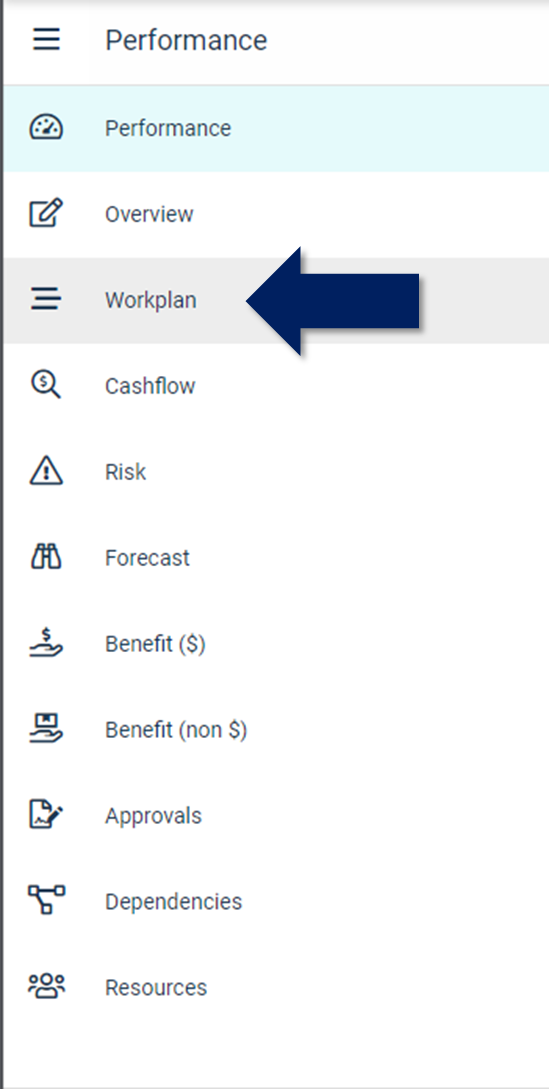
Workplan Menu
3. Set the Initiative timeline and capture actions that will help the Idea progress.
 Utilize the 1search box located on the top-left side of the screen to quickly enter an action for retrieval. On the icons located on the top-right side of the screen, you can select the option to show 2Critical Path which will highlight critical actions by displaying their bars in a different color on the workplan chart. In addition, you can change the Gantt view to 3Weeks, Months, Quarters, or Years and using the next button, and 4Expand or Collapse activities as needed for better visualization. 5Export the workplan Gantt to PDF or Excel using the export button, view the workplan in 7Full Screen and 6Filter actions based on dates or completion status for improved organization. 8Show or Hide Stages in the Workplan Gantt as required and use the options configuration to customize column visibility. Add new actions by clicking the + button in the header or add child actions by clicking the 9+Add Activity button on the relevant parent action.
4. View a summary by hovering on a workplan item.

5. To edit an action name, start date (start), end date (end), duration or owner (who), click on the field to edit and make the required changes.
Note: If you cannot see the options on the action, expand the columns to minimise the view of the Gantt chart to view all columns.
NB! Actions with children cannot be edited, the start and end dates are based on the children actions' earliestt start date and latest date.6. Right-click an item to see the options available:
- Indent the item marks the item as a child of the item above
- Outdent moves the item out of the parent
- Create an Activity
- Edit the item
- Delete the item
- Escalate the action to another site
- Mark the action as Complete
7. If an action item is overdue, it changes to red, making it easy to identify. Mark an action as complete by ticking the box and capturing the date the action was completed.
Note: Changes to the Workplan are saved automatically.
Edit an Activity
You can edit an activity by right-clicking on the activity and selecting the Edit option. This will open the Edit Activity dialogue box:

In the Edit Activity/Action dialogue box, you can input the following details: the 1. Name of the Activity/Action, 2. who it is allocated to, 3. the originator of the activity, 4. the from date, the 5. to date of the activity, and any 6. revised date if applicable. Additionally, you can 7. attach a file or folder and 8. add tags to this activity. A new feature has been added that allows you to 9. add comments to the activity as needed. You can also use the 10. check boxes to set the action as a priority or mark it as confidential, thereby limiting access to this action by other users. Once all the desired fields have been configured, click 11. Save to save your changes.
Workplan Date Protection for Approved Initiatives
Once an Initiative is approved, the Target Date and Actual Date fields in the Workplan are automatically locked to preserve the integrity of your original plan and milestone records. Target Dates capture your initial baseline and cannot be modified after approval, while Actual Dates are controlled by stage checklist approvals to ensure alignment between your Workplan and approval workflow.
If you need to adjust timelines after approval, use the Revised Date field, which remains editable at all times. These protections apply both when editing stages directly and when importing Workplan data, ensuring consistent data governance across all update methods.
Administrators can optionally enable a site setting that allows editing the Actual Date for the current pipeline stage only, providing flexibility when needed while maintaining historical accuracy for completed stages.
Viewing Activity Comments in the Workplan
You can now view activity comments directly in the Workplan grid by adding an optional Comments column, which eliminates the need to open individual activities to see their associated notes.
Adding the Comments Column
To display activity comments in your Workplan:
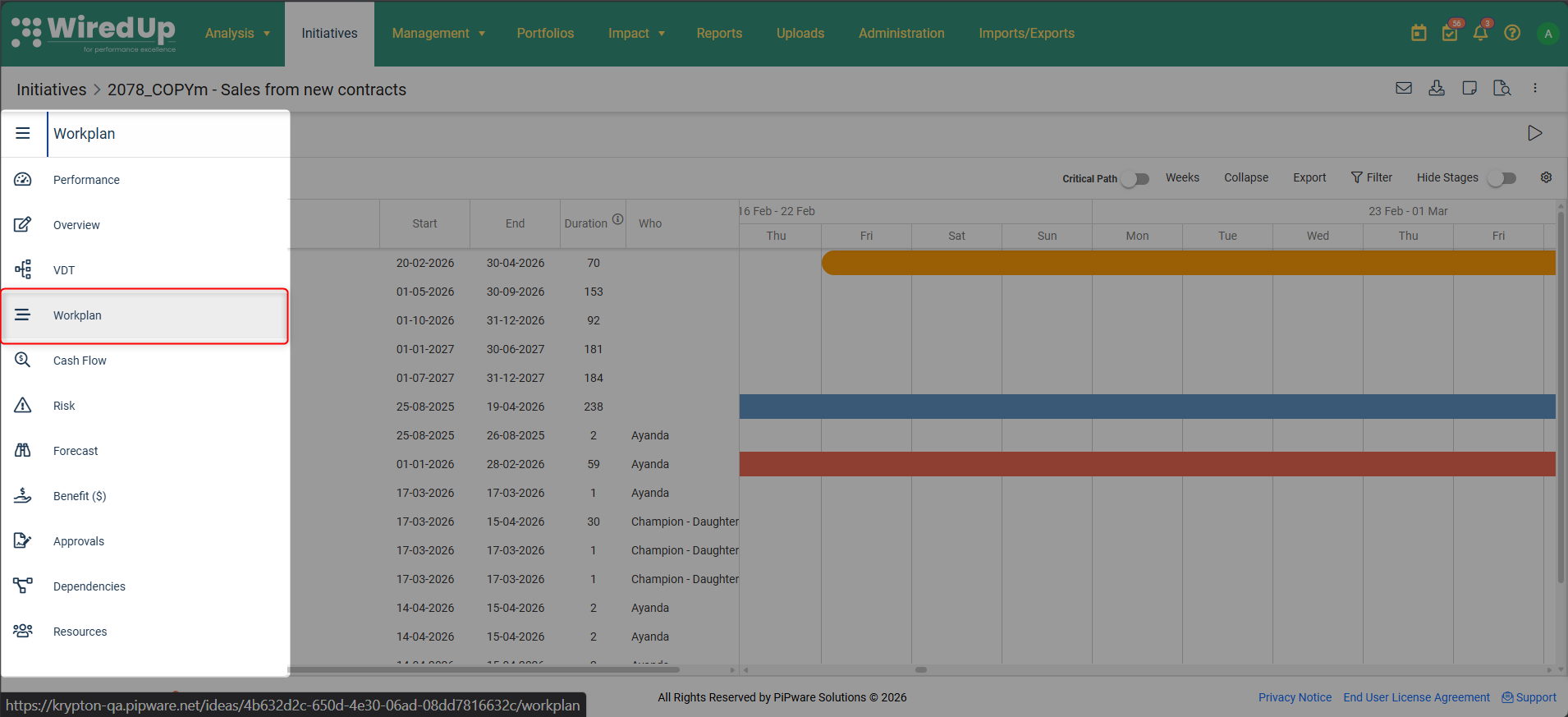
- Open the Initiatives Workplan or Portfolios Workplan
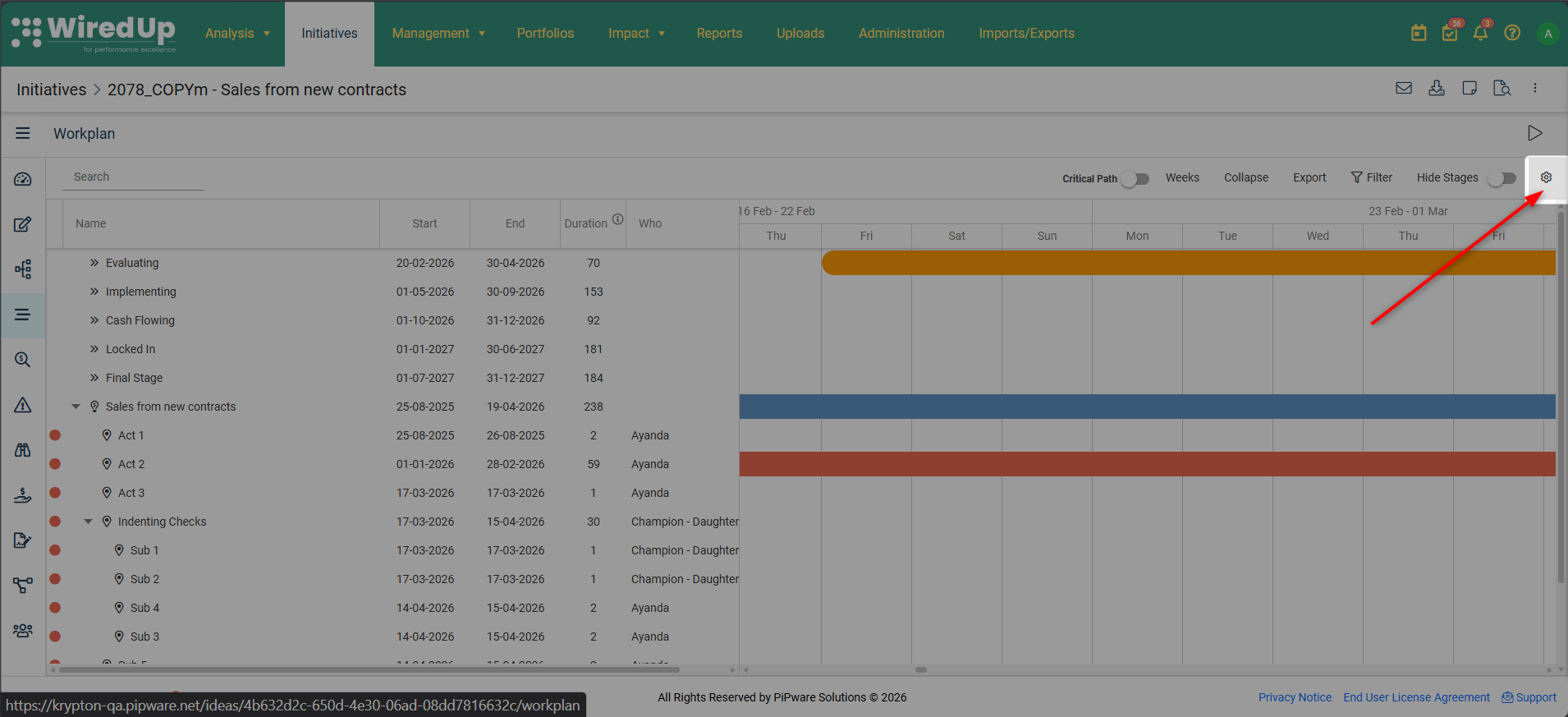
- Click the Column Picker icon in the toolbar
- In the Column Picker panel, locate Comments under "Columns you can add"
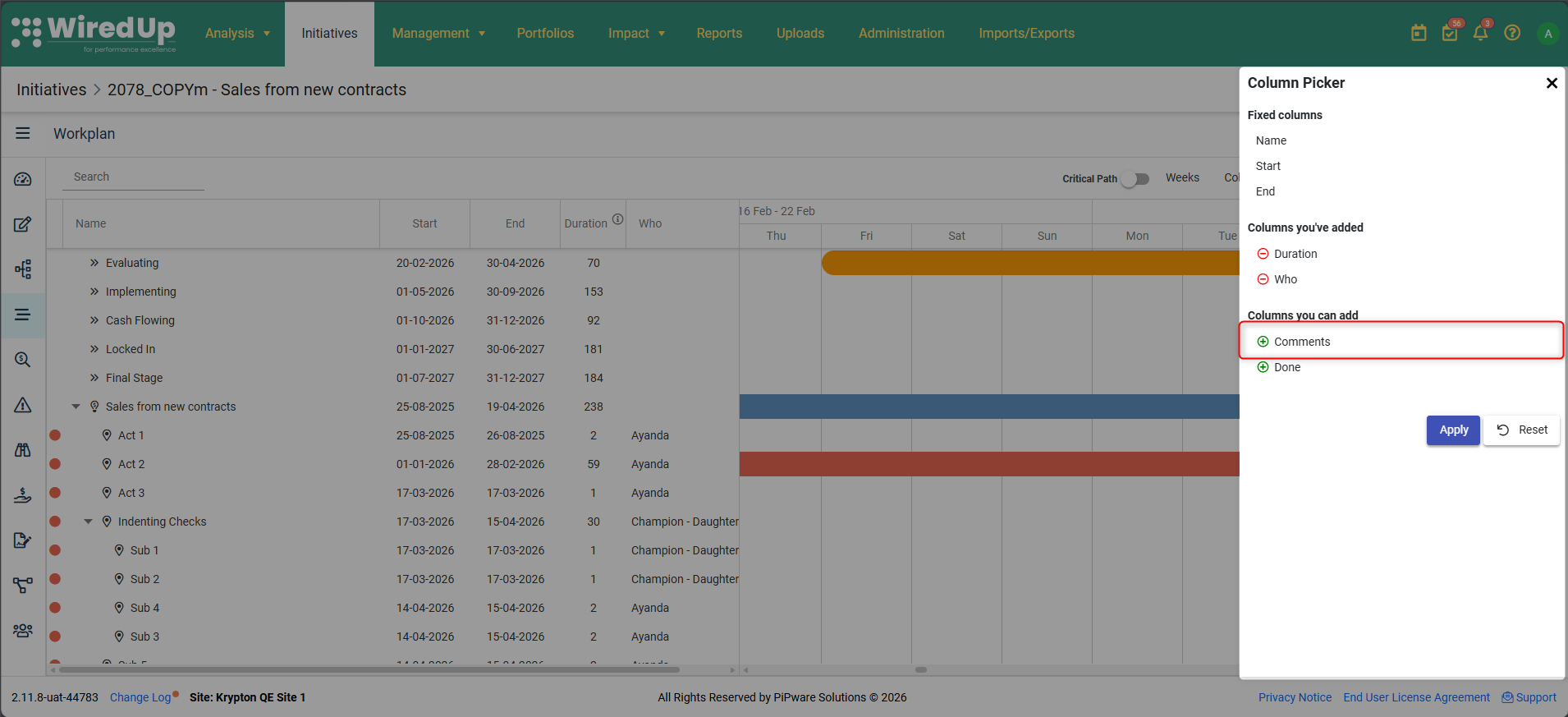
- Select Comments to add it to your view then click Apply
The Comments column will appear as the last column in your Workplan grid and will be positioned after all other currently visible columns.
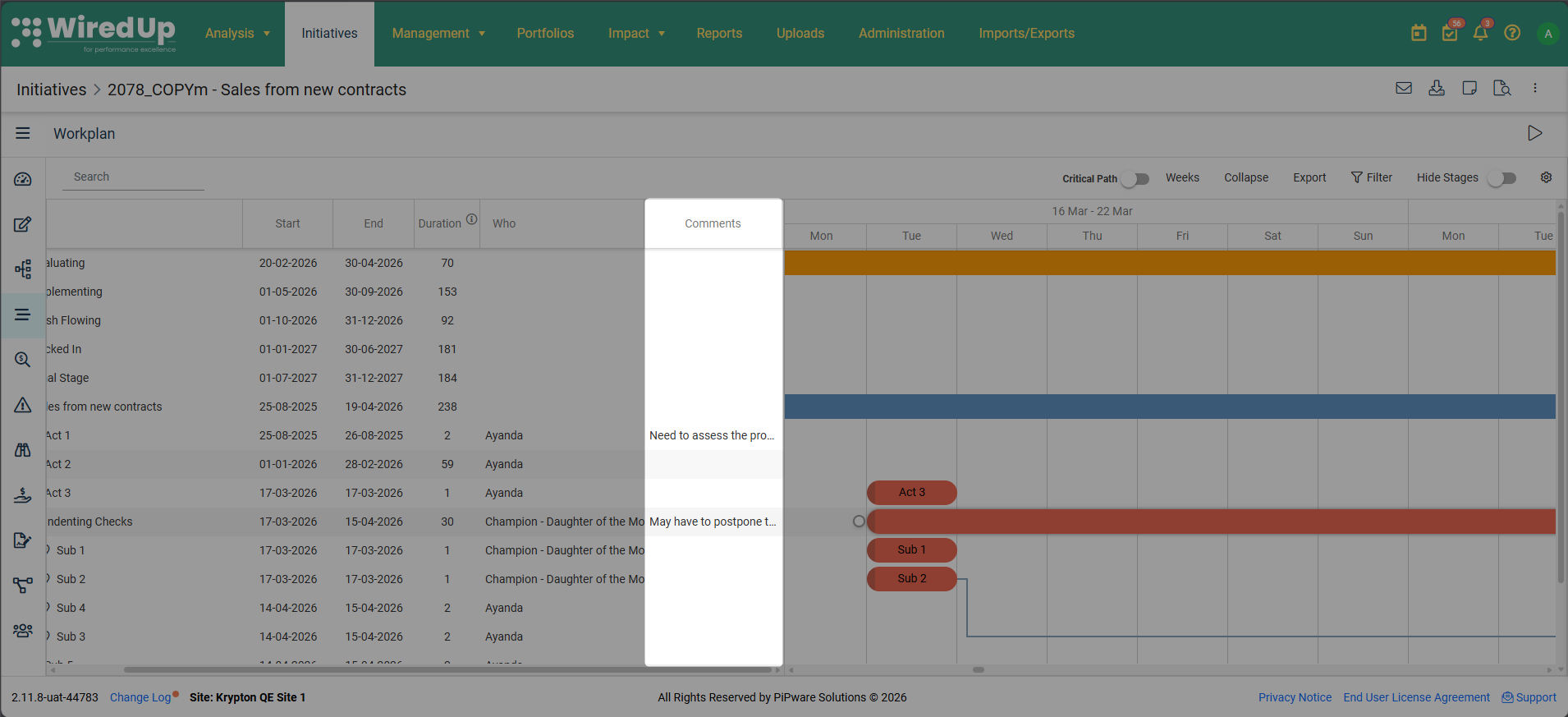
How the Comments Column Works
Viewing Comments:
- Each cell displays the comment text associated with that activity
- When comment text exceeds the column width, it is automatically truncated with an ellipsis (...)
- Hover over any truncated cell to see the full comment text in a tooltip
- Activities without comments show a blank cell (no placeholder text or icon)
Adjusting Column Width:
- The Comments column is resizable — drag the column border to adjust its width
- As you resize the column, truncation and ellipsis behaviour adjusts dynamically
- When the column is wide enough to display the full comment text, the ellipsis disappears and the hover tooltip is no longer triggered
Persistence:
- Your Comments column visibility preference is saved automatically
- Once added, the column remains visible in future sessions until you remove it
- This follows the same persistence behaviour as other optional columns (Done, Duration, Who)
Removing the Comments Column
To hide the Comments column:
- Click the Column Picker icon in the toolbar
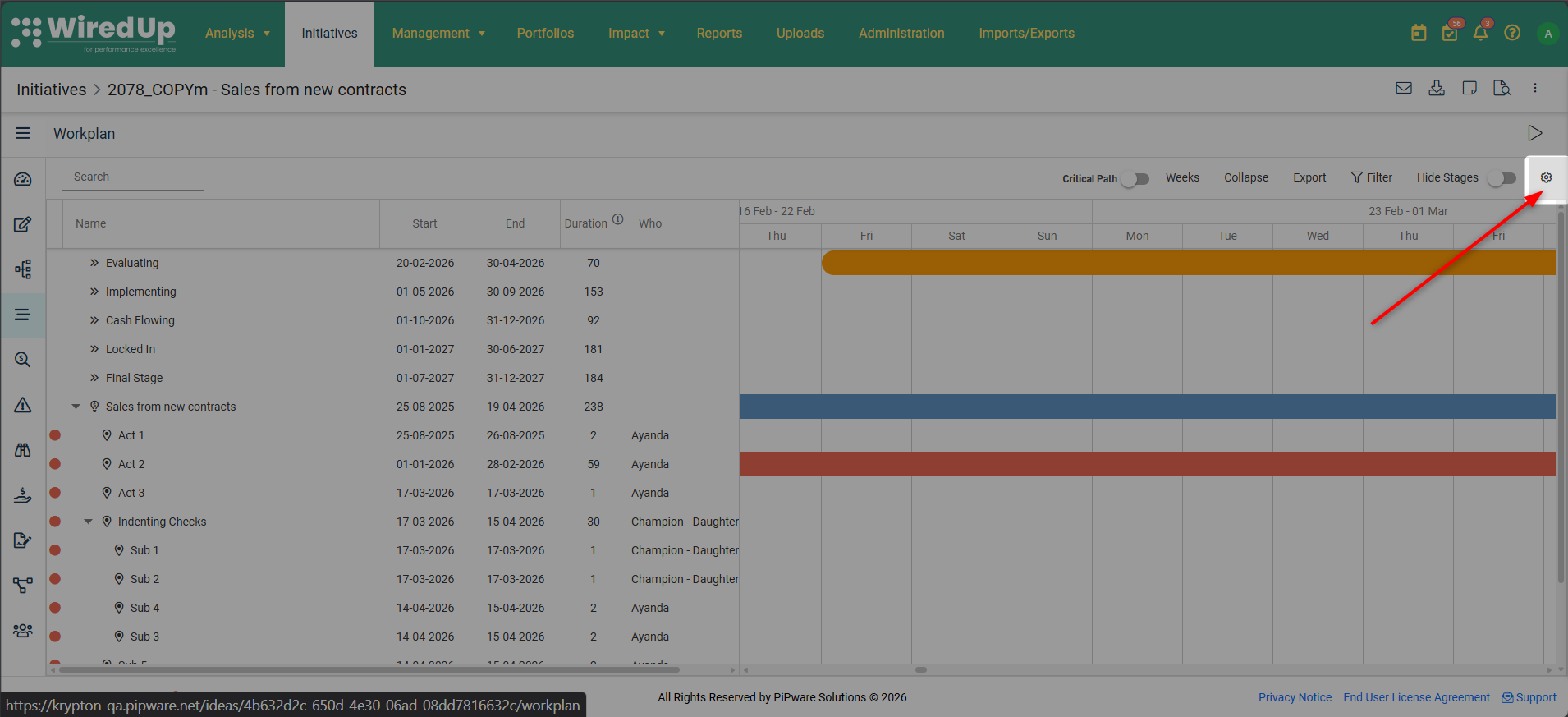
- In the "Columns you've added" section, locate Comments
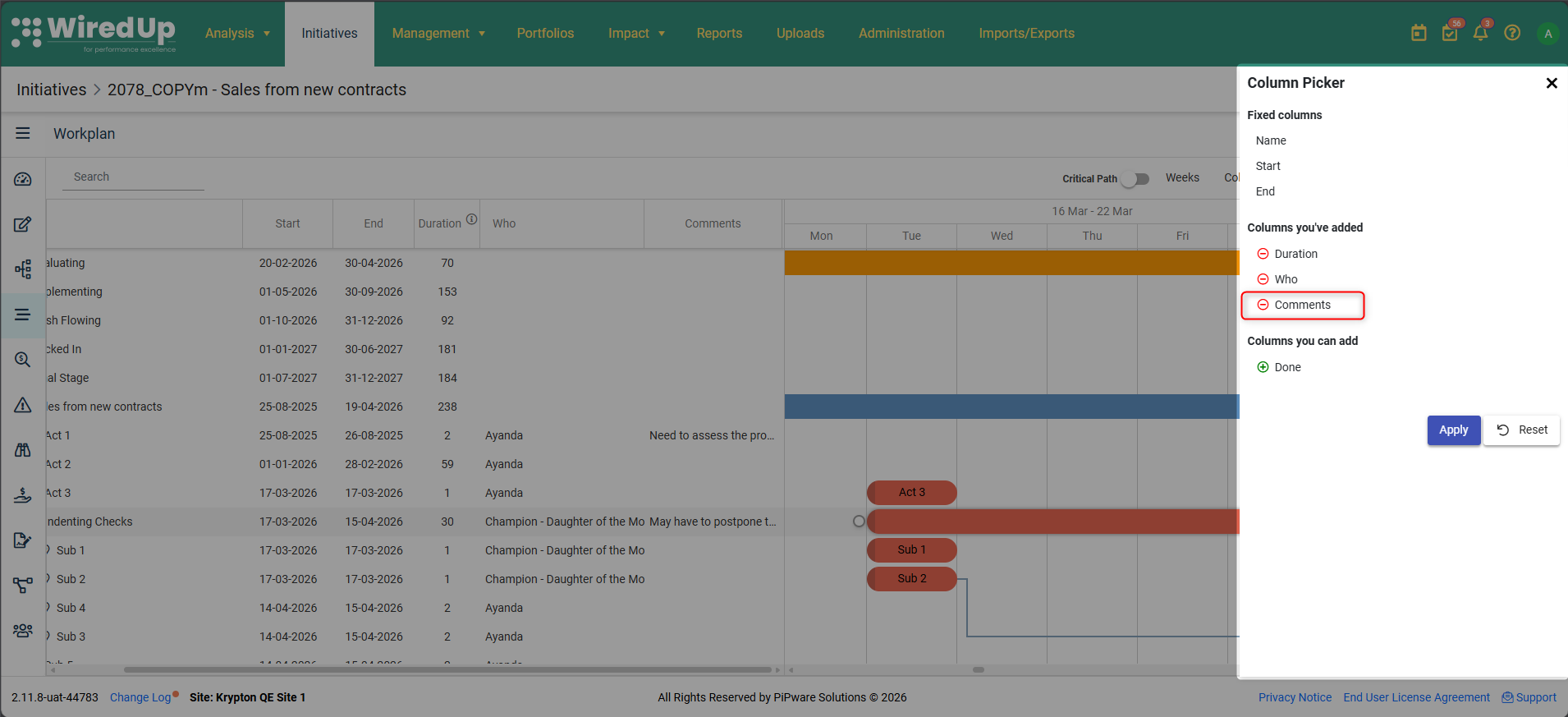
- Click the remove icon next to Comments
The column will be removed from your view and will return to the "Columns you can add" section.
Note: Any user with access to view the Workplan can add and view the Comments column. No additional permissions are required beyond existing Workplan view access.
Next Steps
Now that you have an understanding of the Workplan, please refer to the following article. See article: Initiative Risks