
In This Article
- What is an Action Source?
- Viewing Action Sources in the My Actions Panel
- Viewing Source Information in the Edit Action Dialog
- Benefits of Action Sources
Navigating to Action Sources from Emails
Overview
My Actions is a convenient slide-out dialogue box that helps you manage and track all your personal action items in WiredUp. It provides a centralized view of your tasks to help you prioritize your work effectively. Actions are automatically categorized into three groups:
- Overdue (past the due date and incomplete)
- Today (due today)
- Upcoming (due within 7 days)
- Later (due within 14 days)
Accessing My Actions
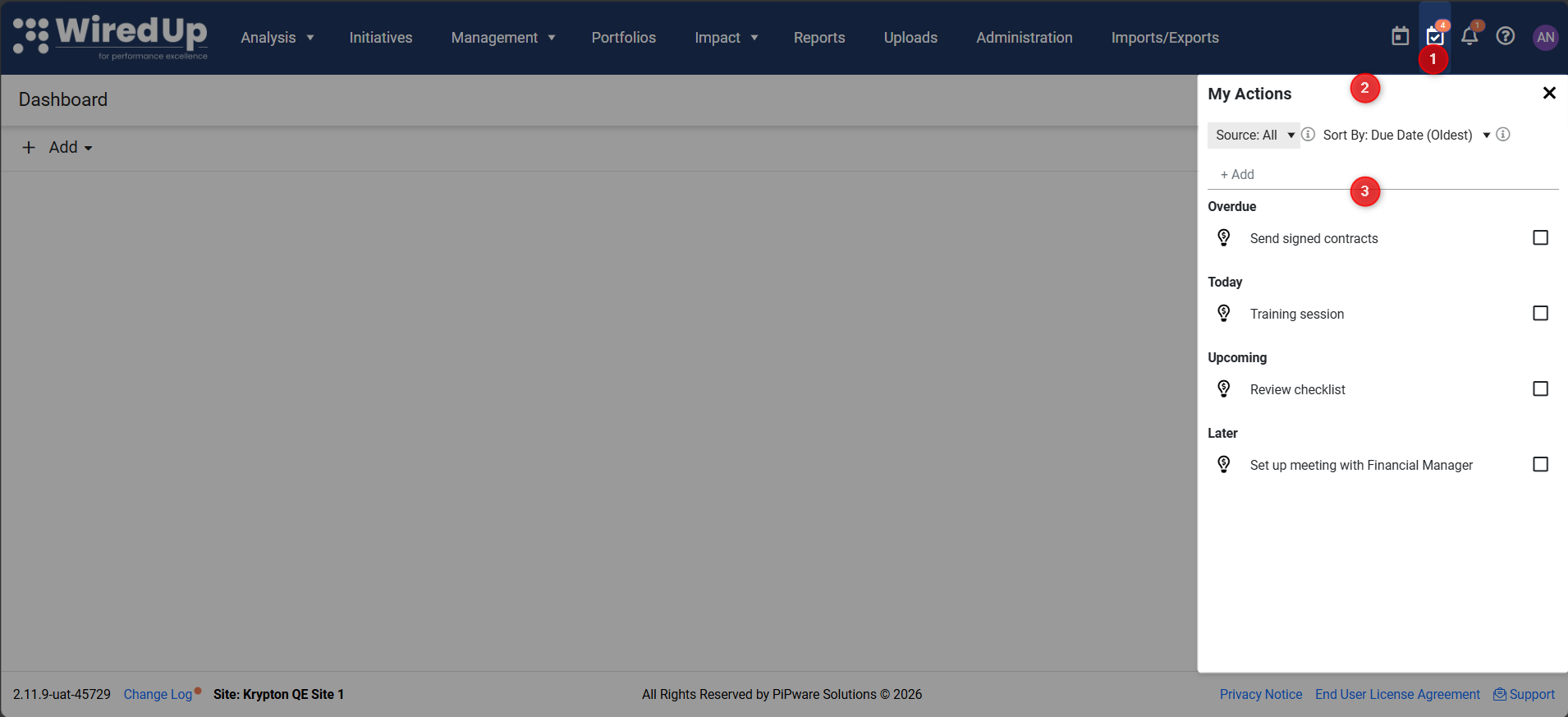
- Locate the My Actions icon on the top right of your screen
- Click the icon to open the My Actions slide-out dialogue box
- Your actions will be displayed, grouped by category (Overdue, Today, Upcoming, Later). You can filter and sort these actions using the controls at the top of the panel
Adding a New Action
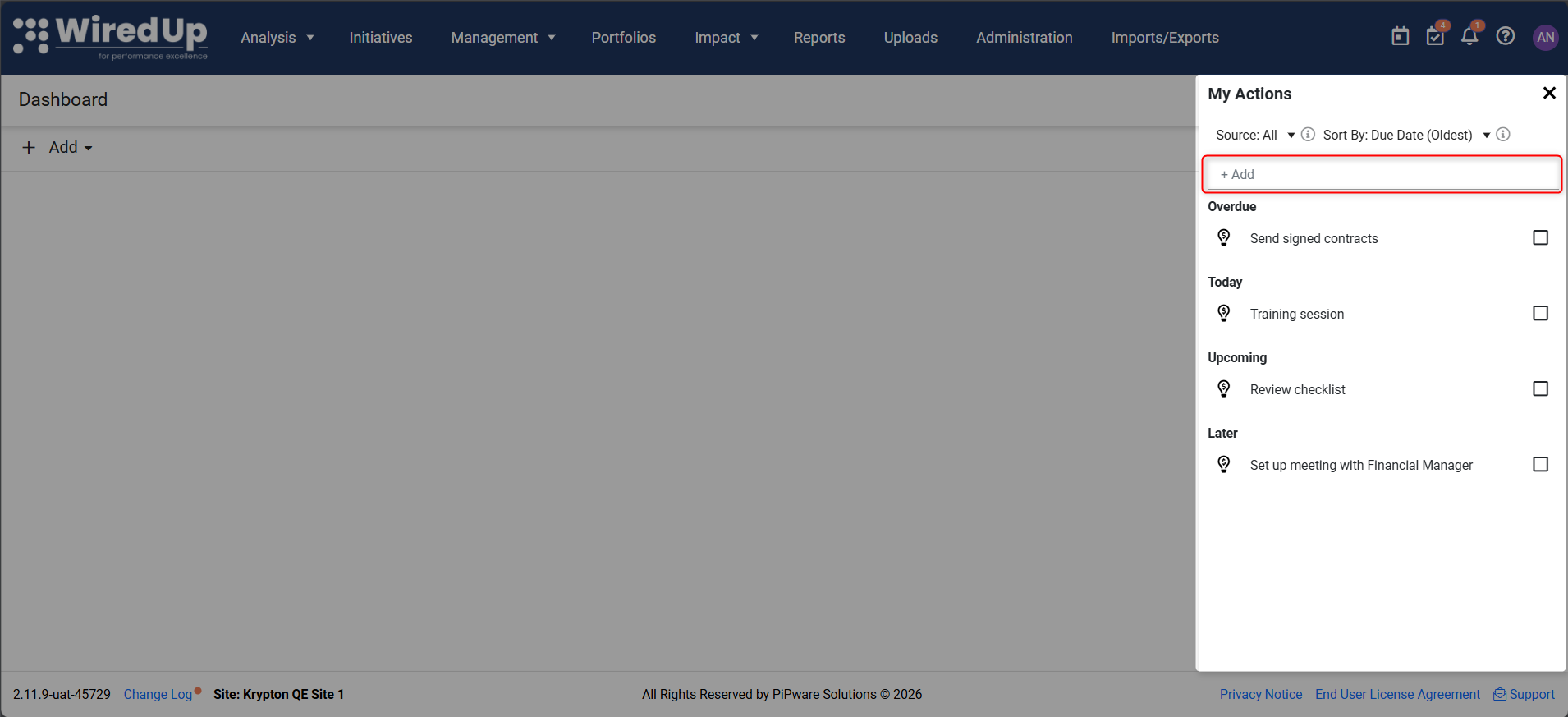
- In the My Actions dialogue box, click the +Add button
- Type in the action details
- Once completed, click "Enter" on your keyboard and the action will be added to the Upcoming actions section
Completing an Action
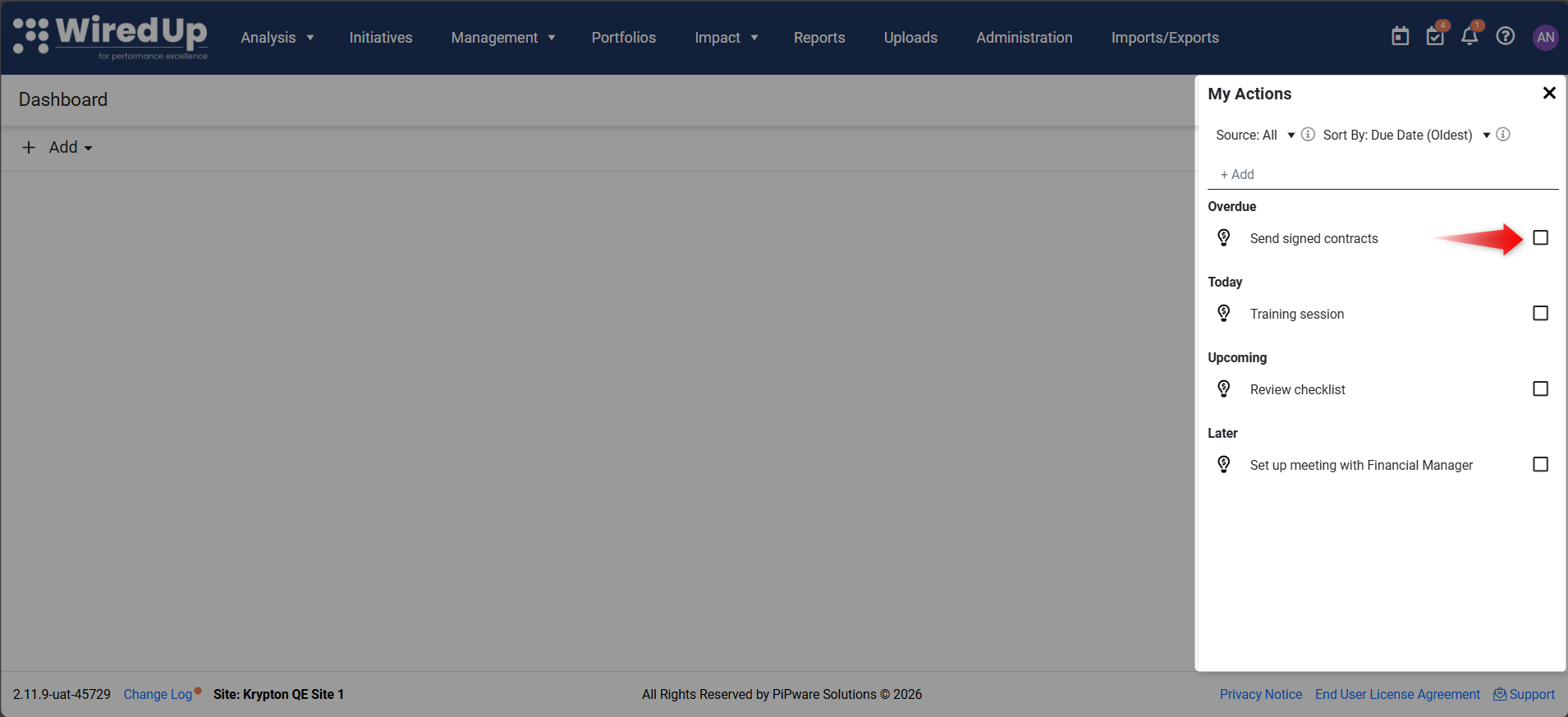
- Locate the action in your My Actions list
- Select the tick box next to the action
- The action will be marked as complete
Editing an Action
Click on any action in your My Actions list to open the Edit Action dialogue box. Update any of the following fields: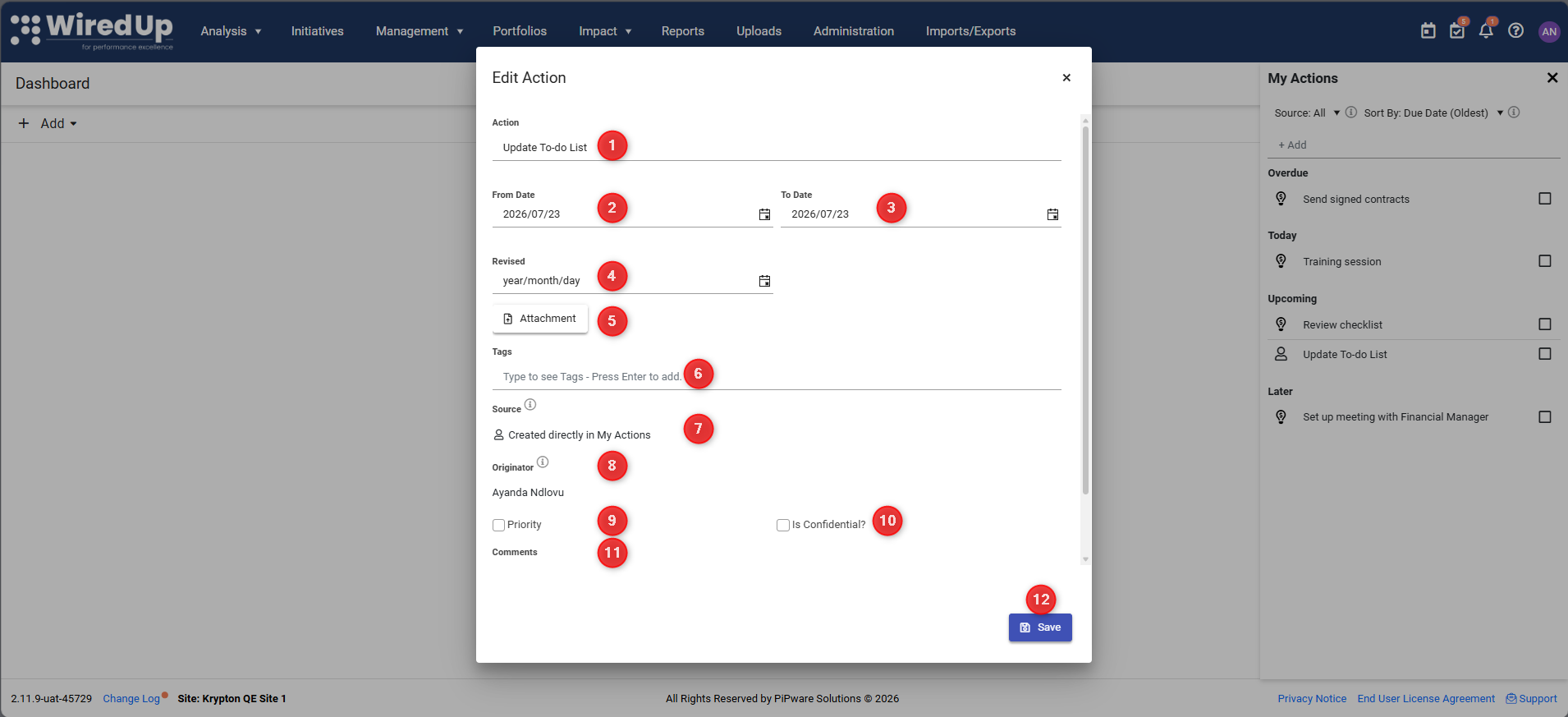
- Action: Modify the name/description of the action
- From Date: Set or change the start date for the action
- To Date: Set or change the due date for the action
- Revised: Add a revised completion date if required
- Attachments: Attach files or folders to the action
- Tags: Add relevant tags for categorization and filtering
- Source: indicates where the action originated from
- Originator: the name of the user who created the action (this is automatically populated)
- Priority: Check the box to mark the action as a priority
- Is Confidential: Check the box to limit access to this action by other users
- Comments: Add comments to provide additional context or updates
- Click Save to save your changes
Filtering and Sorting Actions
The My Actions panel includes filtering and sorting controls to help you quickly locate specific actions.
Filtering by Source
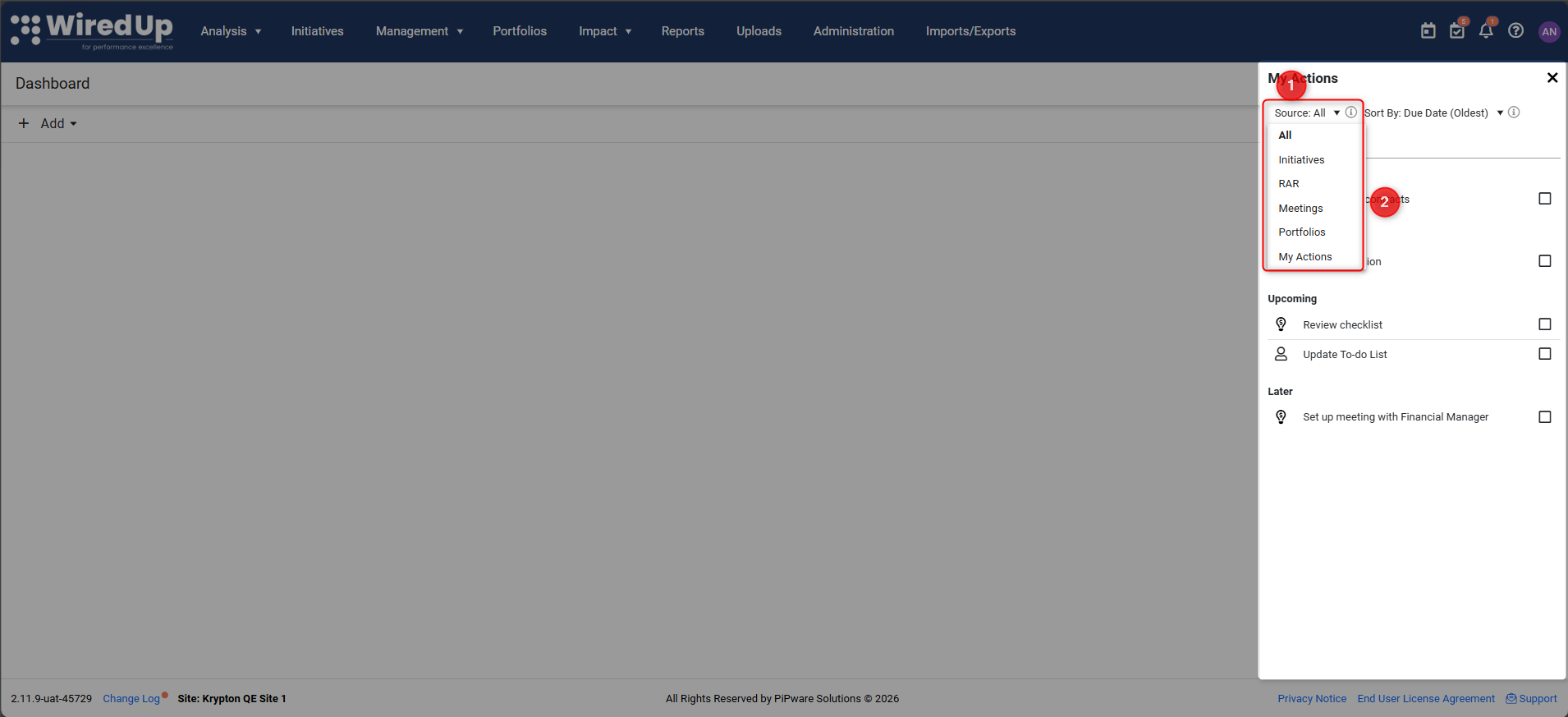
- At the top of the My Actions panel, locate the Source filter dropdown
- Select from the following options:
- All (default) - displays all actions
- Meetings - shows only actions from meetings
- RAR - shows only actions from Risk, Action, Review records
- Portfolios - shows only actions from portfolios
- Initiatives - shows only actions from initiatives
- My Actions - shows only standalone actions created directly in My Actions
- When you select a source, only actions from that source will be displayed
- Groups with no matching actions will be hidden
- Your selected filter is saved and will be restored when you reopen the panel
Tip: Hover over the filter icon to see a tooltip: "Filter actions by the area they were created from."
Sorting by Due Date
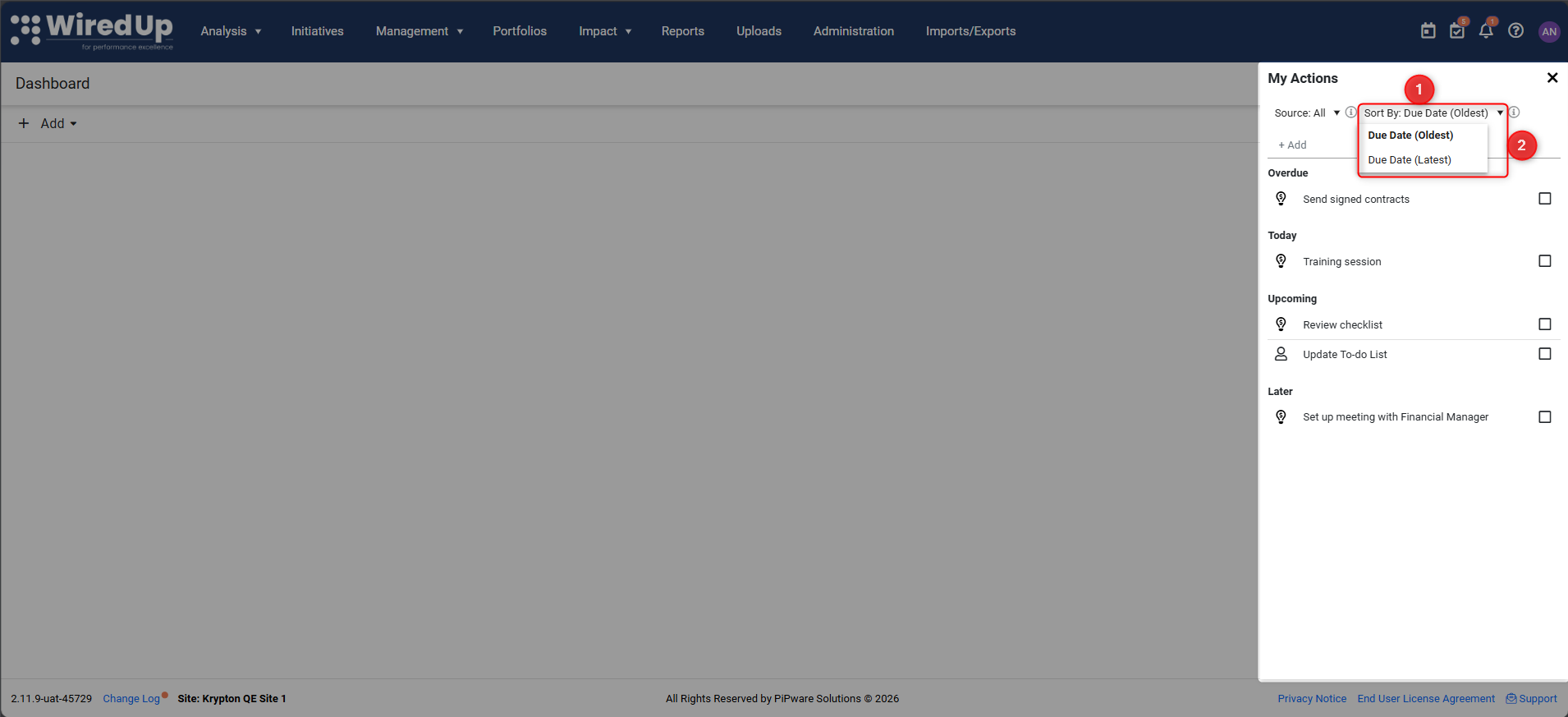
- At the top of the My Actions panel, locate the Sort By dropdown
- Select from the following options:
- Due Date (Oldest) (default) - shows earliest due dates first
- Due Date (Latest) - shows most recent due dates first
- Sorting applies within each group (Overdue, Today, Upcoming, Later)
- The system uses the Revised Date when available; otherwise it uses the original Due Date
- Your selected sort order is saved and will be restored when you reopen the panel
Tip: Hover over the sort icon to see a tooltip: "Sort actions by due date. Revised Date is used where available; otherwise Due Date is used."
Understanding Action Sources
To help you quickly identify where each action originated and navigate back to its source, My Actions now displays source information for each action item.
What is an Action Source?
Actions in WiredUp can be created from various places within the system, such as:
- Ideas (from Idea Workplans)
- RARs (Review, Action, Results)
- Meetings (from meeting action items)
- Portfolios (from Portfolio Actions)
- My Actions (created directly in the My Actions panel)
Understanding the source of an action provides important context, especially when multiple actions have similar titles.
Viewing Action Sources in the My Actions Panel
Each action in the My Actions panel displays a source icon to the left of the action name, indicating where the action originated (Idea, Portfolio, Meeting, RAR, or My Actions).
To view the source:
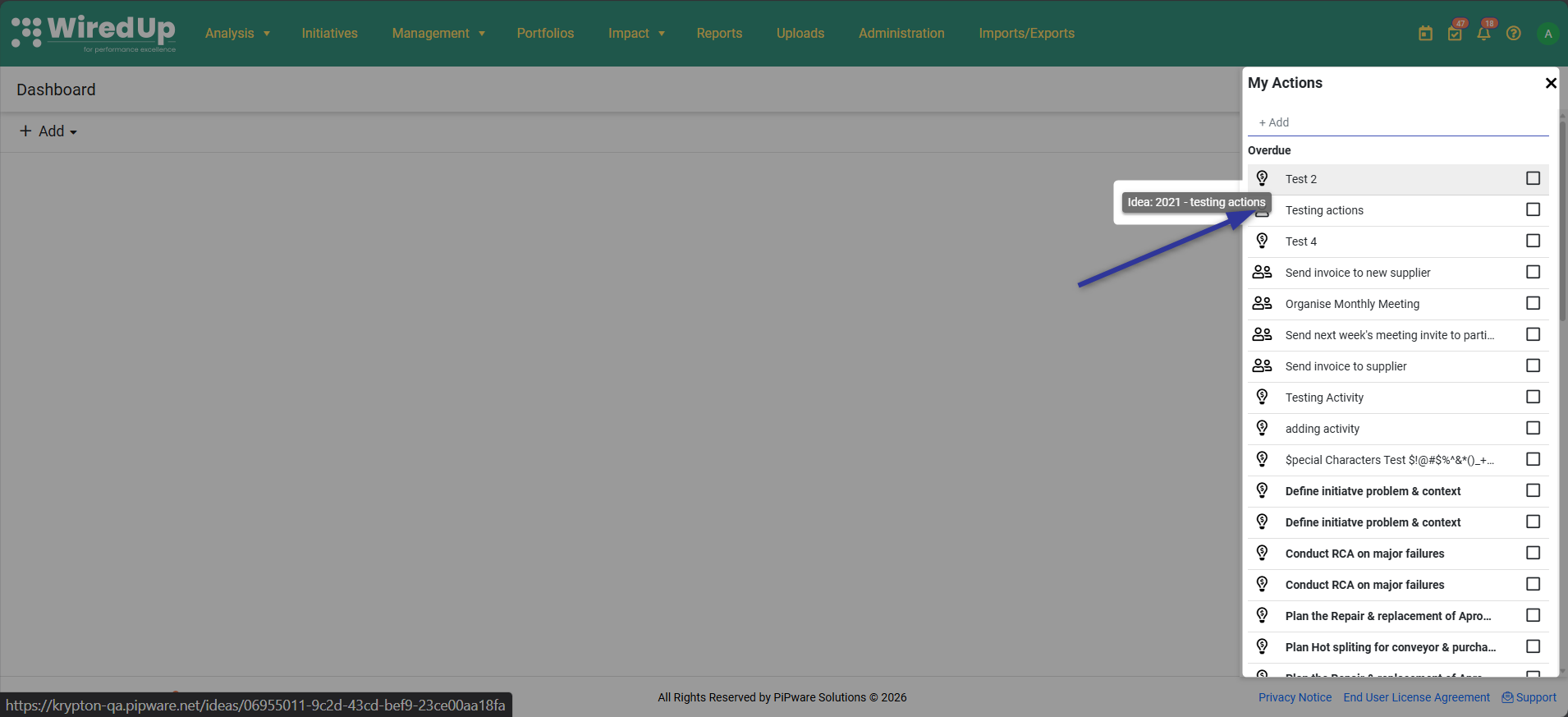
- Hover your mouse over the source icon to see a tooltip displaying the source details
To navigate to the source:
- Click on the source icon to open the originating record (Idea, Portfolio, Meeting, or RAR) in a new tab
- This allows you to view the full context of where the action was created
To edit an action:
- Click on the action name itself to open the Edit Action dialog
Viewing Source Information in the Edit Action Dialog
When you open an action to edit it, you'll see a Source field that displays: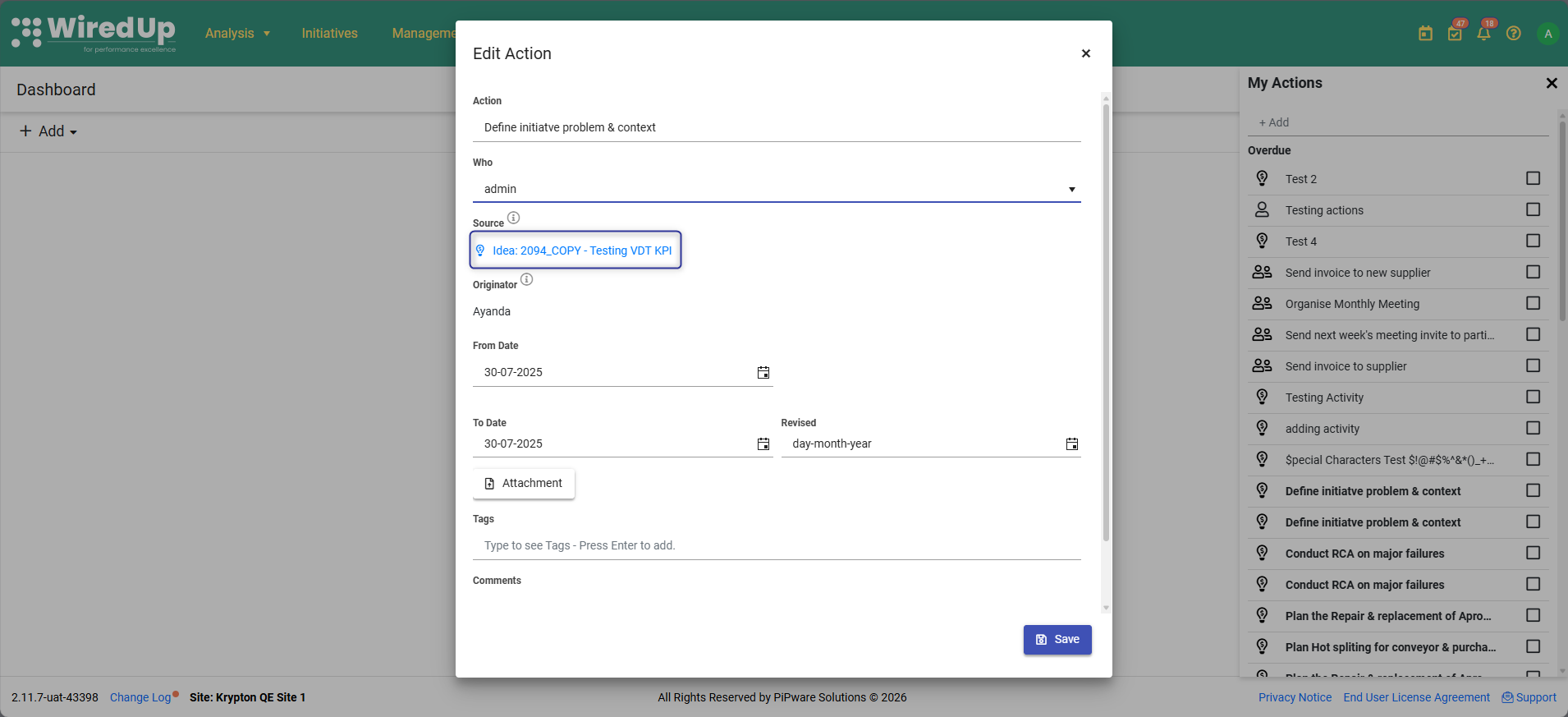
- An info icon ("i") displaying more information about how the source of the action is displayed
- The source type (e.g., Idea, Portfolio, Meeting, RAR)
- The source name with enough context to distinguish actions with similar names
- A clickable link that allows you to navigate directly to the source in a new tab
Note: If the source record has been deleted or is no longer accessible, the system will still display a meaningful label (e.g., "Source: Removed") to indicate that the action had a source that is no longer available.Benefits of Action Sources
- Better Context: Quickly understand what each action relates to without opening it
- Improved Navigation: Jump directly to the source to see related information and dependencies
- Easier Prioritization: Make informed decisions about which actions to tackle first based on their origin
- Reduced Confusion: Distinguish between actions with similar titles by viewing their source
Navigating to Action Sources from Emails
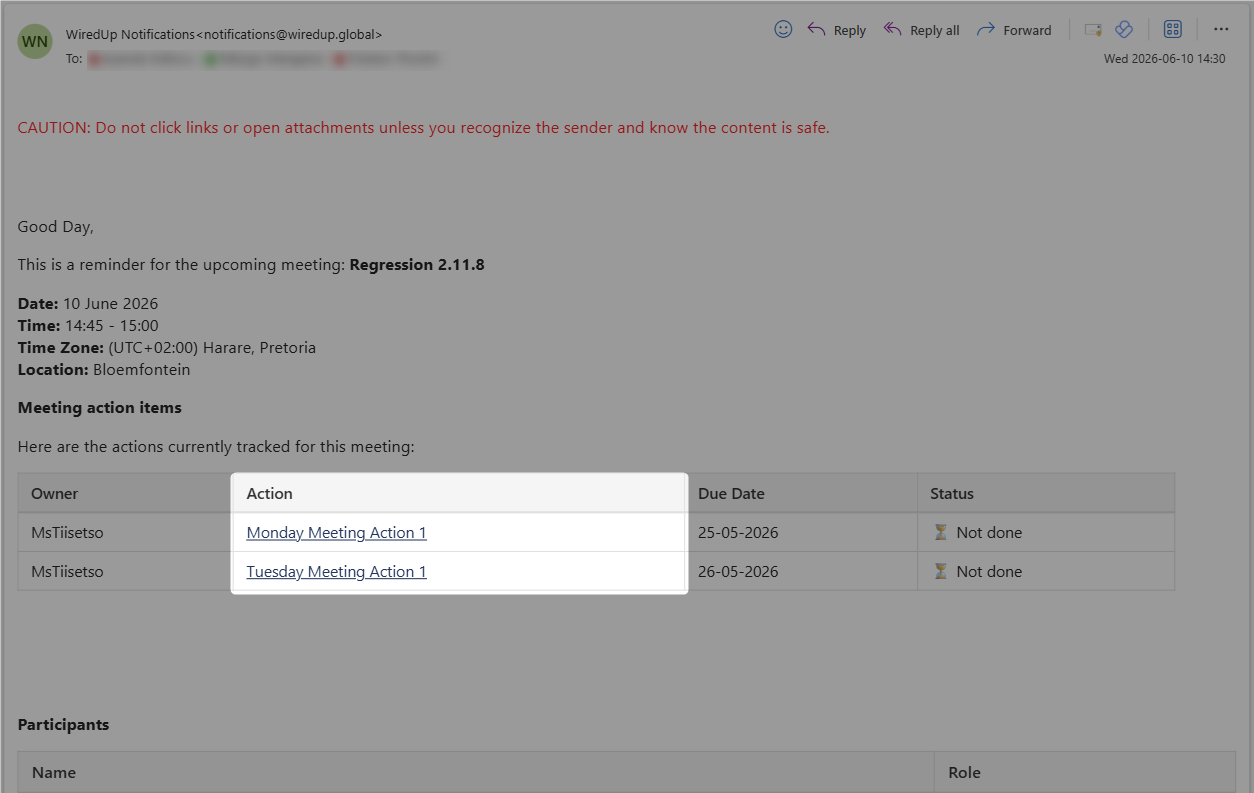
Action items listed in WiredUp automated emails now include clickable links that take you directly to the source record where the action was created, eliminating the need to manually search for the record in the platform.
Which Emails Include Action Links
This feature applies to all WiredUp emails that contain action item tables, including:
- Meeting reminder emails
- Daily to-do emails
- Action owner notification emails
- Action originator notification emails
- Any other automated emails triggered by your notification preferences
Using Action Links
Accessing the Source:
In any email containing an action items table, the action name appears as a clickable hyperlink. Simply click the action name to navigate directly to its source in WiredUp.
Where Actions Navigate:
Depending on the action type, clicking the action name will take you to:
- Meeting actions → the relevant Meeting record
- Idea actions → the relevant Idea record
- RAR actions → the relevant RAR record
- My Actions (standalone) → the My Actions page
What Happens When a Source is Unavailable
Source No Longer Exists:
If the source record has been deleted or cancelled since the email was sent:
- The action link will still appear in the email
- Clicking the link will navigate you to WiredUp and display an error message
- The error message will indicate that the record no longer exists and suggest contacting the organiser for assistance
No Access to Source:
If you don't have permission to view the source record:
- The action link will still appear in the email
- Clicking the link will navigate you to WiredUp and display an "Access Restricted" error message
- The error message will suggest contacting your administrator if you require access
Note: Action links are available to all recipients of action-related emails. The links themselves are always present in the email regardless of source availability or your access permissions—any restrictions are handled when you click the link.
Recommendations
- Regularly check your My Actions to stay on top of your tasks
- Use the priority flag to highlight your most important actions
- Add comments to actions to track progress and updates
- Explore the [Outstanding Actions Report] for a more detailed view of all actions across your organization
- Set up email notifications (if available) to receive reminders about upcoming and overdue actions
- Use the Source filter and Sort By controls to quickly locate specific actions without scrolling through long lists