
In This Article
Overview
The Actions area of the RAR instance is split between two categories:
- Last Actions - past actions
- Next Action - future dated actions
Both these sections contain icon buttons to Show RAR Action Area, Show All Comments and Filter Actions option to show all actions, show only Idea/Initiative actions or show only Meeting actions.

Last Actions
This section allows you to review Actions or mark them as Complete by ticking the tick box next to the action. You also have the ability to add comments to each action by clicking on the bubble icon next to the action. You can also filter by Filter Actions option to show all actions, show only Idea/Initiative actions or show only Meeting actions as shown in the screenshot below.


This section will only be populated if there was at least one previously completed RAR.Next Actions


The Next Actions also allows you to review actions or mark them as Complete by ticking the tick box next to the action. You also have the ability to add comments to each action by clicking on the bubble icon next to the action. You can also filter by Filter Actions option to show all actions, show only Idea/Initiative actions or show only Meeting actions as shown in the screenshot below. To add actions, click on the +Add button and enter the necessary details. The information icon ('i') displays the original date of the action when you hover over the icon. You can also Delete the action by clicking on the bin icon next to the action.
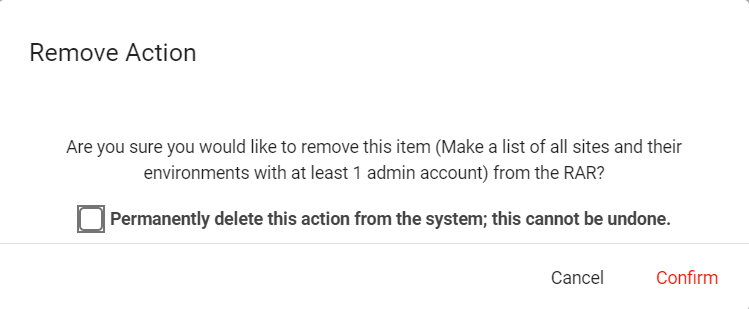
Selecting delete will bring up a prompt to confirm deletion of the idea. You can permanently delete the action from the system by ticking the tick box when prompted to delete.
Under Next Actions, you can sort the actions list by clicking a column header. You can also rearrange the actions list by dragging and dropping the action in the desired position. The action selected to be rearranged will be shown in blue font colour:

Upon clicking on an Action, the Edit Action pop-up screen is displayed. For more information on this dialogue box, please see this article: Actions Dialogue Box
Action Comments
When you create or edit actions in Meetings and RARs, you can now add and edit comments directly within the action dialogue, regardless of where you access the action from.
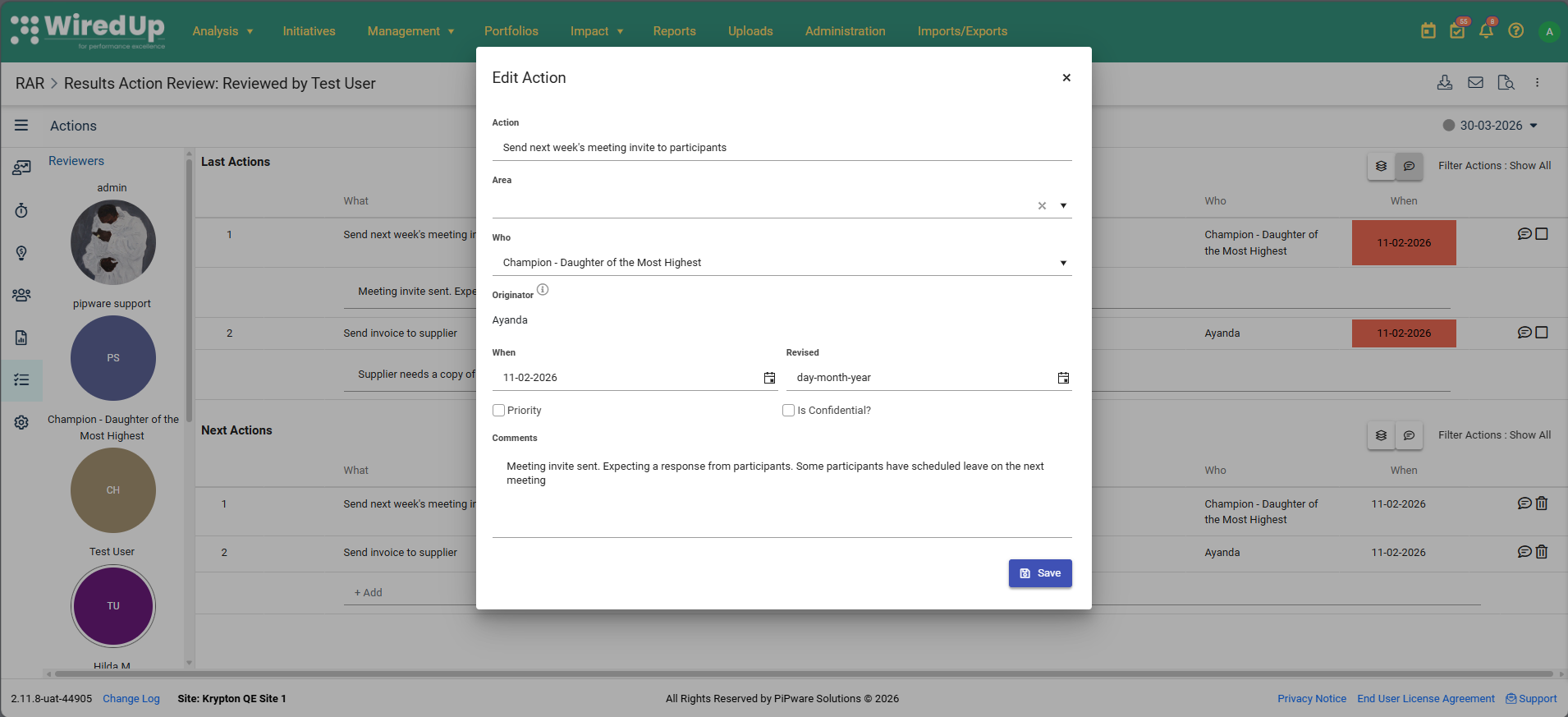
Previously, comments for Meeting and RAR actions were only visible inline beneath the action row within the source module. Now, the Comment field appears at the bottom of every action dialogue across the platform—including when you open actions from Dashboards, My Actions, or when viewing Meeting actions from within the RAR module.
Any changes you make to a comment are saved to the action record and will be reflected in the inline display within the source module on the next page load. This ensures a consistent experience when managing action comments, no matter where you're working.