
In This Article
Tips for Using the KPI Toolbar Effectively
Overview
The KPI Toolbar provides additional functionality within the KPI Module in WiredUp. When you open a KPI, the toolbar gives you access to different sections and tools for managing and analyzing your KPI data. This article explains how to access the toolbar, navigate between KPI sections, and use the available tools and icons.
Accessing the KPI Toolbar
To access the KPI Toolbar:
- Navigate to Analysis → KPIs in the main menu
- Click on any KPI from the KPI List to open it
- Look for the three-bar menu (hamburger icon) on the left side of the title at the top of the screen
- Click the three-bar menu to reveal the toolbar options
Note: The toolbar options will change based on which section you are currently viewing (Chart, Configuration, or Values)Navigating KPI Sections
The three-bar menu allows you to switch between the following KPI sections:
Chart
Displays a visual representation of your KPI performance over time. This section includes graphical data showing actuals, baselines, targets, and trends.
Configuration
Opens the KPI configuration screen where you can view and edit KPI settings such as name, description, baseline, target, owner, portfolio, and other properties.
Values
Opens the KPI values grid where you can view, add, and edit actual KPI values for different time periods.
Tip: You can quickly switch between these sections using the three-bar menu without returning to the KPI List.Top-Right Toolbar Icons
The following icons are available in the top-right corner of the KPI screen. These icons are visible across all three sections (Chart, Configuration, and Values).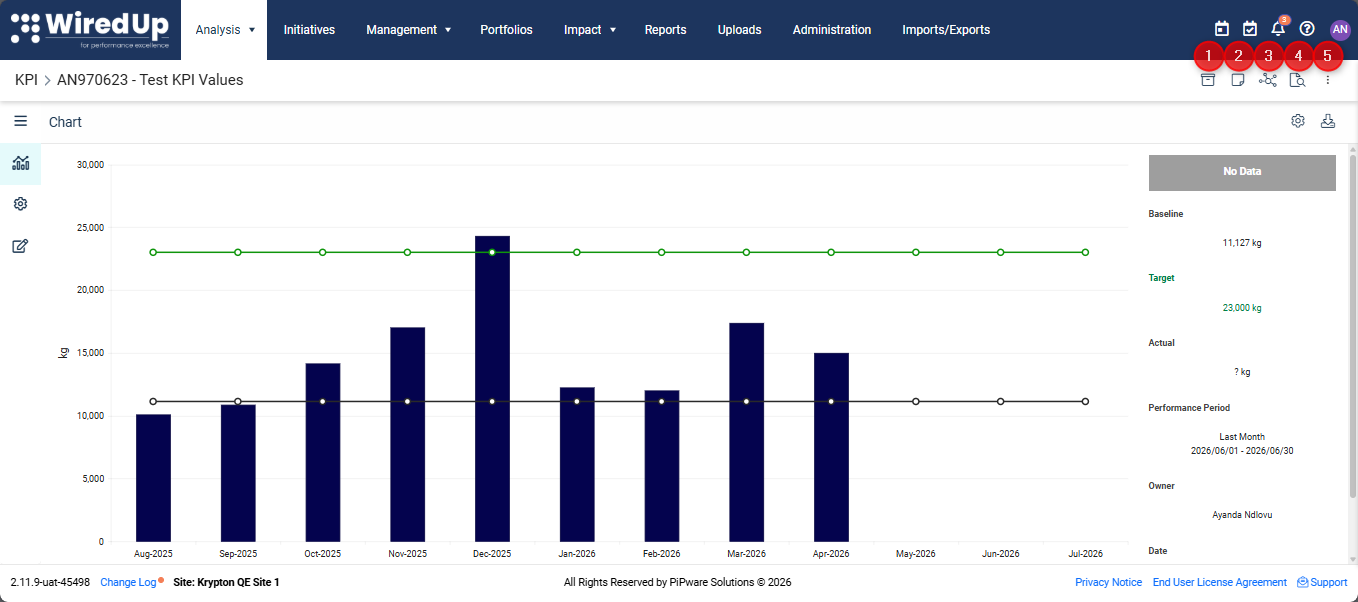
1. Archive Icon
Purpose: Allows you to retire KPIs that are no longer valid or should no longer be used, without deleting them from the system
How to use: Click on the Archive icon to archive the KPI
Why it is useful: Archiving is ideal for KPIs that are no longer relevant but must be retained for compliance, historical reporting, or audit purposes.
For more information on Archiving KPIs, please see this article: Archiving KPIs : WiredUp
2. Notes and Attachment Icon
Purpose: Allows you to add commentary, notes, and attachments to the KPI for additional context and documentation.
How to use: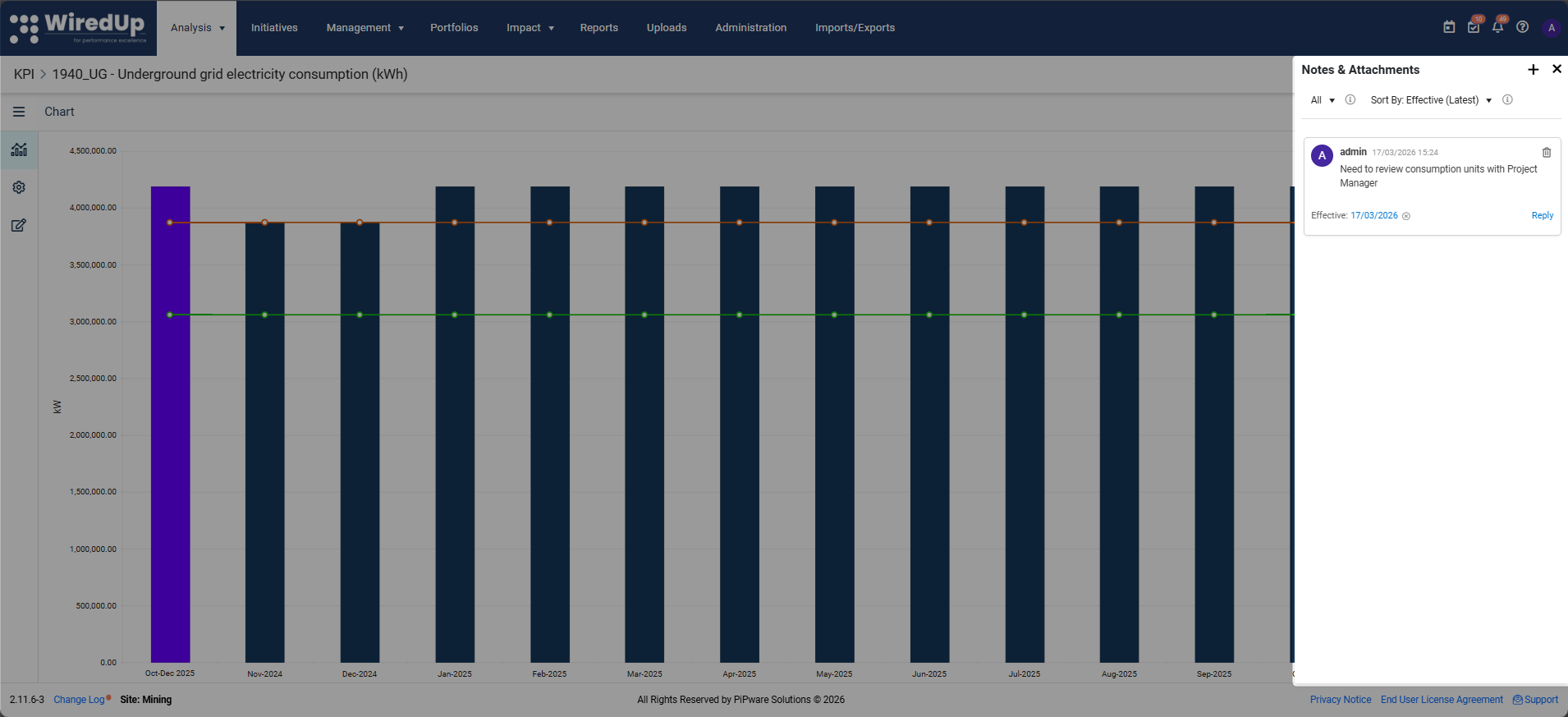
- Click the Notes and Attachment icon in the top-right corner
- Add your commentary or notes using the comment field
- Attach relevant files or documents if needed
Why it's useful: Provides context for KPI performance, documents assumptions, and shares important information with team members.
For more details, refer to the KPI Commentary Feature article.3. References Icon
Purpose: Shows where the selected KPI is being used across your WiredUp system.
How to use:
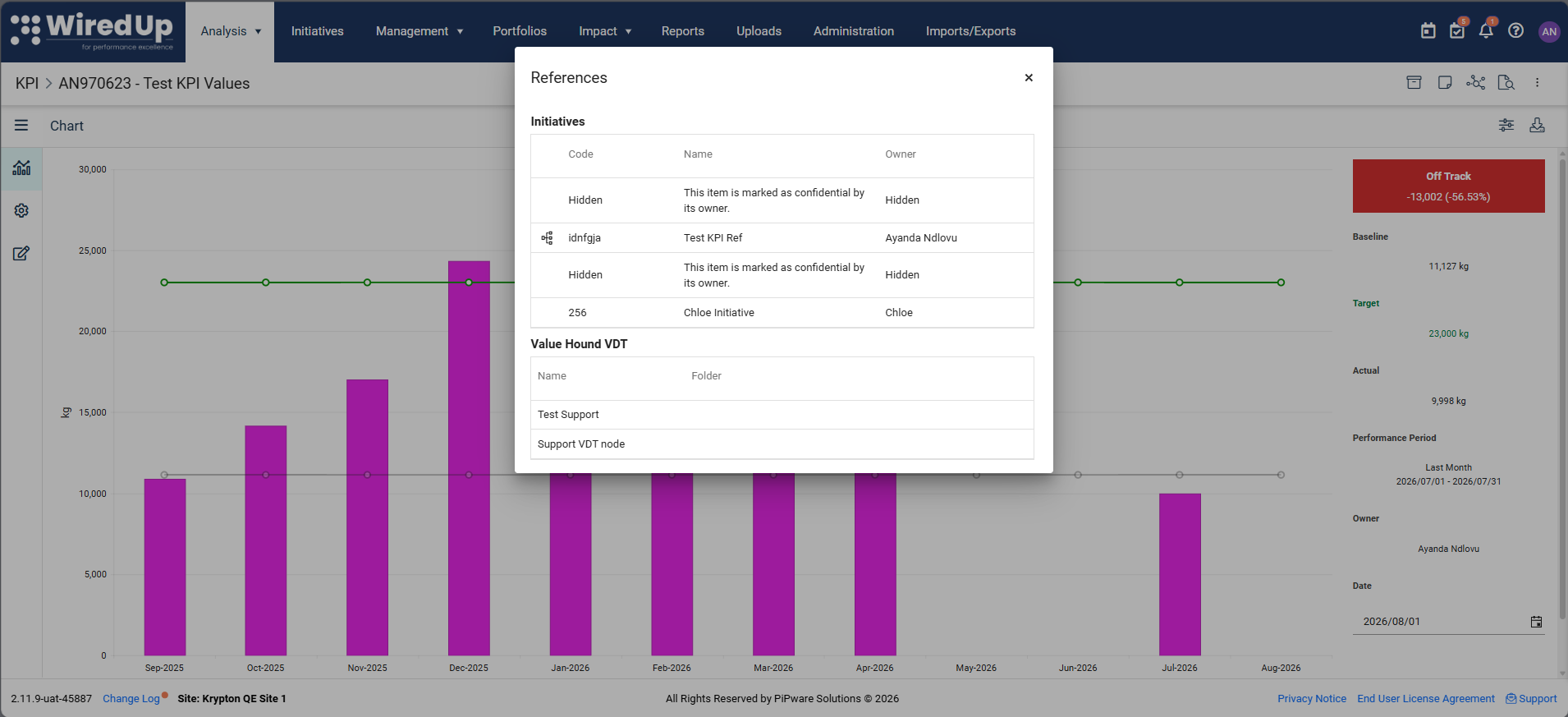
- Click the References icon in the top-right corner
- A list will display showing all locations where this KPI is referenced, including:
- Ideas/Initiatives: Projects or initiatives linked to this KPI
- Value Hound Value Driver Trees (VDTs): VDTs that include this KPI
- Other KPIs: Calculated KPIs that reference or depend on this KPI
- Meetings: Meetings where this KPI is referenced
- RARs (Review, Action, Results): RARs that include this KPI
When viewing KPI References, a VDT icon appears next to Initiatives that use the KPI as a node in their Value Driver Tree for value calculation. Initiatives without this icon only have the KPI attached via the Performance tab for tracking. Clicking an Initiative navigates to either the VDT page (if the icon is present) or the Performance page (if not), taking you directly to the relevant context.
Why it's useful: Helps you understand the impact and dependencies of the KPI before making changes or deletions.
4. Audit Icon
Purpose: Displays the change log (audit trail) of all modifications made to the KPI.
How to use: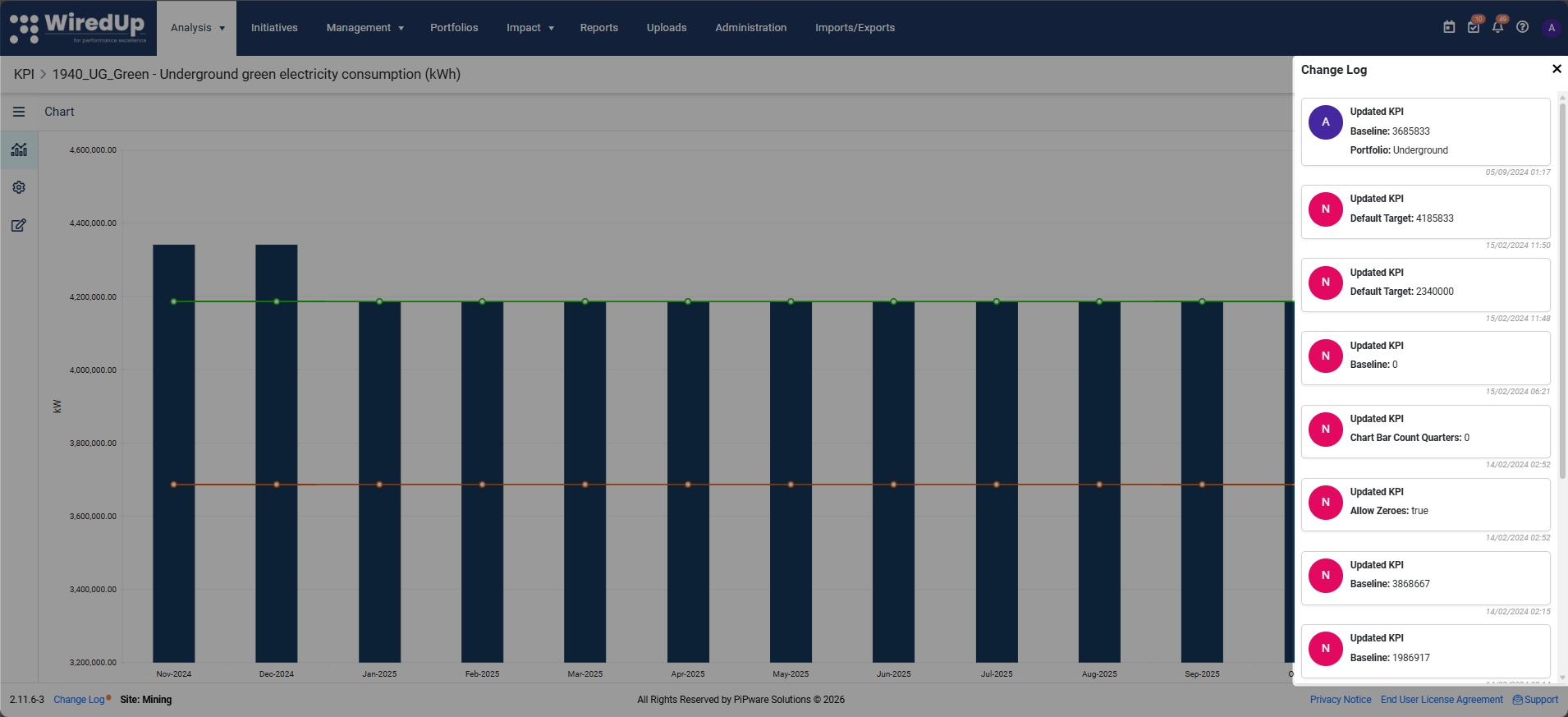
- Click the Audit icon in the top-right corner
- The Change Log will display, showing:
- What changes were made
- Who made the changes
- When the changes occurred
Why it's useful: Provides transparency and accountability by tracking the history of KPI modifications, which is essential for compliance and troubleshooting.
5. Copy/Delete Icon
Purpose: Creates a duplicate of the current KPI with similar settings or select the option to Delete the KPI
How to use:
To Copy a KPI
- Click the 3-dot icon in the top-right corner then select the Copy option
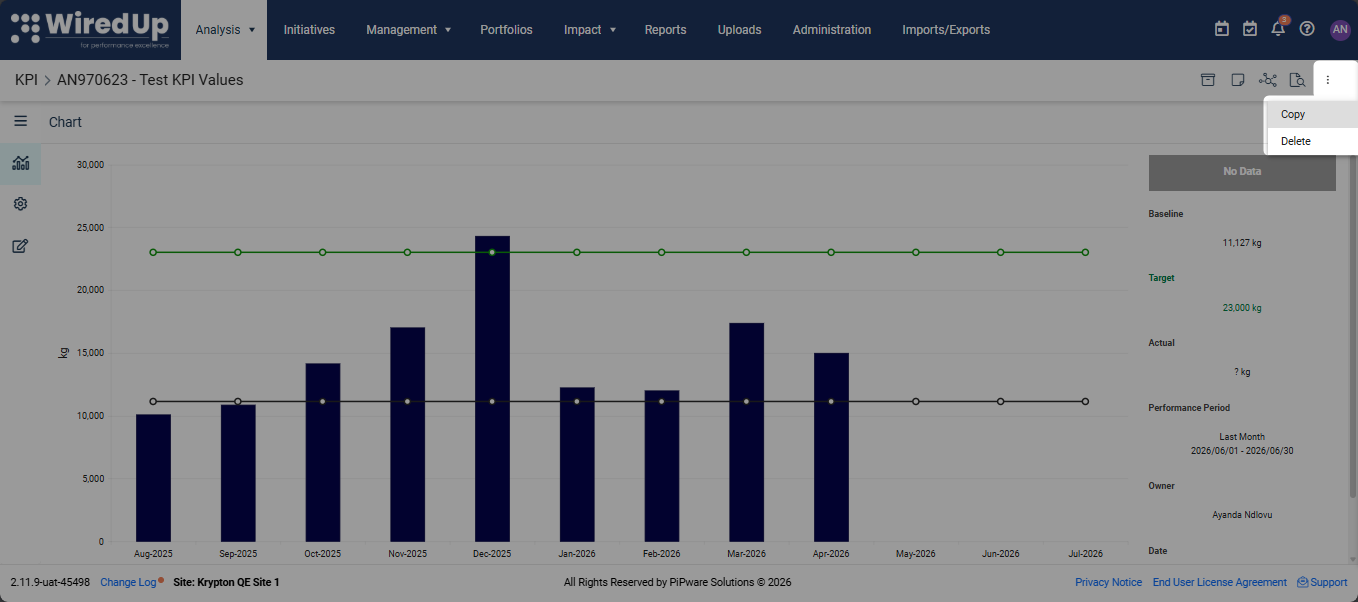
- A Copy dialog will appear with the following options:
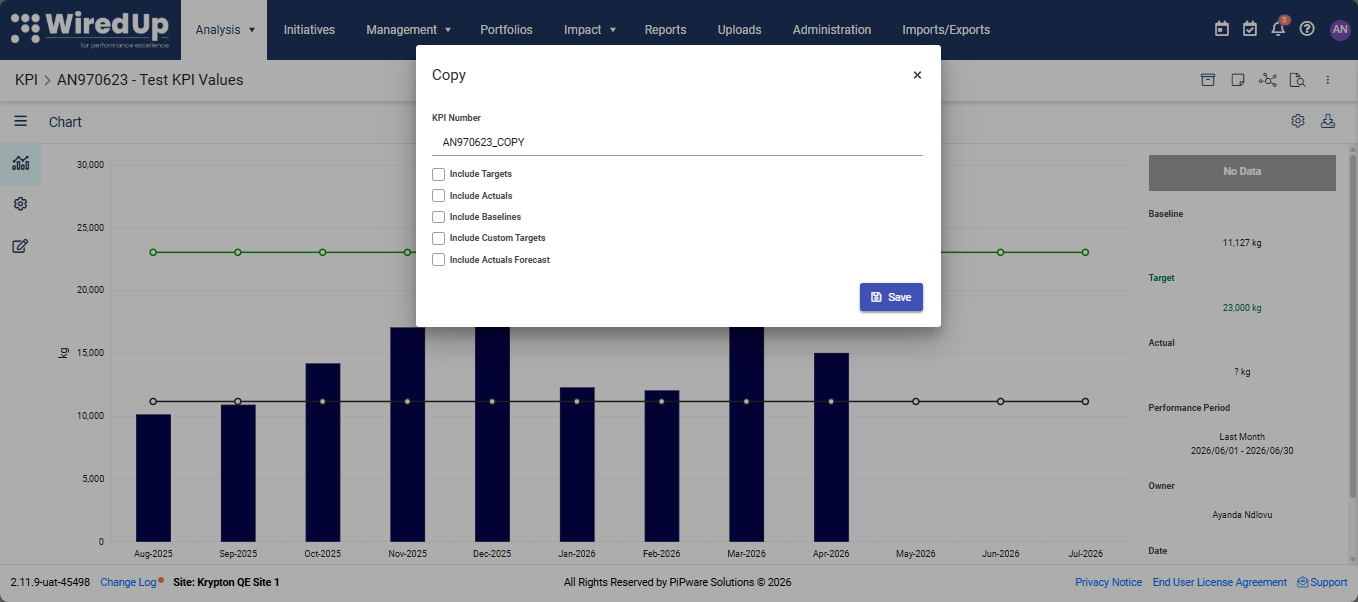
- KPI Number: The code for the new KPI (auto-generated with "_COPY" suffix)
- Include Targets: Copy target values
- Include Actuals: Copy actual values
- Include Baselines: Copy baseline values
- Include Custom Targets: Copy custom target values
- Include Actuals Forecast: Copy forecasted actual values
- Select the elements you want to copy by ticking the checkboxes
- Click Save to create the copy
Why it's useful: Saves time when creating similar KPIs by reusing existing configurations and data instead of starting from scratch
To Delete a KPI:
- Click the 3-dot icon in the top-right corner then select the Delete option
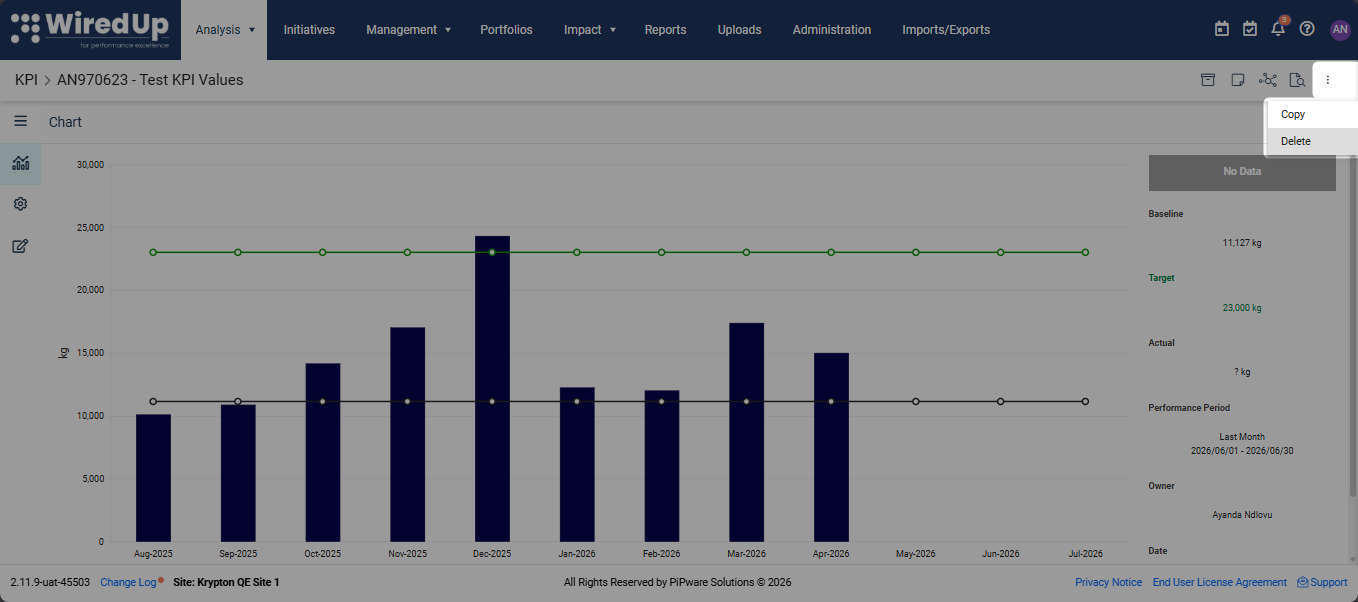
- A confirmation screen will be displayed to confirm the removal of the KPI. Once confirmed, click Delete and the KPI will be permanently deleted from the system
Chart Section Tools
When you select Chart from the three-bar menu, additional tools become available:
Chart Options Icon
Located at the top-right of the chart display, the Options (config) icon allows you to configure how KPI data is displayed on the chart.
How to use:
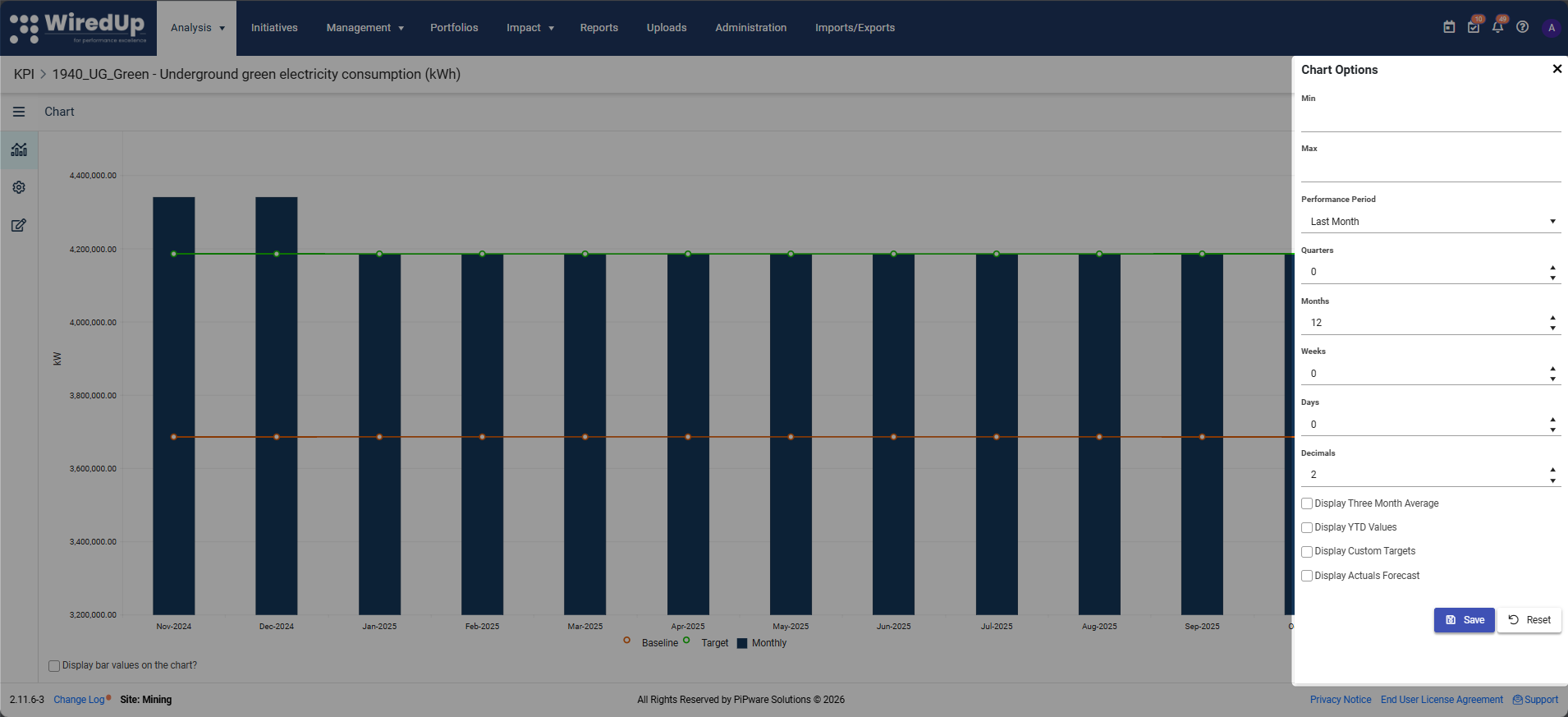
- Click the Options icon on the chart
- A Chart Options panel will open with the following settings:
- Min: Set the minimum value for the chart Y-axis
- Max: Set the maximum value for the chart Y-axis
- Performance Period: Select the time period to display (e.g., Last Month, Last Quarter, Custom)
- Quarters: Specify the number of quarters to display
- Months: Specify the number of months to display
- Weeks: Specify the number of weeks to display
- Days: Specify the number of days to display
- Decimals: Set the number of decimal places to display
- Display Three Month Average: Show a 3-month rolling average line
- Display YTD Values: Show Year-to-Date values
- Display Custom Targets: Show custom target values
- Display Actuals Forecast: Show forecasted actual values
- Adjust the settings as needed
- Click Save to apply your changes, or click Reset to restore default settings
Note: These same chart configuration settings are also available in the Configuration menu under chart settings.
Tip: For detailed information about all available chart options, refer to the KPI Chart Options article.Configuration Section Tools
When you select Configuration from the three-bar menu:
Save Button
After making changes to any KPI configuration settings, click the Save button in the top-right corner to preserve your changes.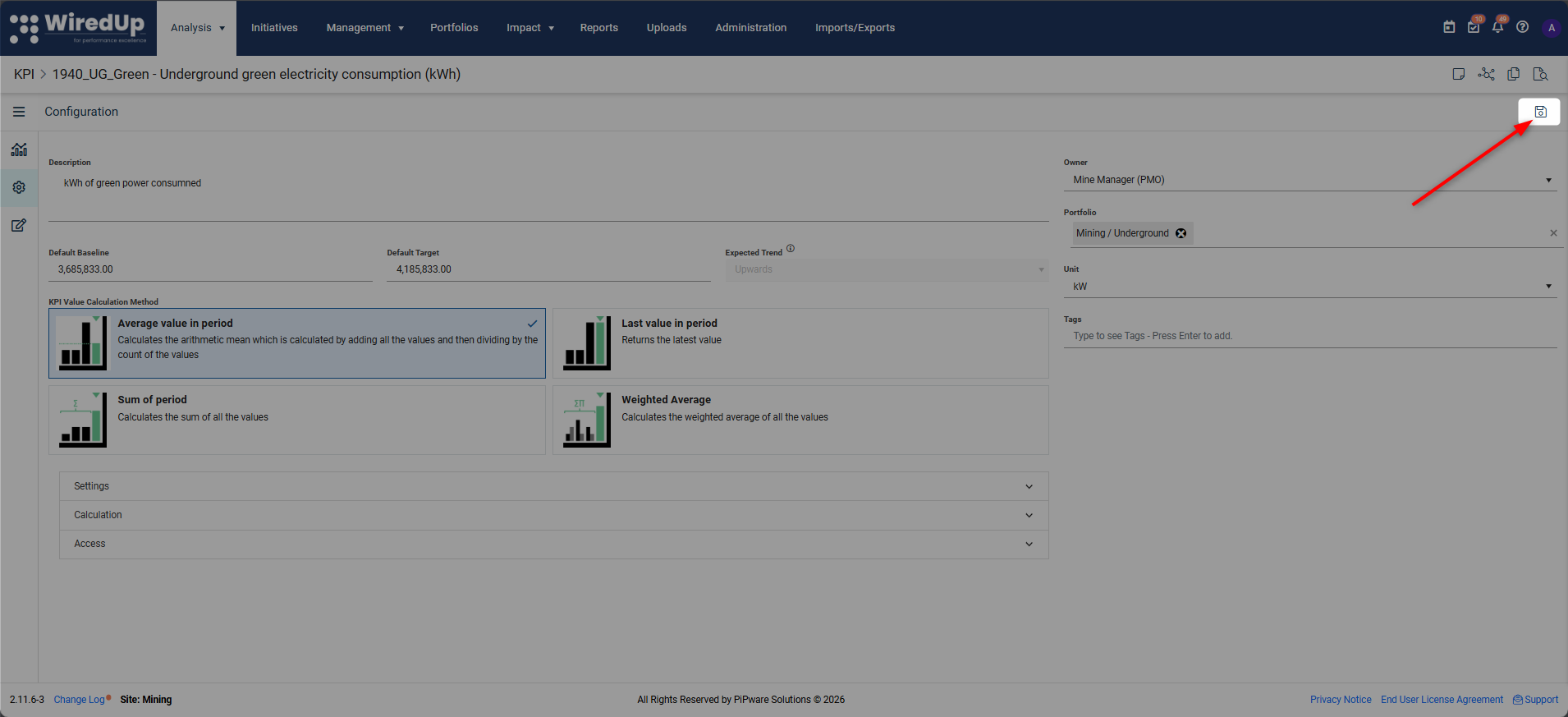
Warning: If you navigate away without saving, all changes will be lost.Tip: For detailed information about each configuration field, refer to the Add a KPI article.Values Section Tools
When you select Values from the three-bar menu, the following tools are available:
Save Button
After adding or editing KPI values in the grid, click the Save button in the top-right corner to preserve your changes.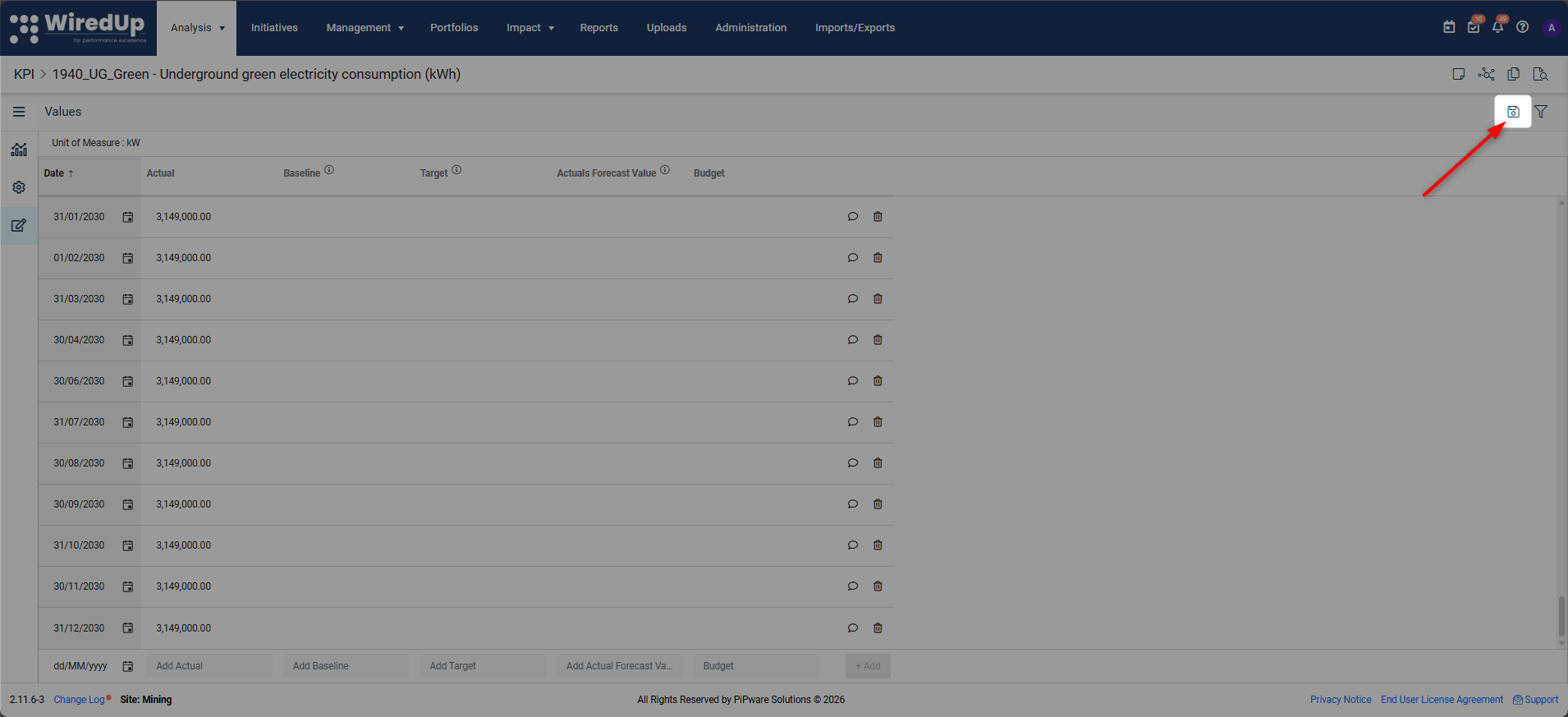
Warning: If you navigate away without saving, all changes will be lost.Filter Icon
The Filter icon in the top-right corner of the values grid allows you to narrow down the displayed values by date range.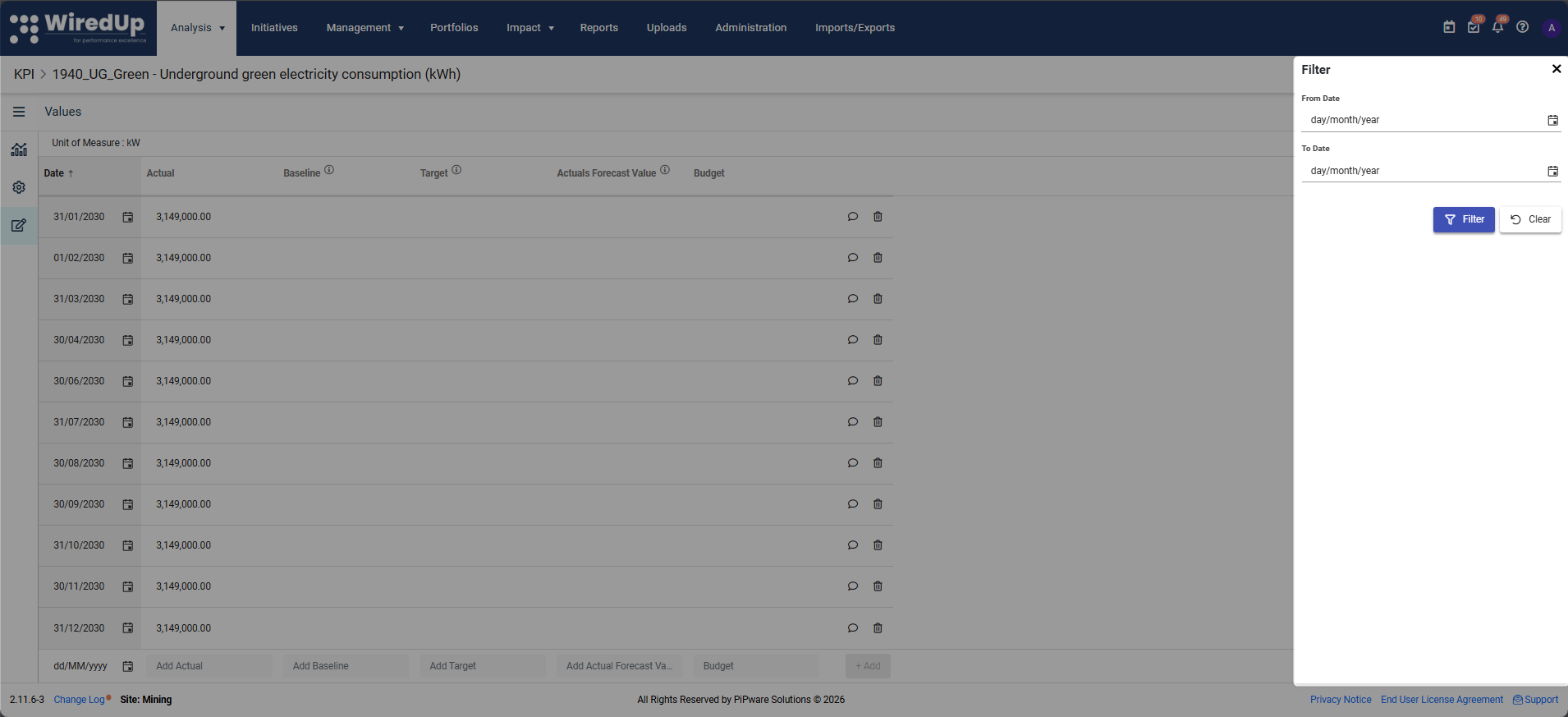
How to use:
- Click the Filter icon
- Select a From Date (start date)
- Select a To Date (end date)
- Select Filter
- The grid will display only values within the selected date range
- Click Clear to remove the filter and view all values again
Tip: Filtering is useful when working with KPIs that have extensive historical data.
Tips for Using the KPI Toolbar Effectively
- Use References before deleting: Always check the References icon before deleting a KPI to understand its impact on other areas of your system
- Copy for consistency: Use the Copy function to maintain consistent settings across similar KPIs
- Track changes with Audit: Regularly review the Audit log to monitor who is making changes to critical KPIs
- Add context with Notes: Use the Notes and Attachment icon to document important information about KPI performance
- Filter large datasets: When working with KPIs that have years of data, use the Values filter to focus on specific time periods
- Save frequently: Remember to save your changes in Configuration and Values sections to avoid losing work
Next Steps
Now that you understand how to use the KPI Toolbar, you may want to explore:
- KPI Chart: Learn more about visualizing and analyzing KPI performance data
- KPI Chart Options: Discover advanced chart configuration settings
- KPI Commentary Feature: Learn how to add notes and attachments to KPIs