
In This Article
Archived KPIs and Existing References
Overview
KPI Archiving provides a controlled way to retire KPIs that are no longer valid or should no longer be used, without deleting them from the system. This feature ensures governance, reporting continuity, and auditability by preserving historical KPI data while preventing the KPI from being used in new contexts.
When a KPI is archived:
- It is removed from search results and selection lists across the system
- It becomes fully frozen to protect historical integrity
- Existing references display an archive icon to inform users of the archived status
- Historical data and audit trails are preserved
Archiving is ideal for KPIs that are no longer relevant but must be retained for compliance, historical reporting, or audit purposes.
Understanding KPI Status
KPIs in WiredUp can have one of two statuses:
Active (Default)
- The KPI is searchable and selectable across the system
- The KPI can be referenced in new VDTs, reports, dashboards, and other contexts
- The KPI can be edited and updated according to existing permissions
- Normal KPI behavior applies
Archived
- The KPI is removed from search results and selection lists
- The KPI cannot be newly referenced in VDTs, reports, dashboards, or other contexts
- The KPI is fully frozen (no edits to configuration, values, or metadata)
- Existing references display an archived label
- The KPI can be reactivated if needed
Changing KPI Status
Archiving a KPI
To archive an Active KPI:
- Navigate to Analysis → KPI
- Click on the KPI you want to archive
- Click the Status dropdown (play icon) in the app bar. The dropdown displays the option to Archive
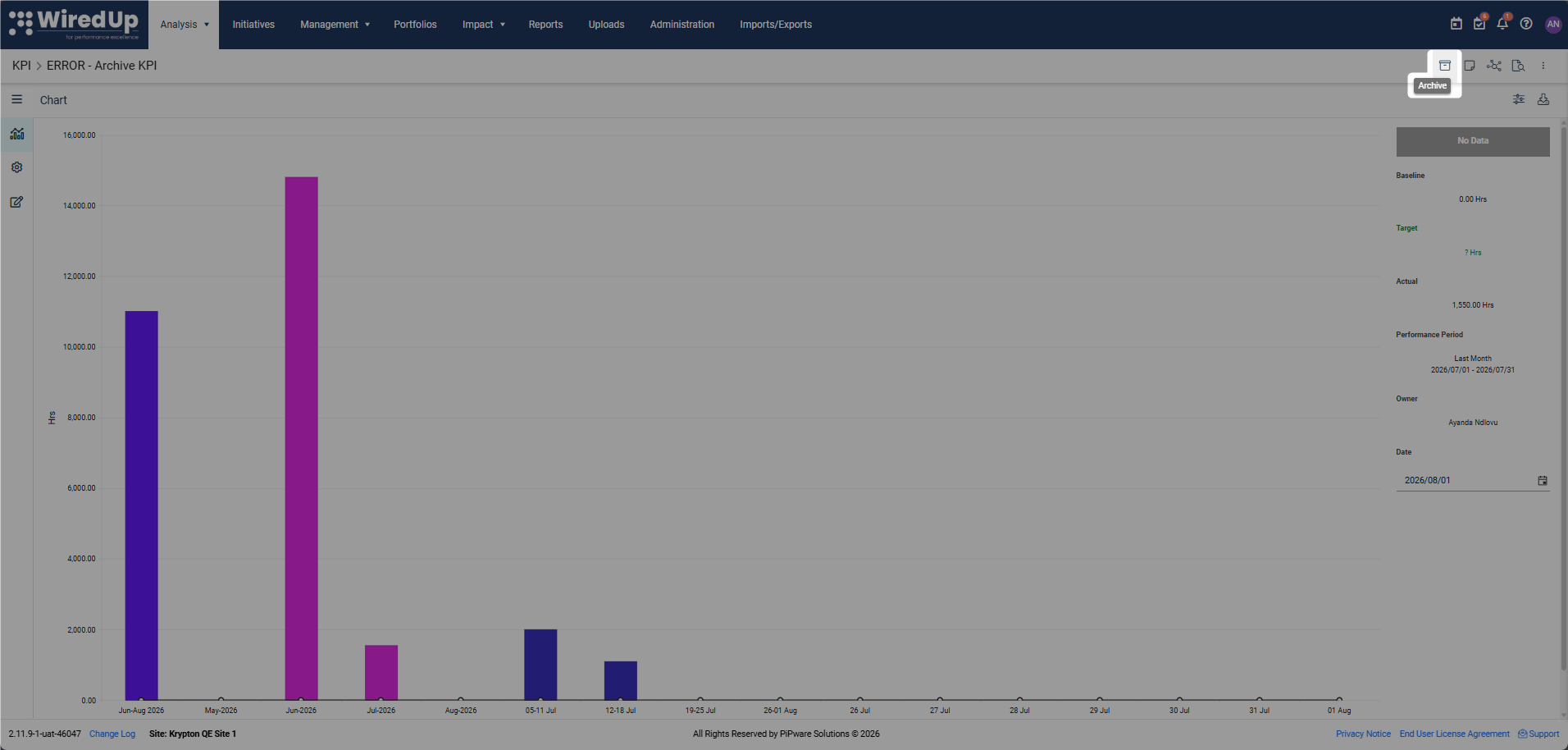
- Select Archive and the KPI status will change to Archived.
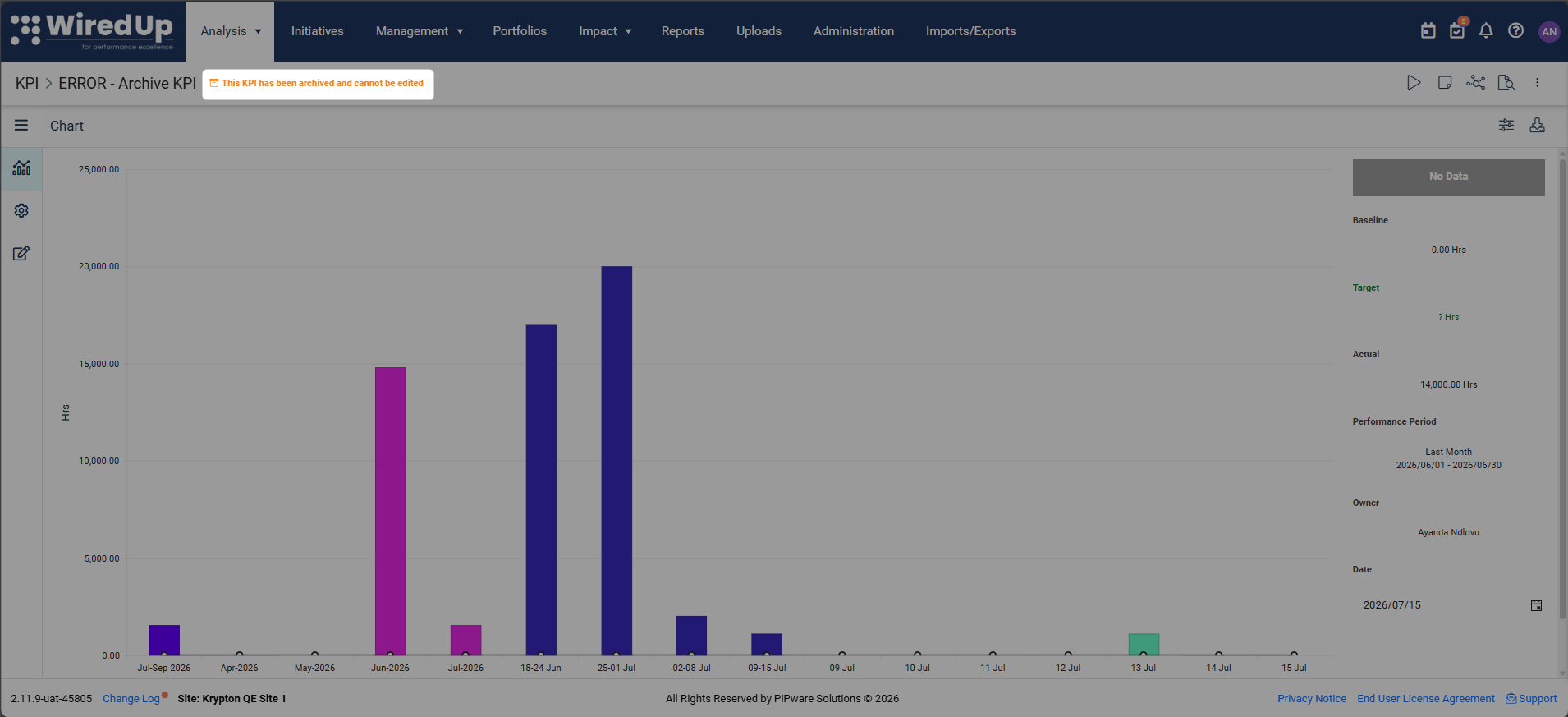
- An orange banner appears at the top of the KPI screen with the message: "This KPI has been archived and cannot be edited"
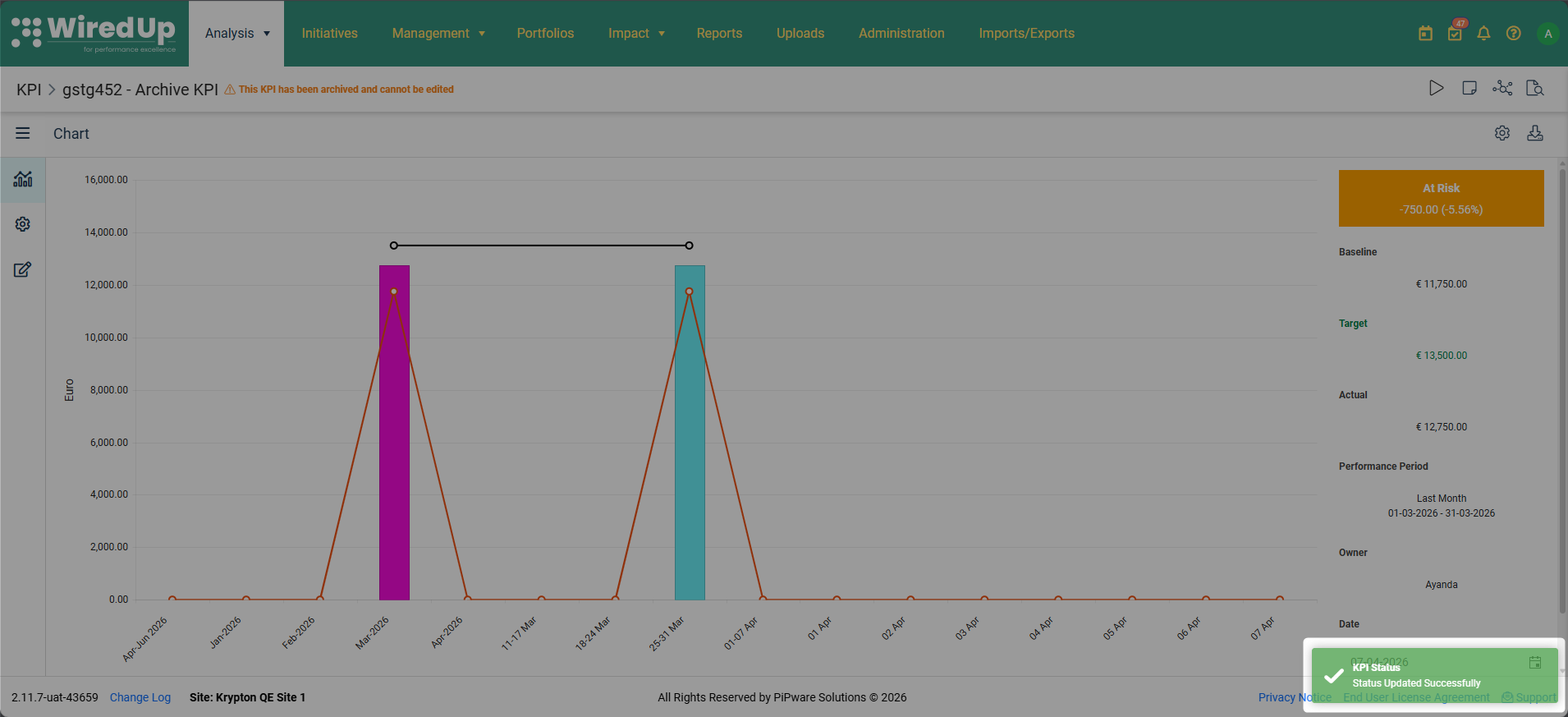
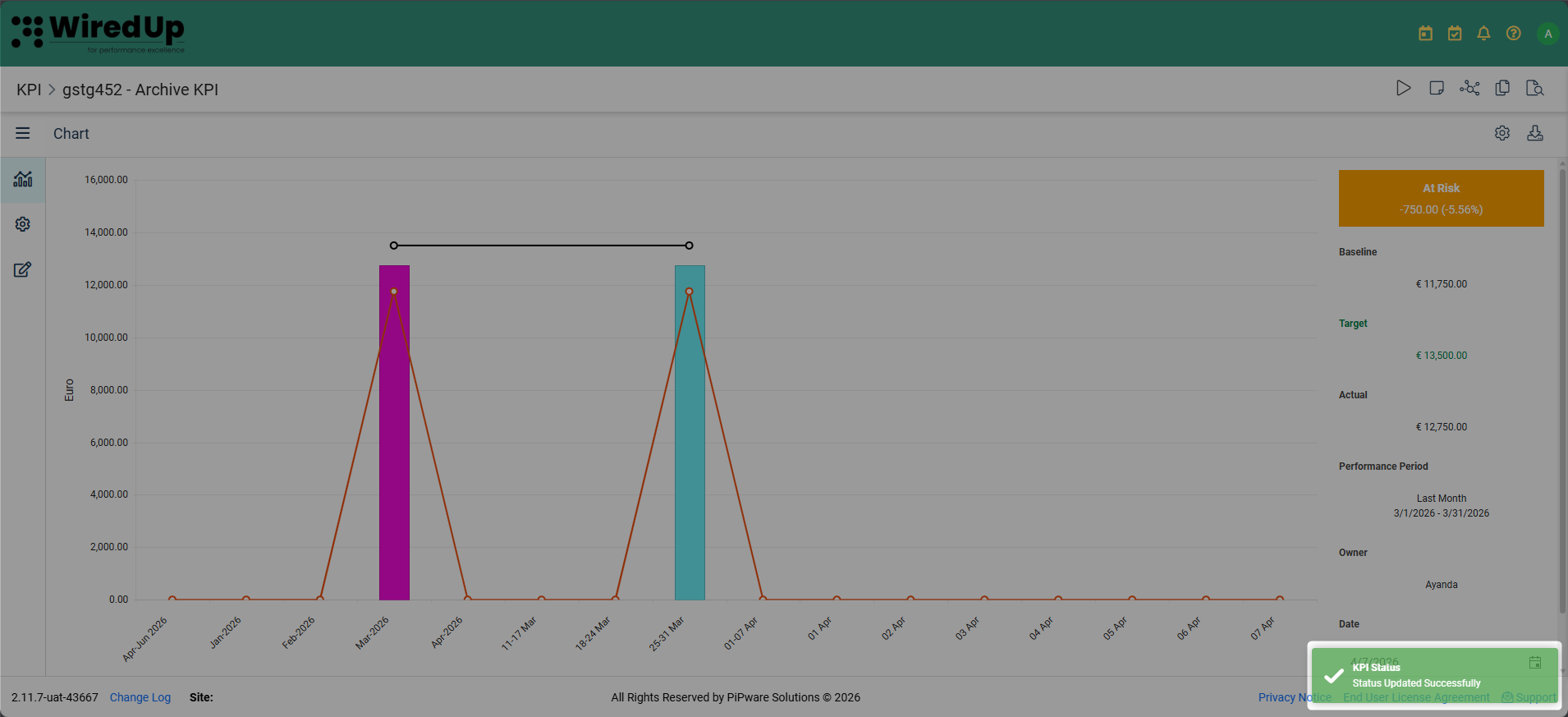
- A success notification appears in the bottom-right corner: "KPI Status - Status Updated Successfully"
- The Changelog is automatically updated with:
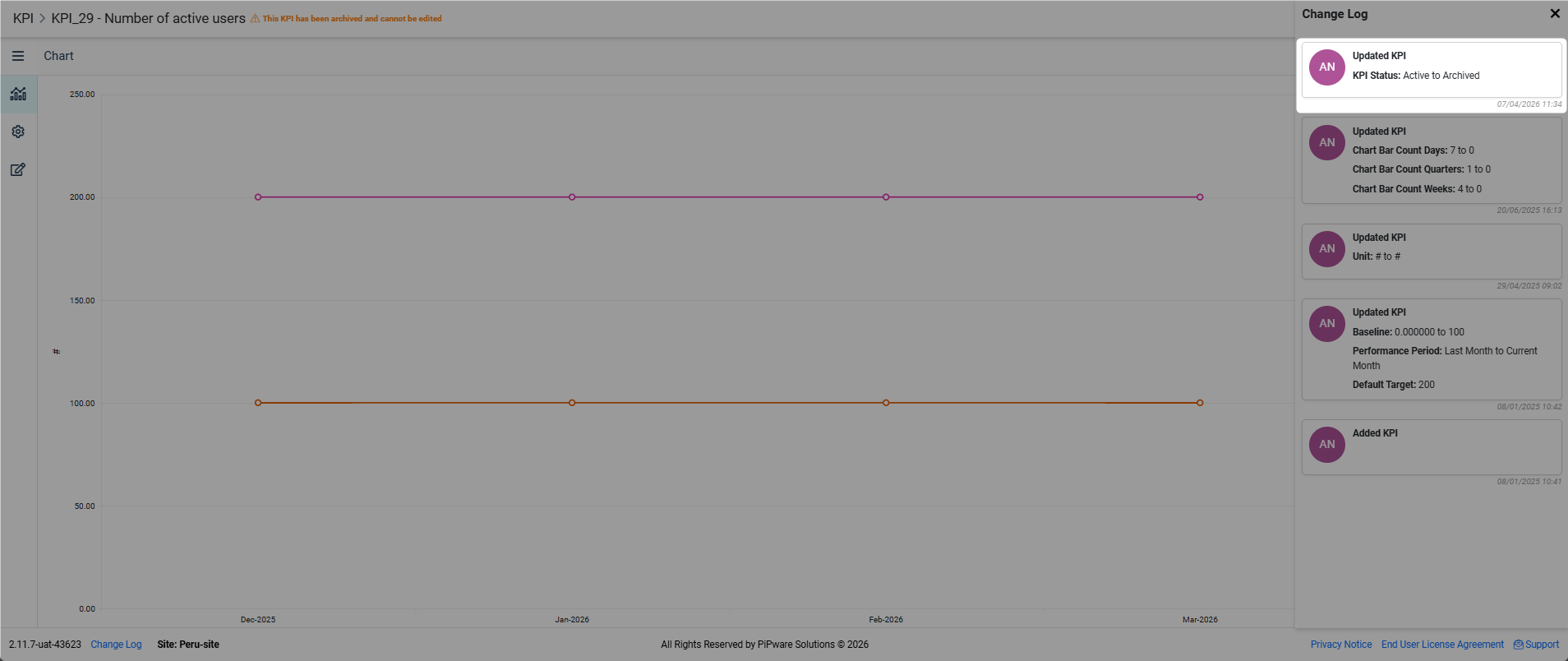
- Header: Updated KPI
- Message: Status: Active to Archived
- Timestamp
- Archived by: [User name]
Important: Only users with KPI Admin permissions or the KPI Owner can change the KPI status.What Happens When a KPI is Archived
Once archived, the KPI:
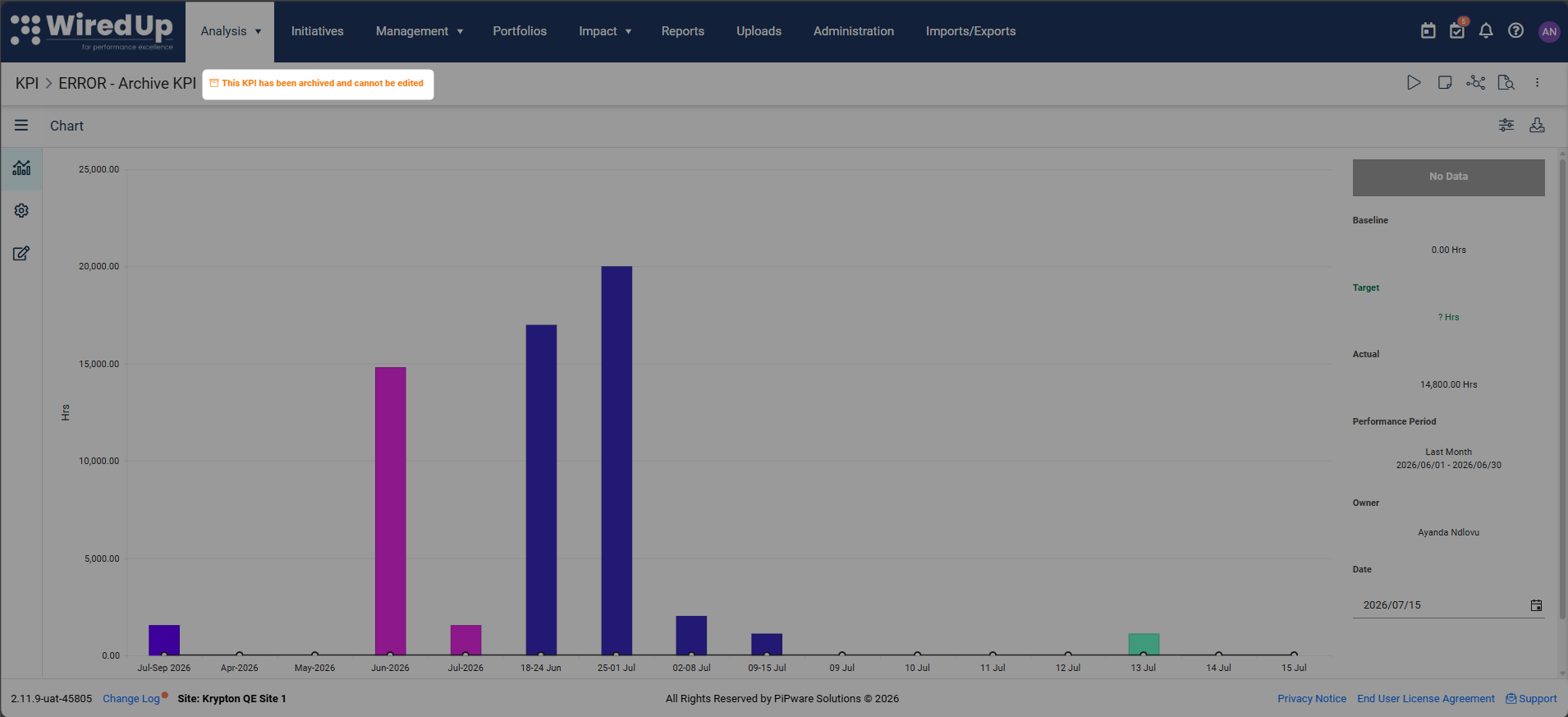
- Displays an orange warning banner: "This KPI has been archived and cannot be edited"
- Is removed from all search results and selection lists
- Cannot be newly referenced in any part of the system
- Becomes fully frozen (no updates allowed to configuration, values, or metadata)
- Displays an archive icon wherever it is already referenced. On VDTs, the archived KPI node will be displayed as greyed out and a 'Reference has been archived' warning sign will be displayed on the outcome node.
- Remains visible in the KPI List when the Archived filter is applied
Filtering KPIs by Status
The KPI List includes a Status filter that allows you to view Active, Archived, or both types of KPIs.
Using the Status Filter
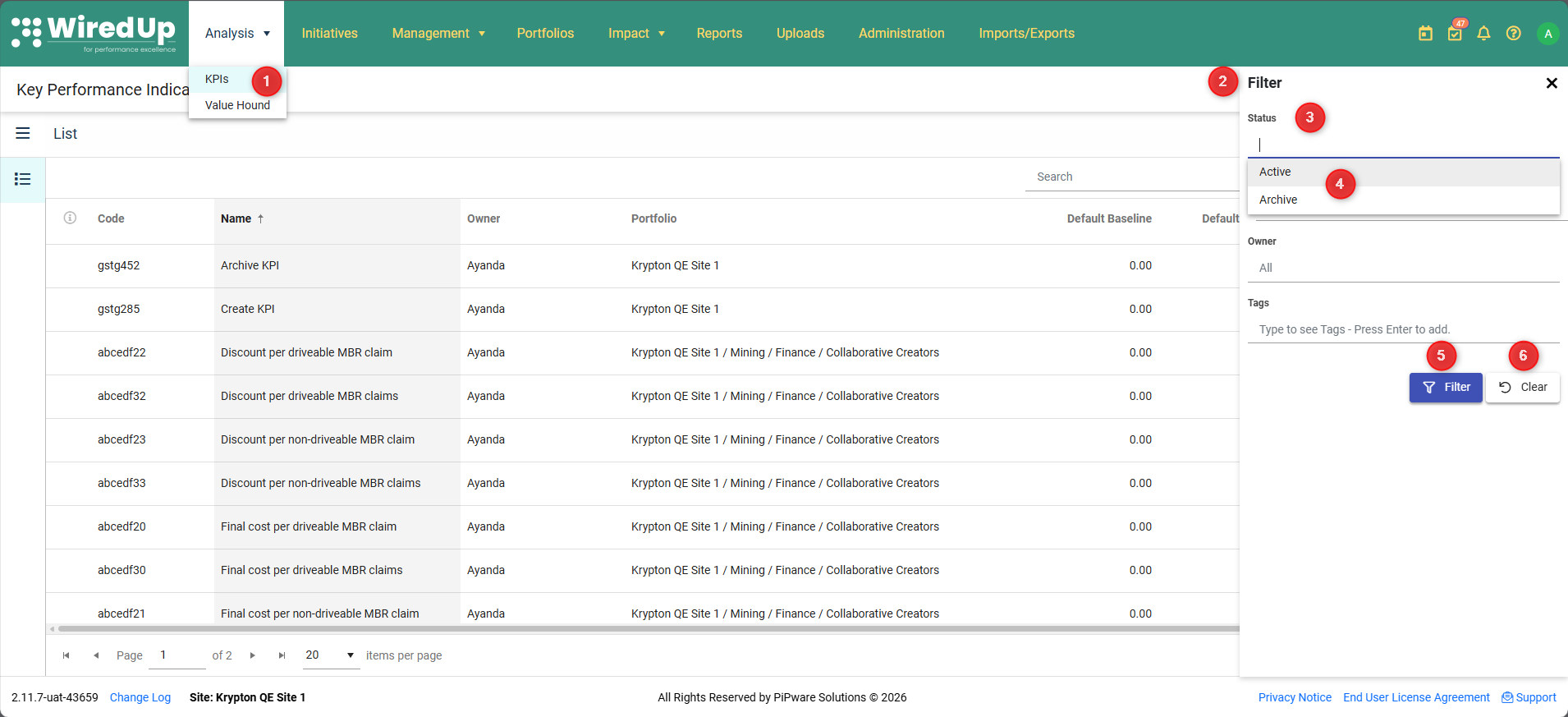
- Navigate to Analysis → KPIs to open the KPI List
- Click the Filter icon at the top-right of the screen. The Filter panel opens on the right side
- Locate the Status filter (multi-select) at the top of the filter panel
- Select one or more options:
- Active: Show only Active KPIs
- Archive: Show only Archived KPIs
- Select both to show all KPIs regardless of status
- Click Filter to apply your selection
- Click Clear to remove all filters
Default Behavior: When you clear the filter, the system defaults to showing only Active KPIs.
Adding the Status Column
The Status column is available in the Column Picker but is not added to the KPI List by default.
To add the Status column: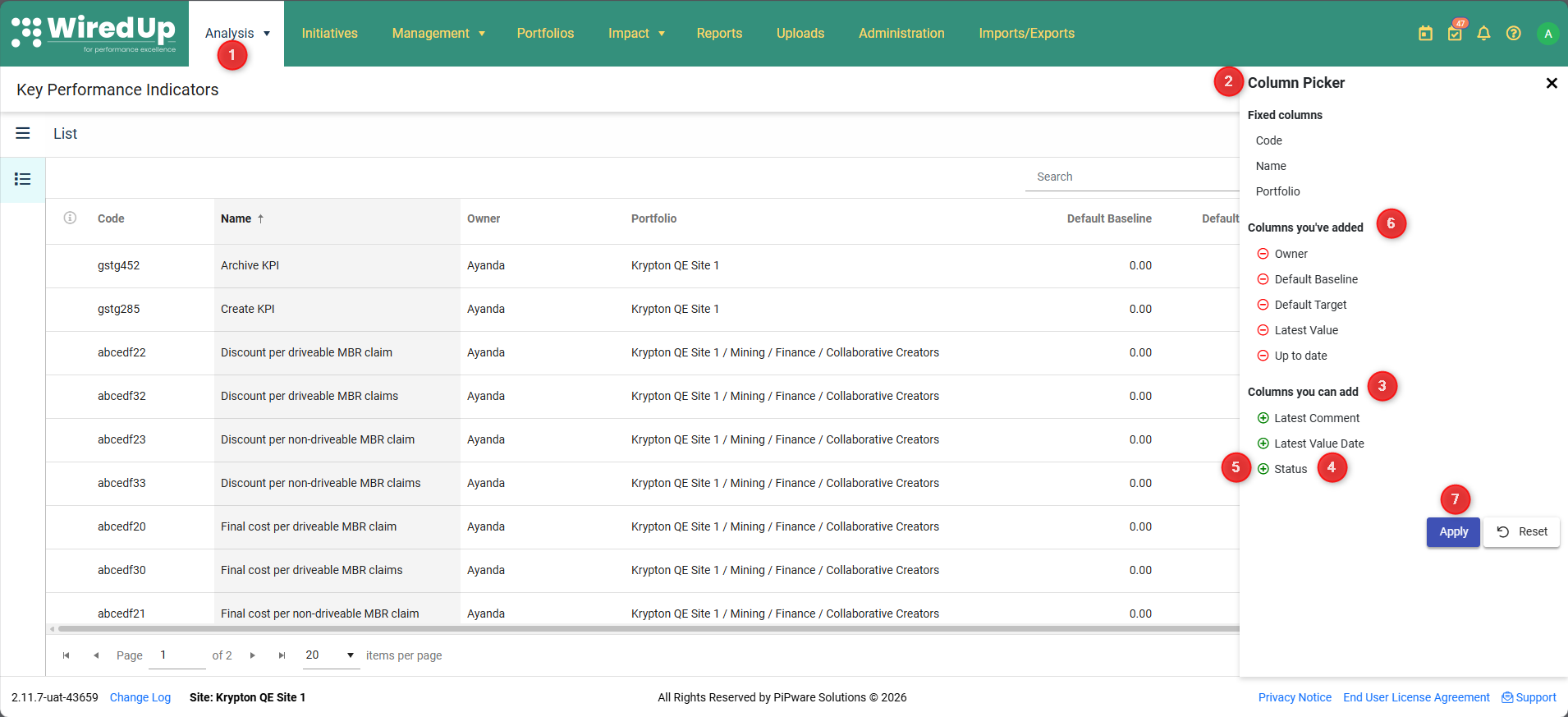
- Navigate to Analysis → KPIs to open the KPI List
- Click the Column Picker icon at the top-right of the screen. The Column Picker panel opens on the right side
- Scroll down to the Columns you can add section
- Locate Status in the list
- Click the green + icon next to Status to add it to your columns
- The Status column moves to the Columns you've added section
- Click Apply to save your changes
The Status column will appear as the last column in the KPI List, displaying either Active or Archived for each KPI.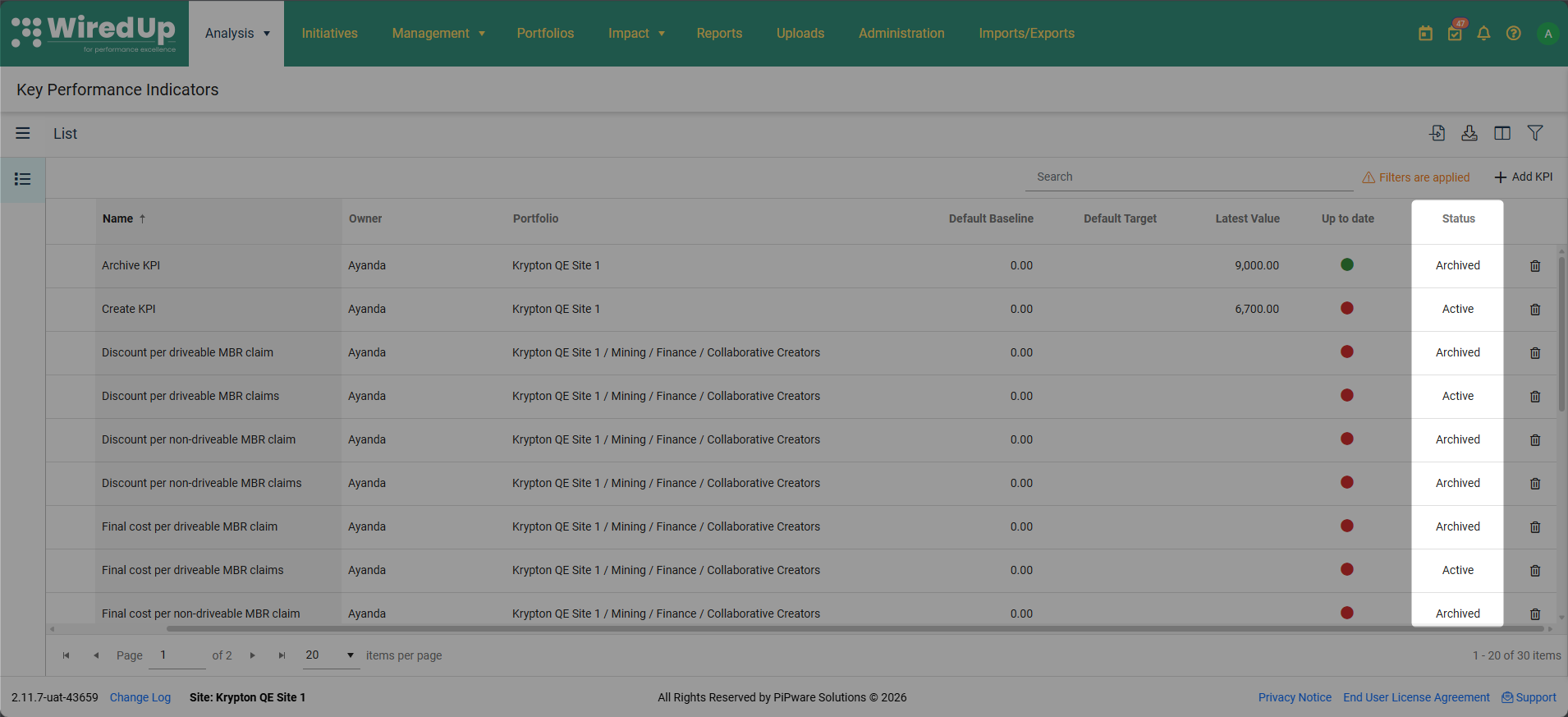
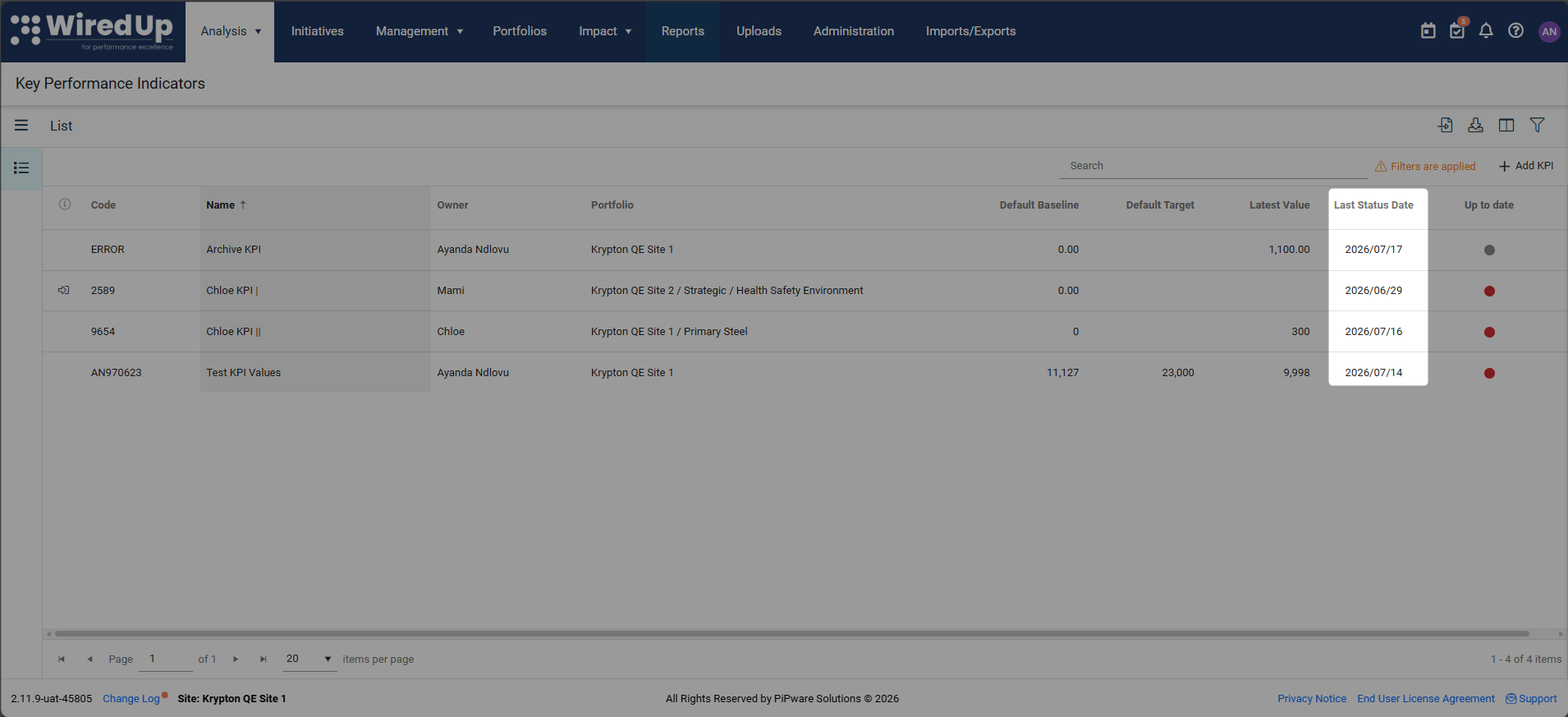
Adding the Last Status Date Column
The Last Status Date column shows when a KPI's status was last changed (e.g., when it was archived or reactivated). This column is available in the Column Picker but is not added to the KPI List by default.
To add the Last Status Date column:
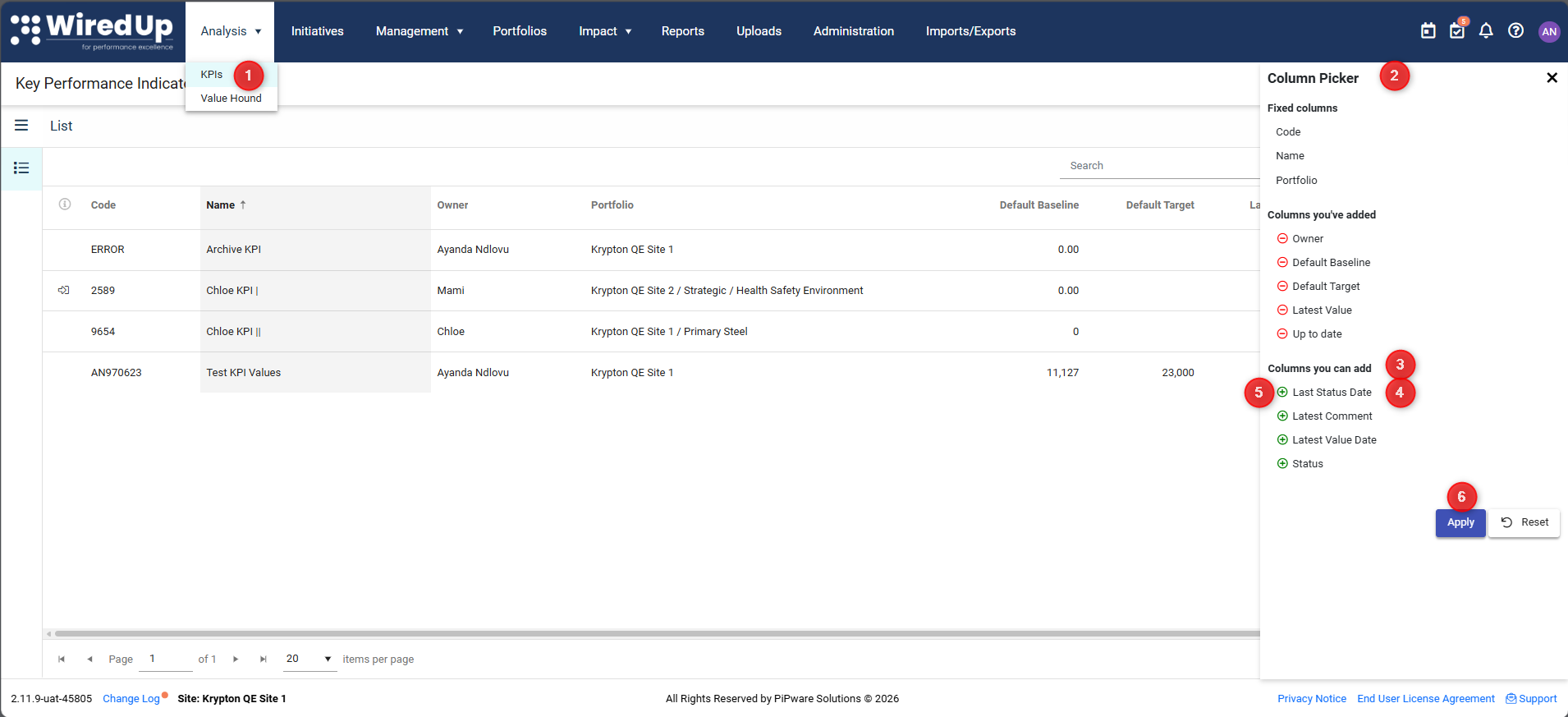
- Navigate to Analysis > KPIs to open the KPI List
- Click the Column Picker icon at the top-right of the screen
- Scroll down to the Columns you can add section
- Locate Last Status Date in the list
- Click the green + icon next to Last Status Date to add it to your columns
- Click Apply to save your changes
The Last Status Date column will display the date when the KPI status was last changed.
How Archived KPIs Behave
Not Available for New References
When a KPI is archived, it no longer appears in search results or selection lists used for referencing in:
- Idea VDTs (Value Driver Trees)
- Idea Performance Widgets
- Value Hound VDTs
- RARs (Review, Action, Results) - both saved and edit mode
- Meetings - both saved and edit mode
- Reports - archived KPIs are filtered out
- KPI Exports - archived KPIs are filtered out
- Main Dashboard Widgets
- Bulk KPI APIs
- Portfolios
- Weighted KPIs
- Calculated KPIs
Users cannot newly link or select an archived KPI in any of these contexts.
Fully Frozen (Except Reactivation)
When a KPI status is Archived, the KPI is fully frozen:
- No updates to KPI metadata/configuration - all configuration fields are read-only
- No updates to KPI values/targets/actuals - the Values screen is locked
- No bulk uploads/imports applied - the KPI is excluded from import processes
- No API updates allowed - API calls to update the KPI will be rejected
- KPI calculation for Calculated KPIs is not updated - formulas referencing the archived KPI are not recalculated
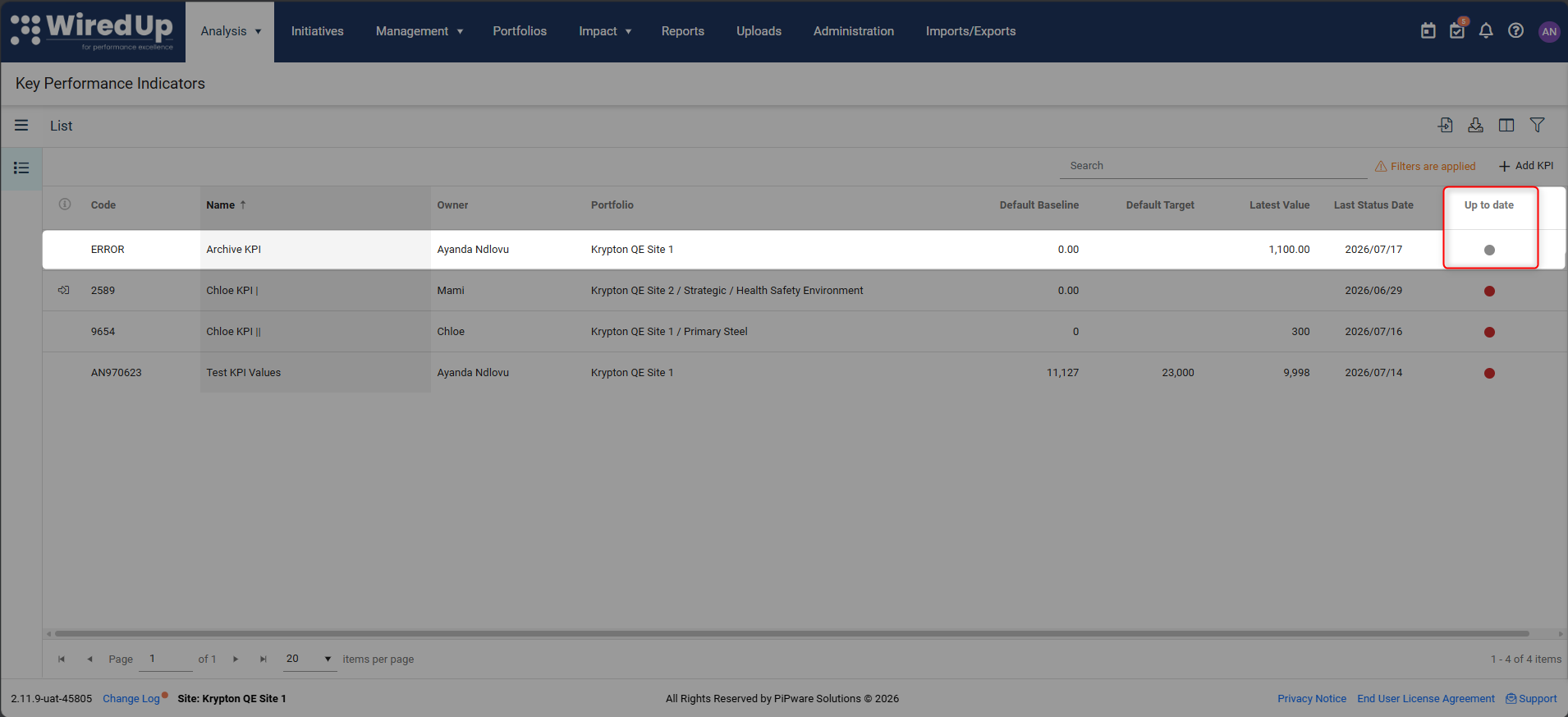
- Up-to-date status indicator displays in grey - the indicator no longer shows red or green and remains frozen
- All edit controls are disabled - users cannot make any changes
The only allowed change is switching the KPI status back to Active.
An orange warning banner displays at the top of the KPI screen: "This KPI has been archived and cannot be edited"
Archived KPIs and Existing References
Archived Icon on Existing References
Wherever an archived KPI is already referenced, the UI displays an orange archive icon next to the KPI name.
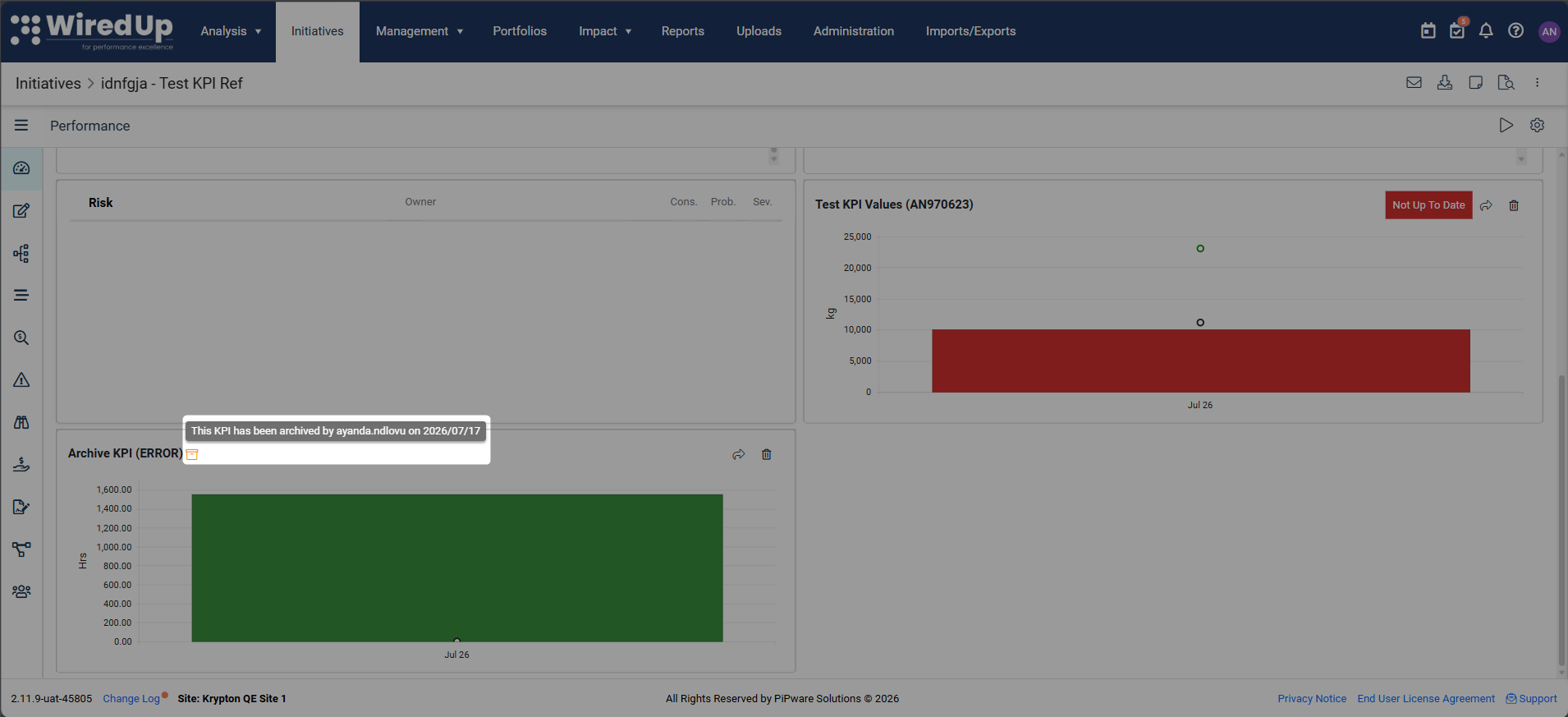
- An orange archive icon appears next to the KPI name in all relevant contexts (VDTs, widgets, dashboards, meetings, RARs, etc.)
- Hover over the icon to see a tooltip message: "This KPI has been archived by [user] on [date]."
Note: The archive label does not apply to Reports, Exports, and APIs, as archived KPIs are filtered out from these contexts.Where Archive Icons Appear
The archive icon appears in:
- On VDT canvases:
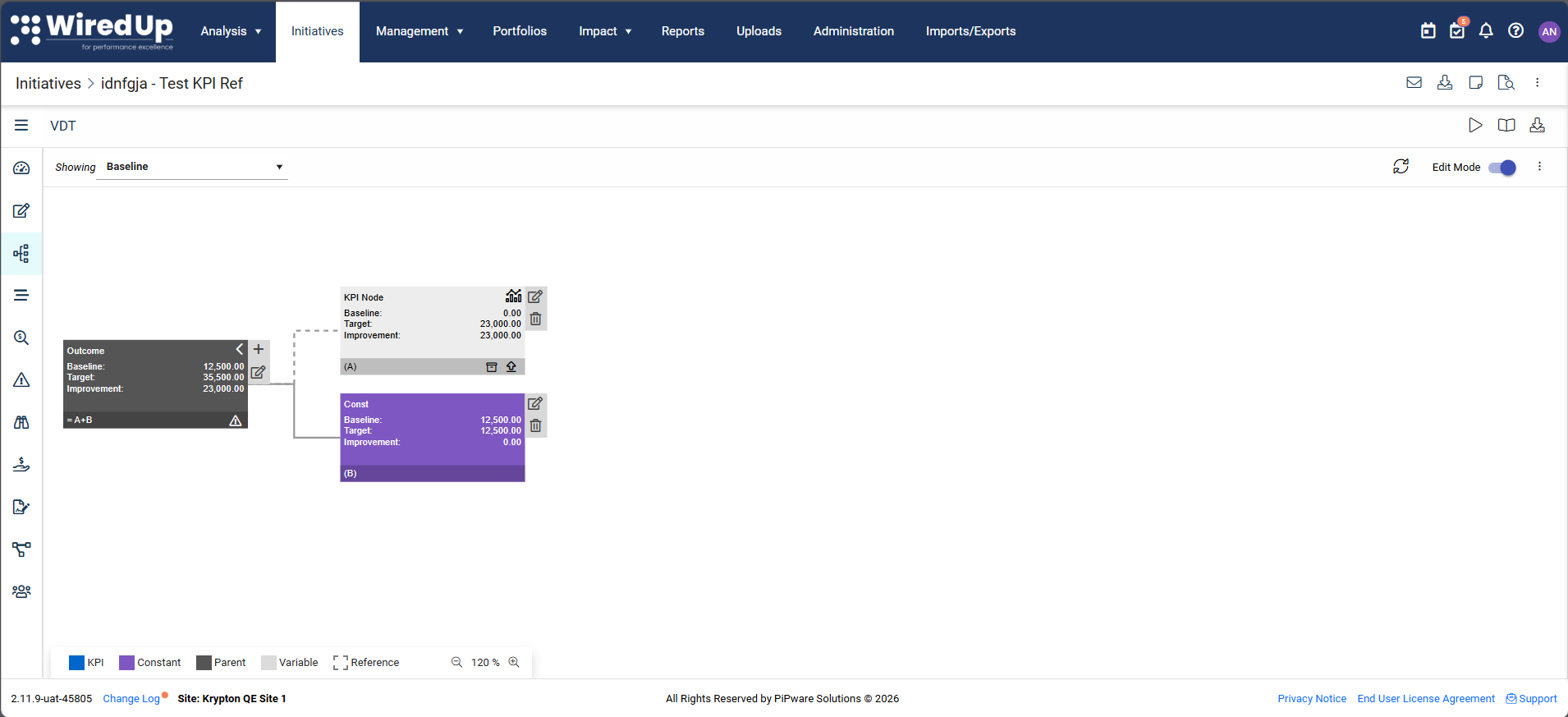
- Archived KPI nodes are visually greyed out
- A white archive icon appears in the footer of the archived KPI node
- The connecting line from the archived KPI node to its upstream parent changes to a dotted line
- The upstream parent node displays a "Reference has been archived" error, even if it has other valid connections
- Variable nodes that reference an archived KPI receive the same visual treatment (greyed out, archive icon, dotted line, parent error)
- Idea Performance Widgets - next to the KPI name in widgets
- RARs (saved and edit mode) - next to the KPI name in RAR entries
- Meetings (saved and edit mode) - next to the KPI name in meeting items
- Main Dashboard Widgets - next to the KPI name in dashboard widgets
- Portfolios - next to the KPI name in portfolio views
- Weighted KPIs - next to the KPI name in weighted KPI configurations
- Calculated KPIs - next to the KPI name in calculated KPI formulas
- Edit Node dialogs - when viewing or editing a node that references an archived KPI
Reactivating an Archived KPI
If you need to use an archived KPI again, you can reactivate it.
To Reactivate a KPI:
- Navigate to Analysis → KPIs
- Click on the archived KPI you want to reactivate
- Click the play icon in the app bar to re-activate the KPI
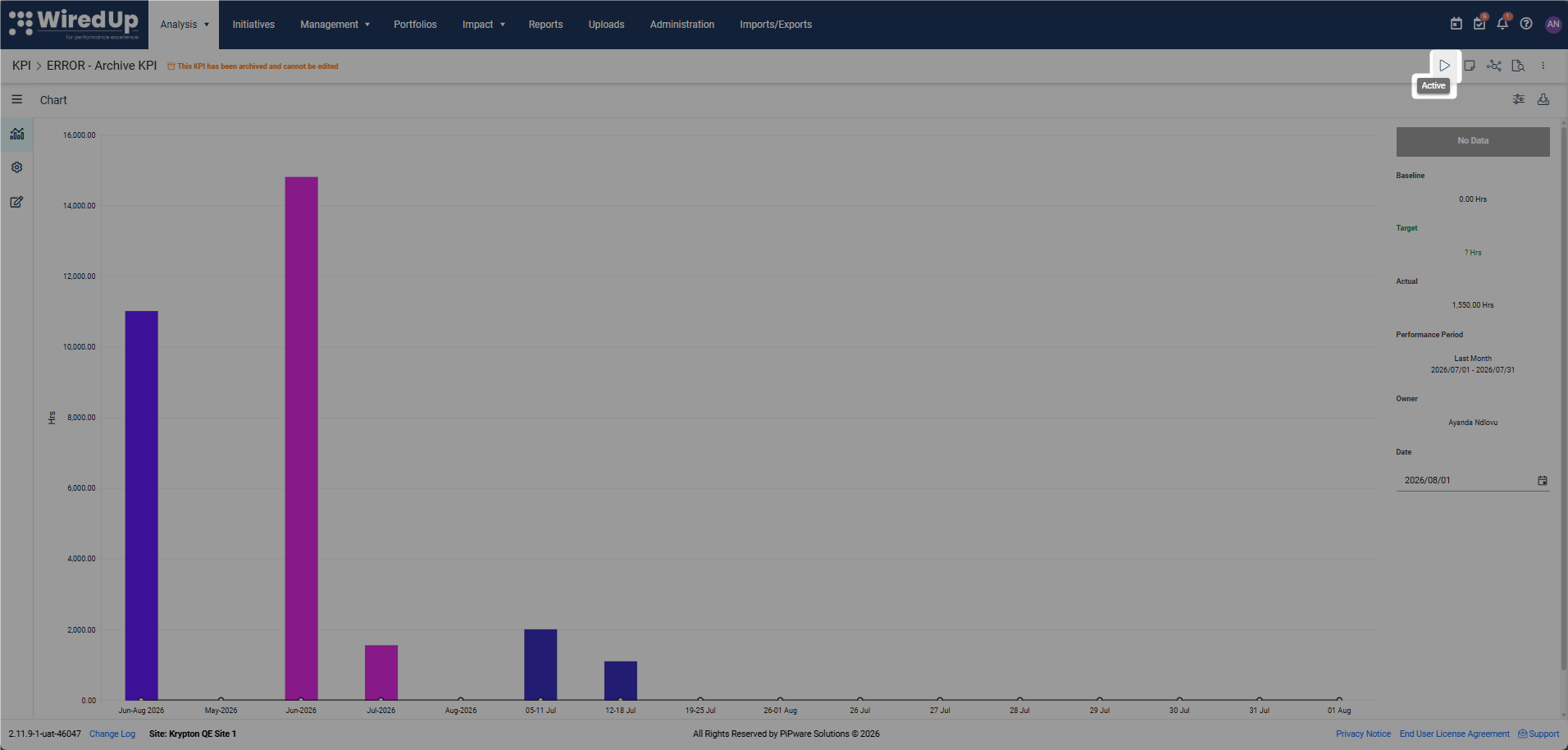
- The KPI status changes to Active
- The orange warning banner is removed
- A success notification appears: "KPI Status - Status Updated Successfully"
- The Changelog is automatically updated with:
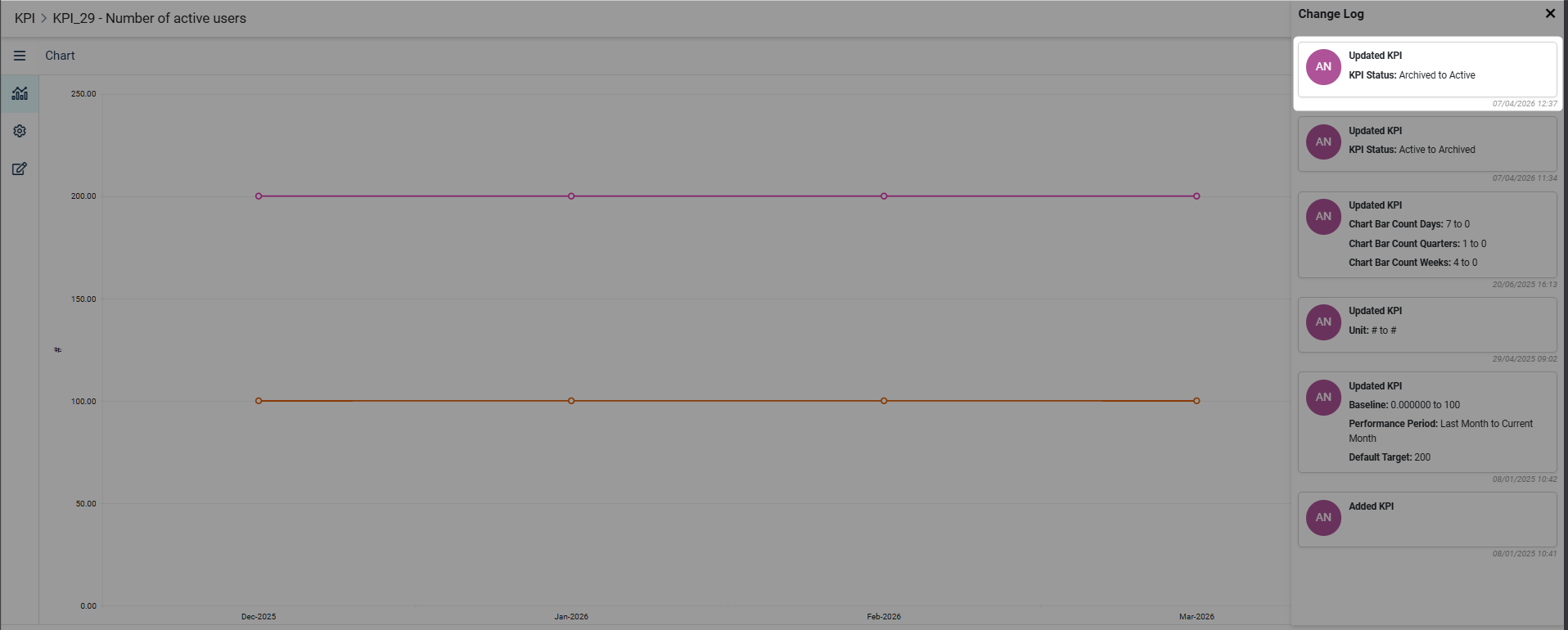
- Header: Updated KPI
- Message: Status: Archived to Active
- Timestamp
- Reactivated by: [User name]
What Happens When a KPI is Reactivated
Once reactivated:
- The KPI becomes searchable and selectable again across the system
- Edit and update behavior returns to normal according to existing permissions
- Archived warning labels no longer show on existing references
- The orange warning banner is removed from the KPI screen
- The KPI can be newly referenced in VDTs, reports, dashboards, and other contexts
- All frozen controls are unlocked
Permissions
Who can change KPI status:
- KPI Admin users
- KPI Owner (the user designated as the owner of the specific KPI)
Only users with these permissions can access the Status dropdown and change a KPI from Active to Archived or vice versa.
Note: All other users will see the KPI status but cannot change it.Use Cases for Archiving KPIs
When to Archive a KPI
- Retired Metrics: The KPI is no longer relevant to current business objectives
- Replaced KPIs: A new KPI has replaced the old one, but historical data must be preserved
- Organizational Changes: Restructuring has made certain KPIs obsolete
- Compliance Requirements: The KPI must be retained for audit purposes but should not be used going forward
When NOT to Archive a KPI
- Temporary Pauses: If you plan to resume using the KPI soon, consider leaving it Active
- Seasonal KPIs: KPIs that are only relevant during certain periods should remain Active
Benefits of Archiving vs. Deleting
Aspect | Archiving | Deleting |
Historical Data | Preserved | Lost |
Audit Trail | Maintained | Lost |
Existing References | Remain intact with warnings | Broken |
Reversibility | Can be reactivated | Permanent |
Compliance | Supports audit requirements | May violate retention policies |