
In This Article
- Step 1: Add a VDT to the Library
- Step 2: Import a VDT from the Library
- Step 3: Import from a Template (Optional)
Overview
Once you have built and populated a Value Driver Tree with data, you can store it in the VDT Library for reuse and import it into other Value Driver Trees.
Prerequisite:
You must have the Contribute to VDT Library role permission enabled to add and import VDTs. This permission is found in the Administration tab.
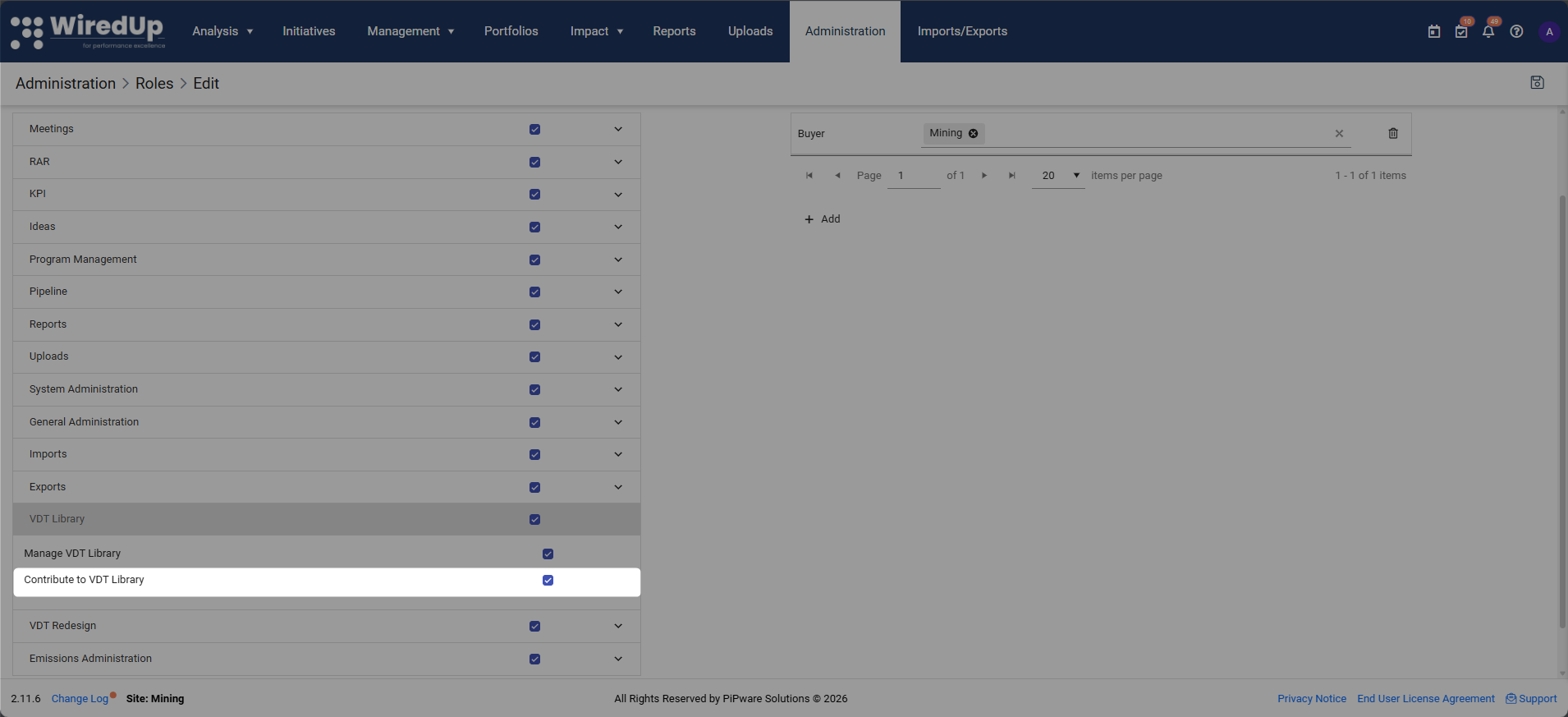
VDT Library
Step 1: Add a VDT to the Library
- Open the completed Value Driver Tree
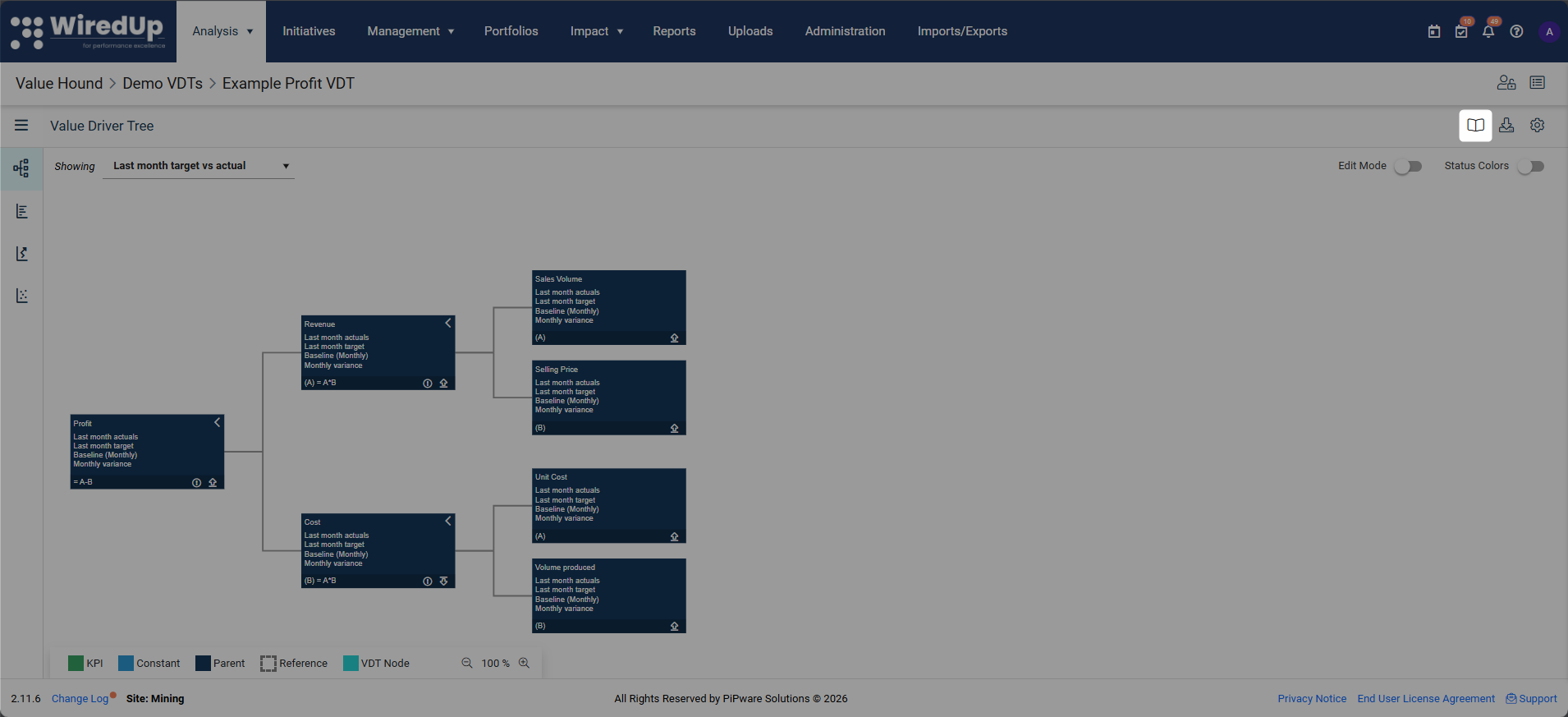
- Select the library (open book) icon in the VDT toolbar
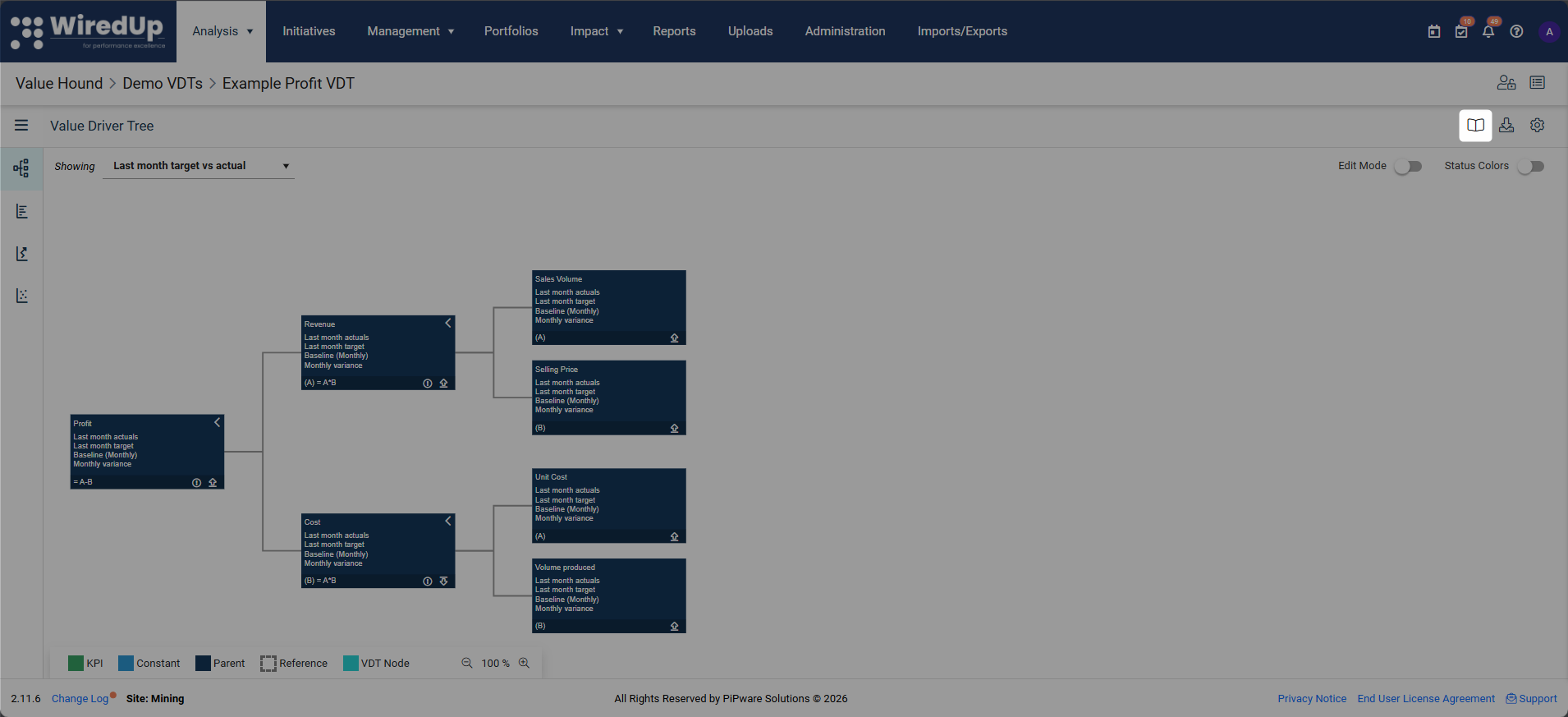
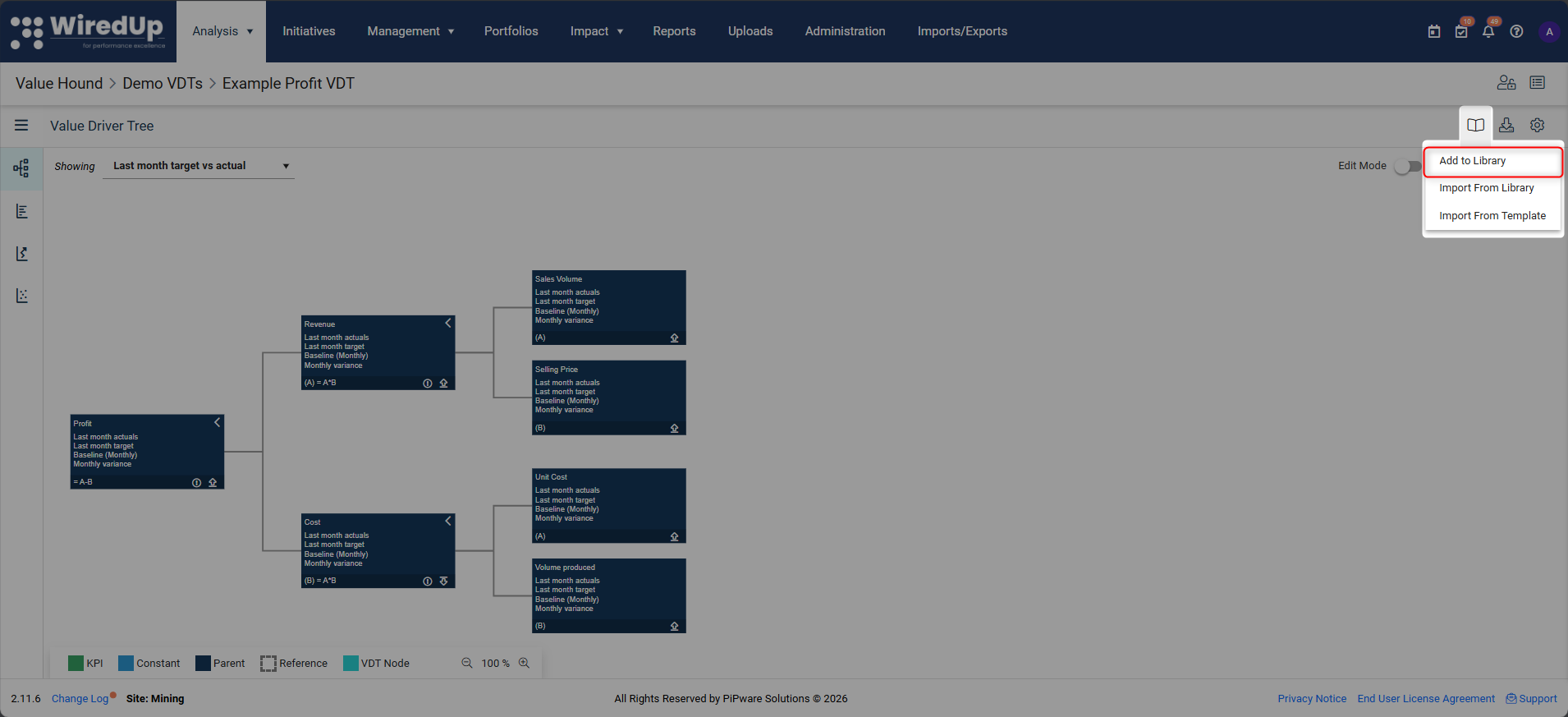
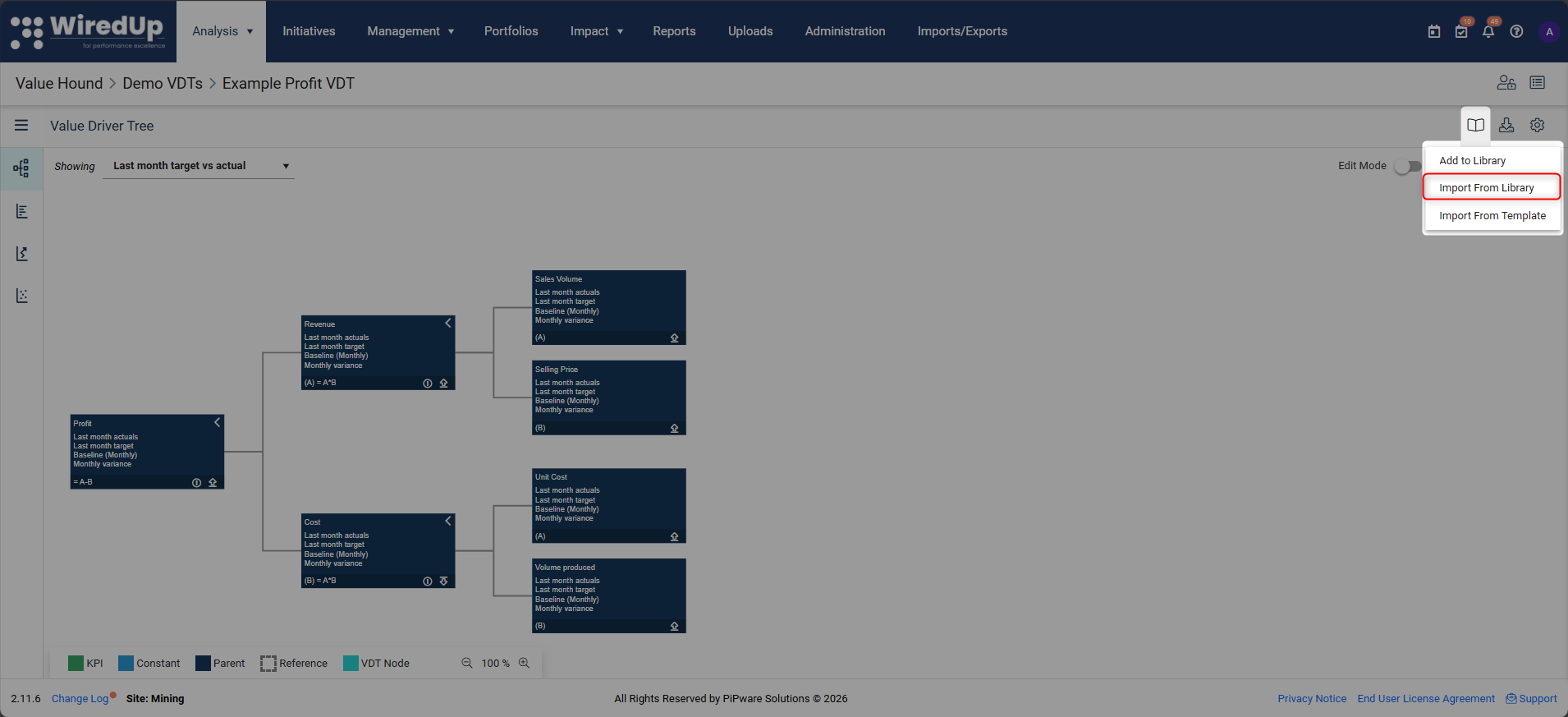
- Choose Add to Library option
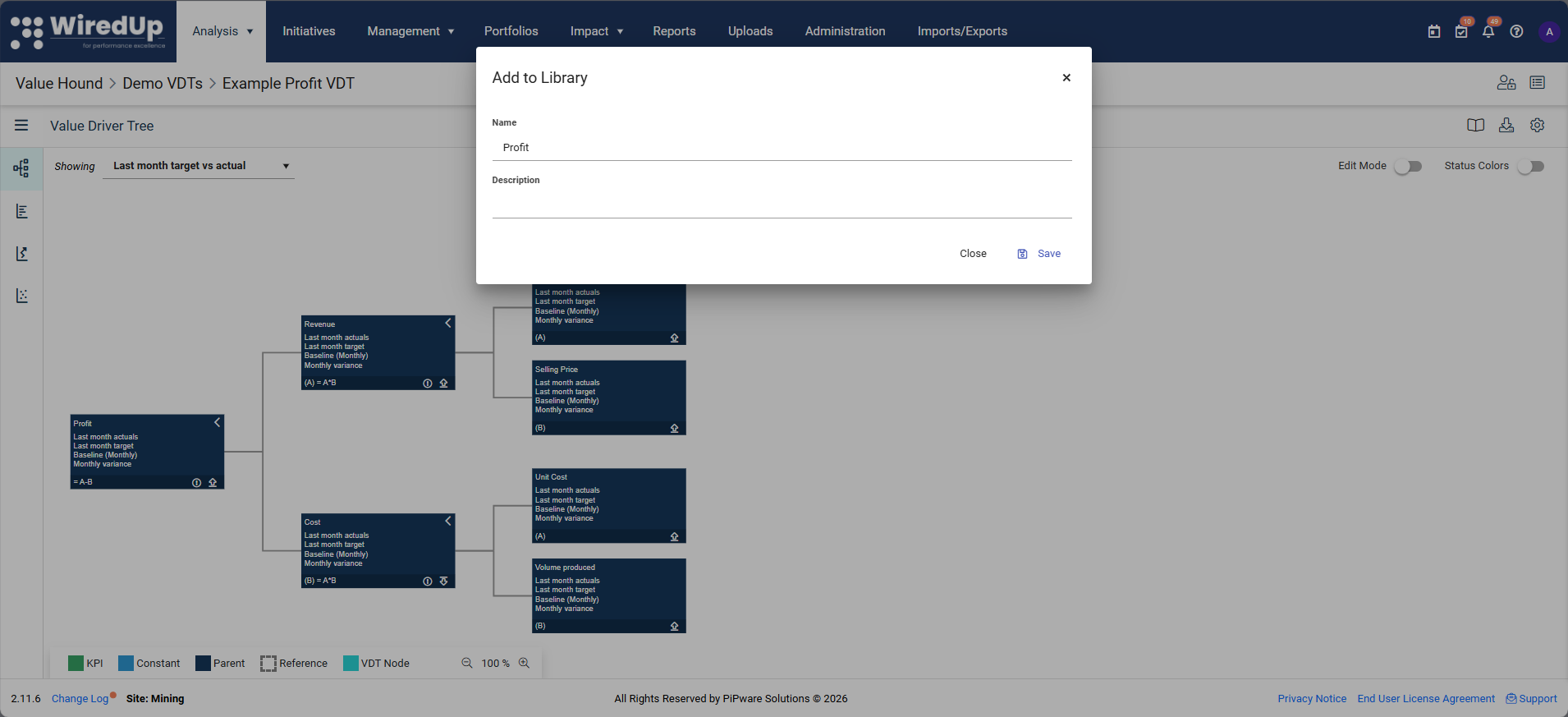
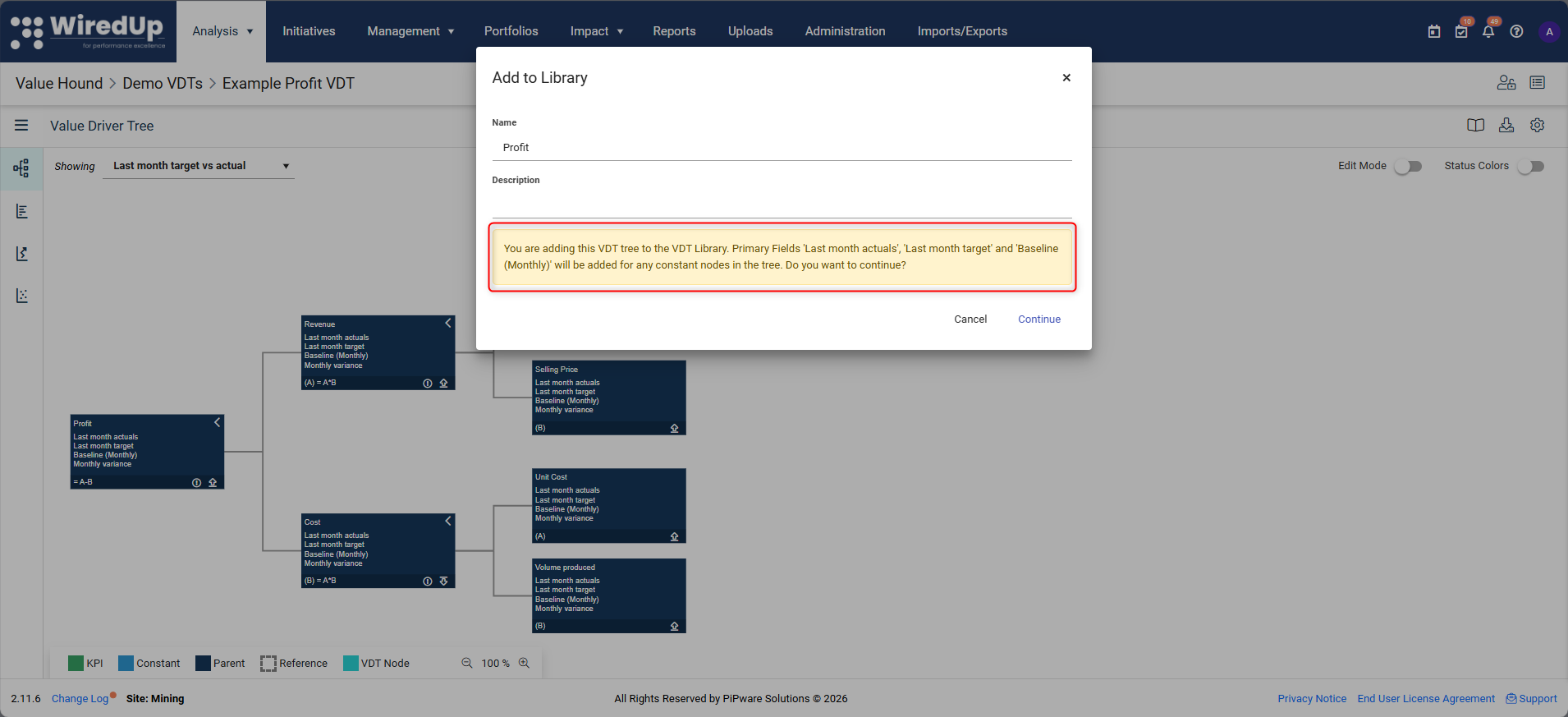
- Enter a Name and Description of the VDT
- A confirmation box displays indicating that primary fields (Actual, Target, Baseline) will be added to constant nodes
- Confirm by selecting Continue to save the VDT to the Library
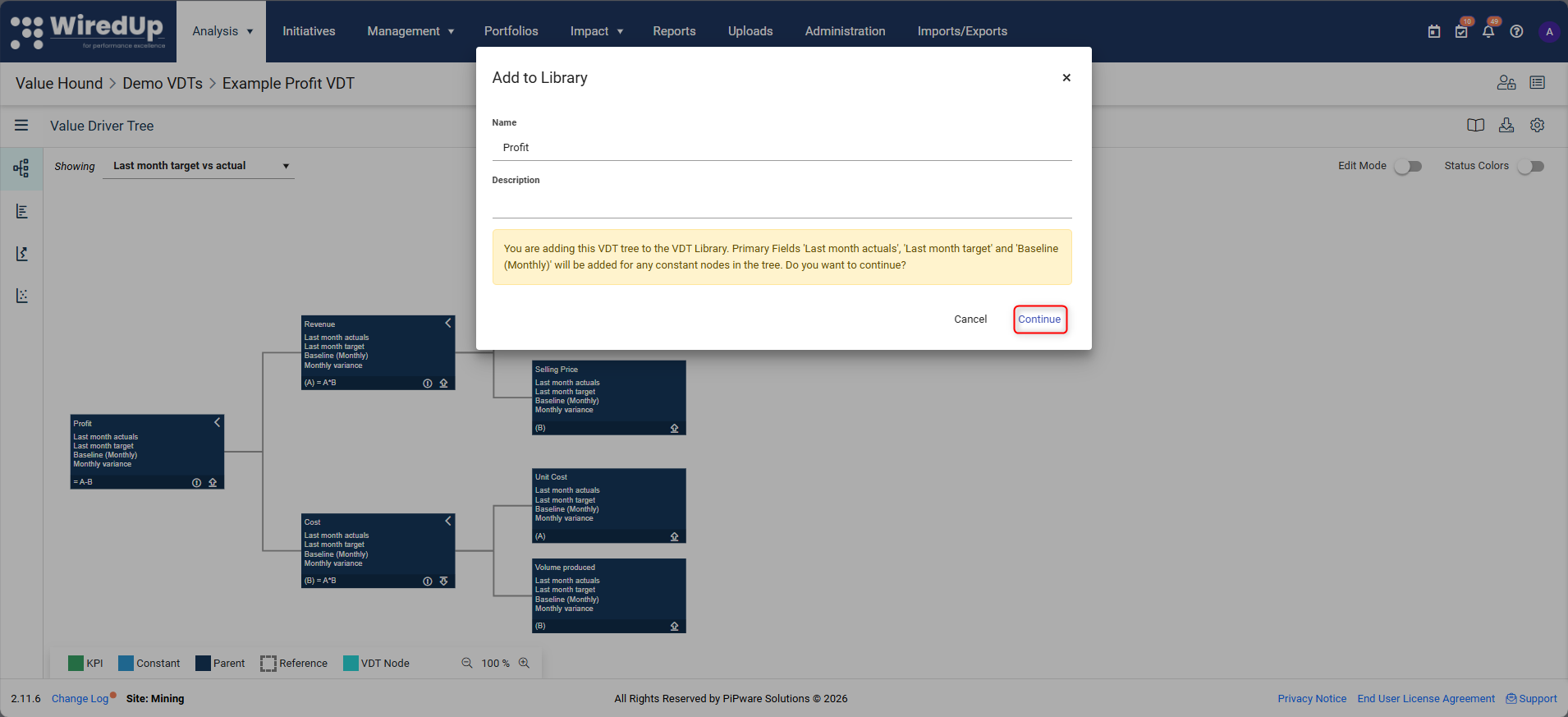
The stored VDT now appears in the Import from Library list.
Step 2: Import a VDT from the Library
- Open the target Value Driver Tree where you want to import another VDT
- Select the library icon in the VDT toolbar
- Choose Import from Library
- Tick Replace existing tree if you want to replace the current tree entirely
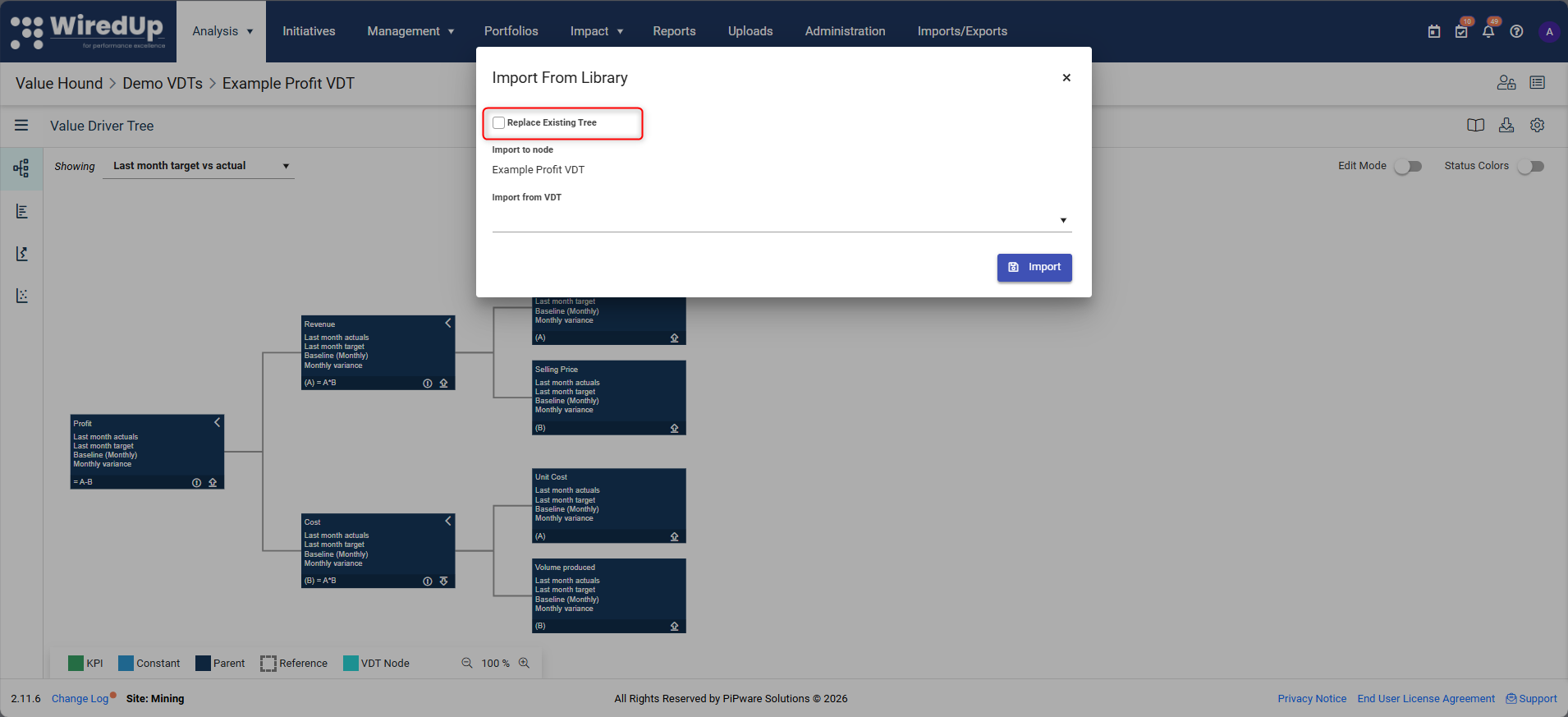
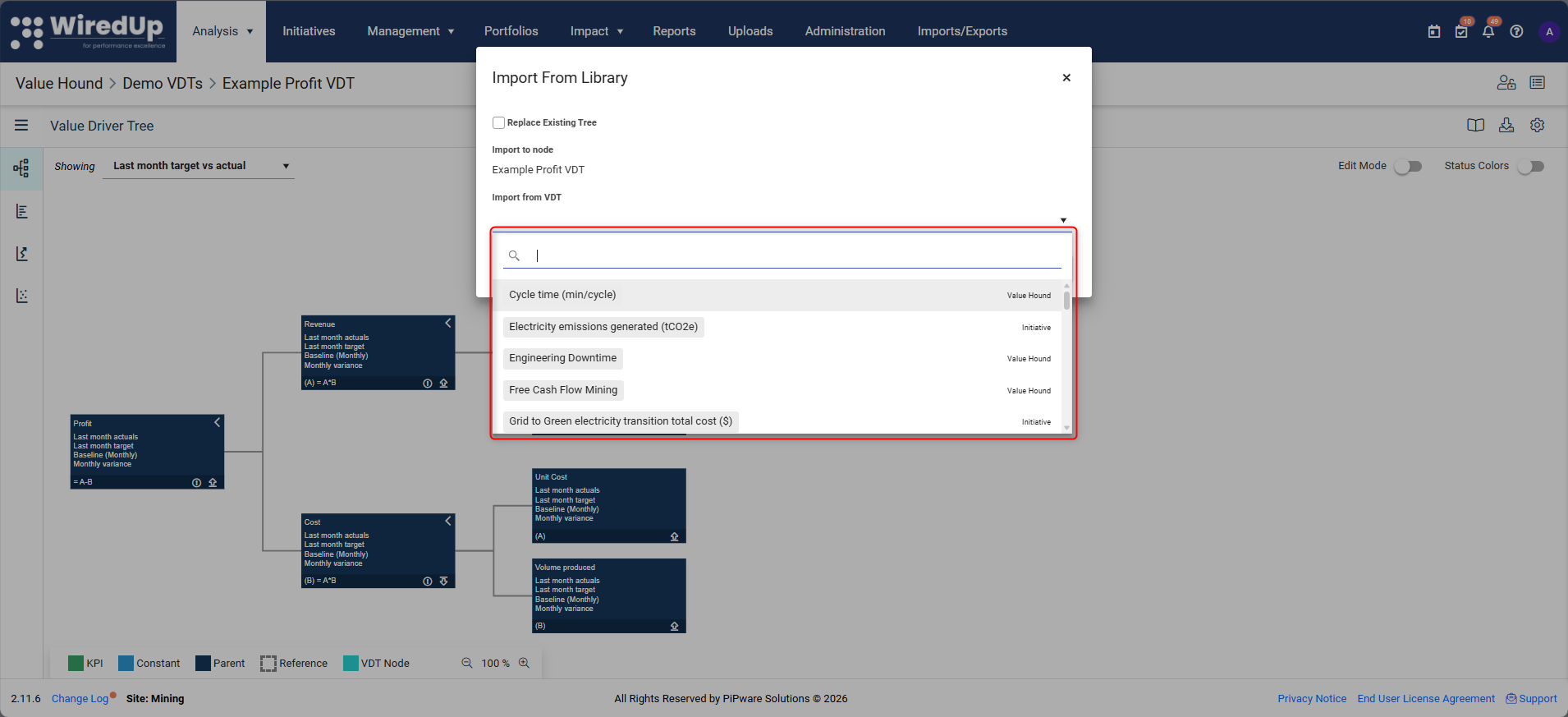
- From the Import from VDT list, select the VDT you want to import
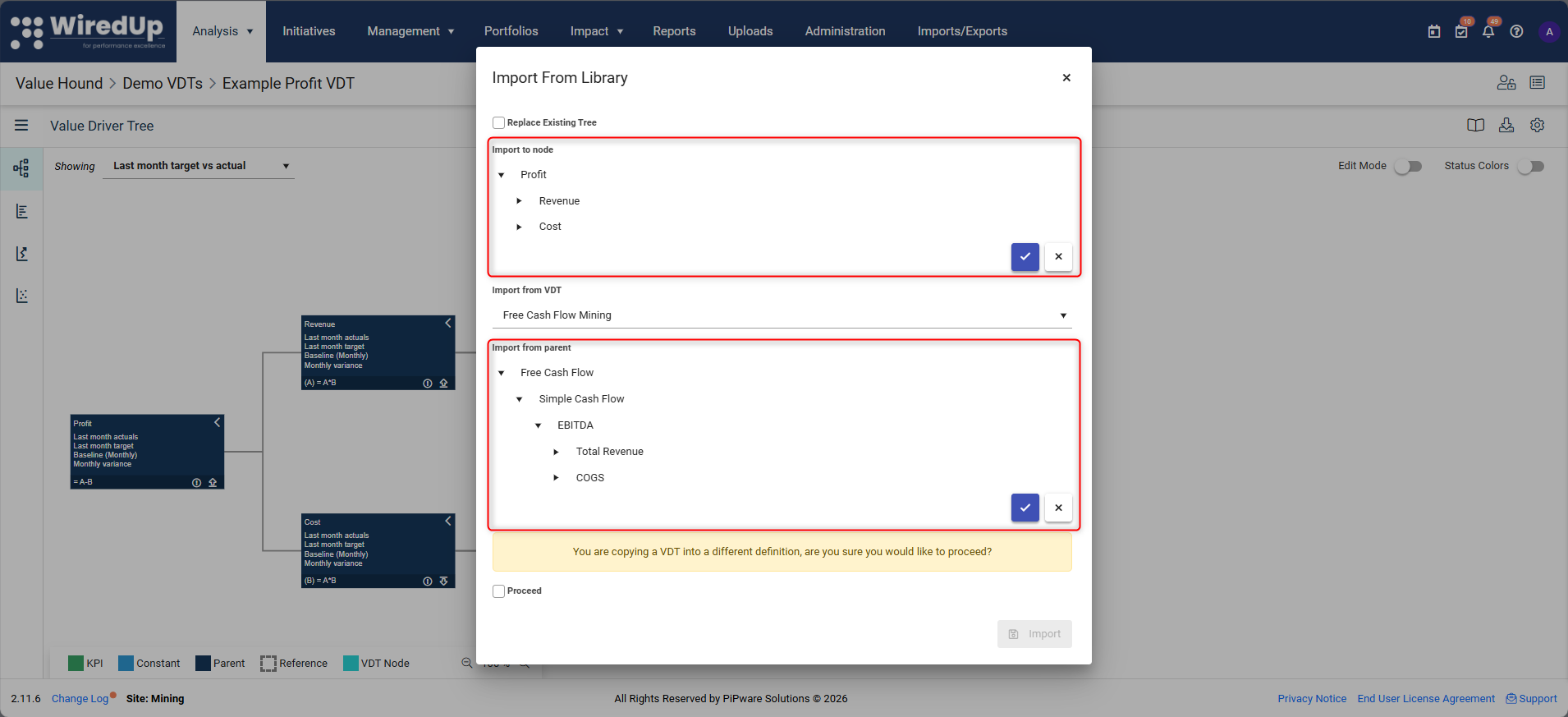
- Choose the parent node where the VDT will be imported to and the parent node which the VDT will be imported from
- Confirm the import when prompted
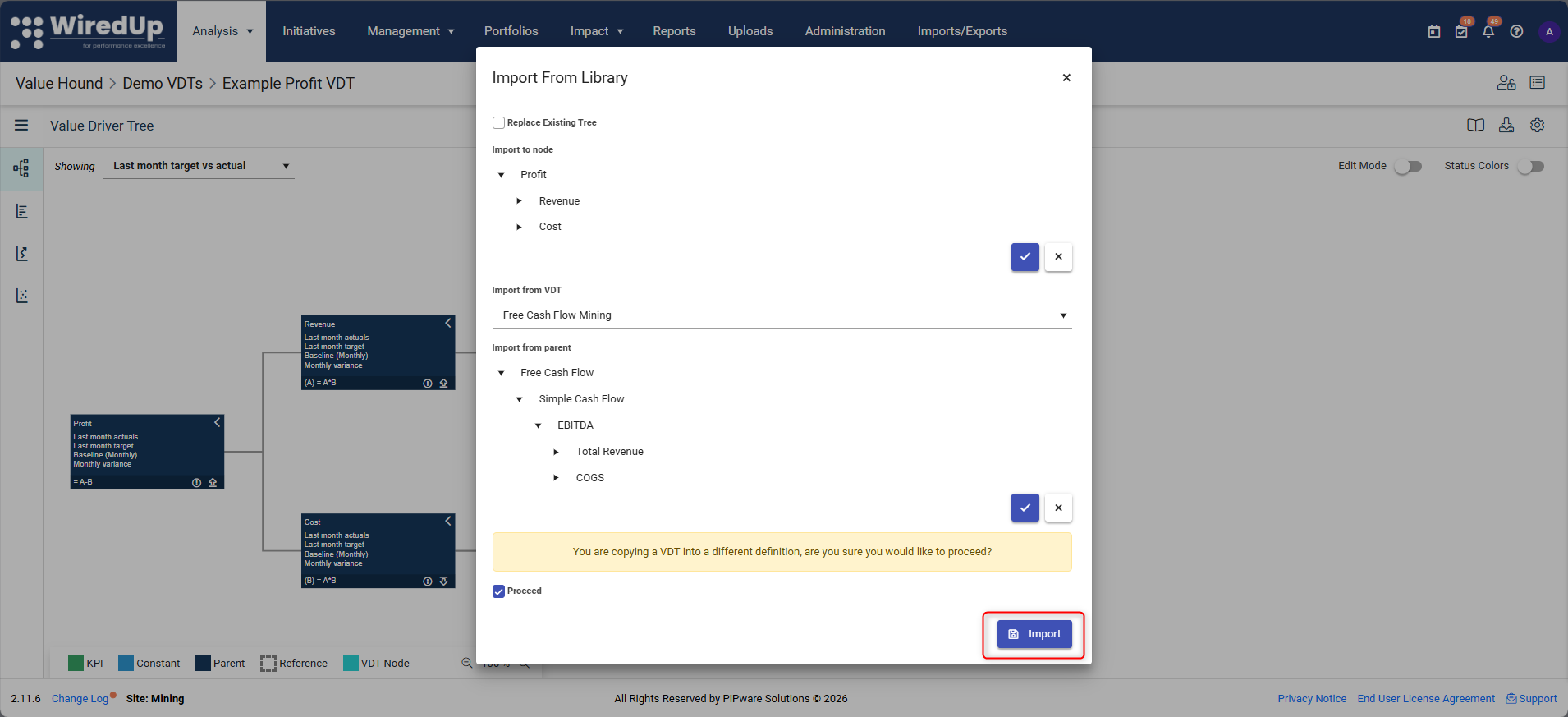
The imported structure is copied into the target tree, preserving node types, formulas, and KPI connections.
Step 3: Import from a Template (Optional)
You can also import a VDT from a file template:
- Select the library icon and then choose Import from template
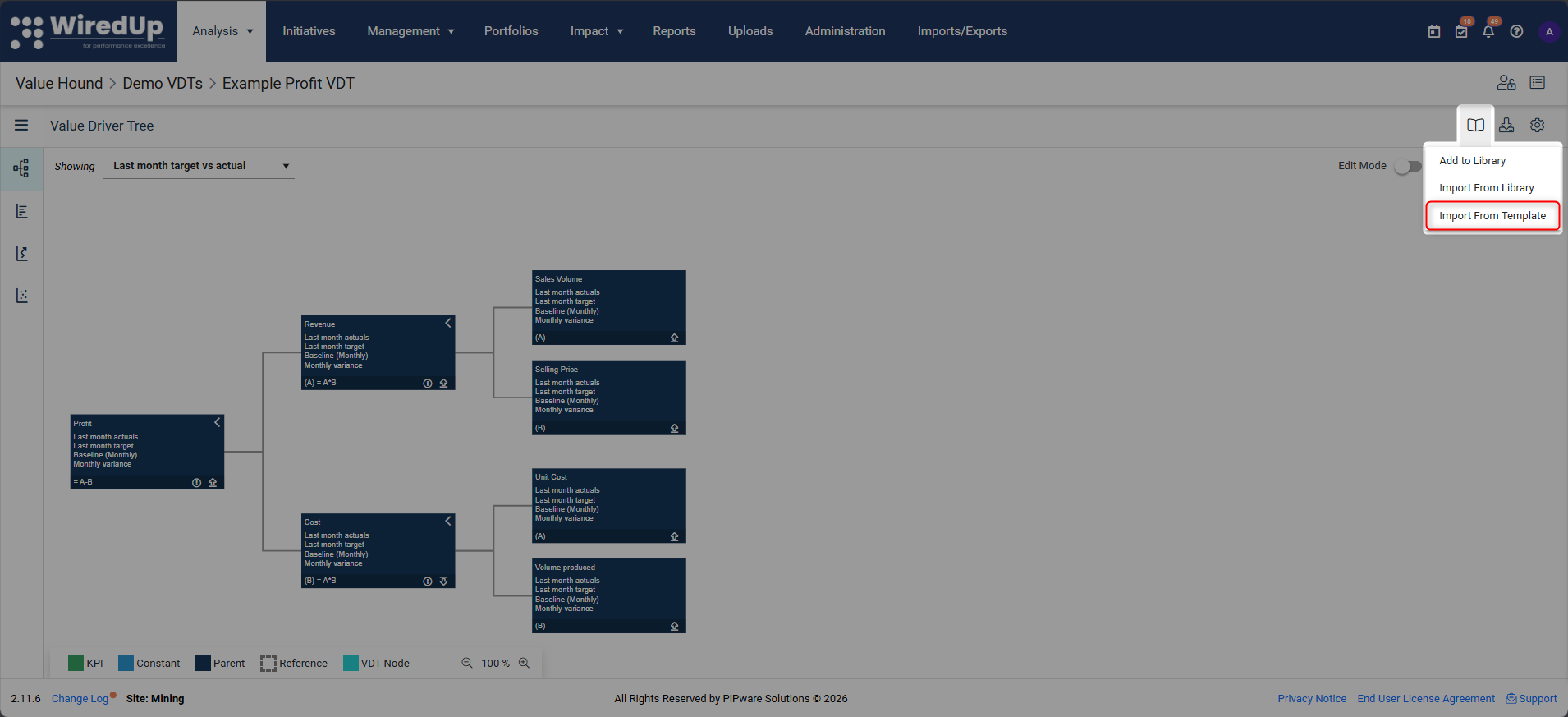
- Ensure you have the template file stored locally
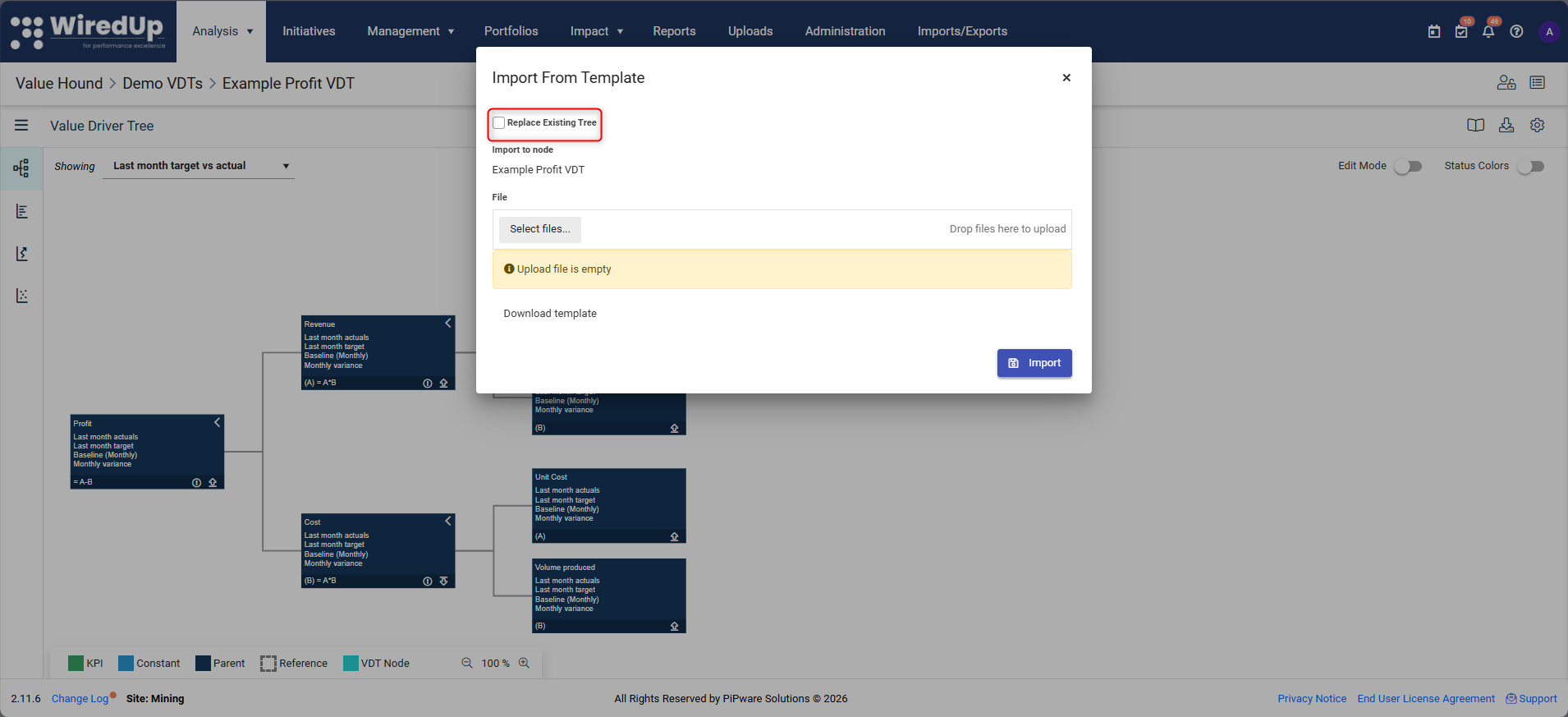
- Tick Replace existing treeif you want to replace the current tree entirely
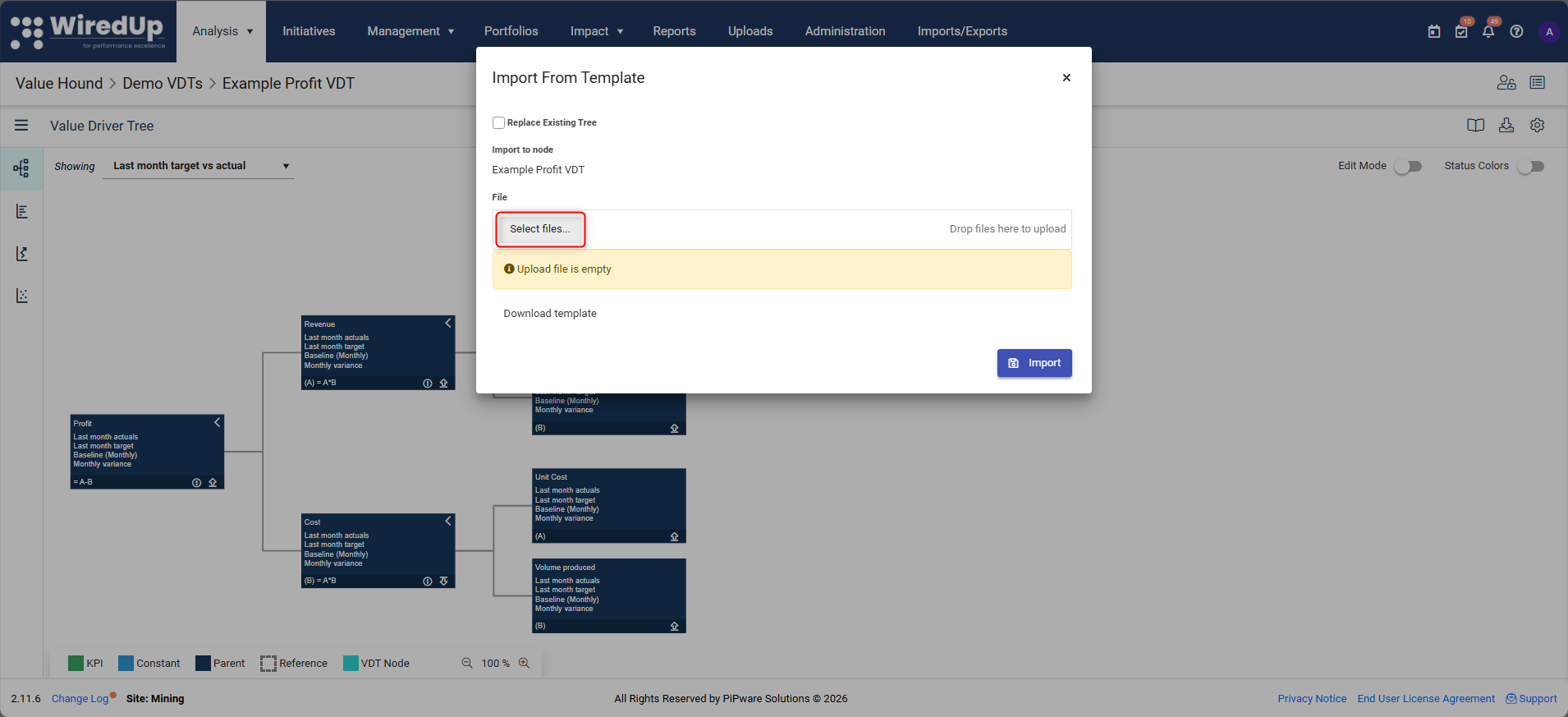
- Click Select File and choose your template file
- After selecting the file, click Import
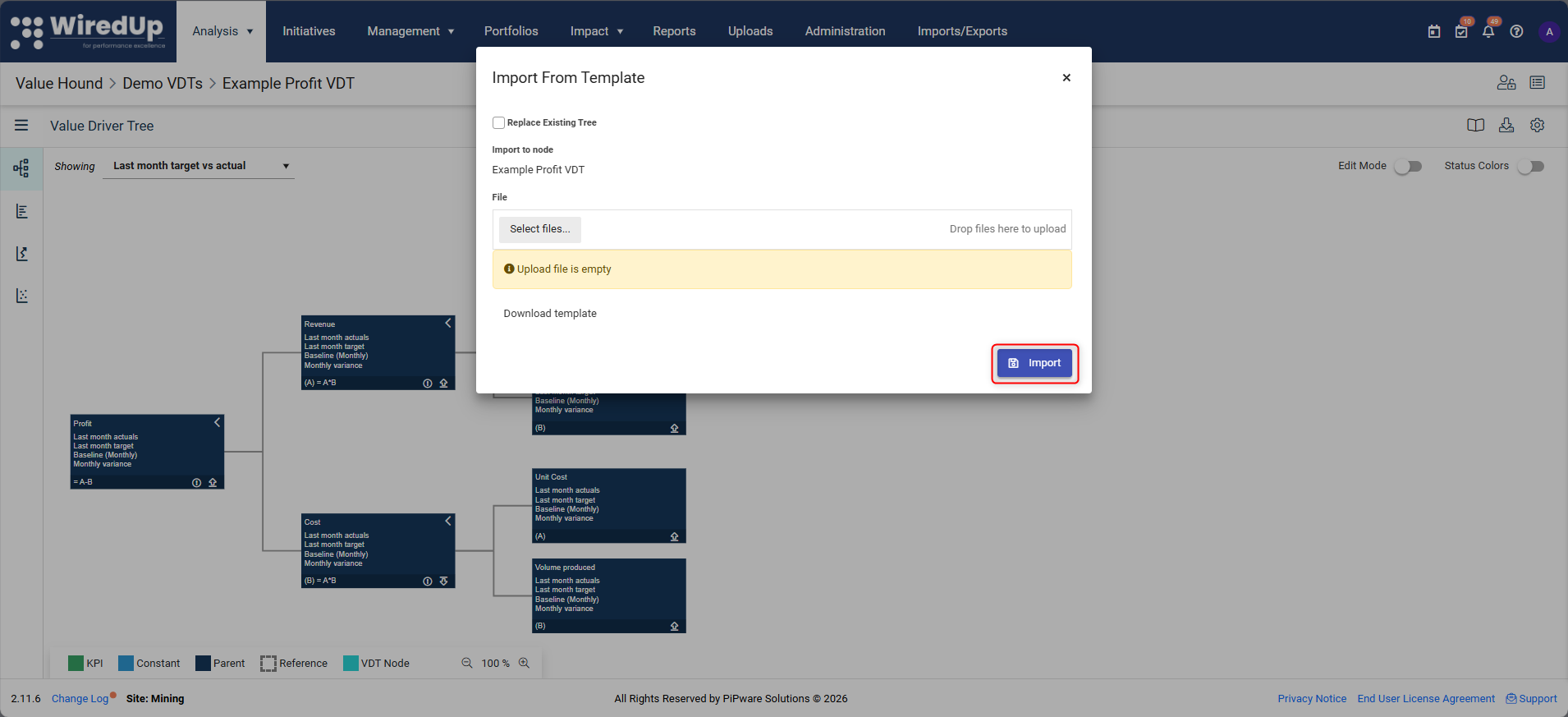
If you don't have a template yet, you can download one from the import dialog.
What Happens After Import
- Imported nodes appear under the selected parent node in the tree
- KPI nodes remain connected to their original KPIs
- Constant nodes retain their values and formulas
- You can immediately edit imported structures as needed
Why This Matters
Storing VDTs in the library and importing them allows you to:
- Reuse validated models across multiple initiatives
- Maintain consistency in calculation logic
- Save time by avoiding repeated manual builds
This completes the core creation and reuse lifecycle for Value Driver Trees.
Next Steps
To learn how to edit and structure your Value Driver Tree, see: