
In this article
Overview
The Settings section allows you to set up the Emissions module.
Navigating to Settings
Navigate to Impact > Emissions, then click on the three-bar menu on the left-hand side, then click Settings.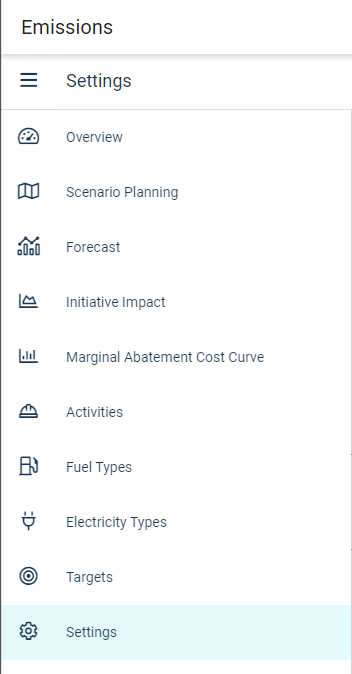 |
Notes & Attachments
The Notes & Attachments feature allows you to add commentary and supporting documentation to emissions, similar to the KPI Commentary functionality.
To access Notes & Attachments:
- Click the Notes & Attachments icon (note/comment bubble) in the top-right corner of the screen
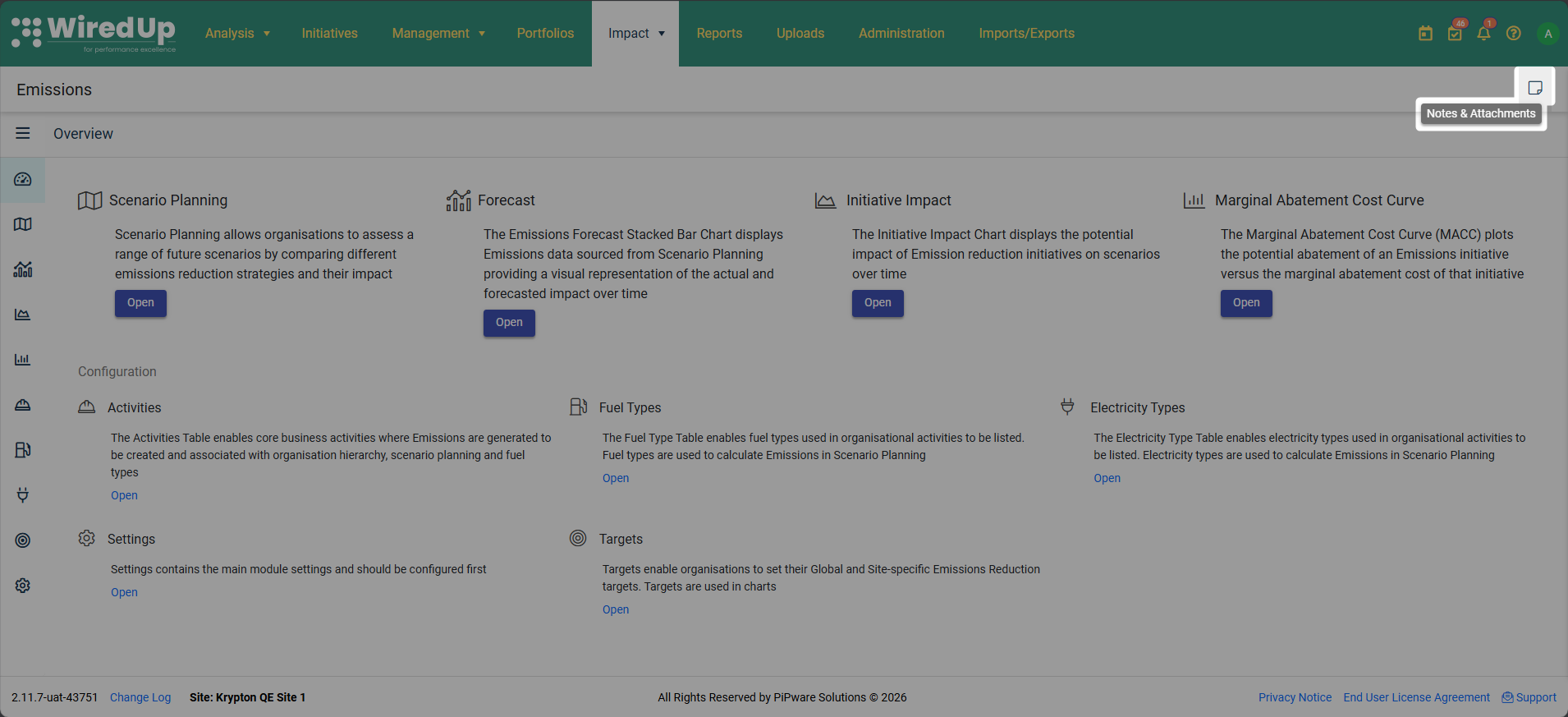
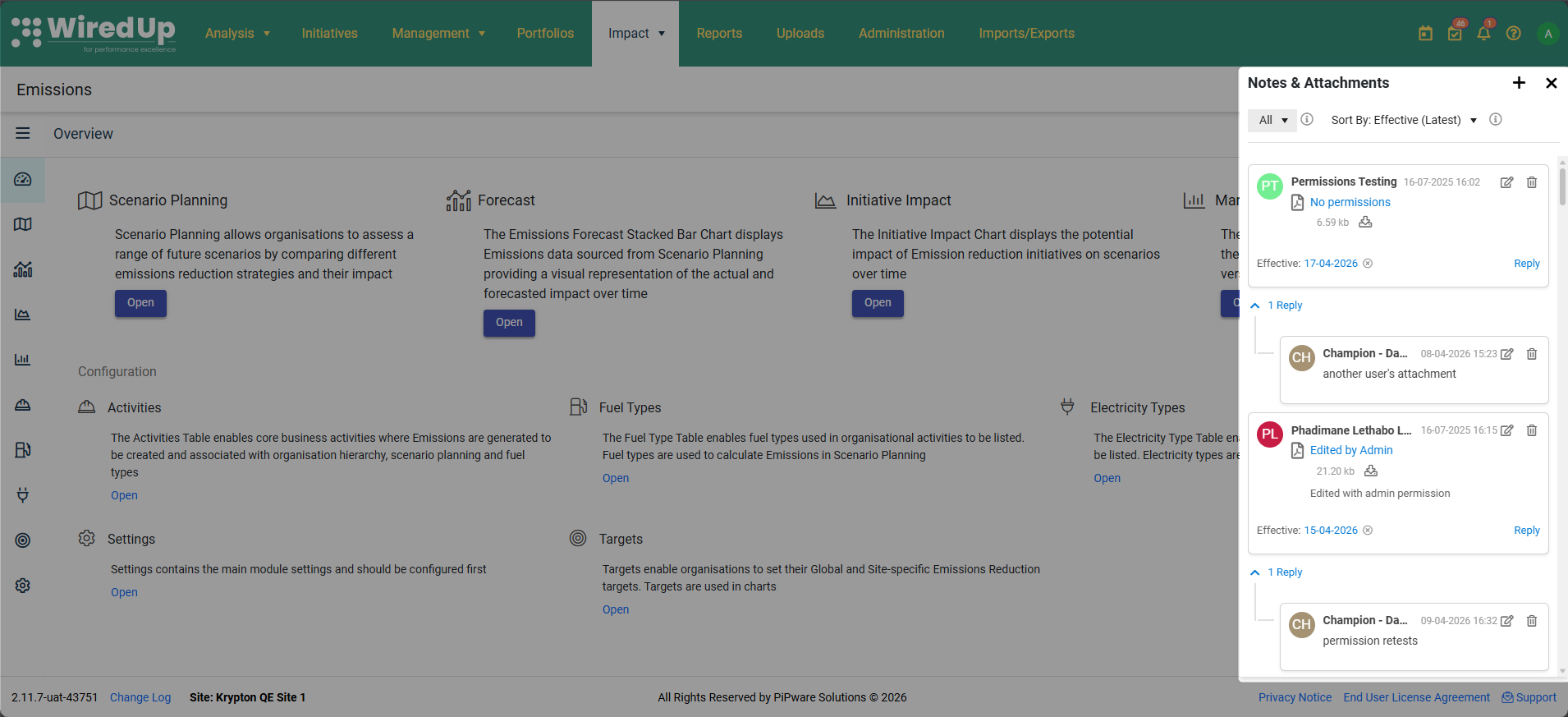
- The Notes & Attachments panel slides out from the right side
To add a comment: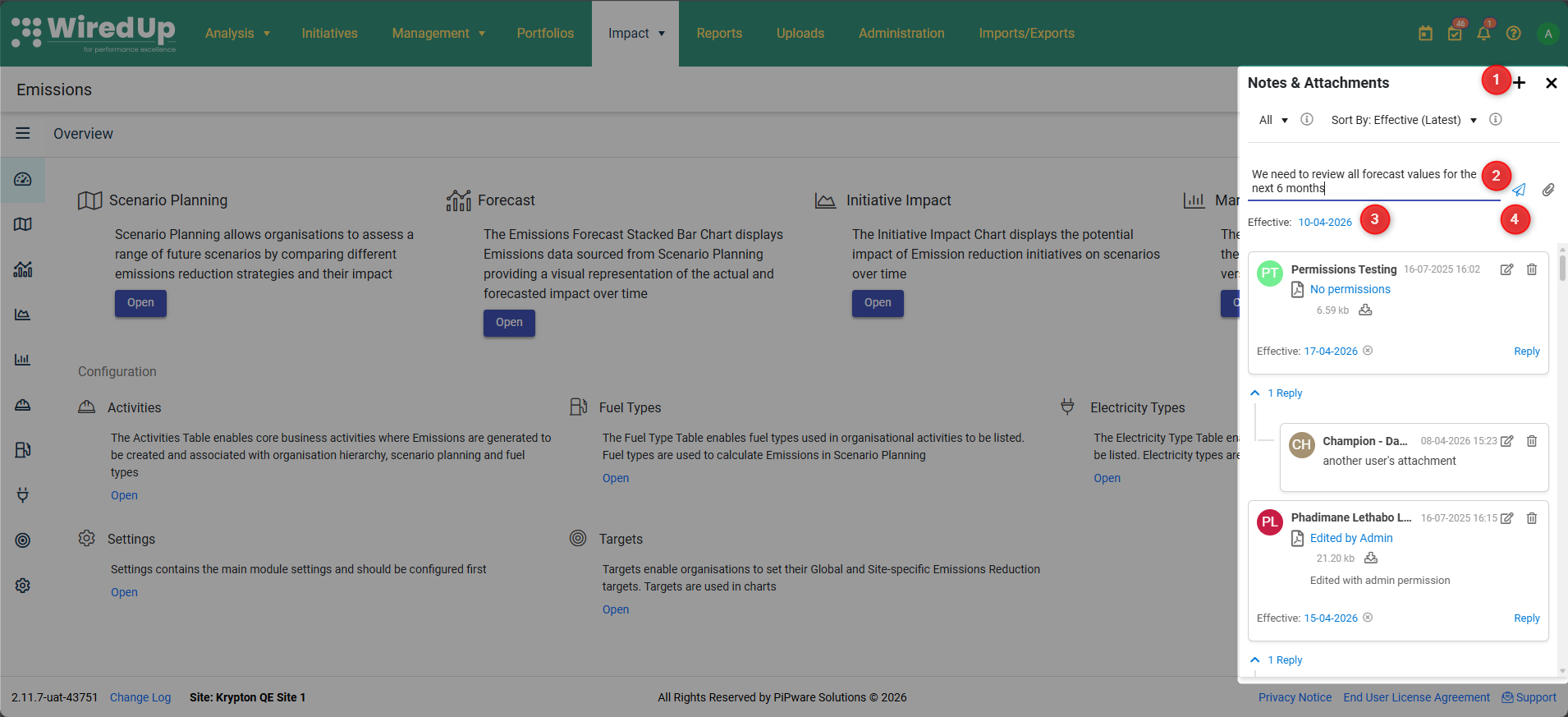
- Click the + icon at the top of the Notes & Attachments panel and select Comment
- Enter your comment text
- Set an Effective Date if needed (to associate the comment with a specific time period)
- Click Post Comment
To add an attachment:
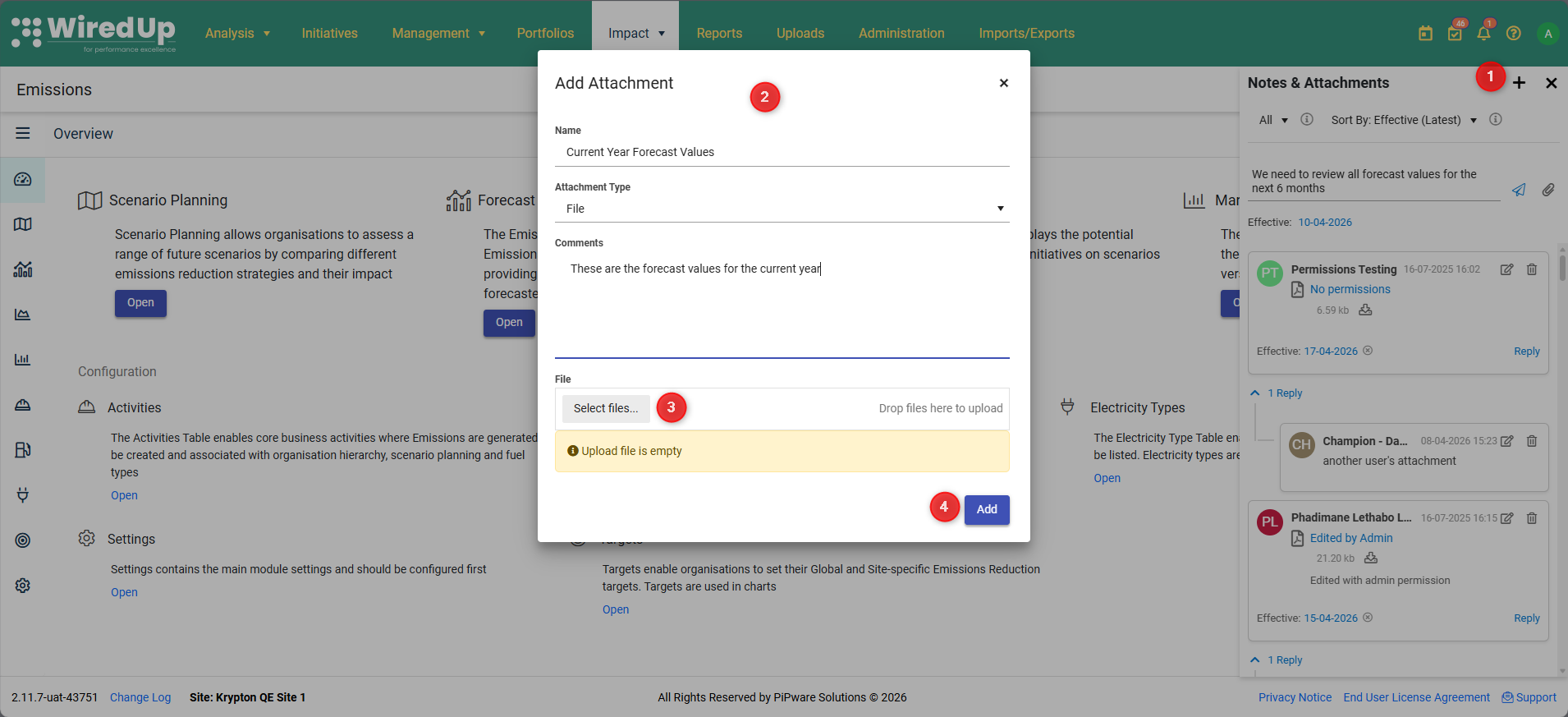
- Click the + icon at the top of the Notes & Attachments panel and select Attachment
- Enter the attachment details:
- Name: Name of the attachment
- Attachment Type: Select File or URL
- Comment: Optional context for the attachment
- Upload the file or enter the URL
- Click Add
Viewing and managing notes and attachments:
- Comments are displayed in chronological order with timestamps
- Filter by All, Comments, or Attachments using the dropdown at the top
- Sort by Effective Date or Created Date
- Each comment shows:
- User initials in a colored badge
- Username and timestamp
- Comment text
- Effective date (if set)
- Reply to comments to create threaded conversations
- Edit or delete your own comments using the icons on each comment
For detailed information on this feature, see KPI Commentary FeatureConfiguring Settings
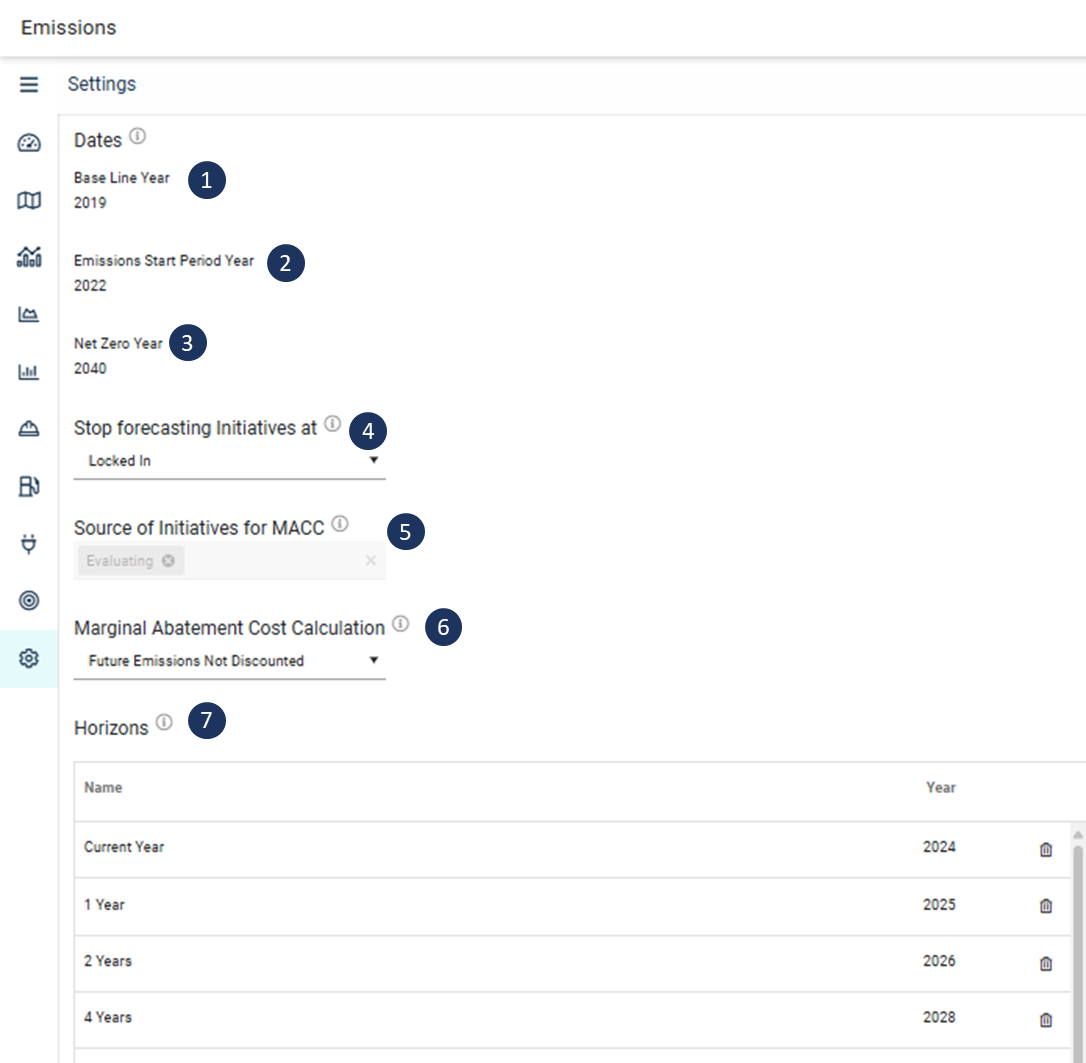
The following settings must be configured:

Baseline year
The Baseline year is used to provide a baseline in Scenario Planning that can be used to compare with actual and forecasted consumption and emission data. Enter the year that you want to use as your baseline. The emissions baseline is the reference point against which an organisations emissions will be measured going forward.
 Emissions Start Period Year
This defines the start of the emissions period after the baseline year. The Scenario planning grid, forecast chart, Electricity Type and initiative impact chart will display data from this year on forward.
 Net Zero Year
This defines the last year of your decarbonisation program. The Scenario planning grid, forecast chart, Electricity Type and initiative impact chart will display data up to and including this year.
 Stop forecasting Initiatives at:
Choose at which point in the initiative lifecycle the system should no longer incorporate initiative forecasts into the Emissions data. The pipeline stage selected here will cause the system to ignore forecast data for initiatives in this stage or beyond and only consider actual benefits calculated. Users can decide to not stop forecasting and the only pipeline stages you stop forecasting from is Cash flowing and Locked in.

Source of Initiatives for MACC
For users with 5 initiative pipeline stages, this setting lets you source initiatives from either the Evaluating stage or the Implementing stage for the MACC. This setting shows only the first two stages for users with 5 stages and only the first stage for users with 4-stage configuration. For users with a 4-stage configuration, this setting is disabled.
 Marginal Abatement Cost Calculation
The calculation of future Emissions can be discounted or not discounted (default setting will be not discounted). If discounted, the Investment Evaluation Discount Rate is used to discount future emission values. You can select the calculation actions to discount or not to discount from the drop-down menu.

Horizons
Use Horizons to set milestones along the way. These are used in Targets, Initiative impact and forecast chart.
Warning: Settings can only be configured if the user has the appropriate permissions. See Setting permissions for Emissions Management. Next Steps
Next, navigate to Targets to set up your global and site targets.