
In This Article
Configuring Idea Stages in Idea Definitions
Understanding Idea Workflows in Idea Definitions
Adding a New Workflow to an Idea Definition
- Editing an Idea Workflow
- 1. Roles (Stakeholders and Approvers)
- 2. Prerequisites (Approval Dependencies)
- 3. Requirement Groups (Information and Guidance)
- 4. Items (Workflow Questions)
- 5. Saving Your Workflow Configuration
Overview
The Idea Definitions feature allows administrators to configure and manage the framework that governs how ideas and initiatives operate within WiredUp. An Idea Definition determines the specific set of stakeholders, workflows, stages, and approval requirements that apply to an idea throughout its lifecycle.
This article provides comprehensive guidance on how to:
- Create new Idea Definitions
- Edit existing Idea Definitions
- Configure stages for Idea Definitions
- Set up and manage workflows within Idea Definitions
- Define roles, prerequisites, requirement groups, and workflow items
Important: When an Initiative's definition is changed, the system resets the Initiative's progress to the first stage, cancels all existing approvals, removes stage dates, and clears assigned stakeholders. The Idea must be approved again to progress.
Navigation
1. On the ribbon tab, click on the Administration button at the top right section of the ribbon.
2. Once the Administration screen is opened, select the Idea/Initiatives Definitions option from the Idea/Initiatives section.
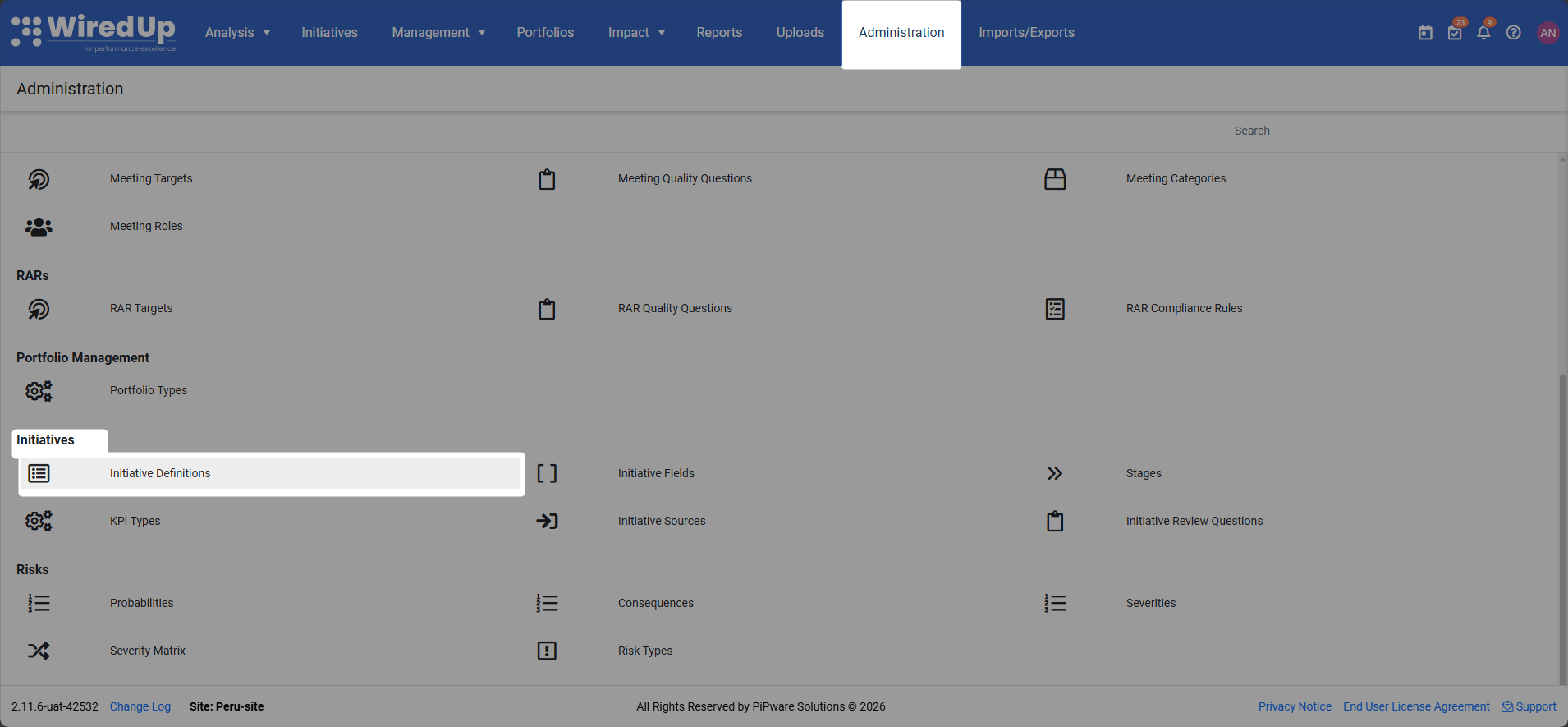
3. The Idea Definitions list screen will display, showing all existing Idea Definitions with their names and descriptions
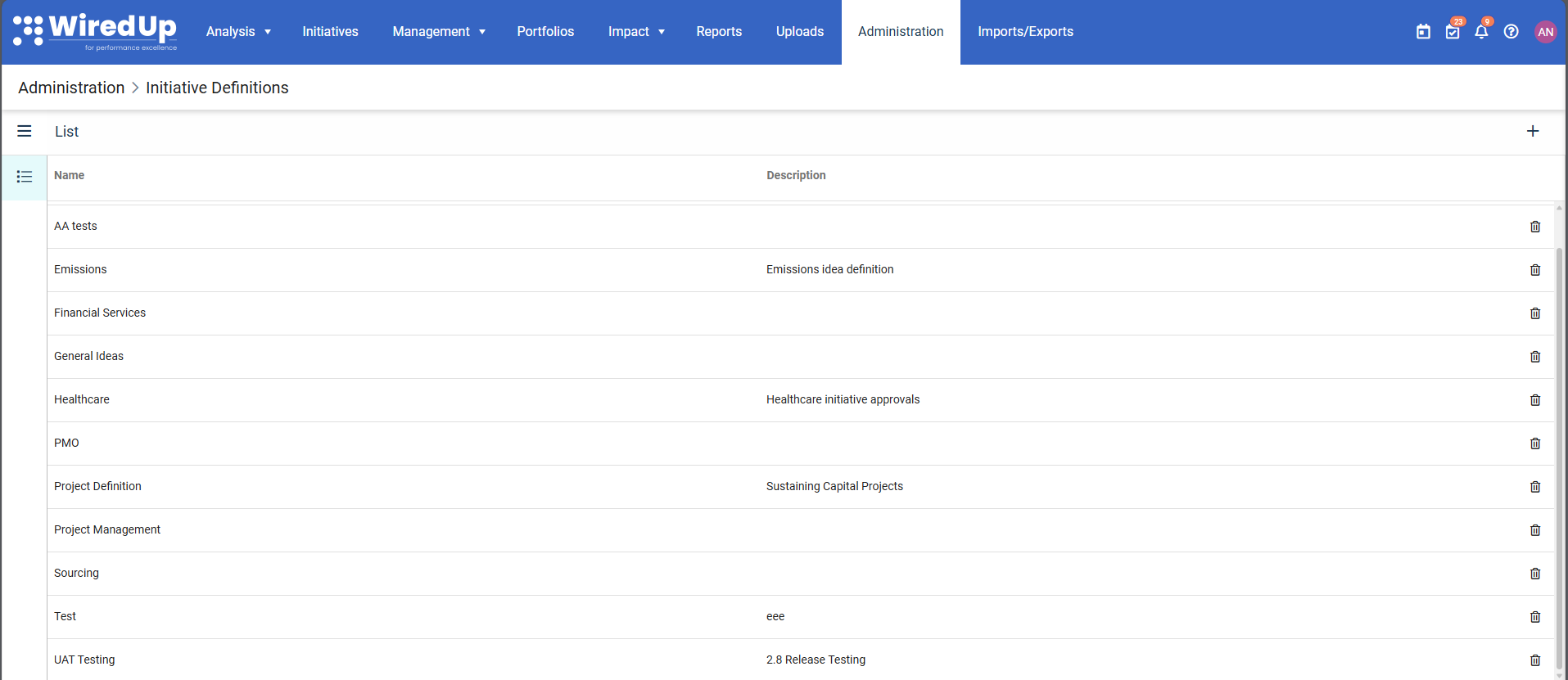
From this screen, you can:
- View all existing Idea Definitions
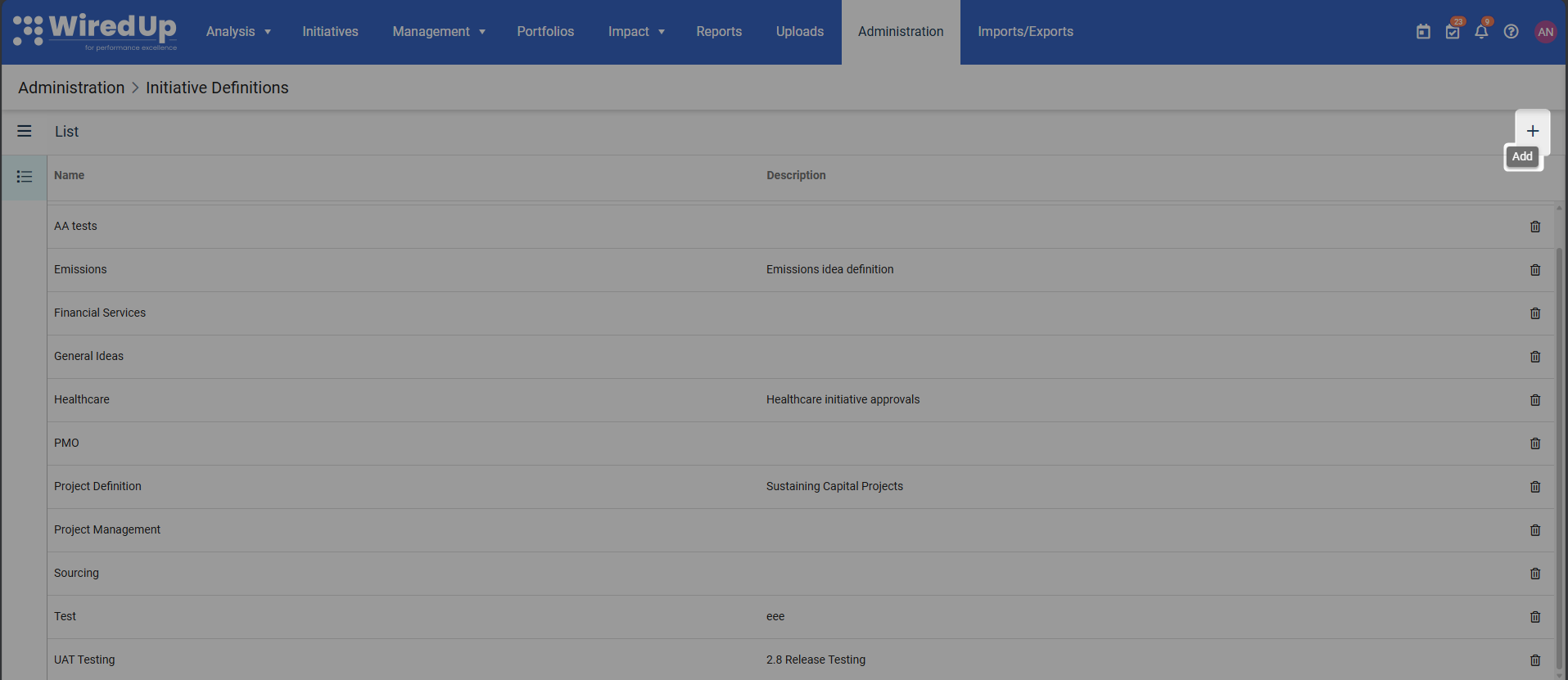
- Click the +Add button to create a new Idea Definition
- Click on any Idea Definition name to edit it
- Click the Bin icon to delete an Idea Definition (if not in use)
Adding a New Idea Definition
You can add a new Idea Definition by following the outlined steps below:
- Click on the +Add button located on the top-right corner of the Idea Definitions list.
- This will open the add Idea Definitions screen similar to the one below. On this screen, add the following details:
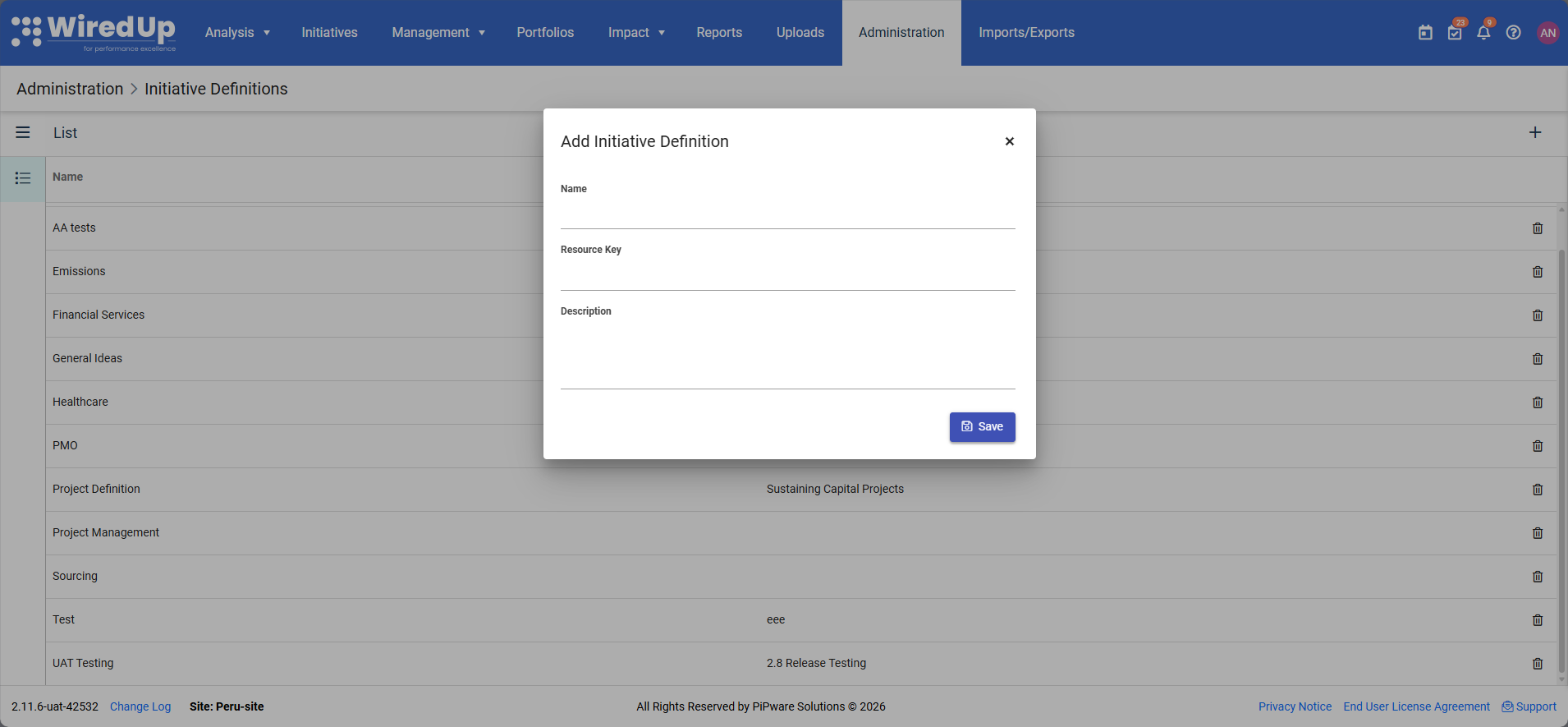
- The name of the Idea Definition
- The resource key associated with the Idea Definition
- The description of the Idea Definition
- Once the Idea Definition has been created, click the Save button to save the new Idea Definition.
- The new Idea Definition will now appear in the Idea Definitions list
Resource keys enable the system to translate Idea Definition names and labels across different languages, ensuring consistency for global teams.Editing an Idea Definition
To modify an existing Idea Definition:
- From the Idea Definitions list screen, click on the name of the Idea Definition you want to edit
- The Edit Idea Definition screen will open, displaying the following editable sections on the Details menu:
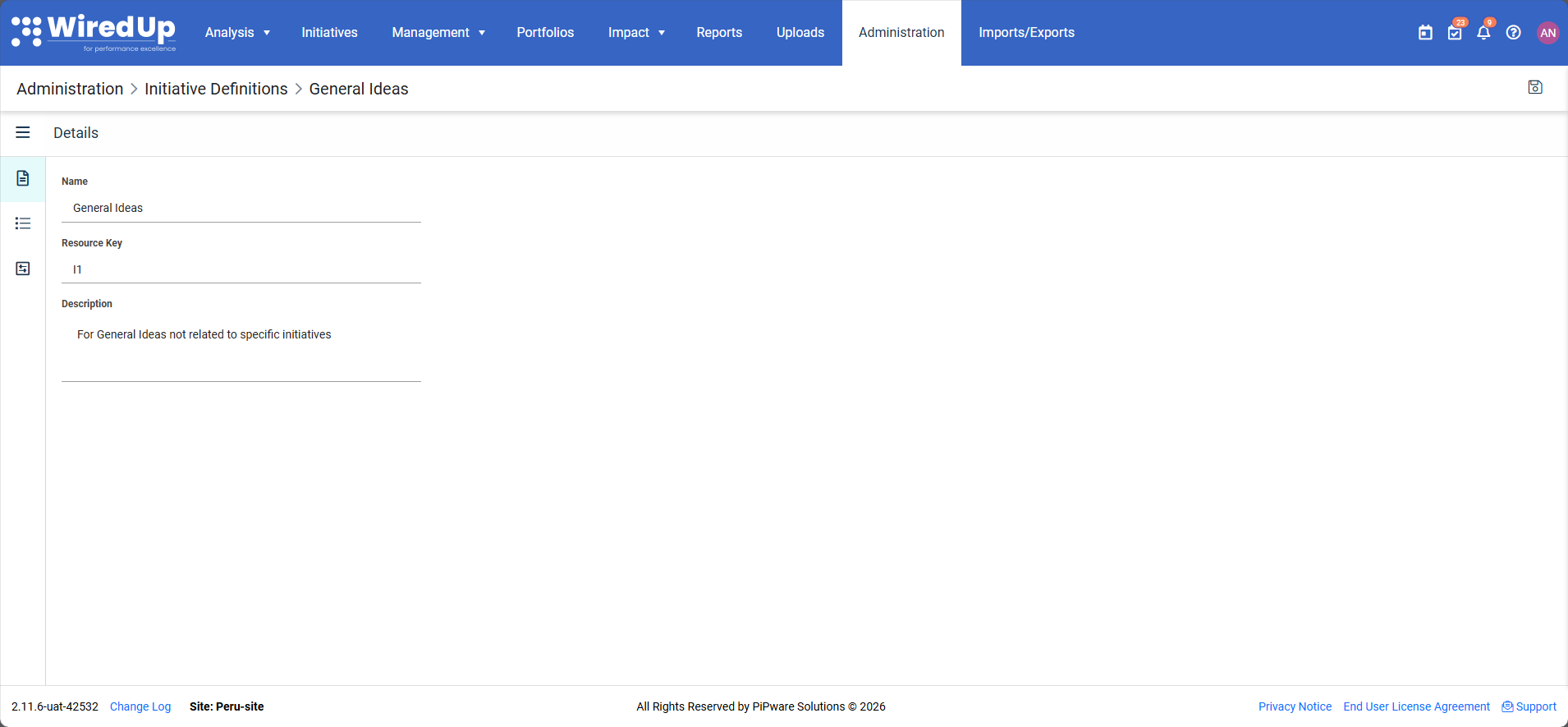
- Name: Update the Idea Definition name
- Resource Key: Modify the translation resource key
- Description: Edit the description
- The following sections will also be made available on the Idea Definition menu
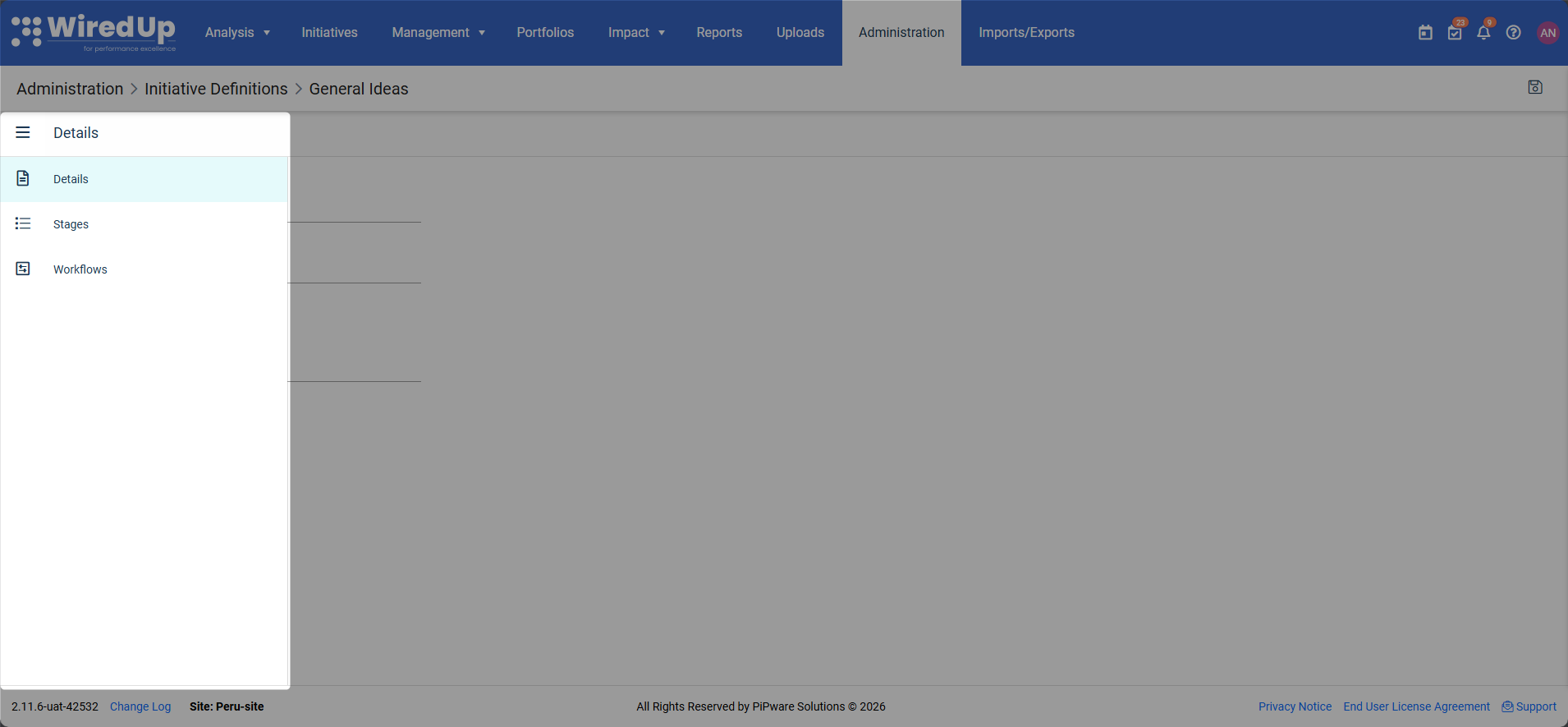
- Stages: Configure the stages this Idea Definition will use
- Workflows: Set up workflows and approval processes
- Make your desired changes to any of these sections
- Click Save to apply your changes
Important Consequences of Updating an Idea Definition:
When you update an Idea Definition that is already in use by existing Ideas, the following changes will automatically occur for all Ideas using that definition:
- All existing approvals will be cancelled
- Stage dates will be removed (e.g., Evaluating date, Implementing date, Cash Flowing date)
- Assigned stakeholders will be removed
- Ideas will need to go through the approval process again
Configuring Idea Stages in Idea Definitions
Stages define the lifecycle phases that an Idea must progress through. To configure stages:
- Navigate to the Stages section from the Idea Definition menu
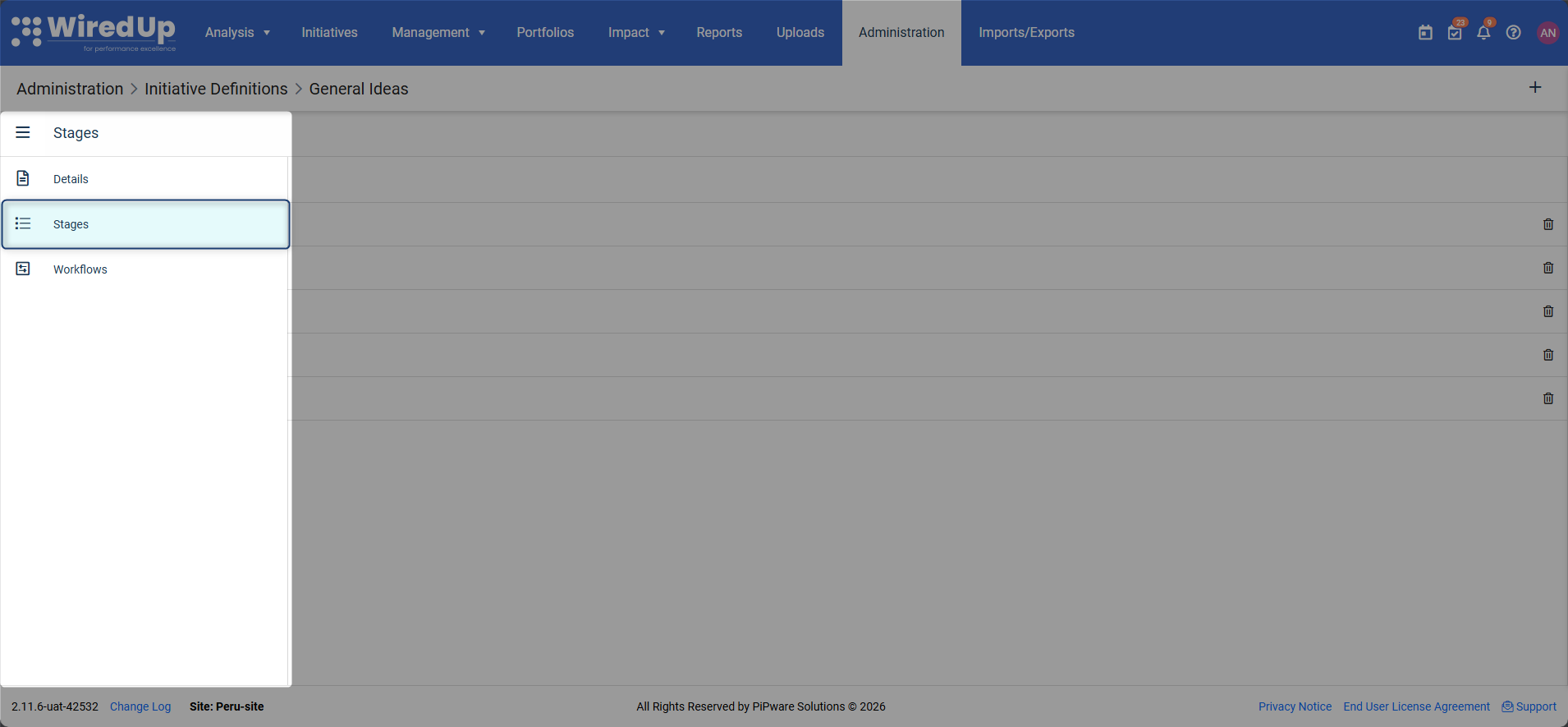
- Click on the specific stage you want to edit or click the '+' icon to add the stage to the idea definition
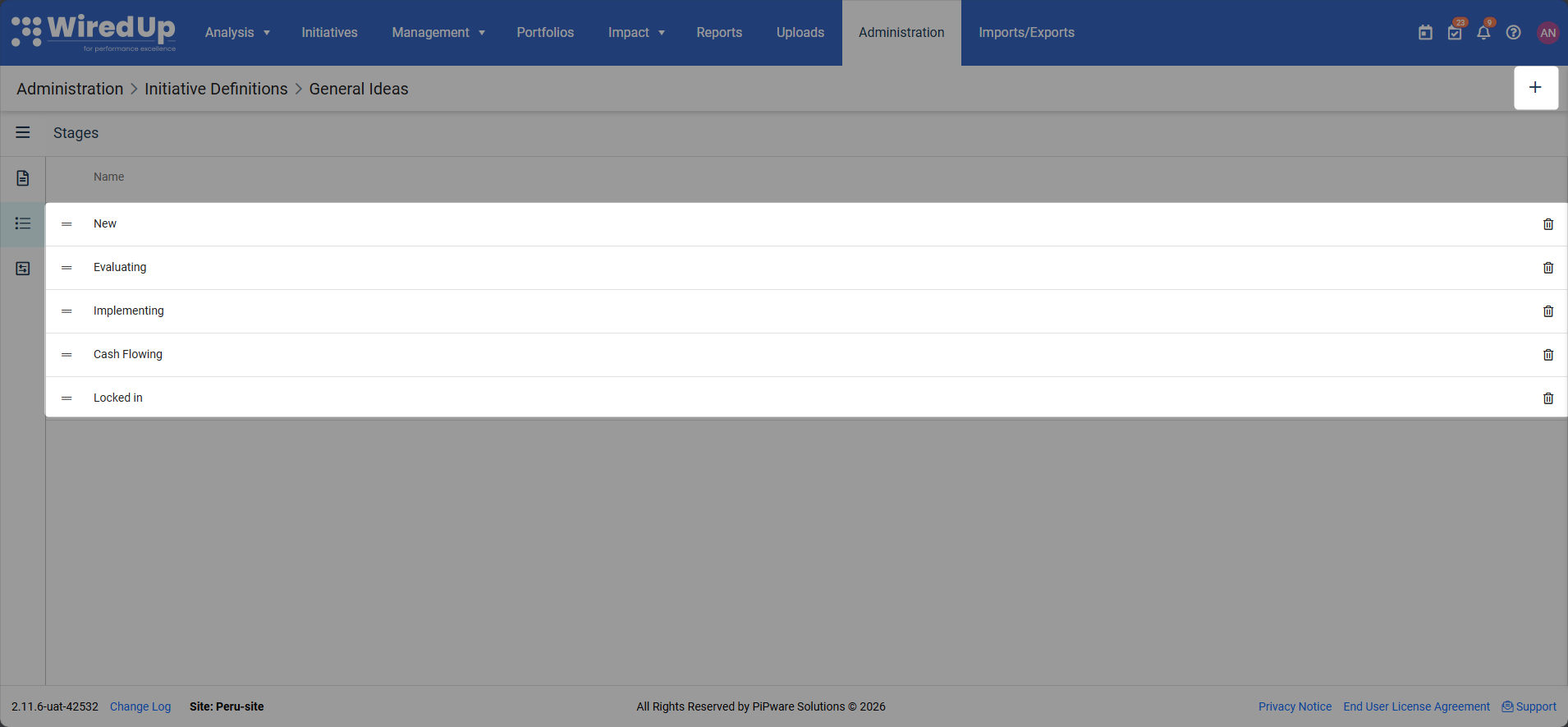
- The stage edit screen will display the Visible Areas section
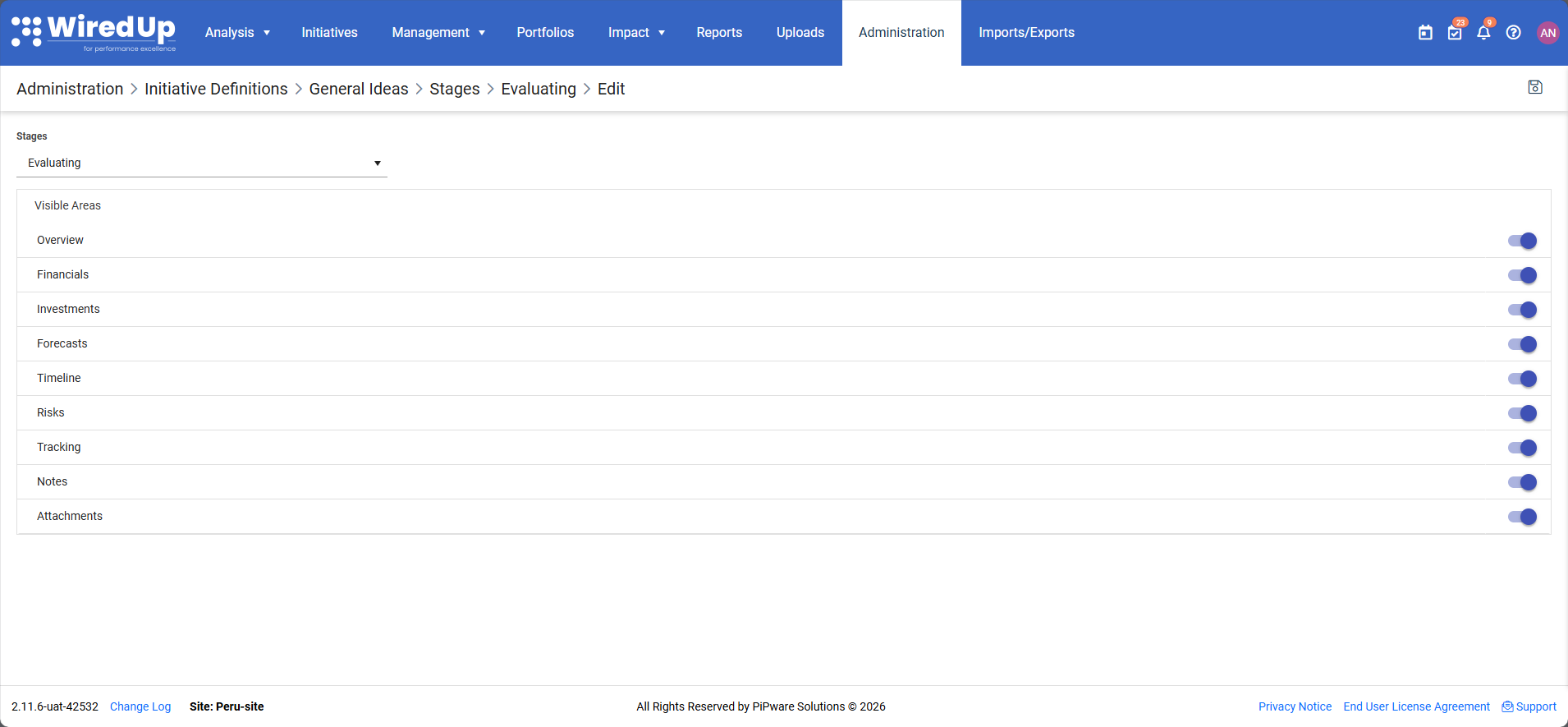
- Use the toggle switches to control which sections (areas) are visible to users at that stage:
- Overview: Basic idea information and details
- Financials: Financial data and cost information
- Investments: Investment details and capital allocation
- Forecasts: Projected outcomes and forecasted values
- Timeline: Project timeline and milestone tracking
- Risks: Risk assessment and mitigation strategies
- Tracking: Progress tracking and performance metrics
- Notes: User notes and comments
- Attachments: Document attachments and supporting files
- Toggle each area ON (switch to the right) to make it visible at this stage, or OFF (switch to the left) to hide it
- Repeat this process for each stage in your Idea Definition
- Click Save to apply the stage configuration
Best Practice: Limit visible areas at early stages (e.g., only Overview and Attachments during Evaluating) and progressively reveal more areas as the Idea advances through later stages. This ensures users focus on relevant information at each phase of the Idea lifecycle.Understanding Idea Workflows in Idea Definitions
Workflows are approval processes that control how Ideas progress through stages. Each Idea Definition can have multiple workflows, and each workflow:
- Contains a set of questions that must be answered
- Requires submission for approval by designated stakeholders
- Advances the Idea to a specific stage or status once approved
- Defines mandatory approvers through assigned roles
You can navigate to Workflows by selecting the Workflow option from the Ideas Definition menu. Roles defined within a workflow automatically become stakeholders for any Idea using that definition and are required approvers for the workflow.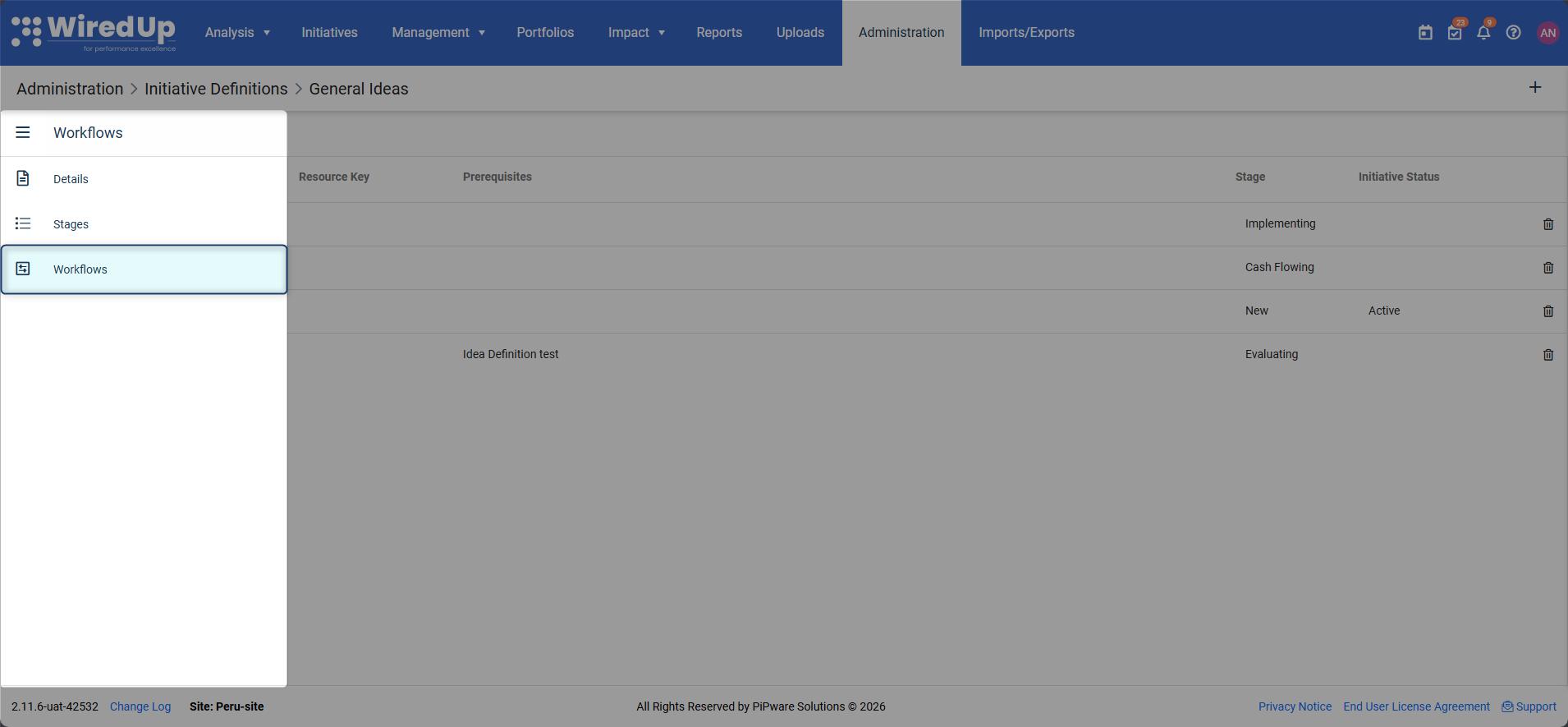
Adding a New Workflow to an Idea Definition
To create a new workflow:
- Open the Idea Definition you want to edit
- Select the Workflows option from the Idea Definition menu
- Click the '+' button in the top-right corner of the Workflows section
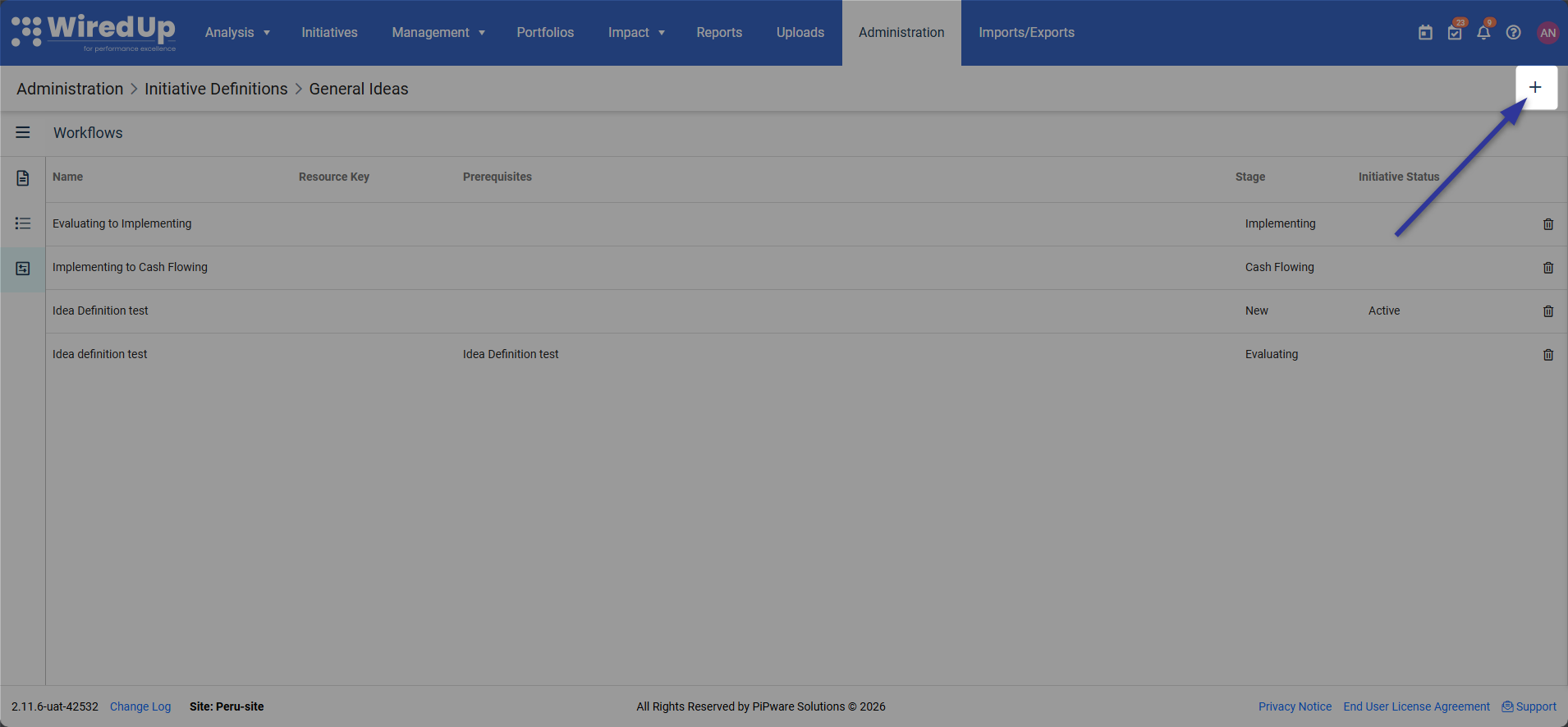
- On the Add Workflow screen, complete the following fields:
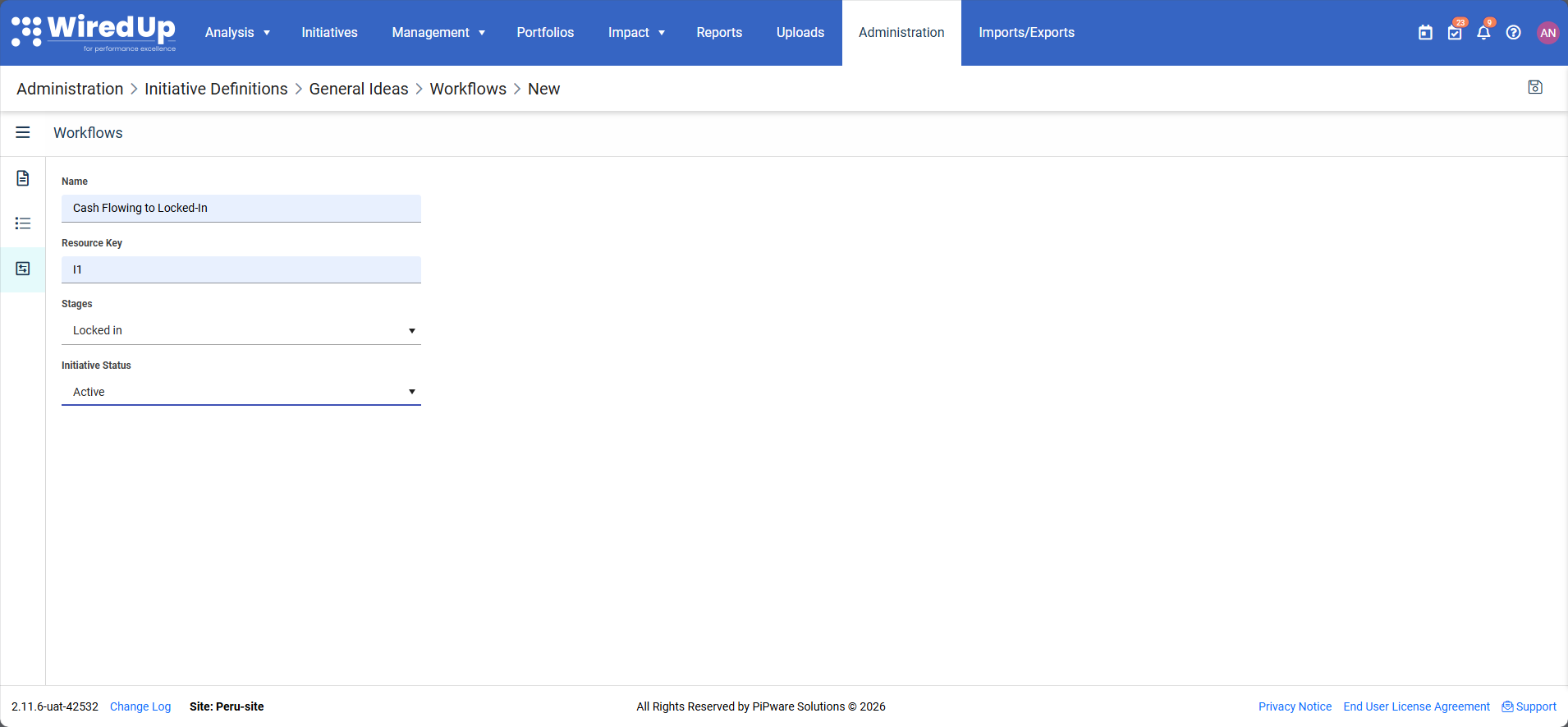
- Workflow Name: Enter a descriptive name (e.g., "Evaluation Approval", "Implementation Checklist", "Cash Flowing Review")
- Resource Key: Enter the translation resource key (optional)
- Stage: Select the stage the Idea should move to when this workflow is approved (e.g., Implementing, Cash Flowing)
- Idea Status: Select the status the Idea should have when this workflow is approved (e.g., Active, On Hold, Completed)
- Click Save to create the workflow
- The new workflow will appear in the workflows list and can now be further configured
Editing an Idea Workflow
To configure the details of a workflow:
- From the Workflow screen, click on the workflow name you want to edit
- The Edit Workflow screen will open, displaying four key configuration sections:
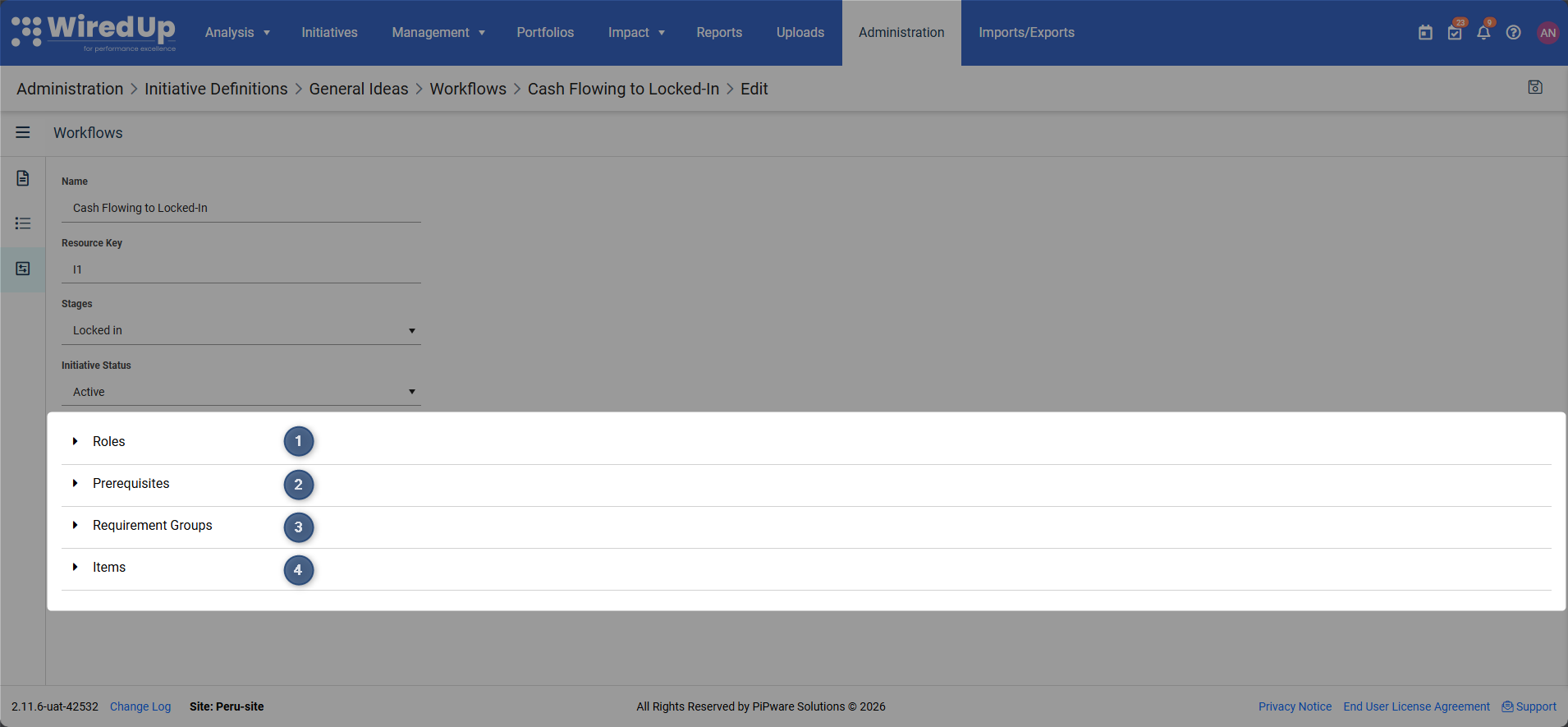
1. Roles (Stakeholders and Approvers)
Roles define who must approve this workflow. To configure roles:
- Click the +Add button in the Roles section
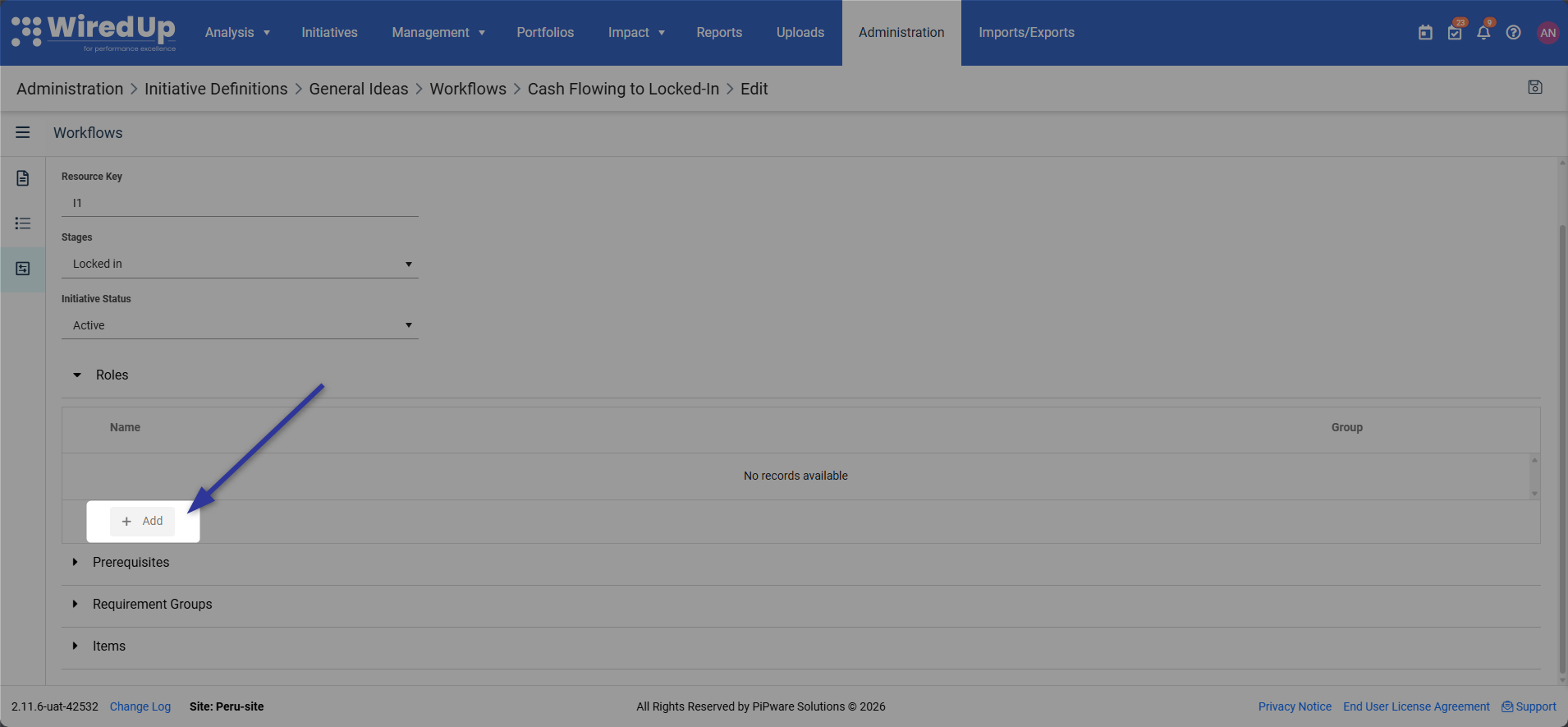
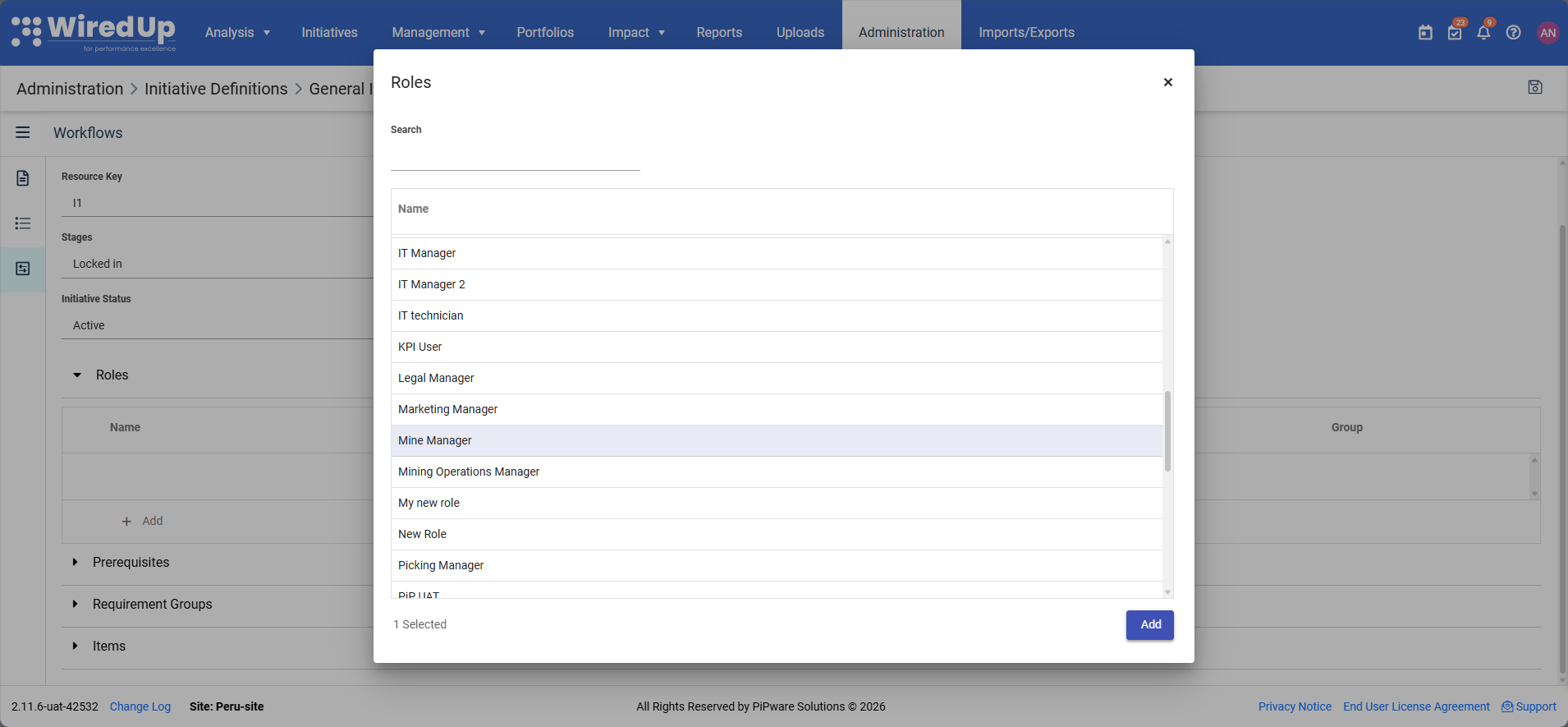
- Select the Role from the list of roles displayed (e.g., Manager, Finance Director, Project Sponsor) then click Add
- As an option, you can assign a Group number to control approval order. This enables staggered approvals where approvals happen in sequence rather than simultaneously
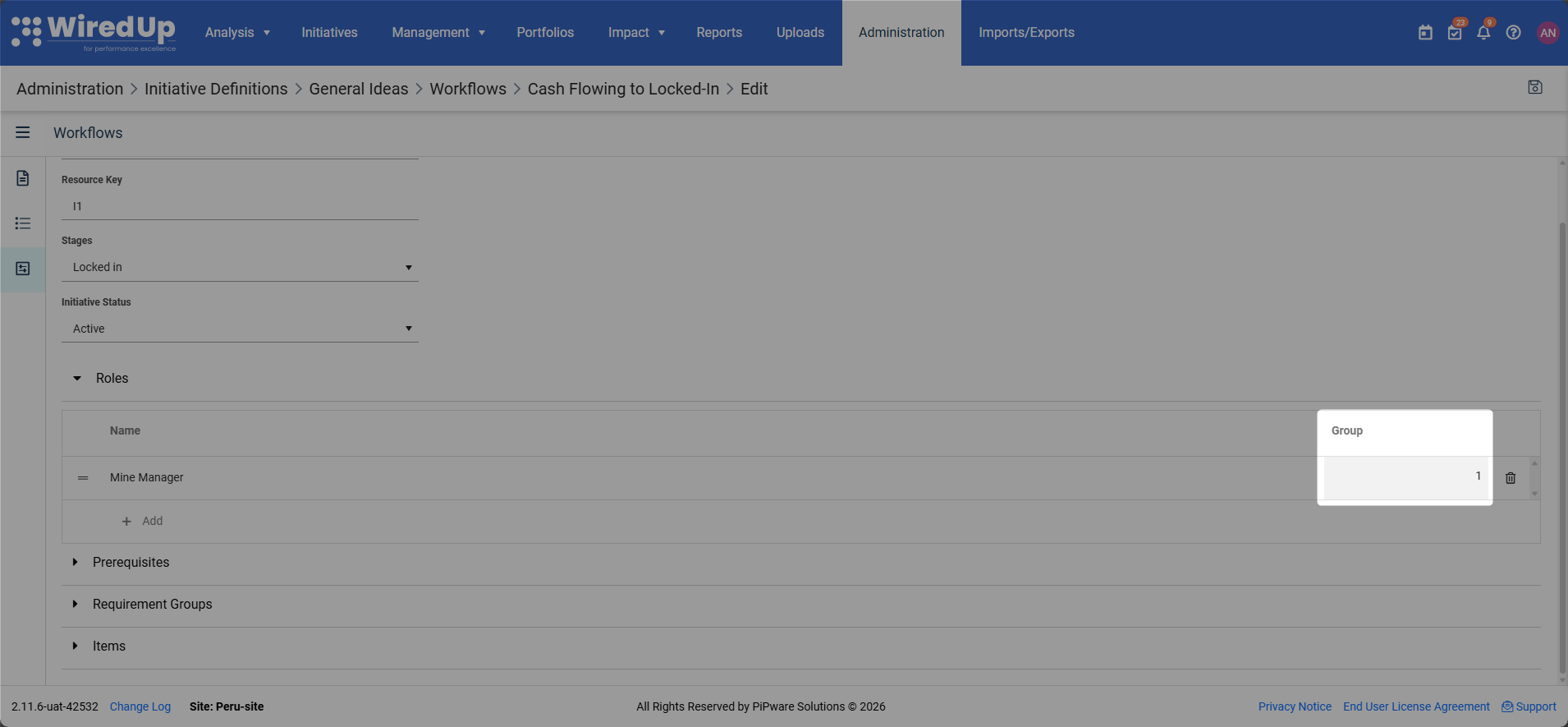
- Click the Bin icon to remove a role from the workflow
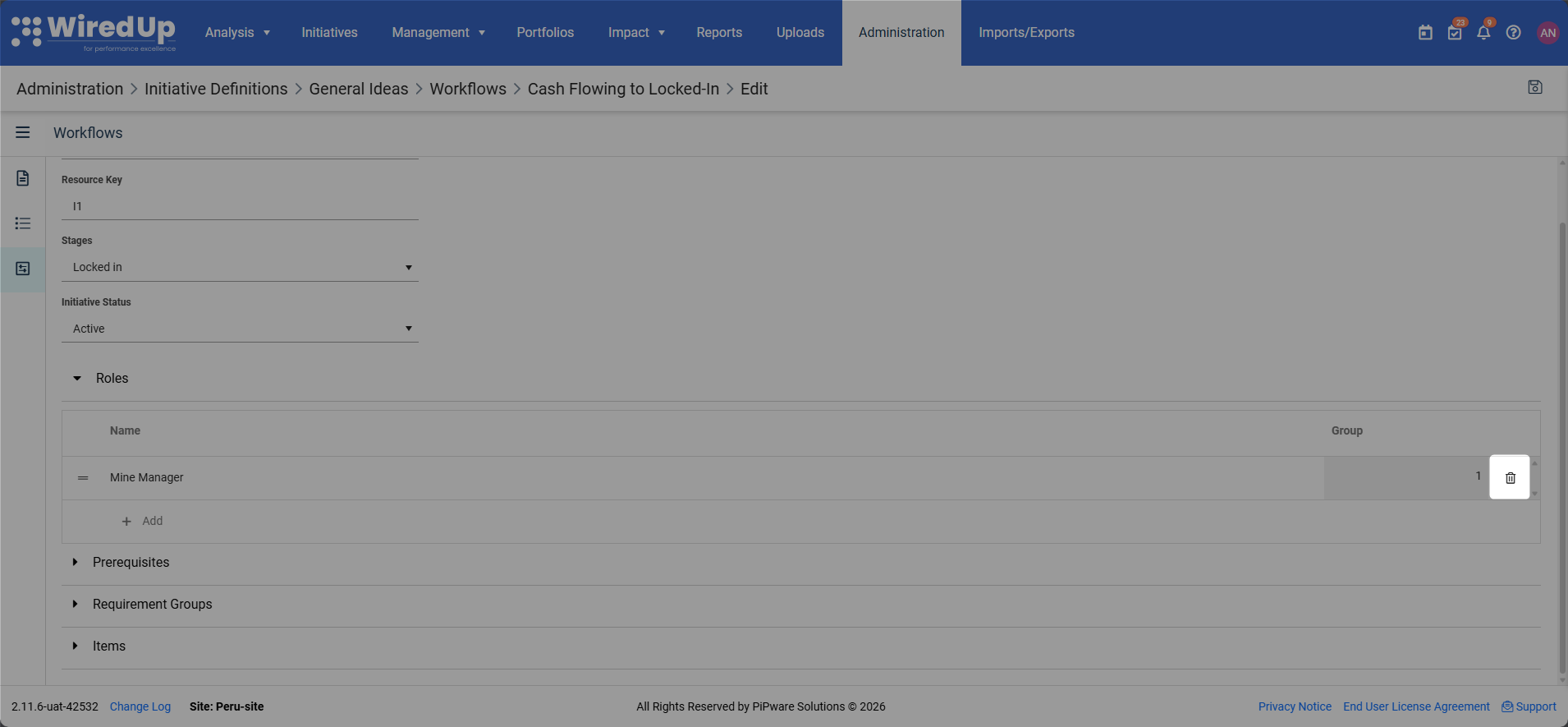
Important: If no roles are specified, the workflow will be automatically approved for Ideas using this definition.
2. Prerequisites (Approval Dependencies)
Prerequisites define which workflows must be completed before this workflow can be submitted. To configure prerequisites: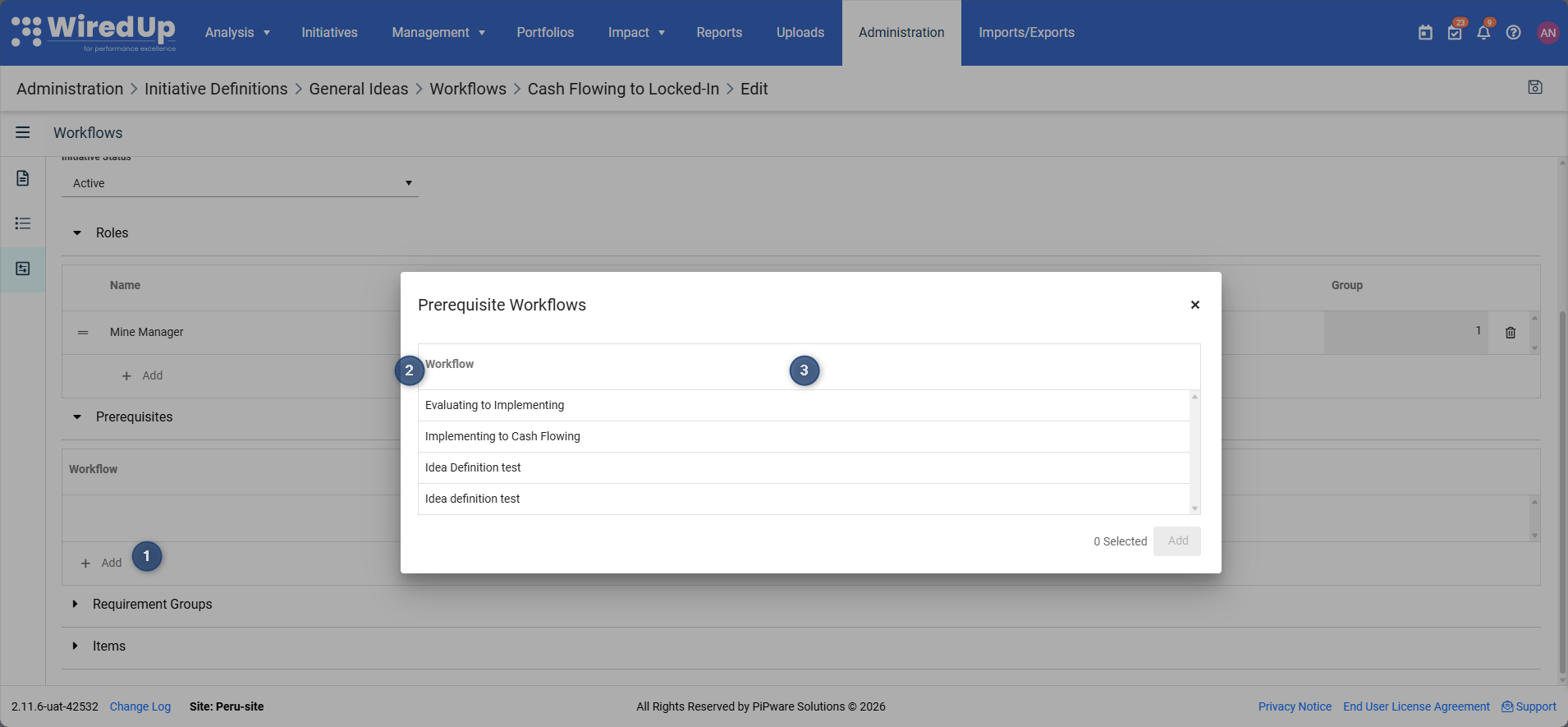
- Click the +Add button in the Prerequisites section
- Select the prerequisite workflow from the dropdown. Example: The "Cash Flowing Checklist" should only be submitted after the "Implementing Checklist" has been approved. This ensures Ideas follow the correct approval sequence
- You can add multiple prerequisites if needed
3. Requirement Groups (Information and Guidance)
Requirement Groups provide information that users need to be aware of before submitting a workflow for approval. They appear as informational sections when users view the workflow. They help ensure users have all necessary information before submission. To configure requirement groups: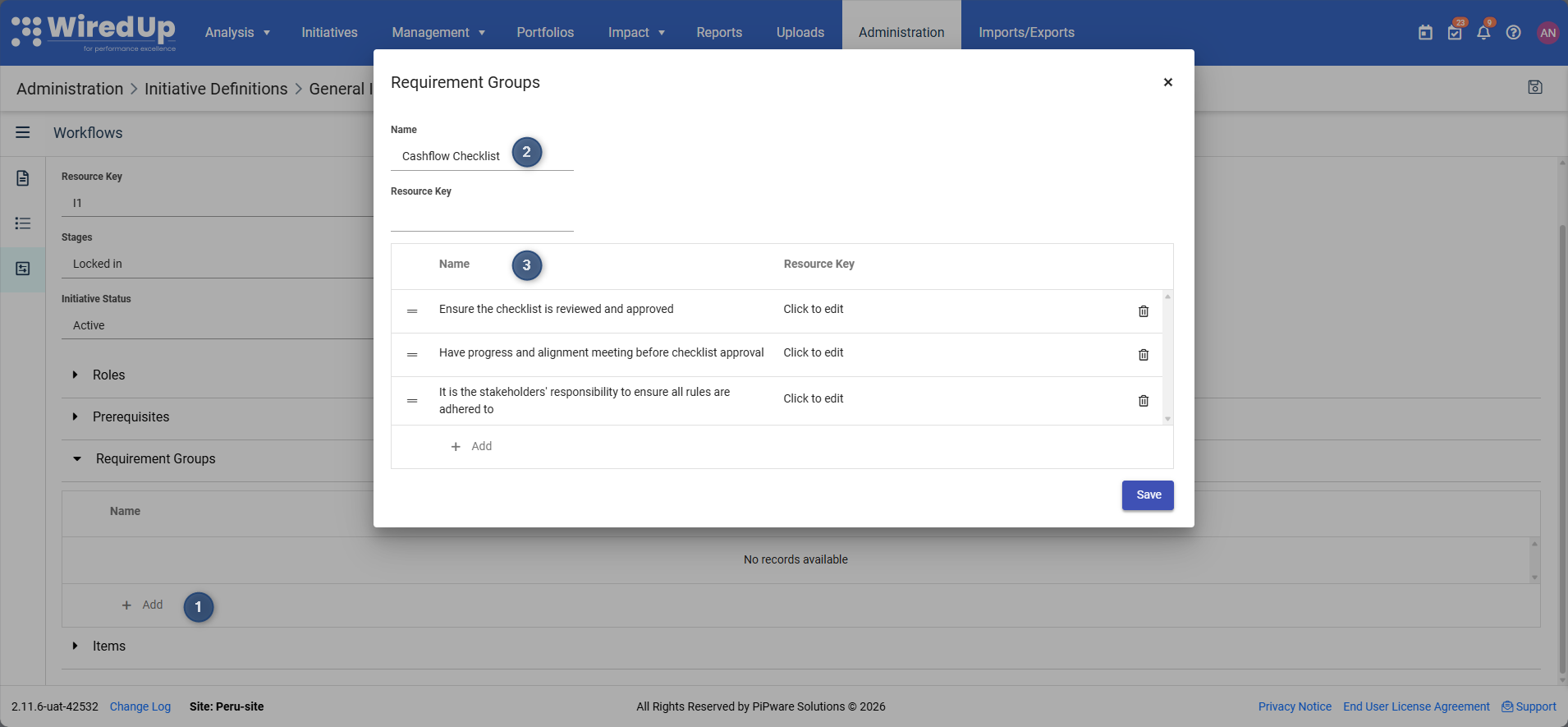
- Click the +Add button in the Requirement Groups section
- Enter the Group Name (e.g., "Financial Requirements", "Safety Compliance")
- Add a Description explaining what users need to know or prepare
4. Items (Workflow Questions)
Items are the specific questions that must be answered before a workflow can be submitted for approval. To configure items: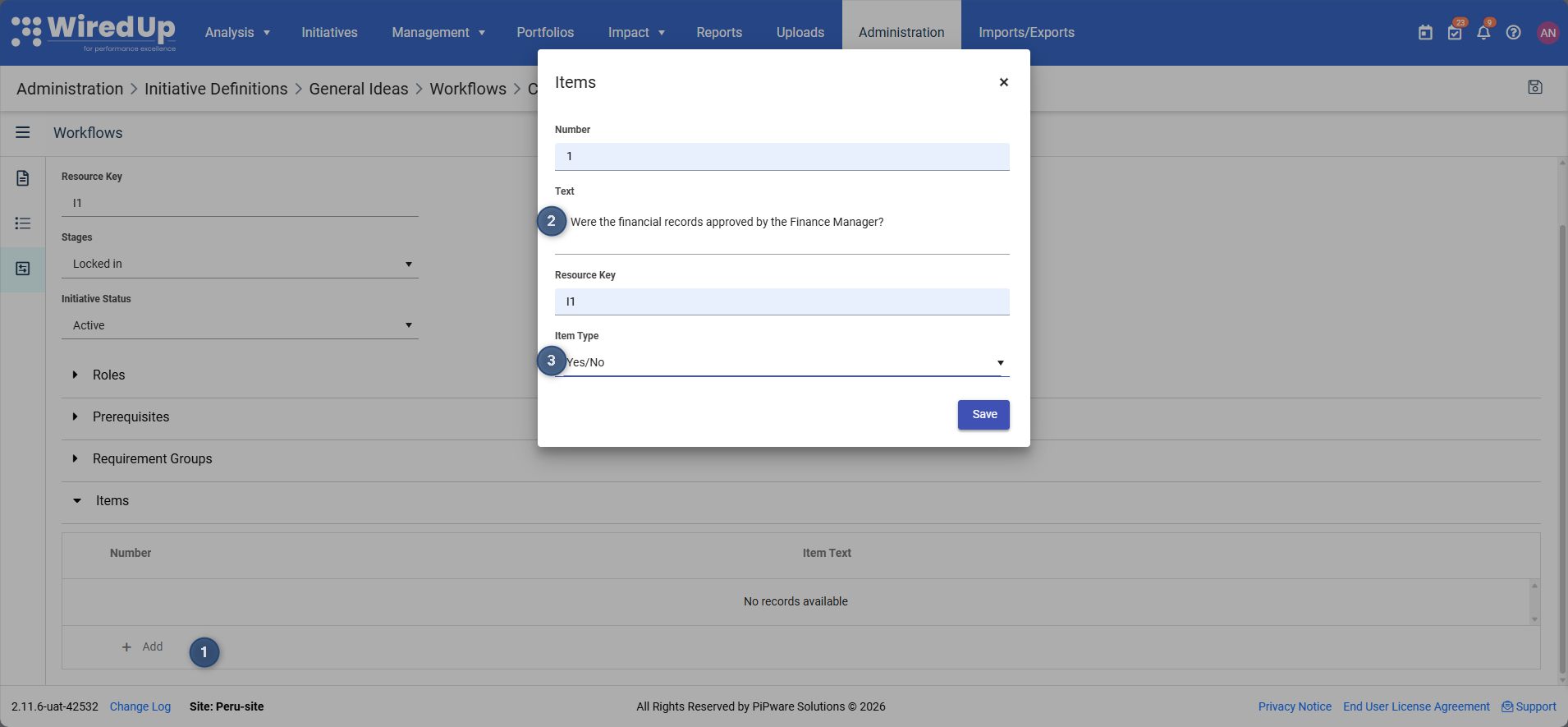
- Click the +Add button in the Items section
- Enter the Question Text (e.g., "Has the business case been approved?", "Are all resources allocated?")
- Select the Item Type:
- Yes/No
- Text input
- Numeric input
- Date selection
- Dropdown selection
- Mark the question as Required if it must be answered before submission
Add multiple items to create a comprehensive checklist.Items appear in the order they are added
5. Saving Your Workflow Configuration
After configuring Roles, Prerequisites, Requirement Groups, and Items: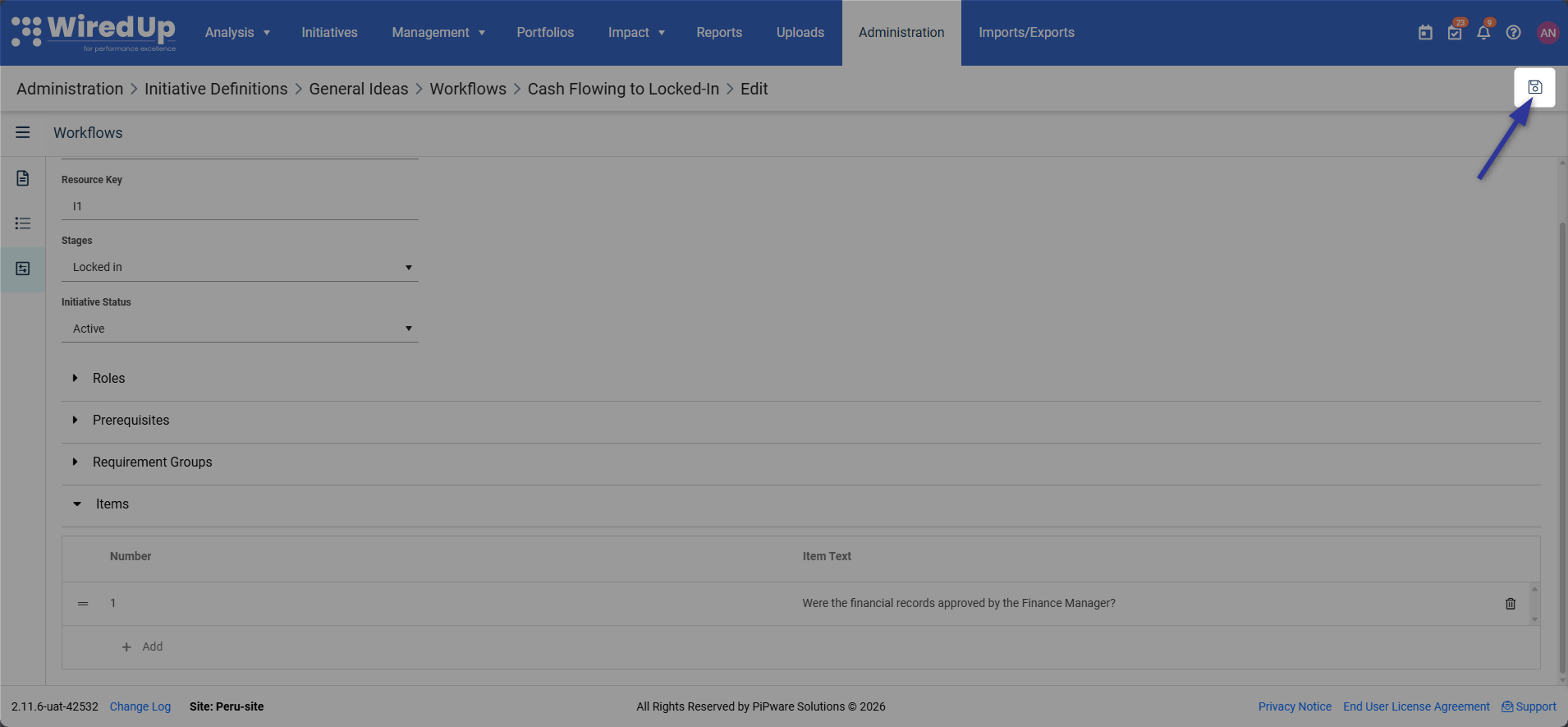
- Review all settings to ensure accuracy
- Click Save to apply your workflow configuration
- The workflow is now active and will apply to all Ideas using this Idea Definition
Next Steps
Now that you understand how to configure Idea Definitions, you may want to explore these related topics:
- Adding an Idea: Learn how to create new Ideas and select the appropriate Idea Definition
- Idea Approvals: Understand how to submit and approve workflows for Ideas
- Editing an Idea: Discover how to manage and update Idea information throughout its lifecycle
- Idea Stages and Status: Learn about the different stages and statuses available for Ideas