
In This Article
Import Structure and Requirements
Download the KPI Import Template
Importing Targets, Baselines, and Other KPI Values
Overview
Once KPIs have been created and used to populate a Value Driver Tree, KPI values can also be imported in bulk using Excel. Importing KPI data allows you to load, update, or refresh large volumes of values efficiently without manual entry.
This article explains how to import KPI data using the standard WiredUp import process and how imported data becomes available in Value Driver Trees.
When to Use Excel Imports
Excel imports are typically used when:
- Loading historical KPI data
- Updating large numbers of KPI values
- Refreshing data on a recurring basis
- Managing KPI data outside the user interface
Manual entry is suitable for small numbers of values. Excel imports are recommended when working at scale.
Import Structure and Requirements
KPI data must be imported using the standard WiredUp KPI Excel import template. Custom templates or manually created file structures are not supported.
The import template defines:
- Required columns and formats
- How values are matched to existing KPIs
- Which KPI value types can be populated (for example, Actuals, Targets, Baselines)
- Validation rules applied during import
The template must be used exactly as provided. Column names, order, and formatting must not be changed.
Download the KPI Import Template
KPI data imports are managed from the Imports/Exports area.
To obtain the correct import structure: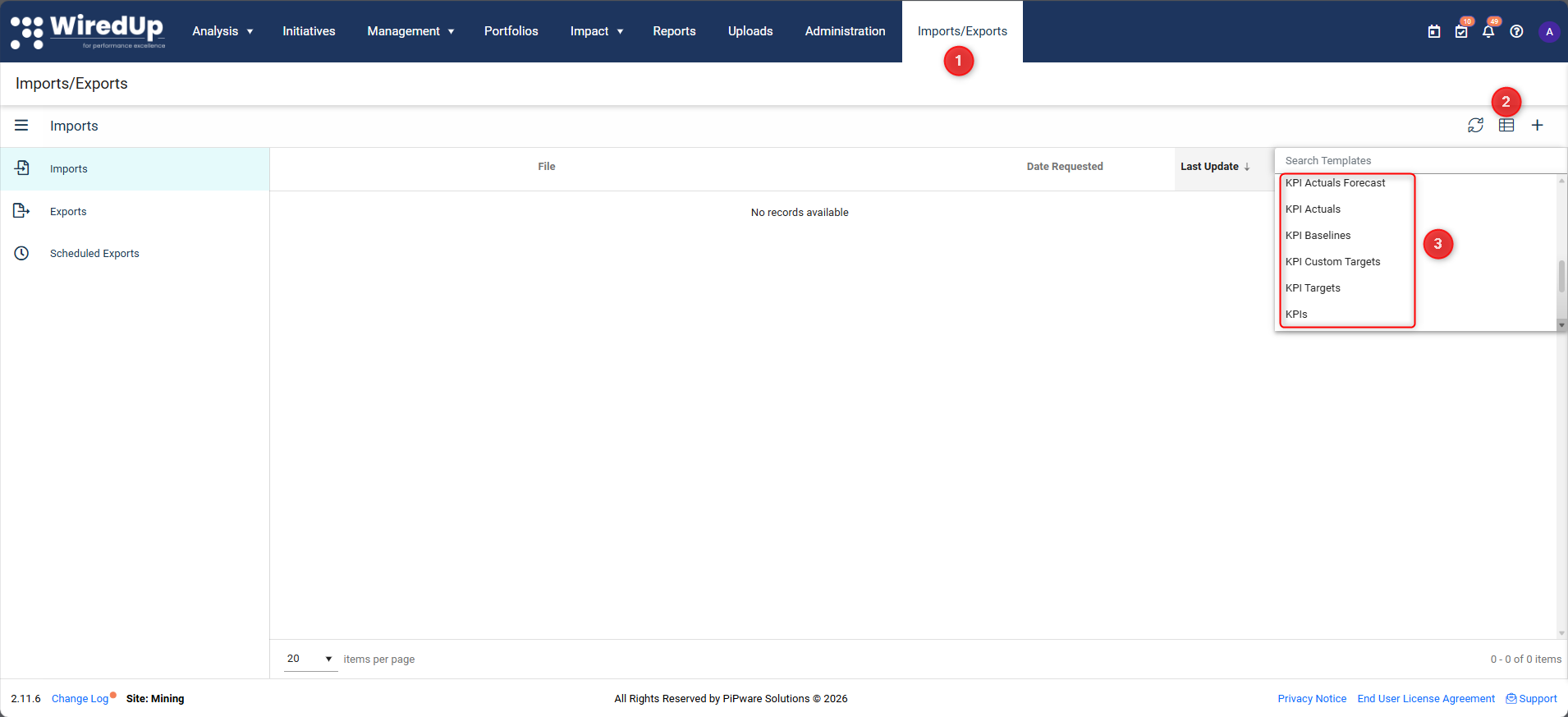
- Navigate to Imports/Exports
- From the sidebar, select Imports then select the Templates icon
- Choose the required template option by clicking
- The Import Template will download immediately
This template is the canonical reference for KPI data imports and includes rules and sample data.
Prepare the Import File
Before importing data, ensure the following:
- All KPIs already exist in the system
- KPI codes in the template match existing KPI codes exactly – these are the unique identifier which will appear in the column header
- Dates or periods align with the KPI configuration
- Values correspond to fields defined in the VDT definition (for example, Actual, Target, Baseline)
Each row in the template represents a KPI value for a specific KPI and time period.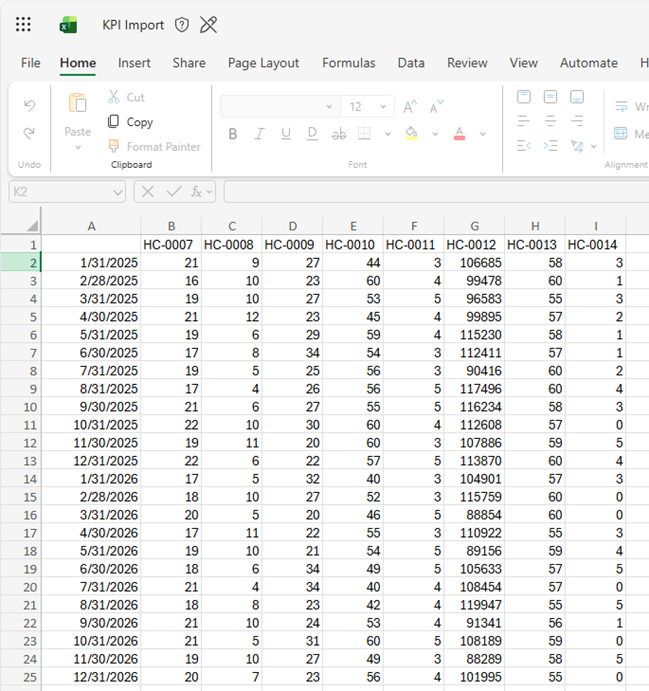
Unused fields can be left blank. Do not remove columns or modify headers.
Import KPI Data
Once the template is populated: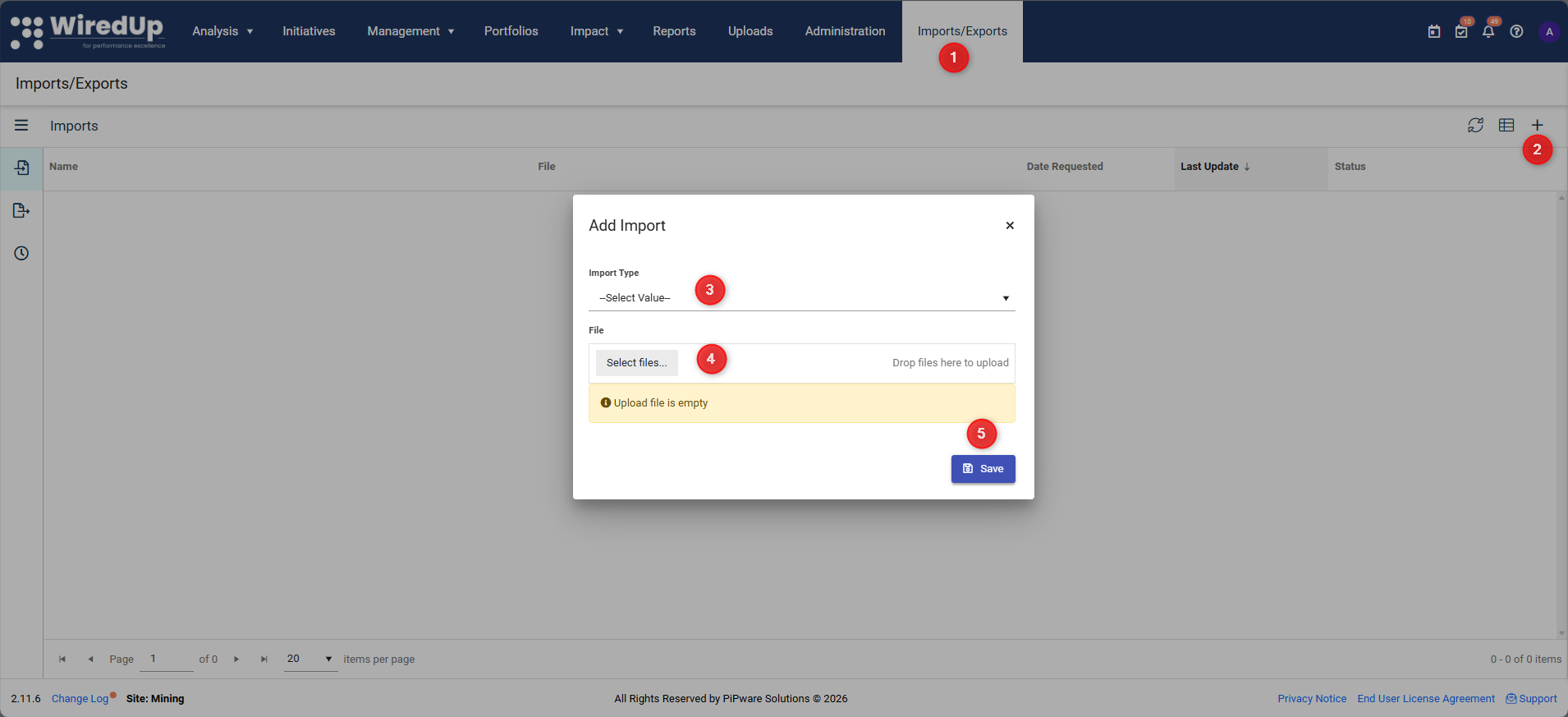
- Navigate to Imports/Exports
- Select Add
- Upload the completed KPI import file, ensuring the import type matches the exact template type (i.e., KPIs, KPI Targets, KPI Baselines)
- Review any validation messages
- Save the import
If errors are reported, correct them in the template and re-import the file.
Importing Targets, Baselines, and Other KPI Values
The KPI import template supports importing all KPI value types, including:
- Actuals
- Targets
- Baselines
- Forecasts (if configured)
These values are imported using the same template and process. Populate the relevant columns for the value types you want to import and leave unused fields blank.
Access Imported KPI Data
After a successful import, KPI values are immediately available throughout WiredUp.
To view imported values: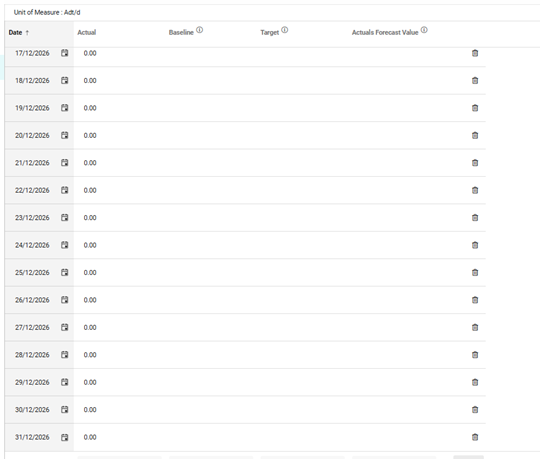
- Navigate to Analysis > KPIs
- Open the KPI (one matching that of the import file) from the KPI List
- Select the Values tab
Imported values appear alongside existing values for the relevant periods.
If the KPI is used in a Value Driver Tree:
- Open the Value Driver Tree
- Select the appropriate view
- Imported values are displayed automatically on KPI nodes
- Calculations update immediately through the tree
No additional linking or refresh is required.
Updating Existing Data
Excel imports can be used to:
- Add new KPI values
- Overwrite existing values
- Extend data into new time periods
If a value already exists for the same KPI, field, and period, the imported value will overwrite it. Changes apply globally wherever the KPI is used.
Common Issues
- KPI codes do not match existing KPIs
- Periods do not align with KPI configuration
- Invalid or missing numeric values
- Attempting to import data for KPIs that do not exist
Validation messages during import indicate where issues occur and must be resolved before completion.
What Happens Next
At this stage, you have:
- Built and structured Value Driver Trees
- Populated them with KPI data manually and via Excel
- Established a repeatable process for maintaining KPI values at scale
You can now continue analysing performance using up-to-date data, reuse Value Driver Trees across initiatives, and maintain KPI data efficiently over time.
Next Steps
To learn how to run analysis with Value Hound, see: