
In This Article
Overview
The Idea/Initiatives Toolbar provides quick access to essential tools and actions for managing your initiatives. Located in the top-right corner of every initiative screen, the toolbar icons are consistently available across all initiative tabs, allowing you to perform key actions without navigating away from your current view.
The toolbar streamlines common tasks such as sharing initiatives via email, downloading reports, adding commentary, reviewing change history, and managing access permissions.
The following icons are available in the Idea/Initiatives Toolbar:
Email Icon
The Email icon allows you to share the initiative via email directly from the system.
To email an initiative: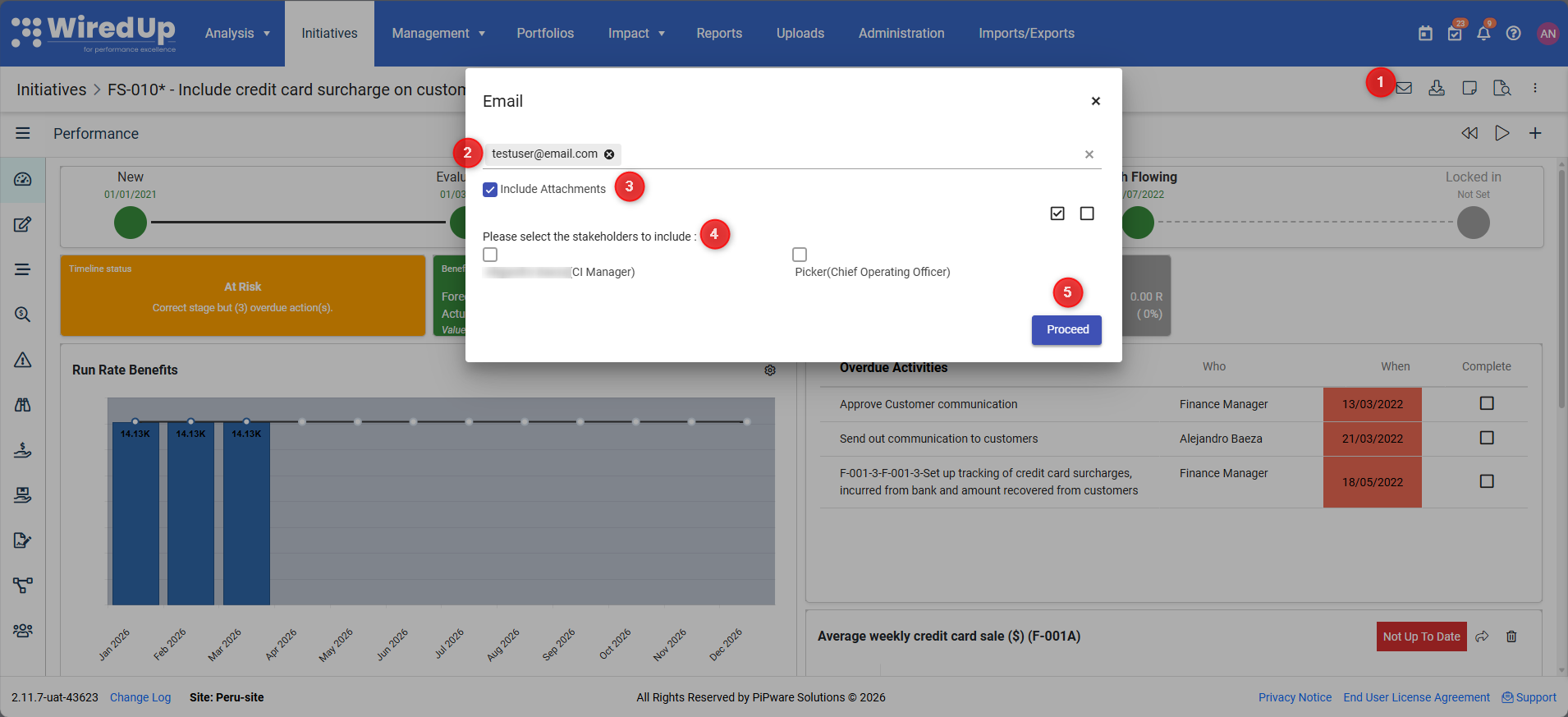
- Click the Email icon (envelope) in the toolbar. An email composition window opens
- Enter recipient email addresses
- Check Include Attachments if you want to attach initiative files
- Select the stakeholders to include from the list
- Click Proceed
The email includes initiative details and allows recipients with appropriate access to view the full initiative information.
Use cases:
- Share initiative updates with stakeholders
- Notify team members of important changes
- Request input or approvals from specific users
Download Initiative Icon
The Download Initiative icon allows you to export the initiative as a PDF document for offline viewing, printing, or sharing with external stakeholders.
To download an initiative: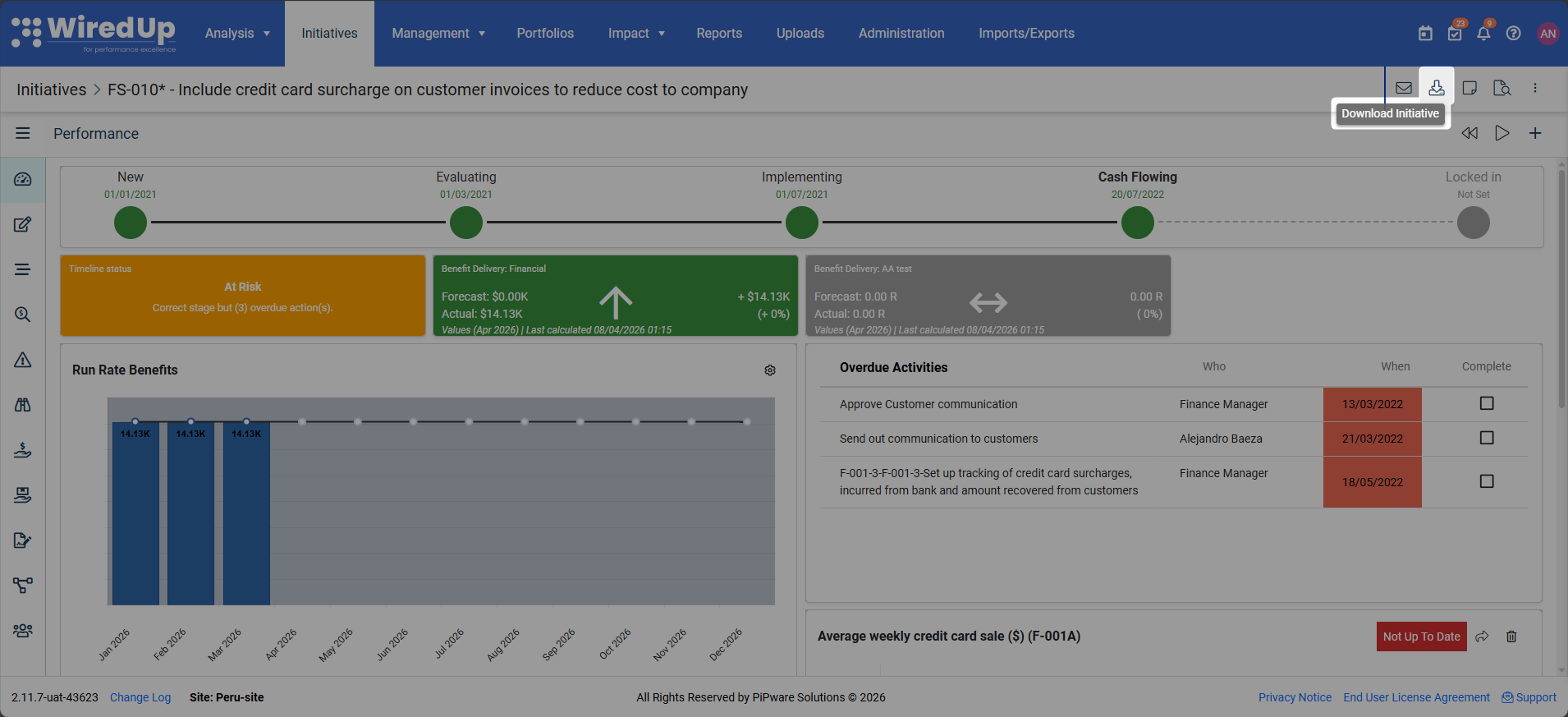
- Click the Download icon (download arrow) in the toolbar
- The system generates a PDF document containing the initiative details
- Once the PDF is ready for download, click on your Notifications icon to download the PDF file
The downloaded PDF includes key initiative information such as overview details, performance metrics, timeline, and other relevant data based on the current view.
Use cases:
- Create printable reports for meetings
- Share initiative details with external stakeholders who don't have WiredUp access
- Archive initiative snapshots for record-keeping
Notes & Attachments Icon
The Notes & Attachments icon provides access to the commentary and file attachment feature, allowing you to add context, explanations, and supporting documentation to your initiatives.
To add a comment: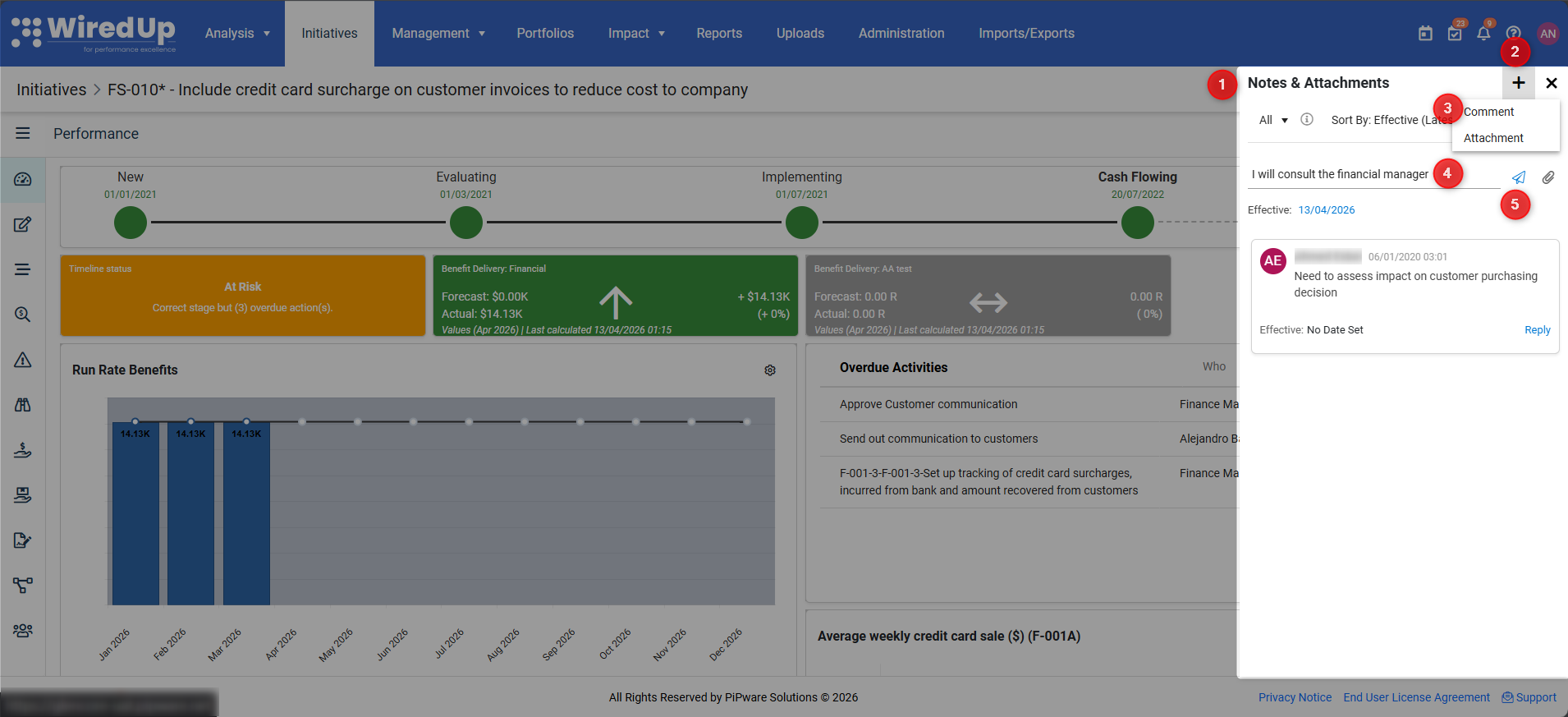
- Click the Notes & Attachments icon in the toolbar. The Notes & Attachments panel slides out from the right side of the screen
- Click the + icon at the top of the panel
- Select Comment
- Enter your comment text in the text field
- Click Post Comment
To add an attachment: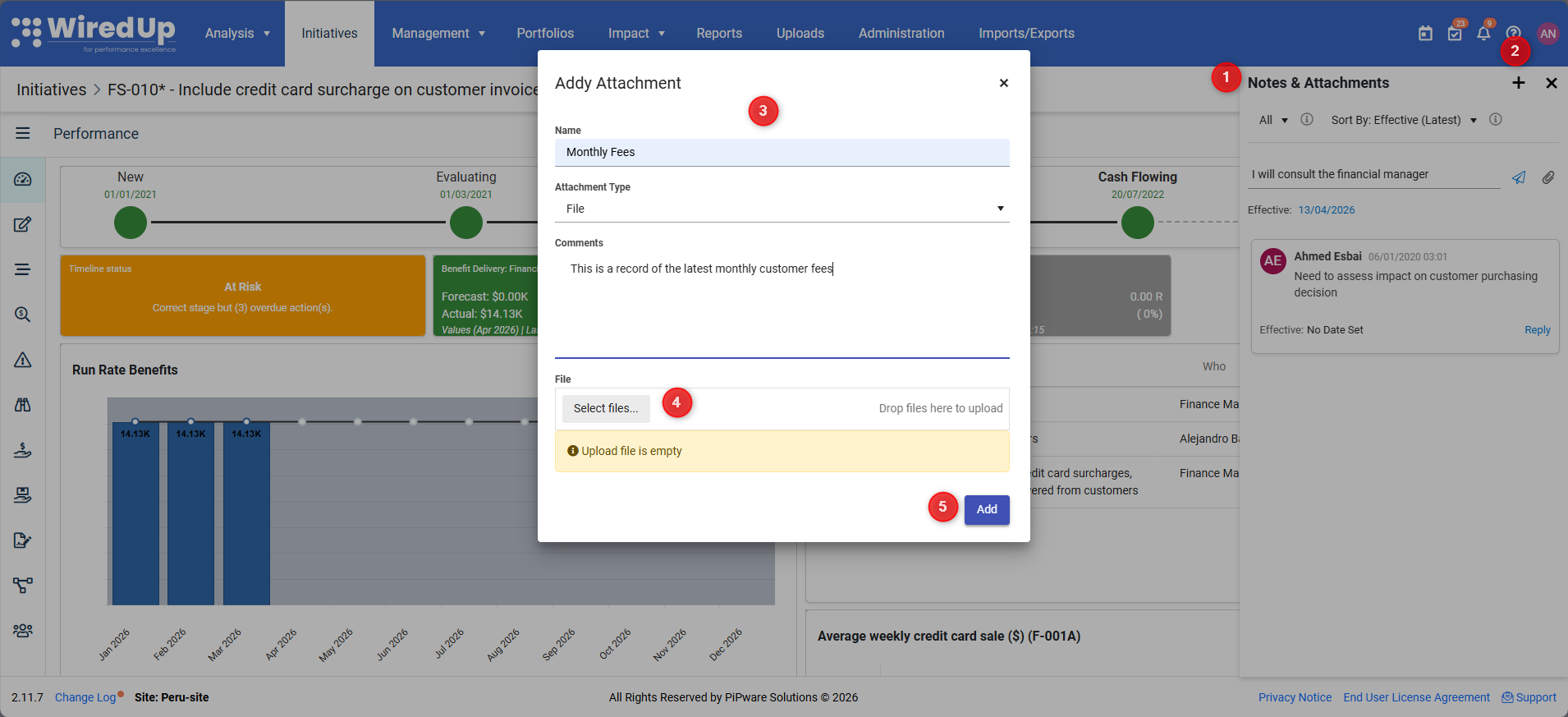
- Click the Notes & Attachments icon in the toolbar. The Notes & Attachments panel opens
- Click the + icon at the top of the panel and select Attachment
- In the Add Attachment screen, enter the name of the attachment, the attachment type and comment if applicable
- If File is selected, browse and select the file to upload. If URL is selected, enter the external link
- Click Add to save the attachment
Viewing and managing comments:
- The Notes & Attachments panel displays all comments and attachments in chronological order
- Filter by All, Comments, or Attachments using the filter options at the top
- Sort comments using the Sort By dropdown (Effective Date or Created Date)
- Set an Effective Date for comments to associate them with specific time periods
- Reply to comments to create threaded conversations
- Edit or delete your own comments using the icons on each comment
Note: The Notes & Attachments functionality works similarly to the KPI Commentary feature. For more detailed information, refer to the KPI Commentary Feature article.Use cases:
- Document decisions and rationale for initiative changes
- Attach supporting documents such as business cases, approvals, or analysis reports
- Provide context for performance variances or timeline adjustments
- Create an audit trail of initiative discussions and decisions
Change Log Icon
The Change Log icon provides access to the initiative's complete change history, showing what changes were made, when, and by whom.
To view the change log:
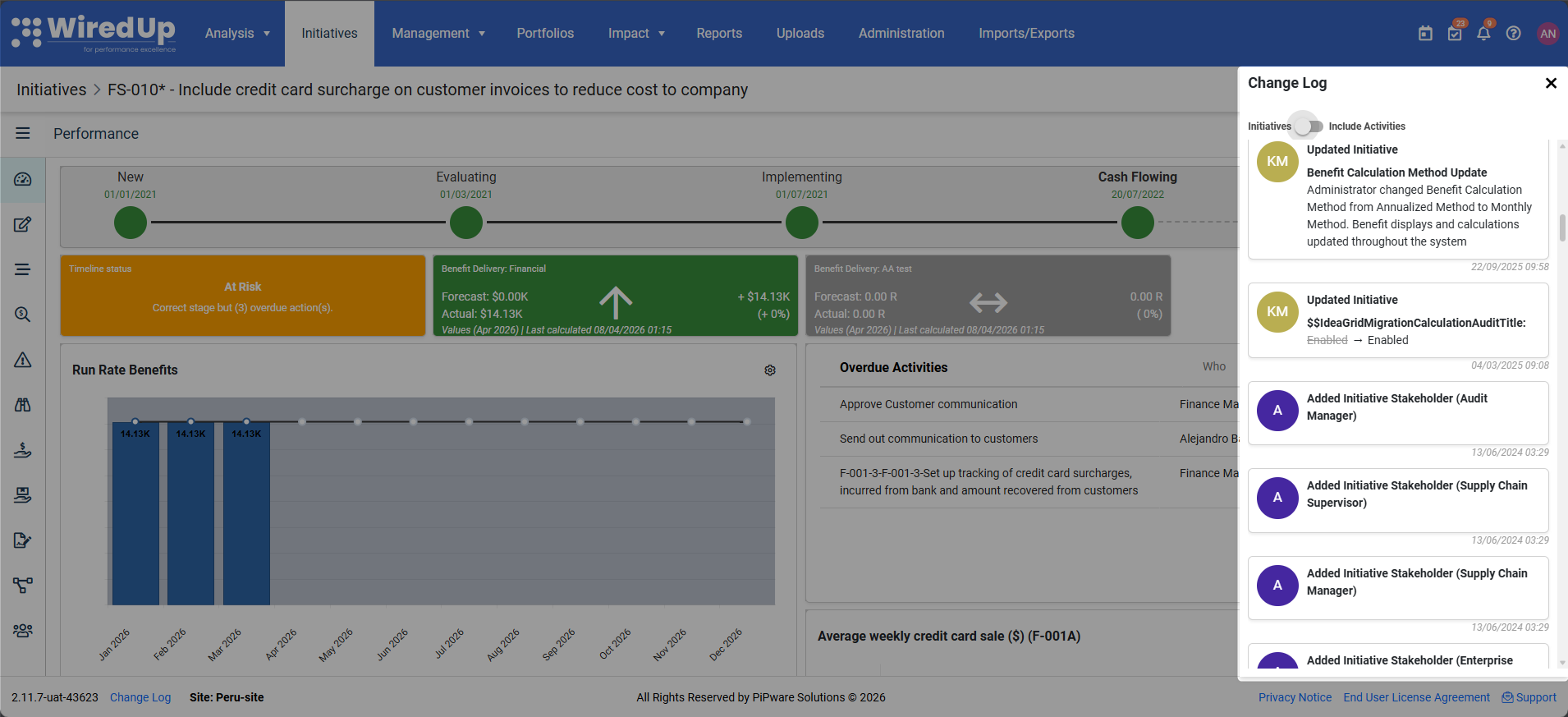
- Click the Change Log icon (clock/history) in the toolbar
- The Change Log panel slides out from the right side of the screen
- Review the chronological list of changes
Change log information includes:
- Change description: What was changed (e.g., "Updated Idea Stage", "Added Stakeholder")
- User: Who made the change (displayed with user initials in a colored badge)
- Timestamp: When the change was made (date and time)
- Details: Specific information about the change (e.g., "Stage changed from Evaluating to Implementing")
Filtering the change log:
Use the Initiatives / Include Activities toggle to:
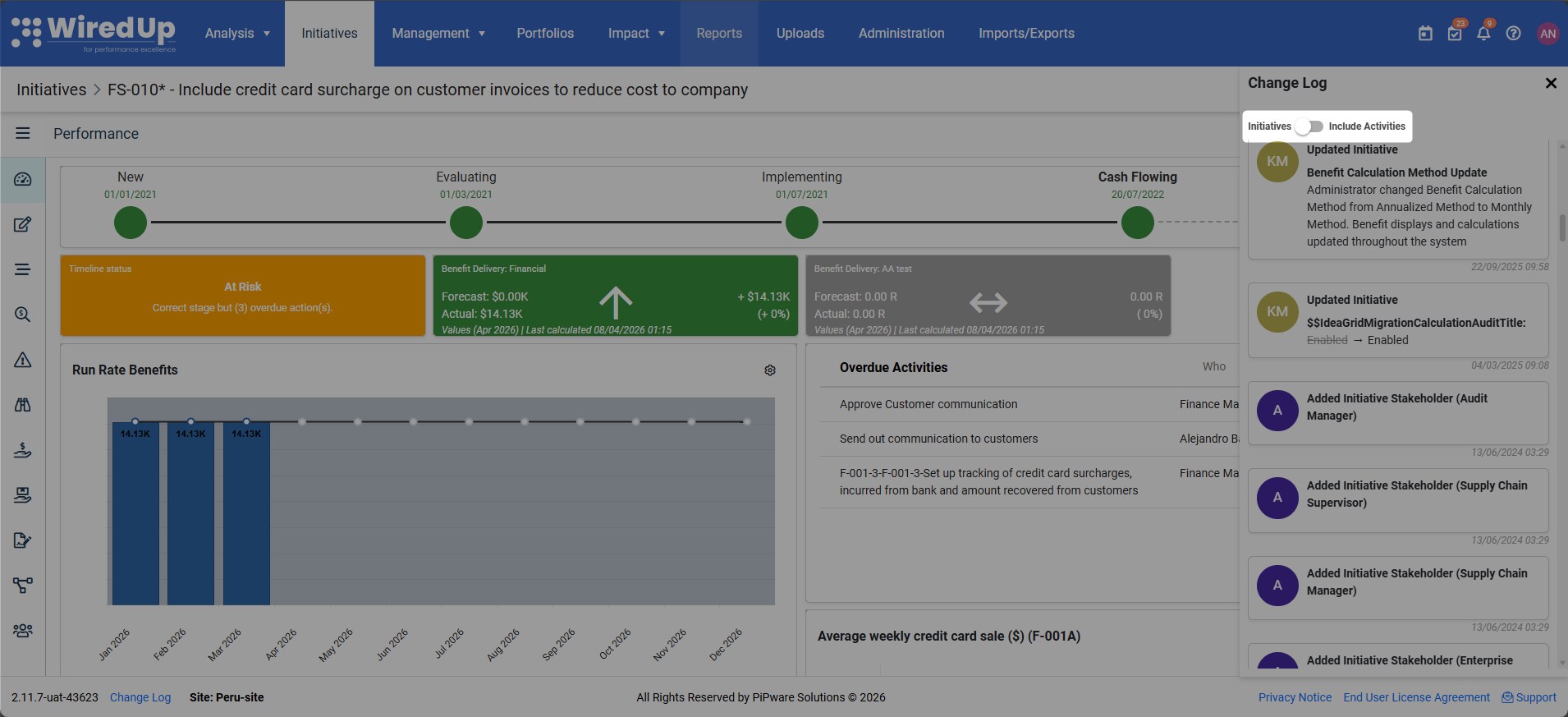
- Initiatives: Show only initiative-level changes (default)
- Include Activities: Show both initiative changes and activity/action changes
Use cases:
- Track initiative progress and evolution over time
- Identify who made specific changes for accountability
- Understand the history of key decisions or modifications
- Audit initiative changes for compliance or review purposes
- Troubleshoot issues by reviewing recent changes
Options Menu (Three-Dot Icon)
The Options Menu (⋯) provides access to additional initiative management functions.
To access the options menu:
- Click the three-dot icon (⋯) in the toolbar
- A dropdown menu appears with the following options:
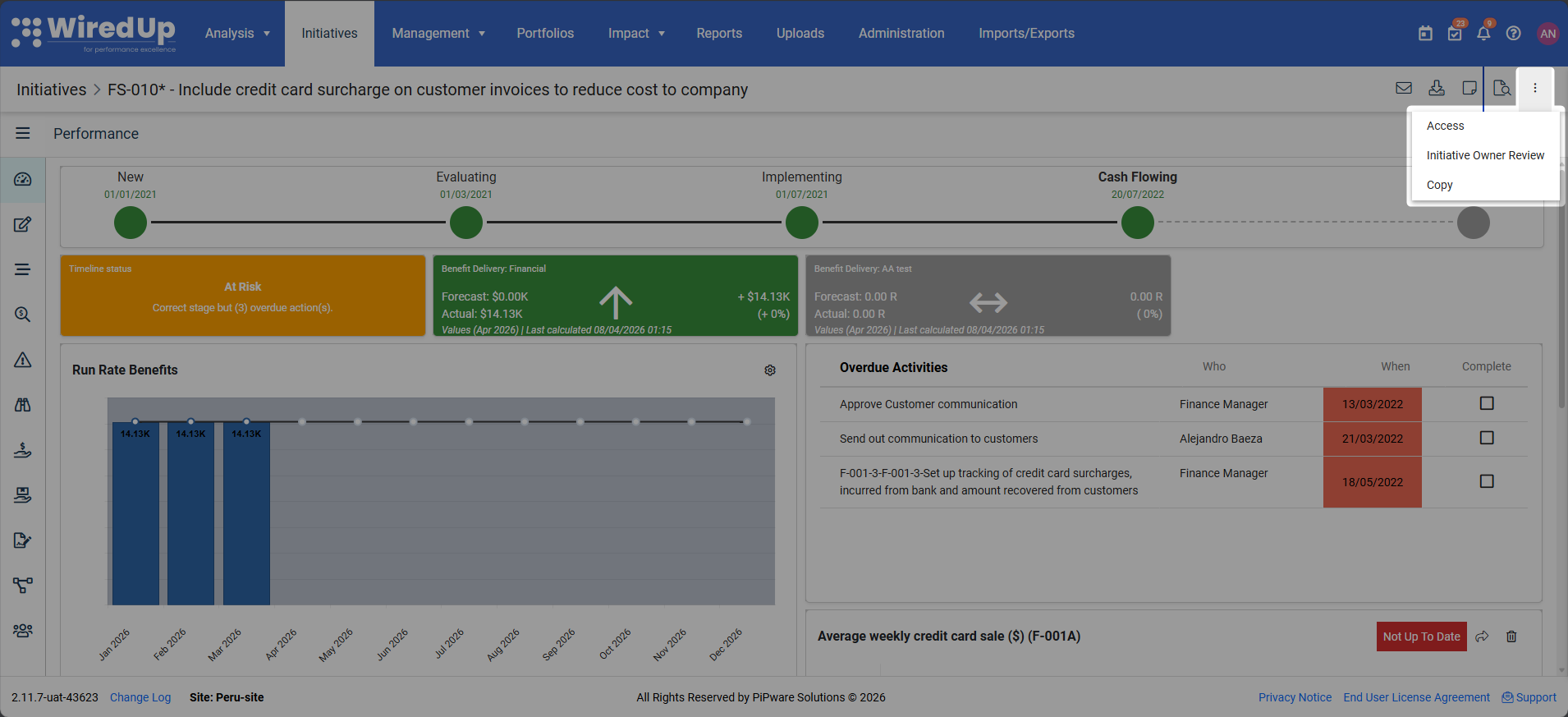
- Access
- Idea Owner Review
- Copy
Access
The Access option allows you to configure who can view and interact with the initiative.
To configure access:
- Click the three-dot icon (⋯) in the toolbar
- Select Access from the dropdown menu
- The Access dialog opens with the following options:
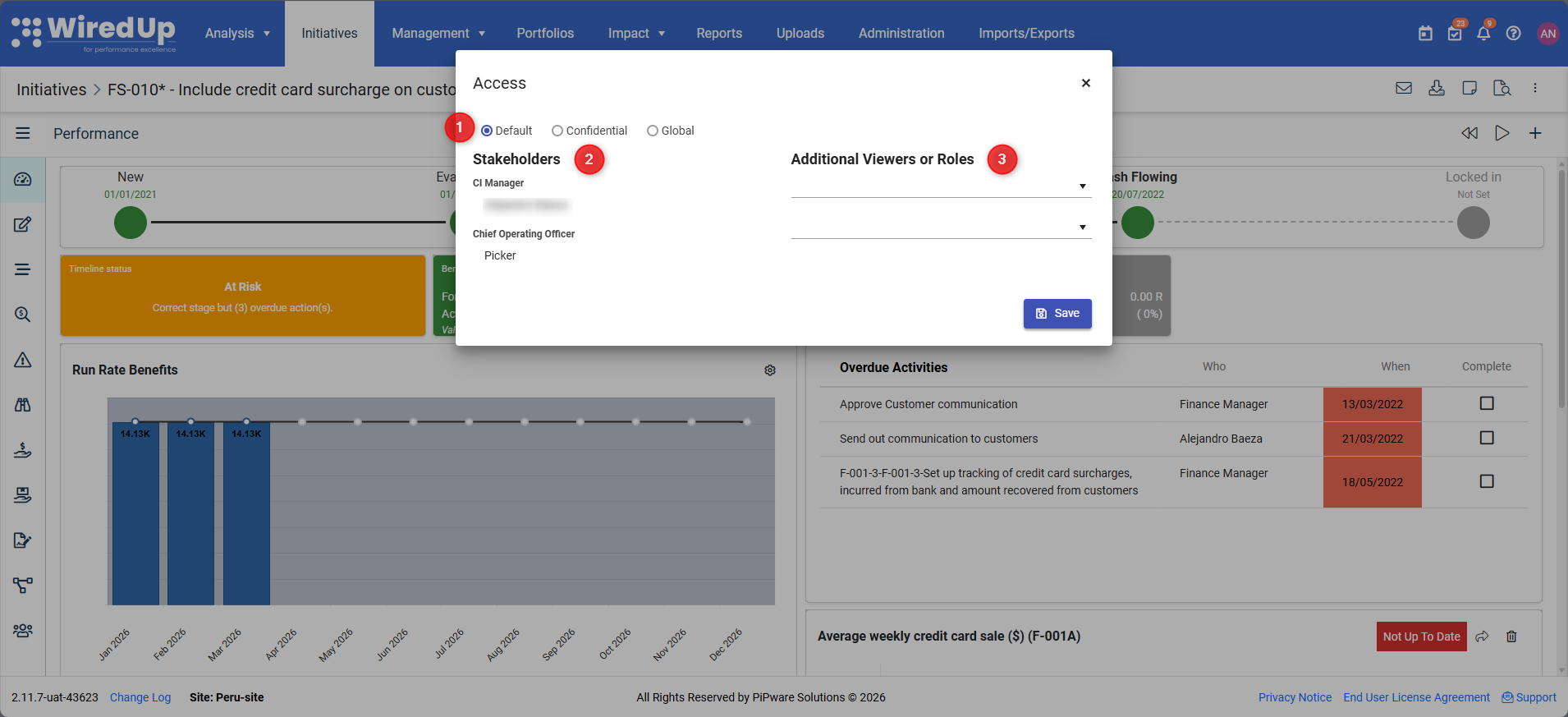
1. Access Levels:
- Default: Standard access based on user roles and portfolio permissions
- Confidential: Restricted access to specific users only
- Global: Available to all users in the system
2. Stakeholders:
- Displays users who are designated as stakeholders for the initiative
- Stakeholders automatically have access to view and interact with the initiative
3. Additional Viewers or Roles:
- Add specific users or roles who should have access to the initiative
- Use the dropdown to select users or roles
- Click Save to apply access changes
Use cases:
- Restrict sensitive initiatives to specific users (Confidential access)
- Grant access to cross-functional team members outside the portfolio structure
- Ensure all relevant stakeholders can view and contribute to the initiative
Idea/Initiative Owner Review
The Idea Owner Review option allows you to track and manage formal reviews of the initiative by designated reviewers.
To view or add idea owner reviews: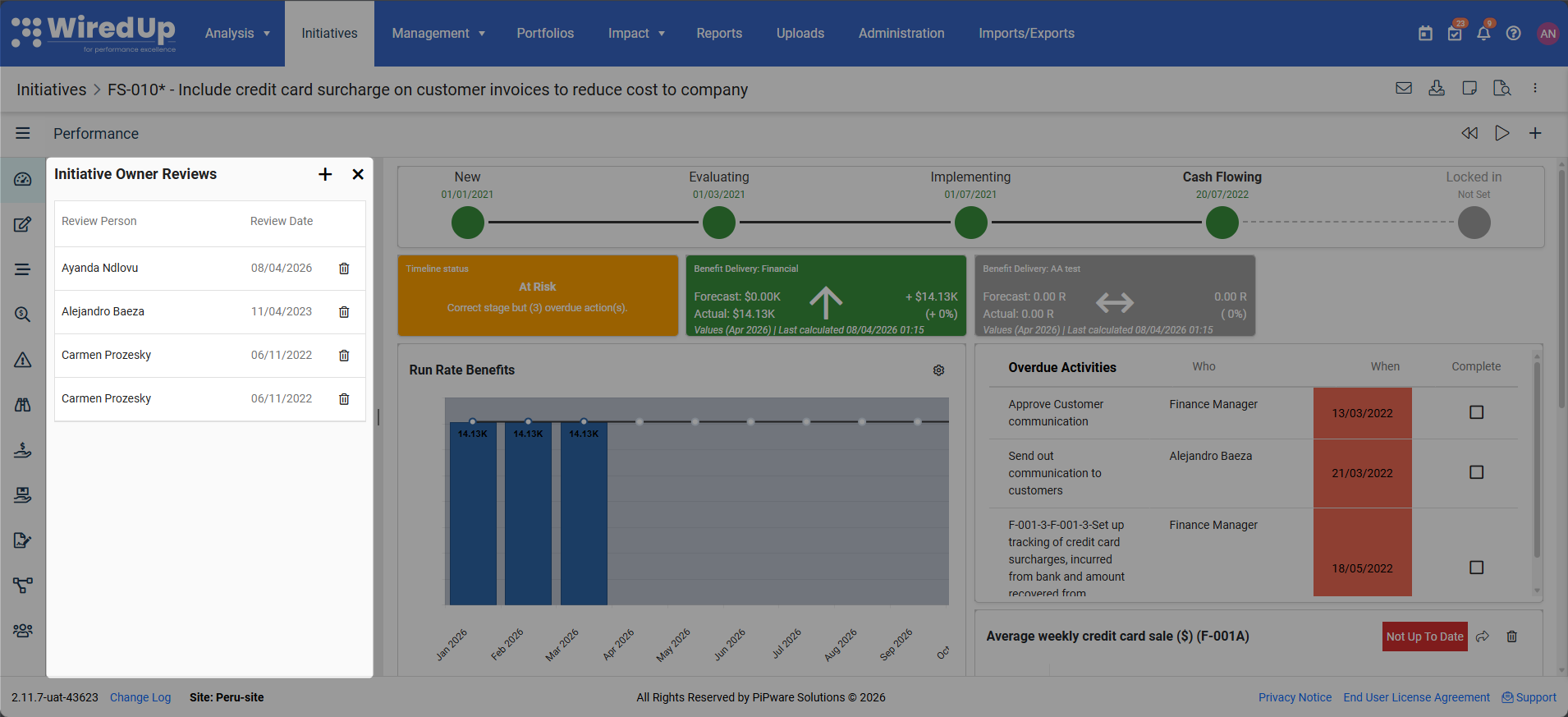
- Click the three-dot icon (⋯) in the toolbar
- Select Idea Owner Review from the dropdown menu
- The Idea Owner Reviews panel slides out from the left side of the screen
The panel displays:
- Review Person: The name of the person conducting the review
- Review Date: When the review was conducted
- Option to add a new review when clicking the plus icon
Use cases:
- Track formal initiative reviews by leadership or governance committees
- Document review dates and reviewers for compliance purposes
- Maintain a record of initiative oversight and approval checkpoints
Copy
The Copy option allows you to duplicate an initiative, creating a new initiative based on the current one.
To copy an initiative:
- Click the three-dot icon (⋯) in the toolbar
- Select Copy from the dropdown menu
- The Copy dialog opens
Copy options: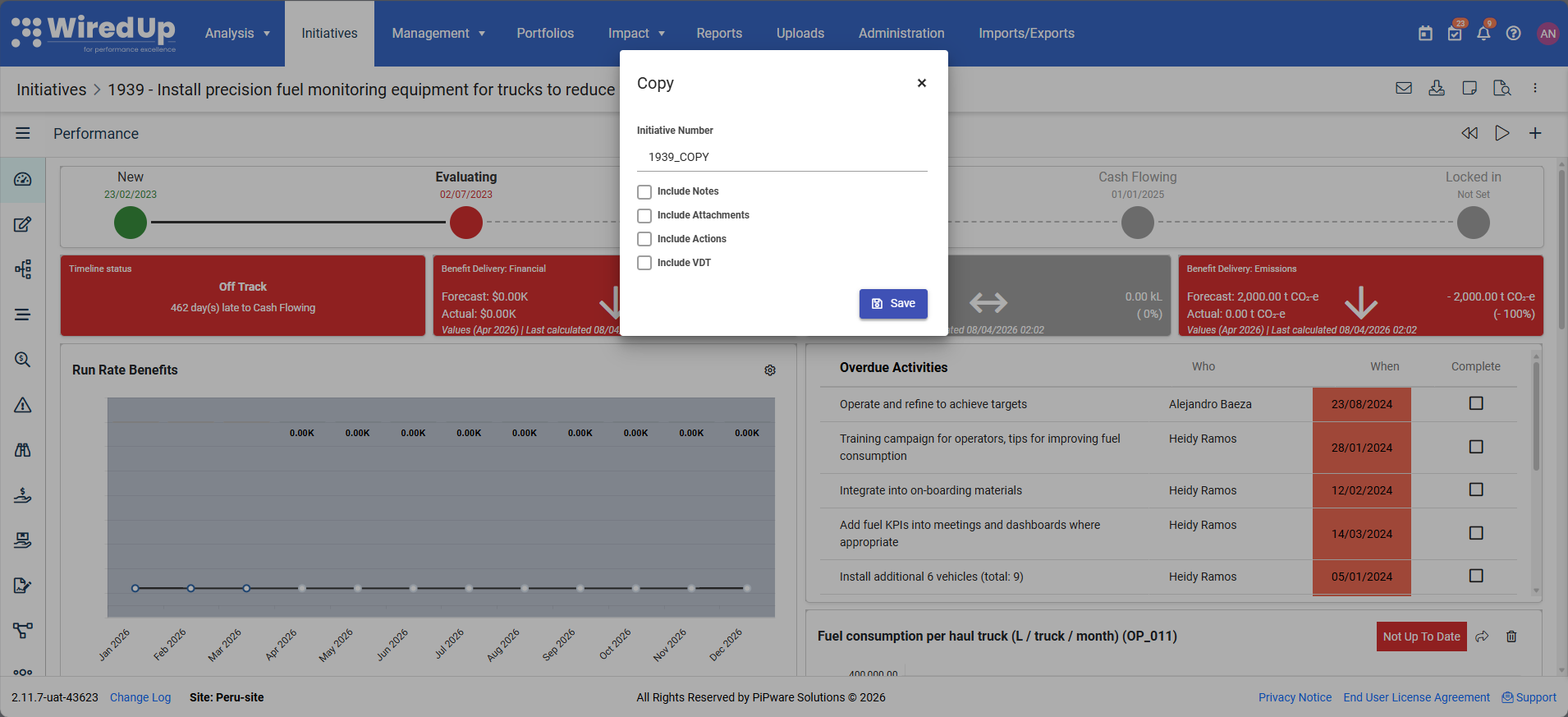
- Idea/Initiative Number: The system automatically generates a new initiative number with "_COPY" appended (e.g., "2389_COPY")
- Include Notes: Check this box to copy all comments and notes to the new initiative
- Include Attachments: Check this box to copy all file attachments to the new initiative
- Include Actions: Check this box to copy all actions/activities to the new initiative
- Include VDT: Check this box to copy the Value Driver Tree structure and configuration to the new initiative
- Select the items you want to include in the copy
- Click Save to create the new initiative
The new initiative is created with the selected components, and you are automatically navigated to the new initiative.
Use cases:
- Create similar initiatives based on a template or proven model
- Replicate successful initiatives across different portfolios or sites
- Start a new phase or iteration of an existing initiative
- Create test or scenario versions of initiatives for planning purposes
Permissions
Access to toolbar functions may vary based on your user permissions and role:
- Email: Available to all users with view access to the initiative
- Download: Available to all users with view access to the initiative
- Notes & Attachments: All users can view; adding comments/attachments may require edit permissions
- Change Log: Available to all users with view access to the initiative
- Access: Requires initiative edit permissions or administrator role
- Idea Owner Review: Visibility based on permissions; adding reviews may require specific roles
- Copy: Requires permissions to create new initiatives