
In This Article
- Overview
- Common Integration Examples
- Quick Reference: Before and After
- Frequently Asked Questions
- Need More Help?
- Related Articles
Overview
This FAQ provides practical examples to help you update your WiredUp API integrations from the old URL-based authentication method to the new, more secure header-based method. If you are using PowerBI, Excel, web browsers, or other tools to connect to the WiredUp API, this guide will show you exactly how to make the change.
Important: The old URL-based method will stop working on 14 July 2026. Please update your integrations before this date.
For background information on why this change is being made, see our main article: WiredUp API Authentication Update
Common Integration Examples
Example 1: Power BI Desktop
For New Connections:
- Open Power BI Desktop
- Click "Get Data" → "Web"
- Select "Advanced" (not Basic)
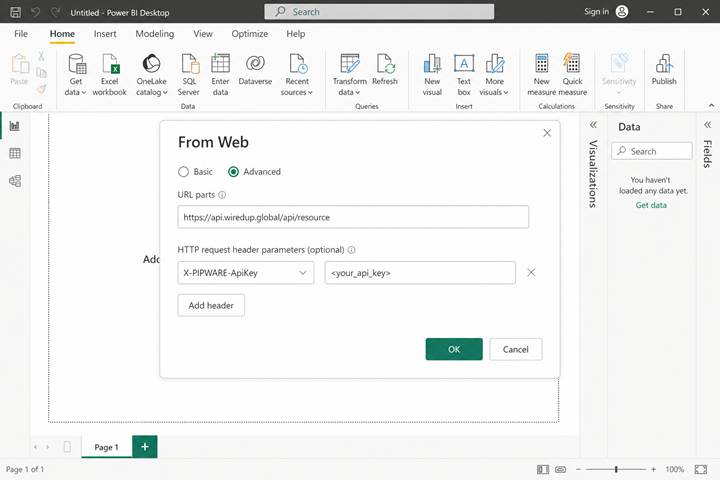
- In the "URL parts" section:
- Enter your API endpoint URL without the ?apiKey= parameter:
https://your-instance.wiredup.global/api/resource
- Enter your API endpoint URL without the ?apiKey= parameter:
- In the "HTTP request header parameters (optional)" section:
- First dropdown: Select or type X-PIPWARE-ApiKey
- Second field: Enter your API key: <your_api_key>
- Click "Add header" if you need to add more headers
- Click "OK"
- Power BI will connect using the new secure header-based authentication
Your dialog should look like this:
For Existing Connections:
- Open Power BI Desktop with your existing report
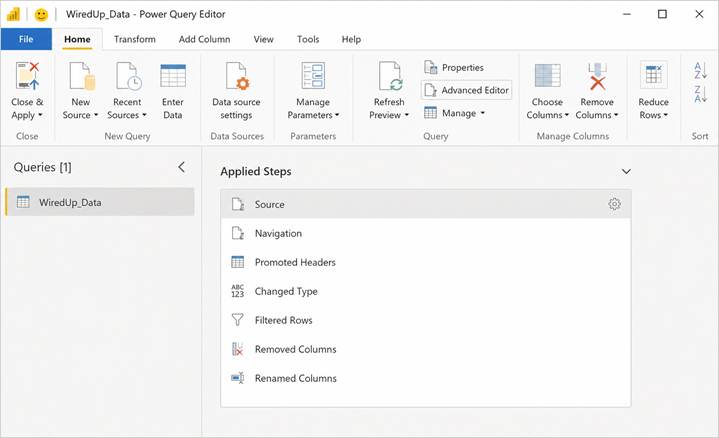
- Click "Transform Data" to open Power Query Editor
- Select your WiredUp data source in the Queries pane (left sidebar)
- In the "Applied Steps" section (right sidebar), click the gear icon next to "Source"
- Switch to "Advanced" mode (if not already)
- Update the URL to remove the ?apiKey= parameter:
- Old: https://your-instance.wiredup.global/api/resource?apiKey=your-key
- New: https://your-instance.wiredup.global/api/resource
- In the "HTTP request header parameters" section:
- First dropdown: Select or type X-PIPWARE-ApiKey
- Second field: Enter your API key
- Click "OK" to save
- Click "Close & Apply"
- Test by refreshing your data
Example 2: Power Query in Excel
Power Query in Excel works the same way as Power BI. Here is how to update your connections:
For New Connections:
- Open Excel
- Go to the "Data" tab
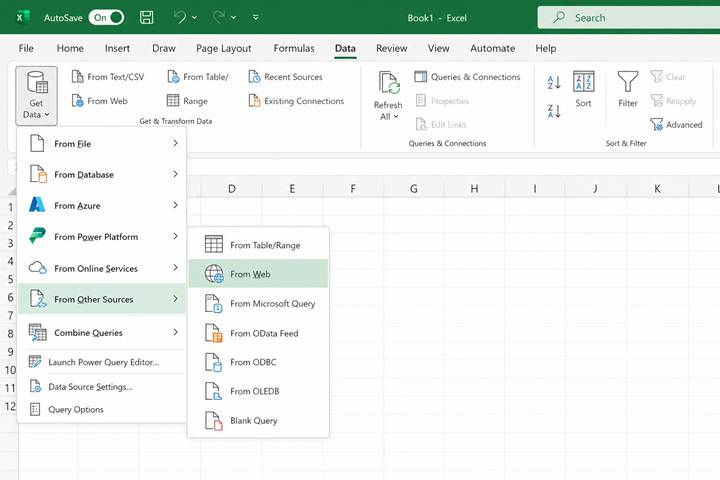
- Click "Get Data" → "From Other Sources" → "From Web"
- Select "Advanced" (not Basic)
- In the "URL parts" section:
- Enter: https://your-instance.wiredup.global/api/resource (Remove any ?apiKey= parameter)
- In the "HTTP request header parameters (optional)" section:
- First dropdown: Type X-PIPWARE-ApiKey
- Second field: Enter your API key
- Click "OK"
For Existing Connections:
- Go to the "Data" tab
- Click "Queries & Connections" (right side of ribbon)
- Right-click your WiredUp query → "Edit"
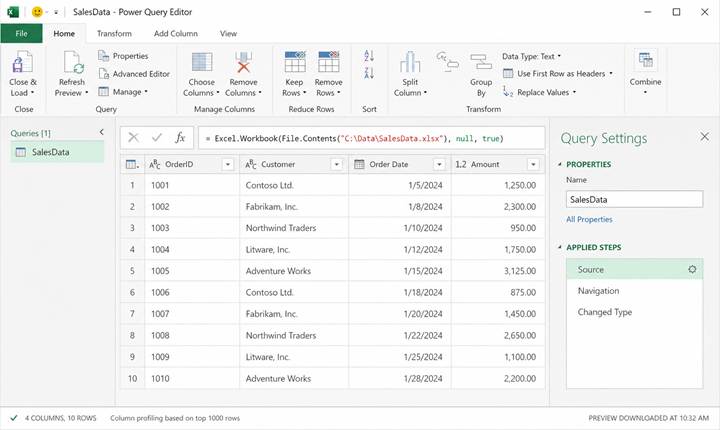
- In Power Query Editor, select your query from the left pane
- In the "Applied Steps" section (right sidebar), click the gear icon next to "Source"
- Switch to "Advanced" mode (if not already)
- Update the URL to remove the ?apiKey= parameter
- In the "HTTP request header parameters" section:
- First dropdown: Type X-PIPWARE-ApiKey
- Second field: Enter your API key
- Click "OK"
- Click "Close & Load"
- Test by refreshing your data
Using Parameters (Best Practice for Multiple Queries)
If you have multiple queries connecting to WiredUp, use parameters to manage your API key centrally. This approach is more secure and makes it easier to update your credentials in one place.
Step 1: Access Manage Parameters
- Open Power Query Editor
- In Power BI: Click "Transform Data"
- In Excel: Data tab → "Get Data" → "Launch Power Query Editor"
- In the Home ribbon, click "Manage Parameters"
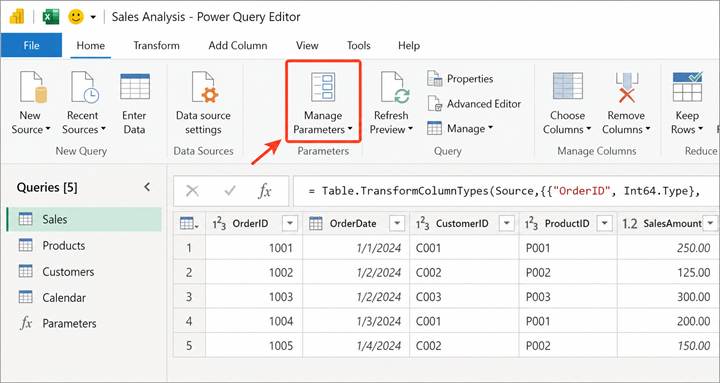
Step 2: Create API Key Parameter
- Click "New Parameter" in the Manage Parameters dialog
- Configure the parameter:
- Name: WiredUpApiKey
- Description: API Key for WiredUp authentication (optional)
- Required: Check this box
- Type: Text
- Suggested Values: Any value
- Current Value: Enter your actual API key
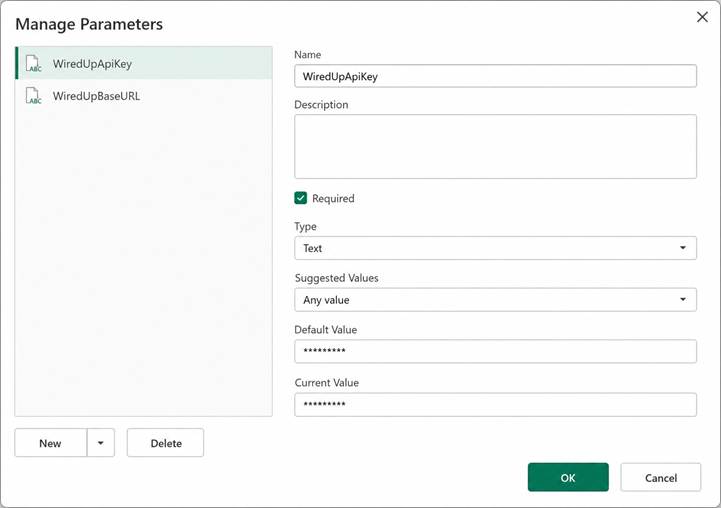
- Click "OK" to save the parameter
Step 3: Create Base URL Parameter
- Click "New Parameter" again
- Configure the parameter:
- Name: WiredUpBaseURL
- Description: Base URL for WiredUp API (optional)
- Required: Check this box
- Type: Text
- Suggested Values: Any value
- Current Value: https://your-instance.wiredup.global
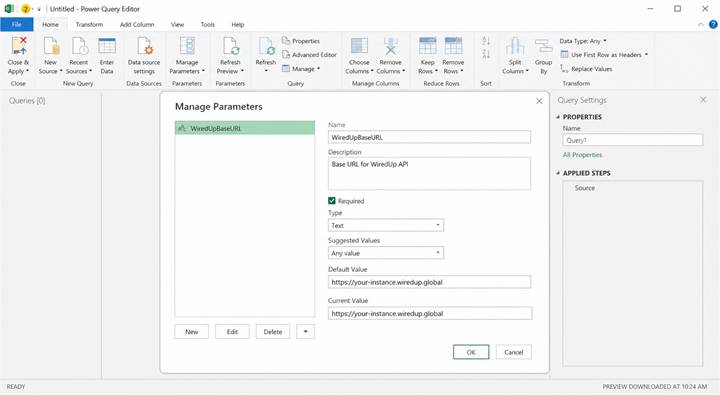
- Click "OK" to save
- Click "OK" again to close the Manage Parameters dialog
Step 4: Verify Your Parameters
After creating the parameters, you will see them listed in the Queries pane under a "Parameters" section:
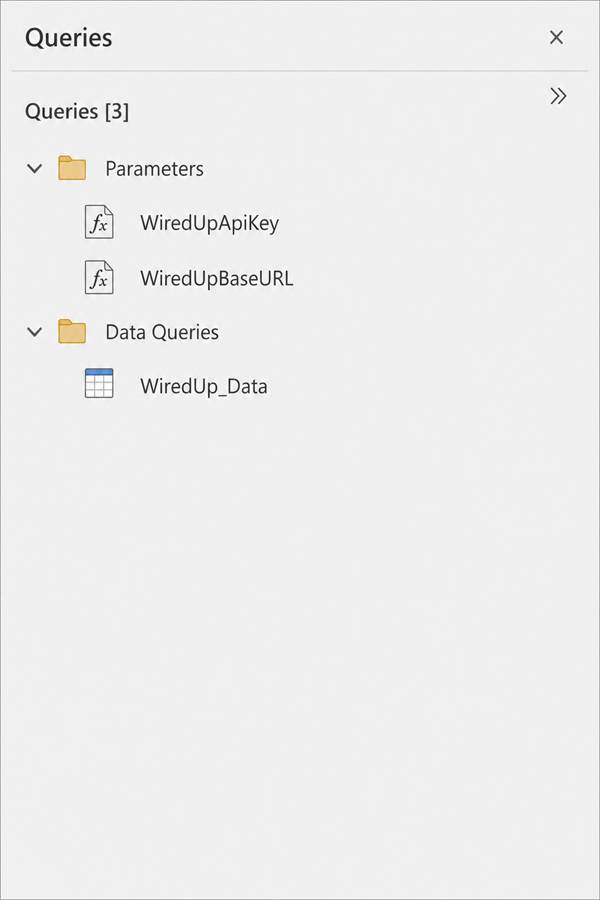
Step 5: Use Parameters in Your Web Connection
Now when you create a new Web connection or update an existing one:
- Go to "Get Data" → "Web" → "Advanced"
- In the URL parts field, reference your parameters:
- Enter: WiredUpBaseURL & "/api/resource" (This combines the base URL parameter with your endpoint path)
- In the HTTP request header parameters:
- Header name: X-PIPWARE-ApiKey
- Header value: WiredUpApiKey (This references your API key parameter)
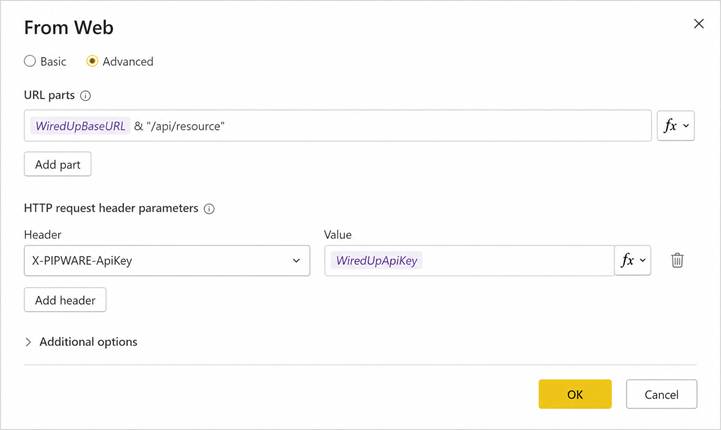
- Click "OK"
Benefits of Using Parameters:
- Update once, apply everywhere - Change your API key in one place and all queries update automatically
- More secure - API keys are stored as parameters, not hardcoded in each query
- Environment switching - Easily switch between development and production environments by changing the base URL parameter
- Better organization - All your connection settings are centralized and easy to find
- Easier maintenance - When your API key needs to be rotated, you only update it once
Important Notes:
- Parameter names are case-sensitive
- When referencing parameters in the URL field, use the & operator to concatenate (e.g., WiredUpBaseURL & "/api/resource")
- When referencing parameters in header values, just type the parameter name directly
- Parameters can be shared across multiple queries in the same workbook/report
Example 3: Web Browser
If you are testing API endpoints directly in a web browser or using browser-based tools, here is how to update:
- Old Method (Stop using after 14 July 2026):
You may have been typing URLs directly into your browser address bar: https://your-instance.wiredup.global/api/resource?apiKey=your-api-key-here - New Method (Required from 14 July 2026):
You cannot send custom headers directly from the browser address bar. Instead, use one of these approaches:- Option A: Browser Extension: Use a browser extension like ModHeader (Chrome/Edge) or Modify Header Value(Firefox):
- Install the extension from your browser's extension store
- Open the extension and add a new request header:
- Header Name: X-PIPWARE-ApiKey
- Header Value: your-api-key-here
- Enable the header in the extension
- Navigate to your API endpoint (without the ?apiKey= parameter): https://your-instance.wiredup.global/api/resource
- The extension will automatically add the header to your request
- Option A: Browser Extension: Use a browser extension like ModHeader (Chrome/Edge) or Modify Header Value(Firefox):
Consult your IT department on the recommended browser extensions you can useOption B: Postman or Similar API Testing Tools
- Create a new GET request
- Enter the URL (without the ?apiKey= parameter): https://your-instance.wiredup.global/api/resource
- Go to the Headers tab
- Add a new header:
- Key: X-PIPWARE-ApiKey
- Value: your-api-key-here
- Click Send to test the request
Consult your IT department on the recommended API tools you can use Quick Reference: Before and After
Method | Old (Deprecated) | New (Required) |
URL | https://your-instance.wiredup.global/api/resource?apiKey=your-key | https://your-instance.wiredup.global/api/resource |
Header | None | X-PIPWARE-ApiKey: your-key |
Power BI/Excel | Basic mode with API key in URL | Advanced mode with header parameter |
Frequently Asked Questions
Q: How do I create my API key?
A: Your API key can be created in your WiredUp account settings. For more details on how to create an API key, please refer to this article: How to access/generate your API key : WiredUp
Q: Will my old Power BI reports break after 14 July 2026?
A: Yes, if you do not update them. Any Power BI reports using the old URL-based authentication method will stop refreshing after 14 July 2026. Update them now to avoid disruption.
Q: Can I test the new method without breaking my existing integration?
A: Yes! Both methods currently work, so you can create a test version of your integration using the new header method and verify it works before switching over your production integration.
Q: I updated my Power BI connection but I am getting an error. What should I check?
A: Common issues include:
- Typo in the header name - It must be exactly X-PIPWARE-ApiKey (case-sensitive)
- API key not removed from URL - Make sure you have removed the ?apiKey= parameter from the URL
- Incorrect API key - Verify you are using the correct API key for your instance
- Still in Basic mode - Make sure you switched to Advanced mode in the "From Web" dialog
- Spaces in the API key - Ensure there are no extra spaces before or after your API key
Q: Do I need to update my API key?
A: No. Your API key remains the same. Only the method of sending it is changing (from URL to header).
Q: What if I have multiple Power BI reports connecting to WiredUp?
A: You will need to update each report individually. We recommend:
- Make a list of all reports that connect to WiredUp
- Update them one at a time
- Test each one after updating
- Document which reports have been updated
Tip: If you use Power BI Service with shared datasets, update the dataset once and all reports using that dataset will automatically use the new authentication method.
Q: Can I use parameters in Excel Power Query like in Power BI?
A: Yes! Parameters work the same way in Excel Power Query as they do in Power BI. This is especially useful if you have multiple Excel workbooks connecting to WiredUp.
Q: I am seeing a deprecation warning. Is my integration broken?
A: No, your integration still works. The warning is a reminder to update before 14 July 2026. Your integration will continue to work until that date, but you should update it as soon as possible.
Q: Does this work for both Power BI Desktop and Power BI Service?
A: Yes. Update your reports in Power BI Desktop, then publish them to Power BI Service. The header-based authentication will work in both environments. If you are using scheduled refresh in Power BI Service, make sure to update the data source credentials after publishing.
Q: What about Excel Online (Excel in the browser)?
A: Excel Online uses the same Power Query engine. However, you will need to set up the connection in Excel Desktop first, then upload to Excel Online. The authentication will work the same way.
Q: I cannot find the gear icon next to "Source" in my Applied Steps. What should I do?
A: If you do not see a gear icon, try these alternatives:
- Right-click on the "Source" step and select "Edit Settings"
- Double-click on the "Source" step
- If neither works, you may need to recreate the connection using the "Get Data" → "Web" → "Advanced" method
Q: Can I copy the header settings from one query to another?
A: Unfortunately, you cannot directly copy header settings between queries in Power Query. However, using parameters (as described in the "Using Parameters" section) allows you to centrally manage your API key and reuse it across multiple queries.
Q: How do I update parameters after I have created them?
A: To update existing parameters:
- Open Power Query Editor
- Click "Manage Parameters" in the Home ribbon
- Select the parameter you want to update from the list
- Make your changes in the right panel
- Click "OK" to save
All queries using that parameter will automatically use the updated value.
Q: Do I need to update parameters in Power BI Service separately?
A: When you publish a report with parameters to Power BI Service, you will be prompted to enter the parameter values during the first refresh or when setting up scheduled refresh. You can update these values in the dataset settings in Power BI Service without needing to republish from Power BI Desktop.
Q: I have multiple API endpoints. Do I need separate parameters for each?
A: No. You only need one WiredUpApiKey parameter and one WiredUpBaseURL parameter. You can reuse these across all your WiredUp API queries. Just change the endpoint path in each query (e.g., WiredUpBaseURL & "/api/resource1", WiredUpBaseURL & "/api/resource2").
Need More Help?
If you need assistance please contact our support team at support@wiredup.global or your IT department for further assistance