
In This Article
Accessing the Expression Builder
Understanding the Expression Builder
Understanding Expression Pills
Viewing Global Constant Values
Replacing a Node or Constant in an Expression
Understanding Variable Global Constants in Idea VDT Expressions
Tips for Using Global Constants in Idea VDT Expressions
Overview
Global Constants can be used in Idea/Initiative Value Driver Tree (VDT) expressions to make calculations easier to build, read, and maintain. Instead of manually typing reference letters or recreating constant values in each VDT, users can select connected nodes and Global Constants directly from the Expression Builder.
The Expression Builder helps reduce manual entry errors by allowing users to insert nodes, insert constants, search for values, and test expressions from the Edit Node window.
Note: Global Constants must already be created in Administration > Global Constants before they can be inserted into an Idea VDT expression. For more information on how to create Global Constants, please see this article: Managing Global Constants
Accessing the Expression Builder
The Expression Builder is available when editing a parent node in an Idea VDT. To access the Expression Builder:
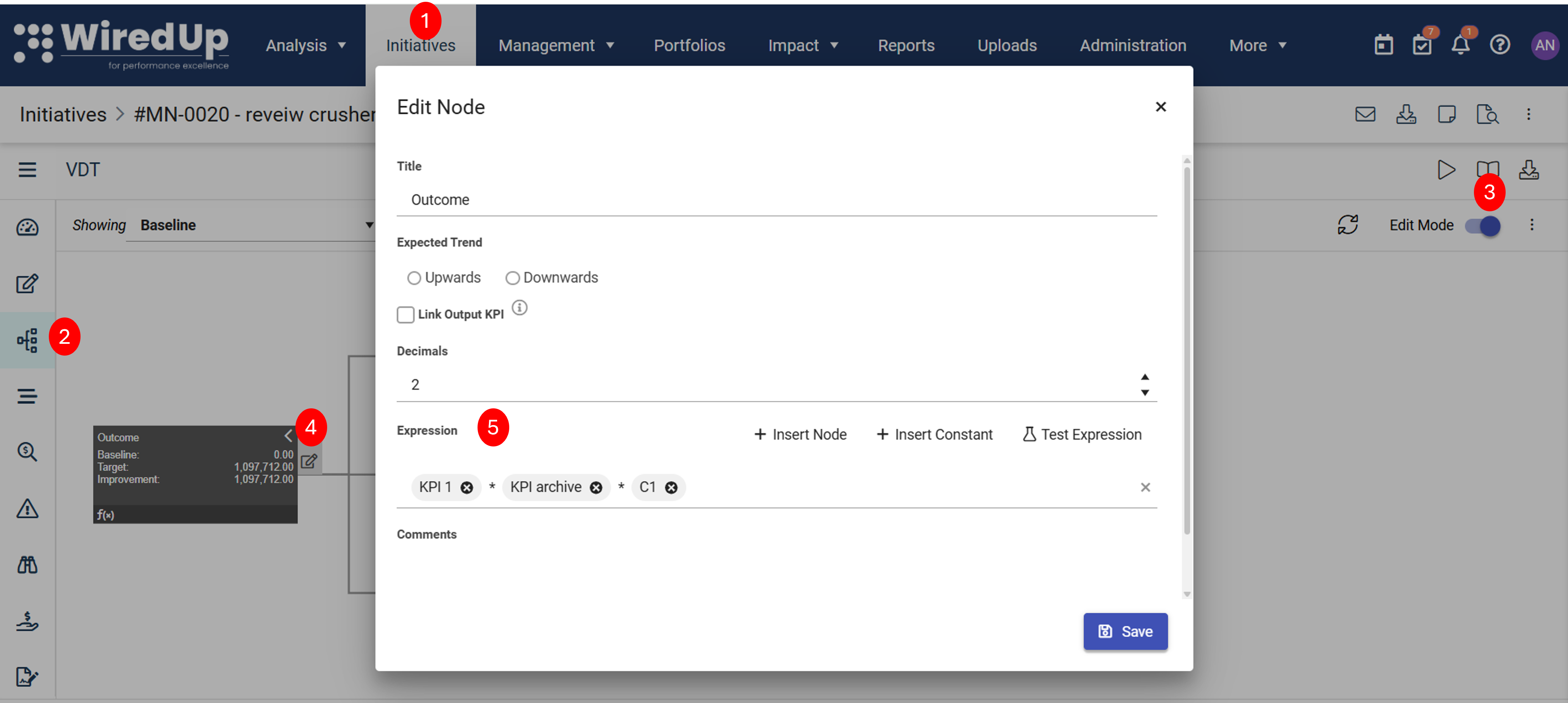
- Open the relevant Idea/Initiative.
- Navigate to the VDT.
- Enable Edit Mode.
- Open the parent node you want to update and click on the Edit icon.
- In the Edit Node window, go to the Expression section.
The Expression section displays the expression field along with the following options:
- + Insert Node
- + Insert Constant
- Test Expression
Understanding the Expression Builder
The Expression Builder allows you to build formulas by combining connected child nodes, Global Constants, operators, and numeric values.
The available controls are:
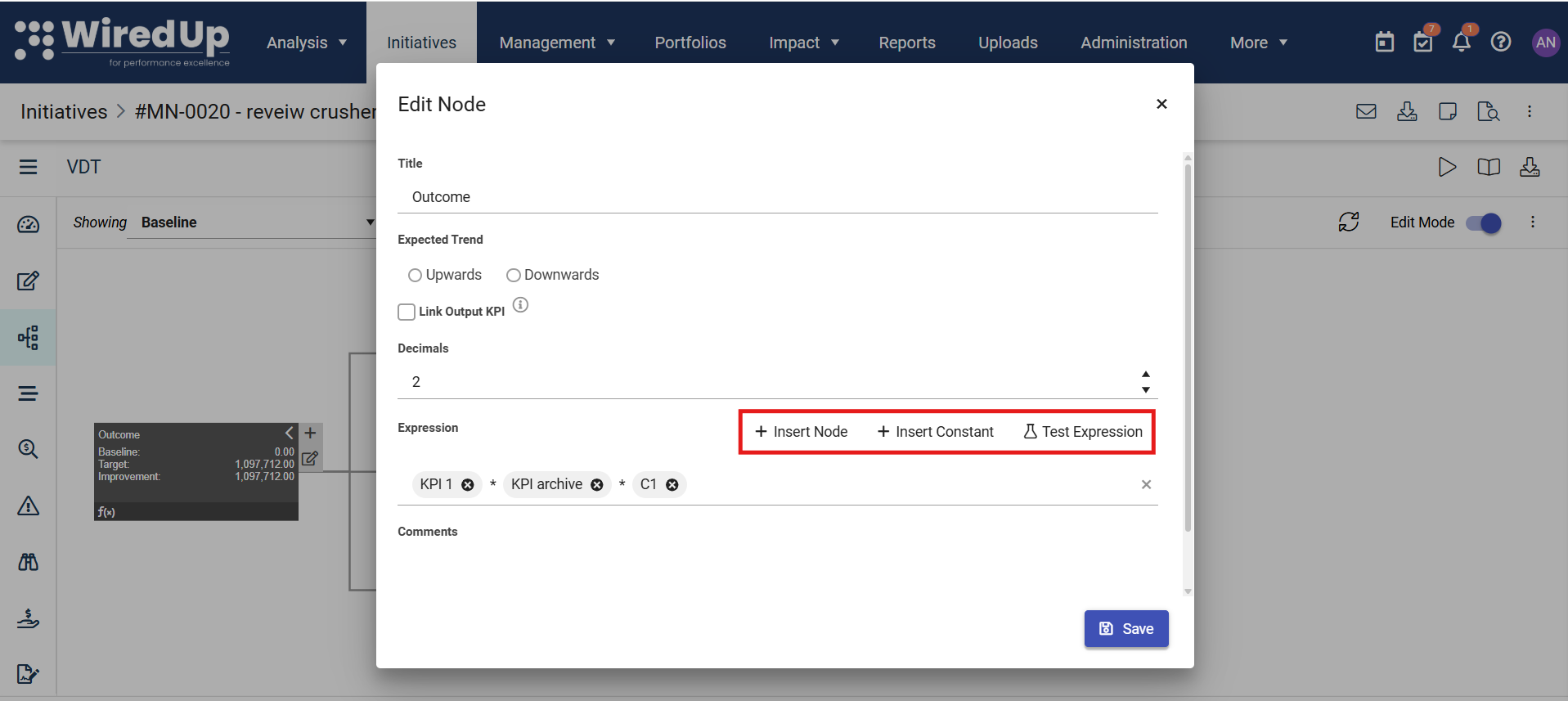
- + Insert Node: Adds a connected child node to the expression.
- + Insert Constant: Adds a Global Constant to the expression.
- Test Expression: Checks whether the current expression is valid.
Operators such as +, -, *, and / can be typed directly between nodes, constants, and numeric values.
Inserting a Node
Use + Insert Node when you want to include a connected child node in the expression.
To insert a node:
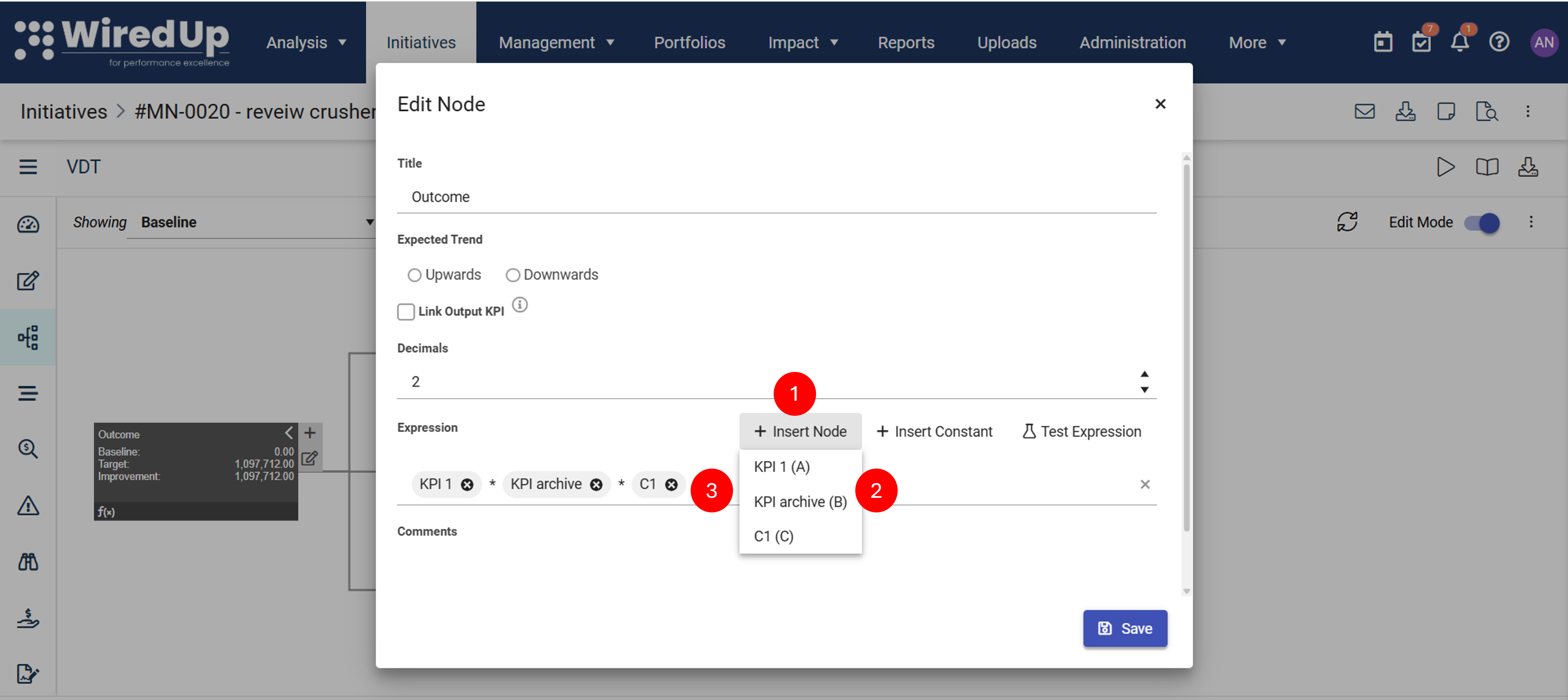
- In the Expression section, select + Insert Node.
- Choose the required child node from the dropdown.
- The selected node is added to the expression as a node pill.
- Each child node is displayed with its node name and reference letter, for example: KPI 1 (A).
- If the parent node has no available child nodes, the dropdown displays No Child Nodes.
Inserting a Global Constant
Use + Insert Constant when you want to include a Global Constant in the expression.
To insert a Global Constant:
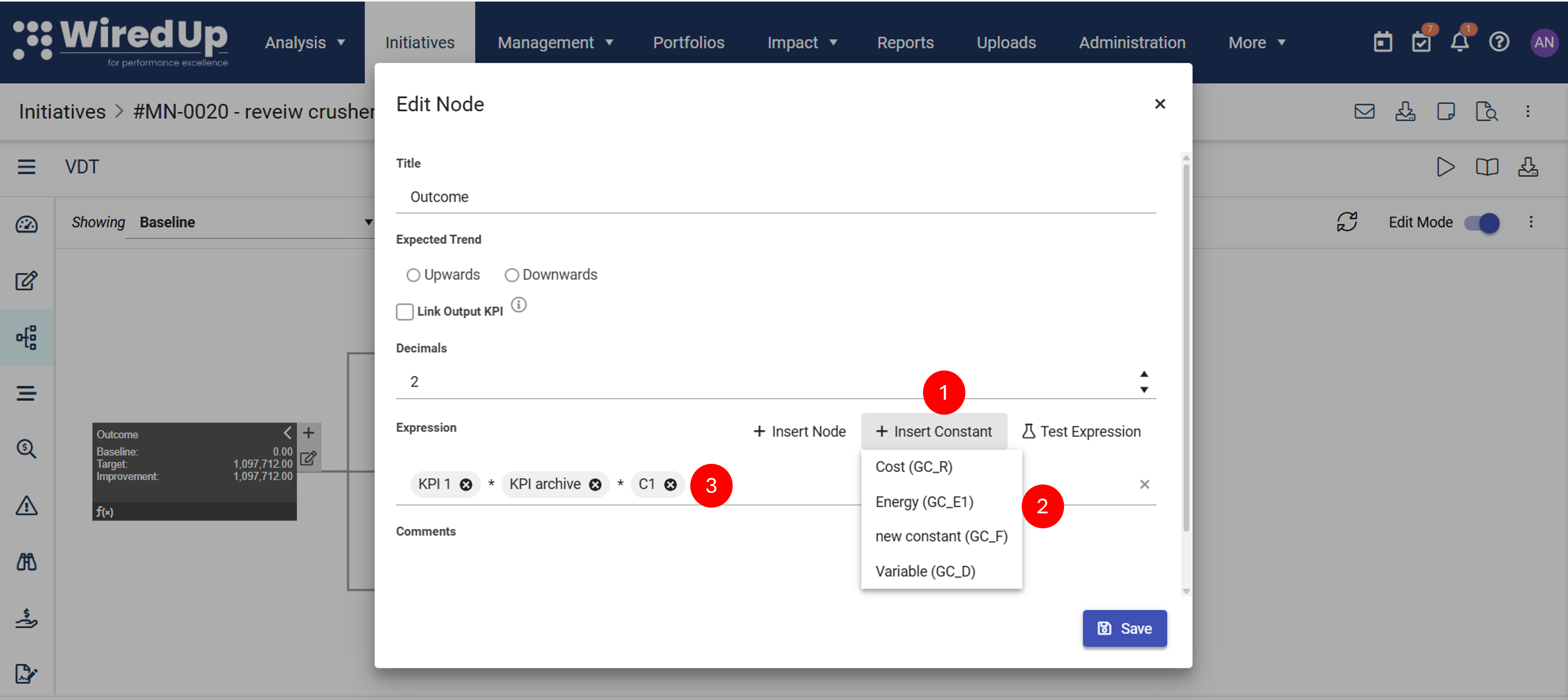
- In the Expression section, select + Insert Constant.
- Choose the required Global Constant from the dropdown.
- The selected Global Constant is added to the expression as a constant pill.
Each Global Constant is displayed with its name and GC_ reference code, for example:
- Cost (GC_R)
- Energy (GC_E1)
- Variable (GC_D)
The GC_ prefix helps distinguish Global Constants from VDT node references.
If no Global Constants are available, the dropdown displays No Constants.
Using Autocomplete
You can also type directly into the Expression field. As you type, WiredUp displays matching results in an autocomplete dropdown.
The autocomplete dropdown is grouped into sections, such as:
- Global Constant: Displays matching Global Constants with their GC_ reference code.
- VDT Node: Displays matching connected child nodes with their reference letter.
Selecting a result inserts it into the expression as the appropriate pill.
When you type GC_, the autocomplete filters the results to show Global Constants only. This helps you quickly find constants by their configured GC_ reference code.
Understanding Expression Pills
The Expression Builder displays selected nodes and constants as pills. This makes expressions easier to read and helps distinguish between the different parts of a formula.
Pill Type | Description |
Node pill | Represents a connected child node in the VDT. |
Constant pill | Represents a Global Constant. |
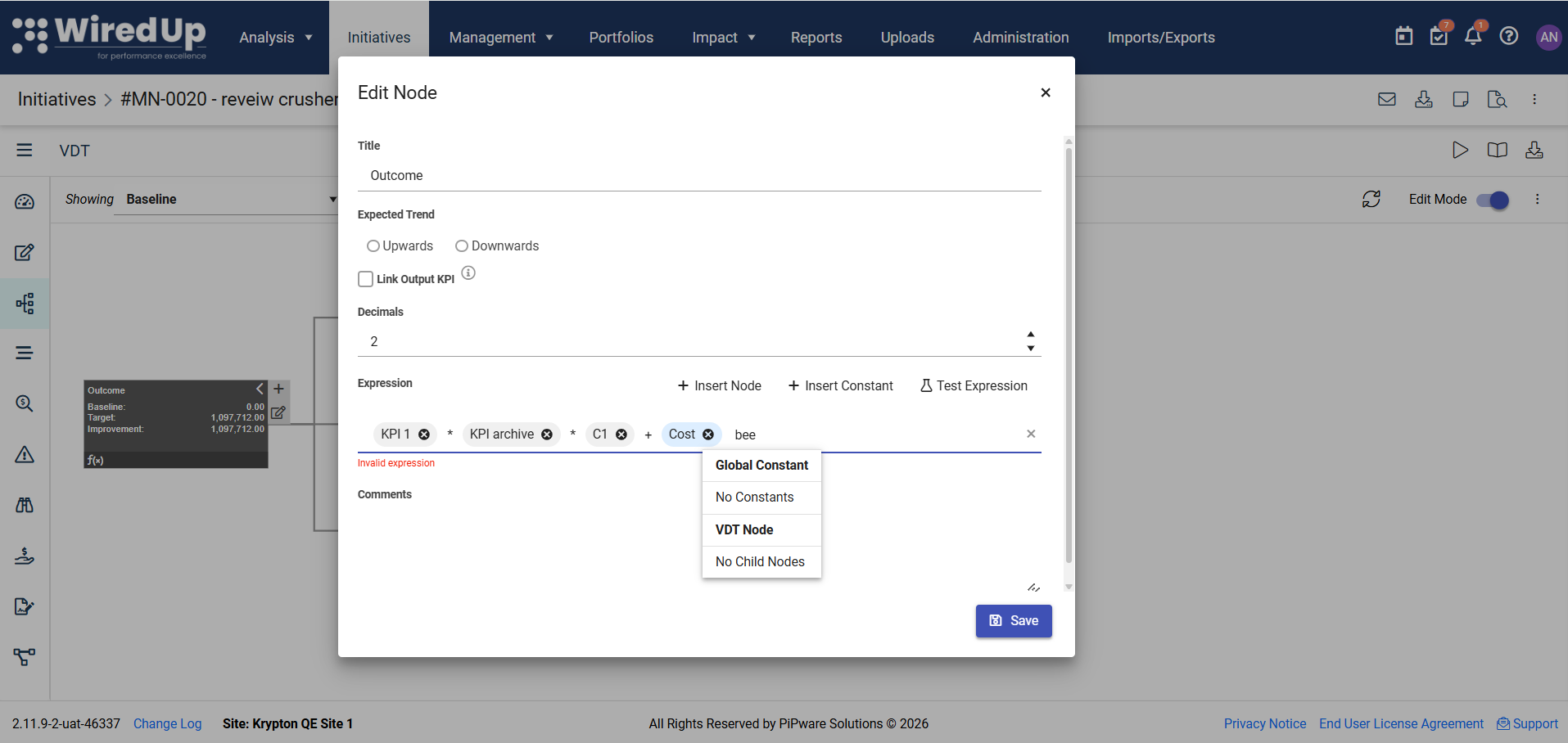
Invalid pill | Represents text that does not match an available node or Global Constant. |
Each pill includes an x that can be used to remove it from the expression.
Node pills and constant pills are visually different, making it easier to see which parts of the expression come from VDT nodes and which parts come from Global Constants.
Viewing Global Constant Values
When you hover over a Global Constant pill in the Expression Builder, WiredUp displays the value configured for that constant.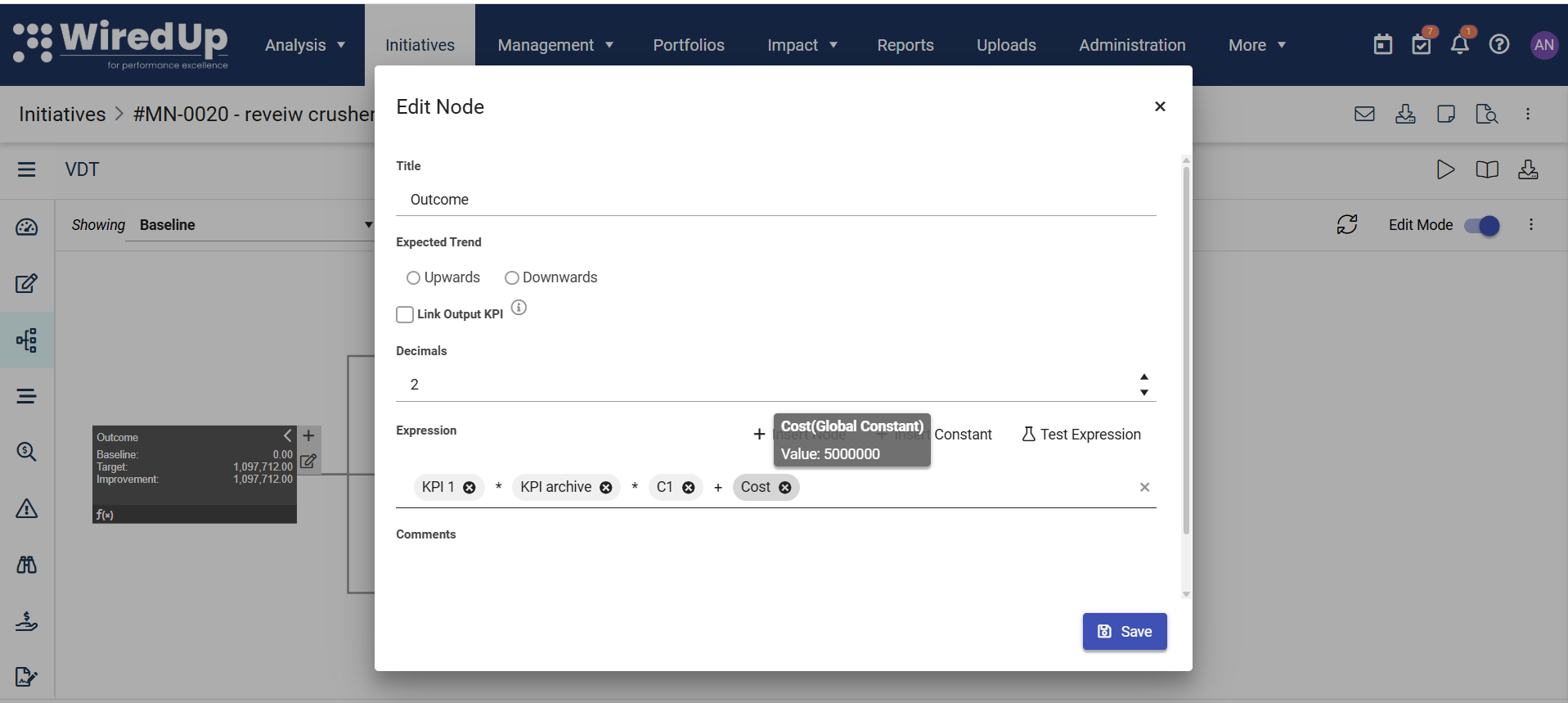
- For fixed value constants, the tooltip shows the constant name and its configured value.
- For variable value constants, the tooltip shows the constant name and its configured Baseline, Target, and Actual values.
This helps you confirm that the correct Global Constant has been added before saving the node.
Replacing a Node or Constant in an Expression
If you need to replace a node or constant that has already been added to the expression:
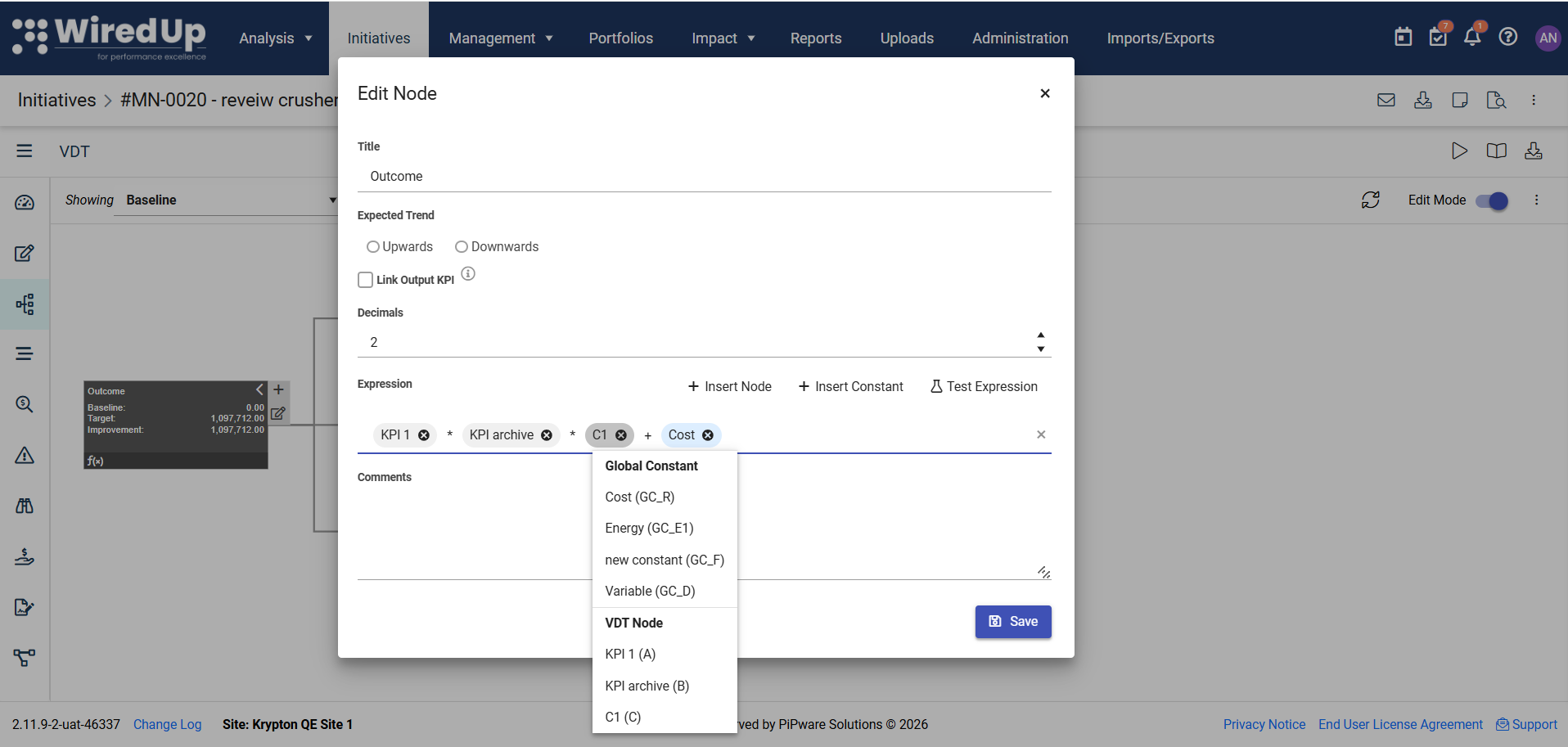
- Select the existing pill.
- The autocomplete dropdown opens again so you can choose a replacement. The new selection replaces the selected pill in the same position, which keeps the expression order unchanged.
Invalid Pills
If text is entered that does not match an available node or Global Constant, WiredUp may display it as an invalid pill.
Invalid pills indicate that part of the expression cannot be matched to a valid item. These should be corrected or removed before relying on the expression.
Tip: Use + Insert Node, + Insert Constant, or autocomplete instead of typing references manually wherever possible.
Testing an Expression
Use Test Expression to check whether the expression is valid.
To test an expression:
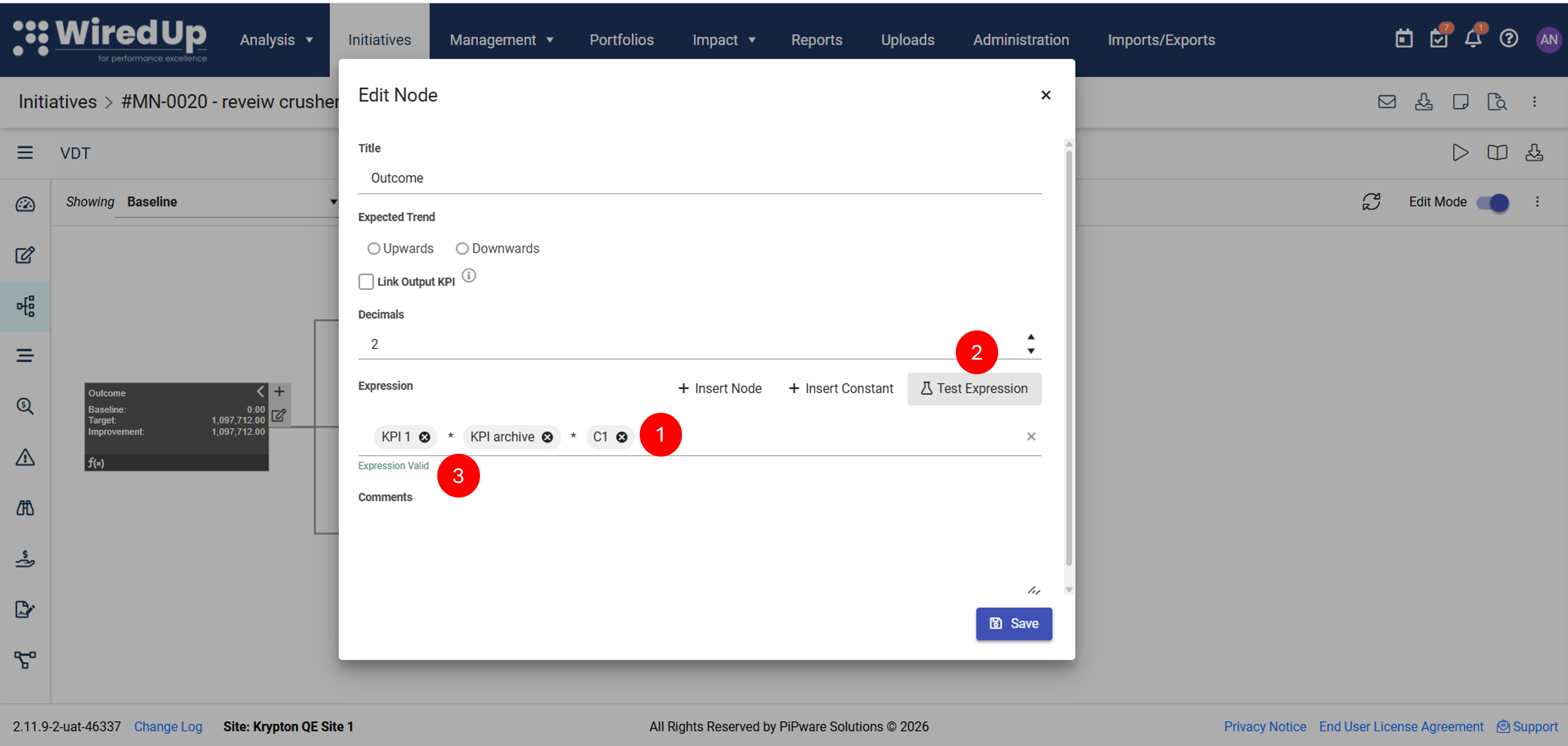
- Build or update the expression.
- Select Test Expression.
- Review the validation message.
- If the expression is valid, WiredUp displays Expression Valid.
- If the expression is invalid, WiredUp displays Invalid Expression.
Note: An invalid expression can still be saved, but it may not calculate correctly until the expression issue is corrected.
Understanding Variable Global Constants in Idea VDT Expressions
When a Global Constant is used in an Idea VDT expression, WiredUp applies the correct value based on the calculation type.
For fixed value constants, the same value is used across Actual, Baseline, and Target calculations.
For variable value constants:
Calculation Type | Constant Value Used |
Actual | Actual value |
Baseline | Baseline value |
Target | Target value |
This allows one Global Constant to hold different values for different calculation types.
Viewing Saved Expressions
When a parent node has a saved expression, WiredUp displays an f(x) icon on the saved node.
Hovering over the f(x) icon displays the expression in a readable format.
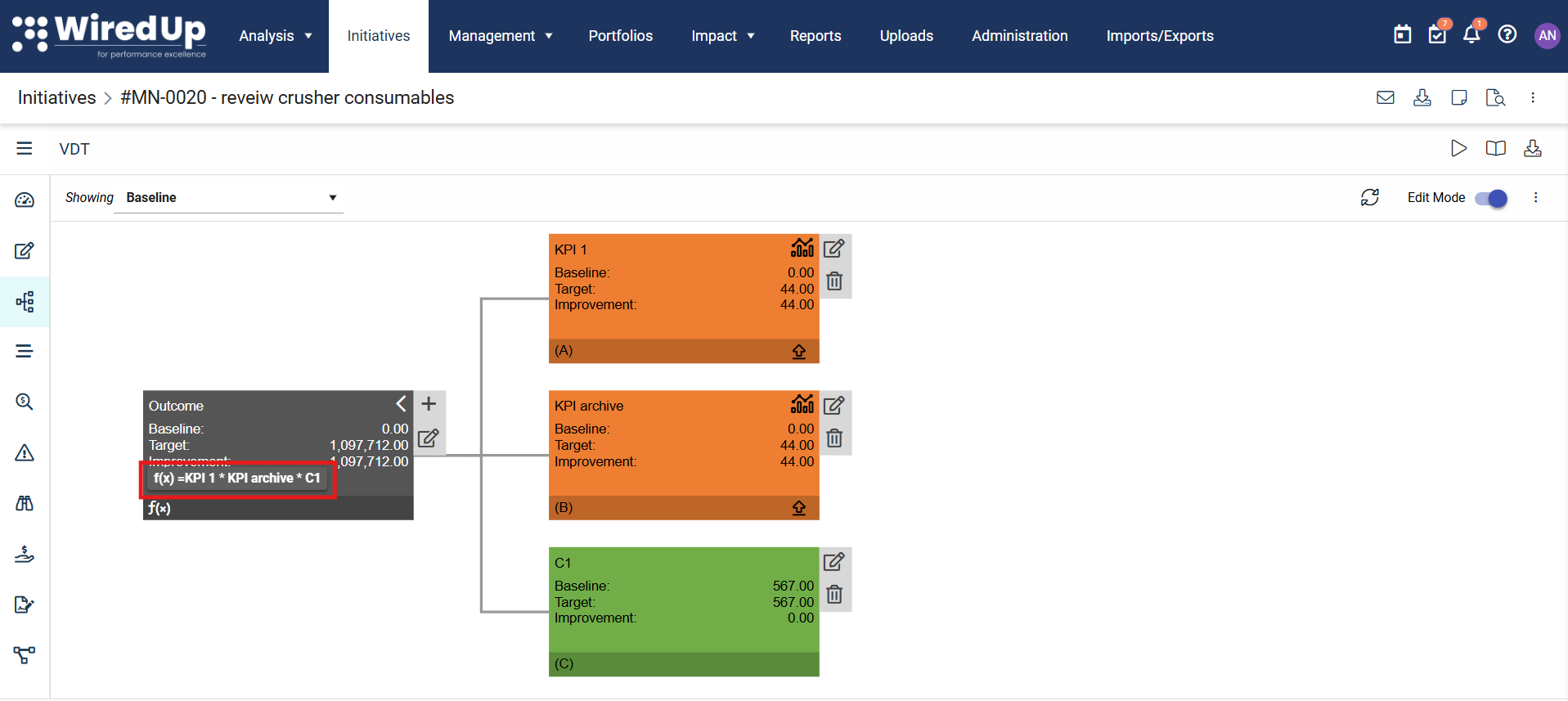
- If the expression uses Global Constants, the tooltip also lists the Global Constants used in the expression.
- If the expression includes a fixed value Global Constant, the tooltip shows the constant name and value.
- If the expression includes a variable value Global Constant, the tooltip shows the constant name and its Baseline, Target, and Actual values.
Tips for Using Global Constants in Idea VDT Expressions
- Use + Insert Node and + Insert Constant instead of typing node or constant references manually.
- Use autocomplete when you know part of the node name, constant name, or GC_ reference.
- Test expressions before relying on calculation results.
- Hover over constant pills to confirm the configured value before saving.
- Review the f(x) tooltip on saved nodes to confirm that the expression is readable and complete.