
In This Article
Accessing the Expression Builder
Understanding the Expression Builder
Understanding Expression Pills
Viewing Global Constant Values
Understanding Variable Global Constants
Tips for Using Global Constants in Value Hound VDT Expressions
Overview
Global Constants can be used in Value Hound Value Driver Tree (VDT) expressions to make calculations easier to build, read, and maintain. Instead of manually typing node reference letters or recreating constant values in each VDT, users can select VDT nodes and Global Constants directly from the Expression Builder.
The Expression Builder allows users to:
- Insert child nodes into an expression.
- Insert Global Constants into an expression.
- Search for nodes and Global Constants using autocomplete.
- Validate an expression before saving.
Note: Global Constants must already exist in Administration > Global Constants before they can be used in a Value Hound VDT expression.
Accessing the Expression Builder
The Expression Builder is available when editing a parent node or outcome node in a Value Hound VDT.
To access the Expression Builder:
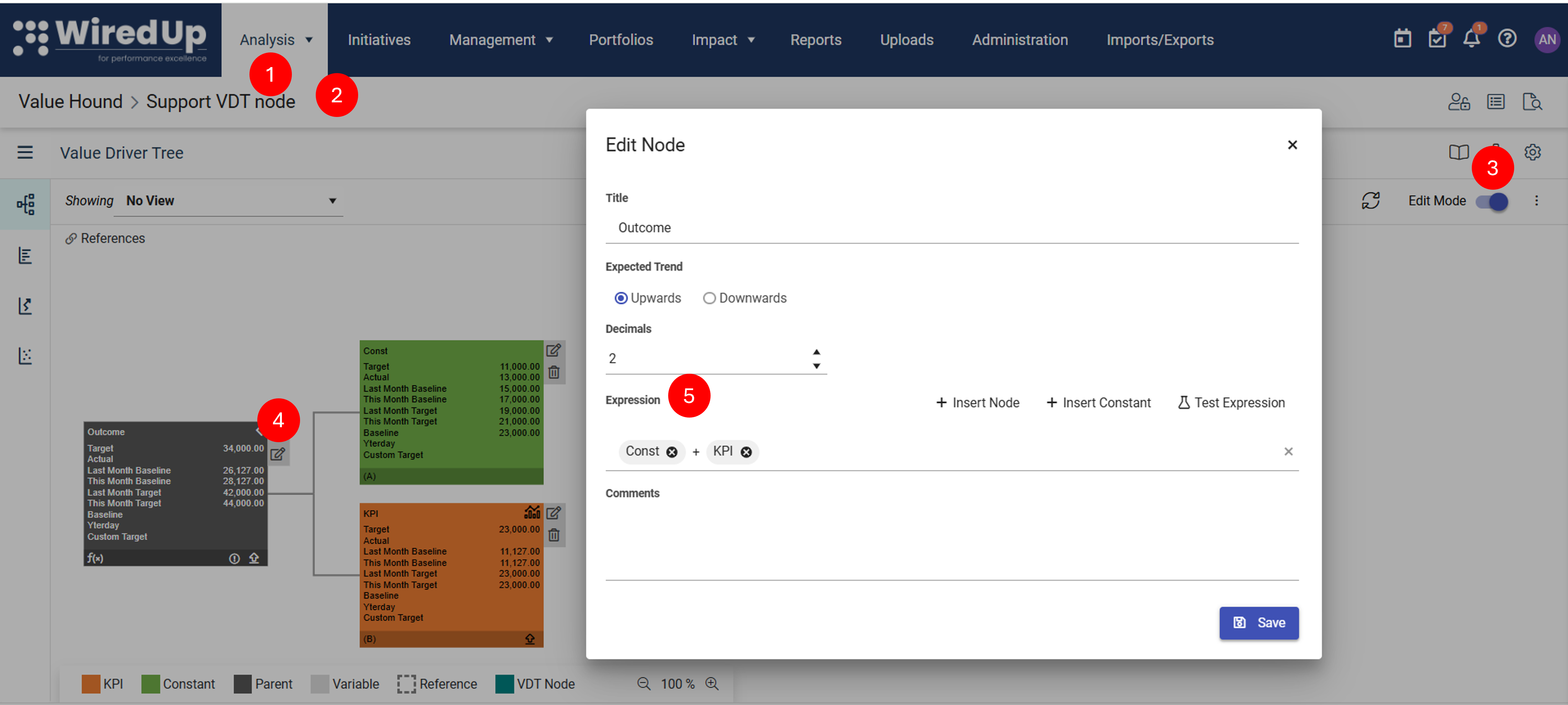
- Navigate to Analysis > Value Hound.
- Select an existing Value Hound VDT from the list or create a new Value Hound VDT.
- On the Value Hound VDT screen, switch to Edit Mode.
- Click the Edit icon on a parent node or outcome node.
- The Expression Builder is displayed in the Expression field.
The Expression field includes the following controls:
- + Insert Node
- + Insert Constant
- Test Expression
Understanding the Expression Builder
The Expression Builder allows you to build formulas using:
- Child nodes
- Global Constants
- Mathematical operators (+, -, *, /)
- Numeric values
The available controls are:
Control | Description |
+ Insert Node | Adds a child node to the expression. |
+ Insert Constant | Adds a Global Constant to the expression. |
Test Expression | Validates the expression. |
Operators and numeric values can be typed directly into the expression field.
Inserting a Node
Use + Insert Node when you want to include a child node in the expression.
To insert a node:
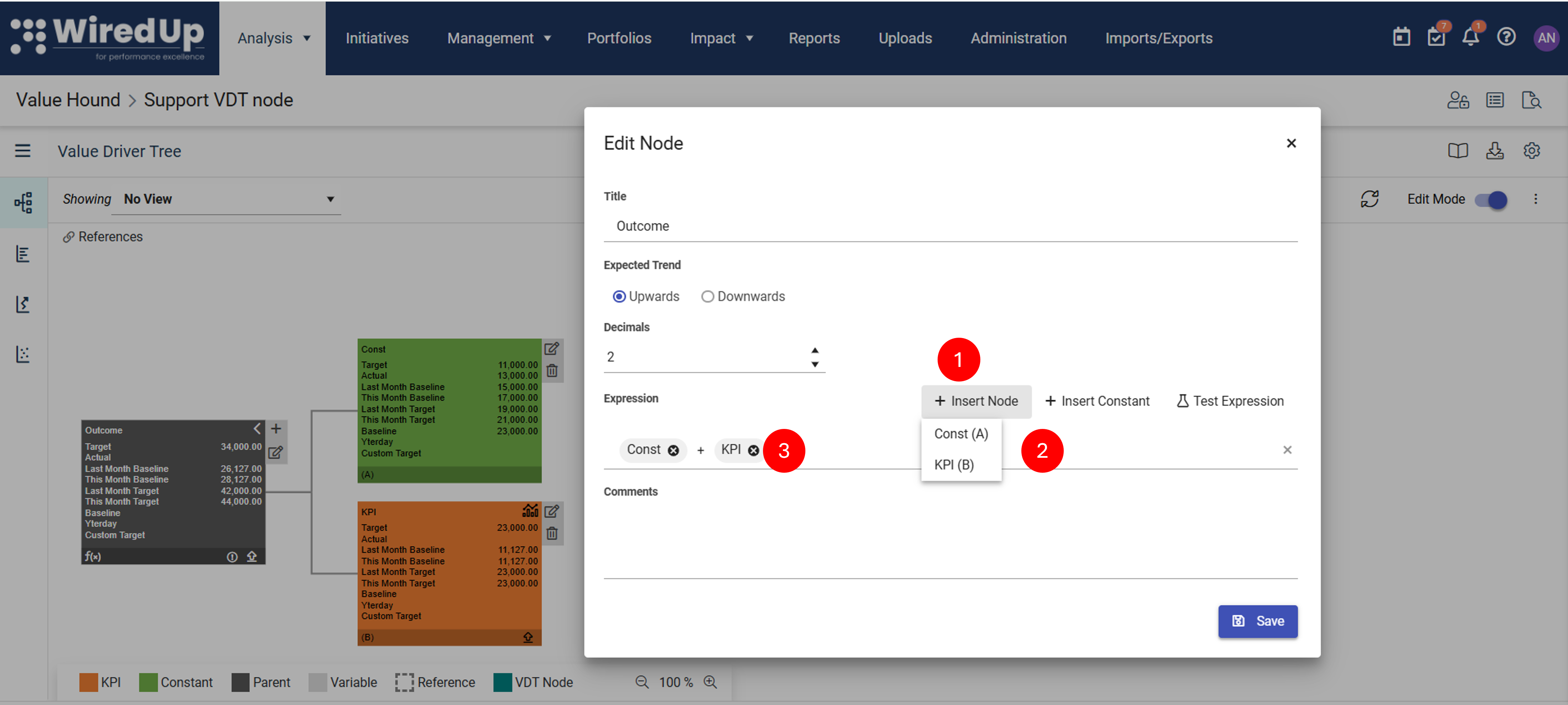
- Click + Insert Node.
- Select the required child node from the dropdown.
- The selected node is inserted at the cursor position as a node pill.
Each child node is displayed using the format [Node Name] ([Reference Letter]).
If the parent node has no available child nodes, the dropdown displays No Child Nodes.
Inserting a Global Constant
Use + Insert Constant when you want to include a Global Constant in the expression.
To insert a Global Constant:
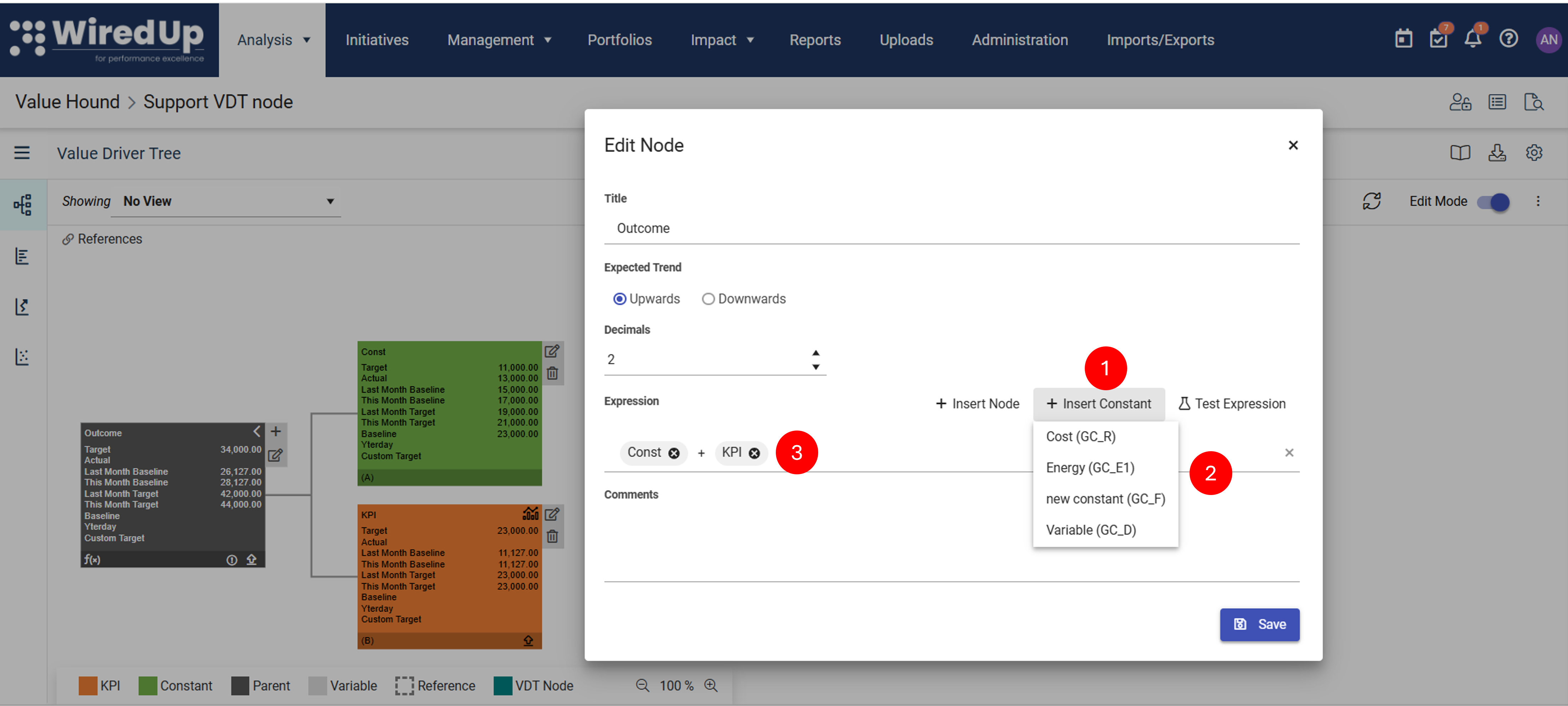
- Click + Insert Constant.
- Select the required Global Constant from the dropdown.
- The selected Global Constant is inserted at the cursor position as a constant pill.
- Each Global Constant is displayed using the format [Constant Name] ([GC_ Reference Code]).
- The GC_ prefix distinguishes Global Constants from node references.
- If no Global Constants exist, the dropdown displays No Constants.
Using Autocomplete
You can also type directly into the Expression field. As you type, WiredUp displays matching results in an autocomplete dropdown.
The autocomplete dropdown includes:
- Global Constant results.
- VDT Node results.
Selecting an item inserts it into the expression as the appropriate node or constant pill.
- If no Global Constants match the entered text, the Global Constant section displays No Constants.
- If no child nodes match the entered text, the VDT Node section displays No Child Nodes.
Note: Typing GC_ filters the autocomplete results to display Global Constants only. The VDT Node section is hidden while the GC_ prefix is being used, allowing you to search for constants using their Global Constant reference code.
Understanding Expression Pills
The Expression Builder displays selected nodes and Global Constants as pills. This makes the expression easier to read and helps distinguish between different parts of the formula.
Pill Type | Description |
Node pill | Represents a child node in the Value Hound VDT. |
Constant pill | Represents a Global Constant. |
Invalid pill | Represents text that does not match an available node or Global Constant. |
Additional information about expression pills:
- Node pills use a light grey background.
- Constant pills use a light blue background.
- Each pill includes an x that can be used to remove it from the expression.
- Operators and numeric values are displayed as plain text between pills.
Viewing Global Constant Values
Hover over a Global Constant pill to view its configured values.
For fixed value constants, the tooltip displays:
- Global Constant name.
- Configured value.
For variable value constants, the tooltip displays:
- Global Constant name.
- Baseline value.
- Target value.
- Actual value.
This allows you to confirm the selected Global Constant and its values without leaving the Value Hound VDT.
Replacing a Node or Constant
You can replace a node or constant without rebuilding the entire expression.
To replace an item:
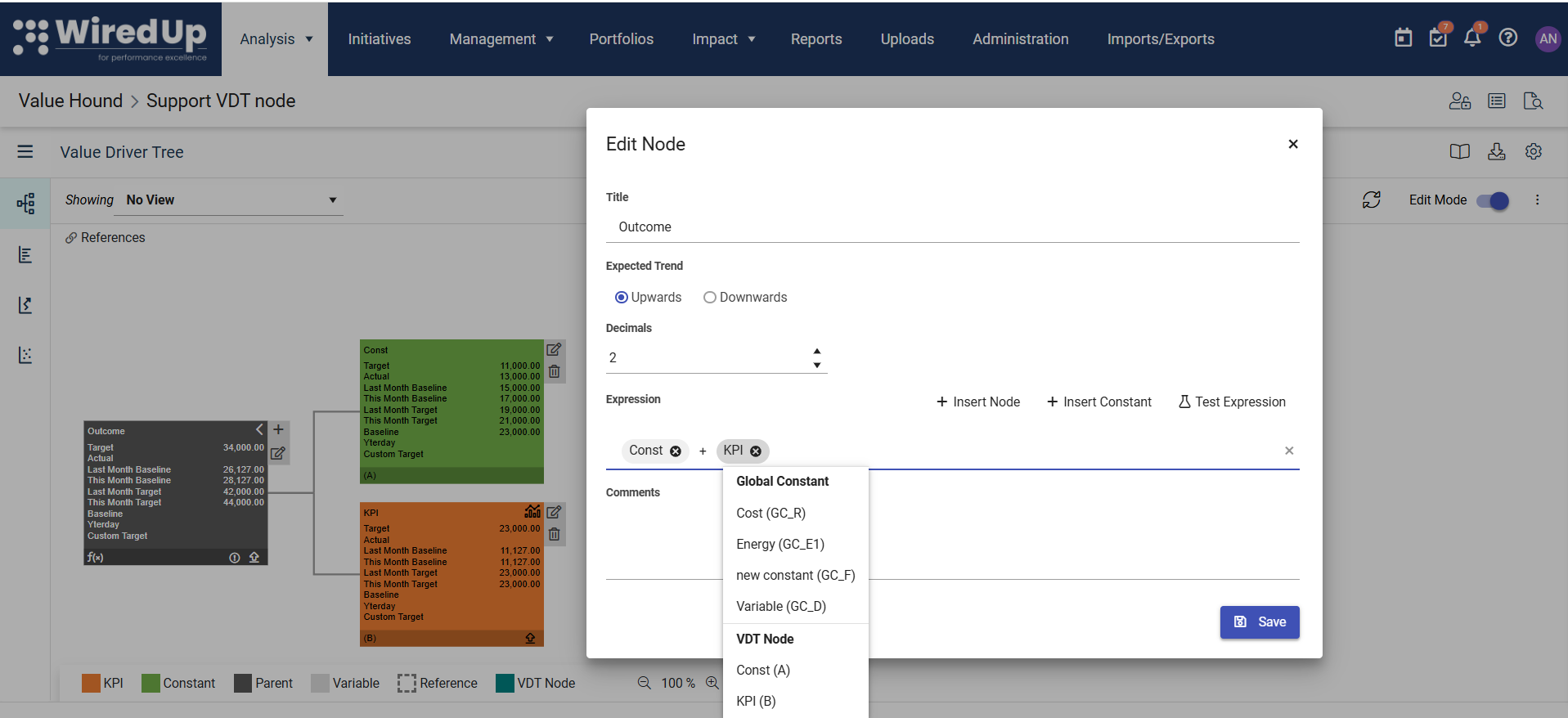
- Select the existing node or constant pill.
- Choose a replacement from the autocomplete dropdown.
- The selected item replaces the existing pill in the same position.
The expression order is preserved.
Invalid Pills
If text does not match an available child node or Global Constant, WiredUp displays it as an invalid pill.
Each invalid pill:
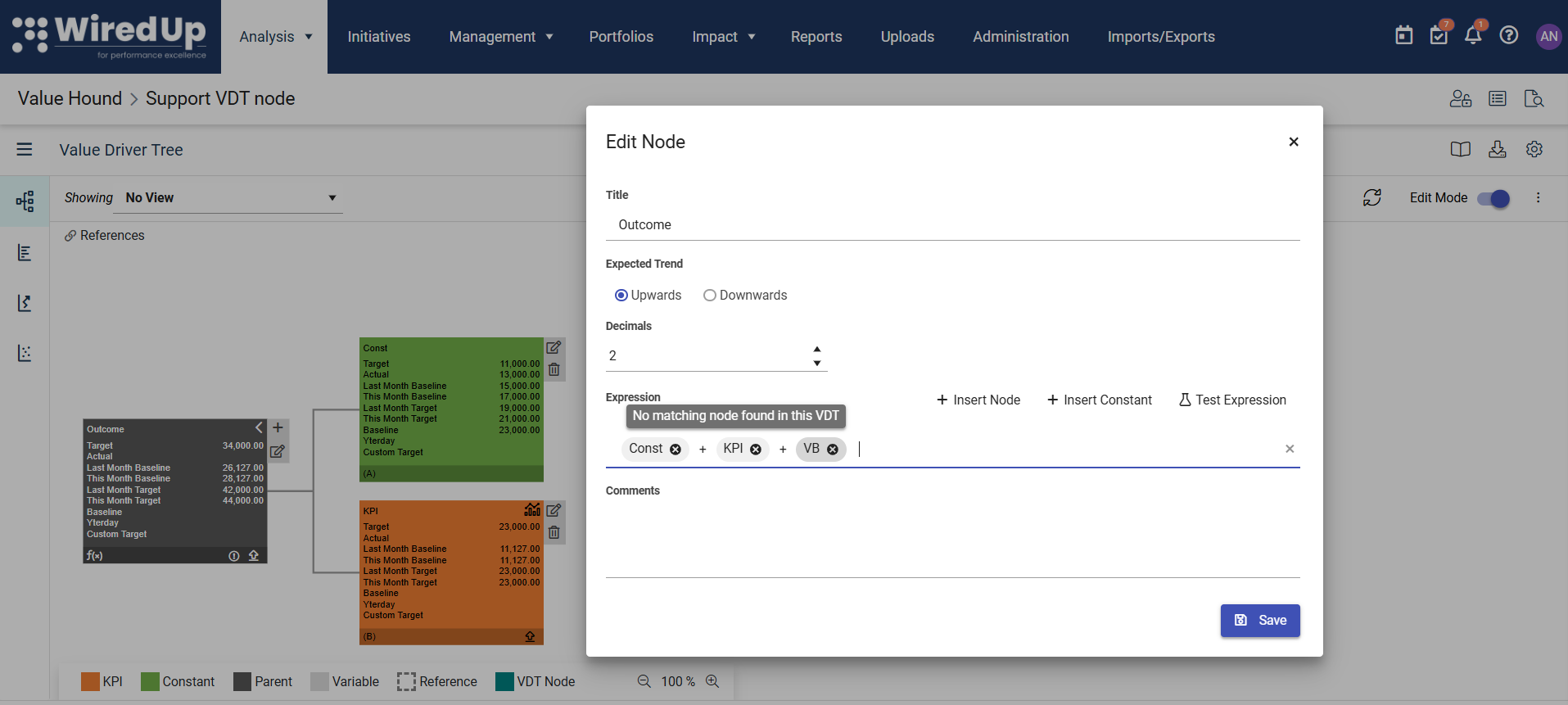
- Uses a red background.
- Includes an x that can be used to remove it.
- Displays an explanatory tooltip when hovered over.
Tip: Use + Insert Node, + Insert Constant, or autocomplete instead of manually typing references wherever possibleTesting an Expression
Use Test Expression to validate an expression.
To test an expression:
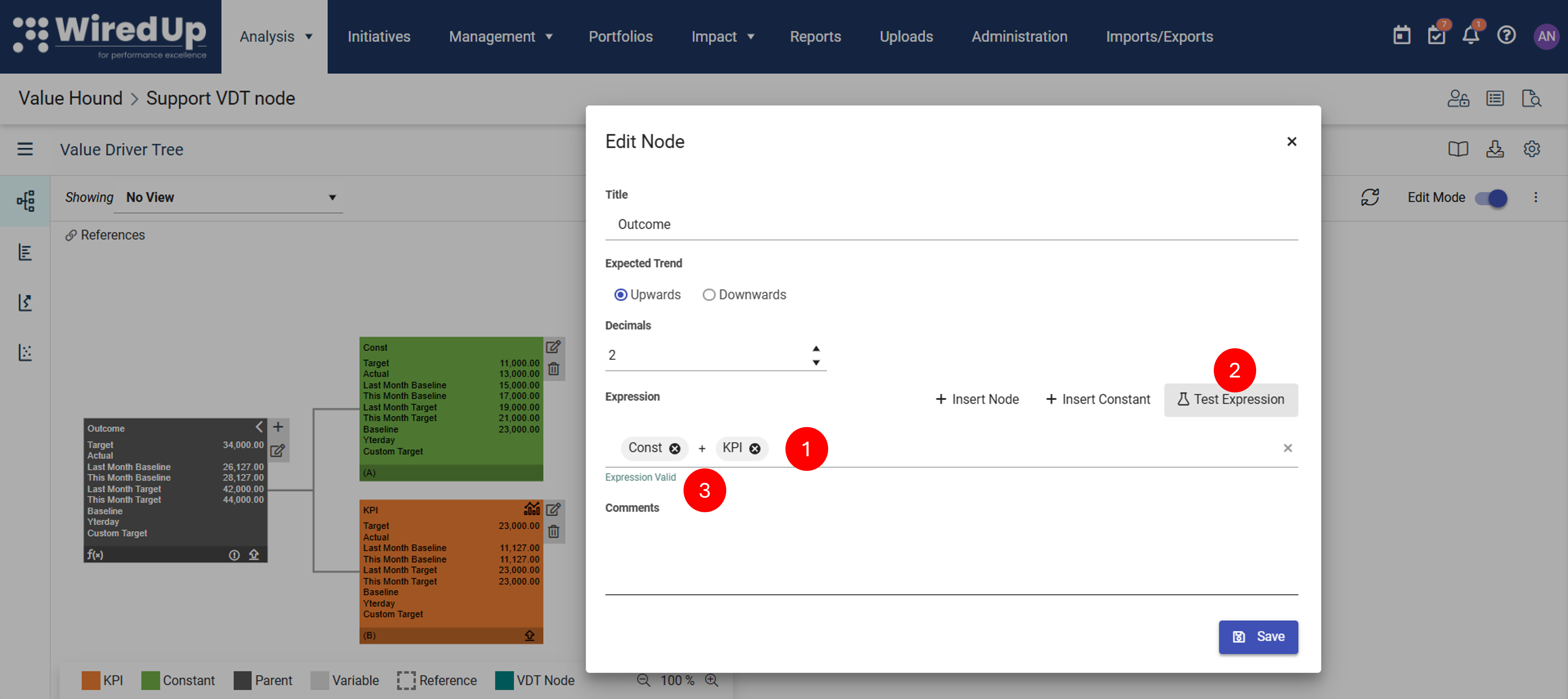
- Build or update the expression.
- Click Test Expression.
- Review the validation result.
Note: Validation is performed only when Test Expression is clicked. Invalid expressions can still be saved, but they may not calculate correctly until the issue is corrected.
Understanding Variable Global Constants
When a Global Constant is used in a Value Hound VDT expression, WiredUp applies the appropriate value for the calculation type.
For fixed value constants, the same value is used for Actual, Baseline, and Target calculations.
For variable value constants:
Calculation Type | Value Used |
Actual | Actual value |
Baseline | Baseline value |
Target | Target value |
This allows one Global Constant to provide different values for different calculation types.
Viewing Saved Expressions
When a parent node has a saved expression, WiredUp displays an f(x) icon in the node footer. The f(x) icon is only displayed when an expression exists.
Hover over the f(x) icon to view the expression in a readable format. The expression uses node names rather than stored reference letters, making it easier to understand.
If Global Constants are used in the expression, the tooltip displays:
Fixed Value Constants
- Global Constant name.
- Configured value.
Variable Value Constants
- Global Constant name.
- Baseline value.
- Target value.
- Actual value.
If no Global Constants are used, only the expression is displayed.
Tips for Using Global Constants in Value Hound VDT Expressions
- Use + Insert Node and + Insert Constant instead of manually typing references.
- Use autocomplete when you know part of the node name, Global Constant name, or GC_ reference.
- Hover over constant pills to confirm configured values.
- Use Test Expression before relying on calculated results.
- Remove or correct invalid pills before saving.
- Review the f(x) tooltip on saved nodes to verify that the expression is correct and easy to understand.