
In This Article:
Steps for creating a new RAR series
For an overview of what RARs are and what they contain, refer to this article: RAR OverviewNote: RARs are created and owned by the RevieweeSteps for creating a new RAR series.

 | On the WiredUp platform, click on the Management option from the ribbon bar. |
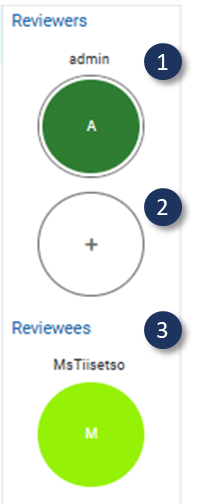
 | Select the RAR option. This will open the screen below with the Reviewers and Reviewees panel on the left side of the screen. |
 | |
The RAR Results sections are configured on Portfolio > Portfolio Config > Overview Types | |
 | Reviewers section shows a list of your existing Reviewers from the existing RAR series created. |
 | Click this button to create a new RAR series. This will open a screen for configuring the new RAR series. An example of the configuration screen is provided below. |
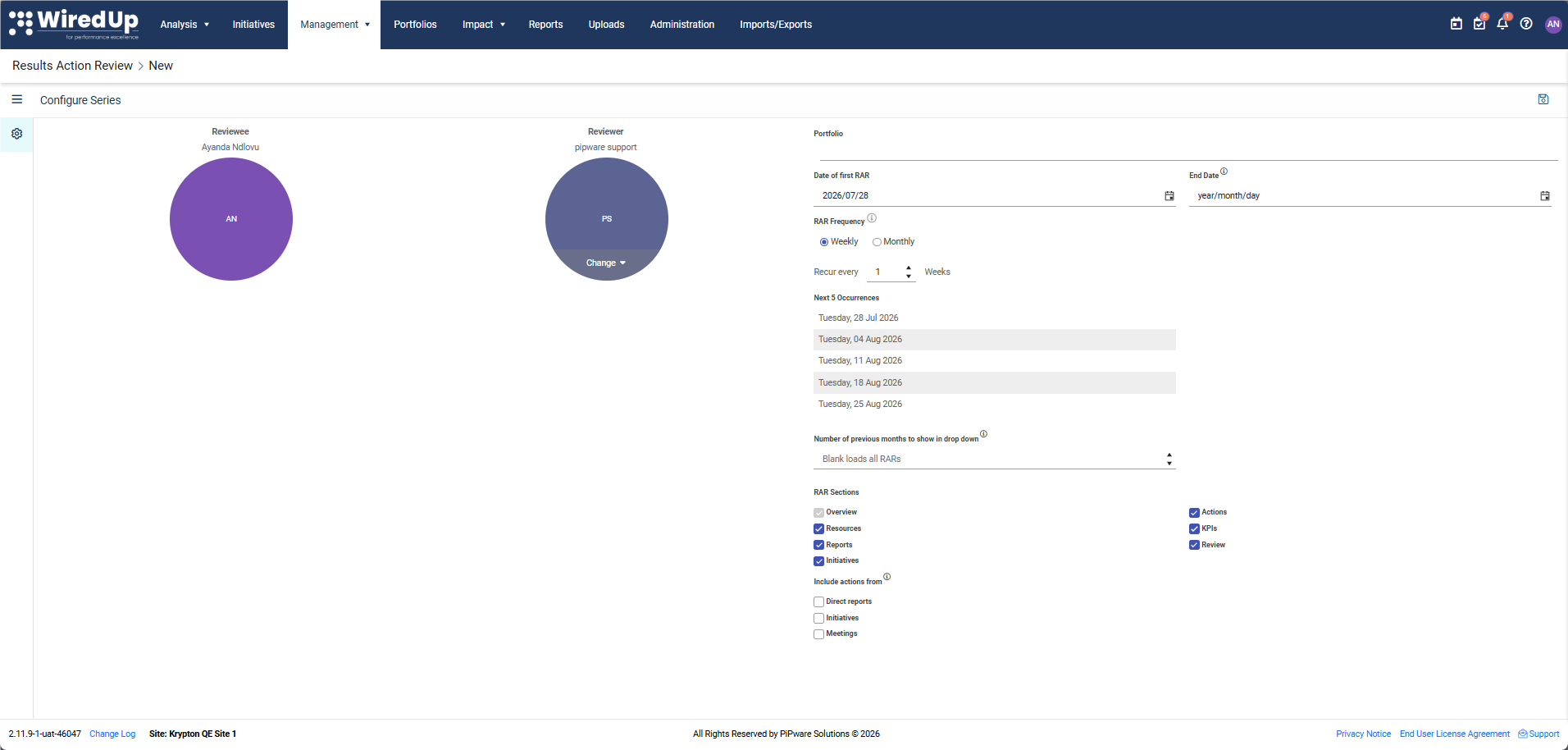 |
On the RAR Configuration screen, you have the view of the names of the Reviewer and Reviewee as well as the option to Change the Reviewer if needed. On the right side of the screen, you can select the Portfolio from the dropdown list for which you will create the RAR for and choose the Date for the first RAR instance. Specify the End Date for the RAR series if required. If unspecified, the series will continue indefinitely. In addition, you can set up the RAR Frequency for the RAR meetings (how many time will the RAR occur) and adjust the Number of previous months to show in drop down available for quick access. This will display the previous RARs based on the digit specified in the setting. Specify which RAR Sections should be included in the RAR series and indicate whether actions from other sources should be included for review in the Include Actions From section.
For more information on configuring the RAR frequency, please see this article: Configuring RAR Series Recurrence : WiredUp
 | Reviewees section shows a list of your existing Reviewees from any existing RAR series created. |
Note: After the End date, the system will not create another RAR instance. Therefore, the date entered on the End Date field will be the last date that the RAR instance from the series will take placeNote: Clicking save will create the new series and the first RAR instance will be automatically available. You can then use the Configure current RAR icon to navigate to the instance-level configuration, or use the series configuration icon to return to series settings at any time.Navigating Between Configuration Views
When configuring your RAR series, you can easily switch between two configuration views:
- Configure Series — Set up the overall RAR series settings (frequency, portfolio, sections, etc.
- Configure Current RAR — Configure the specific current RAR instance
To navigate between views:
- From Configure Current RAR to Configure Series:
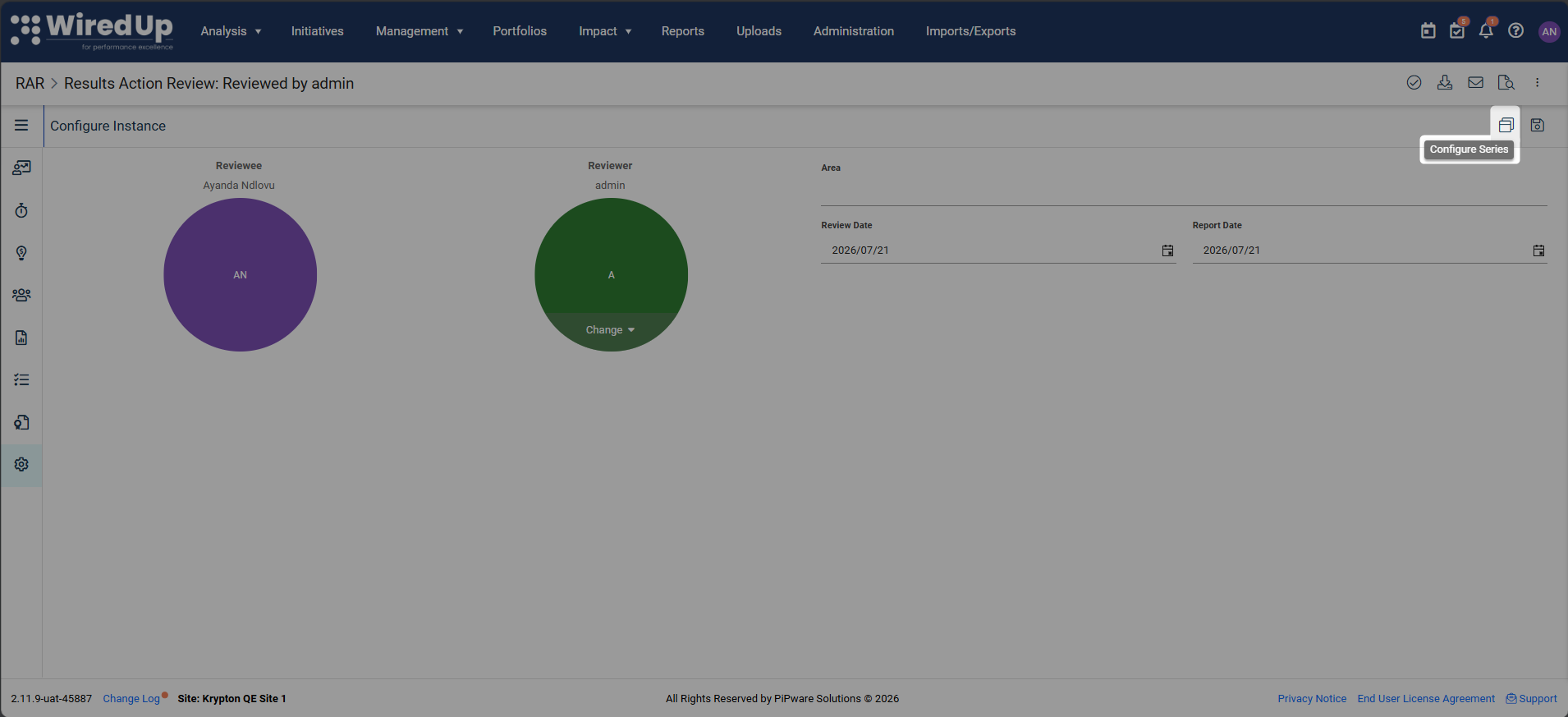
- Click the series configuration icon in the function bar
- This opens the Configure Series page
- From Configure Series to Configure Current RAR:
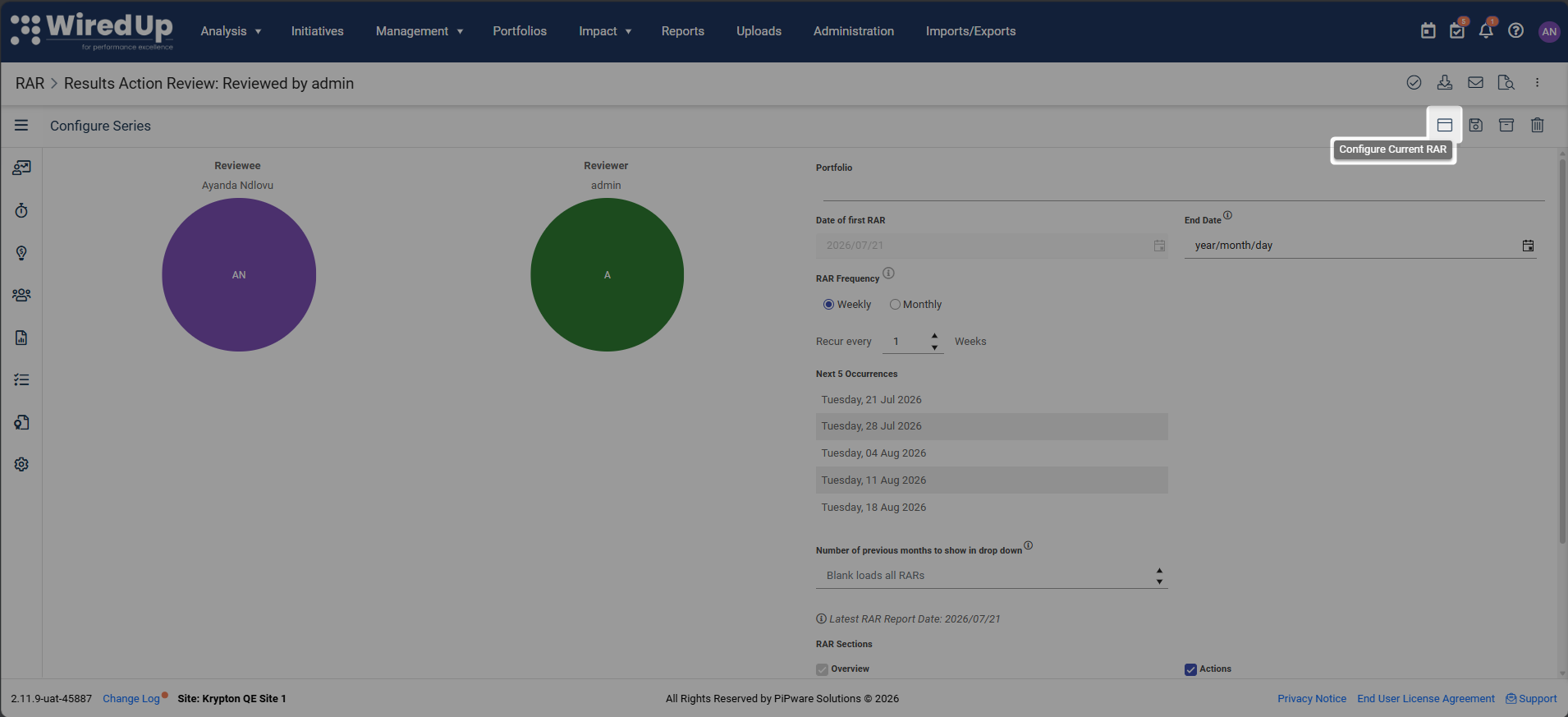
- Click the Configure current RAR icon (window maximize icon) to the left of the Save button
- This returns you to the Configure Current RAR page
Important: If you have made unsaved changes on the Configure Series page, you will be prompted to save your changes before navigating away. This prevents accidental loss of your configuration updates.Tip: Use these navigation icons to quickly switch between series-level and instance-level configuration without using the sidebar menu.Some further notes on actions:
- Direct reports - When checked will include actions created and assigned to you in other people's RARs.
- Intiatives - When checked will include actions created and assigned to you in Initiatives.
- Meetings - When checked will include actions created and assigned to you in Meetings.