
In This Article
Overview
Creating a customized dashboard in WiredUp allows you to tailor your view to display the information most relevant to your role and responsibilities. You can build dashboards from scratch by selecting from a variety of widgets that display activities, KPIs, meetings, initiatives, and more. Once created, you can mark your dashboard as a favorite for quick access and customize the layout to suit your needs. This flexibility ensures you have immediate access to the data and insights that matter most to you.
Creating a New Dashboard
- Navigate to your dashboard home page
- Click the drop-down arrow next to the dashboard name currently displayed.
- Click the +Add button to open the screen to create a dashboard. If there is no current dashboard displayed, simply click +Add button displayed on the screen.
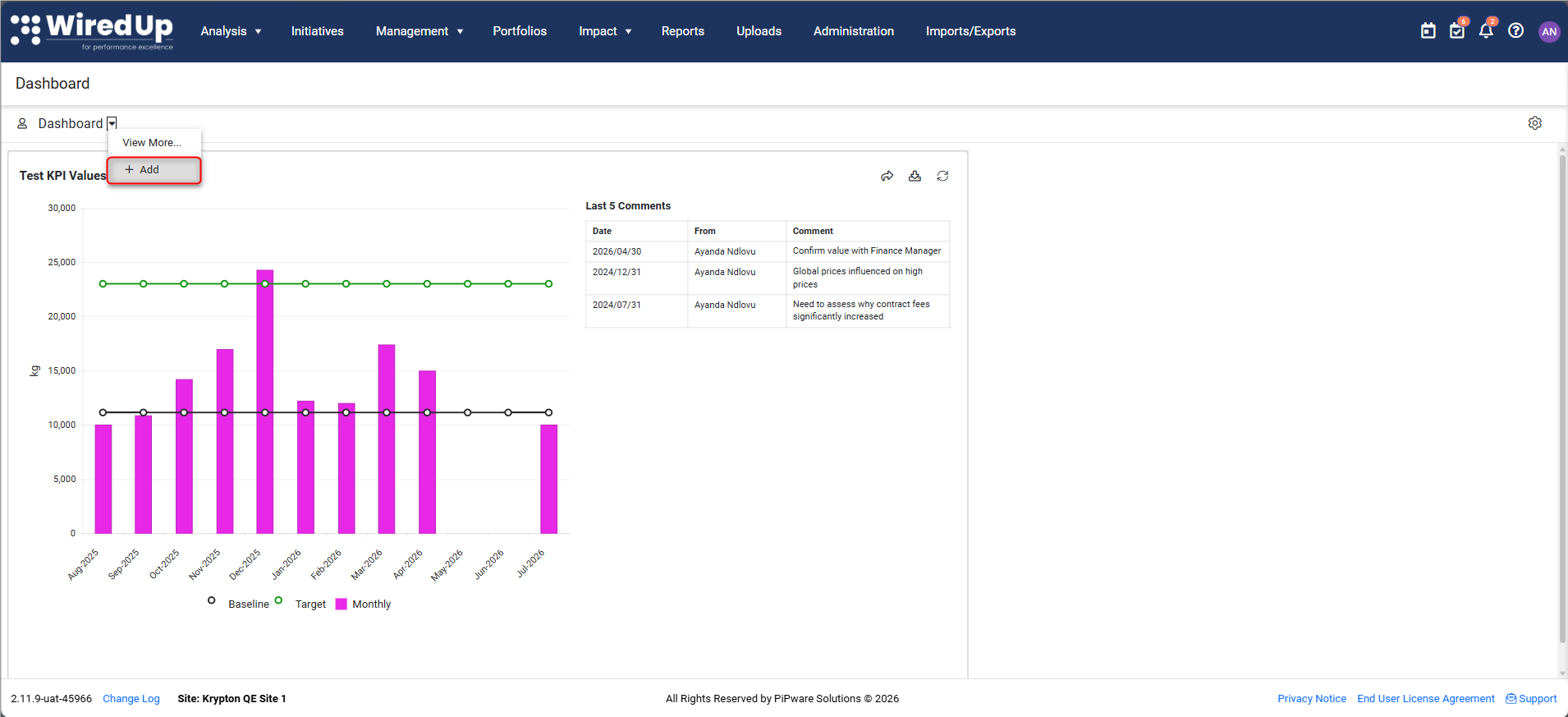
Add a Dashboard Screen
The following controls are available on the +Add screen:
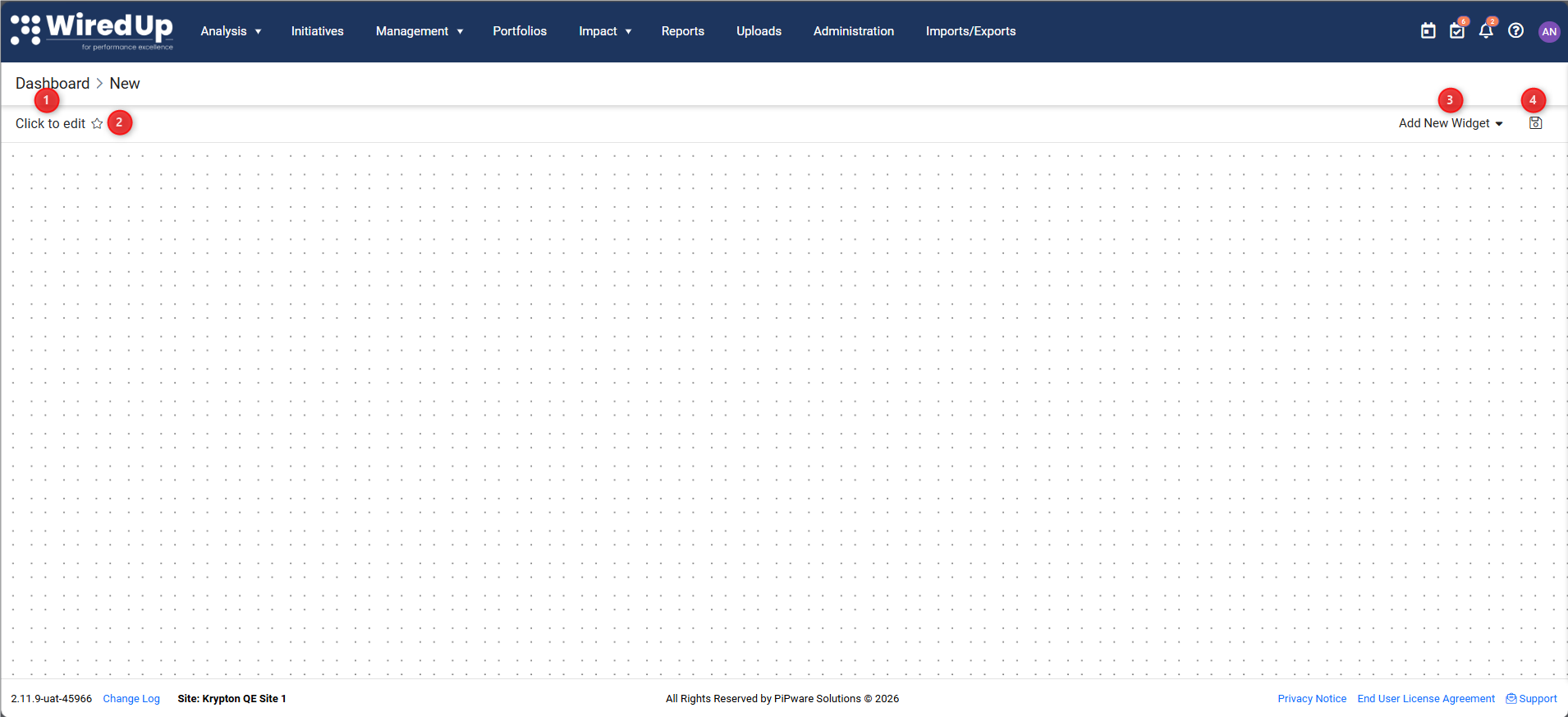
- Enter the name of the dashboard by selecting the Click to edit field and typing the name of your dashboard.
- Click the star icon in the middle of the screen to mark your dashboard as a Favorite. Favorited dashboards appear in your drop-down dashboard selector for easy access.
- To add widgets, click the drop-down arrow on the Add New Widget button and select the widgets you would like to add to your canvas. You can arrange the widget layouts and resize the widgets as preffered.
Available widgets include:
- Other Activities
- Portfolio Activities (available only for PMO users)
- Activity Completion
- Pending & Outstanding Approvals
- Cumulative Benefits
- Cumulative Pipeline
- Escalated Activities
- External Link
- Initiatives
- Key Performance Indicator
- KPI Chart
- Meetings
- Portfolio Value
- RARs
- Risks
- Summary Completion
- Total Benefits to Date
For more information on the available widgets, please see this article: Available Widgets : WiredUp
4. After making all changes and additions, click the Save button
Recommendations
- Use clear, descriptive names for your dashboards to easily identify them later
- Mark frequently used dashboards as favorites for quick access
- Group related widgets together to create logical sections on your dashboard
- Consider creating role-specific dashboards (e.g., "Weekly Review Dashboard", "KPI Monitoring Dashboard")
- Save your work frequently while building your dashboard to avoid losing changes
- Create multiple dashboards for different purposes rather than cramming everything into one
Next Steps
For more details on the available widgets, please see this article: Available Widgets