
In This Article
Saving and Sending the Meeting Invite
Overview
Adding a new meeting in WiredUp allows you to create a structured meeting series that ensures consistency, accountability, and measurable outcomes. Whether you need a one-time meeting or a recurring series, the Add New Meeting feature guides you through setting up all the essential components for effective meetings.
When you add a new meeting, you will:
- Define the meeting title and the 3Ps (Purpose, Payoff, and Preparation) to establish clear objectives
- Add participants and assign them specific roles
- Configure meeting details including date, time, duration, location, time zone, and recurrence pattern
- Set up meeting settings such as portfolio, reporting days, tags, quality questions, and categories
- Structure the meeting with Processes that organize agenda items and include KPIs, Ideas, Reports, and Attachments, and customize the order of sections to match your meeting flow
- Establish Targets to measure meeting compliance, quality, and participation over time
Once your meeting series is created and saved, participants will receive calendar invites, and the meeting will appear in your Meetings calendar according to the schedule you specified. You can then capture meeting details, track actions, and monitor progress for each meeting instance.
This article will guide you through each step of adding a new meeting series in WiredUp.
How to Add a New Meeting
To add a new meeting:
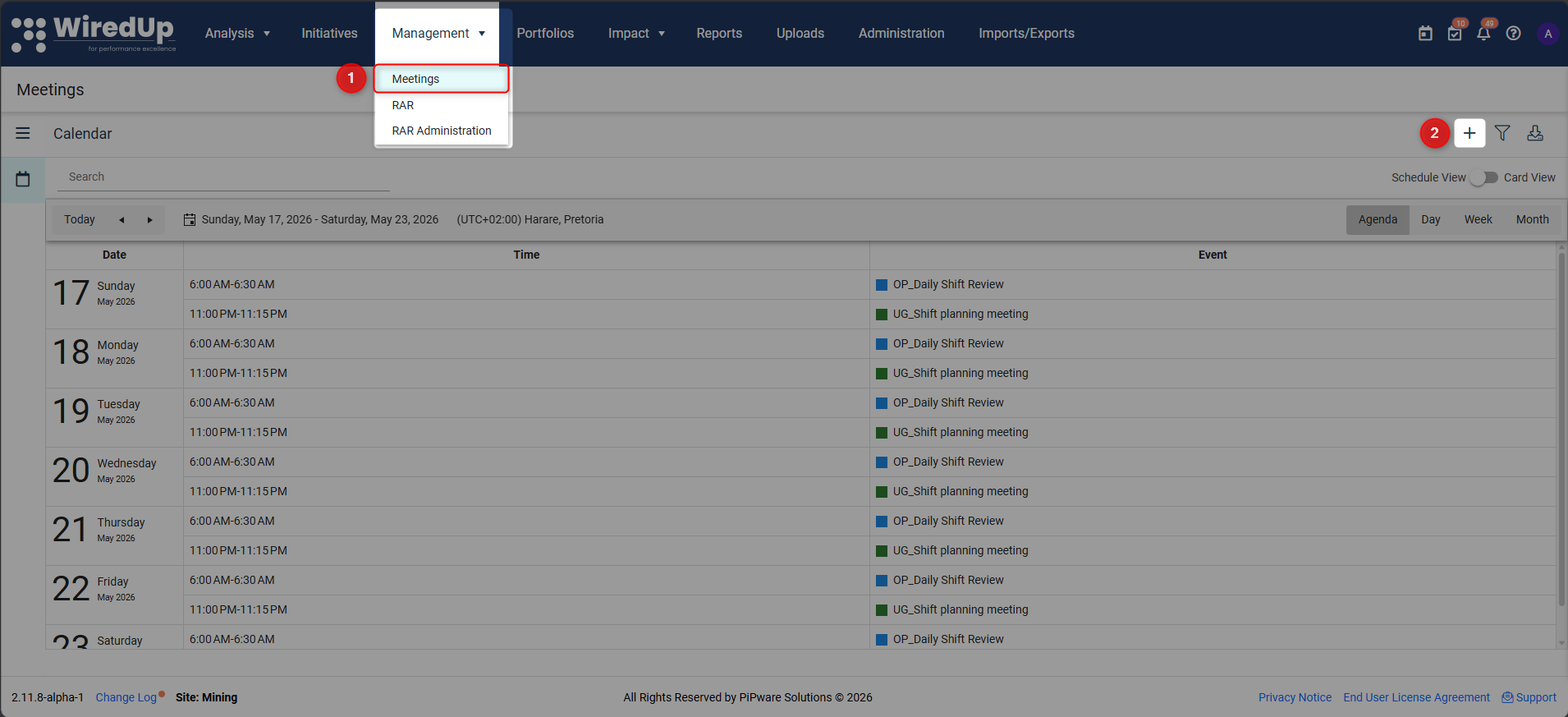
- Navigate to Management > Meetings
- Click the +Add button at the top right of the screen (available in both Schedule View and Card View)
This will open the New Meeting screen where you can configure all meeting details.
Meeting Setup
Title and 3Ps
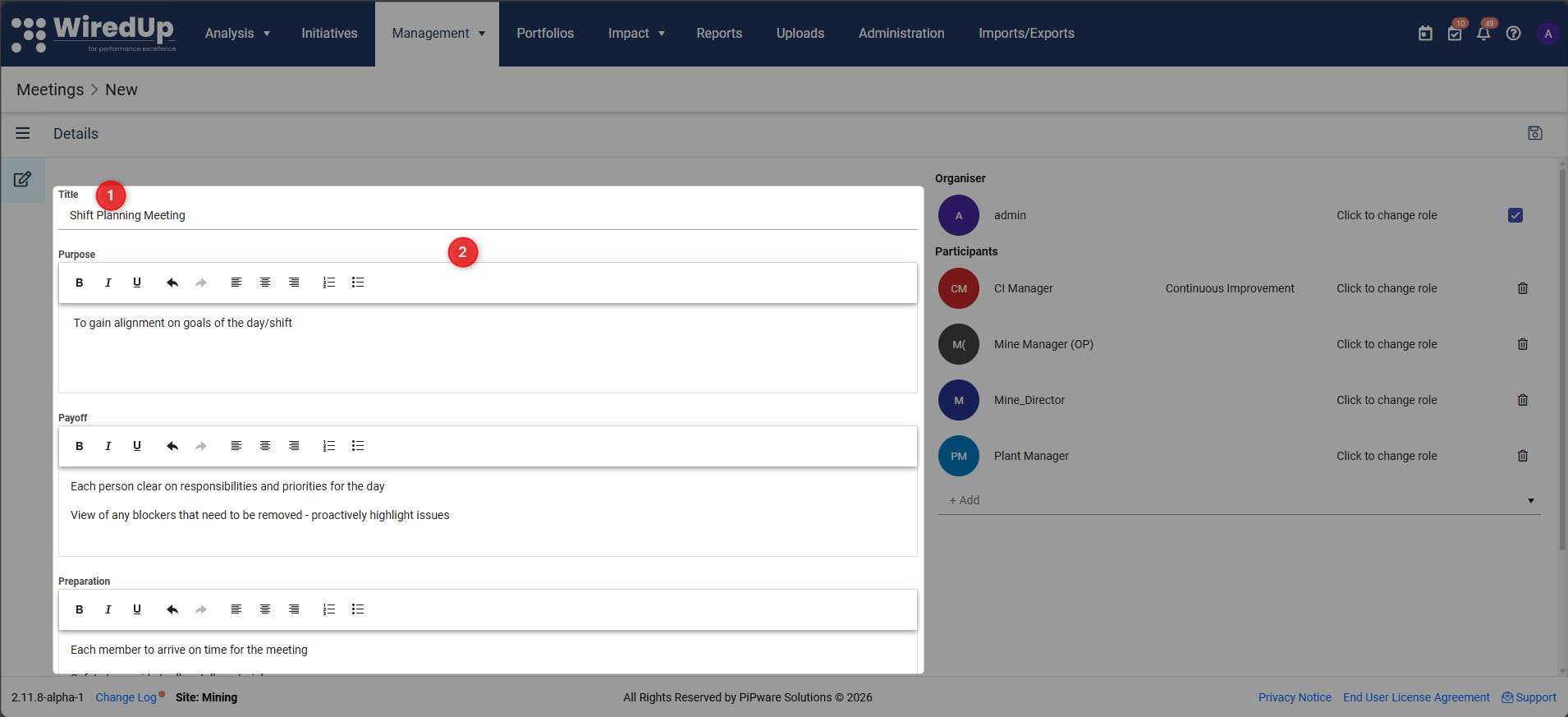
- Title: Enter a clear, descriptive title for your meeting series
- 3Ps (Purpose, Payoff, Preparation)
- Purpose: Capture why this meeting is being held and what it aims to accomplish
- Payoff: Define the expected outcomes and benefits of the meeting
- Preparation: Specify what participants need to do or review before attending
These fields use rich text formatting, allowing you to use bold, italics, bullet points, and other formatting options to make the information clear and easy to read.
Participants
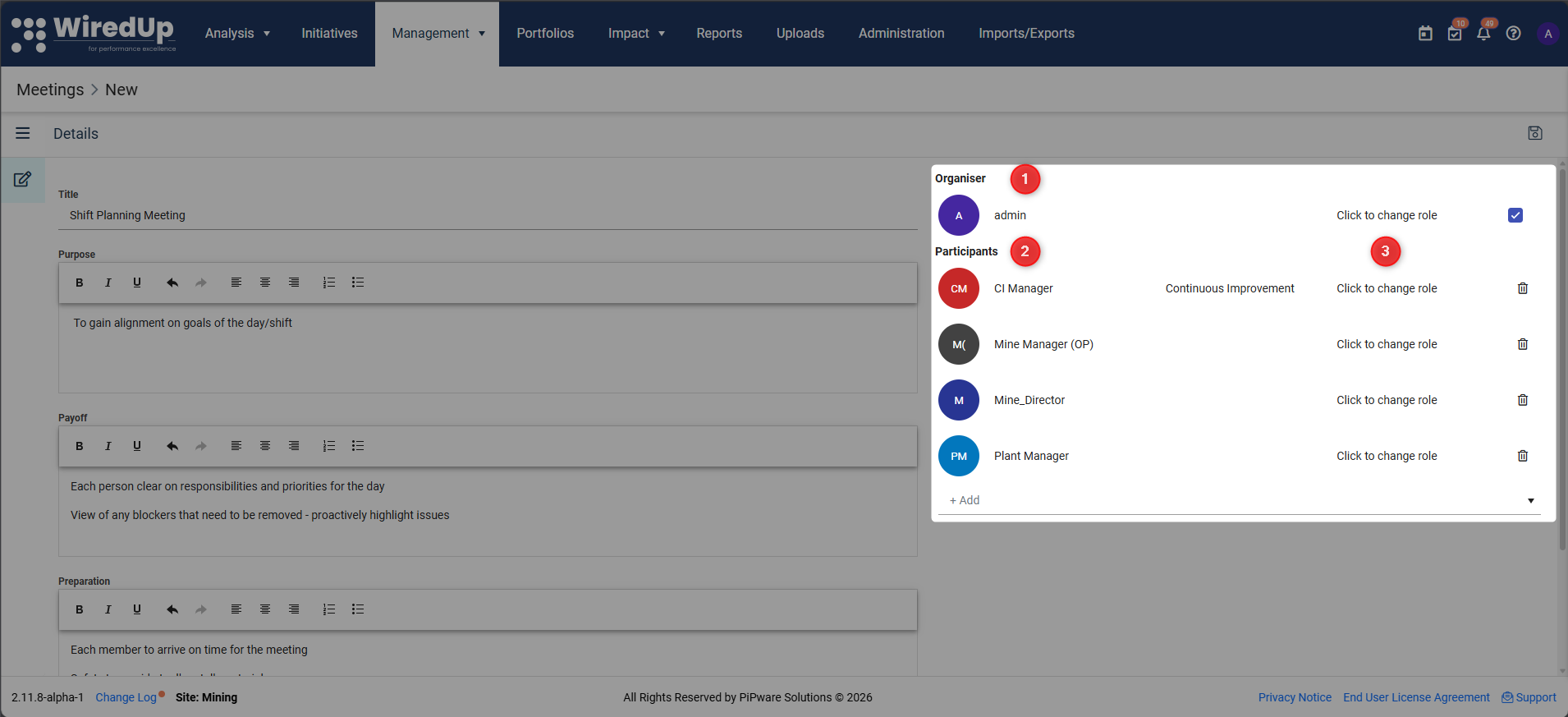
- Meeting Organizer
- The meeting organizer is automatically set as the logged-in user
- The organizer cannot be removed from the meeting but can be excluded from the participants list
- To change the organizer, click on the organizer's name and select a new user
Adding Participants
- Click +Add in the Participants section
- Select participants from the dropdown list
- Assign each participant a meeting role such as:
- Managing Participants
- Click "Click to change role" next to any participant to update their role
- Click the bin icon to remove a participant from the meeting
- Use the checkbox next to the organizer to include or exclude them from the participants list
Details Section
In the Details section, configure the meeting schedule and logistics:
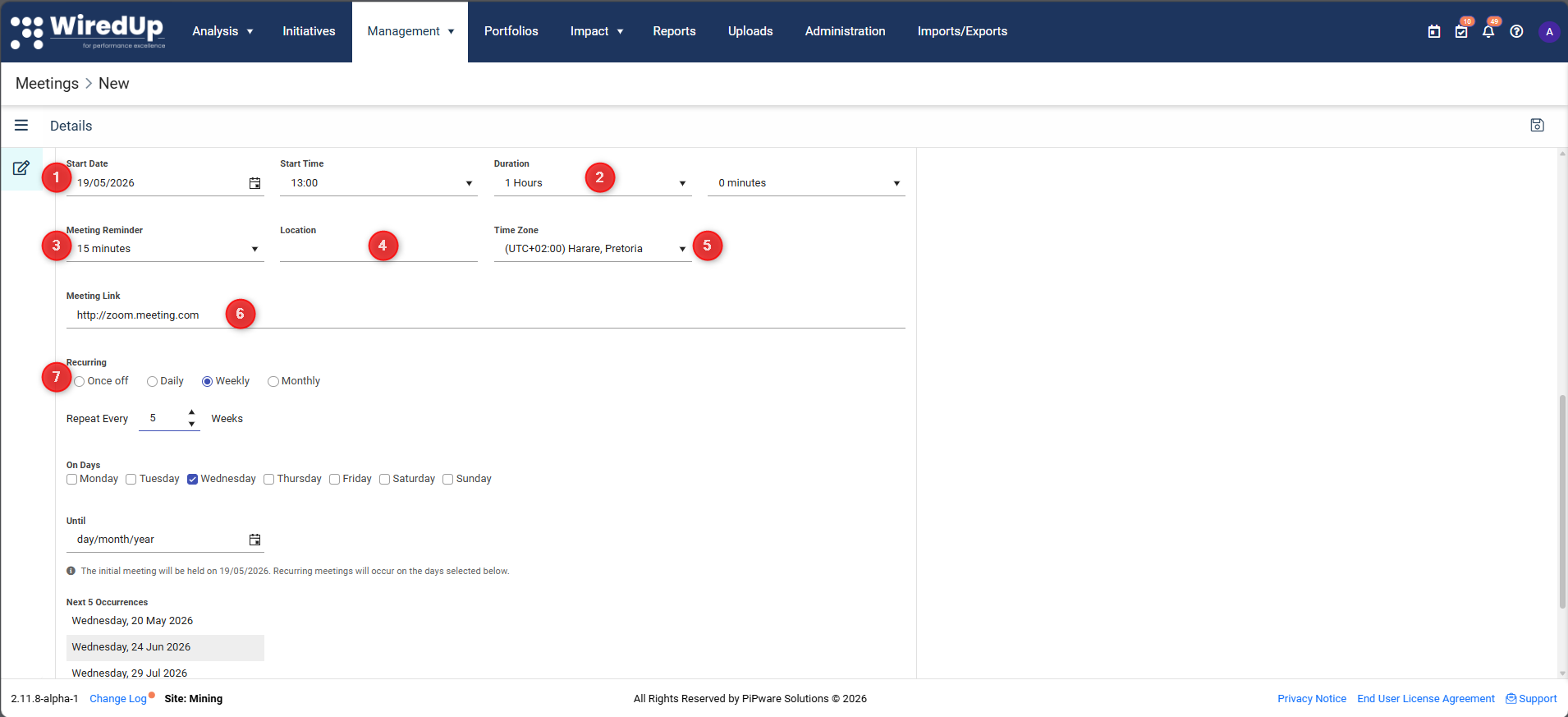
- Start Date and Time
- Select the date and time when the meeting will begin
- The time zone setting will ensure participants in different locations see the correct local time
- Duration: Set the meeting duration in hours and minutes
- Meeting Reminder: Choose when participants should receive a reminder (e.g., 15 minutes before the meeting)
- Location: Specify the physical location if the meeting is in-person
- Time Zone
- Select the appropriate time zone for the meeting
- Participants in other time zones will see the meeting time adjusted to their local time zone
- Meeting Link: Add a link for virtual meetings (e.g., Microsoft Teams, Zoom, Google Meet)
- Meeting Recurrence
- Choose the frequency: Once off, Daily, Weekly, or Monthly
- For recurring meetings, specify:
- How often it repeats
- Which days of the week (for weekly meetings)
- The end date or number of occurrences
Settings Section
In the Settings section, configure meeting categories and reporting: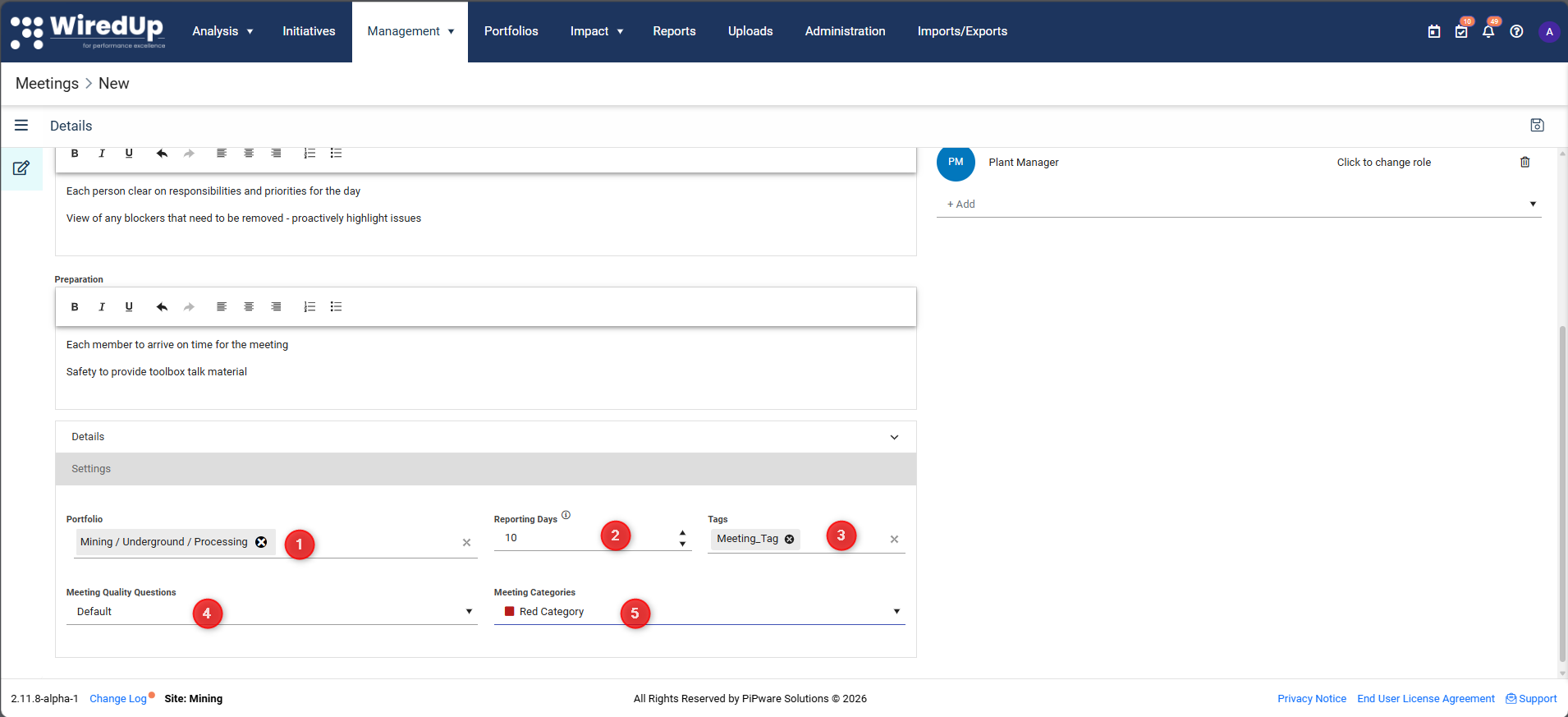
- Portfolio: Select the relevant portfolio or department for the meeting
- Reporting Days
- Specify the number of reporting days for KPIs and reports
- Formula: Report Date = Meeting Date - Reporting Days
- This determines the date range for evaluating KPIs and reports in the meeting
- Tags: Add relevant tags to categorize and filter meetings
- Meeting Quality Questions
- Select quality questions that will be used to evaluate the meeting
- These questions must be set up in Administration > Meeting Quality Questions before they can be selected
- Meeting Category
- Choose a category for the meeting (e.g., "SQE Meetings", "Default Category")
- Categories must be created in Administration > Meeting Categories before they can be assigned
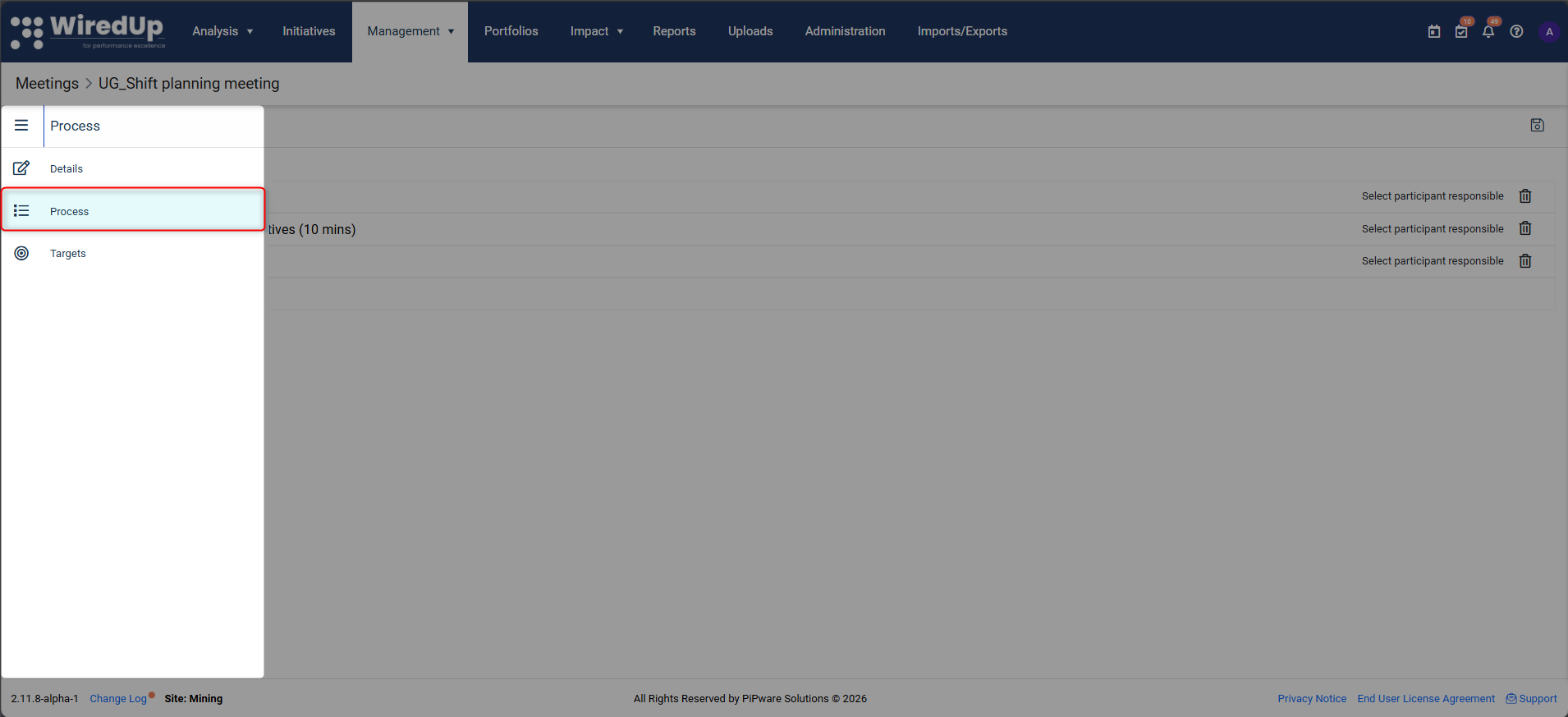
Once you have completed the meeting details and clicked Save, the Process and Targets tabs become available in the left navigation menu.
Process Section
The Process section allows you to structure your meeting with specific agenda items, each containing relevant KPIs, Ideas, Reports, and Attachments.
What is a Process?
A Process is a structured agenda item within a meeting that focuses on a specific topic or area of discussion. Each process can include:
- An introduction explaining the purpose of this agenda item
- A responsible participant who owns this process
- Specific sections such as Overview, Decisions, KPIs, Ideas, Reports, and Attachments that can be reordered to match your meeting flow
- Actions that will be tracked and followed up
Adding a Process
- Navigate to the Process tab from the left menu
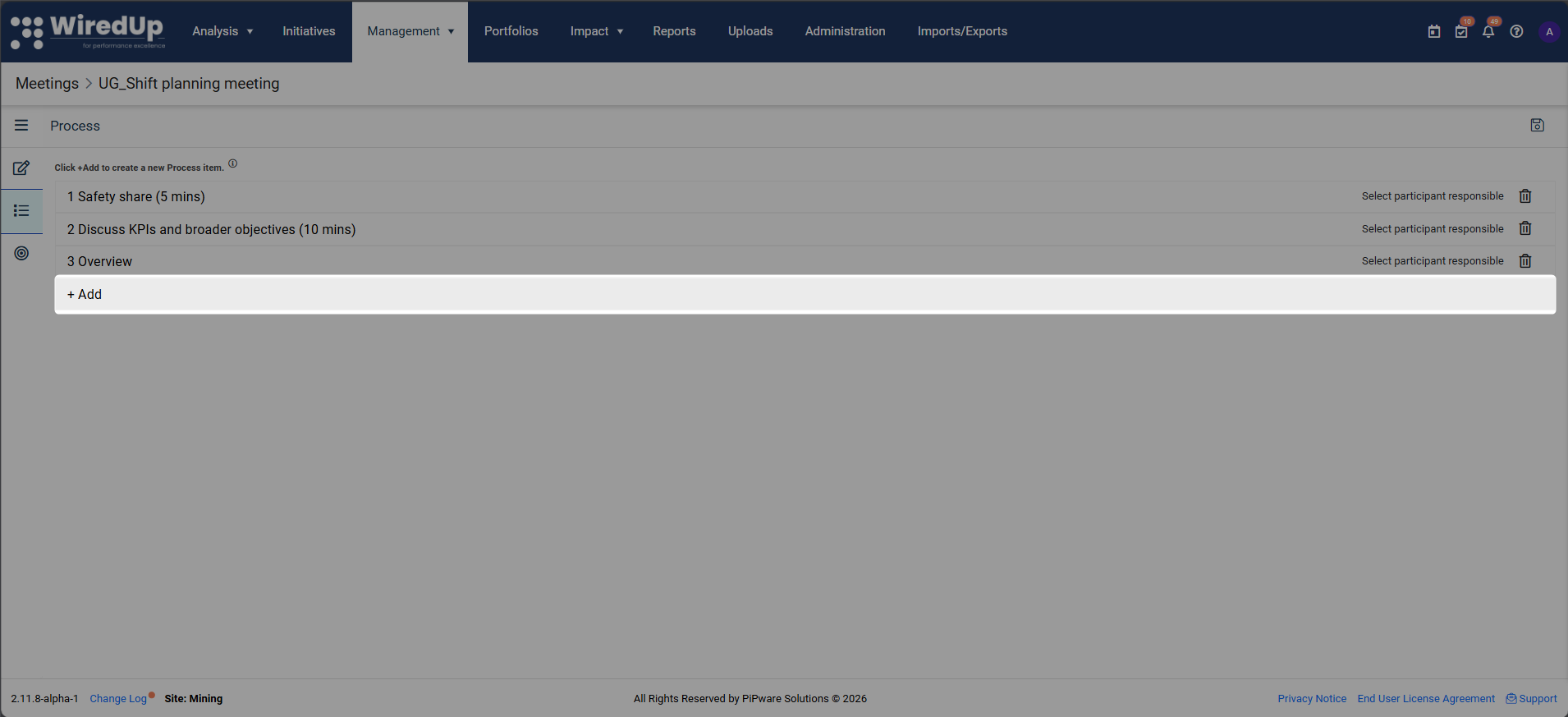
- Click +Add at the bottom of the screen
- Enter the Process Name (e.g., "Support", "Operations Review", "Safety Discussion")
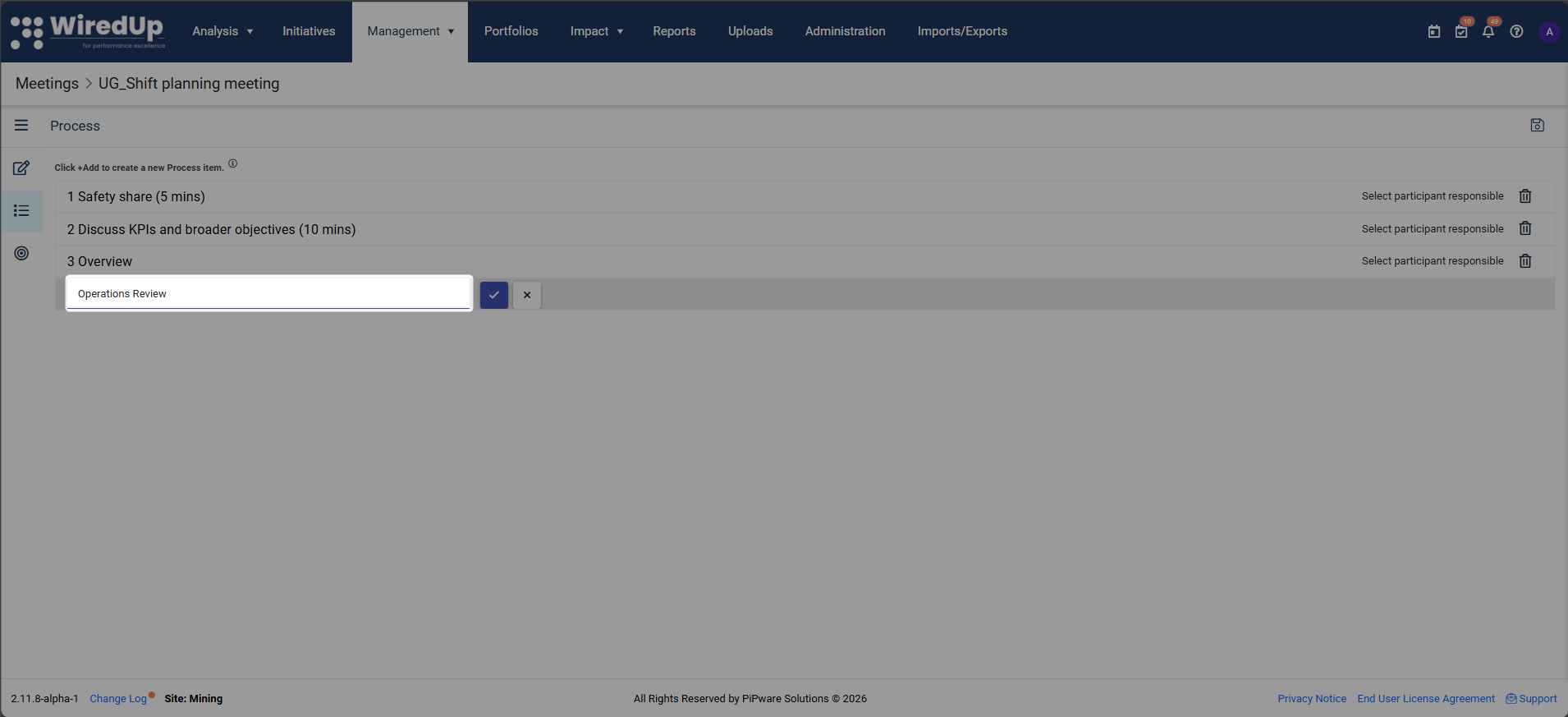
- Click the checkmark button to confirm
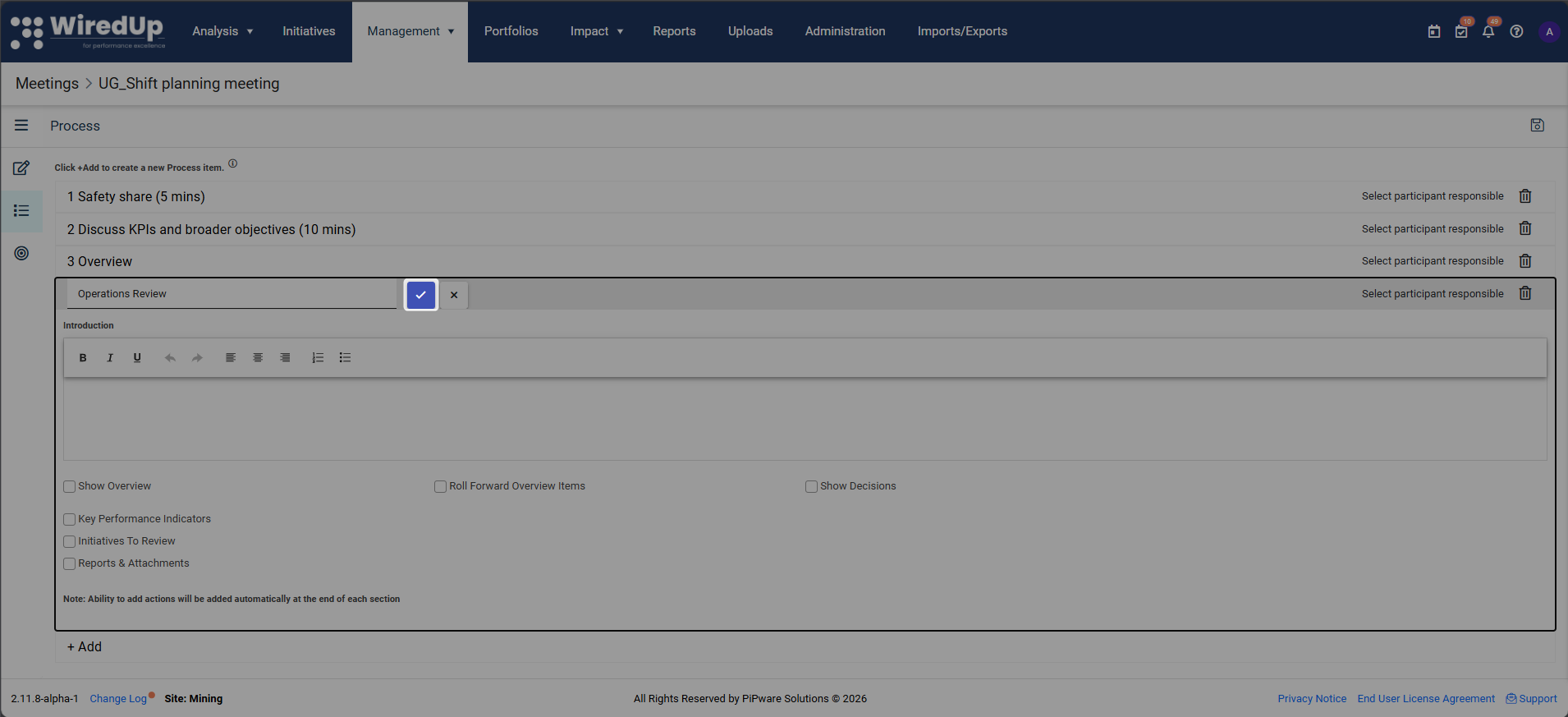
Configuring a Process
Once a process is created, you can configure the following:
- Select Participant Responsible

- Choose a participant from the dropdown who will be responsible for this process item
- This person will be accountable for the outcomes and actions related to this process
- Introduction
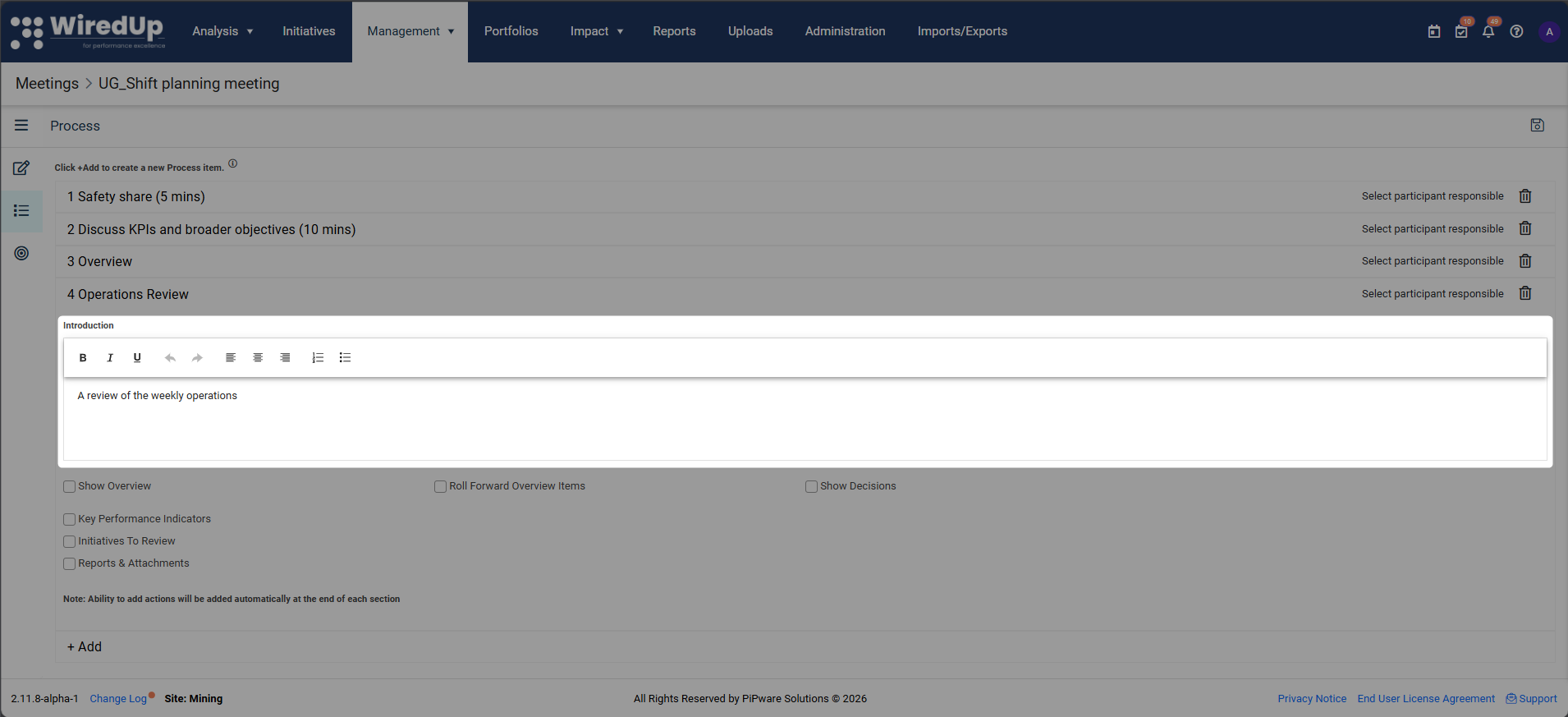
- Enter an introduction or description for this process
- Use the rich text editor to format the content with bold, italics, lists, and alignment options
- Select Sections to Include
- Check the boxes to include specific sections in this process:
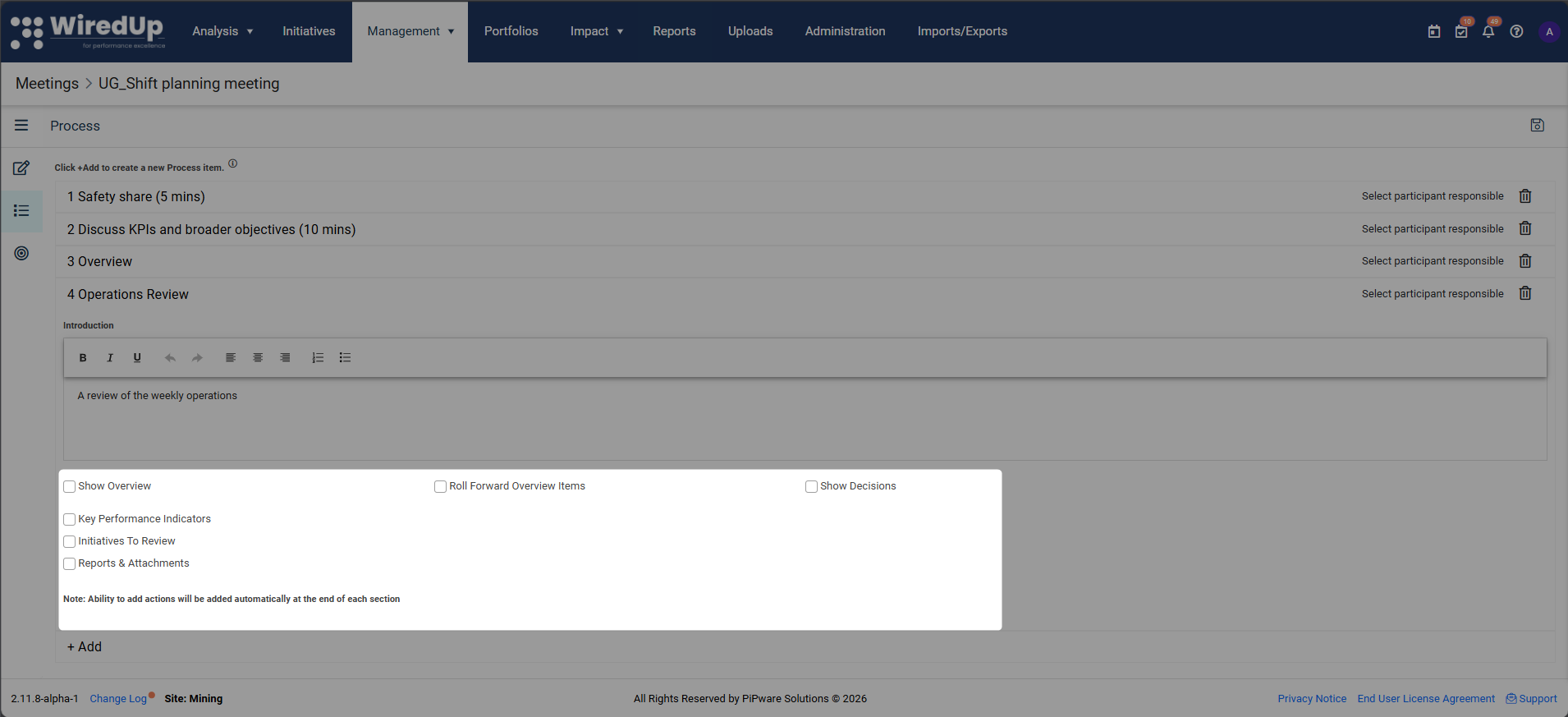
- Show Overview: Display a summary or overview section
- Roll Forward Overview Items: Carry over overview items from the previous meeting instance
- Show Decisions: Include a section for capturing decisions made during the meeting
- Key Performance Indicators: Add KPIs to track performance metrics
- Ideas/Initiatives To Review: Include ideas for discussion and evaluation
- Reports & Attachments: Add reports and supporting documents
- Check the boxes to include specific sections in this process:
Reordering Process Sections
You can customize the order in which process sections appear in your meeting to match your team's meeting flow:
- In the "Select Sections to Include" area, use drag and drop to reorder the major process sections
- Click and hold on a section, then drag it to your desired position
- The reorderable sections are:
- Overview
- Key Performance Indicators
- Ideas/Initiatives To Review
- Reports & Attachments
- The configured order will apply to all meetings in this series
- Disabled sections retain their position, so if you enable them later, they will appear in the same location
Note: The Decisions section remains part of the Overview section and is not separately reorderable.Note: An Actions section is automatically added to each process item, allowing you to capture and track action items.
Once you have configured all processes, click Save to finalize your meeting setup.Targets Section
Meeting Targets allow you to set measurable goals for your meeting series to track effectiveness and engagement over time.
What are Meeting Targets?
Meeting Targets are specific, measurable objectives that help you evaluate the success of your meetings. WiredUp tracks three key target areas:
- Compliance: Measures whether meetings are held as scheduled and completed on time
- Quality: Evaluates the effectiveness of meetings based on quality questions and outcomes
- Participation: Tracks attendance and engagement levels of participants
By setting targets, you can monitor meeting performance and identify areas for improvement.
Adding Meeting Targets
- Navigate to the Targets tab from the left menu. A default target row is automatically created with the meeting start date
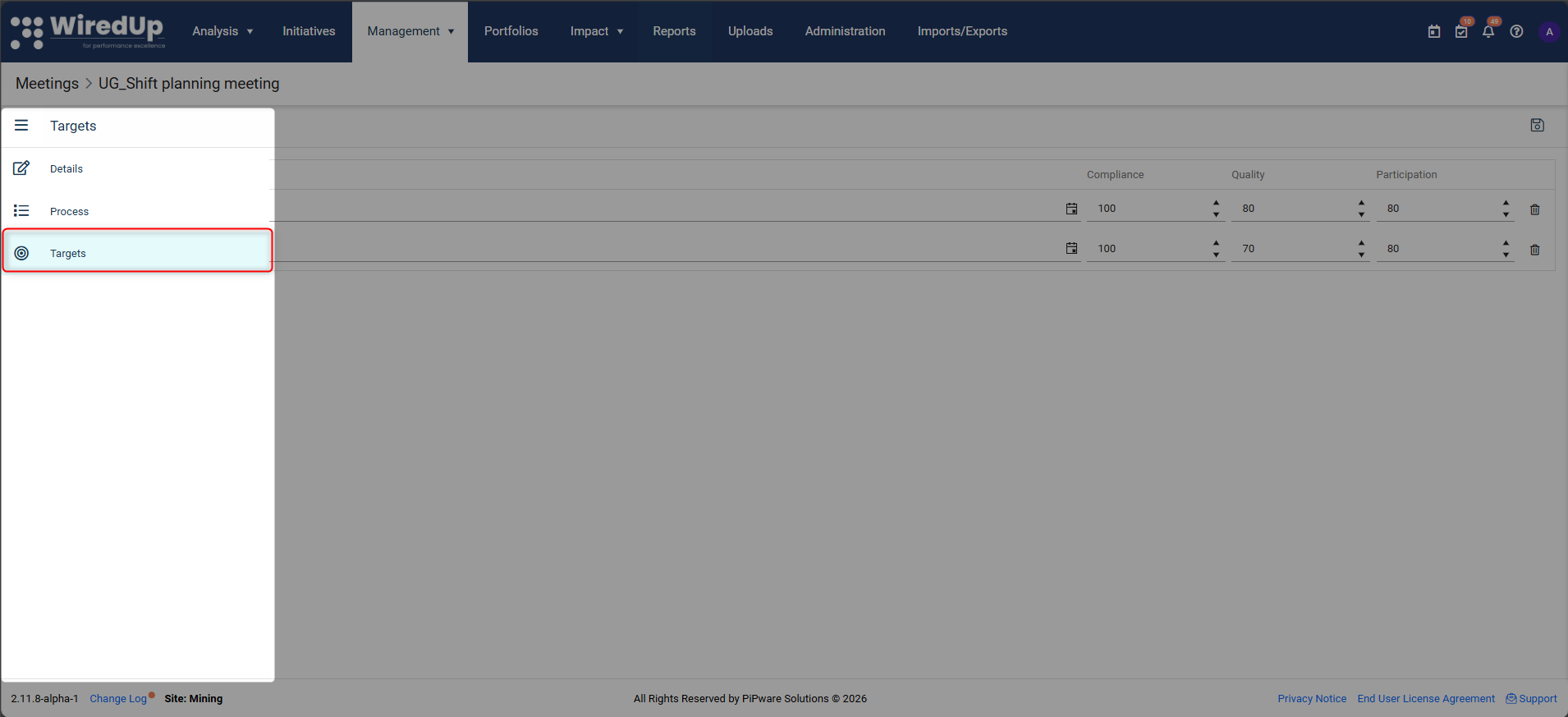
- Click +Add to create additional target dates if needed
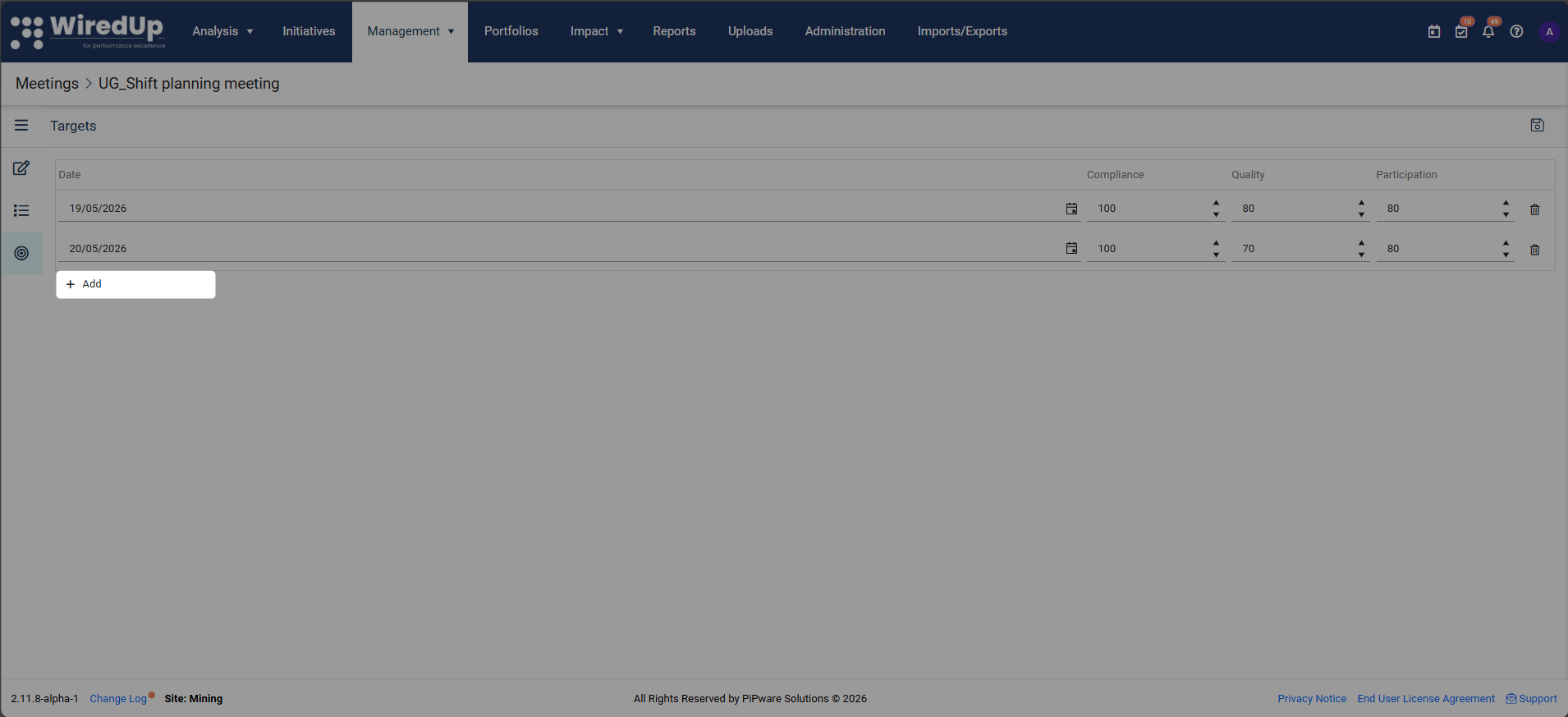
- For each target date, set the desired levels for:
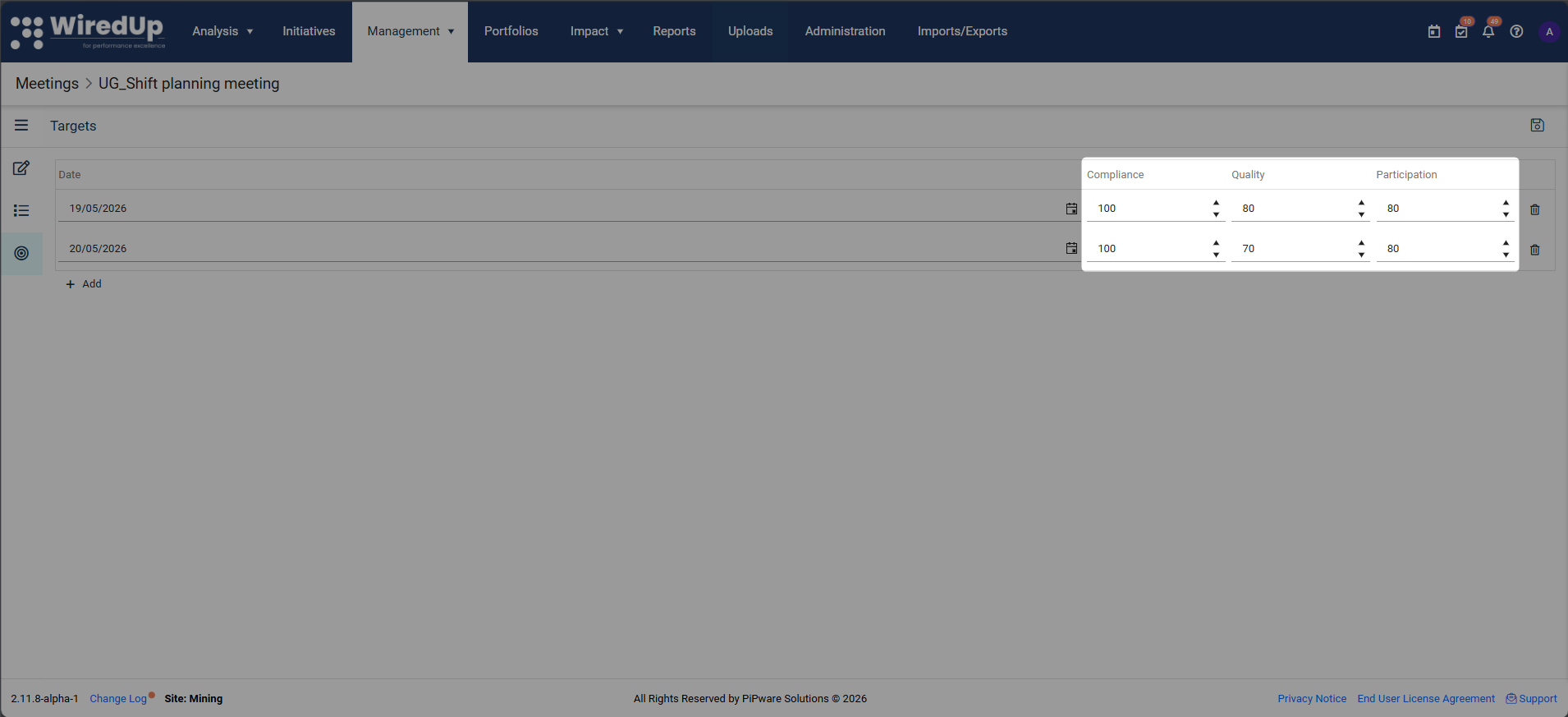
- Compliance: Use the dropdown to set the target compliance percentage
- Quality: Use the dropdown to set the target quality score
- Participation: Use the dropdown to set the target participation rate
- Click Save to finalize your targets

Targets will be evaluated after each meeting instance, allowing you to track progress and identify trends over time.
Saving and Sending the Meeting Invite
Once you have completed all sections:
- Click Save at the top right of the screen
- You will be prompted to choose whether to:
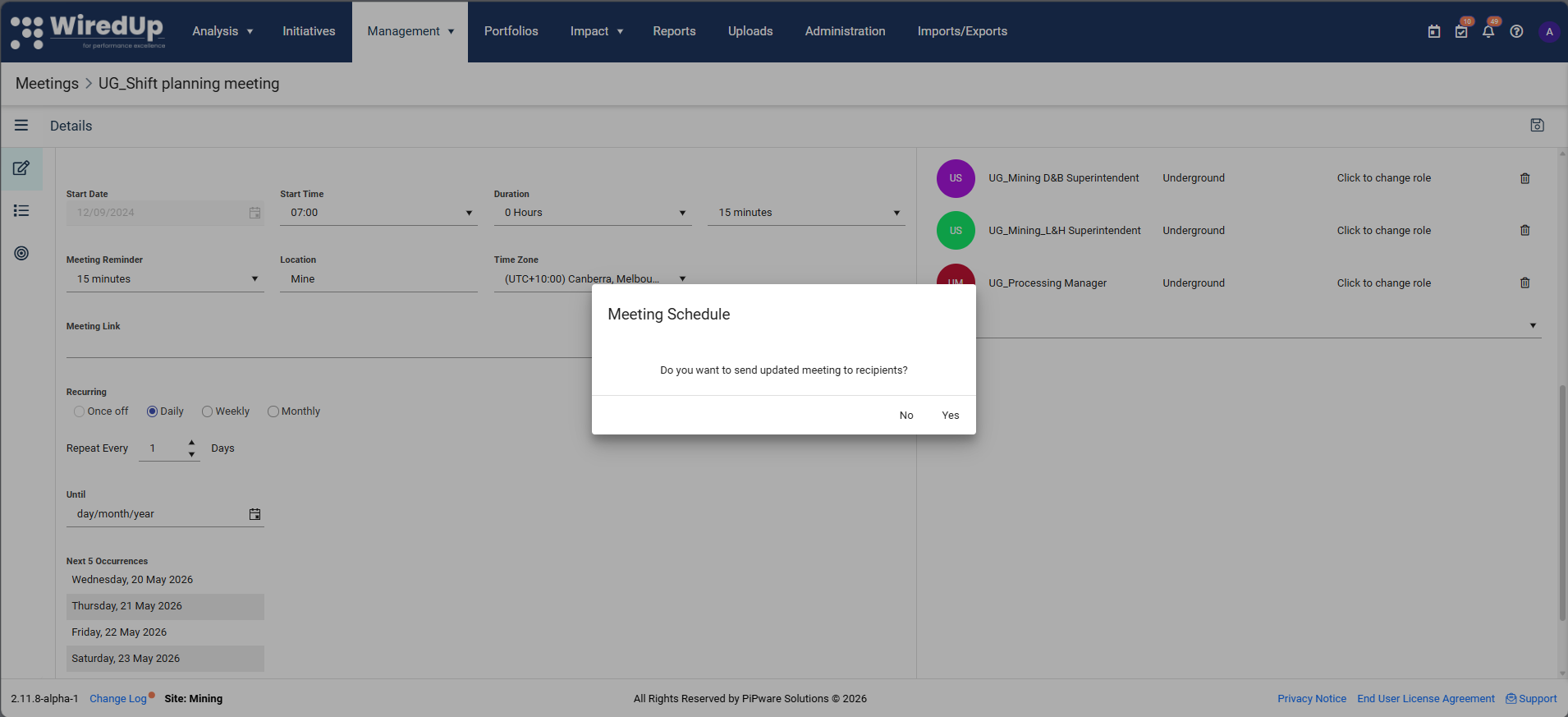
- Send the meeting invite now: Participants will immediately receive a calendar invite
- Send the invite later: You can send the invite after making additional changes
The meeting series is now created and will appear in your Meetings calendar according to the recurrence schedule you specified.
Next Steps
- Capture meeting details: Learn how to record meeting notes, actions, and outcomes
- Edit a meeting series: Make changes to meeting details, processes, or participants
- Manage meetings: View and organize your meetings in Schedule or Card view
- Create meeting categories: Set up custom categories in Administration
- Add meeting roles: Define custom roles for meeting participants