
In This Article
Searching, Navigating, and Viewing Reports
Configuring the Reports Landing Page
Overview
The Reports module in WiredUp is your central hub for accessing, organizing, and managing all reporting capabilities within the system. Accessed through the Reports Tab on the ribbon, this module provides a comprehensive collection of reports organized by feature set. You can search for specific reports, create custom report groups to organize reports according to your needs, and configure the landing page to display the reports most relevant to your role. Report access is controlled by user role permissions, ensuring that users only see reports appropriate to their responsibilities. The Reports module supports filtering, downloading, and switching between report versions for maximum flexibility.
To access the Reports module, click on the Reports tab located on the ribbon at the top of the screen. This will open the Reports landing page displaying all available reports organized by sections.
Searching, Navigating, and Viewing Reports
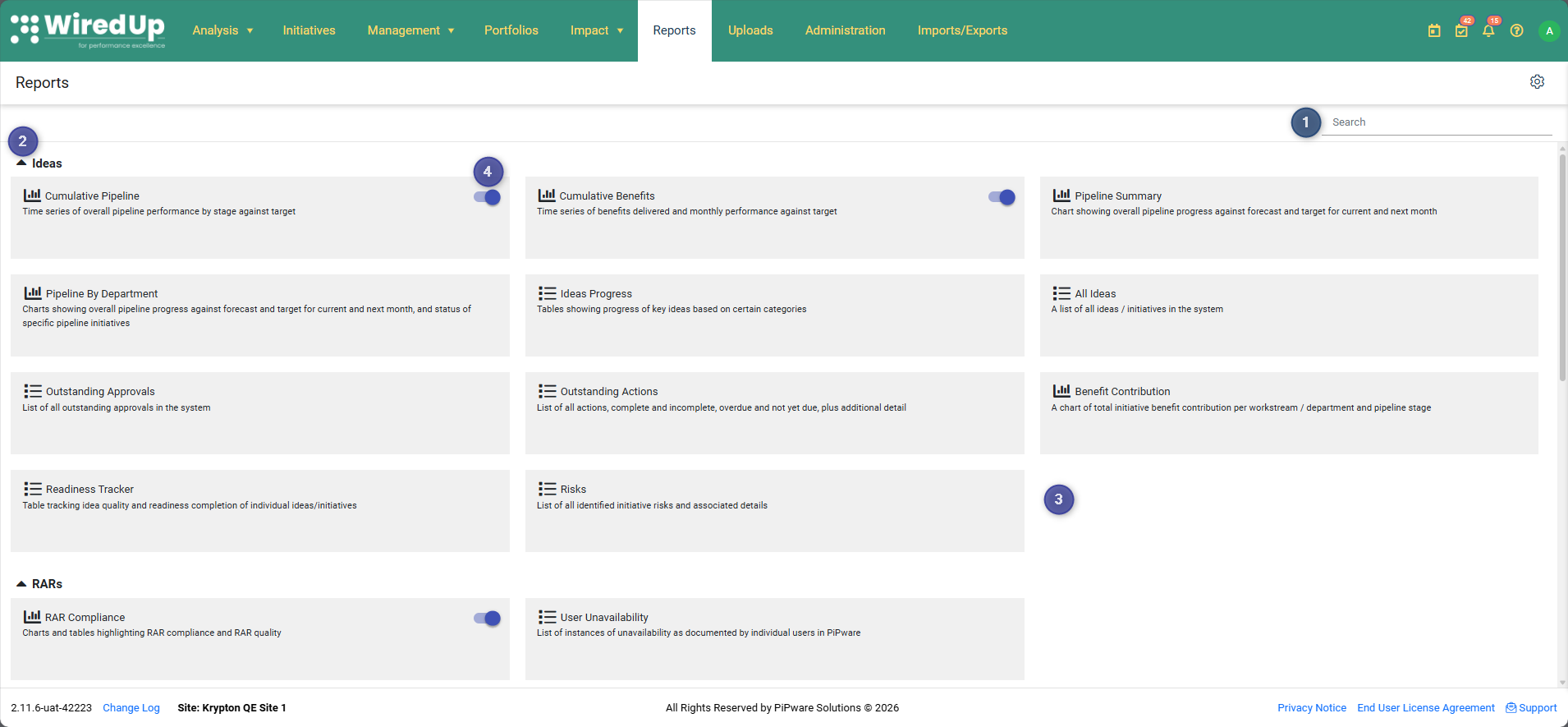
- Search for a specific report by typing the name in the Search bar
- Click on the expand/collapse arrow to display or minimize the list of reports within each section
- Click on any report from the list to open it
- Some reports offer a "Show New Report" toggle to switch between new and old versions of the report
Configuring the Reports Landing Page
On the Reports landing page, locate and click the Configure button to enter configuration mode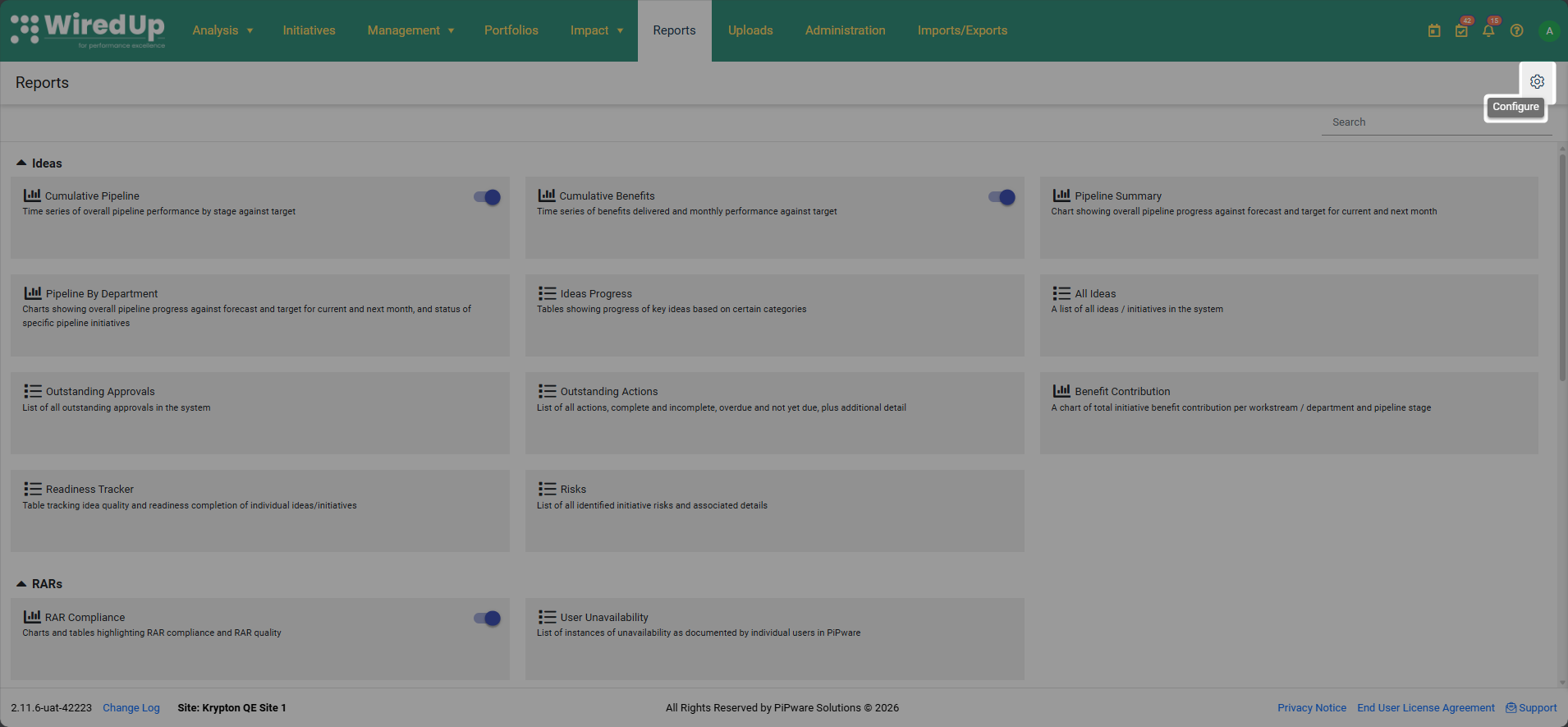
Show Default Reports
- If the Show default reports button is enabled, the landing page will display all standard reports in the system
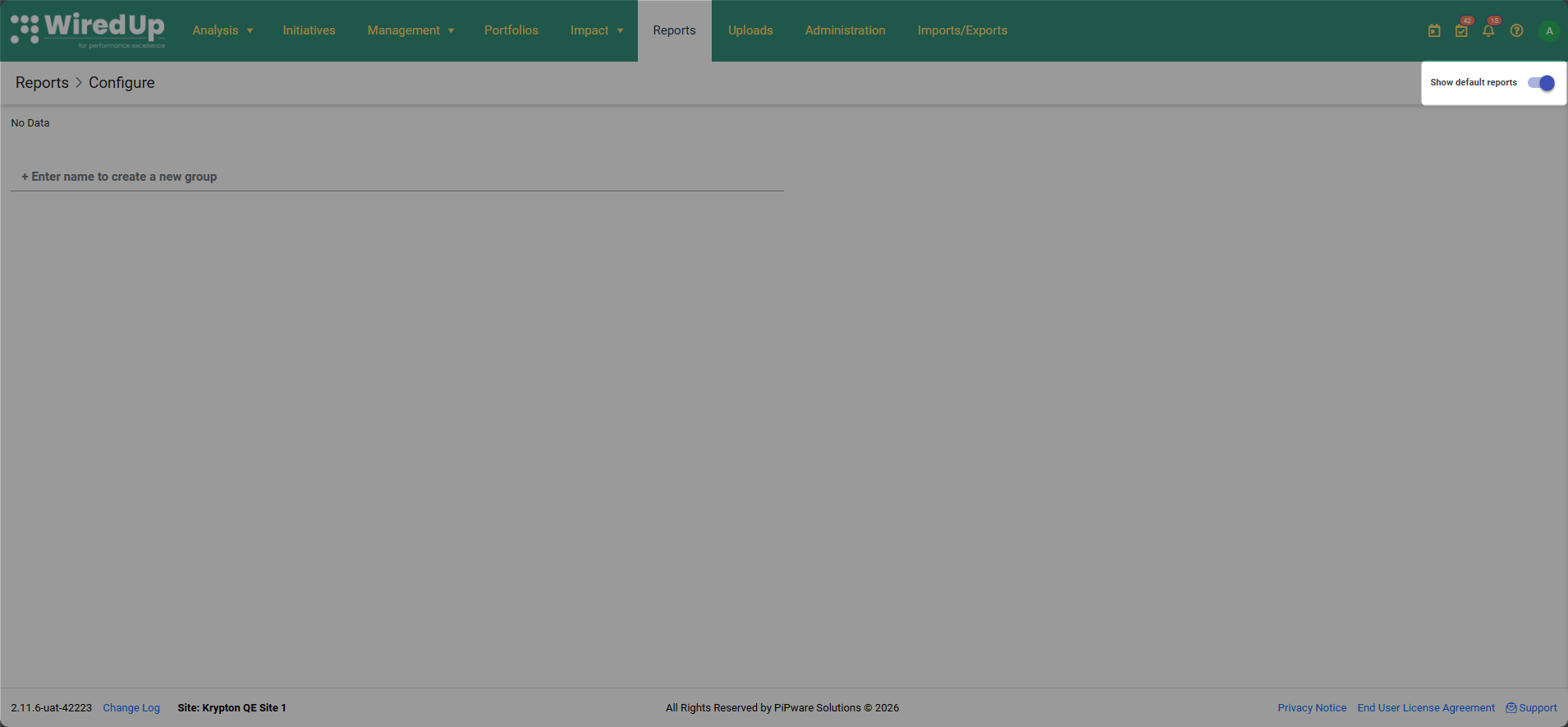
Adding a Custom Report Group
To add a custom report group to your report landing page:
- Enter a name for your new custom report group and press Enter.
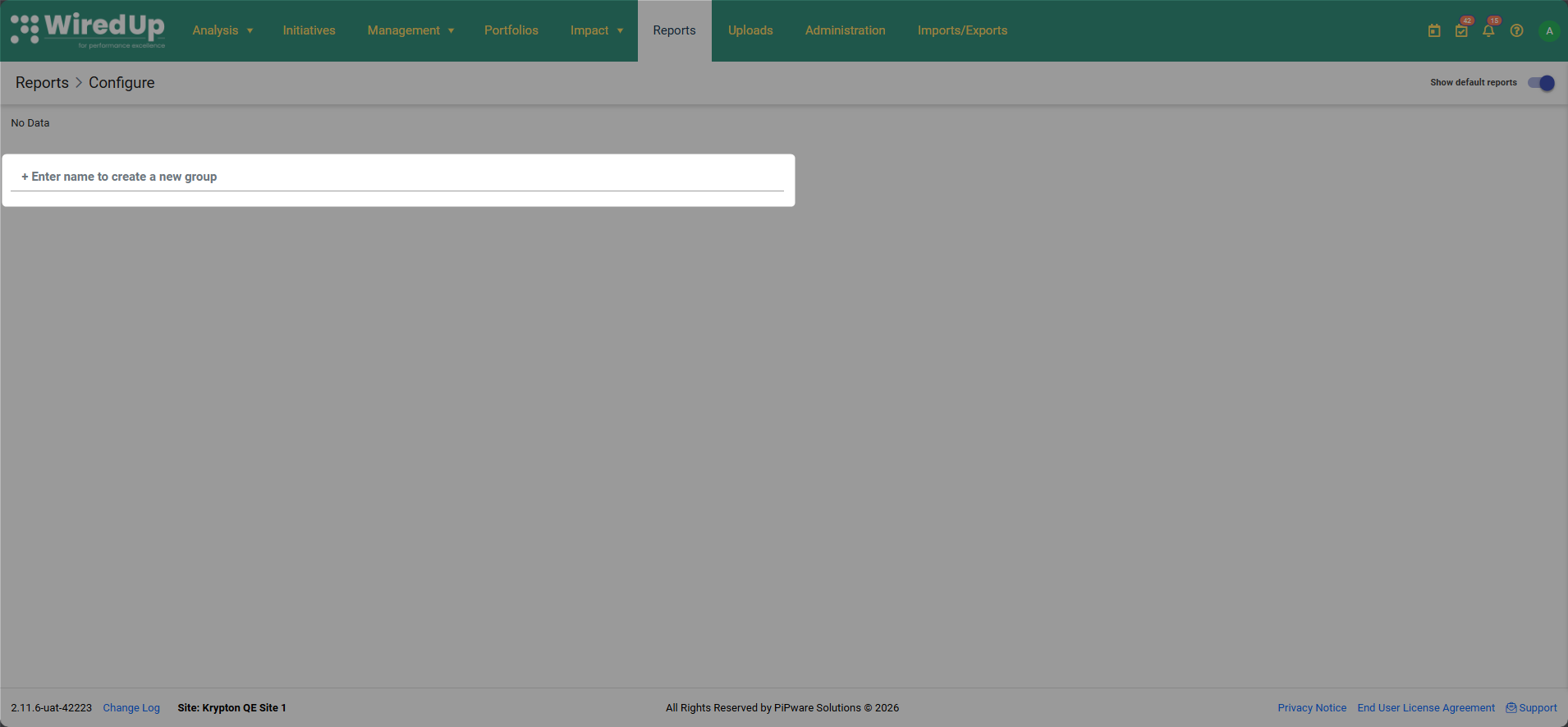
- Select the reports you want to include from the list by clicking on the report name displayed. You can remove the dashboard from the group by selecting the 'Remove' icon.
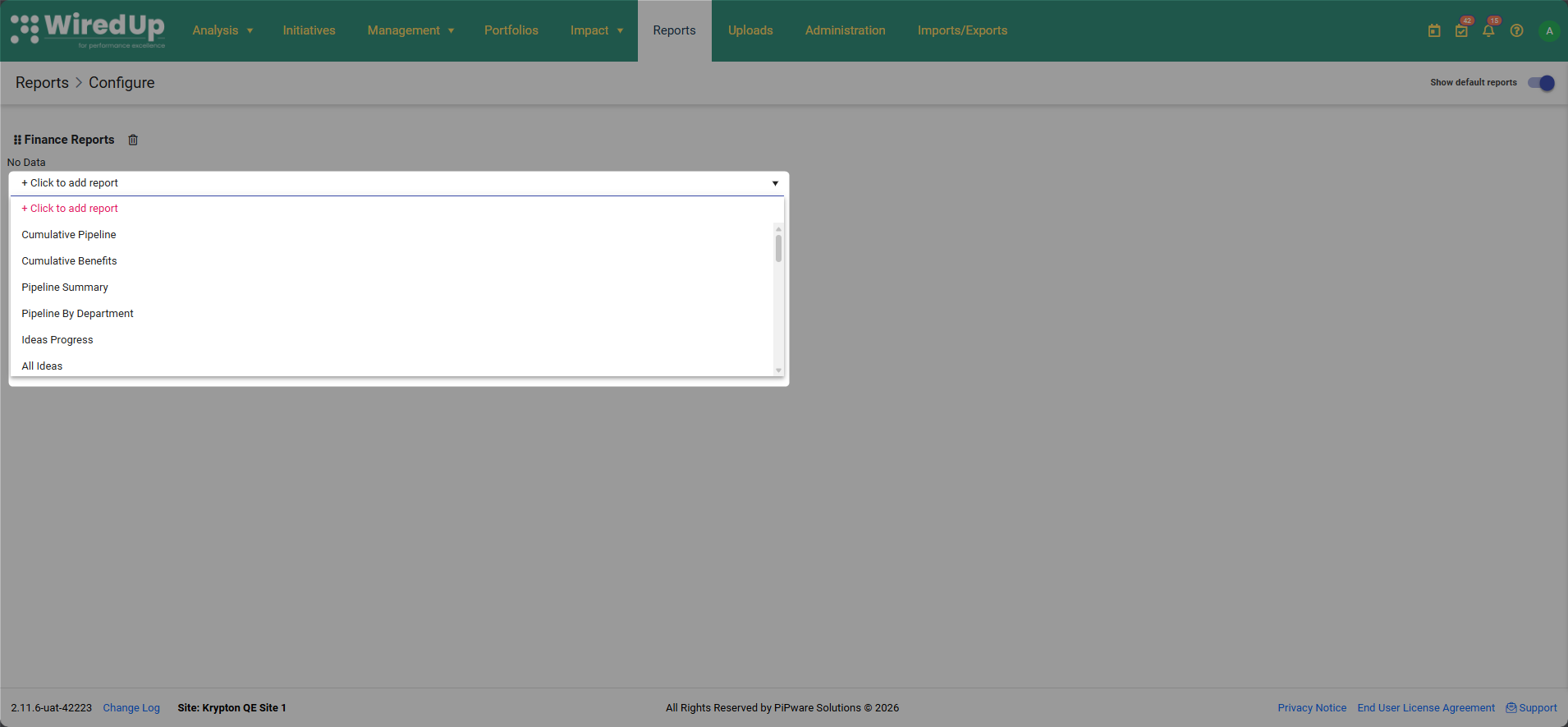
- Your custom group will now be displayed on the Reports landing page. You can add and configure as many custom report groups as desired.
If you cannot view any or some reports, it may be due to insufficient role permissions. Contact your administrator to request access to specific reports. After permission changes, you may need to clear your cache and log in again to view the selected report(s).Recommendations
- Create custom report groups to organize reports by department, function, or frequency of use
- Use descriptive names for custom report groups to make them easy to identify
- Use the search function to quickly locate specific reports instead of scrolling through sections
- Collapse sections you don't frequently use to keep your Reports landing page organized
- If you need access to additional reports, contact your administrator to request permission updates