
In This Article
Accessing RAR Compliance Rules
Understanding RAR Compliance Rules
Configuring RAR Compliance Rules
How Rule Order Affects Compliance Status
Overview
RAR Compliance Rules allow administrators to configure the criteria used to measure and monitor the compliance status of RARs across your WiredUp site. These rules help ensure that RARs meet quality standards by tracking key compliance factors such as quality answers, meeting attendance, and distribution status.
This article explains how to access RAR Compliance Rules, configure the available compliance criteria, set fail statuses, and understand how these rules affect RAR compliance reporting.
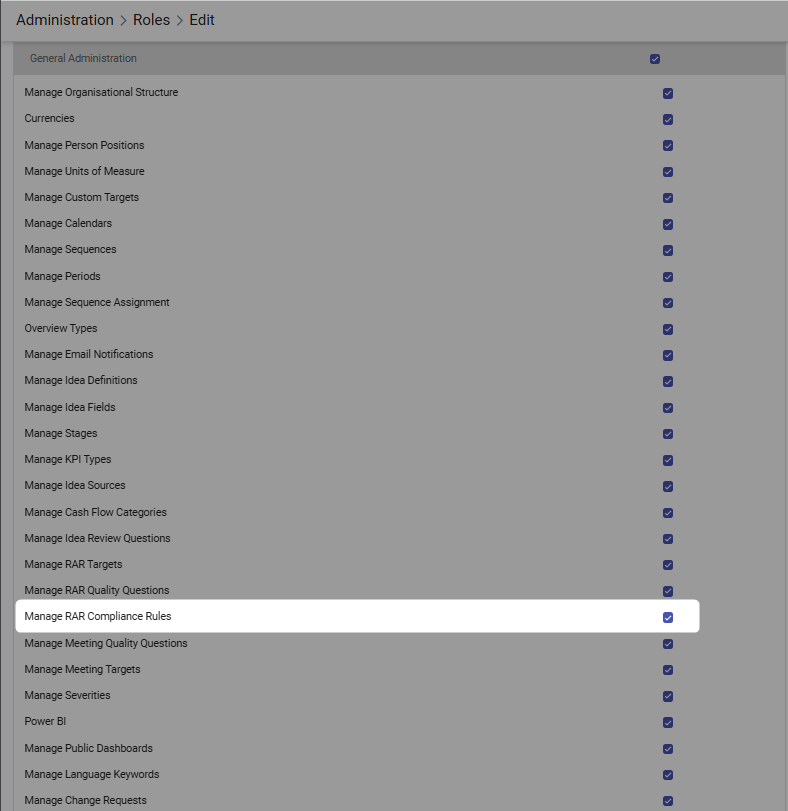
To configure RAR Compliance Rules, users must have the "Manage RAR Compliance Rules" permission enabled in their role settings. This permission is configured by administrators in the Administration > Roles > Edit section.
Accessing RAR Compliance Rules
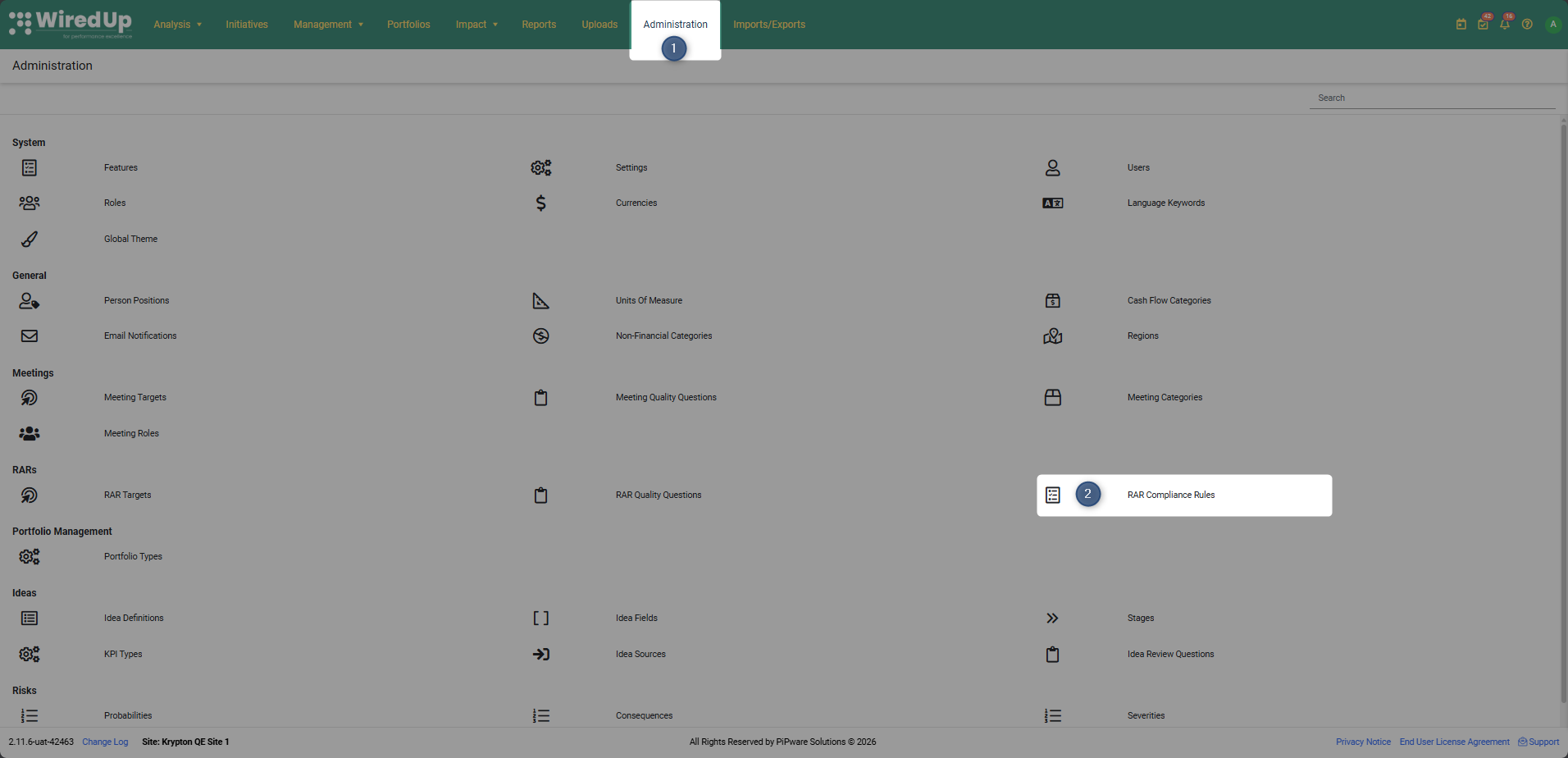
- Navigate to Administration in the top ribbon
- Under the RAR section, click on RAR Compliance Rules
- The RAR Compliance Rules configuration screen will open, displaying existing rules
Understanding RAR Compliance Rules
RAR Compliance Rules use specific criteria to measure the status of RARs. The system provides four compliance rule options that can be configured based on your organization's requirements:
- Incomplete Quality Answers - Monitors whether all quality questions have been answered
- Negative Quality Answers - Tracks the number of quality questions with negative responses
- Meeting did not take place - Checks whether the RAR meeting occurred
- Distributed - Verifies whether the RAR was distributed to stakeholders
Important: Not all rules need to be used. You can select and configure only the rules that are relevant to your organization's compliance requirements.
Configuring RAR Compliance Rules
Adding a New Compliance Rule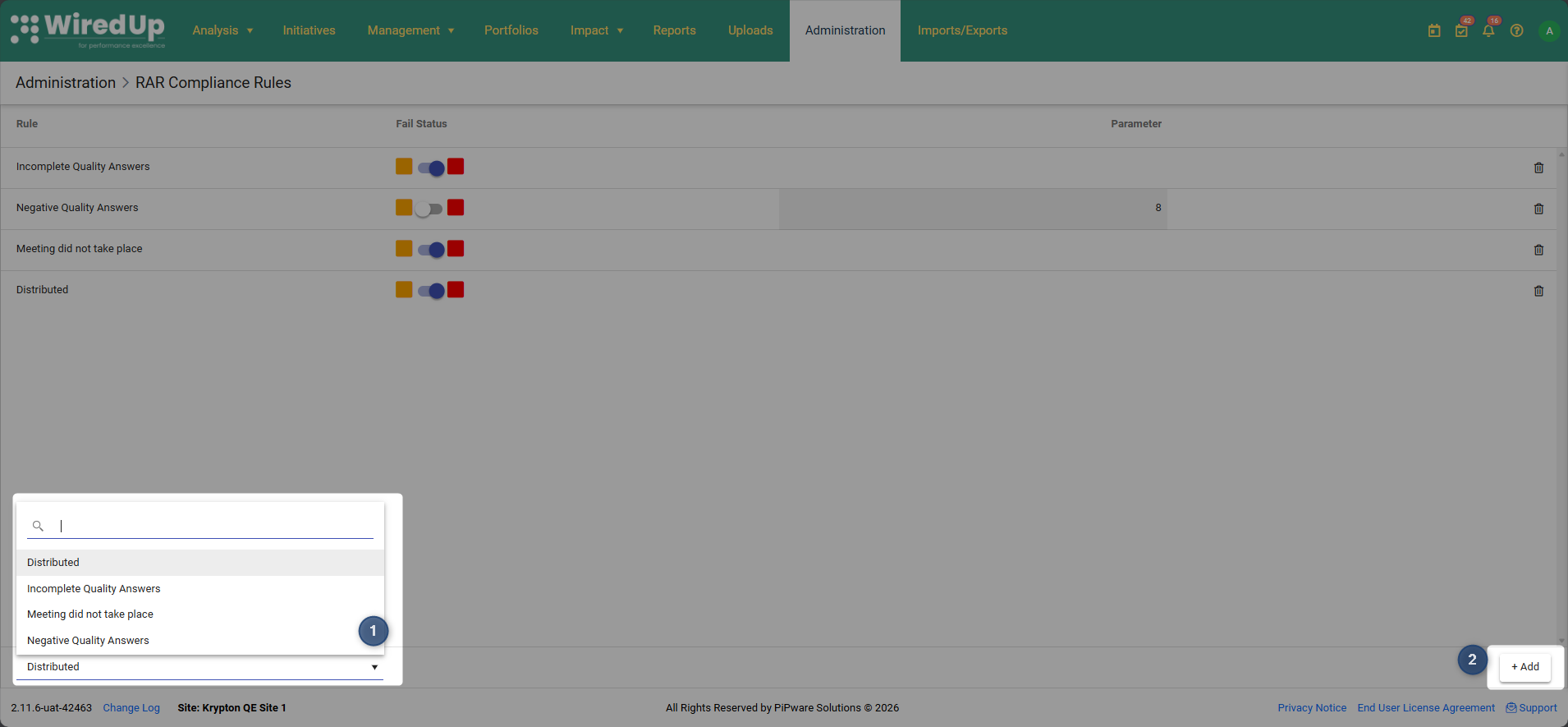
- From the RAR Compliance Rules screen, select a rule from the dropdown menu at the bottom of the page
- Click the +Add button to add the selected rule to your active compliance rules
- The rule will appear in the list with configurable options
Setting Fail Status
For each compliance rule, you can configure the Fail Status that will be displayed when the rule is not met: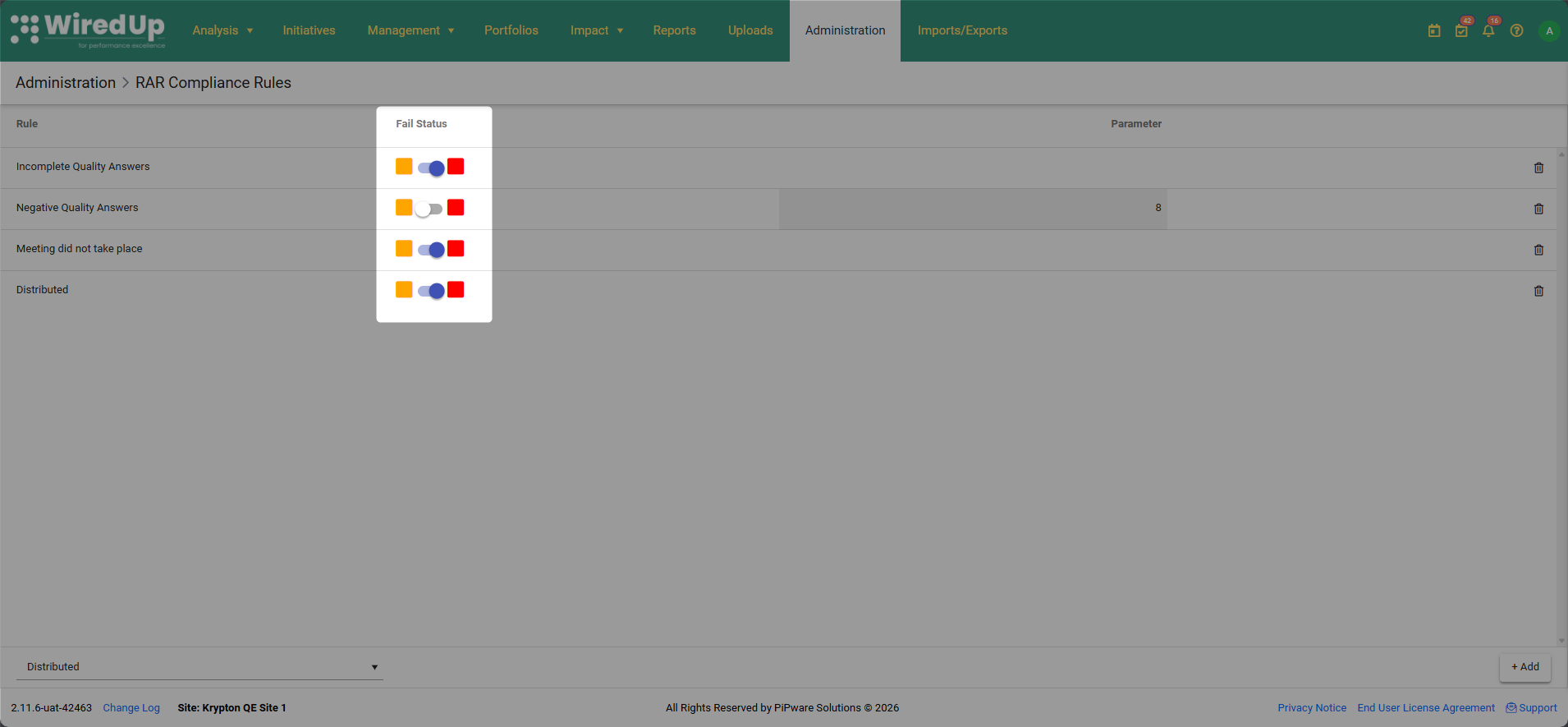
- Amber (Orange) - Indicates a warning or moderate compliance issue
- Red - Indicates a critical compliance failure
To set the fail status:
- Click on the colored status indicators in the Fail Status column
- Select the appropriate color (Amber or Red) for the compliance failure
- The selected color will be displayed on the RAR Compliance Report when this rule is not met
Setting Parameters
Some compliance rules have the option of setting parameter values: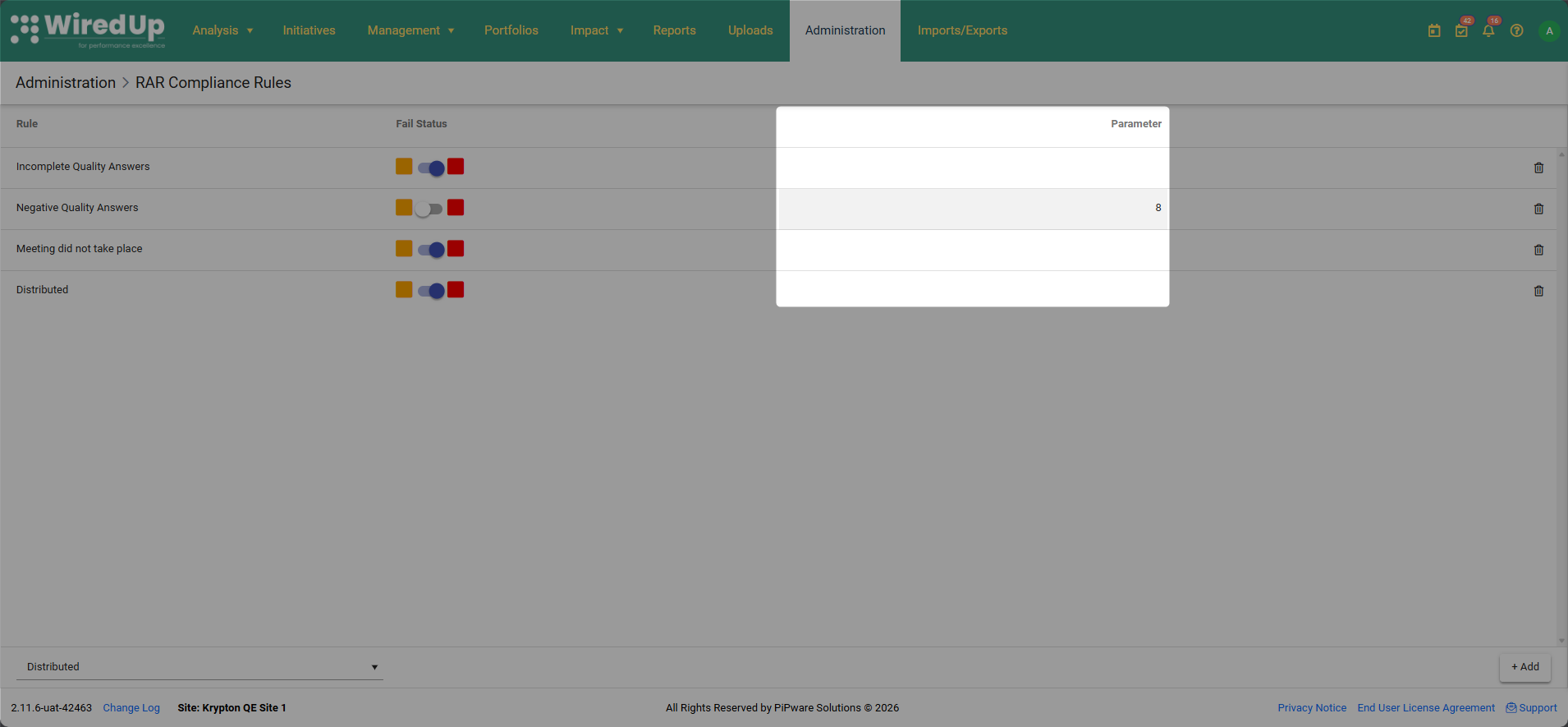
- Negative Quality Answers: Enter the minimum number of questions that can have a negative answer before the rule fails. For example, if you set the parameter to "8", the RAR will fail this compliance rule if 8 or more quality questions have negative answers.
Deleting a Compliance Rule
To remove a compliance rule from your configuration: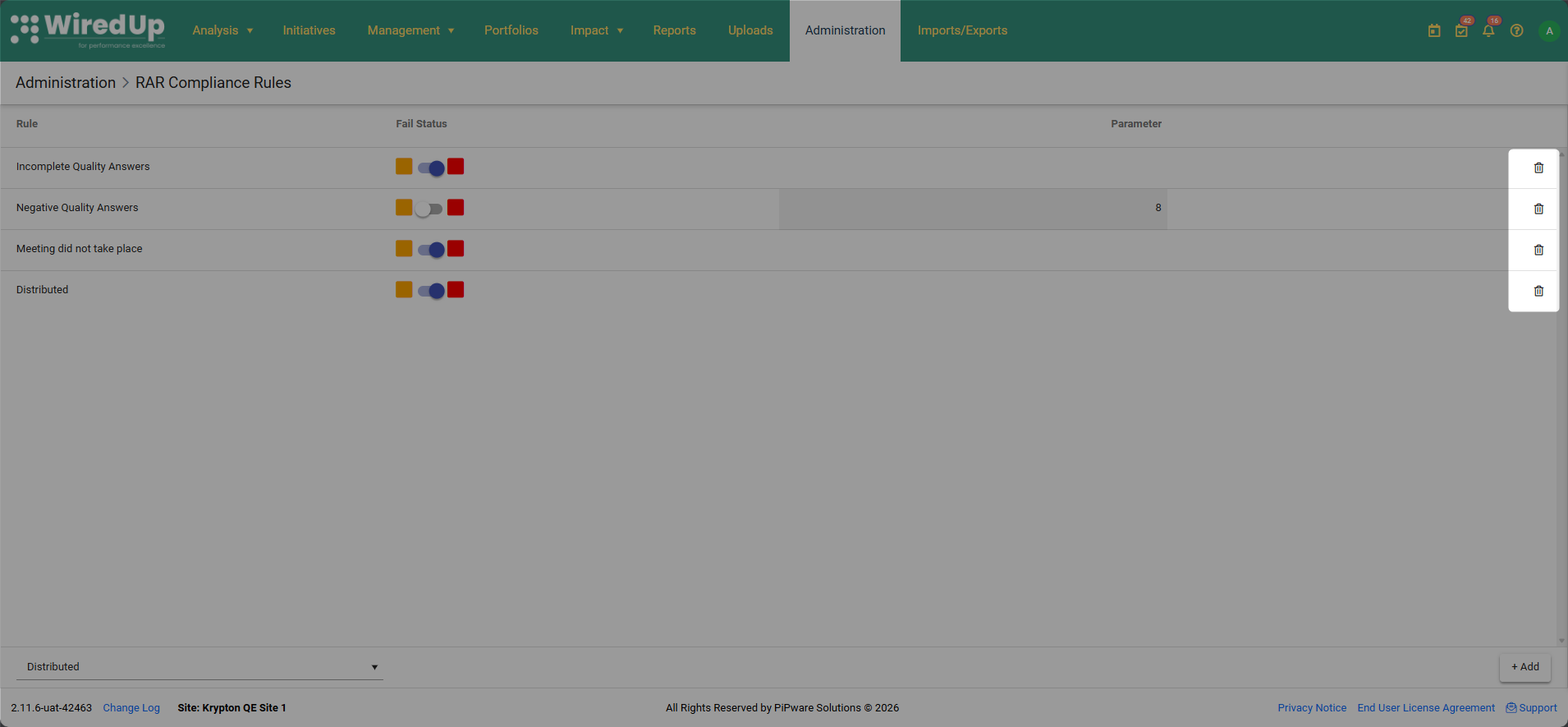
- Click the bin icon on the right side of the rule you want to delete
How Rule Order Affects Compliance Status
Important: The order in which compliance rules are configured affects how the overall RAR compliance status is determined. Rules are evaluated in the order they appear in the list.
Scenario Example
If you configure the rules as follows:
- Distributed status set to Amber
- Meeting did not take place status set to Red
The compliance status will be determined as:
- Compliance set as Red if: RAR did not take place, regardless of distributed status
- Compliance set as Amber if: RAR did not get distributed AND the meeting took place
- Compliance set as Green if: RAR was distributed AND the meeting took place
This hierarchy ensures that more critical compliance issues (like meetings not taking place) take precedence over less critical issues (like distribution status).
RAR Compliance Reporting
Once RAR Compliance Rules are configured, they are automatically applied to the RAR Compliance Report. The report will display:
- Green status: RAR meets all compliance rules
- Amber status: RAR fails one or more rules configured with amber fail status
- Red status: RAR fails one or more rules configured with red fail status
The fail status colors you configure in the RAR Compliance Rules will be reflected in the RAR Compliance Report, making it easy to identify which RARs require attention.
For more infomation on how the RAR Compliance is calculated, please see this article: RAR compliance and quality and how are they calculated : WiredUp
Best Practices
- Start with Critical Rules: Configure the most critical compliance rules first (e.g., "Meeting did not take place") and assign them red fail status
- Use Amber for Warnings: Assign amber fail status to rules that indicate issues but are not critical failures
- Set Realistic Parameters: When configuring parameters for negative quality answers, set realistic thresholds based on your total number of quality questions
- Review Rule Order: Carefully consider the order of your rules, as this affects how compliance status is determined
- Regular Review: Periodically review your compliance rules to ensure they remain aligned with your organization's quality standards