
In This Article
- Step 1: Navigate to the KPI List
- Step 2: Create a KPI
- Step 3: Add Values to the KPI
- Step 4: Add the KPI to the Value Driver Tree
Using Calculated KPIs (Optional)
Overview
At this stage, you have created the Value Driver Tree structure and defined how values should roll up through calculations. You have also selected a Value Driver Tree definition, which controls the fields and views displayed on each node. However, no numerical values are displayed yet.
This is expected. The Value Driver Tree definition created defines what data fields exist (for example, Actual, Target, and Baseline). KPIs provide the values for those fields.
When a KPI is added to the tree as a KPI node, its values are displayed on the node and used in calculations. Calculation nodes roll up values from their child nodes, while KPI nodes sit at the lowest level of the tree and act as the source of numerical data. Without KPI nodes, calculations cannot resolve to numbers.
All KPI-related actions are managed from the KPI area of WiredUP.
Creating a KPI
Step 1: Navigate to the KPI List
- From the main navigation, select Analysis > KPIs
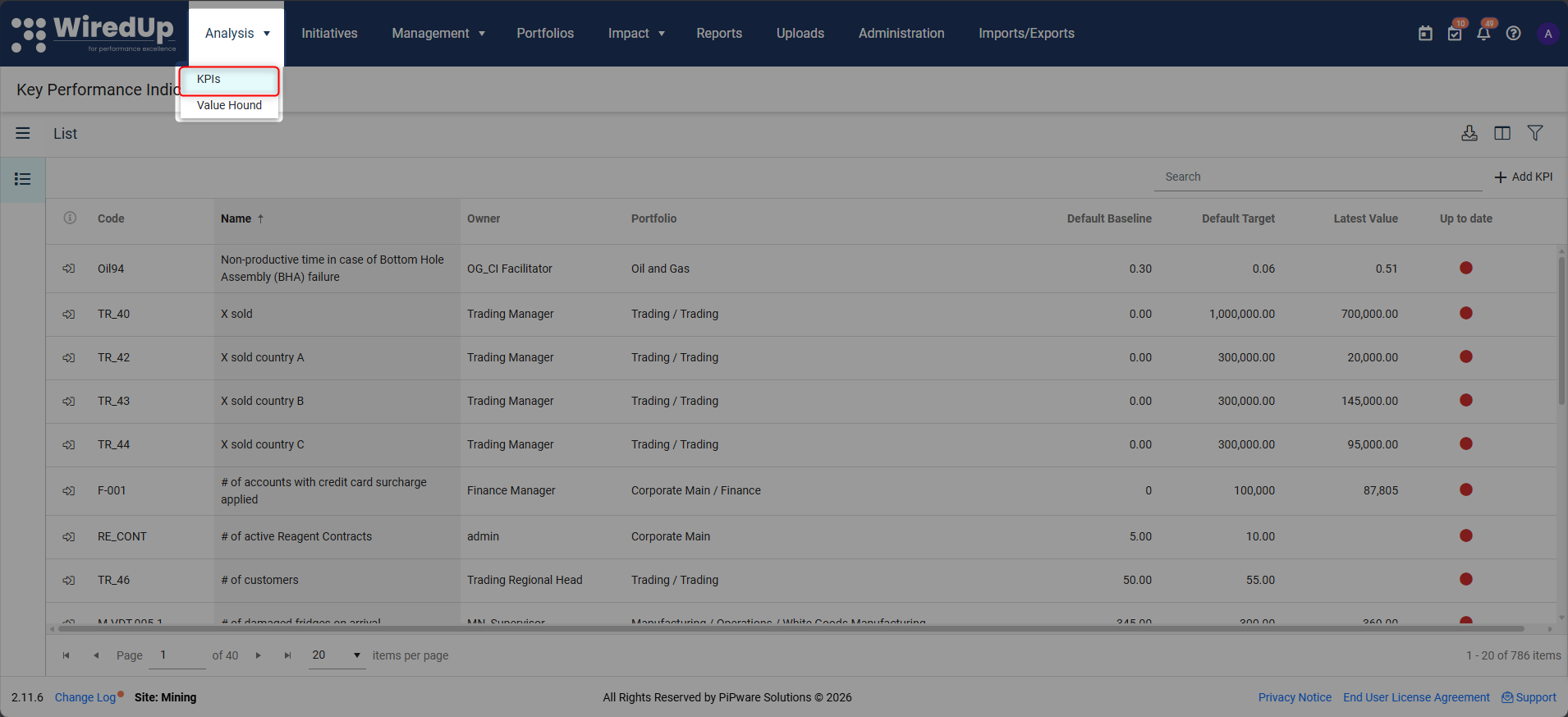
- This opens the KPI List, which displays all KPIs available in the environment. From this screen, you can create new KPIs, view existing KPIs, and open KPIs to enter or edit values.
Step 2: Create a KPI
Before a KPI can be added to a Value Driver Tree, it must exist in the KPI library.
- Select + Add KPI.
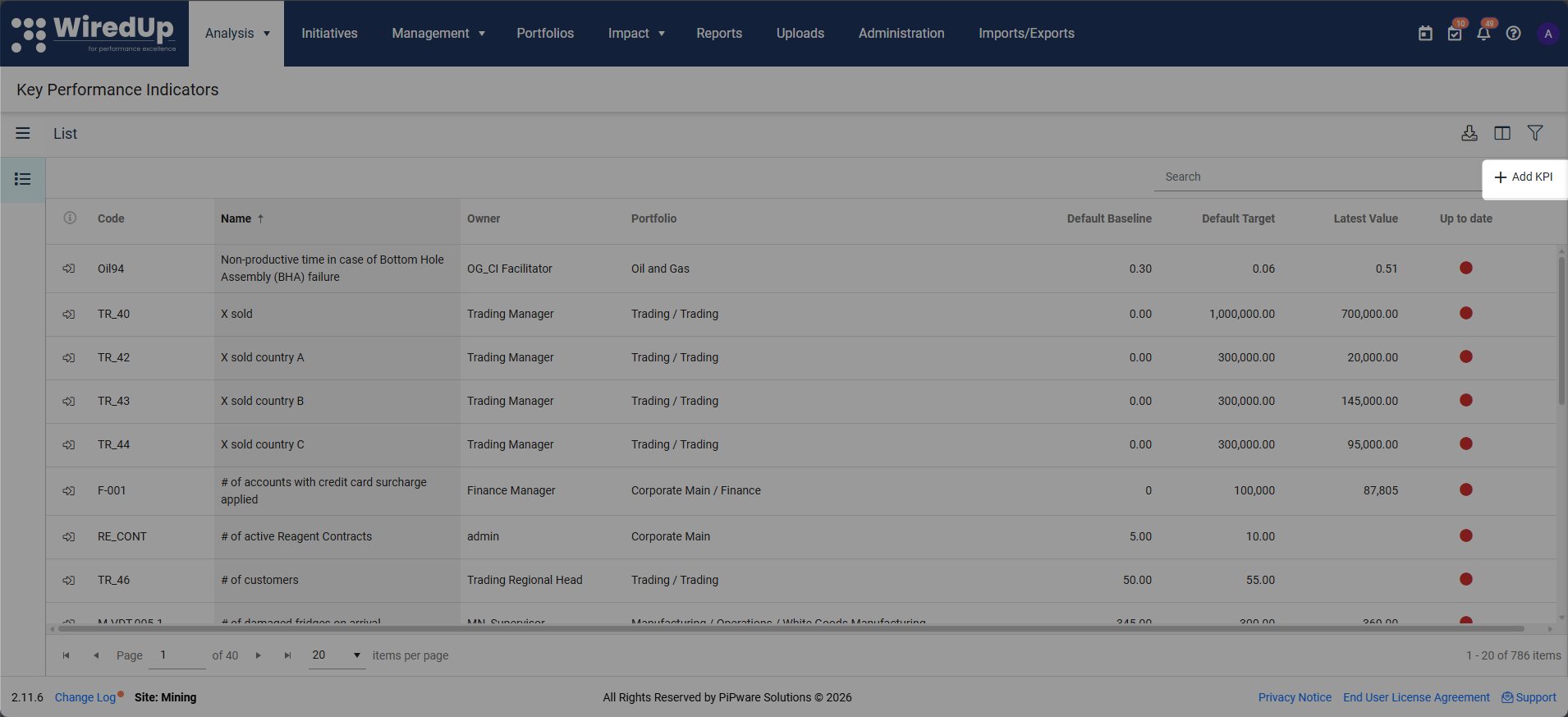
- Enter the KPI details:
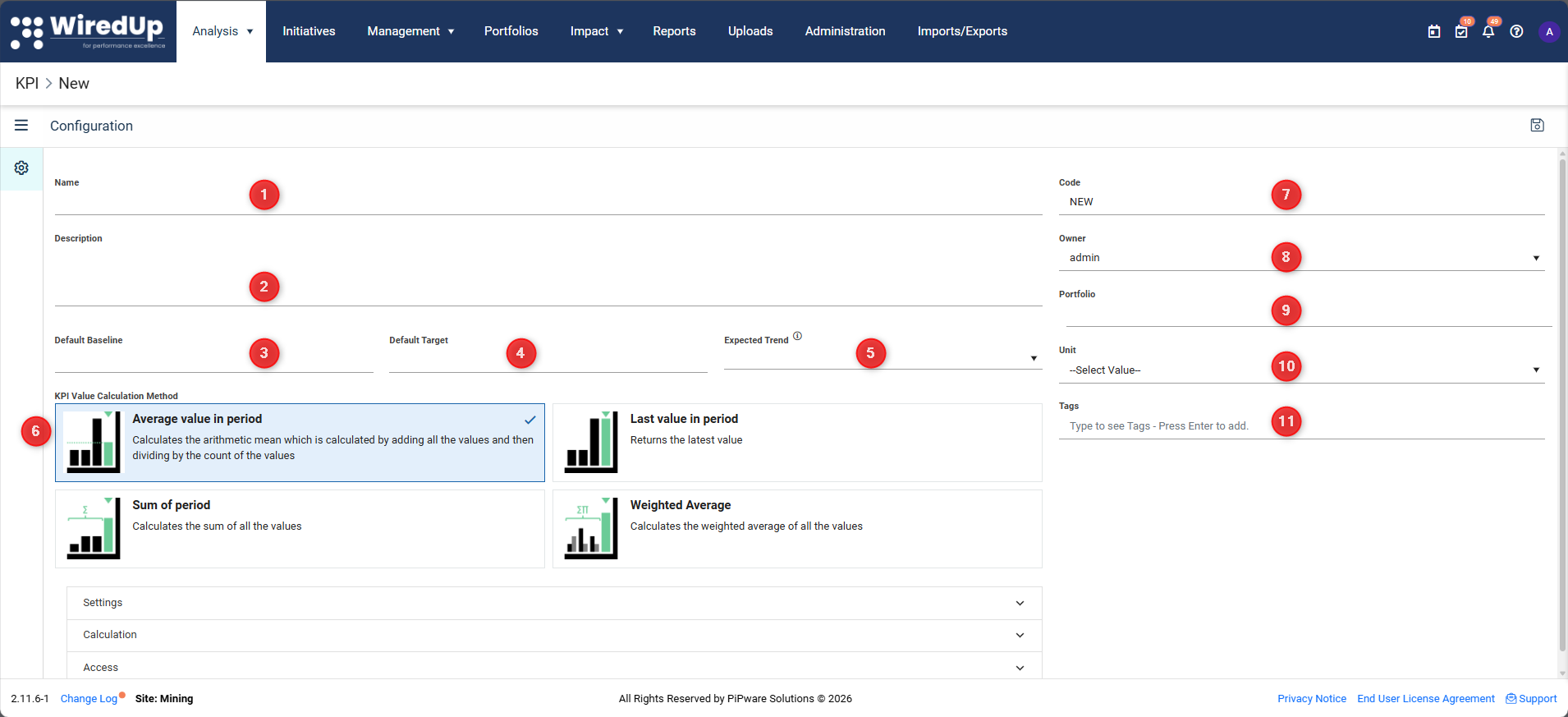
- Name – Enter a clear, descriptive name for the KPI
- Description – Provide a short explanation of what the KPI measures and why it matters
- Default Baseline – Enter the starting or reference value for the KPI
- Default Target – Enter the expected performance level for the KPI
- Expected Trend – This is set automatically based on the baseline and target values (Baseline > Target indicates a downward trend; Baseline < Target indicates an upward trend)
- KPI Value Calculation Method – Select how KPI values should be calculated over the selected period
- Code – Enter or auto-generate a unique identifier for the KPI
- Owner – Confirm or update the KPI owner (defaults to the KPI creator)
- Portfolio – Assign the KPI to a portfolio for organisation and reporting
- Unit – Select the unit of measure for the KPI (for example, currency or physical units). Units are configured in the Administration module
- Tags – Optionally add tags to help categorise and search for the KPI
- Save the KPI.
The KPI is now available for use across Value Driver Trees.
Step 3: Add Values to the KPI
Once a KPI is created, values must be entered before it will display numbers in a Value Driver Tree: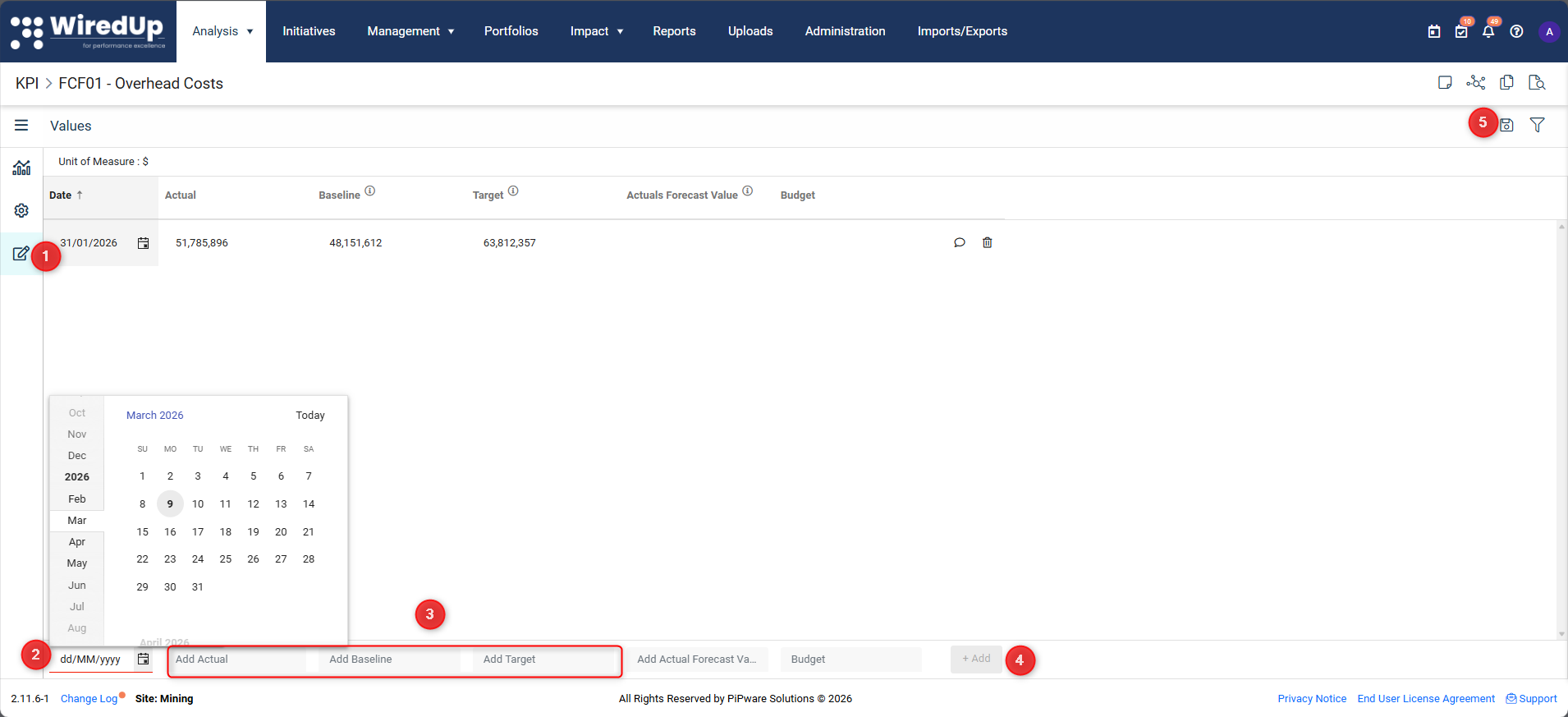
- Open the KPI from the KPI list and navigate to the Values tab on the left-hand pane
- Select the relevant date or period
- Enter values for the required fields (for example, Actual, Target, or Baseline)
- Add and save the values
These values will be used wherever the KPI appears in a Value Driver Tree.
Step 4: Add the KPI to the Value Driver Tree
After the KPI exists and contains values, it can be linked into the Value Driver Tree:
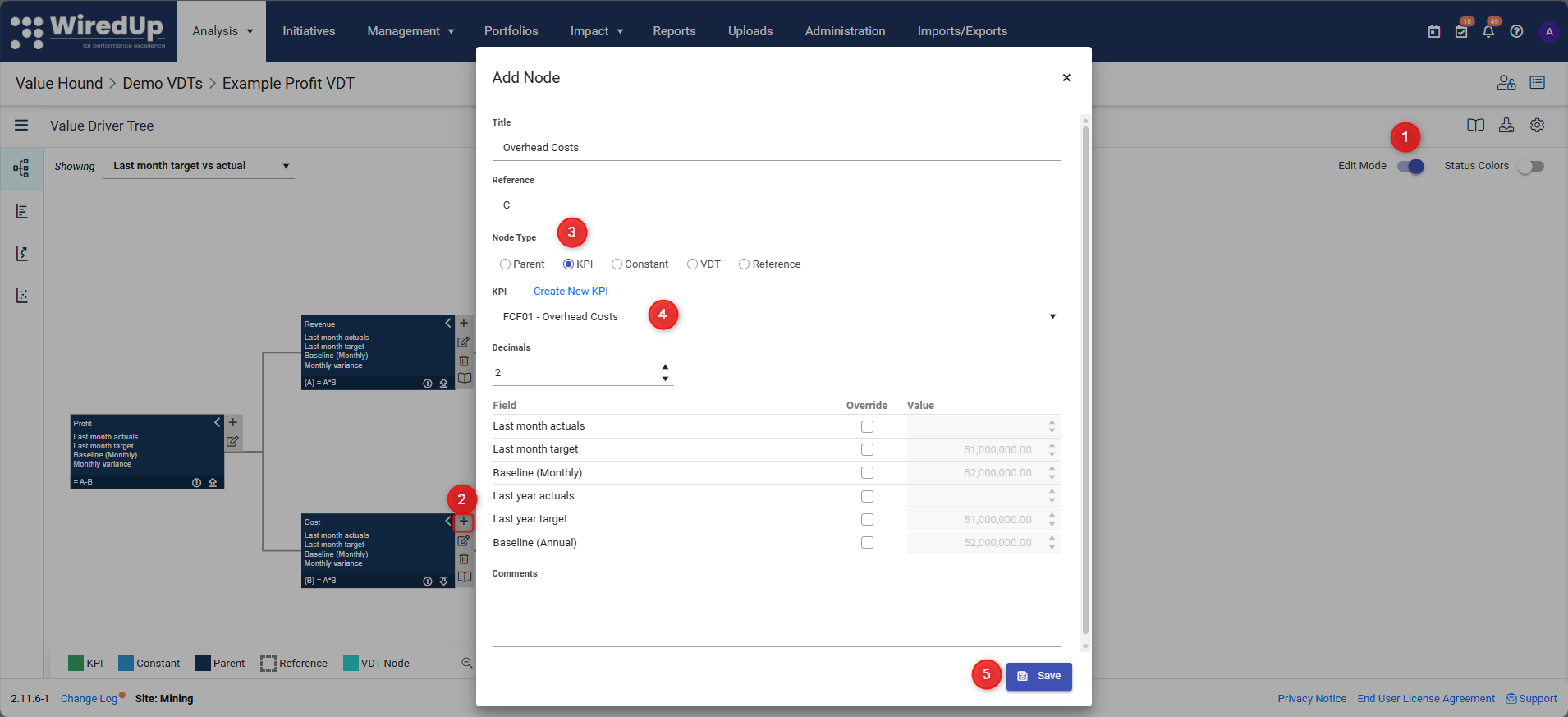
- Open the Value Driver Tree and enable Edit Mode
- Select the + icon on the relevant parent node
- Select KPI as the node type
- Choose the KPI from the list
- Save
Once added, the KPI node displays its values, and calculations resolve automatically through the tree based on the defined formulas.
Editing an Existing KPI
If you need to adjust a KPI after creation (for example, to change the performance period, update the formula, or revise access settings):
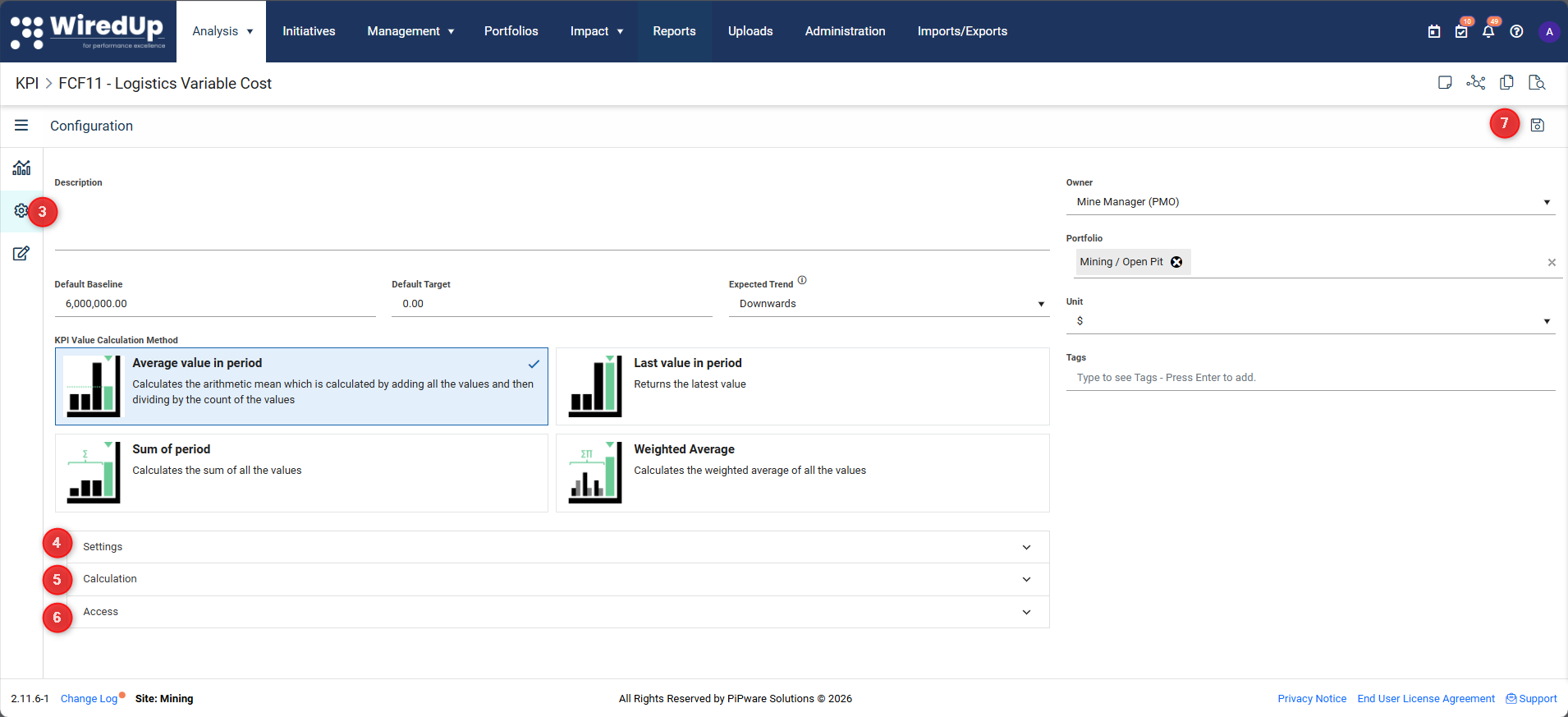
- Navigate to Analysis > KPIs
- Click the name of the KPI you want to modify
- Navigate to the Configuration toolbar
- Select Settings to update items such as baseline/target dates, performance period, decimal places, and chart display options
- Optionally use the Calculation section to create or update a calculated KPI
- Use the Access tab to modify who can view or edit the KPI
- Save any changes
Using Calculated KPIs (Optional)
In some cases, a KPI may be calculated using values from other KPIs rather than entered directly. These are known as calculated KPIs.
Calculated KPIs are configured at the KPI level and use formulas to derive values before they are added to a Value Driver Tree.
Calculated KPIs should be used when:
- The calculation represents a standalone metric
- The logic should be reused across multiple Value Driver Trees
- The calculation belongs with the data rather than the tree structure
In most cases, calculation logic should be implemented in the Value Driver Tree rather than in a KPI. This keeps driver relationships transparent and easier to maintain.
Calculated KPIs can be created or updated from the KPI configuration screen under Calculation and are added to the Value Driver Tree in the same way as standard KPIs.
What Happens Next?
At this stage, you have populated your Value Driver Tree with KPI data.
Your VDT now:
- Includes KPI nodes as the source of numerical values
- Displays Actual, Target, and Baseline values based on the selected definition and view
- Calculates results automatically through the tree using the defined formulas
You may notice that the structure, logic, and data are now complete. In the next article, we will show you how to store a Value Driver Tree in the VDT library so it can be reused across analyses and initiatives.
Next Steps
To learn how to save and reuse your Value Driver Tree, see: