
In This Article
- This Month
- Last Month
- This Quarter
- Last Quarter
- YTD (Year-to-Date)
- Last Year
- Yesterday
- This Week
- Last Week
- Custom
- Manual
Overview
When configuring fields in a Value Driver Tree (VDT) Definition, you can select different Period options that determine which time-based values are pulled from the linked KPIs and displayed in your VDT. Understanding how each period option works is essential for accurate reporting and analysis.
Available Period Options
The Period dropdown offers the following options:
Daily/Weekly/Monthly Options:
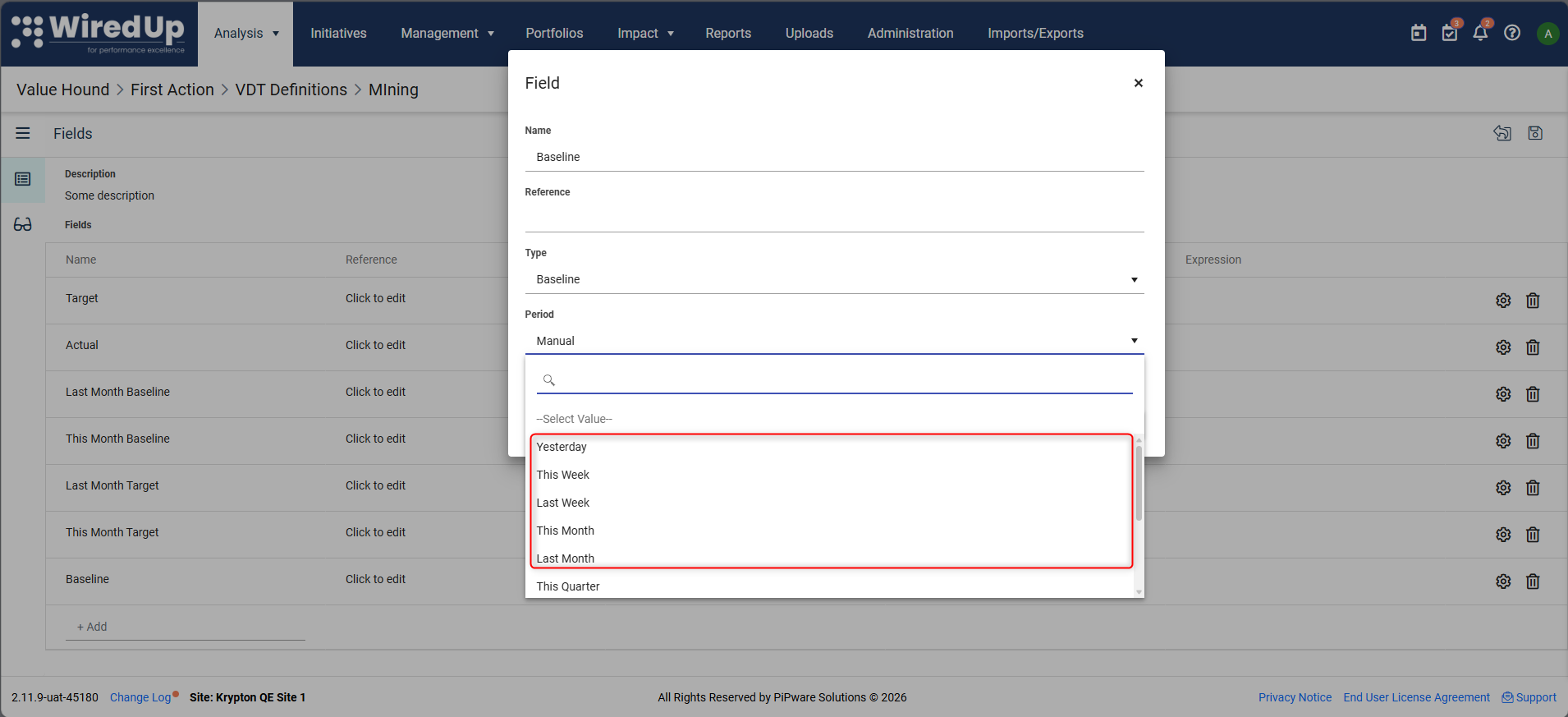
- Yesterday
- This Week
- Last Week
- This Month
- Last Month
Quarterly/Yearly Options:
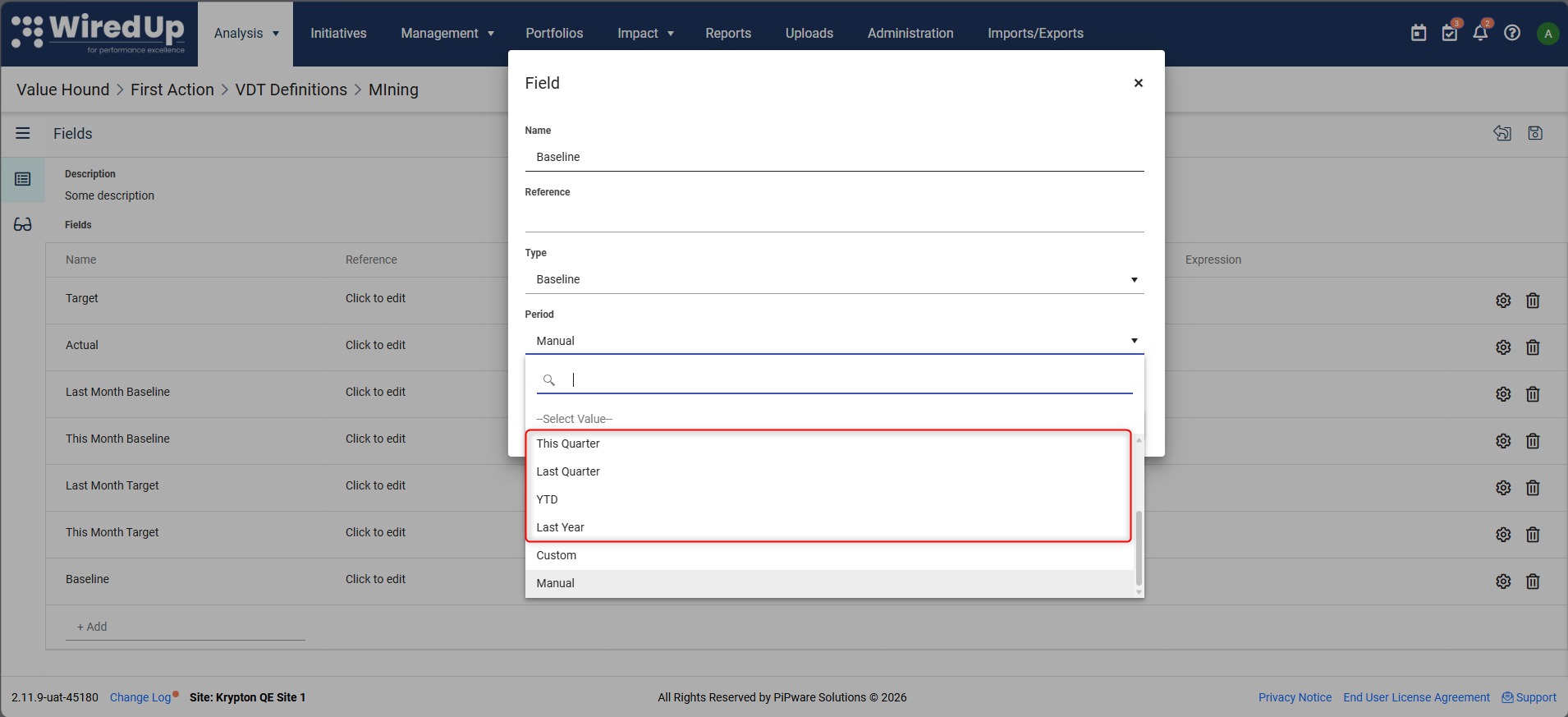
- This Quarter
- Last Quarter
- YTD (Year-to-Date)
- Last Year
Custom Options:
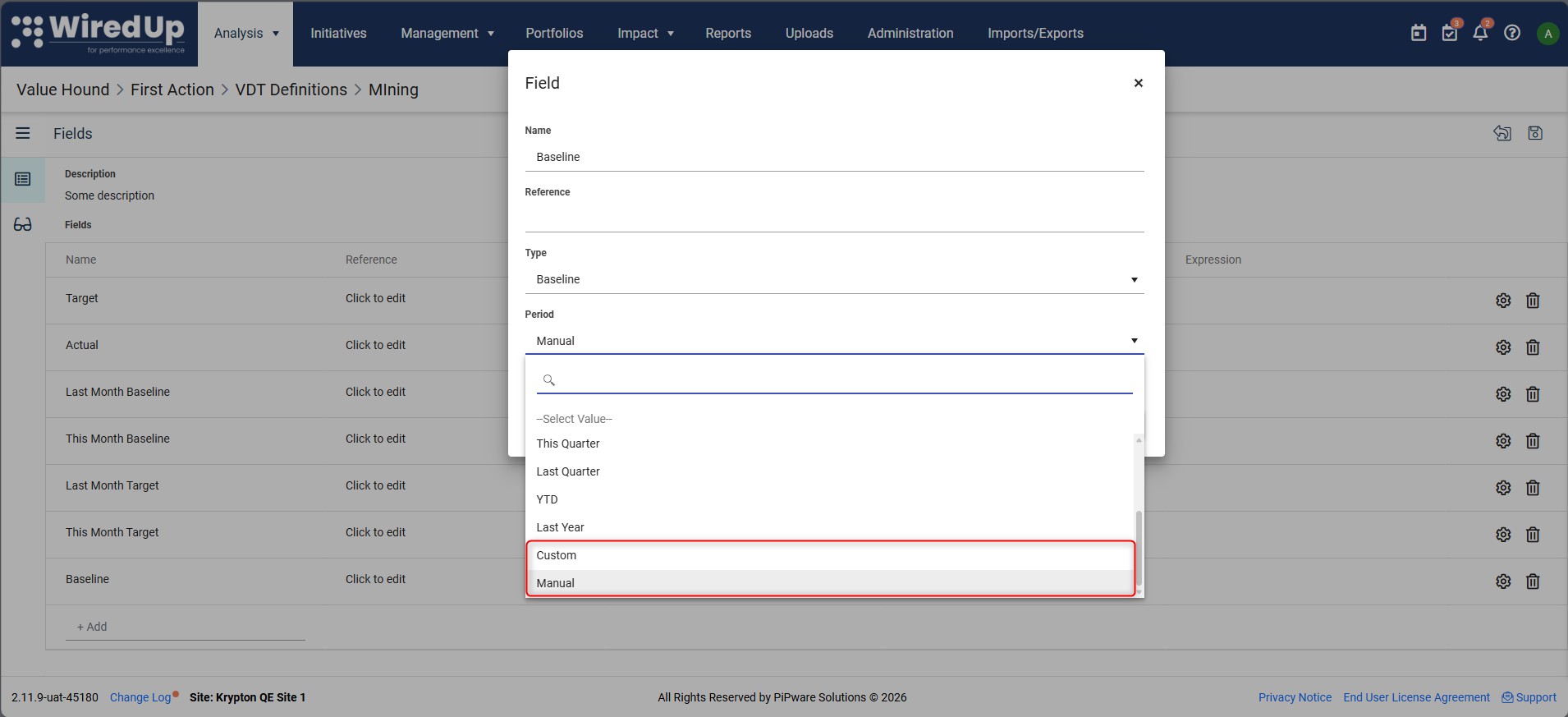
- Custom
- Manual
How Each Period Option Works
This Month
Displays the value for the current month based on the KPI's captured data for that month.
- Example: If today is June 15, 2026, and you're viewing a Production KPI with a SUM calculation method:
- This Month will show the June 2026 value
- If June has 500 tons captured, the VDT will display 500 tons
Last Month
Displays the value for the previous month relative to the current date.
- Example: If today is June 15, 2026, and you're viewing a Production KPI with a SUM calculation method:
- Last Month will show the May 2026 value
- If May had 450 tons captured, the VDT will display 450 tons
This Quarter
Displays the value for the current quarter based on the KPI's calculation method.
- Example: If today is June 15, 2026 (Q2), and you're viewing a Production KPI with a SUM calculation method:
- This Quarter will show the Q2 2026 value (April + May + June)
- If April = 400, May = 450, June = 500, the VDT displays 1,350 tons
Last Quarter
Displays the value for the previous quarter relative to the current date.
- Example: If today is June 15, 2026 (Q2), and you're viewing a Production KPI with a SUM calculation method:
- Last Quarter will show the Q1 2026 value (January + February + March)
- If Q1 total = 1,200 tons, the VDT displays 1,200 tons
YTD (Year-to-Date)
Displays the cumulative value from the beginning of the financial year up to the current period, based on the KPI's calculation method. The start date is determined by the Financial Year Start Day configured in your Site Settings.
- Example: If your Financial Year Start Day is set to 01-01 (January 1st), and today is June 15, 2026, and you're viewing a Production KPI with a SUM calculation method:
- January: 400 tons
- February: 420 tons
- March: 380 tons
- April: 400 tons
- May: 450 tons
- June: 500 tons
- YTD = 400 + 420 + 380 + 400 + 450 + 500 = 2,550 tons
Note: If your Financial Year Start Day is set to 07-01 (July 1st), and today is June 15, 2026, YTD would calculate from July 1, 2025 to June 15, 2026.
Last Year
Displays the value for the entire previous financial year. The financial year period is determined by the Financial Year Start Day configured in your Site Settings.
- Example: If your Financial Year Start Day is set to 01-01 (January 1st), and today is in 2026:
- Last Year will show the total for January 1, 2025 to December 31, 2025
- For a SUM-type KPI: If 2025 total = 5,400 tons, the VDT displays 5,400 tons
Note: If your Financial Year Start Day is set to 07-01 (July 1st), and today is in 2026, Last Year would show July 1, 2024 to June 30, 2025.
Yesterday
Displays the value for the previous day.
- Example: If today is June 15, 2026, and you're viewing a Production KPI with a SUM calculation method:
- Yesterday will show the June 14, 2026 value
- If June 14 had 25 tons captured, the VDT displays 25 tons
This Week
Displays the value for the current week based on the KPI's calculation method.
- Example: If today is June 15, 2026, and you're viewing a Production KPI with a SUM calculation method:
- This Week will show the sum of all days in the current week (based on your configured First Day of Week on Site Settings)
- If the week total is 175 tons, the VDT displays 175 tons
Last Week
Displays the value for the previous week relative to the current date.
- Example: If you're viewing a Production KPI with a SUM calculation method:
- Last Week shows the sum of all days in the previous week (based on your configured First Day of Week)
- If last week's total was 160 tons, the VDT displays 160 tons
Custom
Allows you to define a custom date range for the field.
- Use case: When you need to analyze a specific time period that doesn't match standard periods (e.g., a project phase, specific campaign duration).
Manual
Allows you to manually enter a value rather than pulling from KPI data.
- Use case: When you want to input a hypothetical value or external data
Important Notes
- KPI Value Calculation Method matters: The period aggregation respects the KPI's configured calculation method (SUM, AVERAGE, etc.)
- Data availability: If no data exists for the selected period, the value of the VDT field will show as blank
- Financial Year configuration: YTD and Last Year periods are determined by the Financial Year Start Day set in Portfolios/Org Structure > Site Configuration > Settings
- Real-time updates: Period selections update automatically as new data is captured
- Consistency across fields: You can set different periods for different fields in the same VDT to compare time periods (e.g., This Month vs Last Month)
Related Articles
What are Value Driver Trees (VDT) and Value Hound? : WiredUp