
In This Article
What is a Value Driver Tree Definition?
- Step 1: Open the VDT Definition Editor
- Step 2: Decide What Timeframes and Comparisons You Need
- Step 3: Create Fields
Overview
Before you can build and analyse a Value Driver Tree (VDT) in Value Hound, you must first create a Value Driver Tree definition. A Value Driver Tree definition specifies what data is available, how it is displayed, and over what time period. It defines the parameters of analysis before any structure or calculations are applied.
What is a Value Driver Tree Definition?
A Value Driver Tree definition is a reusable template that controls:
- The timeframe of analysis – For example, monthly or annual
- The types of data available – Actual, Baseline, Target, Forecast
- The fields displayed on each node – What information appears for each KPI
- The views you can select when analysing the VDT – Different perspectives for analysis
Important: A definition does not define business logic or mathematical relationships between KPIs. Those are defined later when you build the Value Driver Tree itself.
Key points to remember:
- Every VDT requires a definition on creation
- Multiple Value Driver Trees can reuse the same definition
A helpful way to think about a VDT definition is as a template or contract between your data and your analysis. It answers questions such as:
- What time periods will this Value Driver Tree use?
- What data fields should every node have?
- How will performance be viewed and compared?
Once created, this template ensures that all KPIs in the tree are consistent, comparable, and aligned to the same analytical structure.
What is a View?
A View is a predefined set of fields displayed together for a specific time-based perspective.
Each view defines:
- The time granularity – For example, monthly or annually
- The fields shown – Actual, Target, Baseline, Variance
- How KPI data appears on each node in the tree
Views allow the same Value Driver Tree to be analysed in different ways without changing its structure.
Creating a VDT Definition
Step 1: Open the VDT Definition Editor
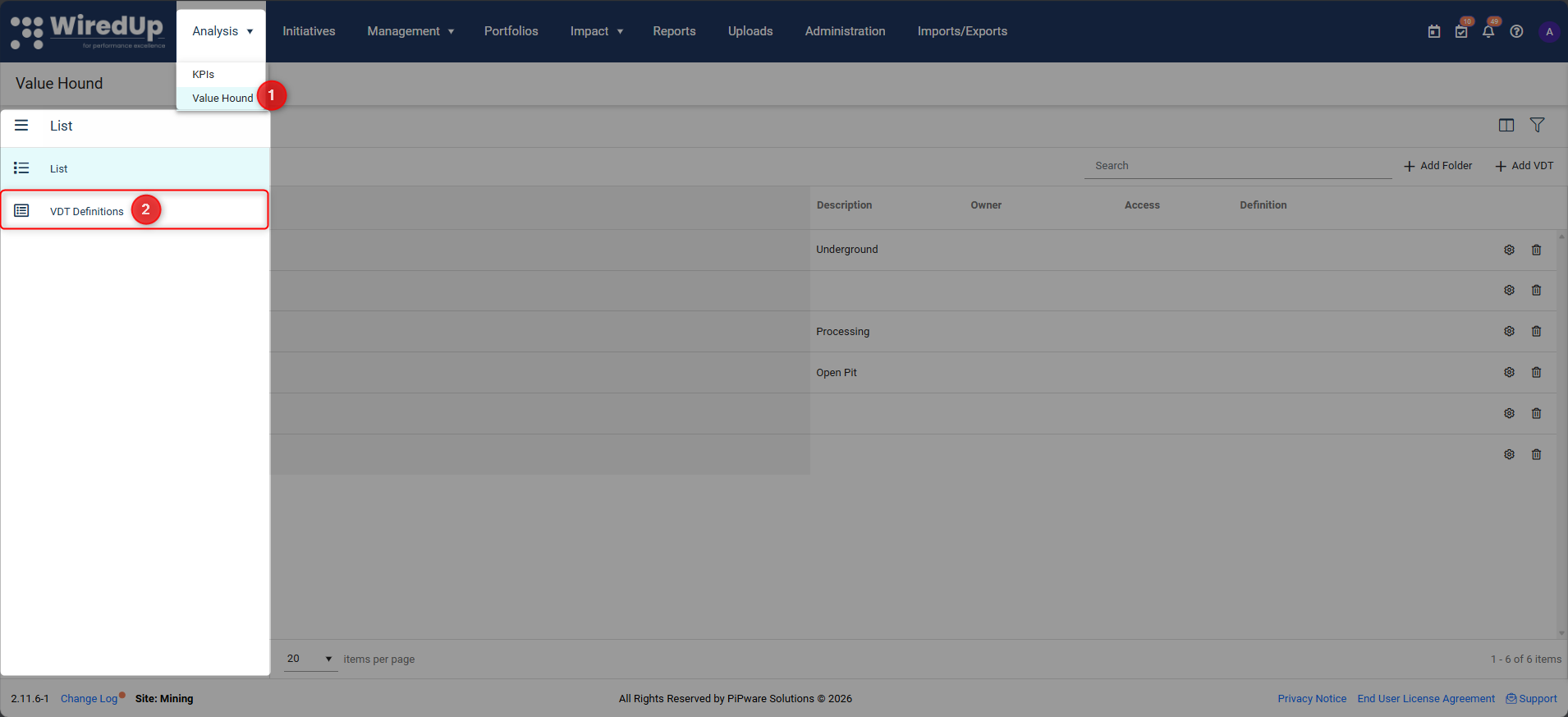
- Navigate to Analysis > Value Hound, then select the VDT definitions icon on the sidebar.
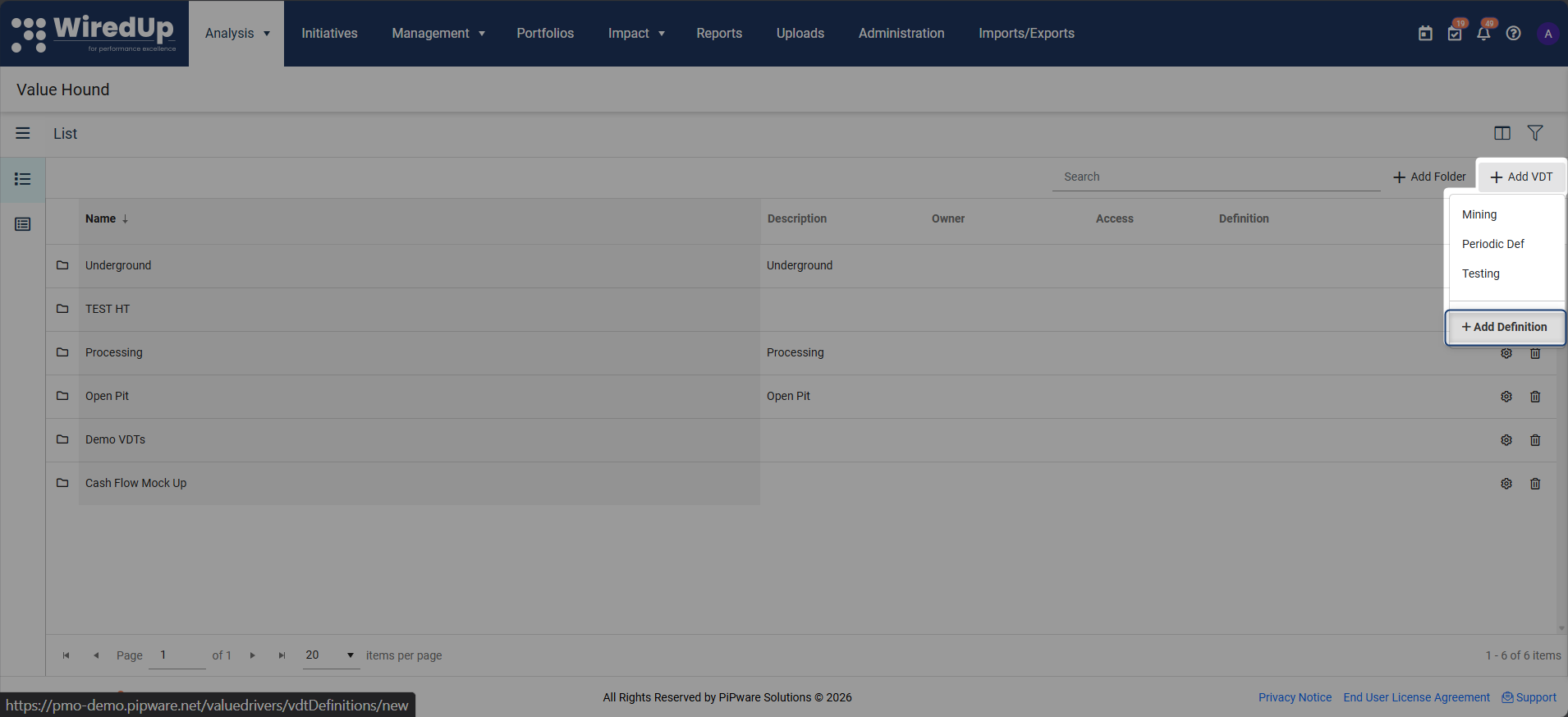
- Alternatively, you can also navigate to the VDT Definition editor from a VDT list by clicking + Add VDT > + Add Definition in the toolbar top right.
Step 2: Decide What Timeframes and Comparisons You Need
Before configuring anything, decide what you want your audience to see.
For example:
- Daily, Monthly or Annual view?
- Target vs Actual comparison?
- Historical baseline comparison?
Example scenario:
You want to build a Value Driver Tree that shows:
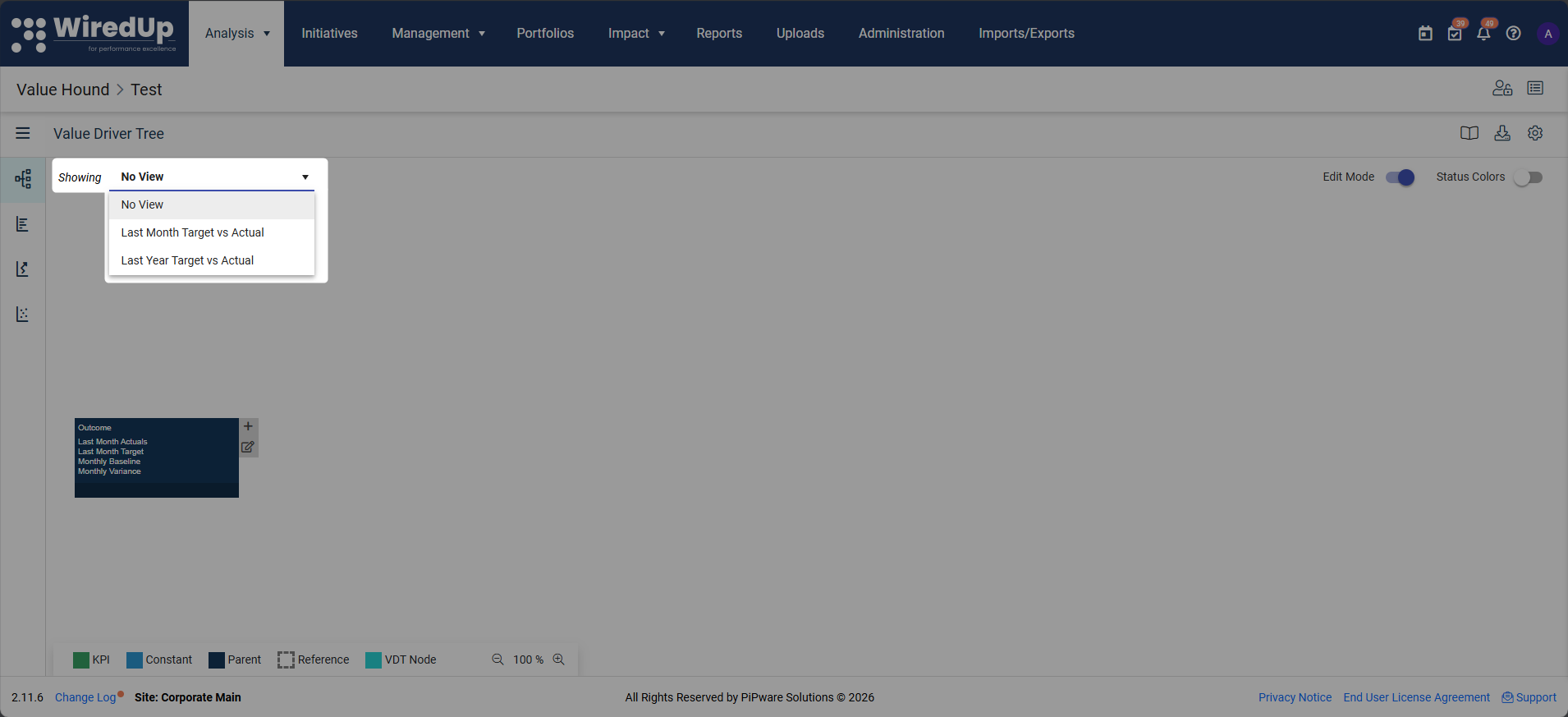
- Last month's performance vs target
- Last year's performance vs target
This definition could later be used for:
- Revenue (e.g., last month revenue vs target)
- Tonnes moved (e.g., last month tonnes moved vs target)
- Hours worked
- Any other KPI
Step 3: Create Fields
The Fields page is the default landing page when you navigate to VDT definitions (from Step 1: Open the VDT definition editor).
Fields are created by entering values at the bottom of the Fields table.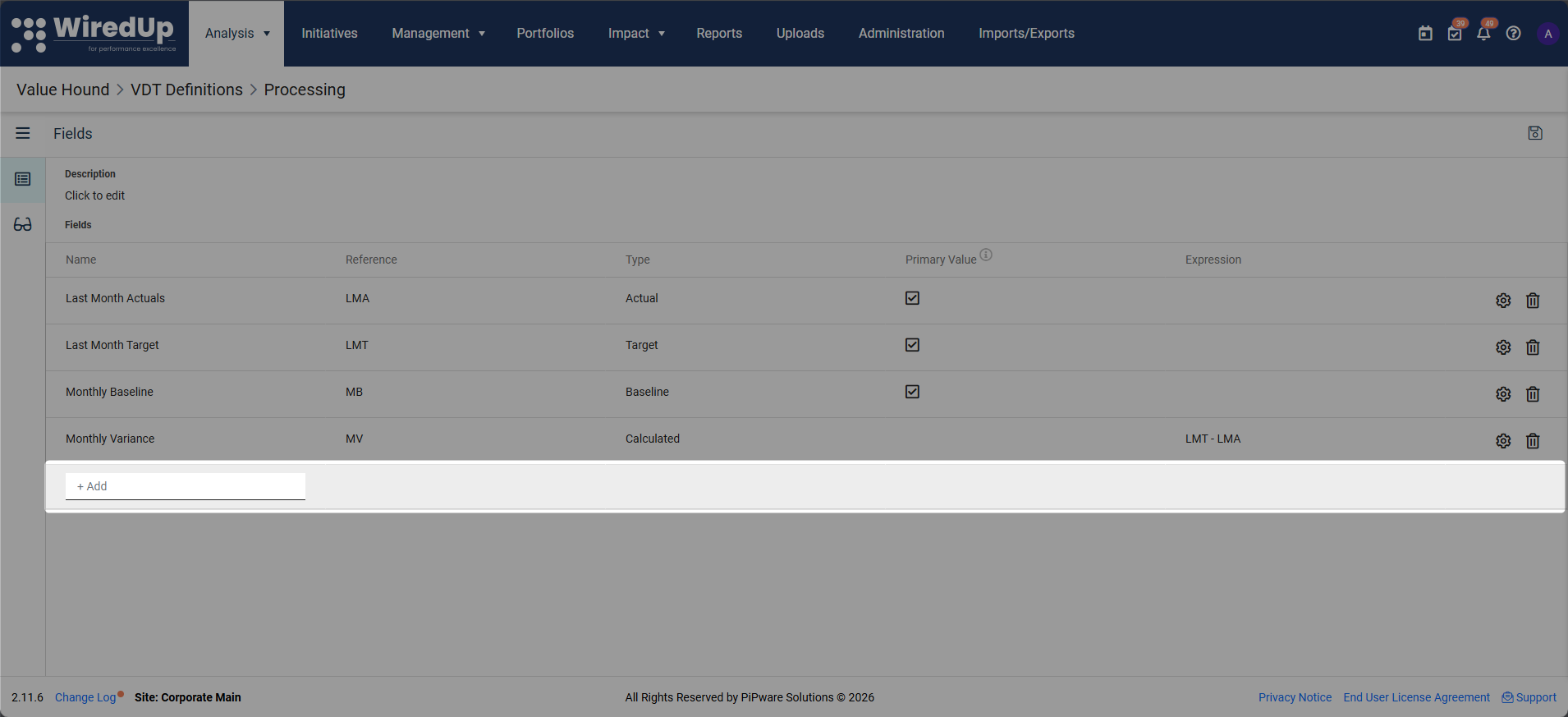
Start by creating all fields required for each timeframe. The fields to be configured are: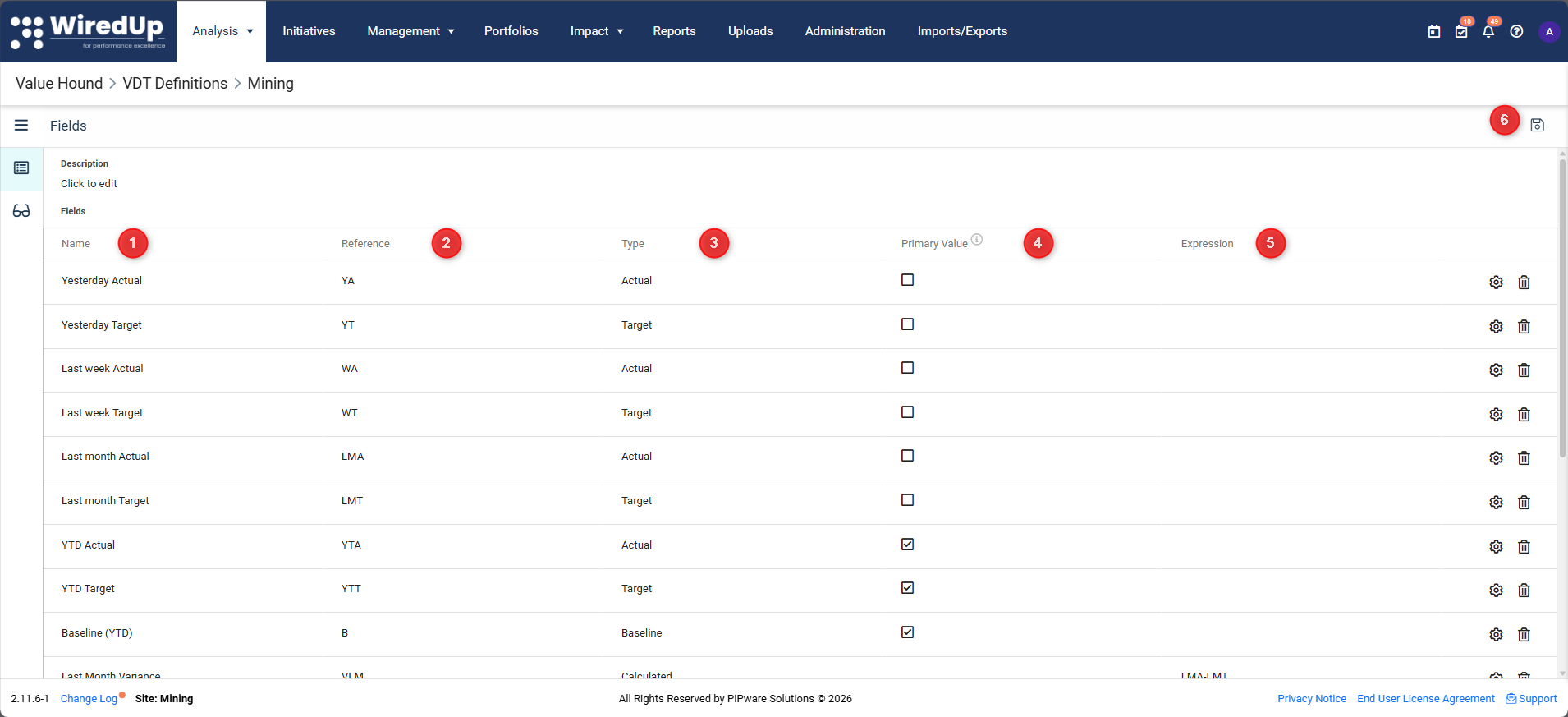
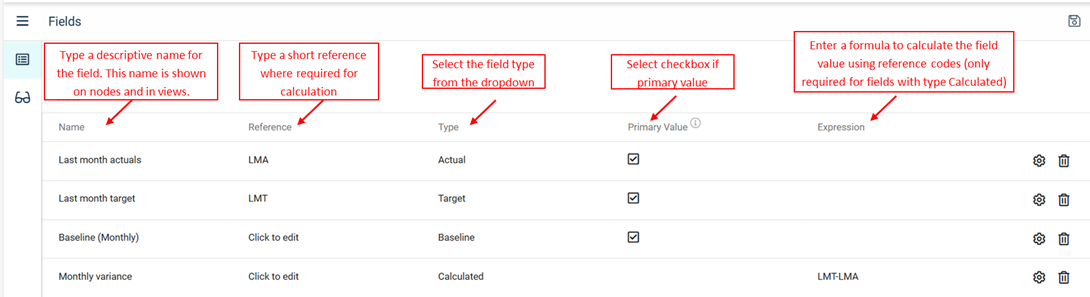
- Name: The label displayed on nodes and in views (for example, Last Month Actual)
- Reference: A short identifier used when building calculated fields and expressions (for example, Last Month Actuals could be referenced as LMA, and Last Month Target could be referenced as LMT)
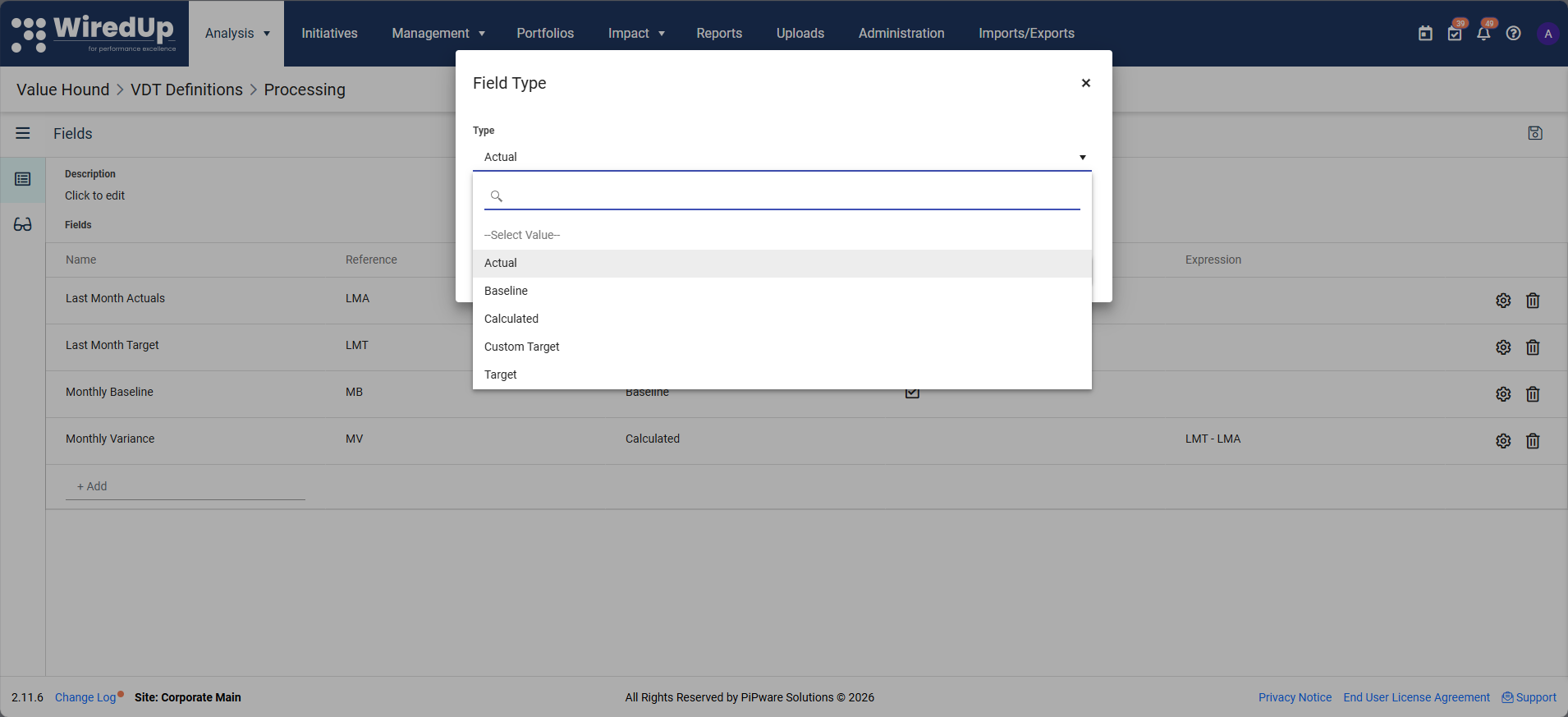
- Type: Defines the purpose of the field: Actual, Target, Baseline, Forecast, or Calculated
- Primary Value: Identifies the main Actual, Baseline, and Target fields; one of each is required to proceed. The purpose is to identify the primary fields to reuse the VDT in initiatives
- Expression (used for calculated fields): The formula used to calculate the field's value, typically referencing other fields by their reference codes
- Once the fields have been created, click Save to save the new fields
Example: For a Monthly view, you might create the following four fields:
- Last Month Actual (Type: Actual)
- Last Month Target (Type: Target)
- Monthly Baseline (Type: Baseline)
- Monthly Variance (Type: Calculated, Expression: LMT – LMA)
The four fields created should look like the below:
Repeat this for other timeframes, such as annual fields, if required.
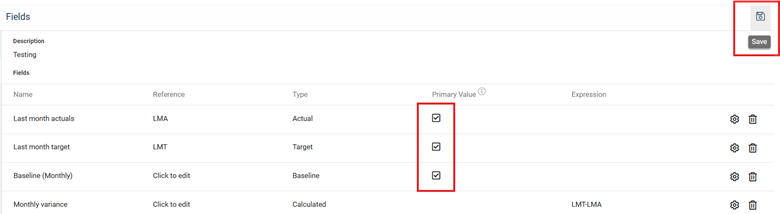
Select the Primary Value checkbox to designate one primary Actual, Baseline, and Target field. These primary fields are used when the Value Driver Tree is saved to the library and reused in Initiatives. Then select Save.
Tip: Think of fields as the building blocks. Views simply group these fields together.
Create and Configure Views
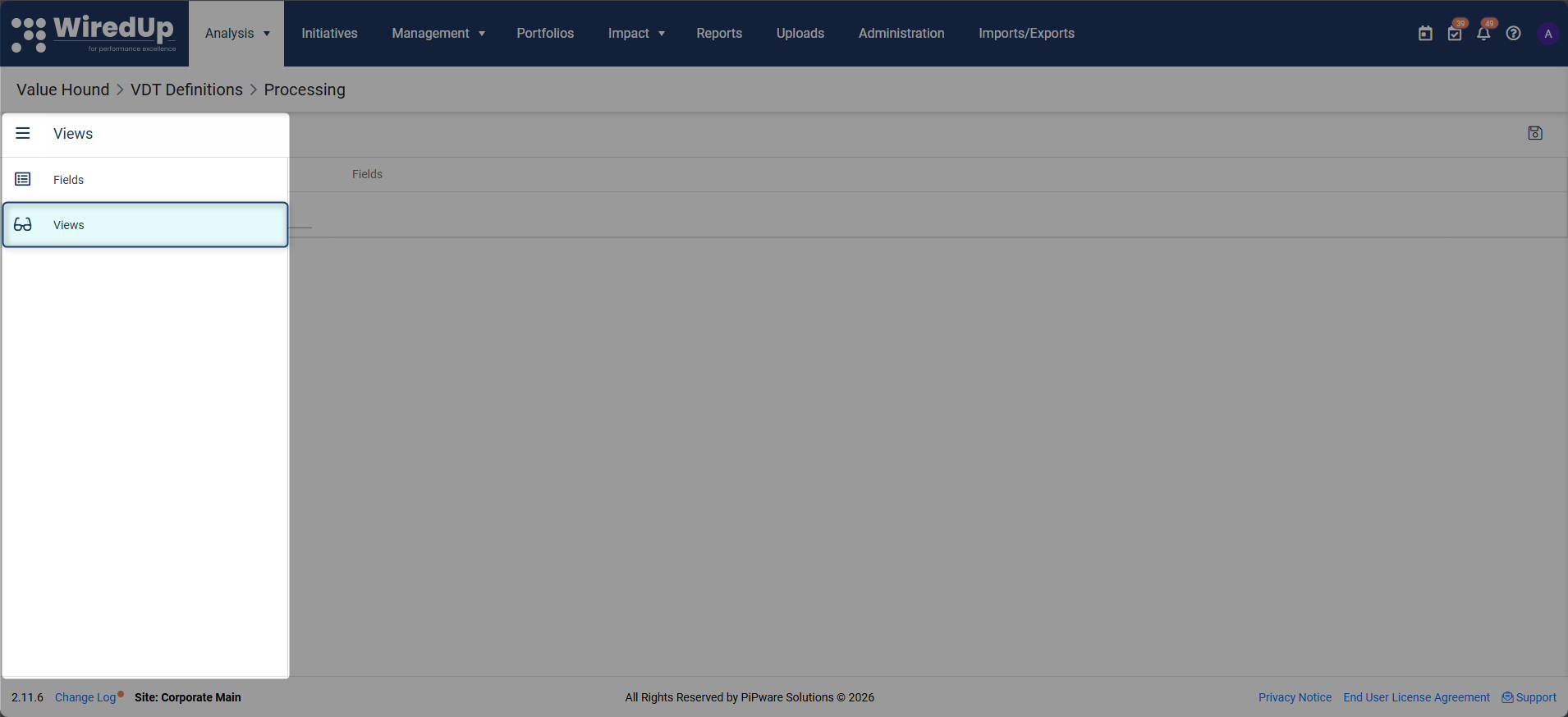
- Navigate to the Views page.
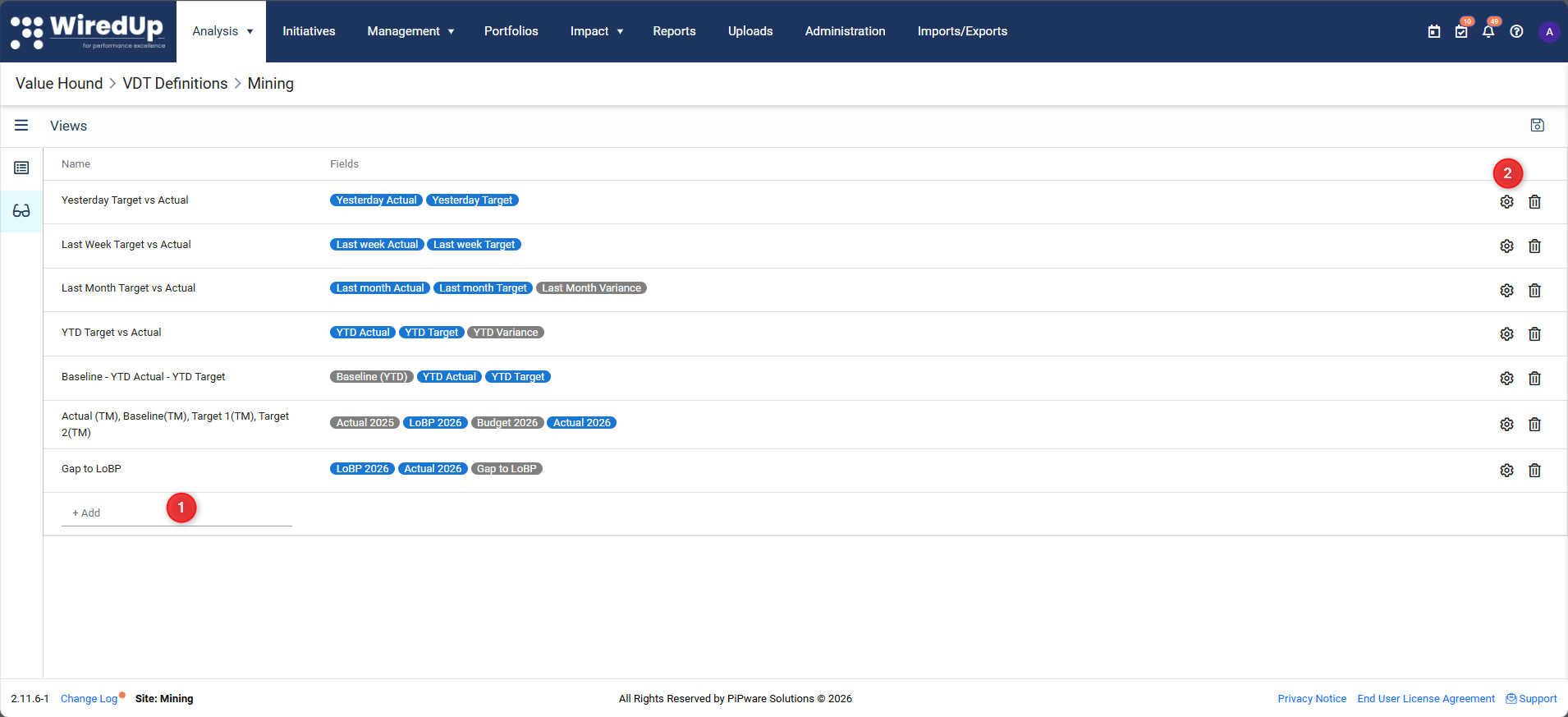
- Create a new view by typing the name of the view in the Name field (for example, type Last Month Target vs Actual under Name). Then select the configure button.
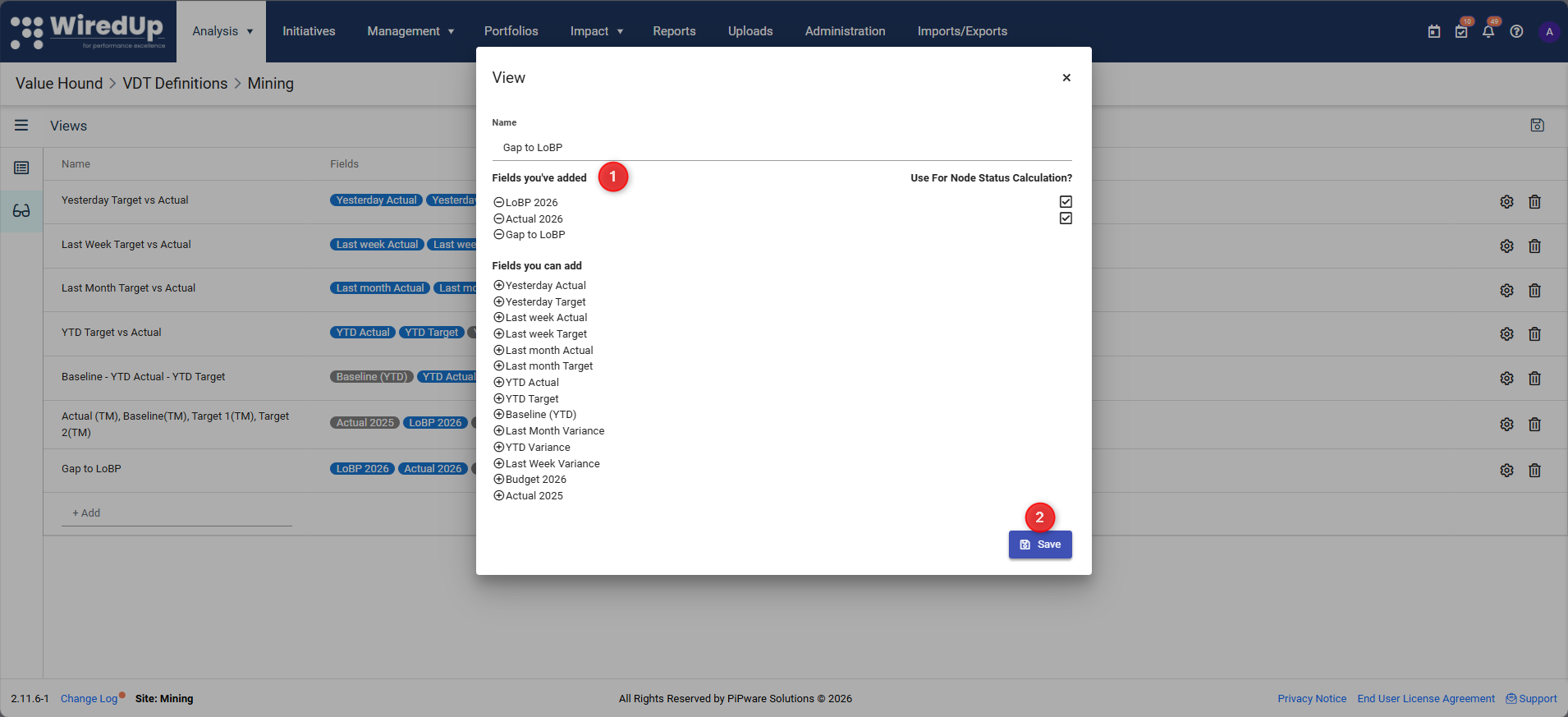
- Select the fields that should appear in this view, then select Save. The result of this view configuration is that these fields appear under each node when the view is selected.
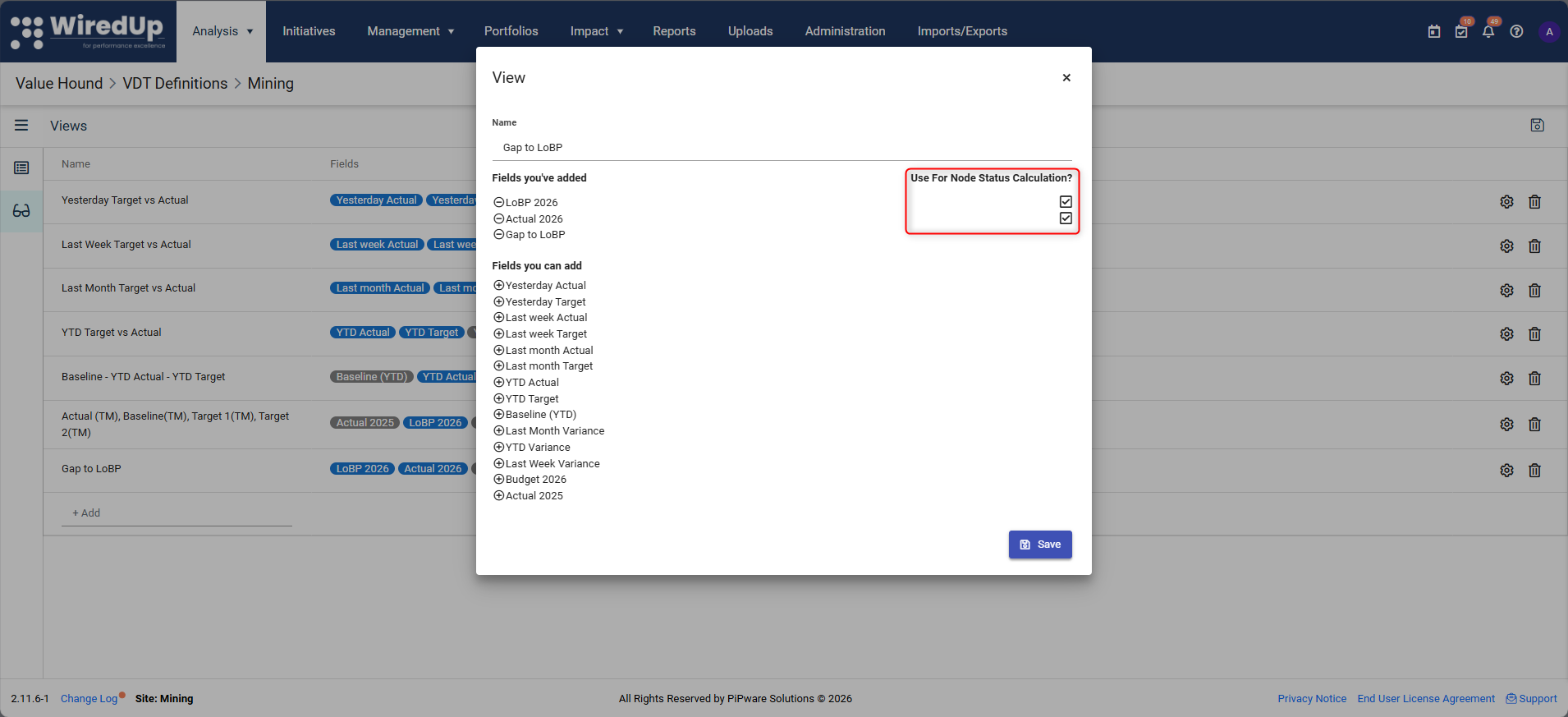
- Fields that have the Use for Node Status Calculation checkbox selected will use these values to calculate the node status for this view.
When this view is selected in a Value Driver Tree, every node will display these fields in the same way. Below is an example of a VDT that uses this VDT definition, fields and views of monthly actuals, targets, variance and baseline.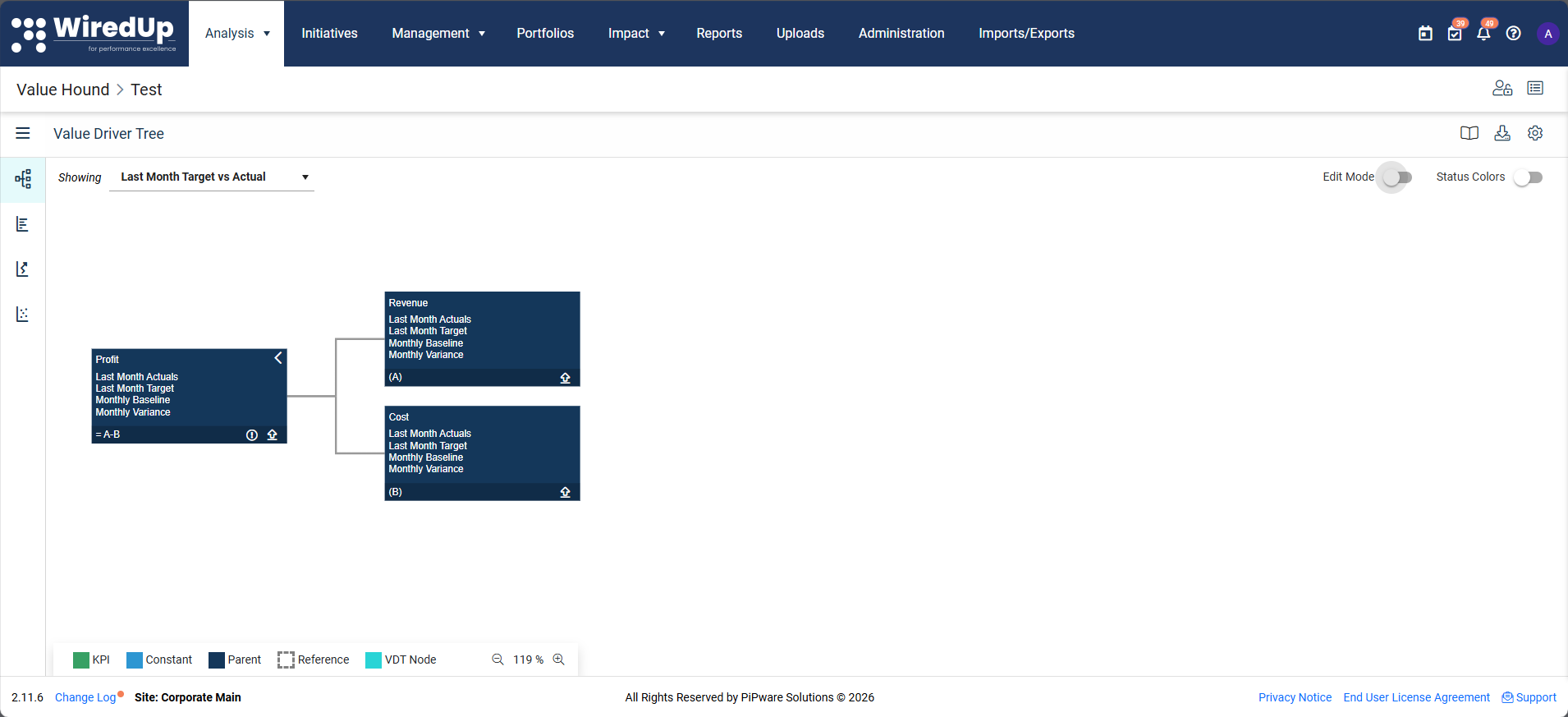
What Happens Next?
Once your Value Driver Tree definition is complete:
- You can create one or more Value Driver Trees using this definition
- Every node in those trees will inherit:
- The same fields
- The same views
- The same time-based structure
This ensures consistency across analysis, reporting, and scenario modelling.
Next Steps
To start building your Value Driver Tree using your VDT definition, see: