
In This Article
- What happens next depends on whether the tag is in use:
- If the Tag Is Currently In Use
- If the Tag Is Not In Use
Setting Up the Manage Tags Permission
Overview
WiredUp now allows you to edit and delete tags directly from the tag dropdown across all modules. Tags are used throughout the platform in KPI, Meetings, and Ideas modules, and also serve as filters in Reports. With this enhancement, you can now correct mistakes, remove duplicates, and clean up unused tags without needing a separate administration screen.
Tags are global across WiredUp — once created, a tag appears in all modules. Any edits or deletions you make will affect all modules and records where that tag is assigned.
Who Can Manage Tags?
Edit and delete controls are only visible to users who have permission to manage tags:
- Tag Creator — The user who originally created the tag
- Roles with Manage Tags Permission — Users with the "Manage Tags" permission under General Administration (see Setting Up Manage Tags permission section)
Users without these permissions will see tag names only, with no edit or delete icons displayed.
Accessing Tag Management
Tag management is performed inline directly from the tag dropdown in any module where tags are used:
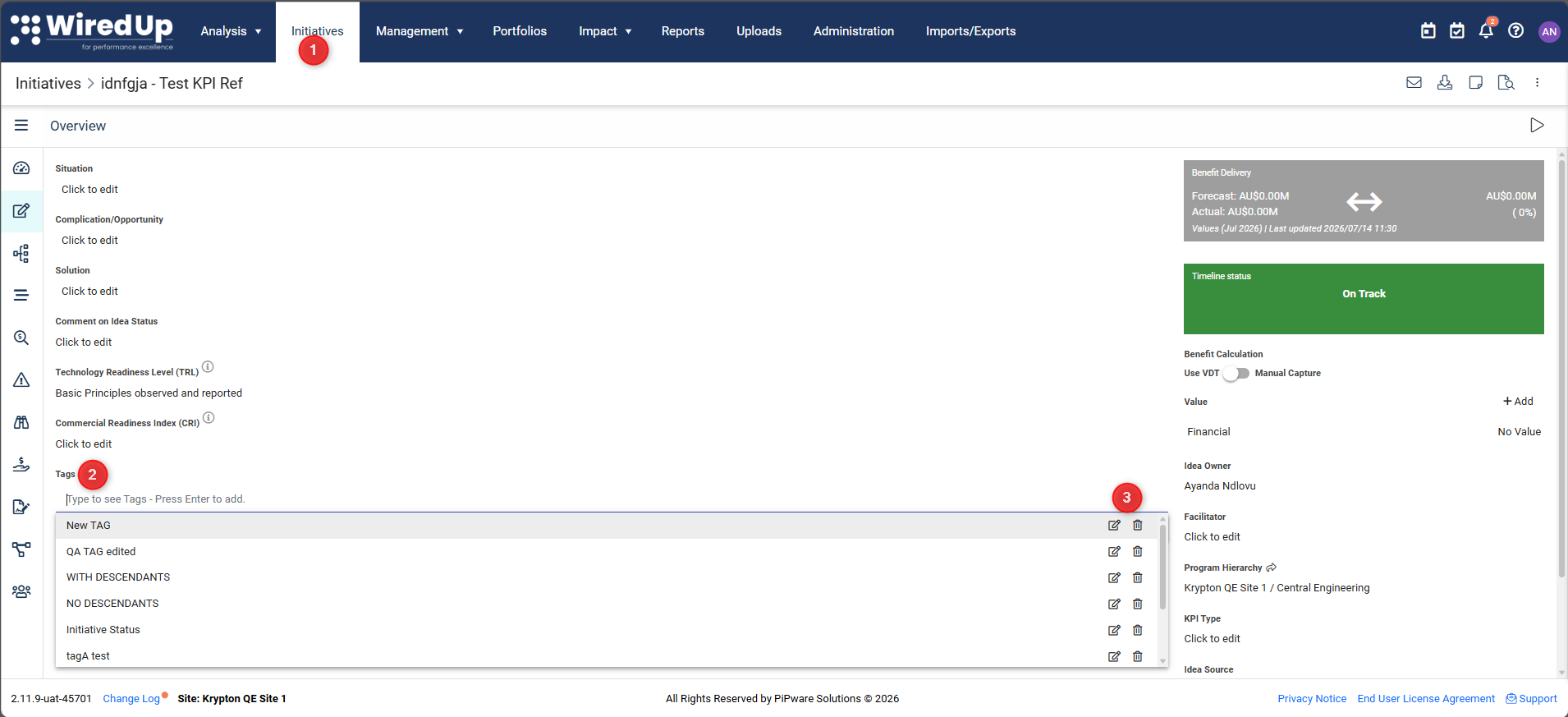
- Navigate to any module that supports tags (KPI, Meetings, or Ideas)
- Click on the Tags field to open the tag dropdown
- If you have permission to manage a tag, you will see edit and delete icons next to each tag name
Editing a Tag
To rename a tag:
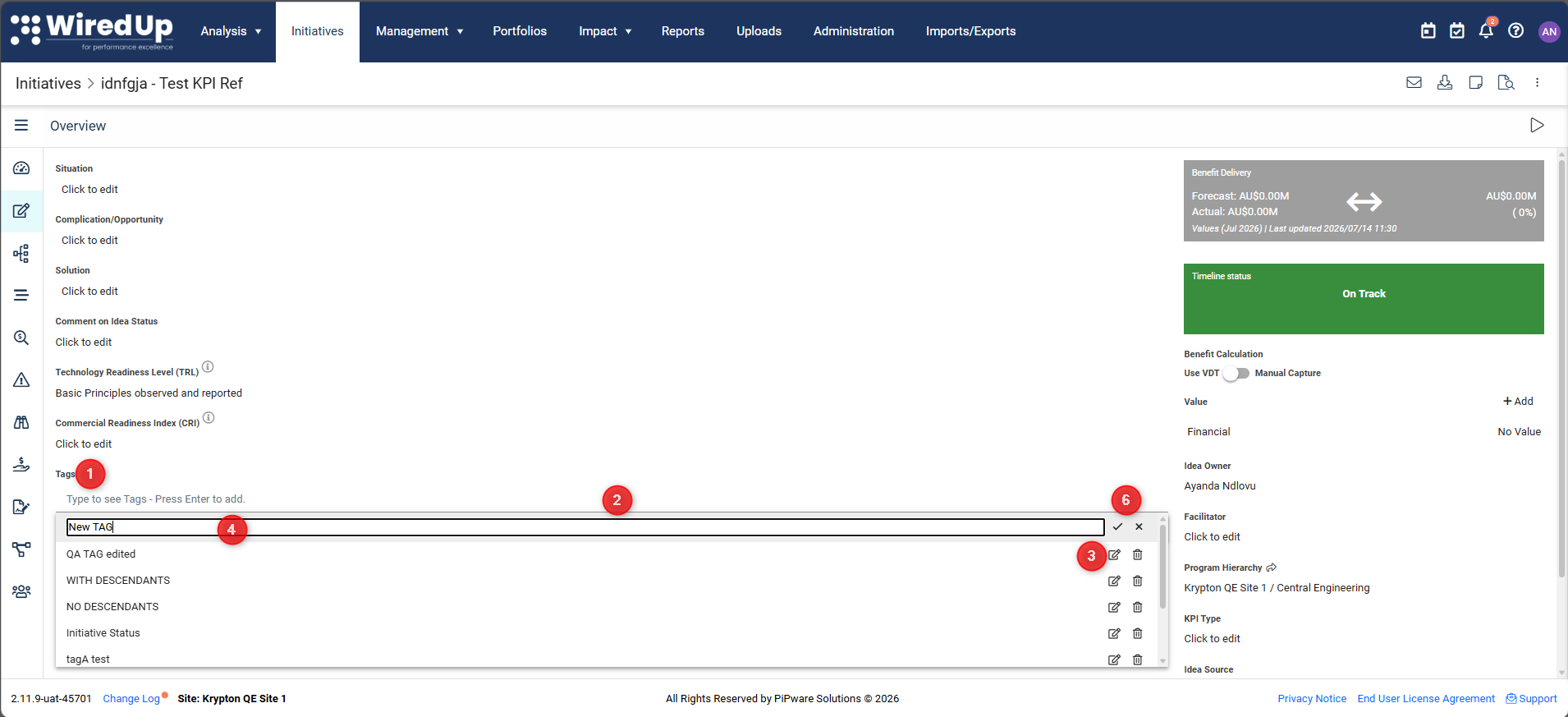
- Open the tag dropdown in any module
- Locate the tag you want to rename
- Click the edit icon (pencil) next to the tag name
- The tag name becomes editable inline within the dropdown
- Type the new tag name
- Click the confirm (✓) button to save, or cancel (✗) to discard changes
Important Notes:
- Tag names must be unique across the platform (case-insensitive)
- If you try to save a duplicate name, you'll see an error message: "A tag with this name already exists. Please use a different name."
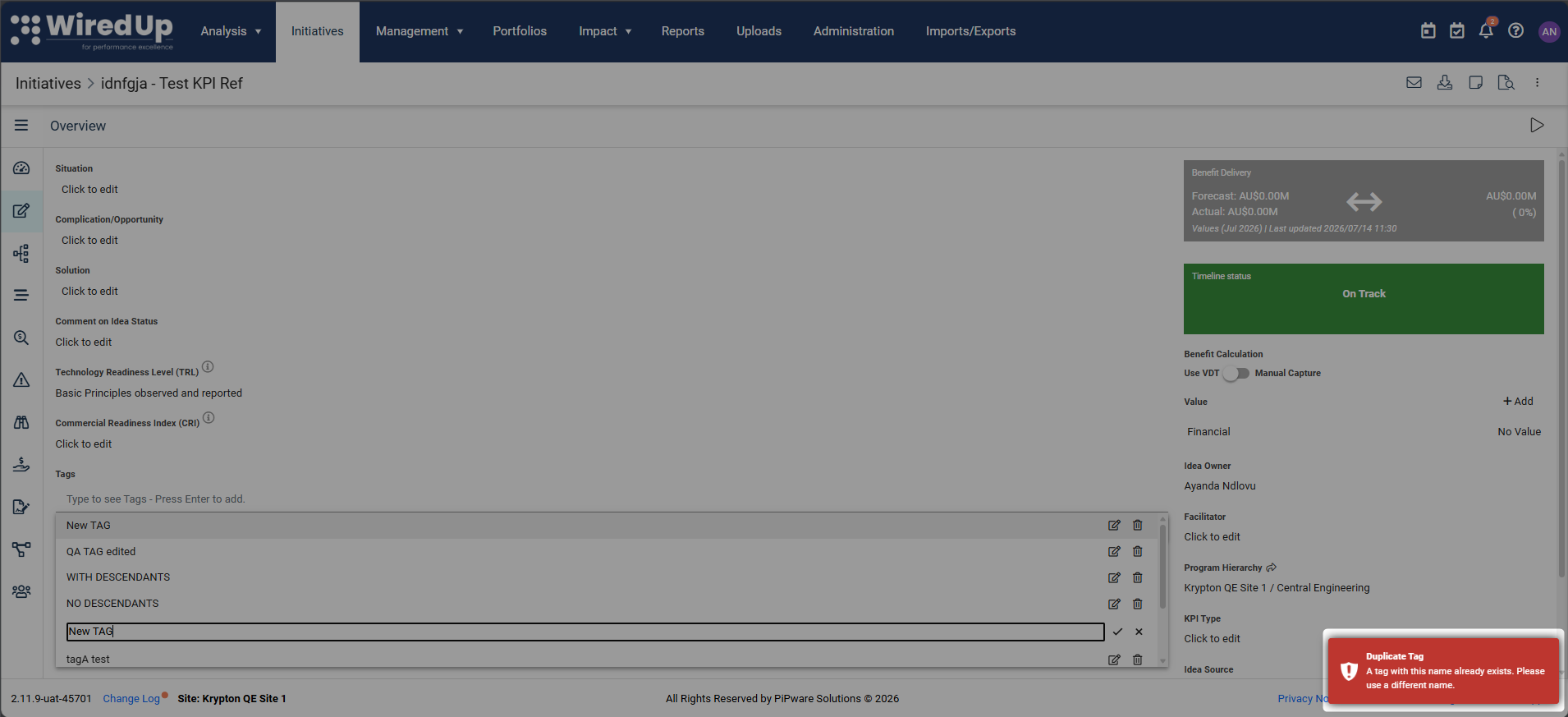
- When you successfully rename a tag, the change is applied immediately everywhere the tag is used across all modules
Deleting a Tag
To delete a tag:
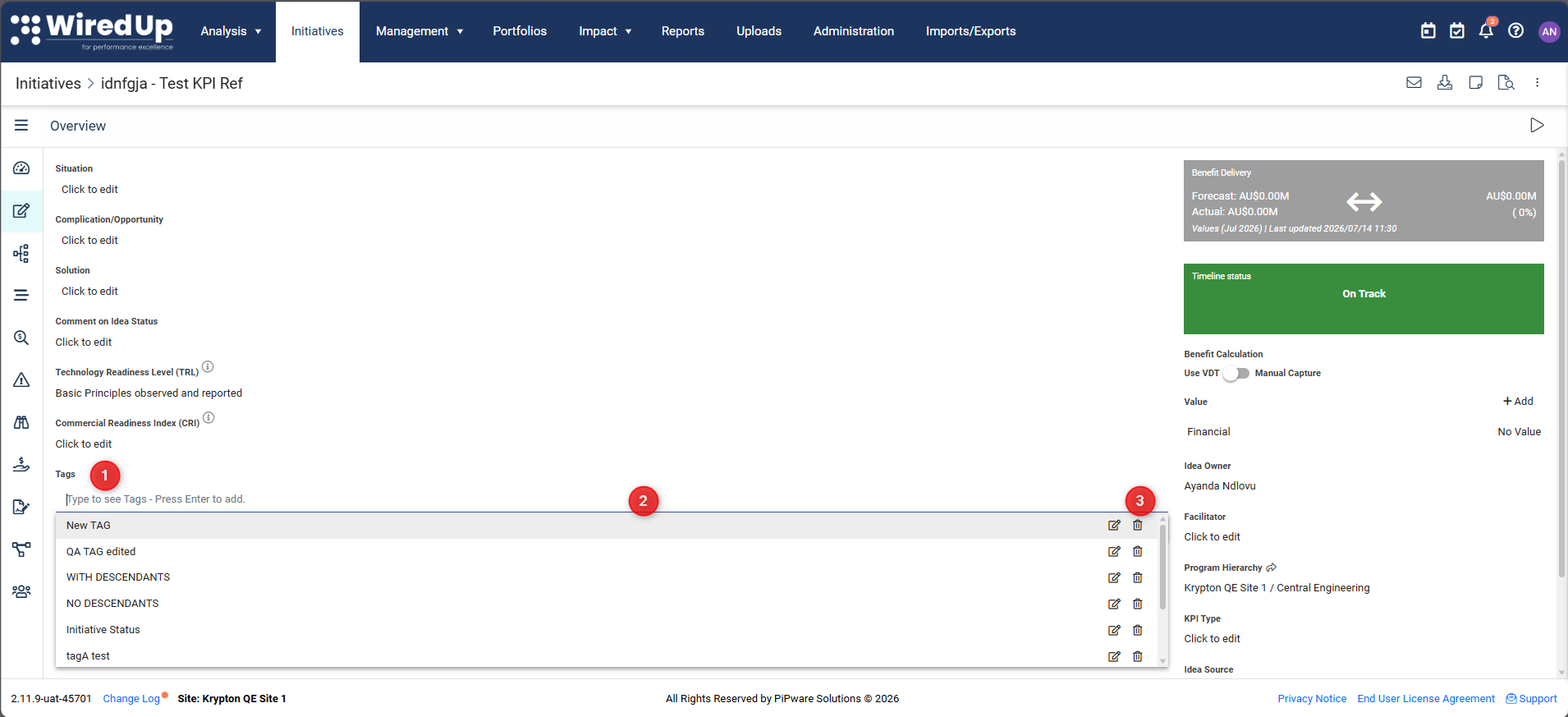
- Open the tag dropdown in any module
- Locate the tag you want to delete
- Click the delete icon (trash) next to the tag name
What happens next depends on whether the tag is in use:
If the Tag Is Currently In Use
A warning modal will appear with the header "Tag In Use" and show you where the tag is being used:
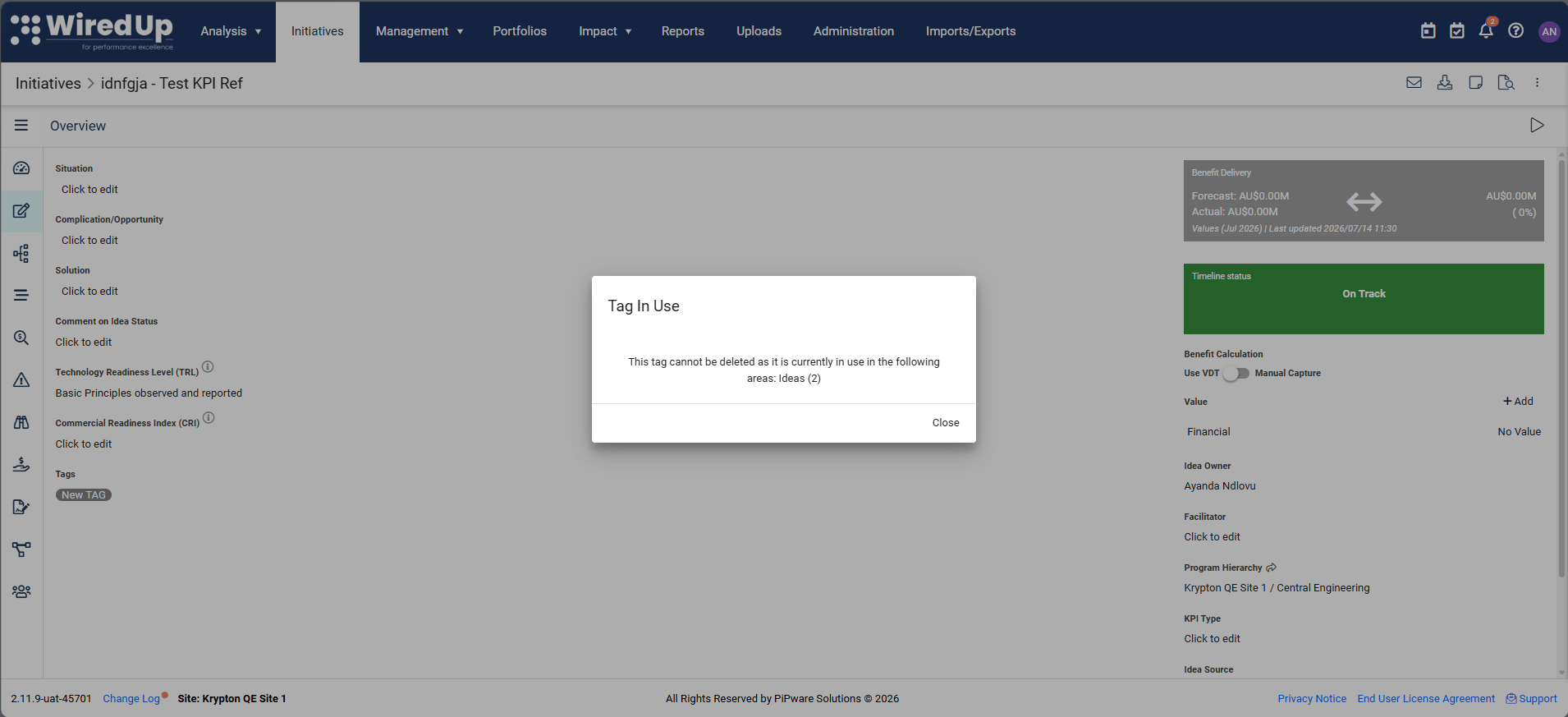
- Content: "This tag cannot be deleted as it is currently in use in the following areas:"
- Example: KPIs (3), Meetings (2), Ideas (1)
- Click Close to dismiss the modal — the tag will not be deleted
You must remove the tag from all records before you can delete it.
If the Tag Is Not In Use
A confirmation modal will appear with the header "Delete Tag":
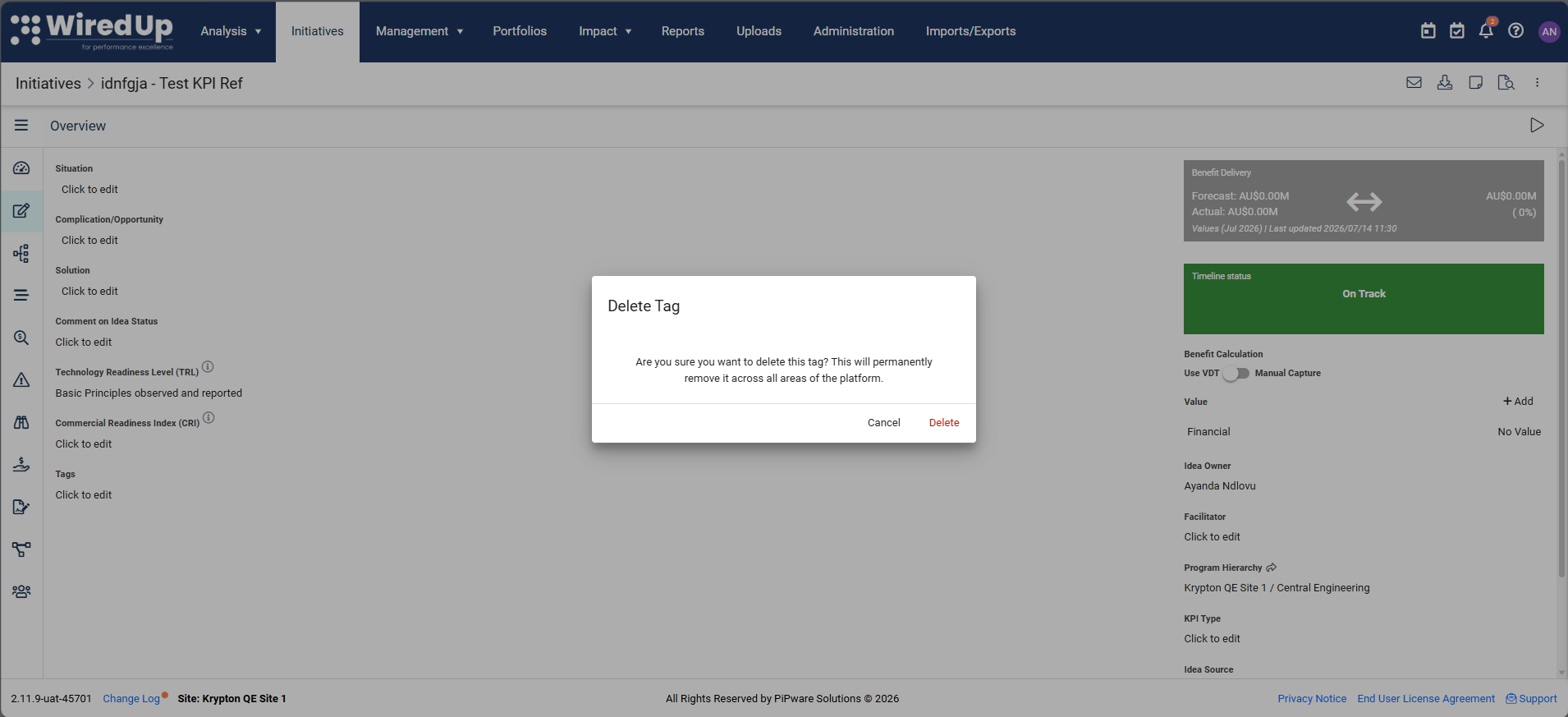
- Content: "Are you sure you want to delete this tag? This will permanently remove it across all areas of the platform."
- Click Delete to permanently remove the tag from the global tag list
- Click Cancel to dismiss the modal without deleting
Once deleted, the tag is no longer available for selection in any module.
Duplicate Prevention
WiredUp enforces tag name uniqueness to prevent confusion:
- Tag names are case-insensitive — "Safety" and "safety" are treated as the same tag
- Duplicate validation occurs when creating new tags and when renaming existing tags
- If you attempt to create or rename a tag with a name that already exists, you'll see a toast error message
Setting Up the Manage Tags Permission
Administrators can grant the Manage Tags permission to specific roles:
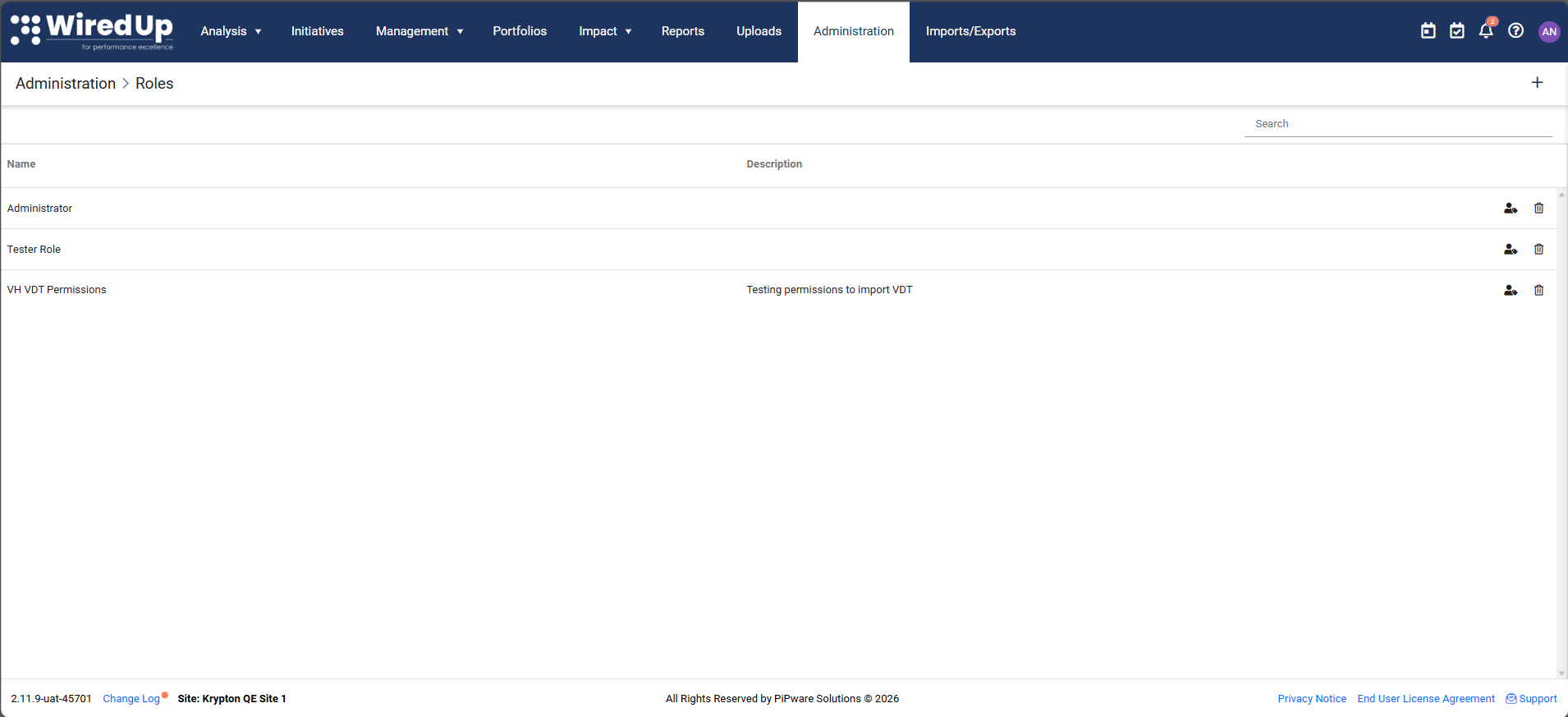
- Navigate to Administration > Roles
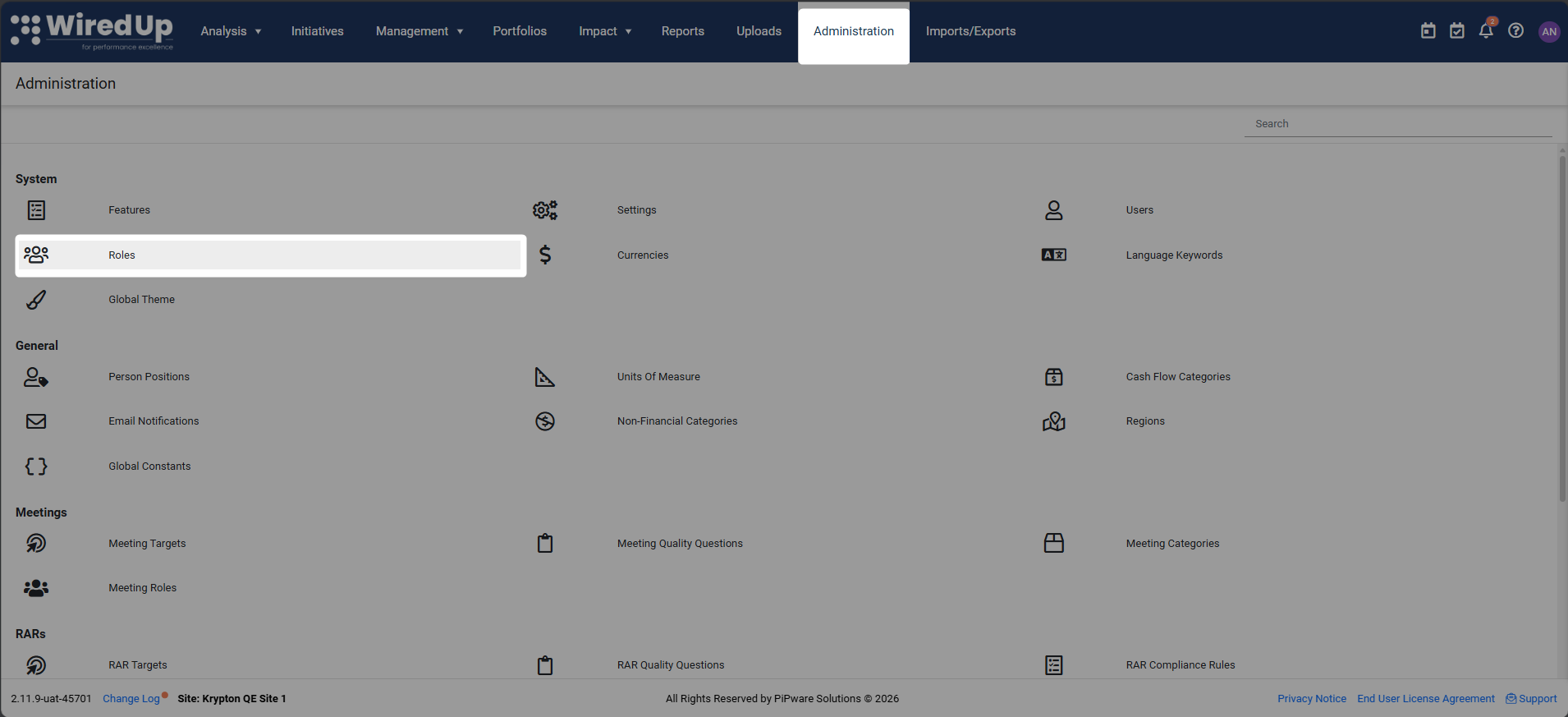
- Select the role you want to configure
- Under General Administration, enable the Manage Tags permission
- Permission description: "Allow the user to administer tags"
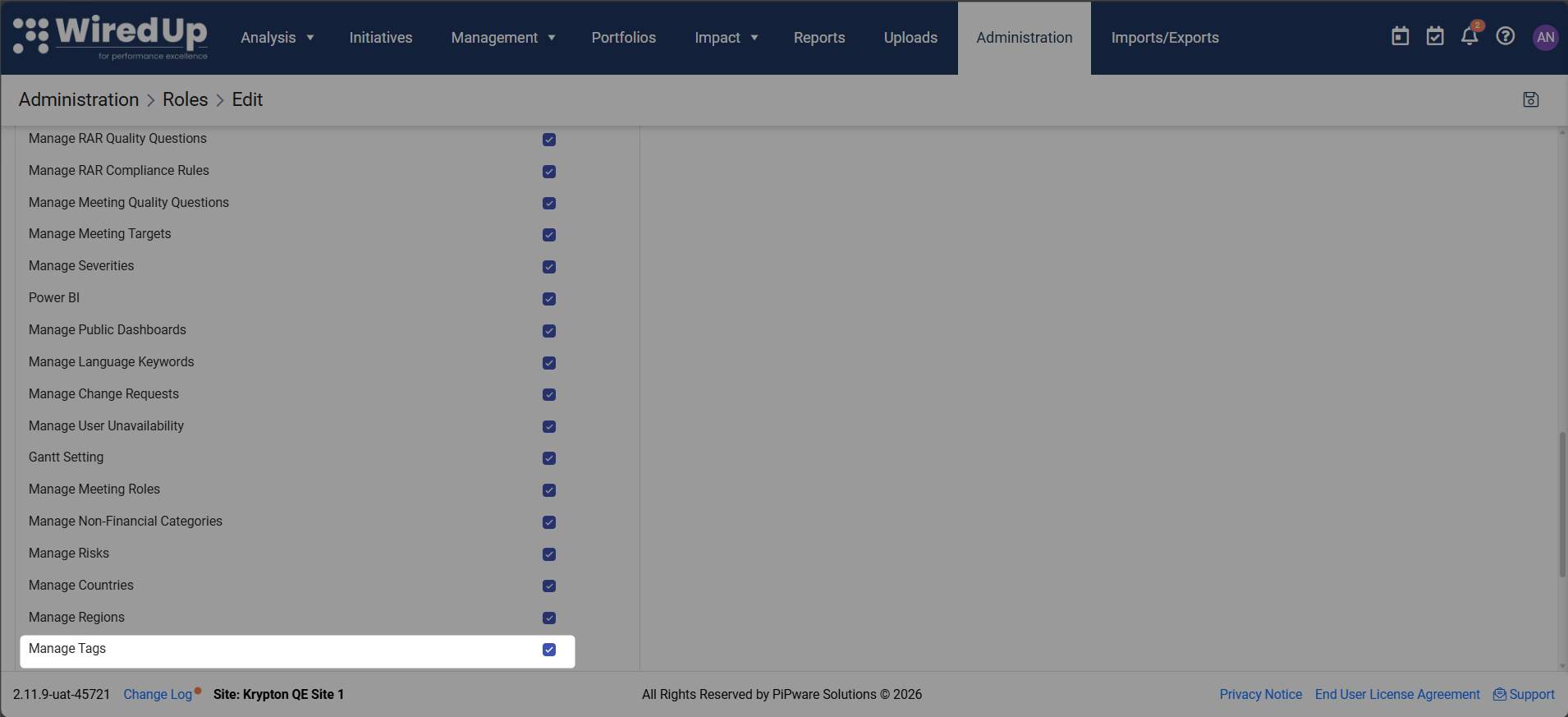
- Permission description: "Allow the user to administer tags"
- Save the role configuration
Users with this permission can edit and delete all tags across the platform, regardless of who created them.
Understanding Tag Ownership
For Existing Tags:
- Tags with a known creator — The original creator retains edit/delete rights
- Tags with an unknown or deleted creator — Only users with the Manage Tags permission can edit or delete these tags
For New Tags:
- When you create a tag, you automatically become the owner and can edit or delete it
- Your ownership is recorded and cannot be changed
Best Practices
- Establish a consistent naming convention for tags before creating them (e.g., use title case or lowercase consistently)
- Keep tag names short, clear, and descriptive to make them easy to find and understand
- Avoid creating tags that are too similar (e.g., "Safety", "Safety Issues", "Safety Concerns") — consolidate where possible
- Use singular or plural forms consistently (e.g., always use "Action" instead of mixing "Action" and "Actions")
- Periodically review your tag list to identify and remove unused tags
- Assign the "Manage Tags" permission to a small group of trusted administrators to maintain consistency
- When renaming a tag, remember that the change applies globally across all modules and records