
In This Article
Common Features Across Both Views
Overview
The Initiatives module to streamline the process of generating, evaluating, and executing new project-related concepts. It allows teams to collaboratively brainstorm and capture ideas, prioritize them based on strategic importance and feasibility, allocate resources, and track progress. This module promotes transparency, accountability, and alignment with the organization's strategic goals while also serving as a historical reference and a tool for continuous improvement.
The Initiatives module provides multiple viewing options to help you visualize and manage your ideas effectively. This article covers the List View and Cards View, which are the primary ways to view and interact with initiatives in your pipeline.
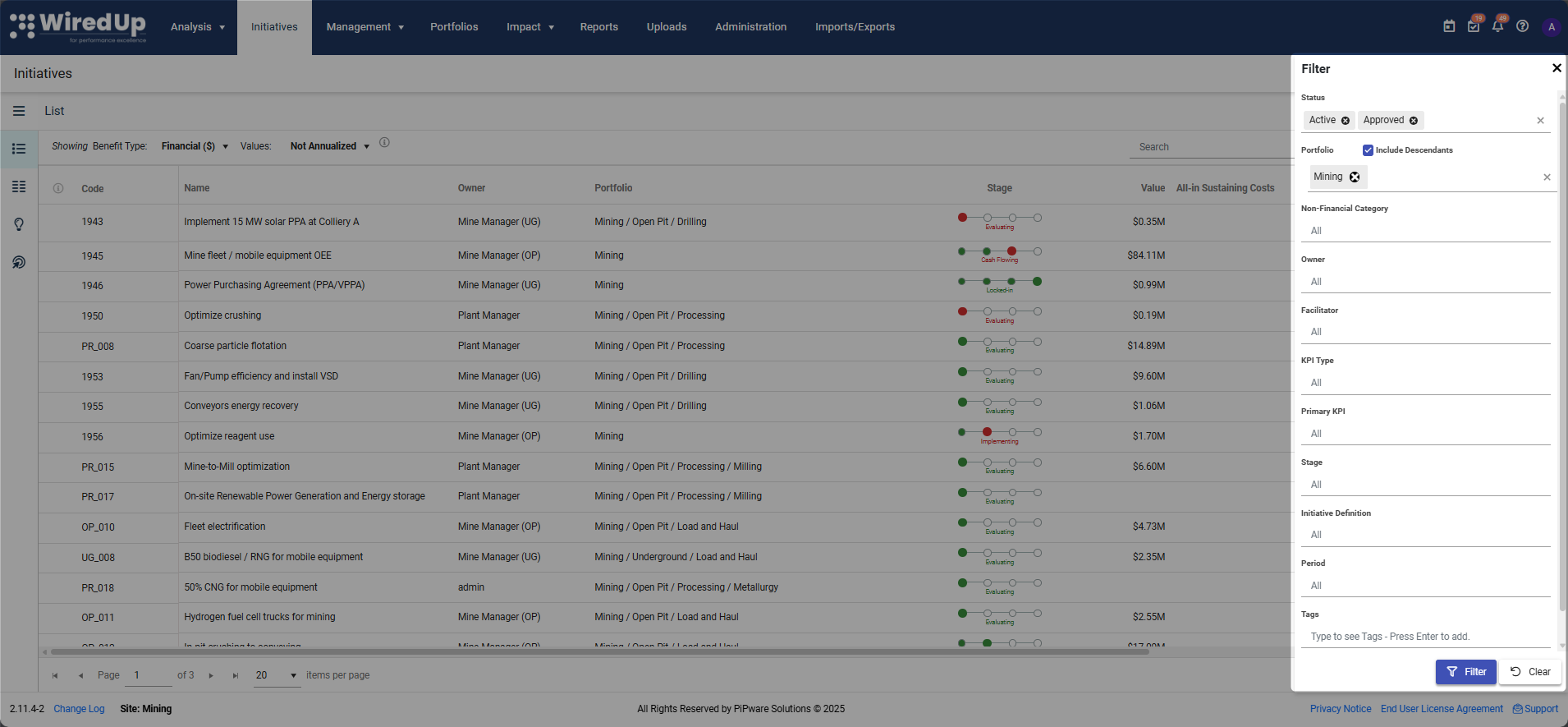
Note: When you first load the Idea/Initiative List or Card view, the Status and Portfolio fields will be automatically filtered based on the status of the ideas/initiatives (whether Active or Approved) and the portfolio/organization that you are currently logged into and have access to. If you have saved filters, you can quickly apply them to override the default filtering.

Navigation
Click on Initiatives in the navigation bar to access the module. By default, the List view is displayed when you open the Initiatives module.
Use the burger menu icon (three horizontal lines) on the left side of the screen to navigate between the different views: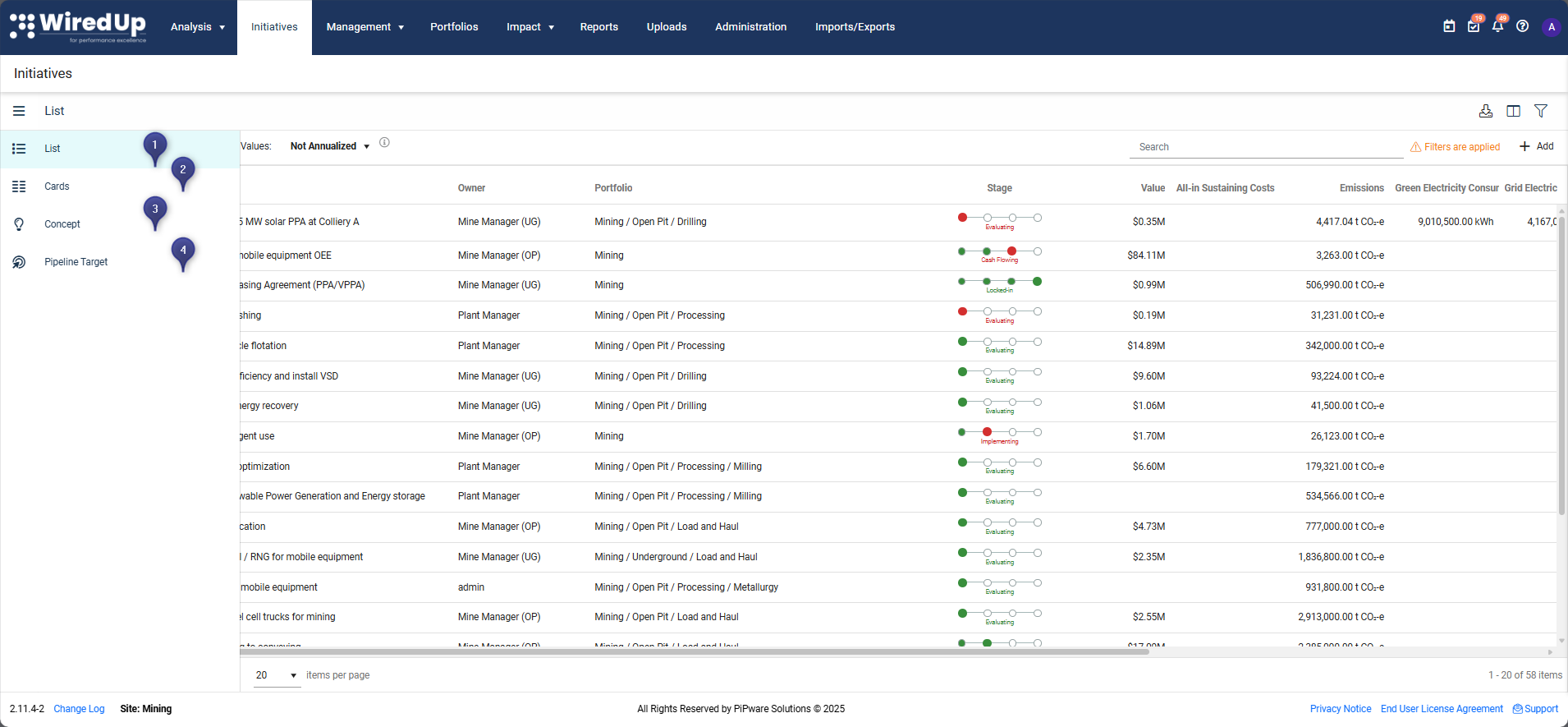
- List - List of Ideas currently in the pipeline, going through the defined stages
- Cards - Pipeline cards view that displays ideas based on their current stage
- Concepts - List of initiatives not yet in the pipeline (Concepts and Drafts)
- Pipeline Targets - List of pipeline targets from start to end date, showing active or inactive status
List View
The List View displays all your initiatives in a tabular format, making it easy to sort, filter, and analyze your pipeline.
Key Features
Saved Filters:
The Saved Filters feature allows you to save frequently used filter combinations for quick access, eliminating the need to reconfigure filters each time you return to the Ideas List.
- Saved Filters are located at the top of the Filter drawer
- Saved filters are private to your user account and are not visible to other users
- Each saved filter stores the complete filter configuration, including:
- Standard filters (Status, Portfolio, Include Descendants, Owner, Facilitator, Stage, etc.)
- Tags input
- "More Filters" selections and custom fields
Managing Saved Filters:
To create a new saved filter:
- Click the Filter icon to open the Filter drawer
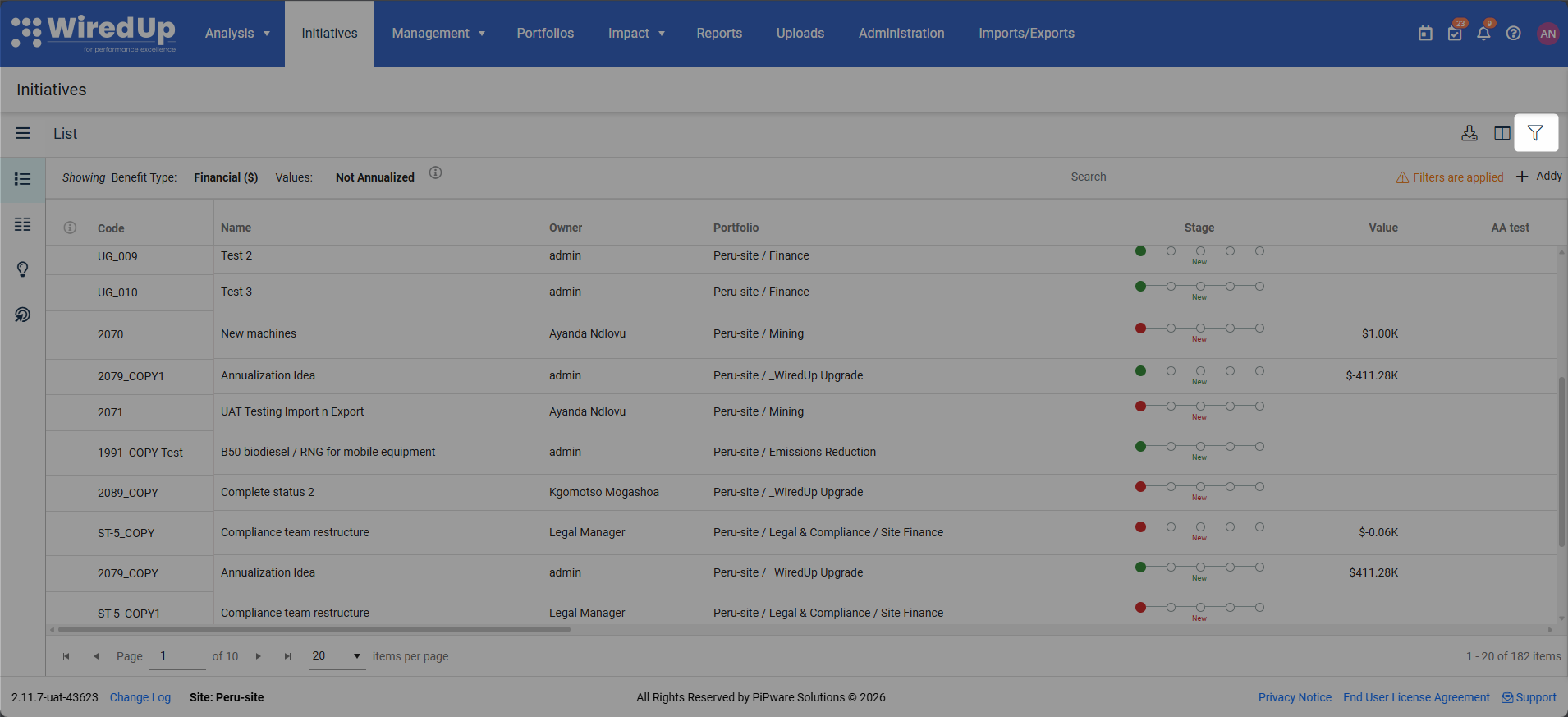
- Configure your desired filters (Status, Portfolio, Owner, Stage, etc.)
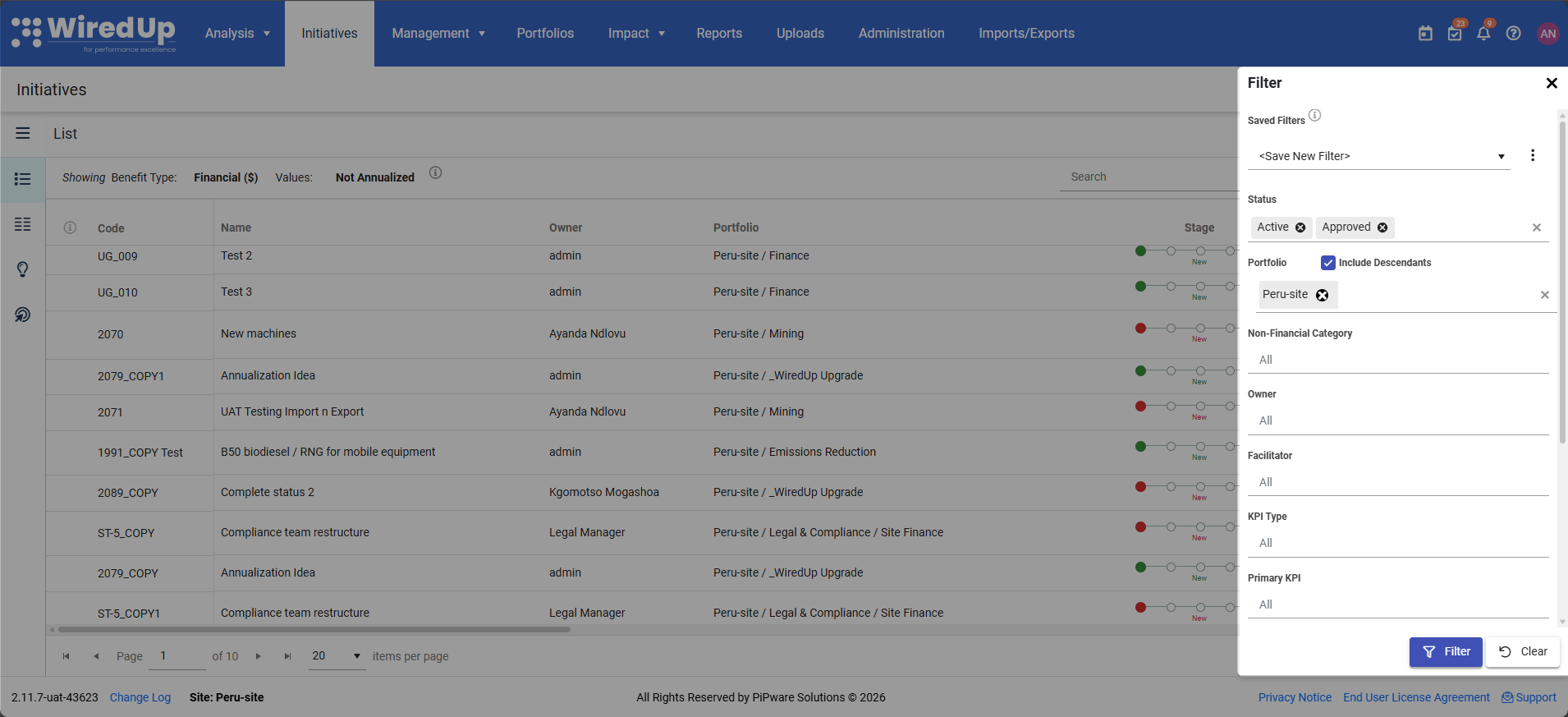
- The Saved Filters dropdown at the top displays <Save New Filter> by default
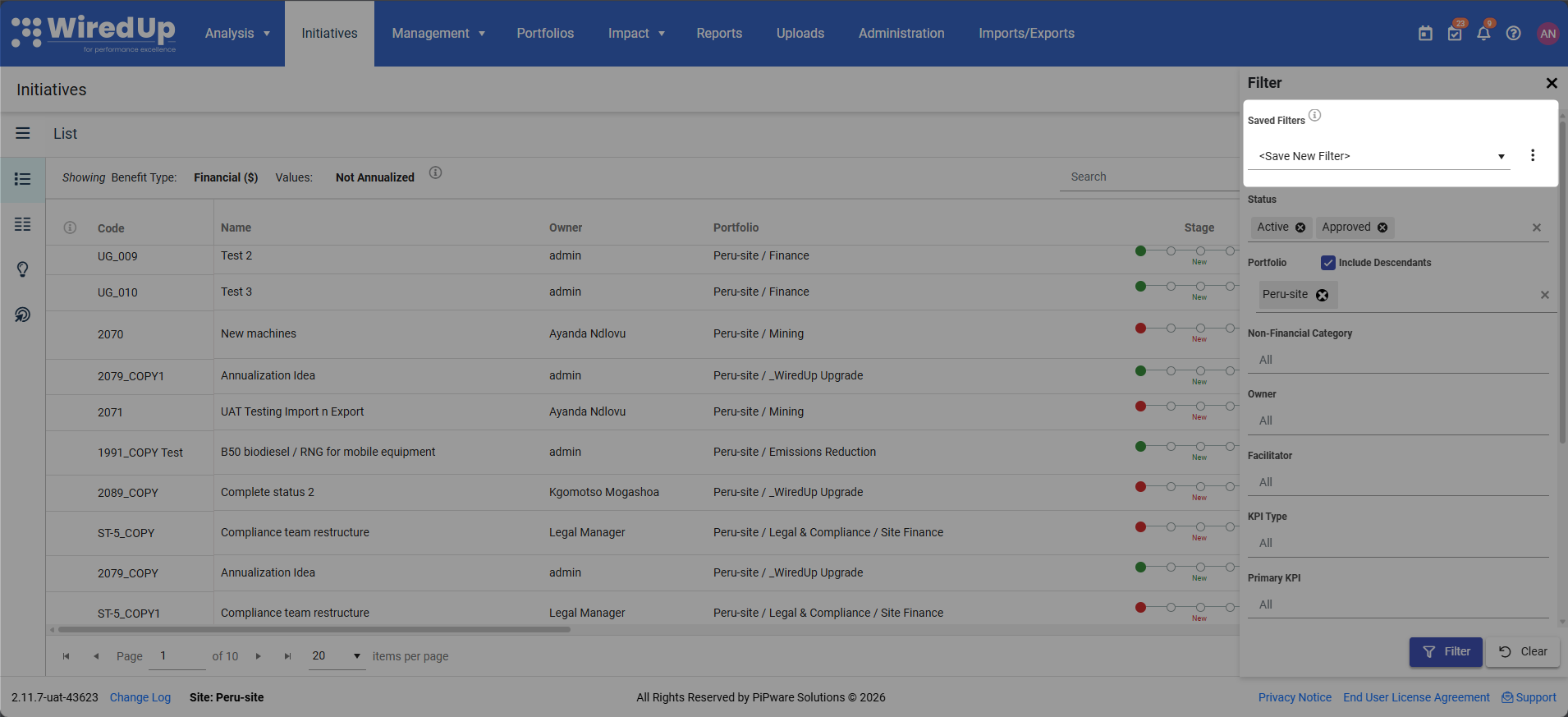
- Click the Save button from the vertical ellipse menu to save the filters
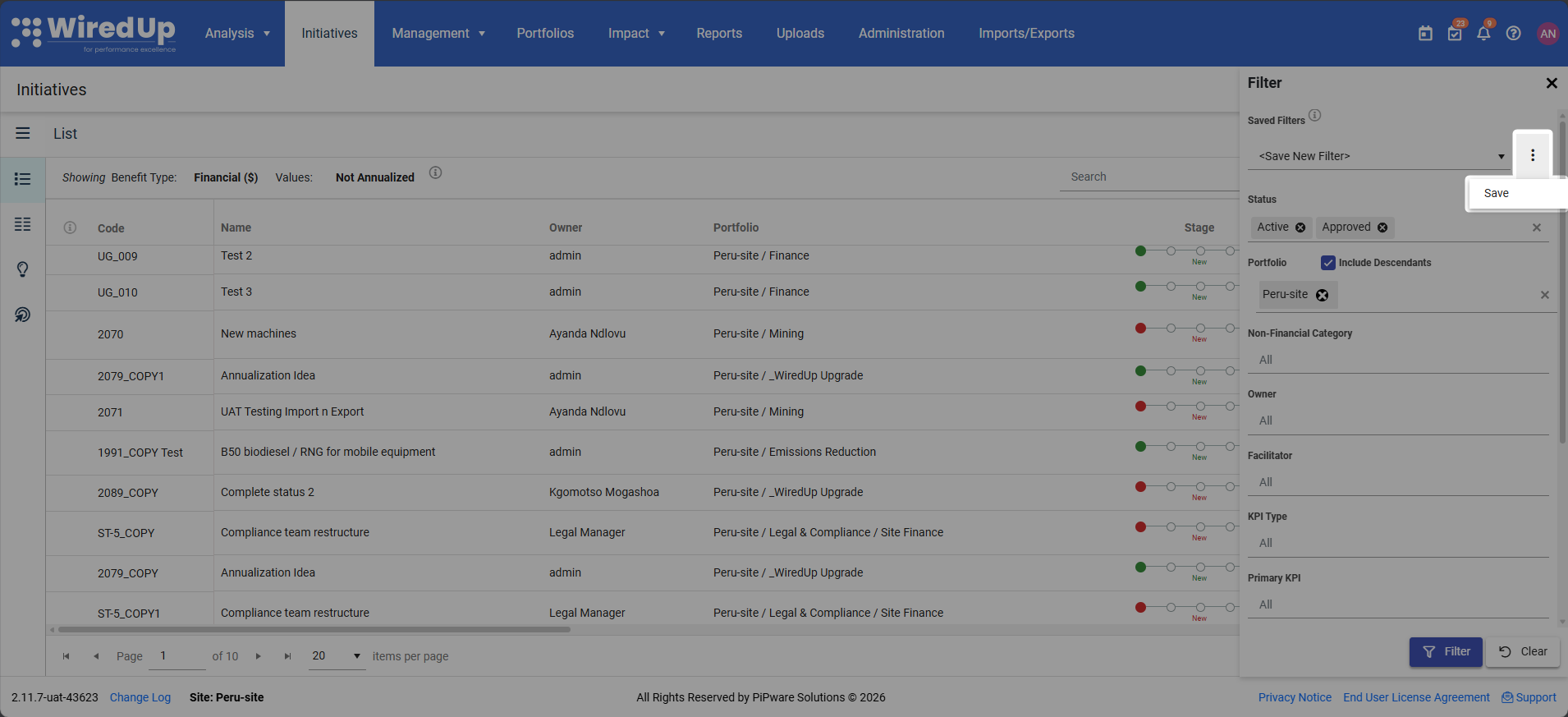
- A "Save Filter" dialog appears requesting a filter name. Enter a descriptive name for your filter and click Save
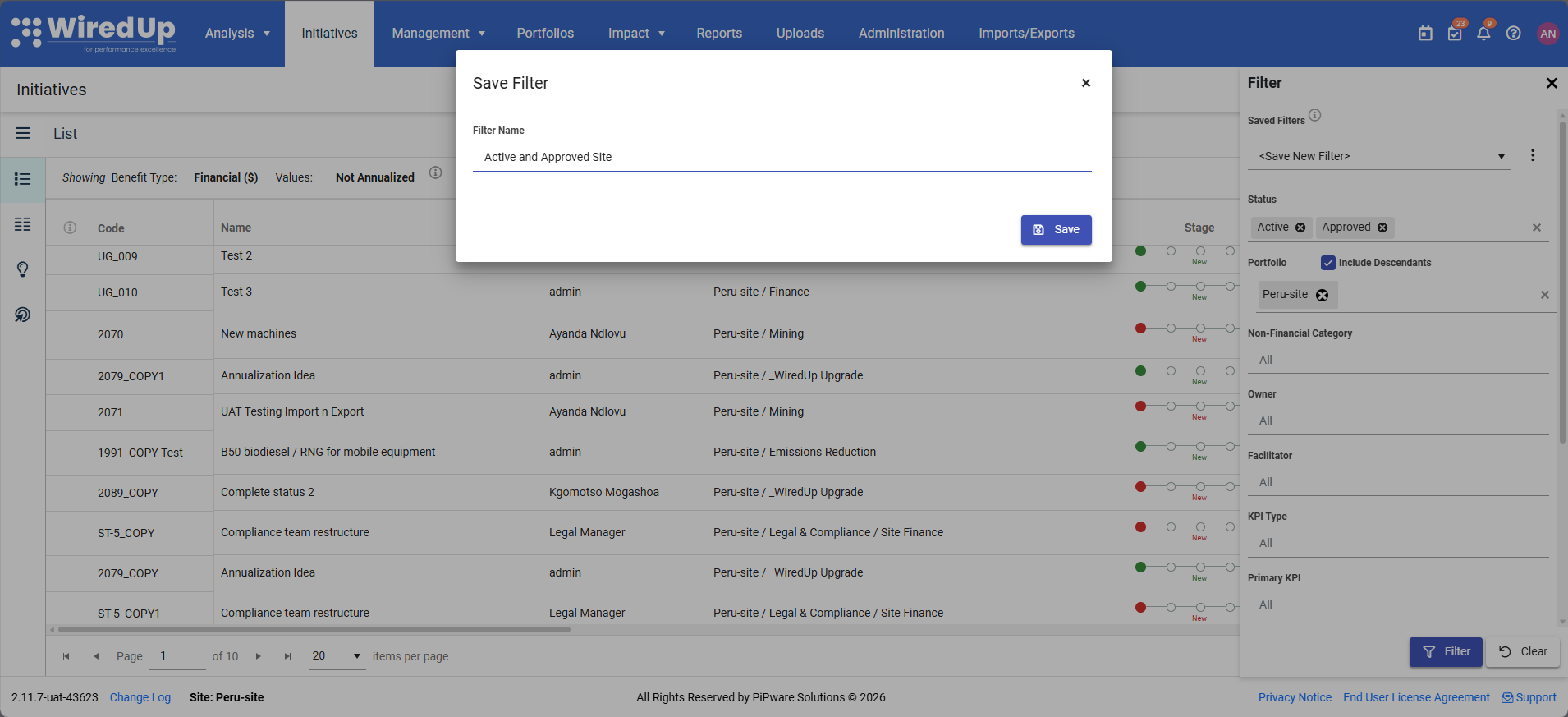
- The new saved filter becomes selected in the dropdown list of saved filters
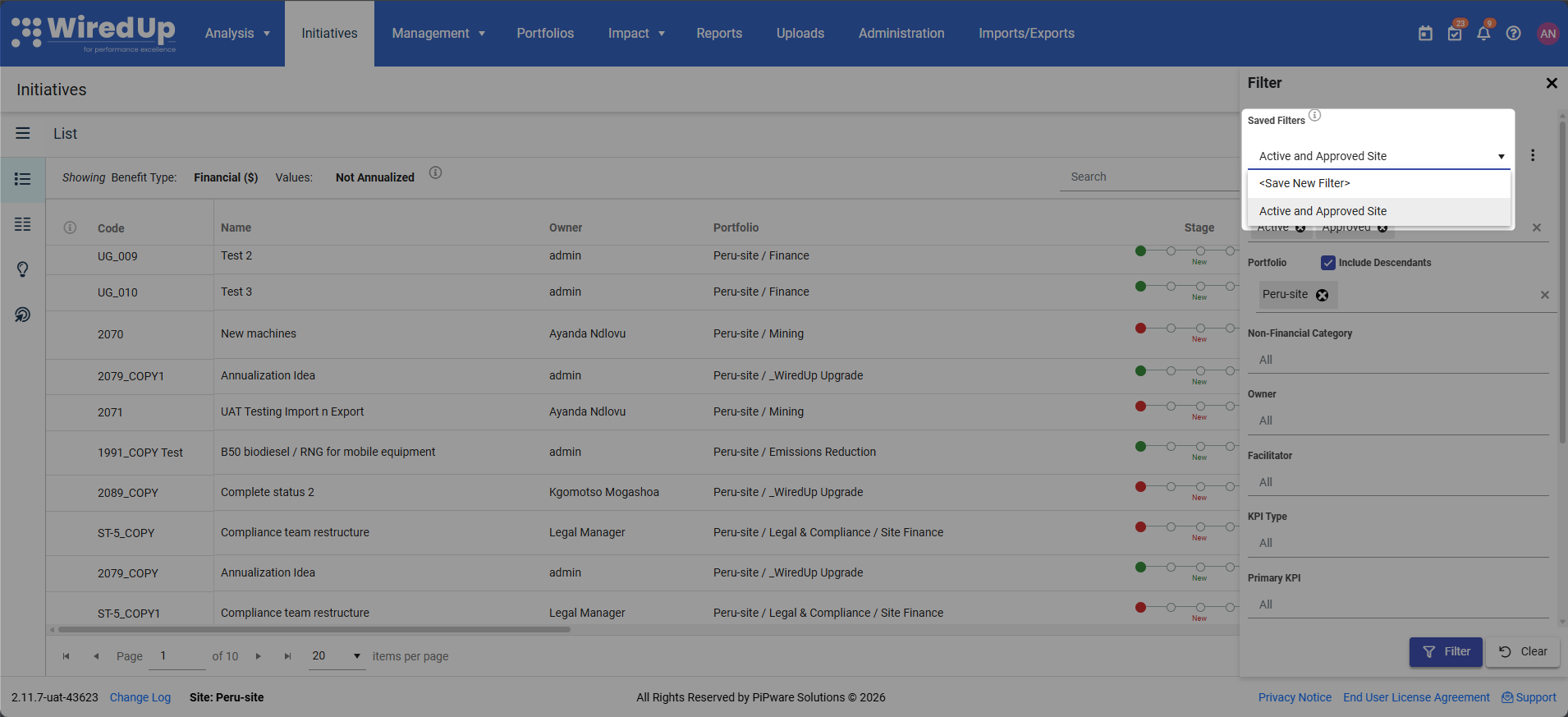
To apply a saved filter: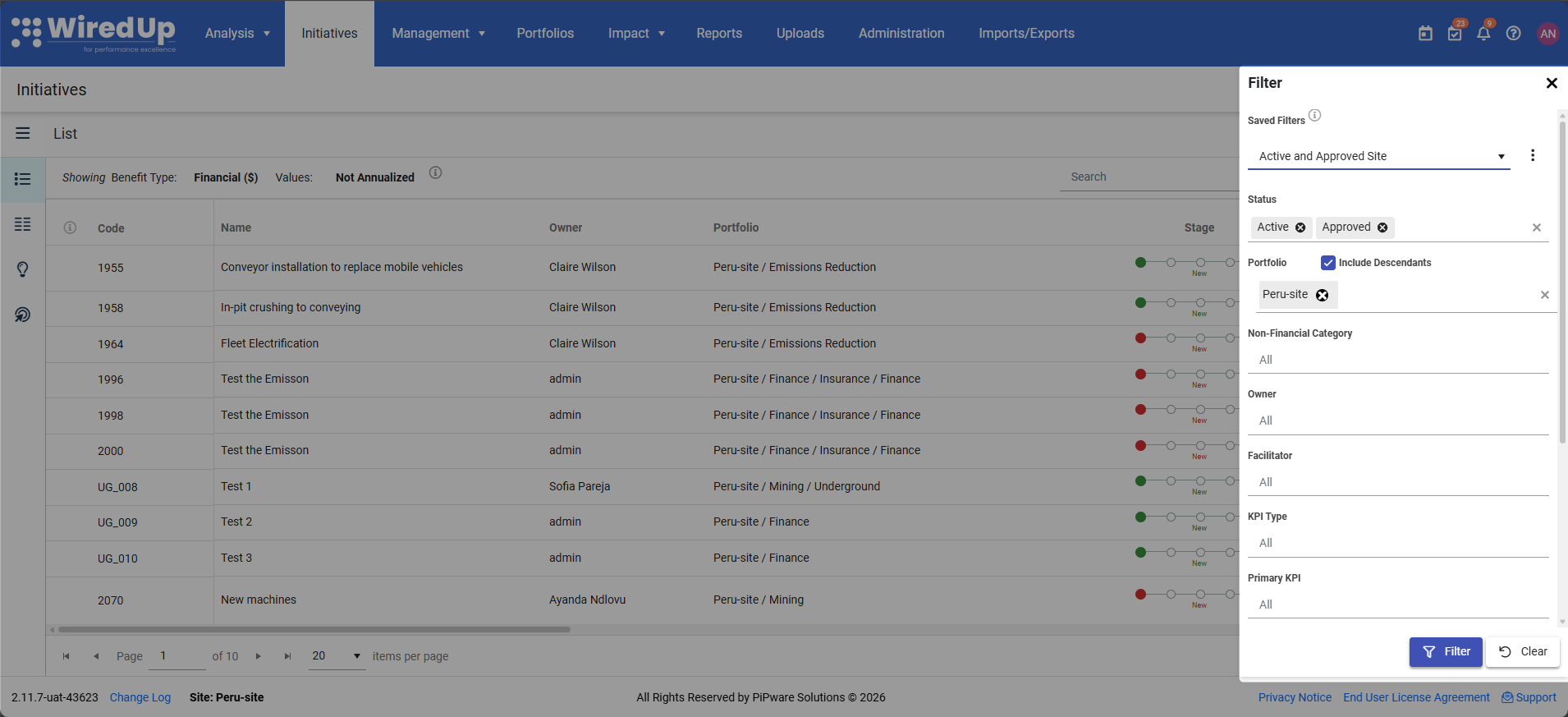
- Click the Filter icon to open the Filter drawer
- Click the Saved Filters dropdown at the top
- Select your desired saved filter from the list
- The filter drawer fields automatically update to match the saved filter configuration
- The Ideas List updates to reflect the selected filter
To update an existing saved filter:
- Select a saved filter from the Saved Filters dropdown
- Modify any filter fields as needed
- The filter name displays with an (Unsaved) suffix to indicate unsaved changes
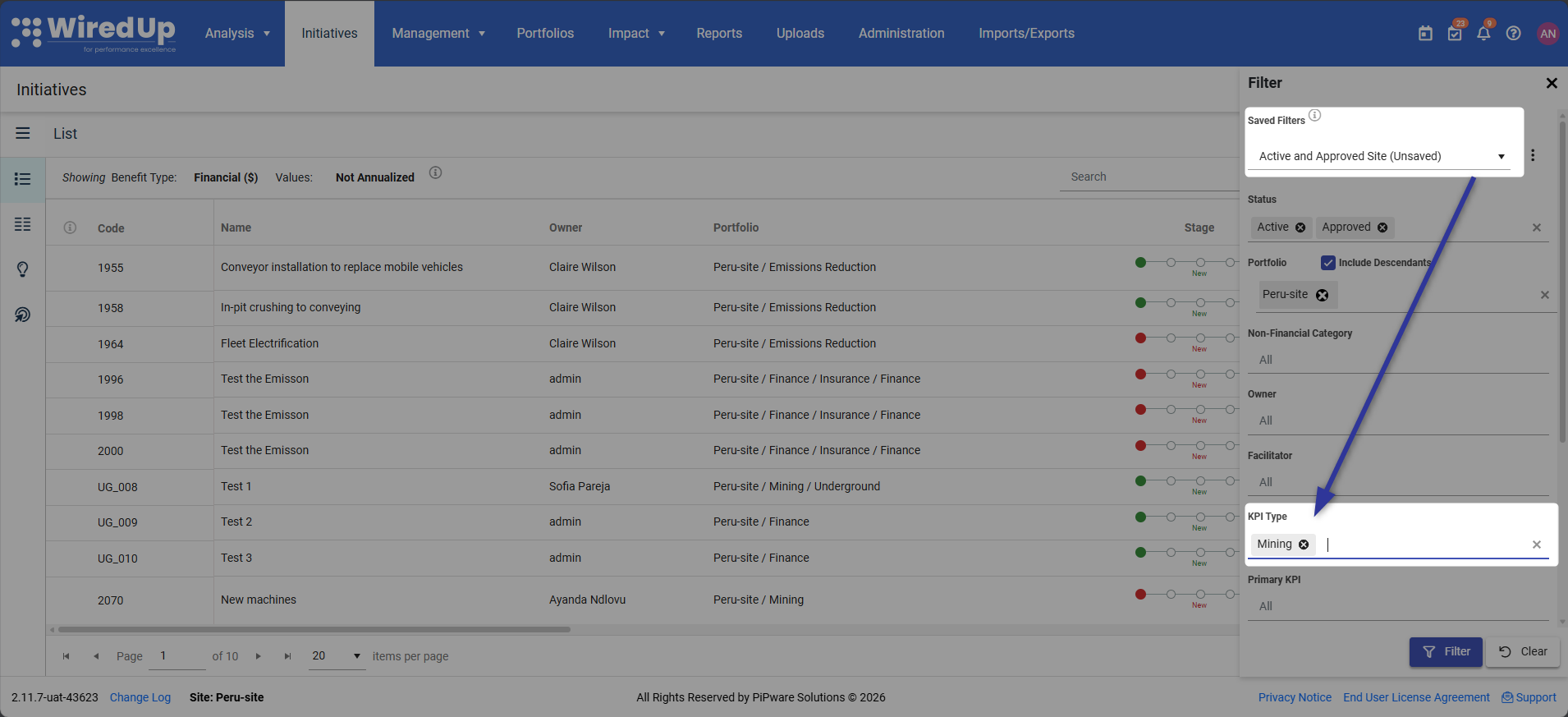
- Click the Filter button at the bottom of the drawer
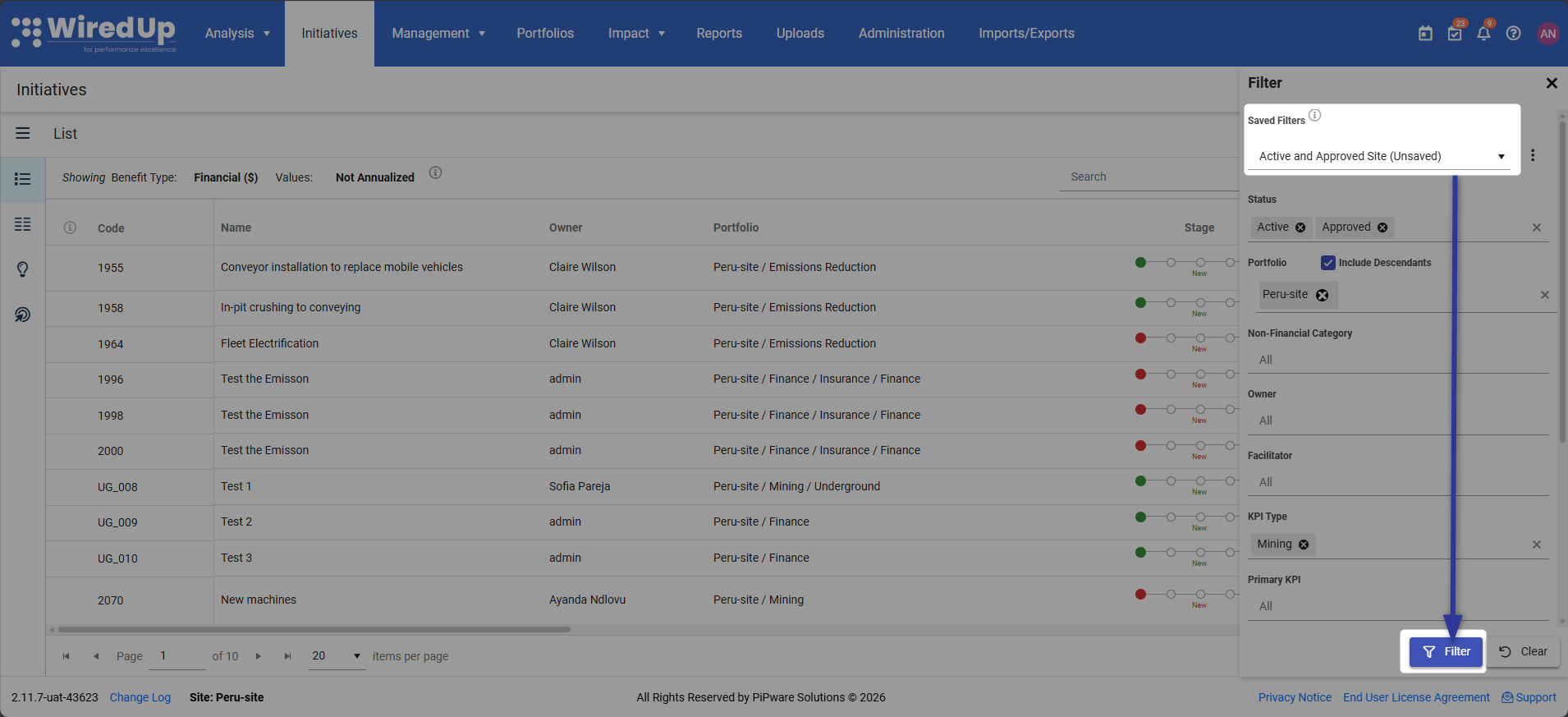
- The existing saved filter is overwritten with the new configuration
Saved Filter Menu Options:
Click the ⋯ (vertical ellipse) menu next to the Saved Filters dropdown to access additional options: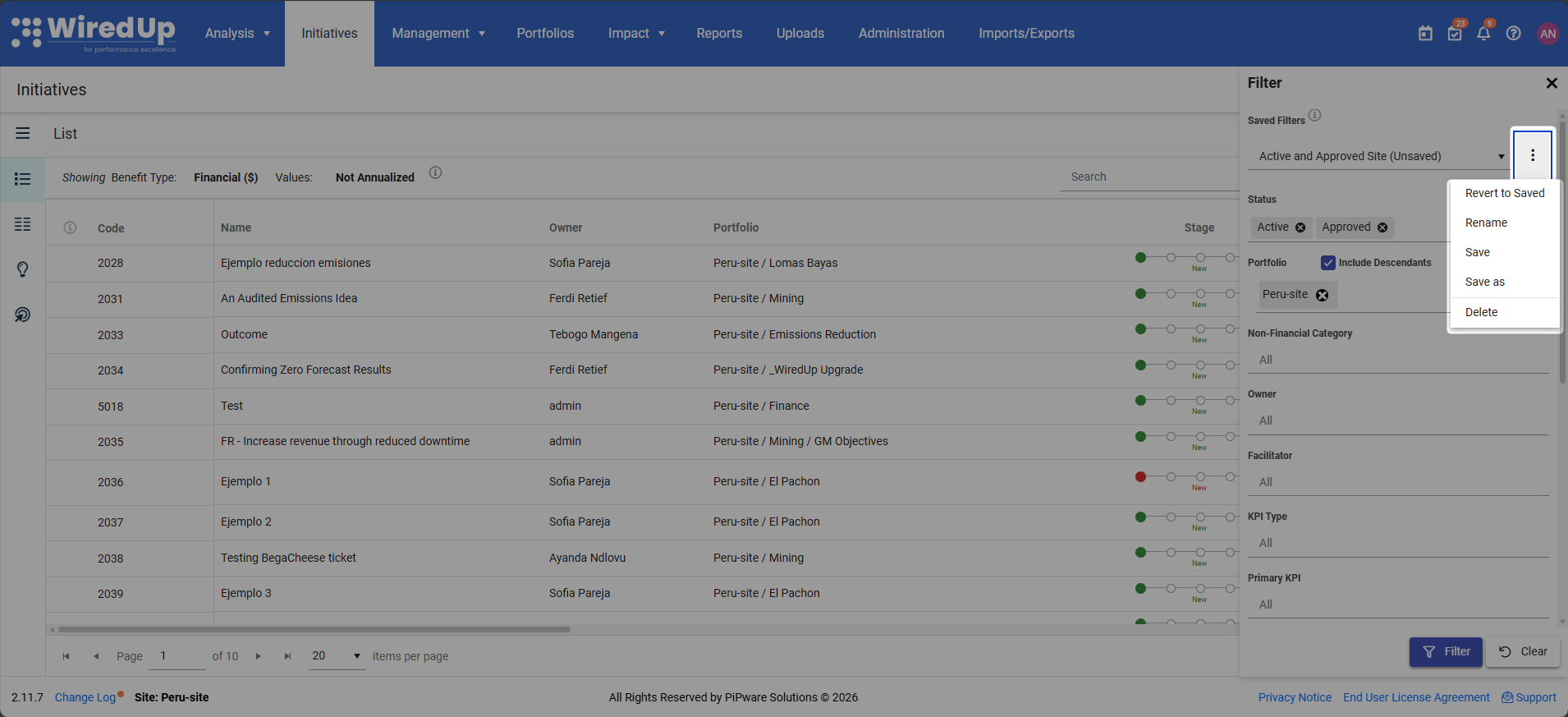
- Revert to Saved: reverts all changes made to the selected saved filter
- Rename: Changes the name of the currently selected saved filter
- Click Rename from the menu
- A rename dialog appears with the current name prefilled
- Save: save the current filter configurations to update the selected saved filter
- Save as: Creates a new saved filter based on the current configuration without overwriting the selected filter
- Click Save As from the menu
- A "Save As" dialog appears requesting a new name
- Delete: Removes the currently selected saved filter
- Click Delete from the menu
- A confirmation dialog appears confirming the removal of the saved filter
Clear Button Behavior:
Clicking the Clear button resets all filter fields to the standard unfiltered state:
- The saved filter name updates with an (Unsaved) suffix
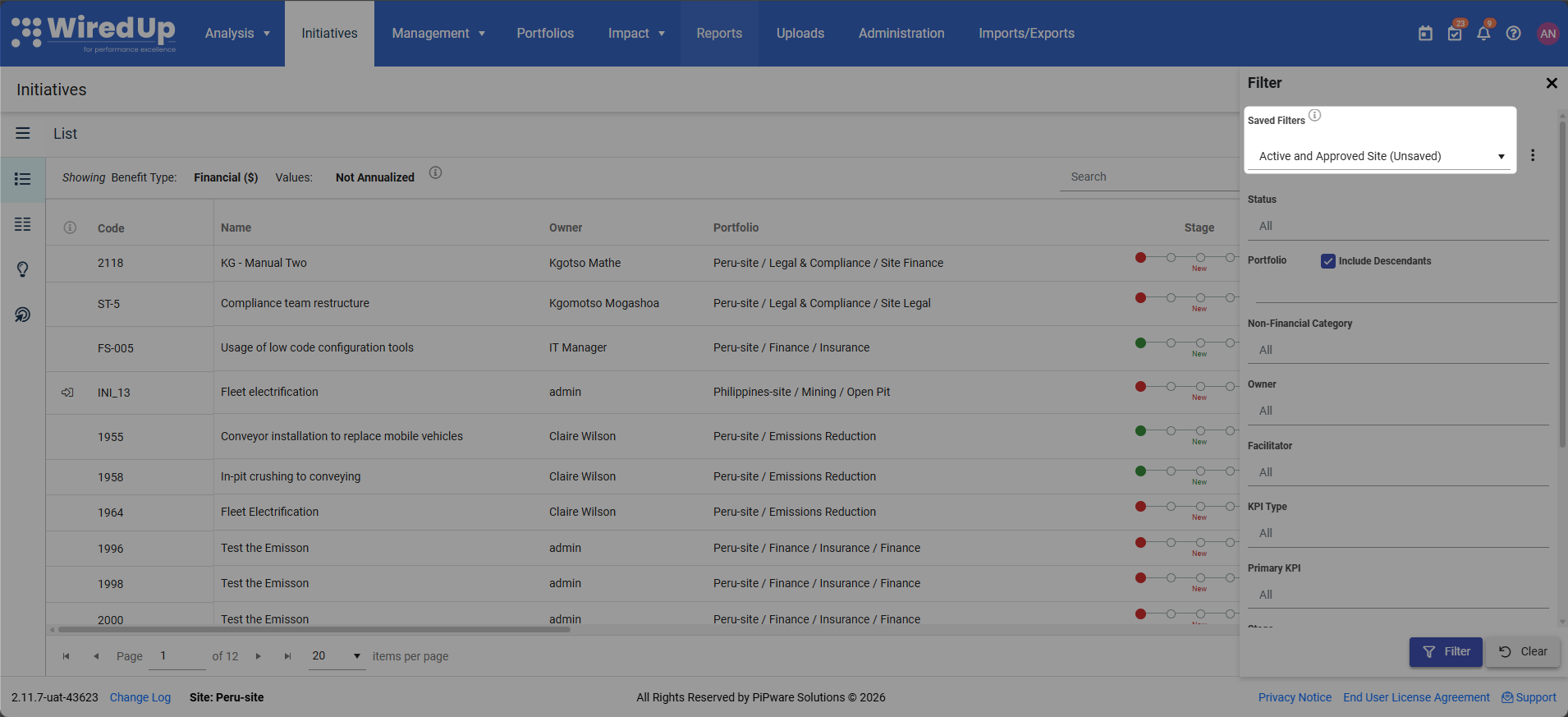
- The filter fields are cleared but the saved filter remains selected in the dropdown
- You can then:
- Click Filter to apply the cleared/unfiltered results
- Click Save to update the selected saved filter with the cleared state
- Click Save As from the menu to create a new saved filter
Search and Filter:
- Use the Search box to find specific Initiatives by entering their code or name. When filters are applied, "Filters are applied" will be displayed next to the search box

- Click the Filter icon to apply custom filters to the Initiatives list. You can add more filters by clicking the 'More Filters' option then proceed to click the '+' sign to add the filter to the filter list
Toolbar Options: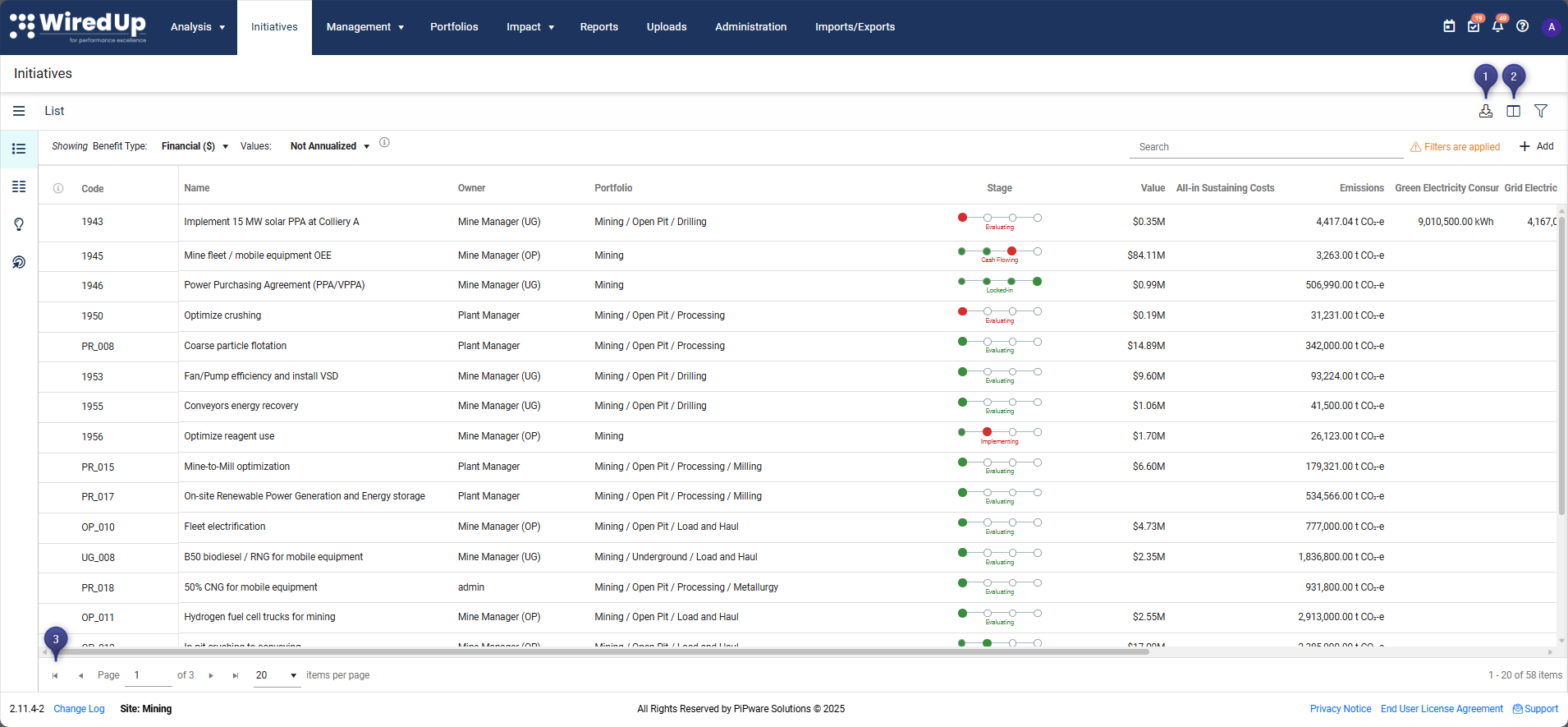
- Click the Download icon to save the list as a PDF or Excel file
- Click the Field Picker icon to show/hide columns in the list. The additional Primary and Secondary fields are configured on Administration > Idea Fields
- Use the toolbar at the bottom of the screen to navigate through pages and set how many items are displayed per page
List View Functionality
The List View supports the following capabilities:
Sorting: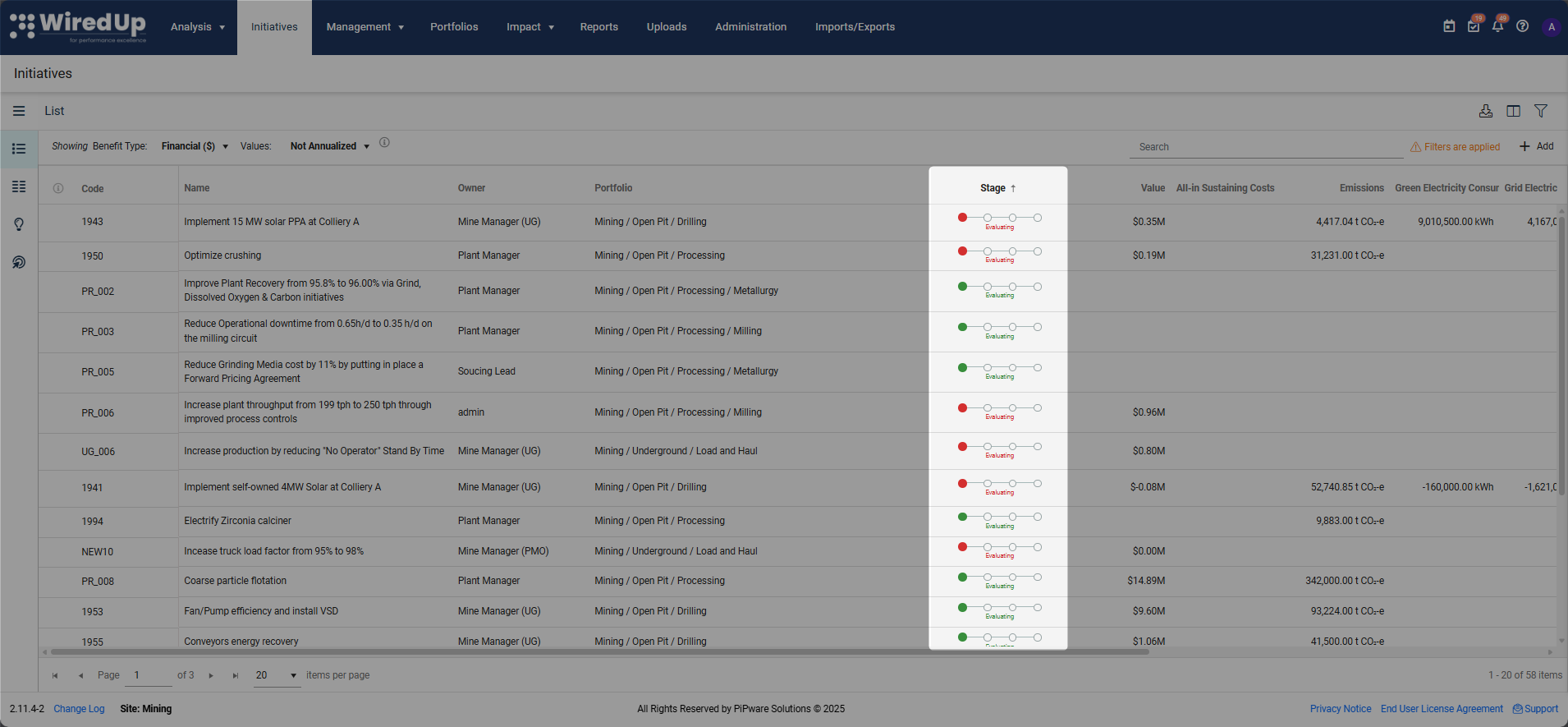
- Sort the Idea/Initiative list by clicking on column name titles. Available sort options include: Code, Name, Owner, Portfolio, Stage, Value, and Status
- When sorting by stage, the idea/initiative list can be sorted in ascending or descending order (e.g., from Evaluating to Locked-In or from Locked-In to Evaluating). A column sorted in ascending order will have an upside arrow and a column sorted in descending order will have a downside arrow
Organization:
- The Owner column displays the original creator of each Initiative
- The Portfolio column shows the associated Portfolio for filtering and organization purposes
- Non-financial values can also be monitored and displayed in the Initiatives List view
Stage Indicators: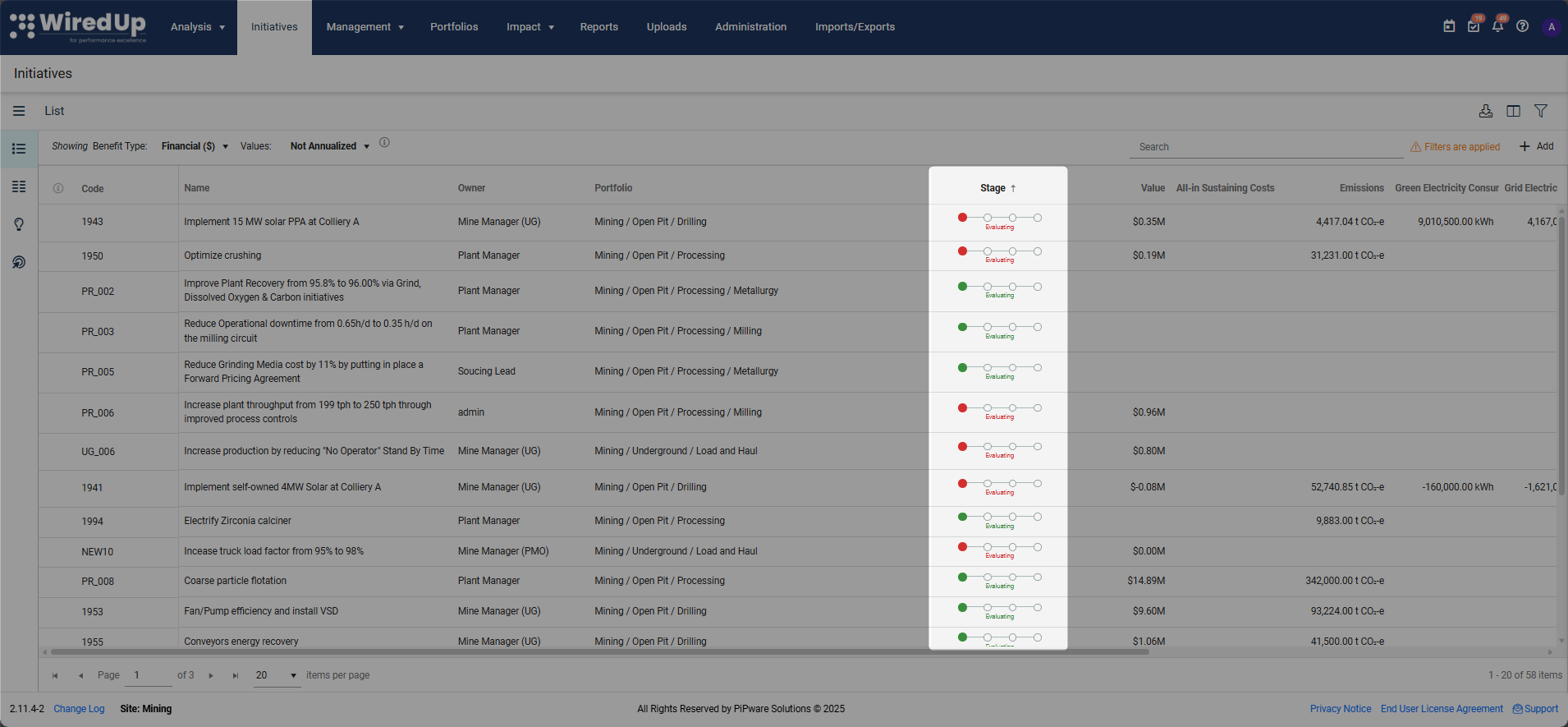
The Stage column indicates what stage the Initiative is currently progressing through:
- Green shows the Initiative is on track - this means the initiative is progressing according to the forecasted timeline dates entered in the workplan and is in the expected stage for the current date
- Red means the Initiative is off track - this indicates the initiative has not progressed to the stage it should be in based on the forecasted timeline dates configured in the workplan, suggesting delays in moving through the approval process or meeting stage milestones
- Hover over the stage column to display more information about the stage status, including specific timeline details
Value Column:
The Value column displays the initiative's value, which is derived through one of two methods:
- Manual Capture - The Annualized Value entered directly on the initiative's Overview page
- VDT (Value Driver Tree) - The Improvement value calculated from the Baseline view of the initiative's VDT, which represents the difference between the Baseline and Target values
Navigation:
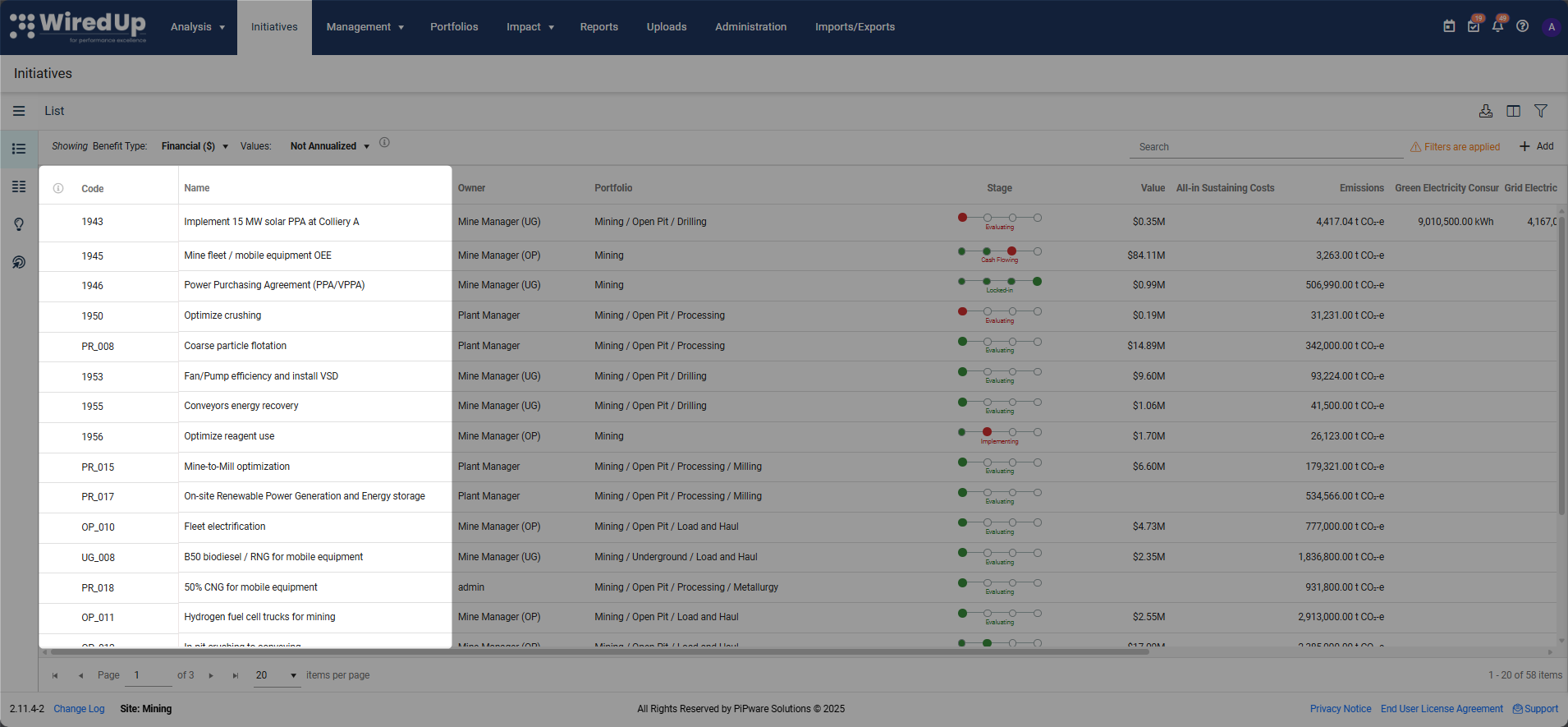
- Click on the Idea/Initiative Code or Name to open and view the full initiative details
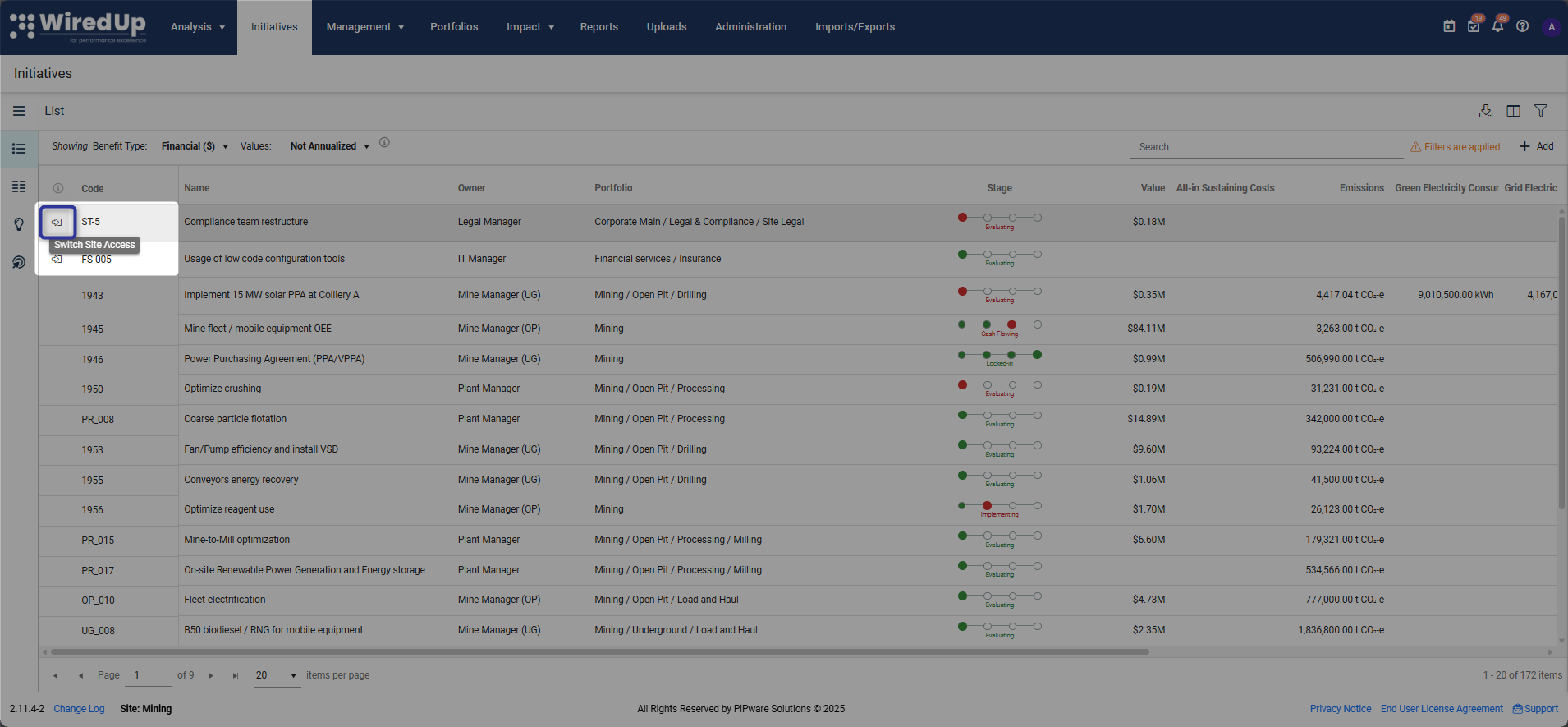
- Switch to another site by clicking on the Switch Site Access icon to navigate to another site
Cards View
The Cards View provides a visual, stage-based representation of your initiatives, making it easy to see the status and progress of ideas at a glance.
To navigate to the Cards view: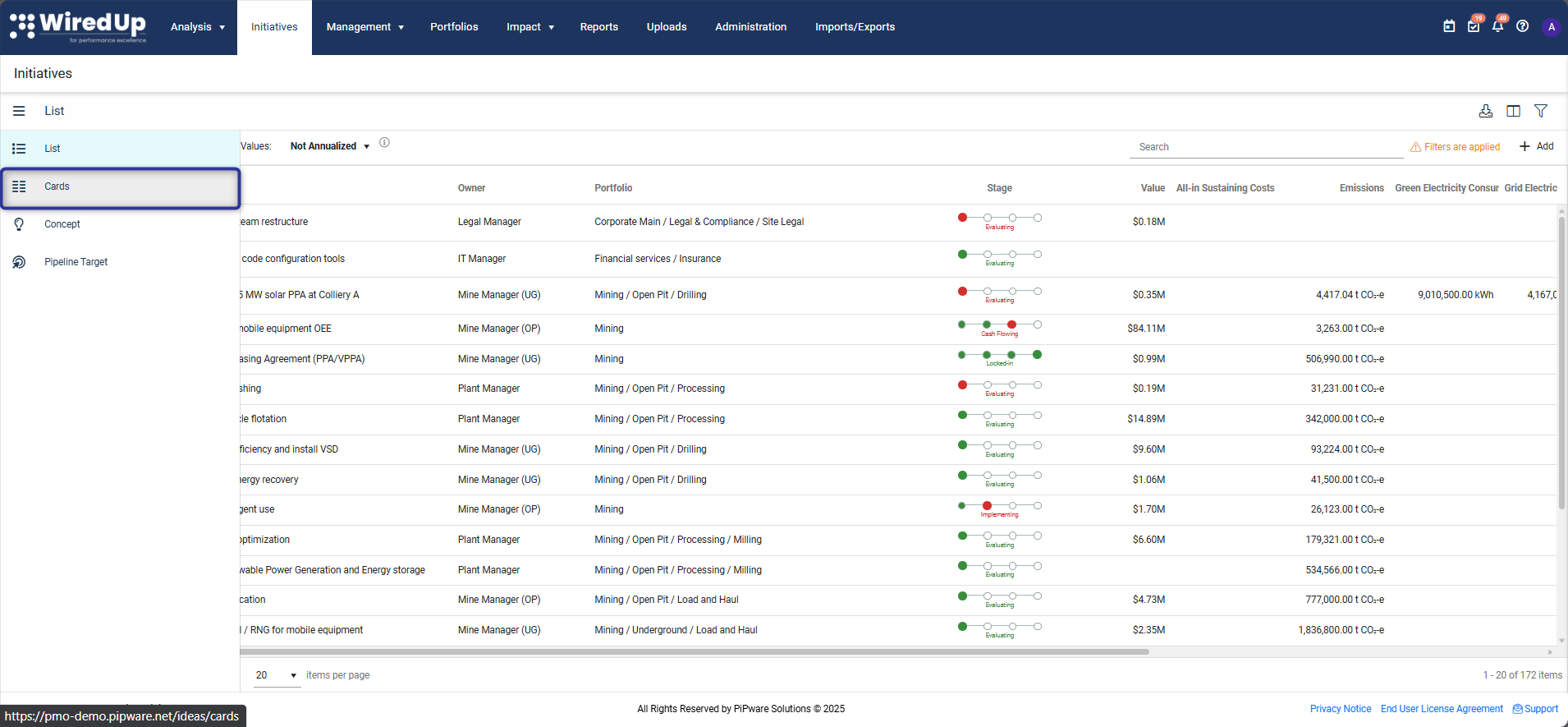
- Click the burger menu icon in the left-hand corner of the screen
- Select Cards
Key Features
Value Summary Bar:

- At the top of the Cards view, initiative values are displayed and split by idea status:
- Active Initiatives - Shows the count and total value of active initiatives
- On Hold - Shows the count and total value of initiatives on hold
- Cancelled - Shows the count and total value of cancelled initiatives
- Complete - Shows the count and total value of completed initiatives
- All Initiatives - Shows the total count and combined value of all initiatives
- This summary bar provides a quick overview of your portfolio's ideas/initiatives' value distribution across different statuses
View Options:
- Toggle between Compact or Details view using the view switcher
- Details view displays more comprehensive information on each Initiative card
- Compact view shows a condensed version for quick scanning
Stage Organization:
- Initiatives are organized into columns by their current stage. Each column header displays the stage name, count of initiatives in that stage, and the total value
- Use the scroll bar to view all cards associated with each stage
Card Information: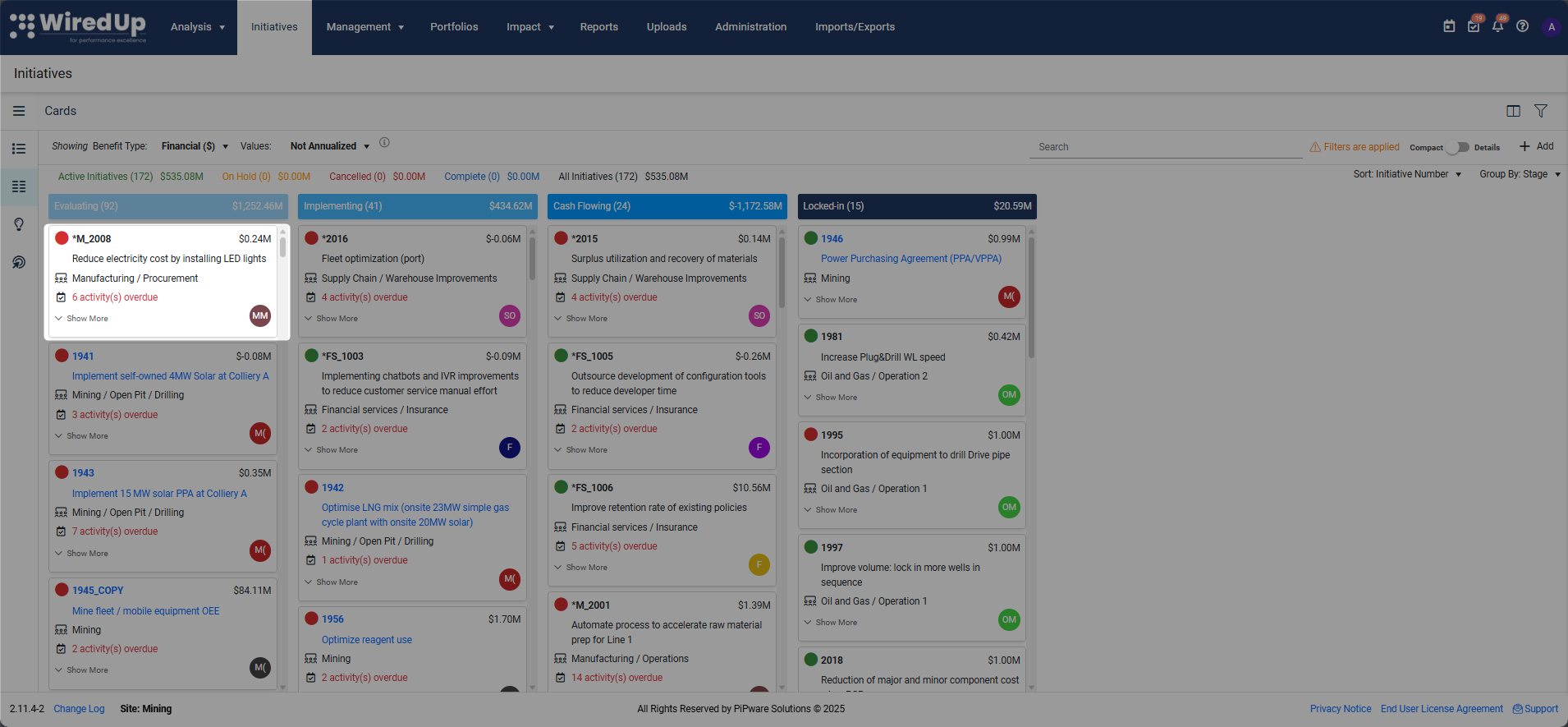
- Each card shows key details such as:
- Initiative code and name (displayed as a clickable link)
- Initiative value (displayed prominently)
- Portfolio/Org Structure level
- Number of overdue activities (if any)
- Status indicators (colored dots showing on-track or off-track status)
- Owner initials in a colored badge
- Click Show More on any card to expand and view additional details
Sorting and Grouping: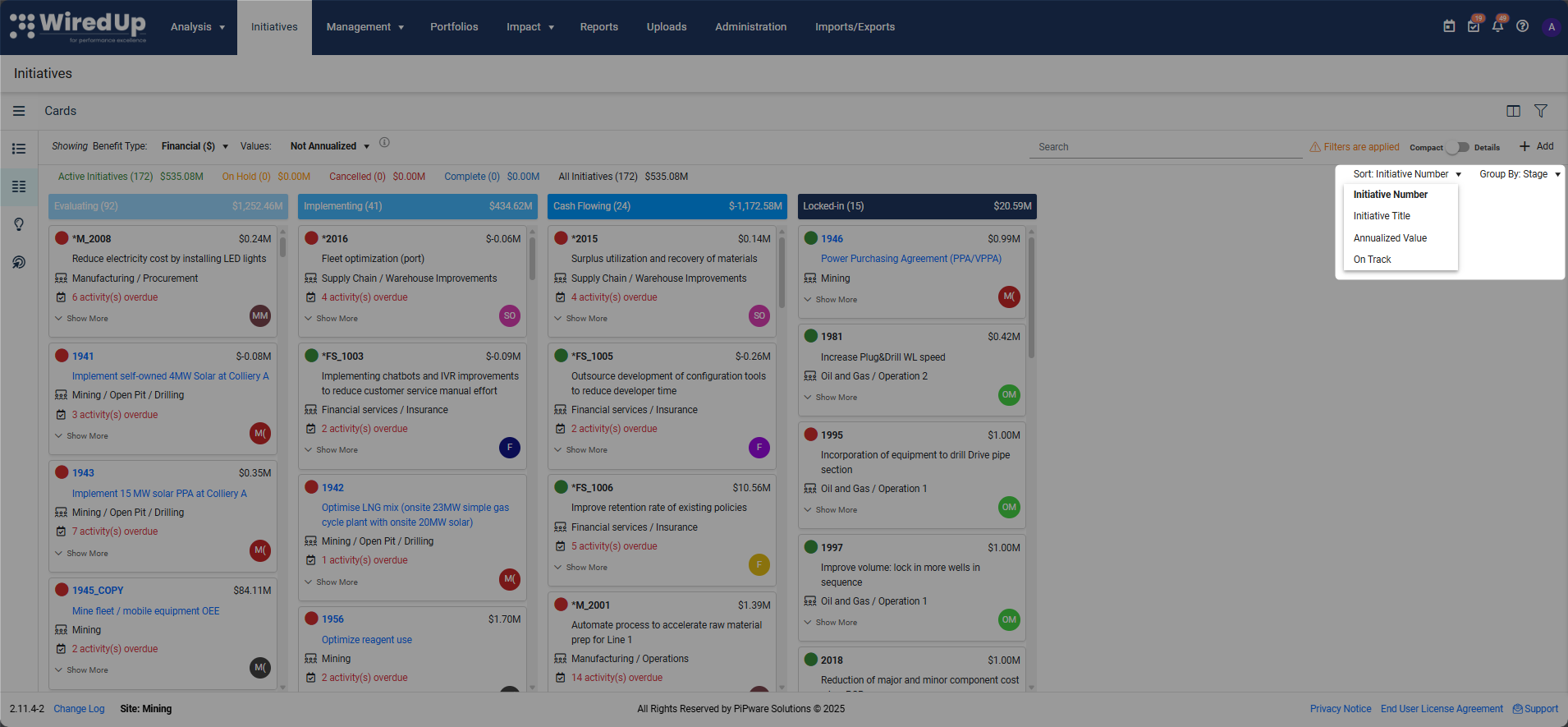
- Use the Sort dropdown to organize cards by:
- Initiative/Idea Number
- Initiative/Idea Name
- Annualized Value
- On Track initiatives/ideas
- Use the Group Bydropdown to group cards by:
- Stage (default)
- Initiative Owner
Additional Options: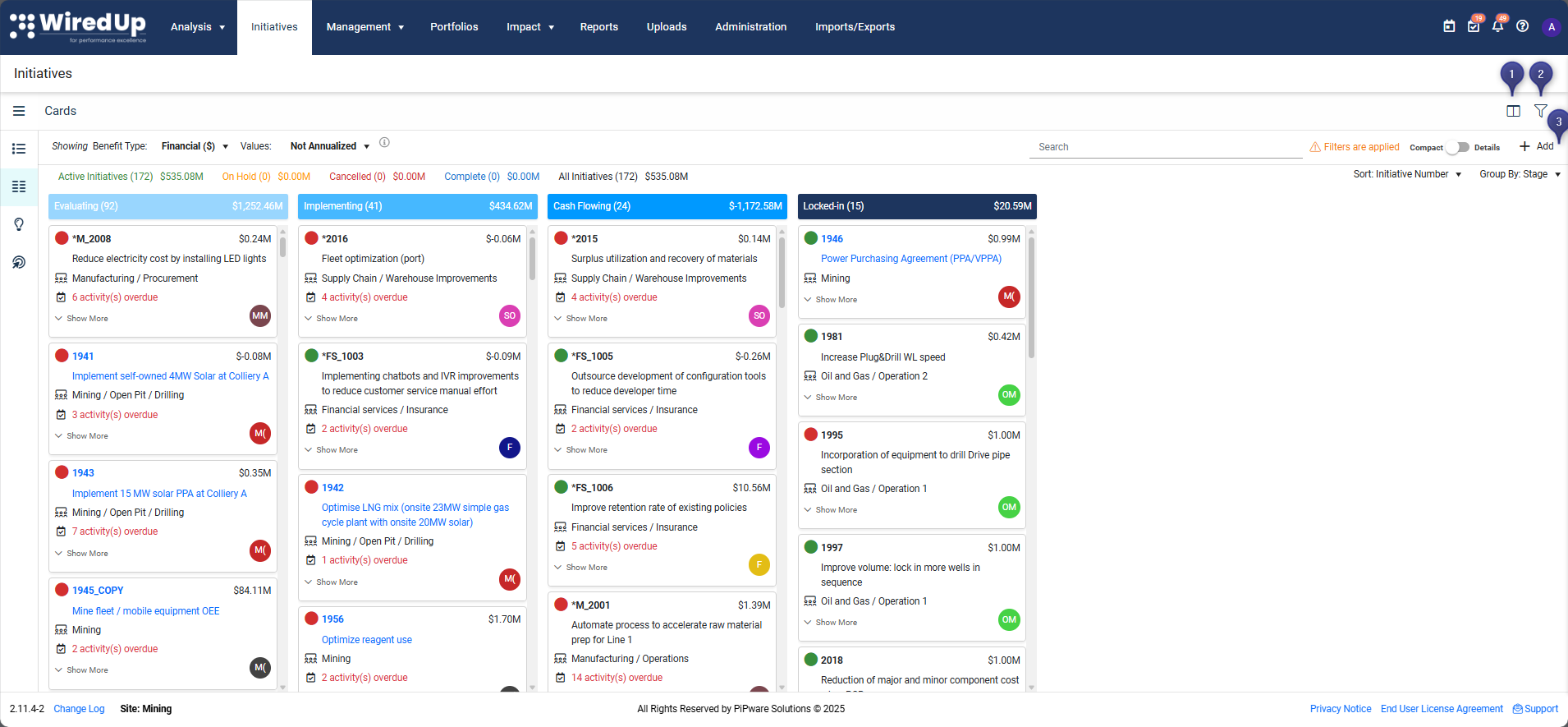
- Click the field picker icon to customize which fields are displayed on the initiative cards
- Click the filter icon to access filtering options
- Use the Add button to create a new initiative directly from the Cards view
Filtering: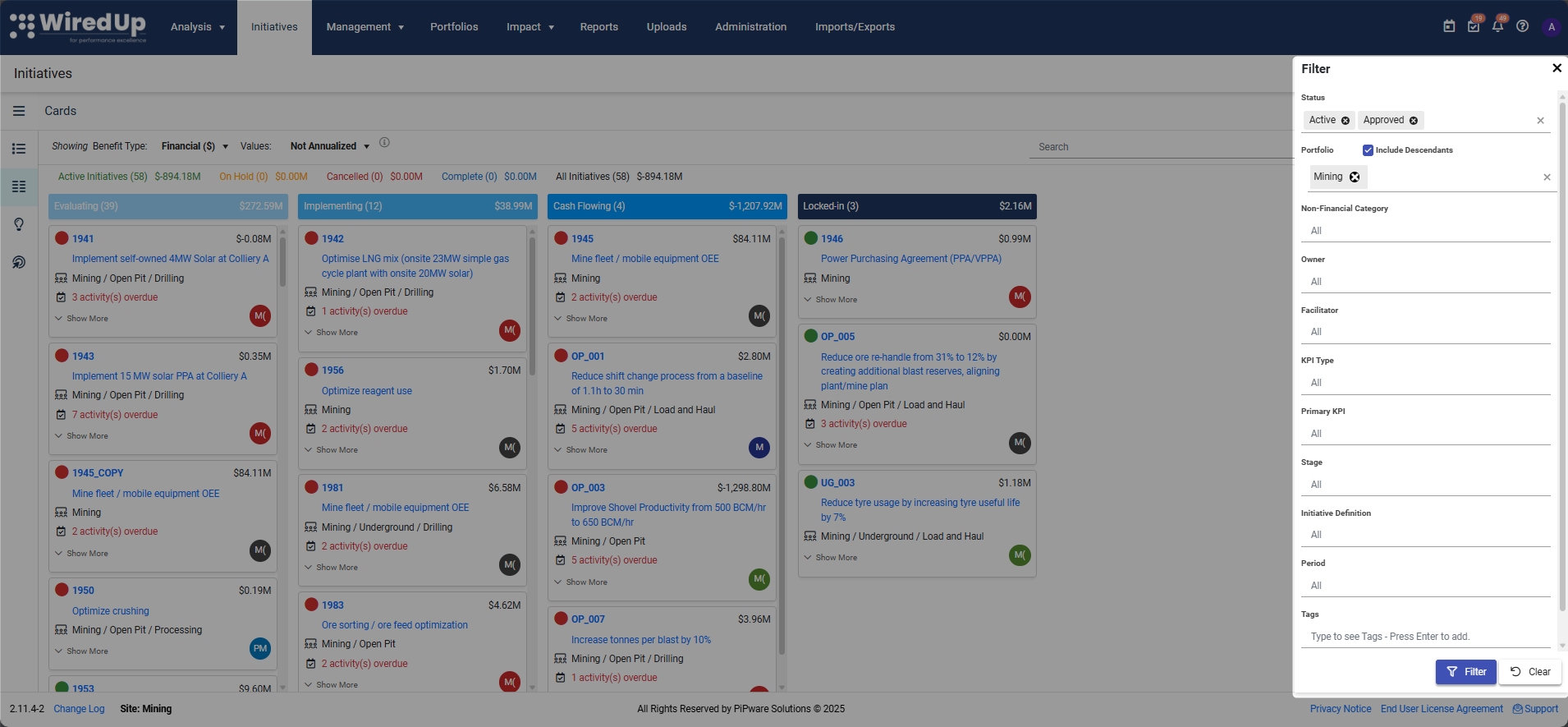
- The Cards view displays ideas/initiatives based on the selected filters
- By default, it shows ideas/initiatives that are currently Active or Approved
- Use the filter options to adjust which ideas/initiatives are displayed based on status, portfolio, owner, and other criteria
- Saved Filters are available in Cards view, allowing you to quickly apply your saved filter configurations (see List View - Saved Filters section for details)
Common Features Across Both Views
Both List and Cards views share the following features:
Benefit Type Selection: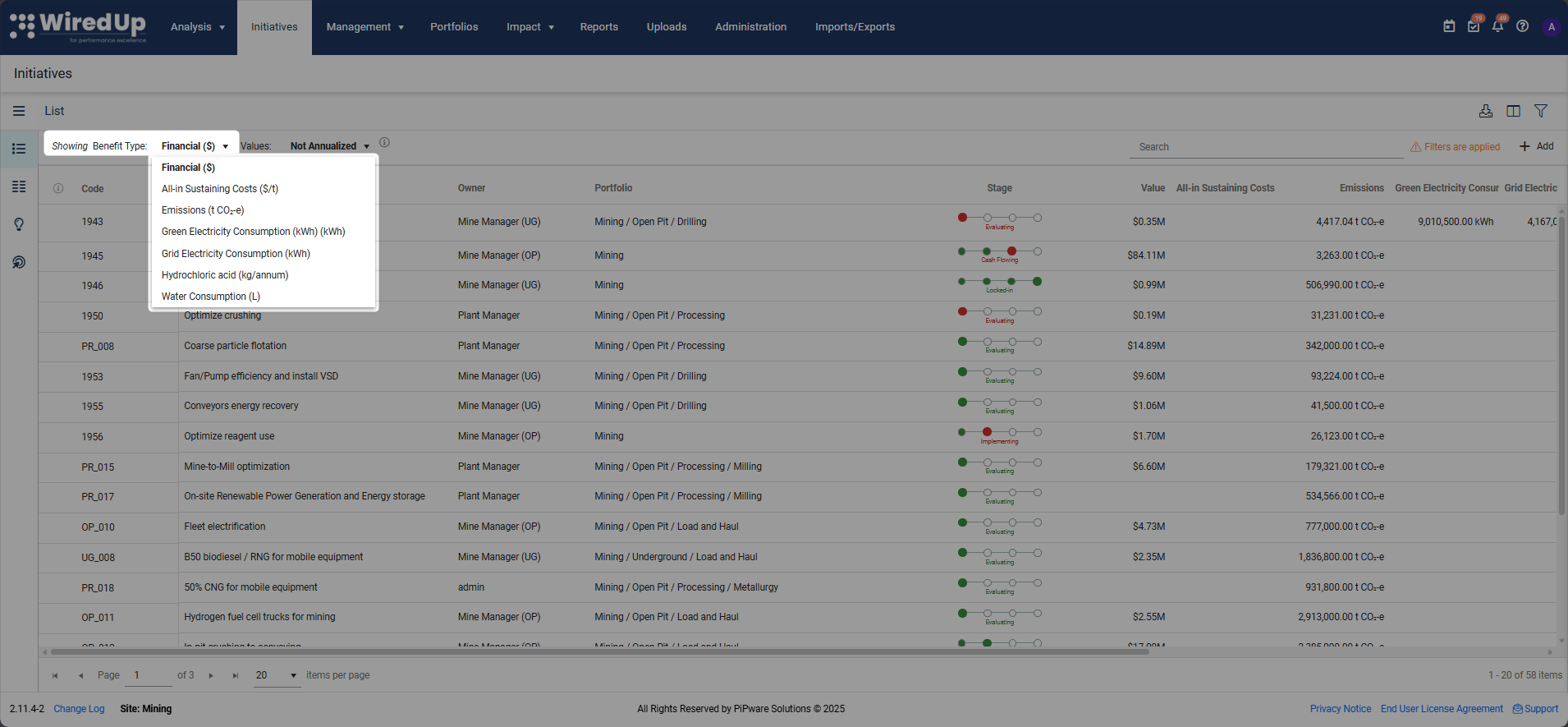
- Select the Benefit Type you wish to view from the dropdown in the toolbar. Options include:
- Financial - Displays financial benefit values
- Any configured Non-Financial benefit types (e.g., Emissions, Quality metrics)
Value Display Options: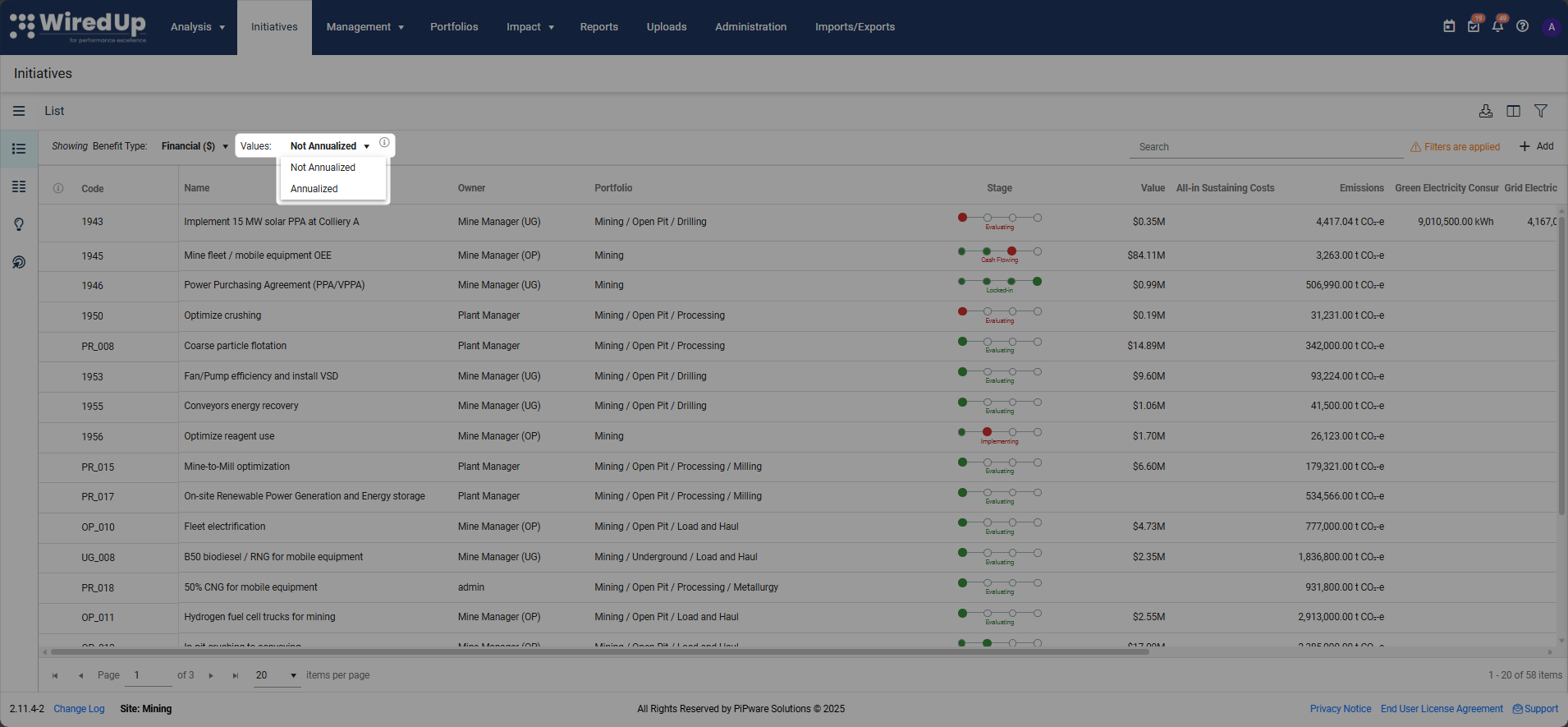
- Toggle between Annualized and Not Annualized baseline values using the Values dropdown (if applicable)
- This allows you to view initiative values based on your preferred calculation method
Automatic Filtering:
- When first loading either view, the system automatically filters based on:
- Status of the ideas (Active or Approved)
- Portfolio/organization that you are currently logged into
- Your access permissions
- Note: You can override these default filters by applying a saved filter or manually adjusting the filter settings
Navigation Menu:
- Use the burger menu icon to quickly switch between List, Cards, Concepts, and Pipeline Targets sections
Access Control:
- Only initiatives you have permission to view will be displayed
- Confidential ideas are only visible to authorized users
Search Functionality:
- Both views include a search box to quickly find specific initiatives by code or name
Filter Indicators:
- When filters are applied, an orange "Filters are applied" indicator appears in the toolbar
- This helps you understand when you're viewing a filtered subset of initiatives
- When a saved filter is selected, the filter name is displayed in the Saved Filters dropdown
- If you modify a saved filter without saving, an "(Unsaved)" suffix appears next to the filter name
Navigation to Individual Initiatives:
- Click on any initiative's Code or Name to open and view the full initiative details
- This allows you to access the complete information, performance data, and all tabs associated with that specific initiative
Next Steps
Now that you understand how to navigate the List and Cards views, explore the following related articles:
- Concepts List - Learn how to create and manage concept ideas before promoting them to the pipeline
- Pipeline Targets - Understand how to set and track pipeline targets
- Adding an Idea - Learn how to create new ideas and initiatives
- Edit an Idea - Discover how to modify and update existing initiatives
- Idea Stages and Statuses - Understand the different stages and statuses available for ideas