
In This Article
Accessing Idea Fields Configuration
Understanding the Idea Fields Table
Overview
Idea Fields allow you to configure which fields are available when creating and managing Ideas/Initiatives in WiredUp. You can control field visibility, requirements, filtering capabilities, and display options. Fields can be organized into Primary Fields and Secondary Fields, which determine where and how they appear throughout the system. The system includes both system-generated fields and the ability to add custom fields tailored to your organization's needs.
Accessing Idea Fields Configuration
To configure Idea Fields, follow these steps:
- After logging into WiredUp, click on the Administration module from the ribbon at the top of the screen.
- In the Administration screen, locate and click on Idea/Initiative Fields under the Ideas section.
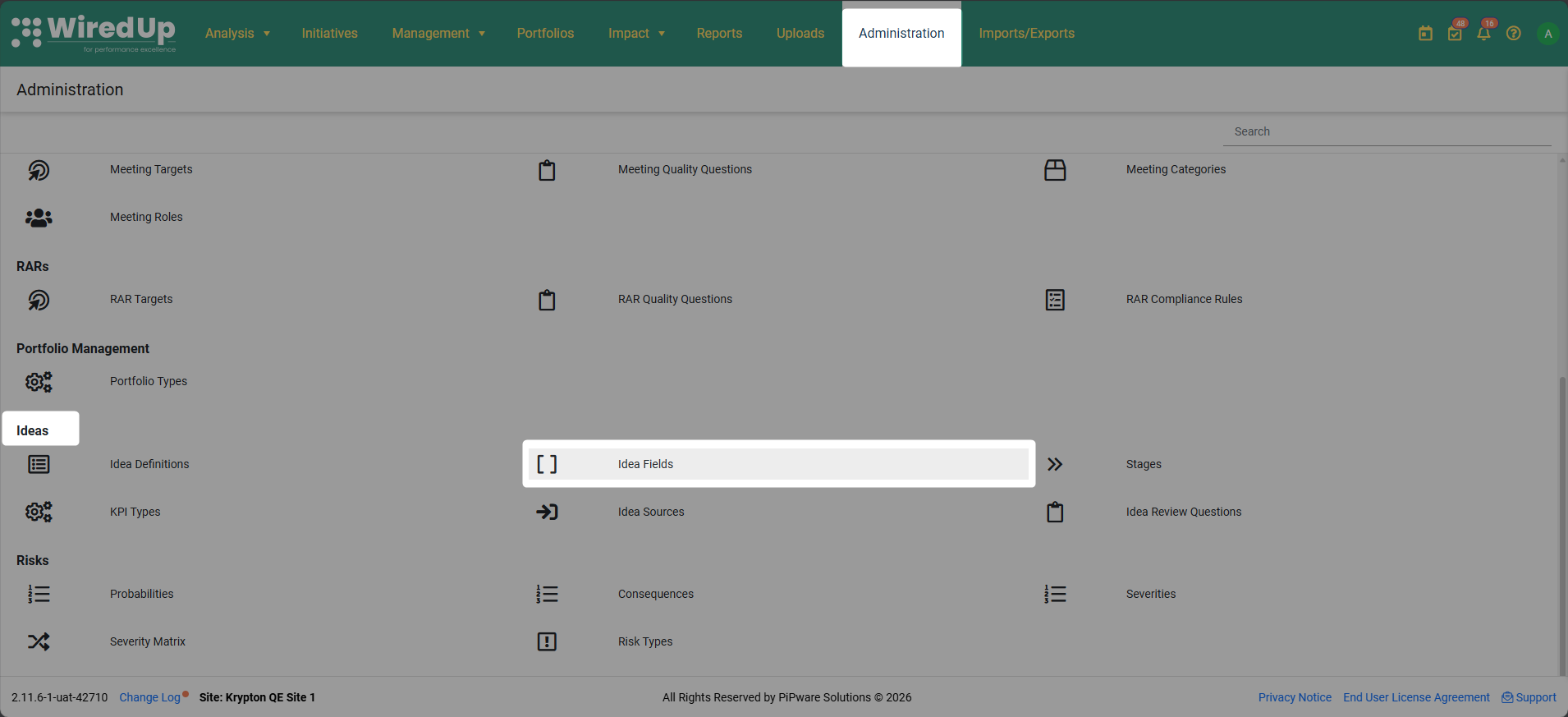
- The Idea Fields screen displays existing idea fields as well as a 3-bar menu on the left side with two main sections:
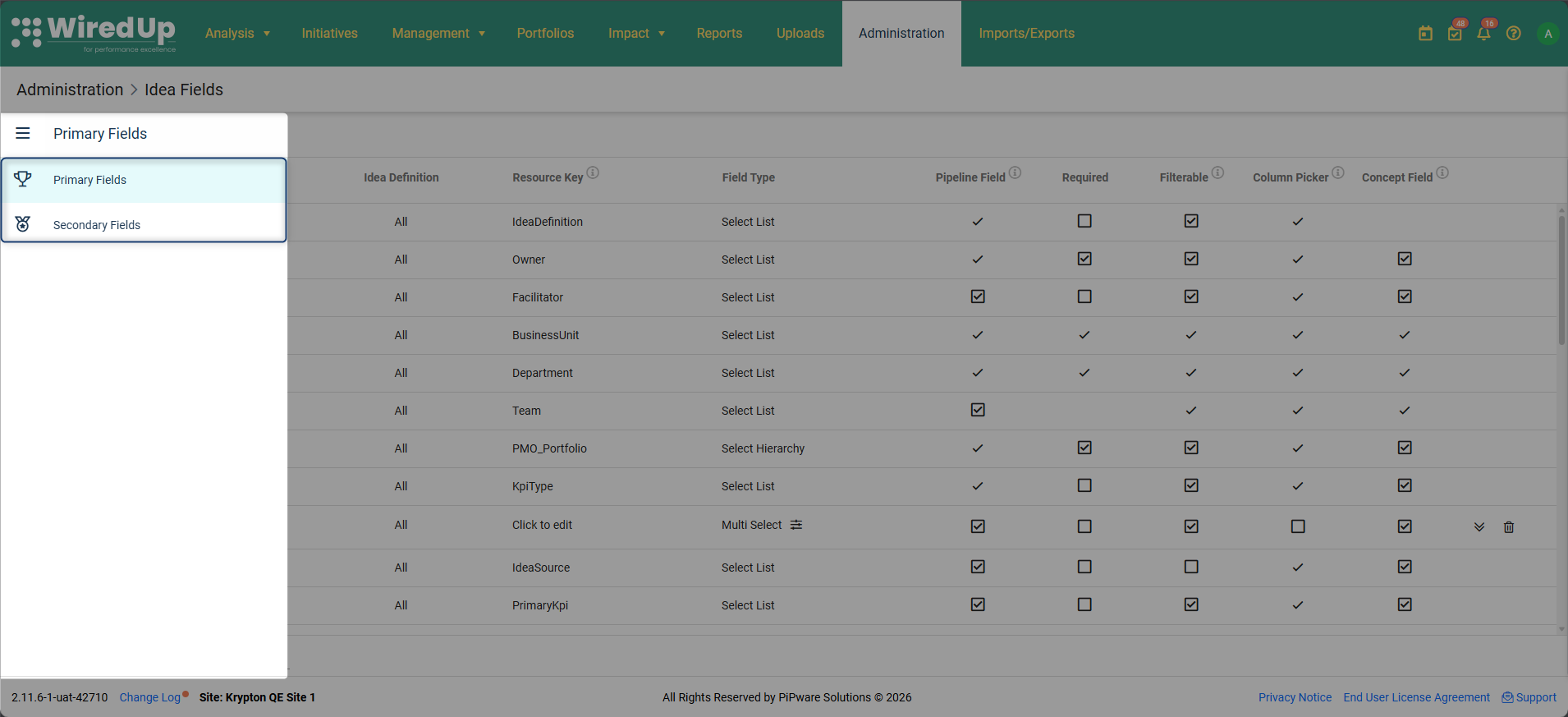
- Primary Fields: Fields with higher visibility and priority
- Secondary Fields: Fields with secondary visibility, displayed under "Show more" in certain views
Understanding the Idea Fields Table
The Idea/Initiativ Fields table displays the following columns for each field on both the Primary and Secondary tables: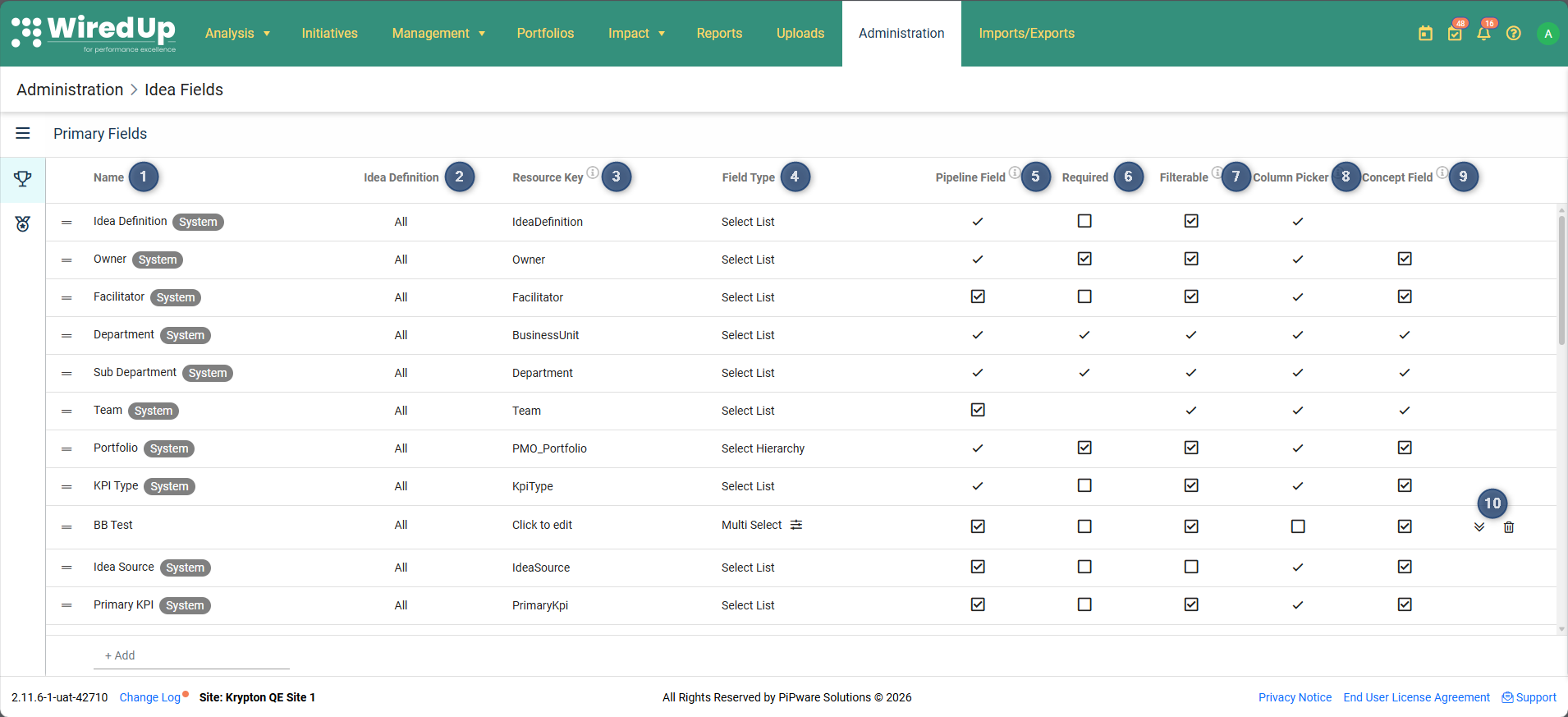
1. Name
- The display name of the field as it appears to users
- System-generated fields are marked with a "System" badge
- Custom fields (manually added) do not have this badge
2. Idea/Initiative Definition
- Shows which Idea Definition(s) the field applies to
- System-generated fields automatically apply to "All" Idea Definitions
- Manually added fields can be applied to specific Idea Definitions or "All"
3. Resource Key
- A unique identifier used for API integration and system translations
- Automatically prefixed with 'IdeaField_' for custom fields
4. Field Type
- Defines the type of data the field accepts
- Common types include:
- Select List: Drop-down selection from predefined options
- Select Hierarchy: Hierarchical selection (e.g., Portfolio structure)
- Multi Select: Multiple selections from a list
- Text: Single-line text entry
- Multi-line Text: Multiple lines of text entry
- Number: Numeric values
- Date: Date picker
- Checkbox: Yes/No or True/False
- Lookups: Reference data from other system entities
5. Pipeline Field
- Checkbox indicating whether the field is included in Pipeline Ideas
- When checked (✓), the field appears for ideas in the pipeline and in pipeline-related views
6. Required
- Checkbox indicating whether the field must be filled in
- When checked (✓), users cannot save an idea without completing this field
- Helps ensure critical information is captured
7. Filterable
- Checkbox indicating whether the field can be used to filter ideas on reports or screens filters
- When checked (✓), the field appears as a filter option in the Ideas List and other views
8. Column Picker
- Checkbox indicating whether the field can be shown/hidden as a column in the Ideas List view
- When checked (✓), users can add this field as a column using the Column Picker
9. Concept Field
- Checkbox indicating whether the field is included in Concept Ideas
- When checked (✓), the field appears for ideas in the concept stage
10. Actions (for custom fields only)
- Promote/Demote icons: Move custom fields between Primary and Secondary sections
- Click the up arrow to promote a Secondary field to Primary
- Click the down arrow to demote a Primary field to Secondary
- Delete icon (trash bin): Remove custom fields from the system
Note: System-generated fields cannot be deleted or moved between sectionsAdding Custom Fields
To add a new custom field to Ideas/Initiatives:
- Decide whether the new field should be a Primary Field or Secondary Field and click on the appropriate section from the 3-bar menu.
- At the bottom of the field list, click the + Add button to enter the name of the field
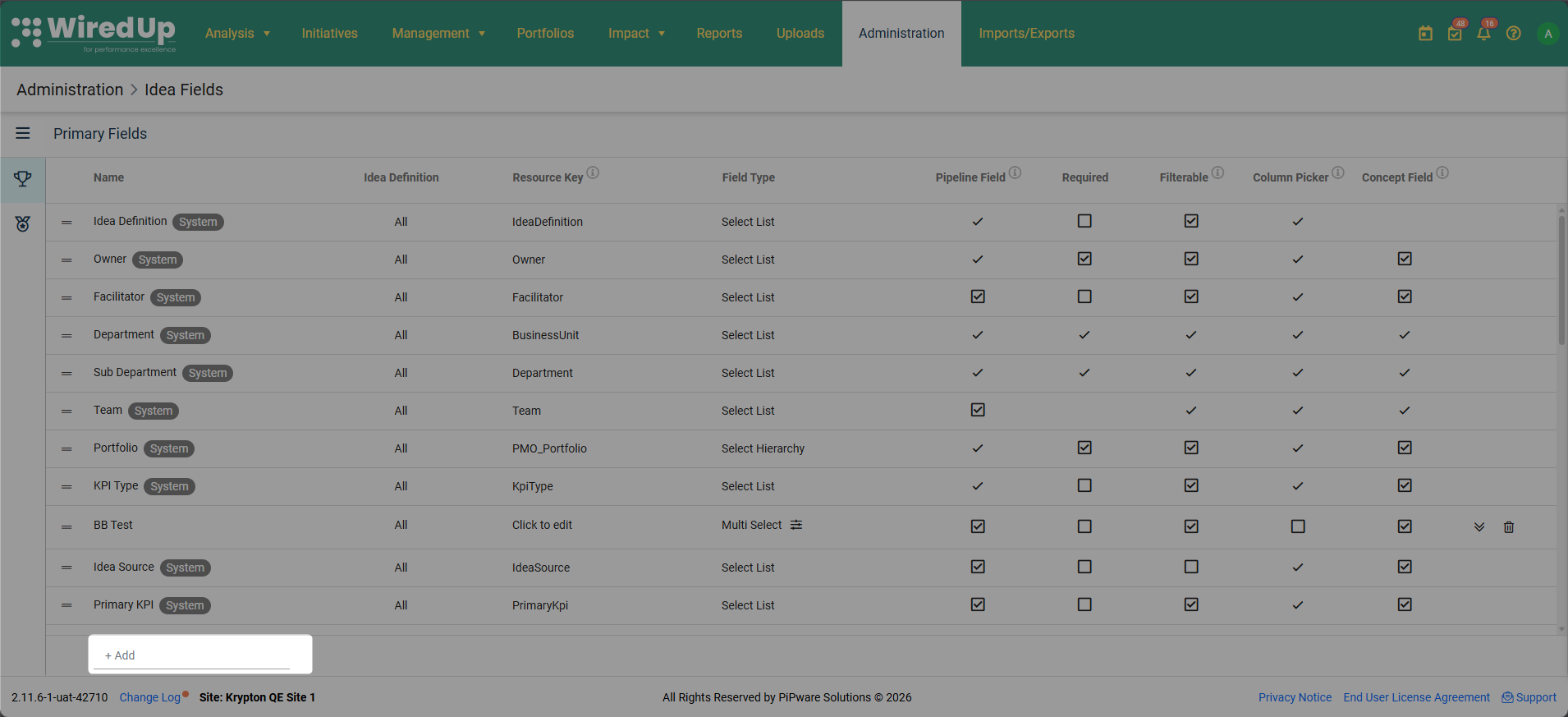
- Enter the field details such as:
- Idea Definition: specify which Idea/Initiative Definition the field should apply to or select All
- Resource Key: Enter a unique identifier (will be auto-prefixed with 'IdeaField_')
- Field Type: Select the appropriate field type from the drop-down menu (Select List, Select Hierarchy, Multi Select, Text, Multi-line Text, Number, Date, Checkbox, Lookups, etc.)
- Configure field options by checking the appropriate boxes
Summary
Primary vs. Secondary Fields:
- Primary Fields have higher visibility and are displayed prominently across various views
- Secondary Fields are displayed under "Show more" in the idea details and appear in relevant views based on their configuration (Pipeline, Filters, Column Picker, etc.)
- Both Primary and Secondary fields appear in the relevant areas specified by their column settings (Pipeline Field, Filterable, Column Picker, Concept Field)
System vs. Custom Fields:
- System-generated fields are marked with a "System" badge, automatically apply to all Idea Definitions, cannot be deleted or moved between Primary/Secondary sections, but their settings (Required, Filterable, etc.) can be modified
- Custom fields do not have a "System" badge, can be applied to specific Idea Definitions or all definitions, can be deleted, promoted/demoted between Primary and Secondary sections, and are fully configurable
Field Configuration Options:
- Pipeline Field: Controls whether the field appears in Pipeline Ideas and pipeline-related views
- Required: Makes the field mandatory for saving an idea
- Filterable: Allows the field to be used as a filter option in reports and screen filters
- Column Picker: Makes the field available as a column in the Ideas List view
- Concept Field: Controls whether the field appears in Concept Ideas
Field Types Available:
Select List, Select Hierarchy, Multi Select, Text, Multi-line Text, Number, Date, Checkbox, and Lookups