
In This Article
Setting a Default Dashboard at Portfolio Type Level
Setting a Default Dashboard for Department/Program (PMO)
Setting a Default Dashboard for Department/Program (CI)
Home Site User Access to Site/Department/Program
Overview
You can configure a default dashboard that will be shown automatically to all users who have access to a specified site, department, or program. The default dashboard will only display for users who have not already selected their own preferred dashboard.
Important: For a user to see the default dashboard, they must have access permissions to the relevant home site, department, or program.
Note: If a user has marked a dashboard as a favorite, that favorite dashboard will take precedence and override the configured default dashboard.Prerequisites
Before setting a default dashboard on PMO, ensure the following:
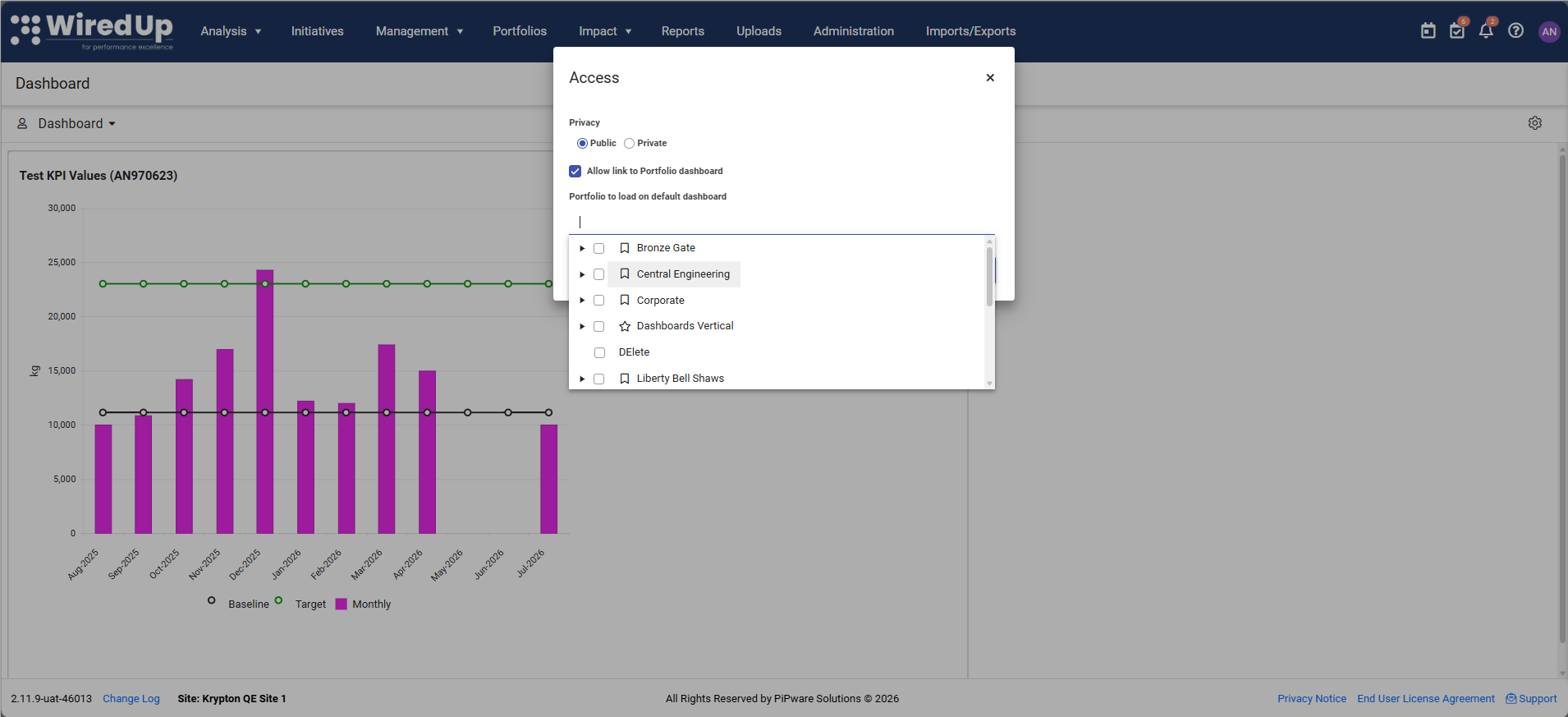
- The dashboard must be set to Public (in the dashboard's Privacy settings)
- The dashboard must have the "Allow link to Portfolio dashboard" checkbox enabled (found in the dashboard's Access settings)
- Only dashboards meeting both criteria will appear in the Dashboard dropdown when configuring defaults
Setting a Default Dashboard at Portfolio Type Level
You can configure a default dashboard at the Portfolio Type level, which will apply to all portfolios of that type. When a dashboard is set at the Portfolio Type level, the Dashboard field becomes read-only for individual portfolios of that type.
To set a default dashboard for a Portfolio Type:
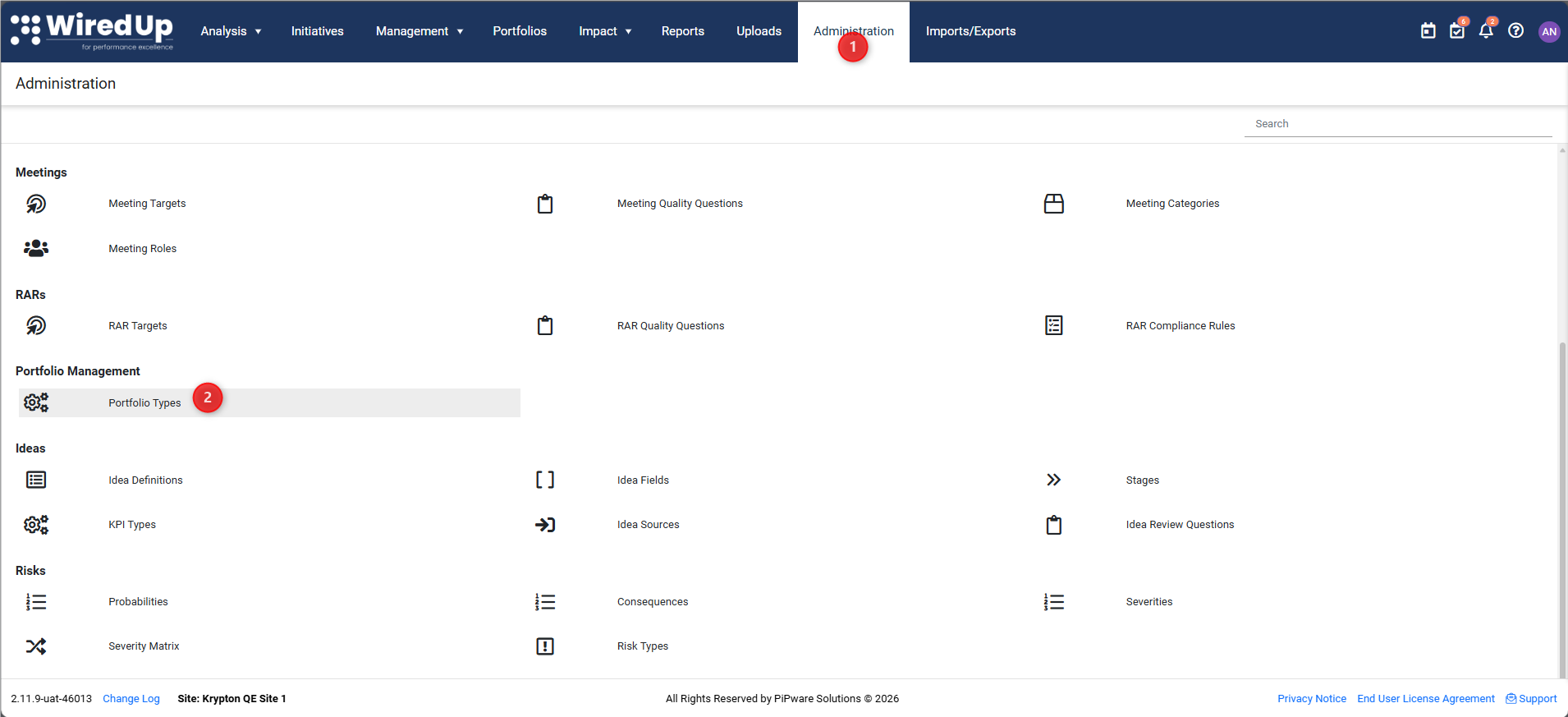
- Navigate to Administration > Portfolio Types (under Portfolio Management)
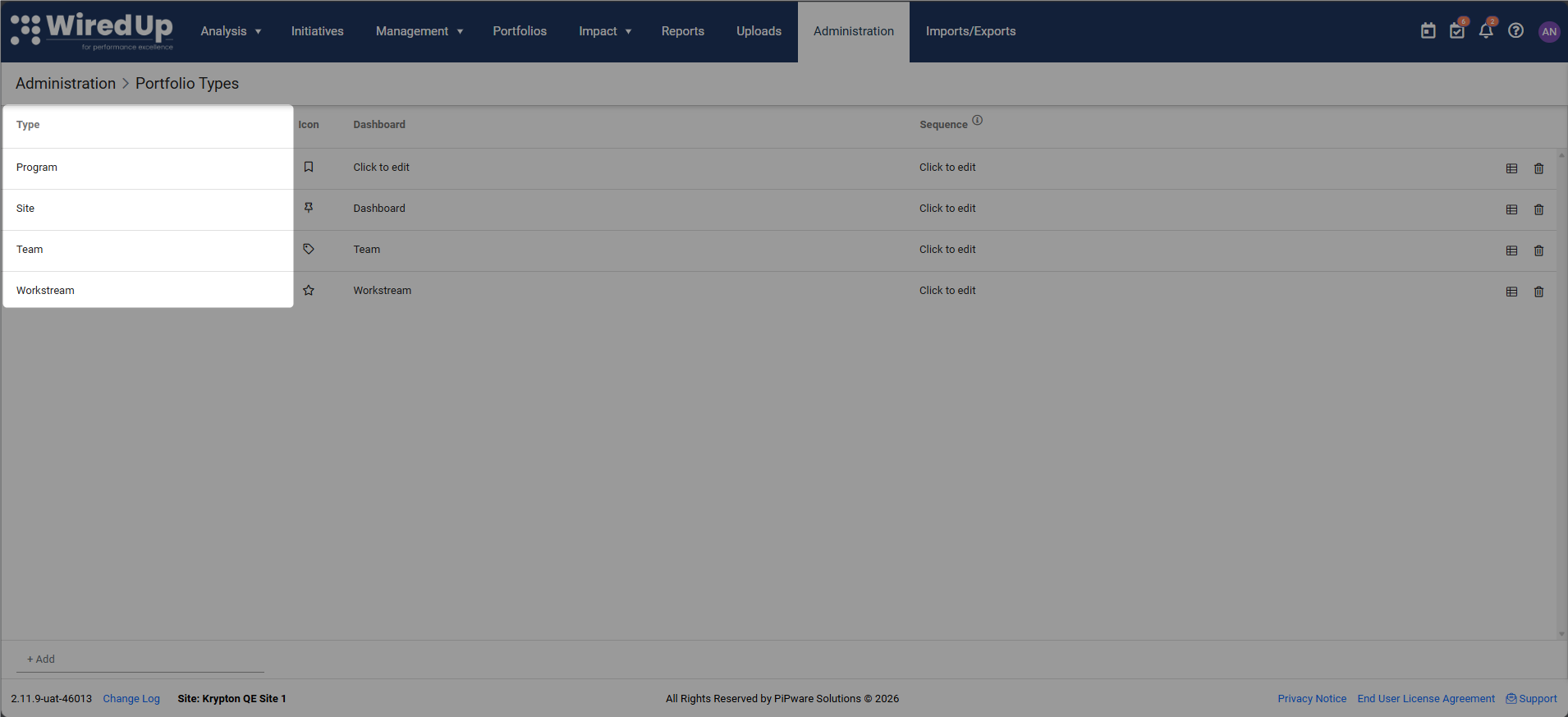
- Select the Portfolio Type you want to configure
- In the Dashboard field, select a dashboard from the dropdown
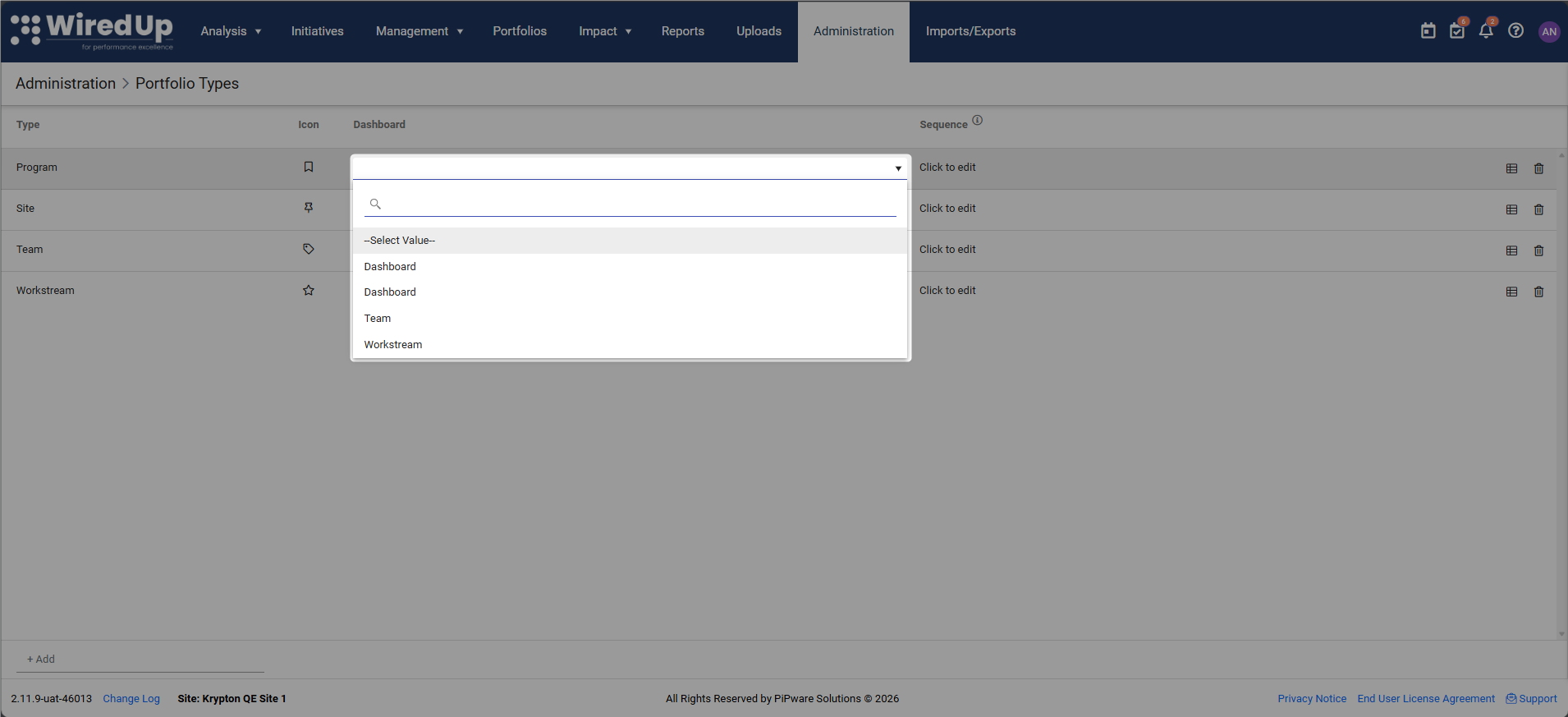
- Only public dashboards with "Allow link to Portfolio dashboard" enabled will appear
Once configured, all portfolios of this type will inherit this default dashboard, and the Dashboard field will be read-only when editing individual portfolios.
This is only applicable to PMO usersSetting a Default Dashboard for Department/Program (PMO)
If no Portfolio Type dashboard is configured, you can set a default dashboard at the individual department or program level.
To set a default dashboard in PMO:
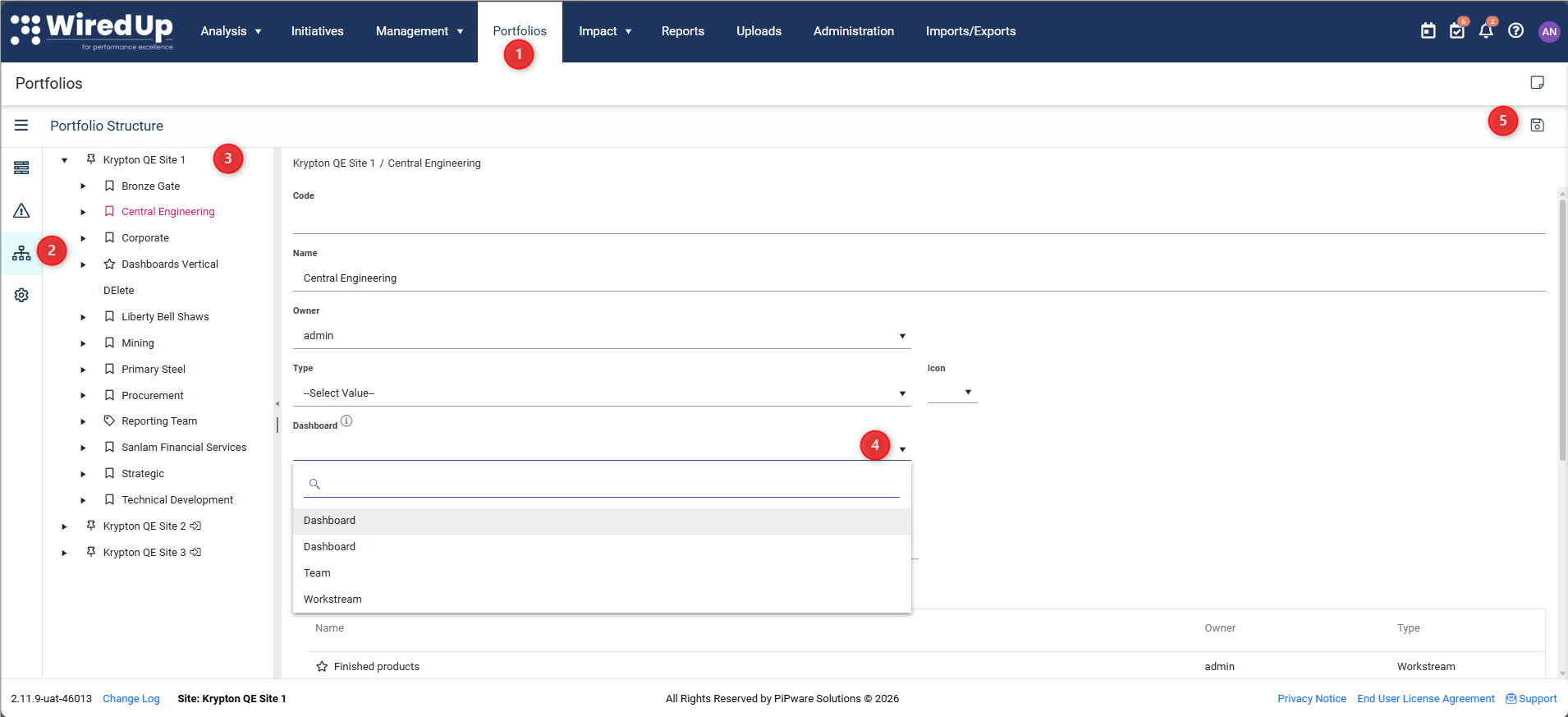
- Navigate to Portfolios module
- Open Portfolio Structure from the side-bar
- Select the Department/Program you want to configure
- On the Details screen, under the Dashboard section, select a dashboard from the dropdown
- Only public dashboards with "Allow link to Portfolio dashboard" enabled will appear
- Click Save
After saving, this dashboard will automatically display for users who:
- Have not already selected their own dashboard
- Have access to that site/department/program
Note: A dashboard field is editable if there is not type specified for the portfolio level. If a type is specified for the portfolio level, the default dashboard is configured on Administration > Portfolio TypesSetting a Default Dashboard for Department/Program (CI)
To set a default dashboard in CI:
- Navigate to Administration > Organisational Management (under General)
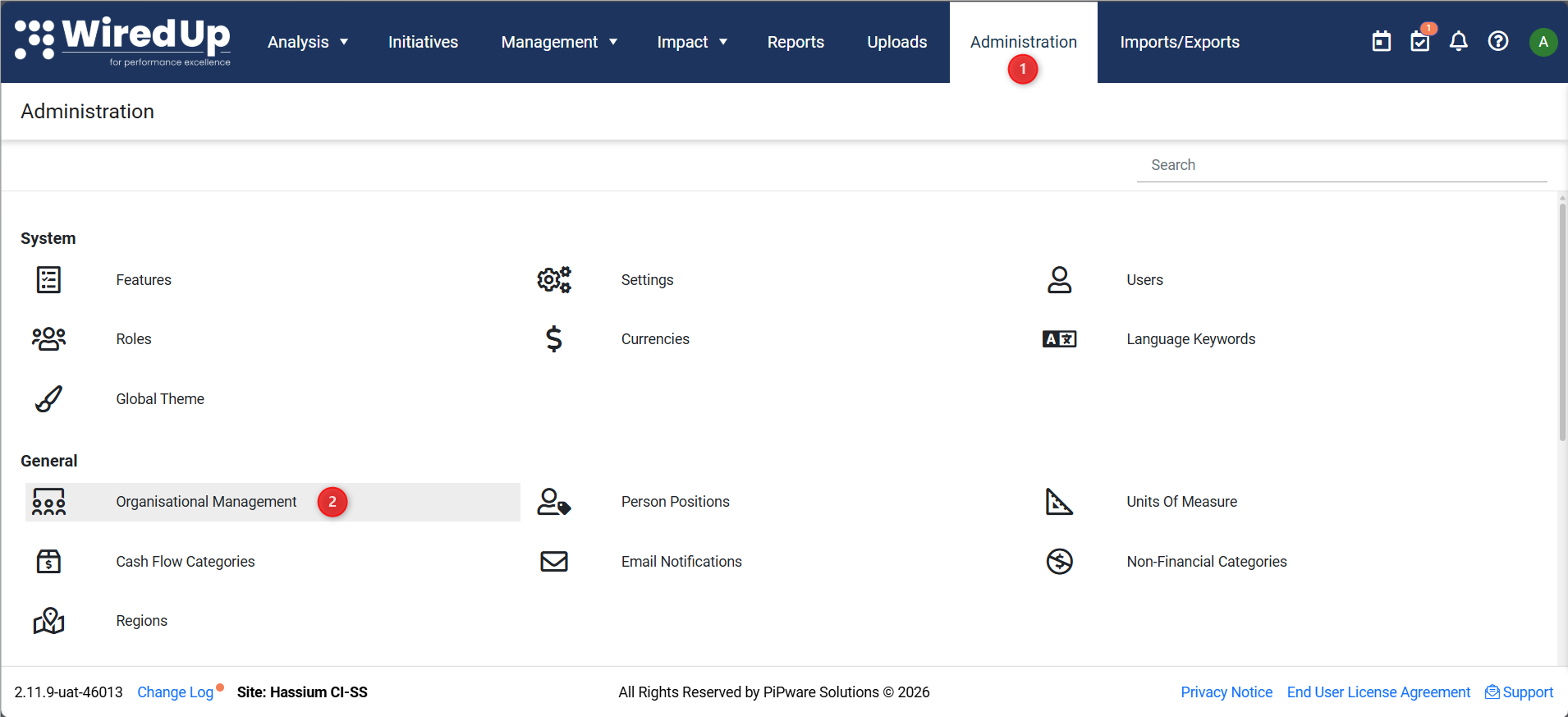
- On the Organisational Structure, select the relevant Department/Program
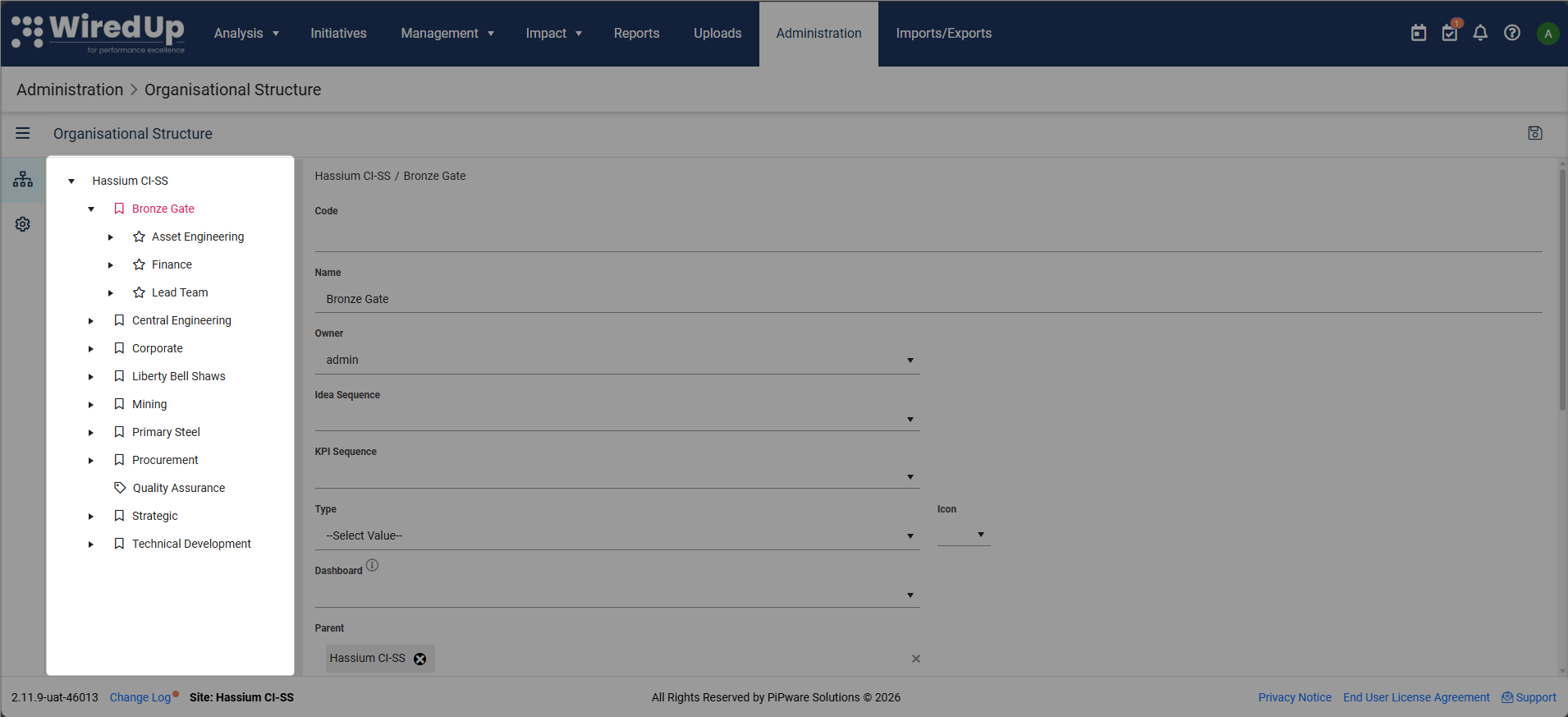
- Under the Dashboard section, select a dashboard from the dropdown
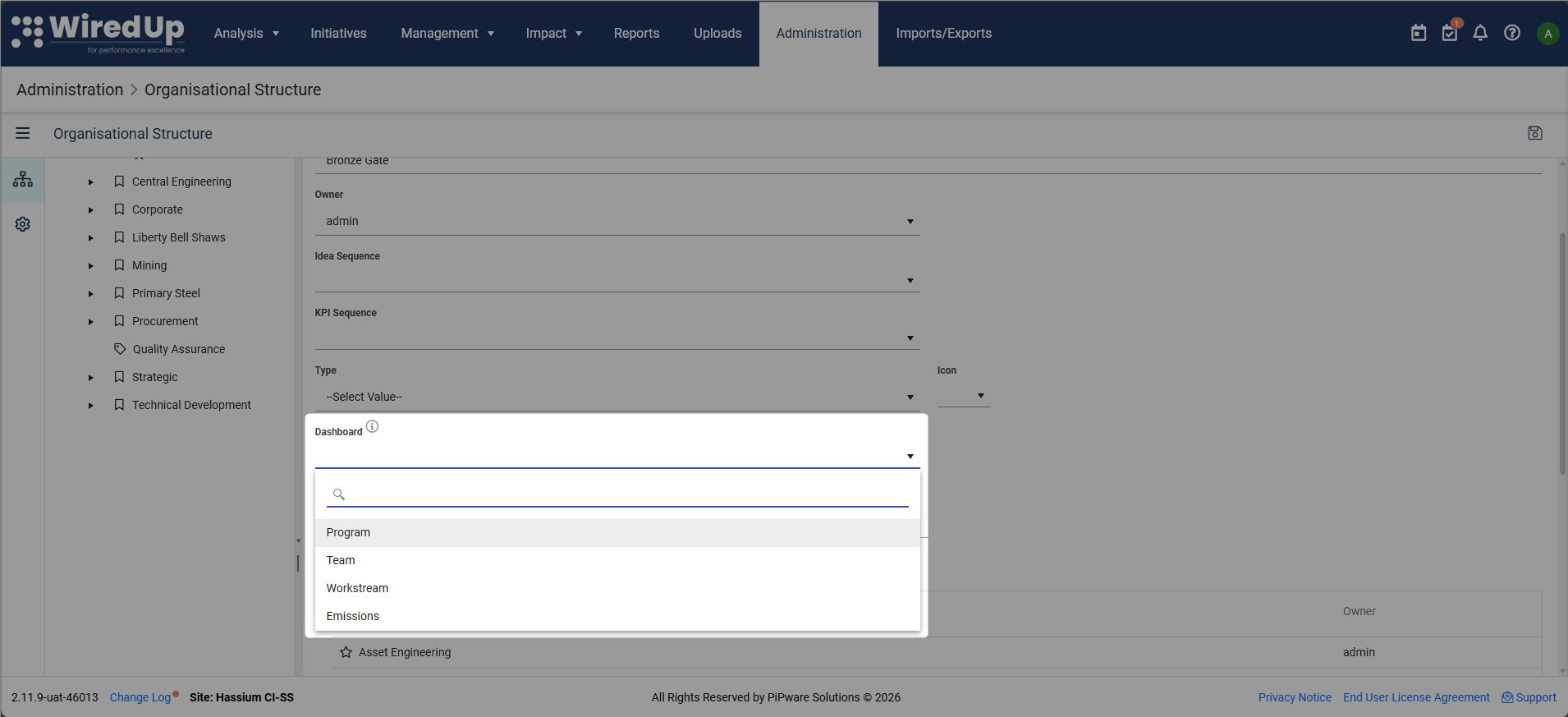
- Only public dashboards with "Allow link to Portfolio dashboard" enabled will appear
- Only public dashboards with "Allow link to Portfolio dashboard" enabled will appear
- Click Save
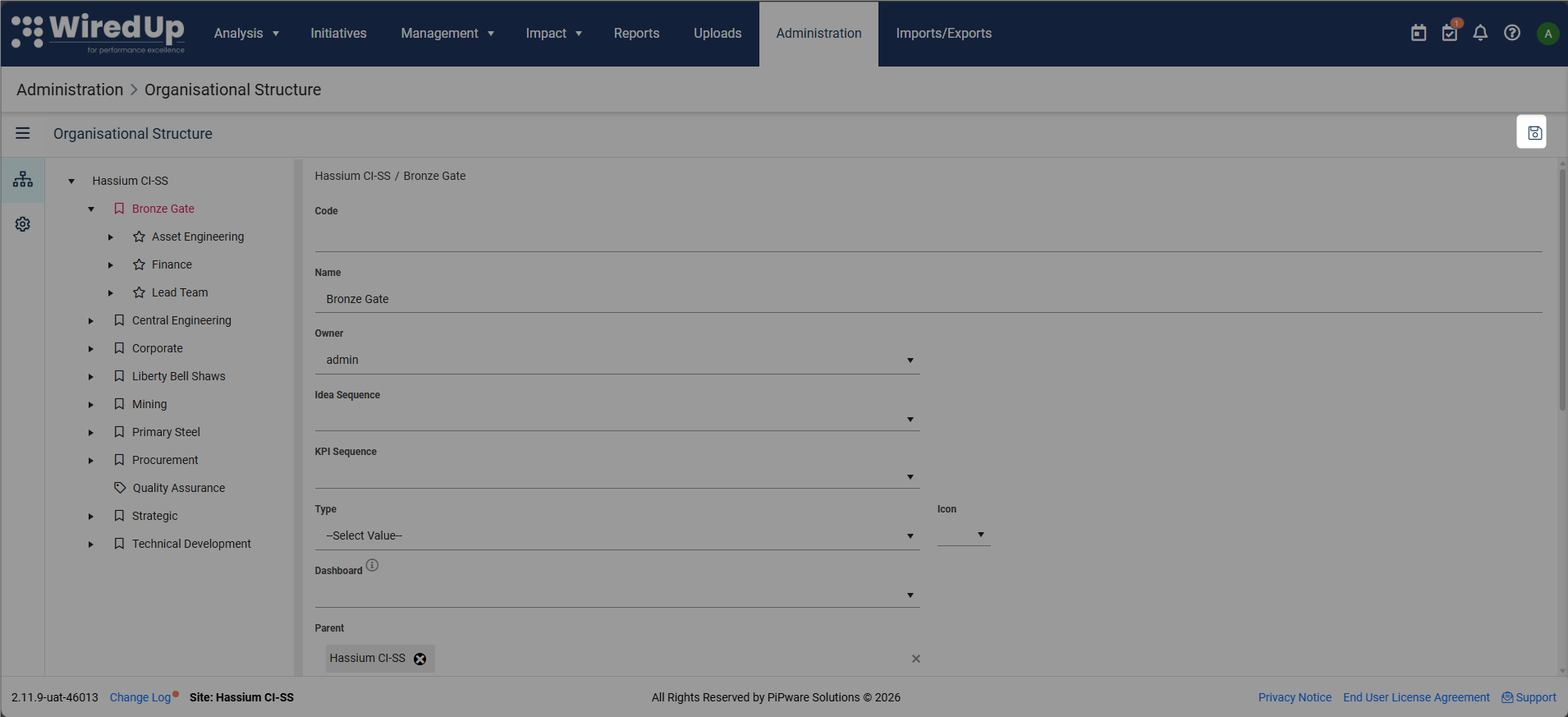
The selected dashboard will automatically display for users who have not previously selected a dashboard and who have access to the site/department.
Note: A dashboard field is editable if there is not type specified for the organisational level. Home Site User Access to Site/Department/Program
To ensure users can see the default dashboard, they must have access to the home site, department, or program.
To grant user access:
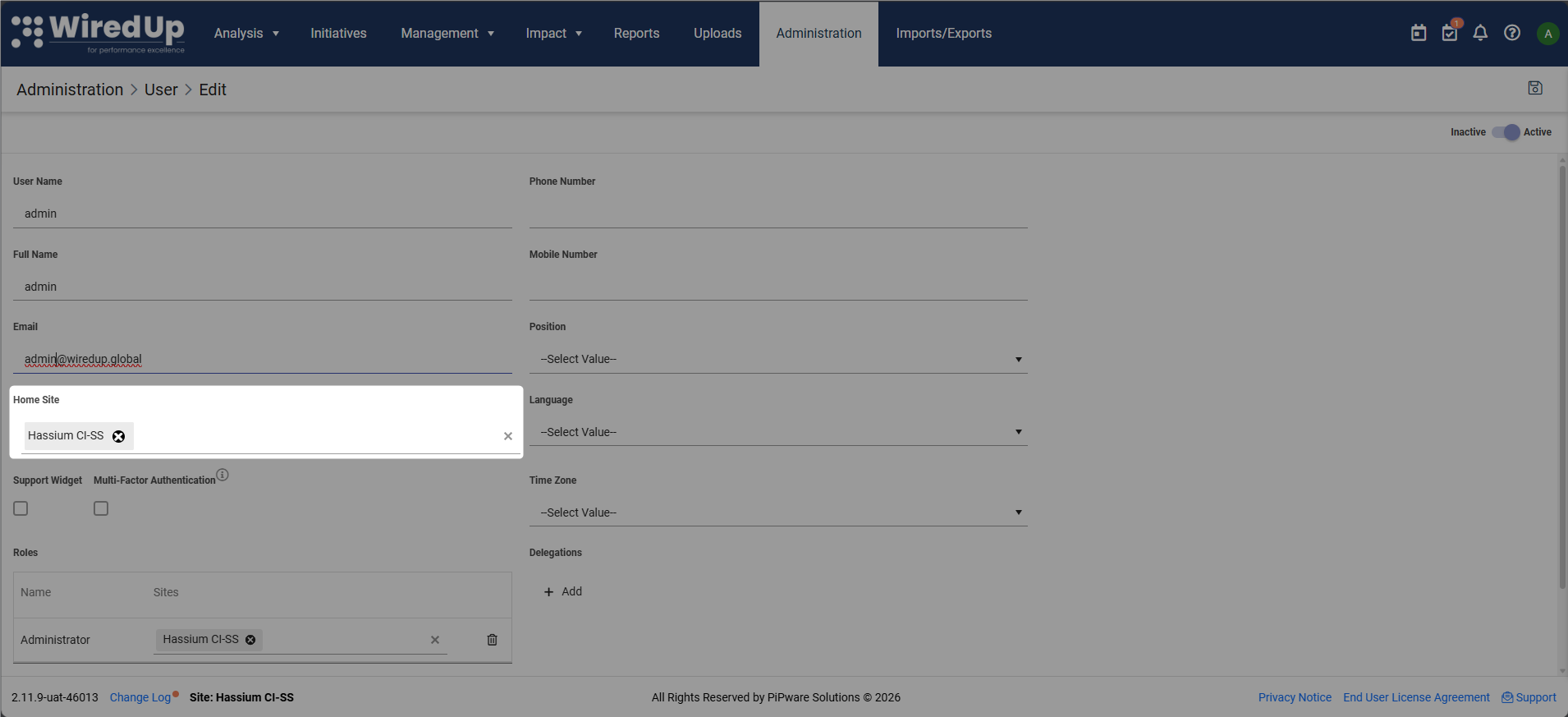
- Navigate to Administration > Users
- Select the user you want to grant access to
- Under Home Site, select the site(s), department(s), or program(s) to grant access to
- Click Save
After this, users will see the default dashboards associated with that site/department if they haven't already chosen their own dashboard.
Dashboard Priority Hierarchy
Default dashboards follow this priority order:
- User's Favorite Dashboard (highest priority) - If a user has marked a dashboard as favorite, it will always display first
- Portfolio Type Dashboard (PMO)- If configured at the Portfolio Type level, this applies to all portfolios of that type
- Department/Program Dashboard - If no Portfolio Type dashboard is set, the department/program level dashboard applies
- No Default - If none of the above are configured, users will see the system default view