
In This Article
When the Getting Started Widget Appears
What the Getting Started Widget Contains
Removing the Getting Started Widget
Overview
When you log in to WiredUp without a configured dashboard or default dashboard, a Getting Started guidance widget automatically appears on your dashboard canvas. This widget provides step-by-step instructions to help you create your first dashboard, add widgets, mark favourites, and set default dashboards—ensuring you can quickly start viewing the information that matters most to you.
When the Getting Started Widget Appears
The Getting Started widget is automatically displayed when:
- You have no dashboards created at all, or
- You have dashboards but none is marked as favourite or set as default
The widget appears automatically—you don't need to add it manually.
What the Getting Started Widget Contains
The widget displays four key steps to help you set up your dashboard:
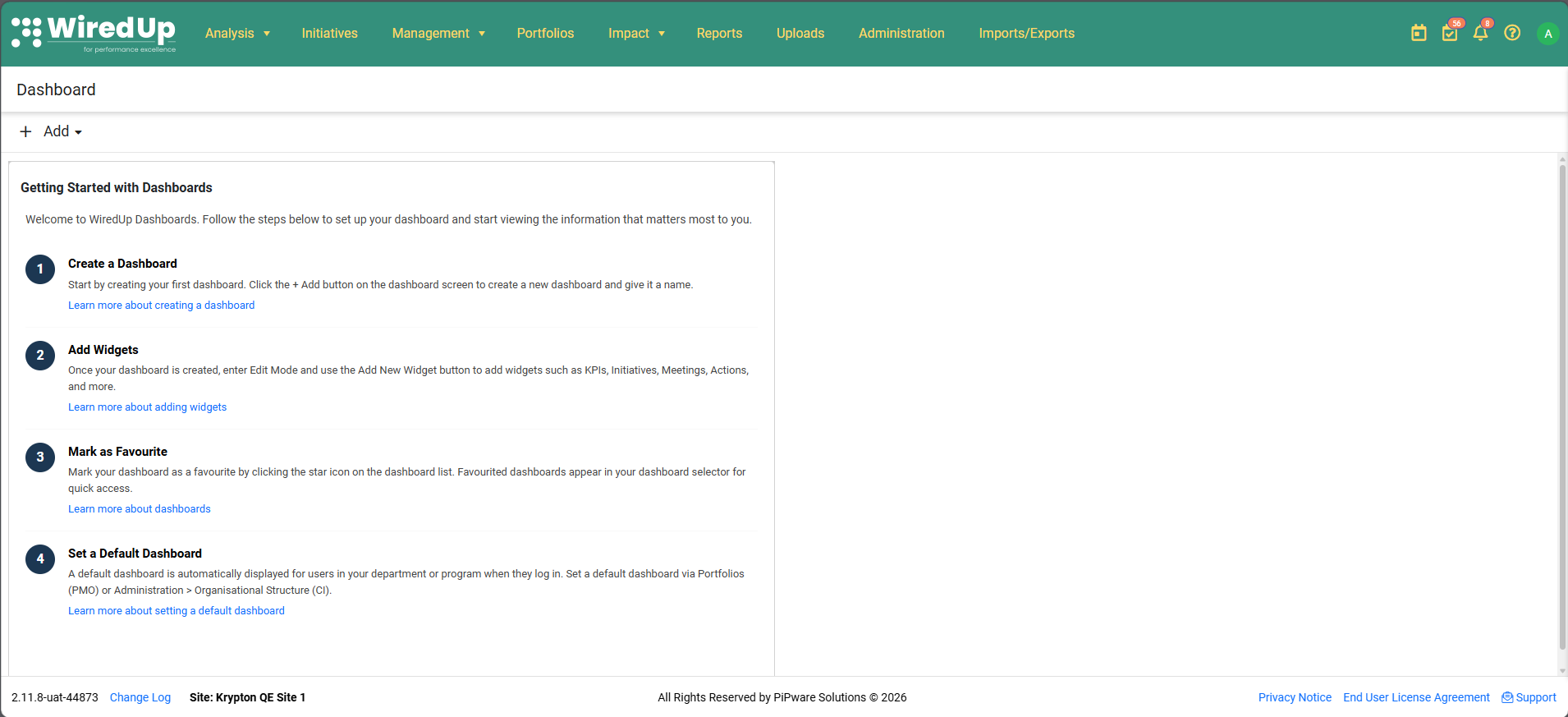
- Create a Dashboard
Start by creating your first dashboard. Click the + Add button on the dashboard screen to create a new dashboard and give it a name.
Learn more about creating a dashboard - Add Widgets
Once your dashboard is created, enter Edit Mode and use the Add New Widget button to add widgets such as KPIs, Initiatives, Meetings, Actions, and more.
Learn more about adding widgets - Mark as Favourite
Mark your dashboard as a favourite by clicking the star icon on the dashboard list. Favourited dashboards appear in your dashboard selector for quick access.
Learn more about dashboards - Set a Default Dashboard
A default dashboard is automatically displayed for users in your department or program when they log in. Set a default dashboard via Portfolios (PMO) or Administration > Organisational Structure (CI).
Learn more about setting a default dashboard
All "Learn more" links open in a new browser tab for easy reference.
Removing the Getting Started Widget
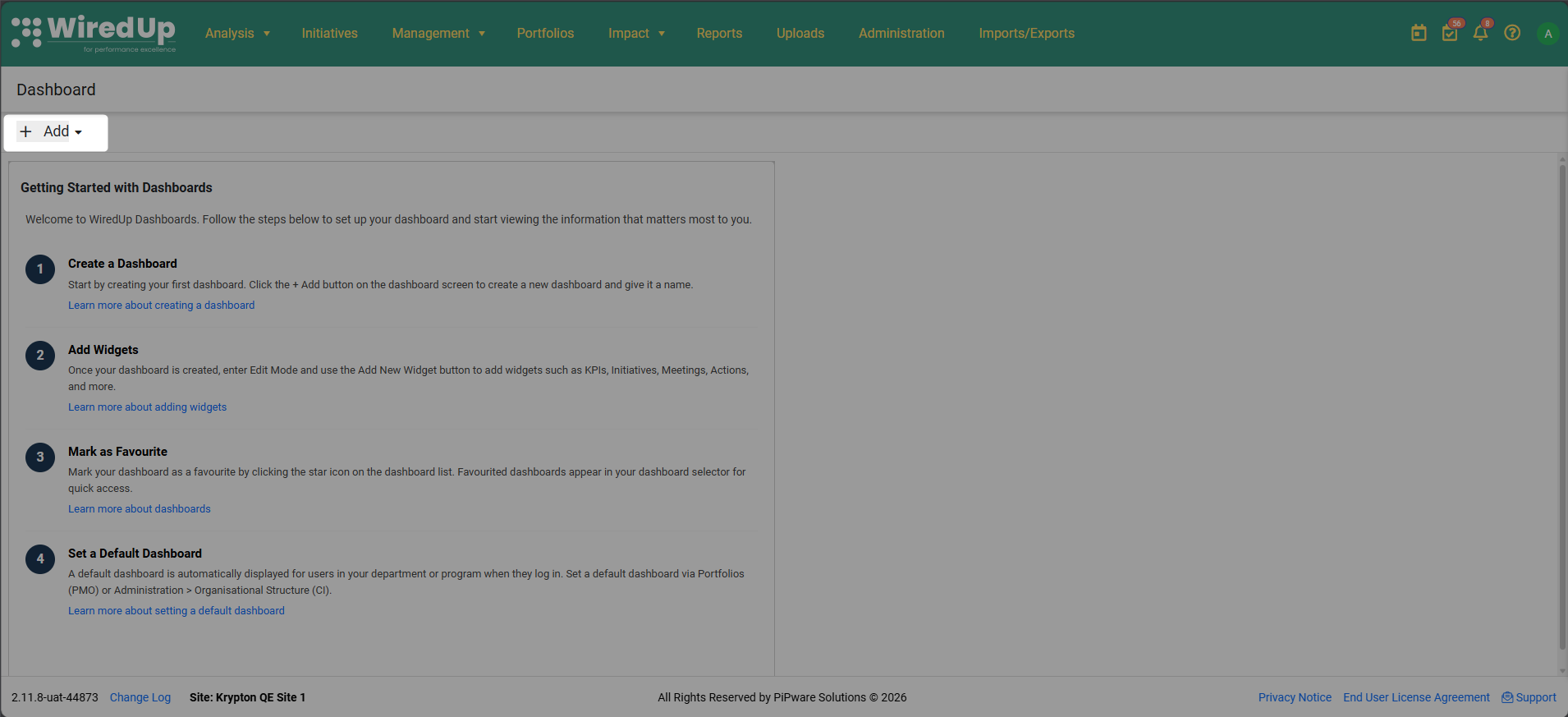
The Getting Started widget can be removed when you no longer need it when creating a new dashboard:
- Enter Edit Mode on your dashboard by clicking +Add button
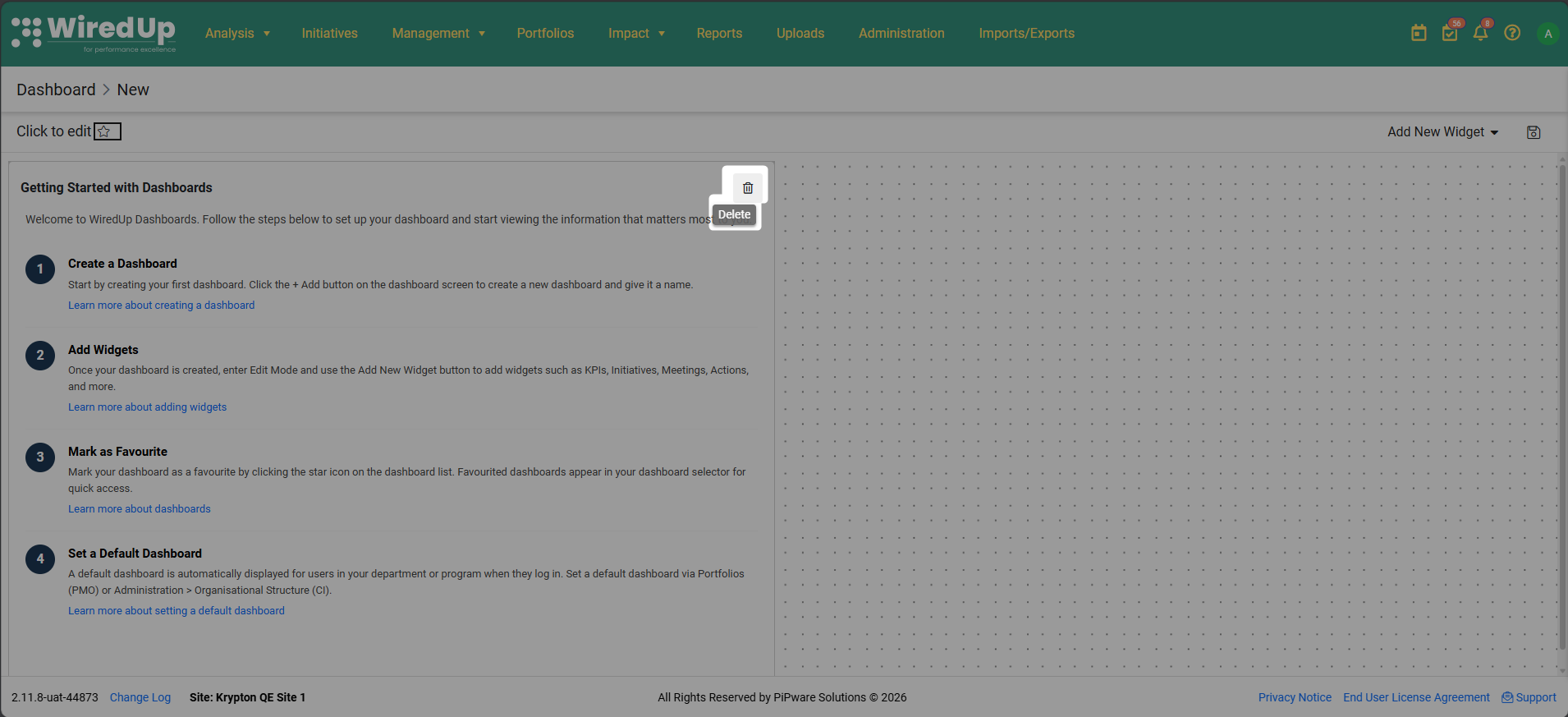
- Click the delete icon (trash icon) on the Getting Started widget
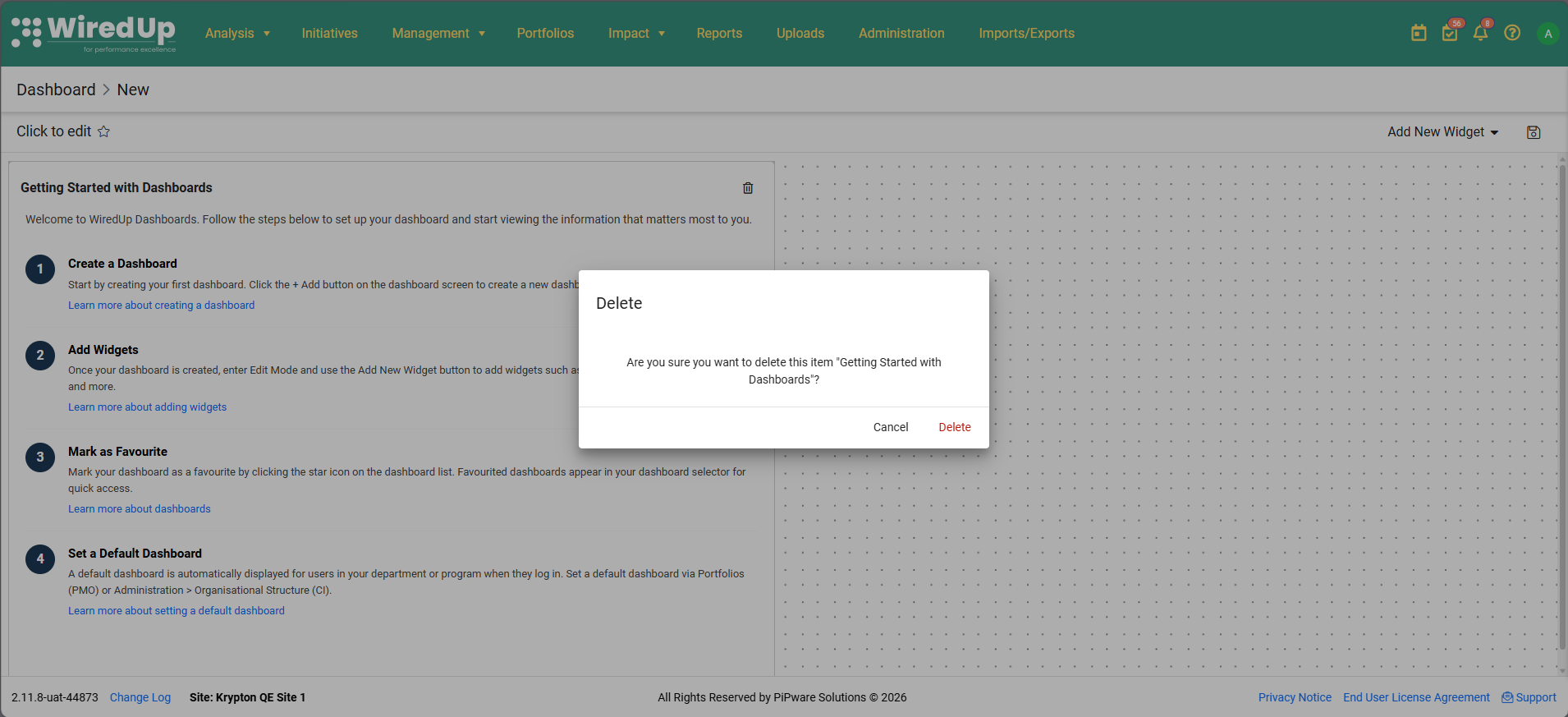
- Confirm the deletion when prompted
Important:
- Once deleted, the widget is permanently removed and will not reappear—even if you still have no default dashboard configured
- The widget cannot be manually re-added after deletion
- It does not appear in the Add New Widget dropdown—it is a system-generated guidance widget only
Widget Behavior
- The widget is displayed to all users who meet the display conditions, regardless of role
- The widget does not disappear automatically when you create a dashboard or set a default—you must delete it manually if you no longer need it
- The widget follows the standard WiredUp dashboard widget styling and snap-to-grid layout
- The widget is sized to display all content without truncation or scrolling
Note: The Getting Started widget is designed to help new users get oriented quickly. If you're already familiar with dashboards, you can safely delete it at any time.
Next Steps:
Learn how to create a dashboard by reading this article: Create a new Dashboard : WiredUp