
In This Article
Accessing the Global Constants Page
Understanding the Global Constants Page
Understanding Fixed and Variable Values
Tips for Managing Global Constants
Overview
Global Constants allow administrators to create reusable values that can be referenced throughout WiredUp. Instead of creating the same constant repeatedly across multiple calculations and Value Driver Trees (VDTs), a Global Constant can be configured once and reused wherever it is needed.
This helps improve consistency, reduce maintenance, and simplify updates when commonly used values change.
Examples include values such as working days per week, shift hours, conversion factors, or standard business assumptions used across calculations. When a Global Constant is updated, the change is automatically applied wherever that constant is referenced.
Permissions
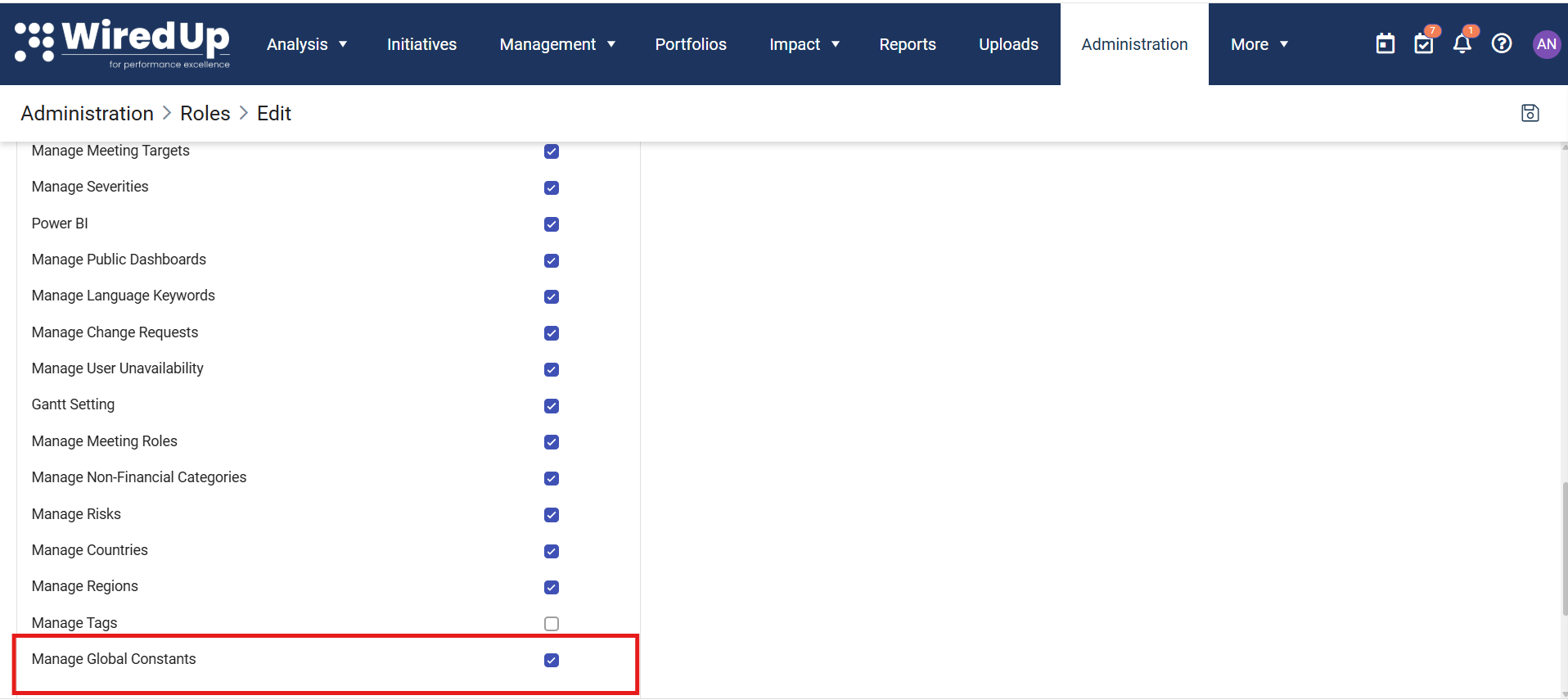
To access and manage Global Constants, users must have the Manage Global Constants permission enabled. This permission is located under Administration > Roles > Edit > General Administration.
| Permission State | Access |
| Enabled | Users can access the Global Constants page and create, edit, and delete Global Constants. |
| Disabled | Users cannot access the Global Constants page. Existing Global Constants can still be used in supported expressions throughout WiredUp. |
Users without the Manage Global Constants permission can still use existing Global Constants where they have already been configured. They are simply unable to create, edit, or delete them. Accessing the Global Constants Page
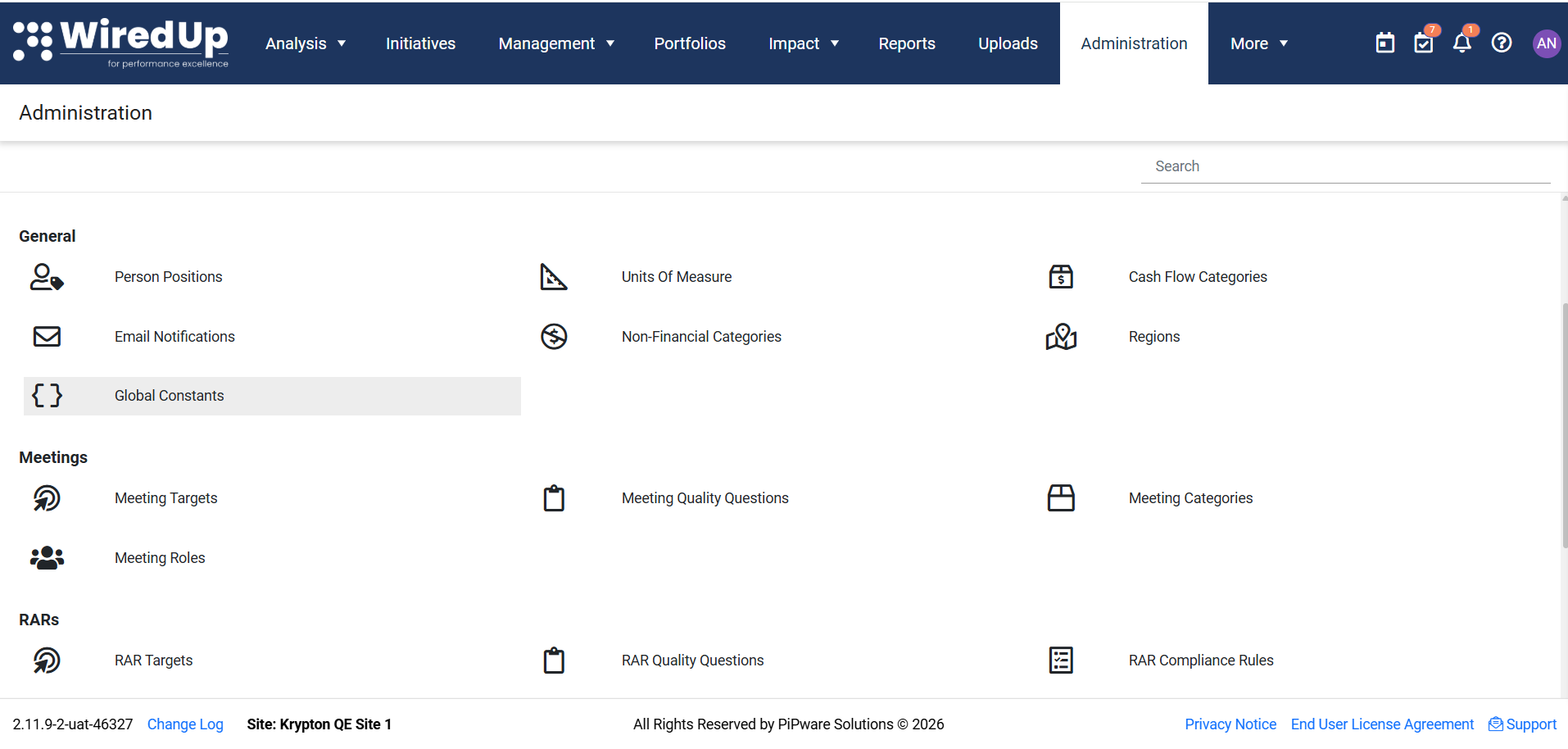
- Select Administration from the main navigation menu.
- Under the General section, select Global Constants.
- The Global Constants page opens.
Understanding the Global Constants Page
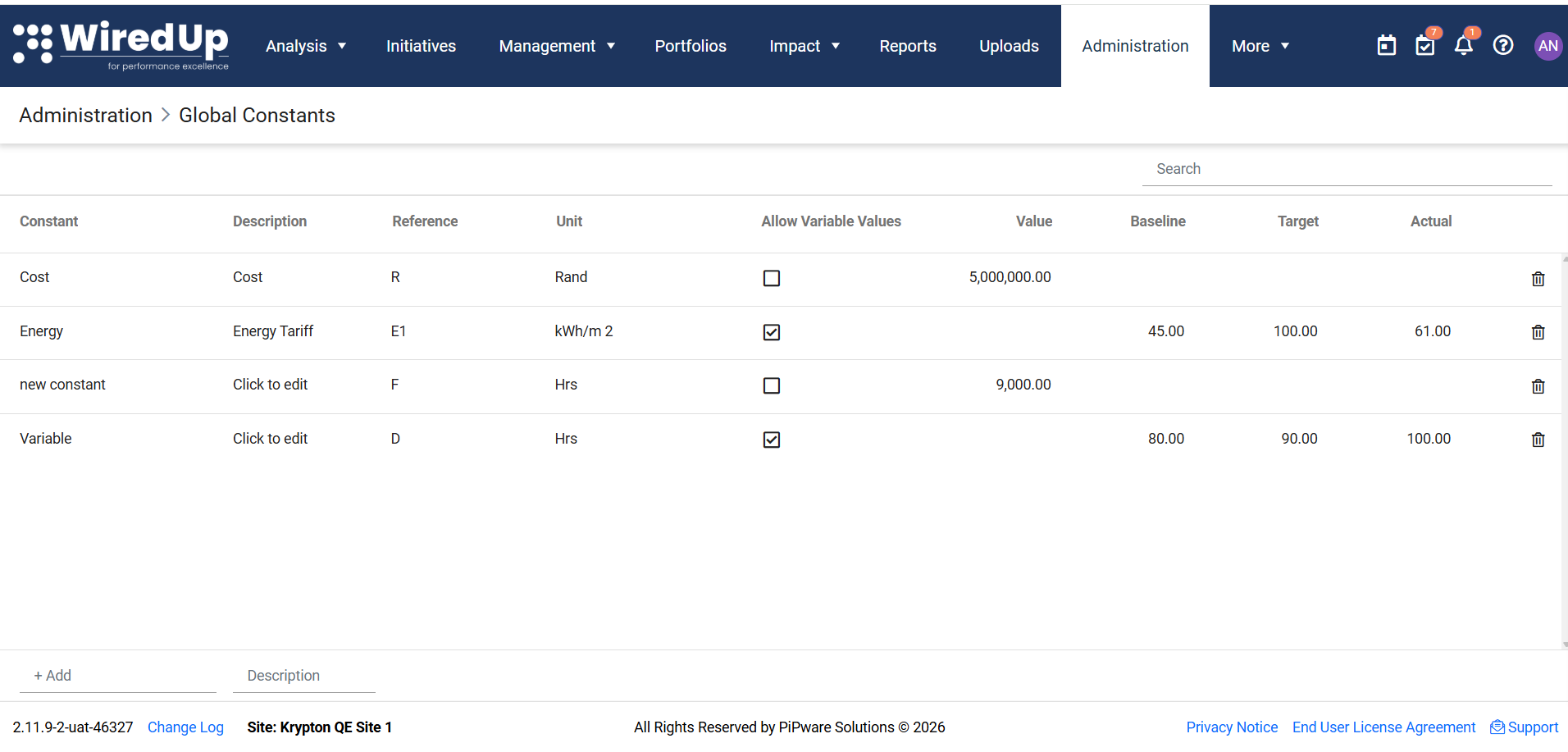
The Global Constants page provides a central location for creating and maintaining reusable constants. The page follows the same layout and interaction pattern as the Units of Measure administration page.
The page includes:
- A Search bar for locating existing constants.
- An inline editable table.
- A + Add button for creating new constants.
- A Delete icon for removing constants.
- The following fields are available:
| Field | Description |
| Constant | The display name of the Global Constant. |
| Description | Additional information describing the purpose of the constant. |
| Reference | A unique identifier used when the constant is referenced in expressions. |
| Unit | The unit of measure associated with the constant. |
| Allow Variable Values | Determines whether the constant uses a single value or separate Baseline, Target, and Actual values. |
| Value | A single value used for all calculations. |
| Baseline | A value used specifically for baseline calculations. |
| Target | A value used specifically for target calculations. |
| Actual | A value used specifically for actual calculations. |
Creating a Global Constant
- Navigate to the Global Constants page in Administration.
- Click + Add on the inline.
- Enter a Constant name.
- Optionally, enter a Description.
- Afterwards, click on +Add button to add it to the list
- Enter a unique Reference value.
- Optionally, select a Unit.
- Configure the value settings: enter a Value for a fixed value constant, or enable Allow Variable Values if you want to define separate Baseline, Target, and Actual values.
Reference Rules
The Reference field uniquely identifies a Global Constant when it is used in expressions.
A Reference value:
- Must be unique.
- Can contain only letters and numbers.
- Cannot start with a number.
WiredUp validates the Reference before the constant can be saved.
Understanding Fixed and Variable Values
When creating a Global Constant, you can choose between a fixed value and variable values depending on how the constant will be used.
Fixed Value Constants
Fixed Value Constants are useful when the same value should be used across all calculations.
Examples include:
- Number of days per week
- Standard shift hours
- Fixed conversion factors
When Allow Variable Values is not selected:
- The Value field is displayed.
- The Value field is required.
- The Baseline, Target, and Actual fields are hidden.
Variable Value Constants
Variable Value Constants are useful when different values are needed for Baseline, Target, and Actual calculations.
Examples include:
- Planned energy consumption
- Target production rates
- Actual operational performance metrics
When Allow Variable Values is selected:
- The Baseline field becomes required.
- The Target field becomes optional.
- The Actual field becomes optional.
- The Value field is hidden.
Important: Changing the Allow Variable Values setting clears any existing Value, Baseline, Target, and Actual values. This prevents conflicts between fixed and variable configurations.
Editing Global Constants
Global Constants can be edited directly within the table.
Administrators can update:
- Constant names
- Descriptions
- References
- Units
- Values
- Variable value settings
WiredUp automatically validates Global Constants during editing.
Constant Name Rules
Each Global Constant must have a unique name. If a duplicate name is entered, the constant cannot be saved until a unique name is provided. Duplicate checks are not case-sensitive.
Reference Rules
Each Reference value must be unique across all Global Constants. If a duplicate Reference is entered, the constant cannot be saved until a unique Reference is provided. Duplicate checks are not case-sensitive.
Deleting a Global Constant
Global Constants can be removed using the Delete icon in the corresponding row.
Deleting Unused Constants
If the Global Constant is not being used anywhere, WiredUp displays a confirmation message before deletion. Once confirmed, the constant is permanently removed.
Deleting Referenced Constants
Global Constants cannot be deleted while they are referenced in:
- Value Driver Trees (VDTs)
- Calculated KPIs
If the constant is currently in use:
- A warning dialog is displayed.
- The affected areas are listed.
- Deletion is blocked until all references to the constant have been removed.
Tips for Managing Global Constants
- Use meaningful Constant names that clearly describe their purpose.
- Use consistent Reference values to make constants easier to identify in expressions.
- Add descriptions to help other administrators understand how a constant should be used.
- Search for existing constants before creating new ones to avoid duplication.
- Use Variable Value Constants when Baseline, Target, and Actual values need to differ across calculations.