
In This Article
Overview
The Meetings module in WiredUp is a powerful tool designed to help organizations plan, structure, and manage effective meetings that drive continuous improvement. It enables teams to create well-organized meeting series with clear objectives, defined processes, and measurable outcomes.
With the Meetings module, you can:
- Schedule recurring or one-time meetings with customizable frequencies
- Define the 3Ps (Purpose, Payoff, and Preparation) to ensure every meeting has clear objectives and expected outcomes
- Assign participants with specific roles and responsibilities
- Structure meetings with processes that include KPIs, Ideas, Reports, and Attachments
- Set meeting targets to measure compliance, quality, and participation
- Track actions and outcomes to ensure accountability
The 3Ps framework ensures that every meeting is purposeful and productive:
- Purpose: Why are we meeting? What is the objective?
- Payoff: What will we achieve? What are the expected outcomes?
- Preparation: What do participants need to do or review before the meeting?
By using the Meetings module, teams can transform meetings from time-consuming obligations into strategic sessions that drive measurable business results.
Accessing the Meetings Module
To access the Meetings module:
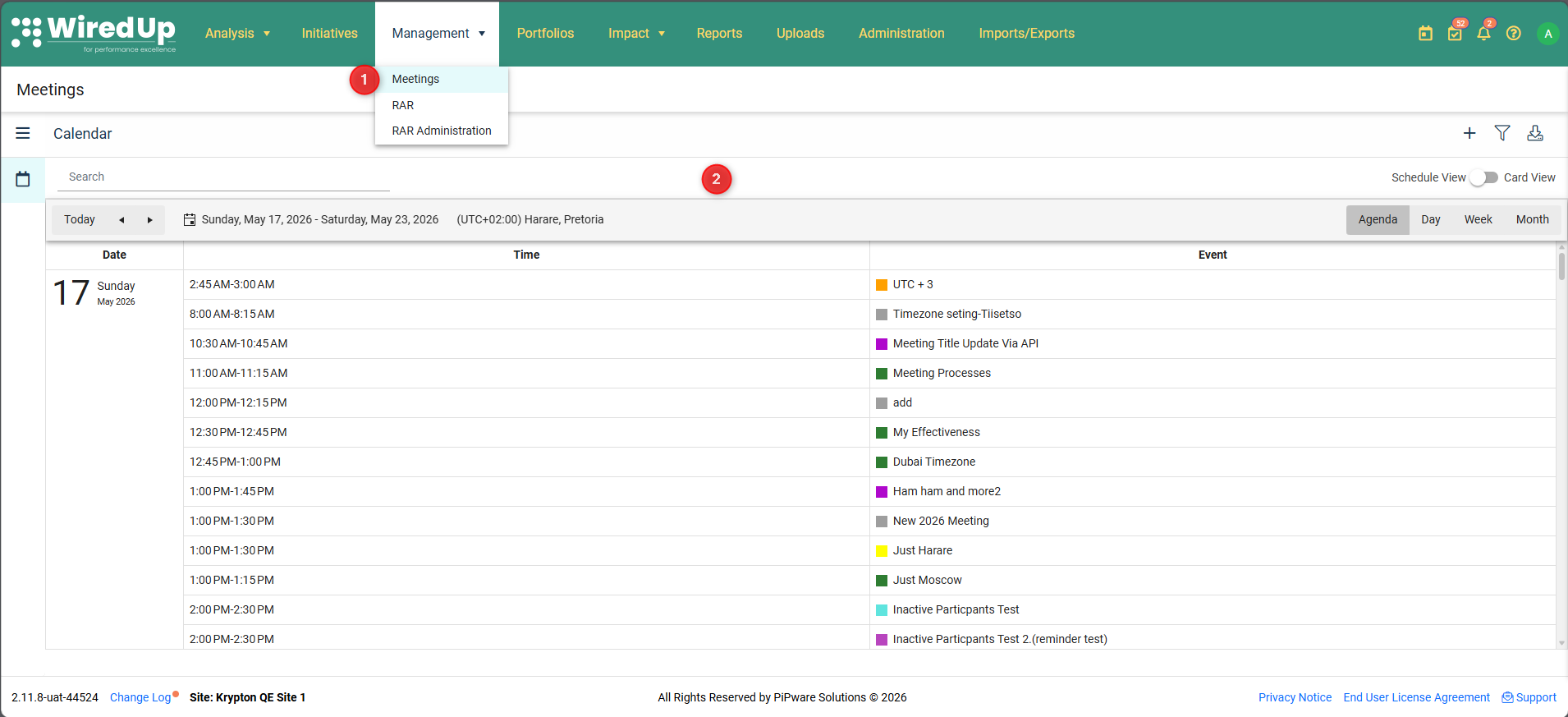
- Navigate to Management > Meetings from the main navigation menu
- The Meetings screen will display with options to view your meetings in different formats
Toolbar Icons
At the top of the Meetings screen, the following icons and features are available on both the Schedule View and Card View:
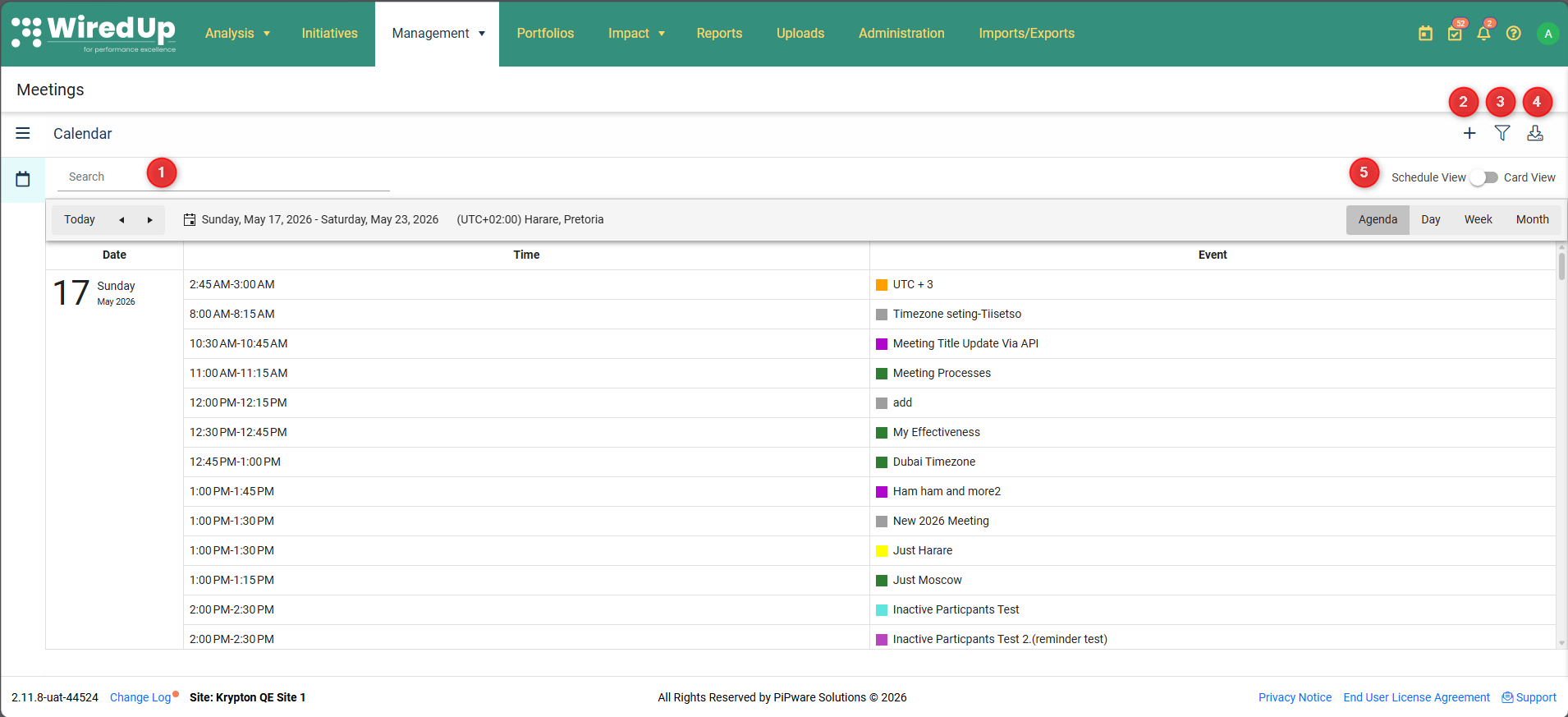
1. Search Bar
- Located on the left side of the toolbar
- Use to search for specific meetings by title or keyword
2. Add Meeting Button (+Add)
- Located at the top-right corner
- Click to create a new meeting series
For more information on how to add a new meeting series, please see this article: Add new meeting : WiredUp
3. Filter Icon
- Filter meetings by various criteria such as category, organizer, or status
4. Download PDF Icon
- Download meeting information in PDF format for sharing or archiving
5. View Toggle
- Switch between Schedule View and Card View
Schedule and Card View
Use the view toggle icons at the top-right of the screen to switch between:
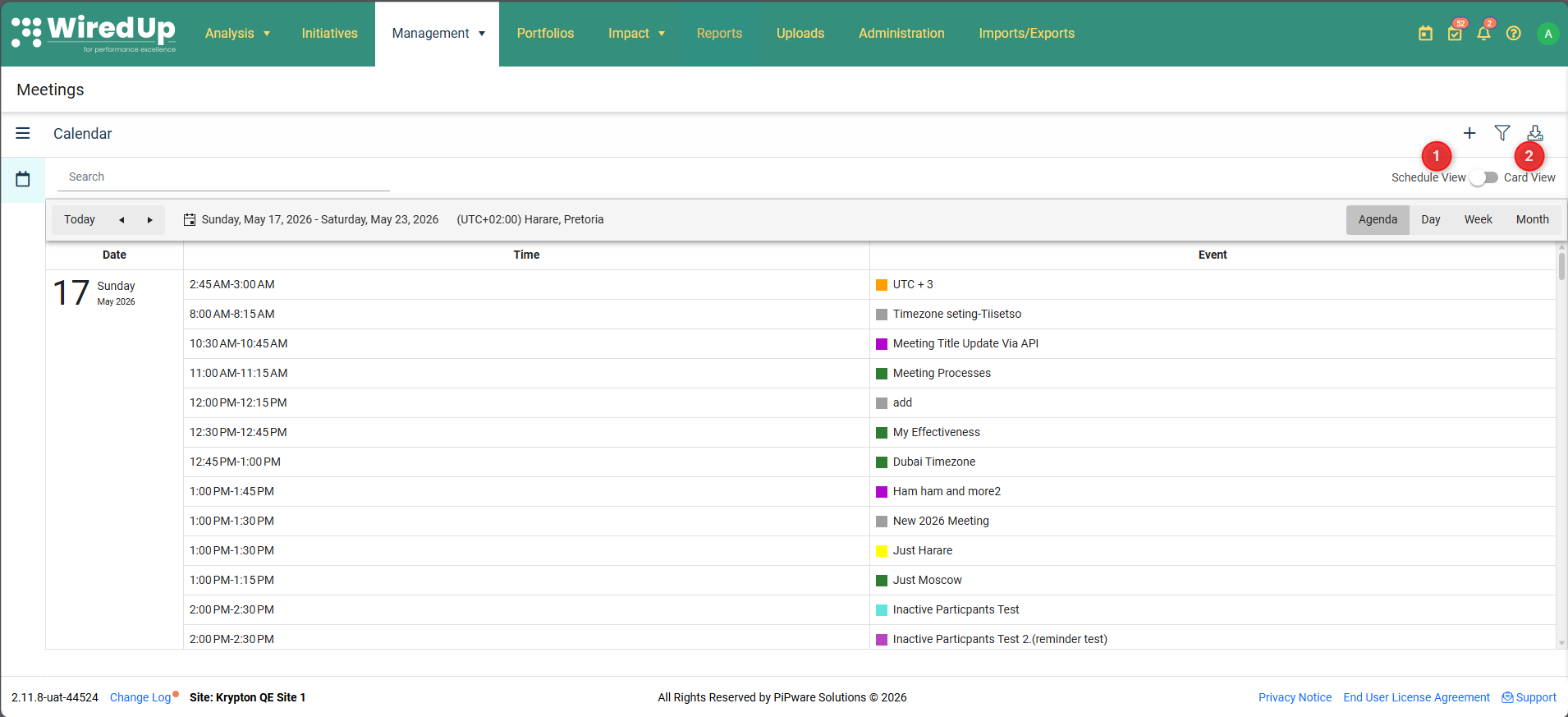
- Schedule View: Displays meetings in a calendar format with multiple time-based viewing options
- Card View: Displays meetings as individual cards with detailed information and quick actions
Schedule View
In Schedule view, you can switch between different calendar perspectives to manage your meetings effectively.
Schedule View Options
The Schedule view of Meetings offers multiple viewing options:
1. Agenda View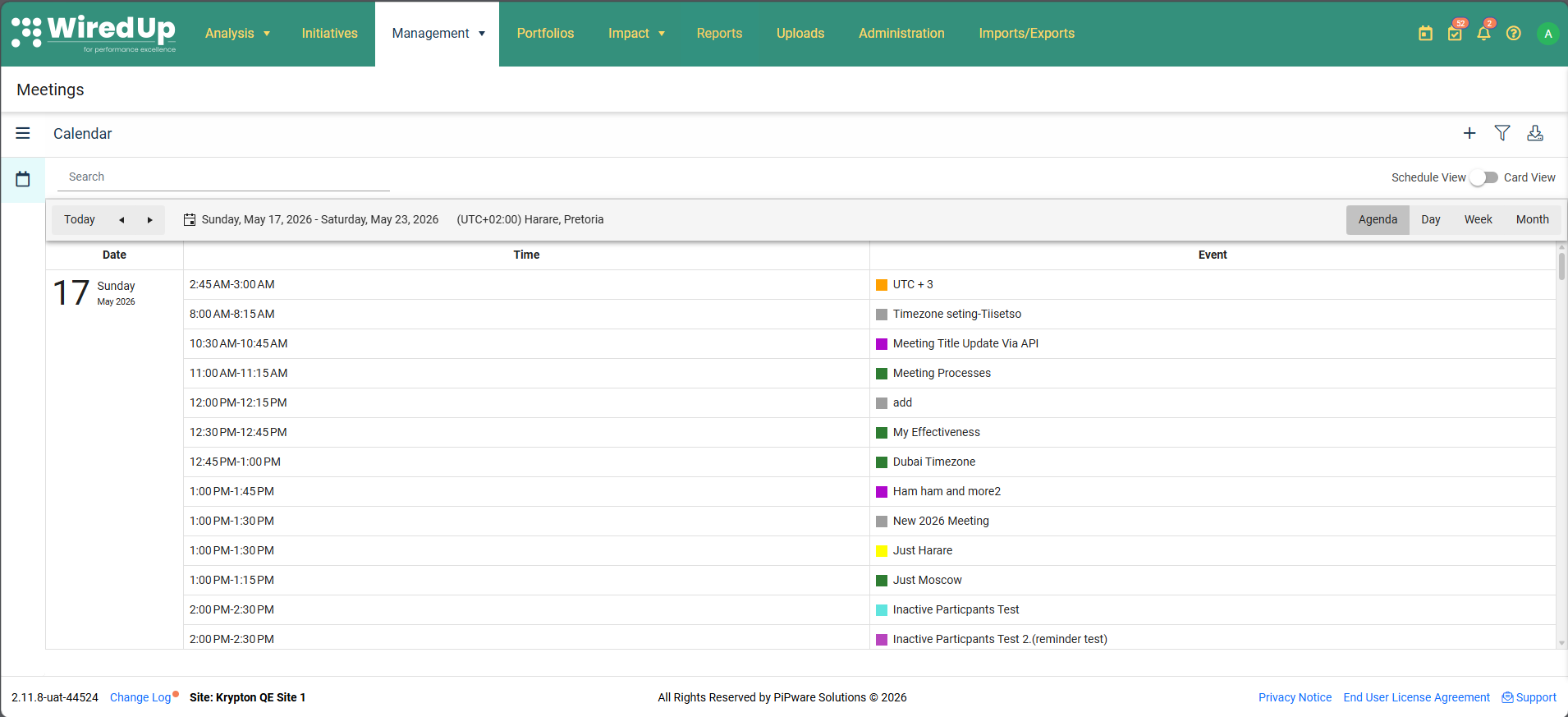
- Provides a list of all meetings per day alongside their allocated agendas
- Shows a chronological overview of upcoming meetings
2. Day View
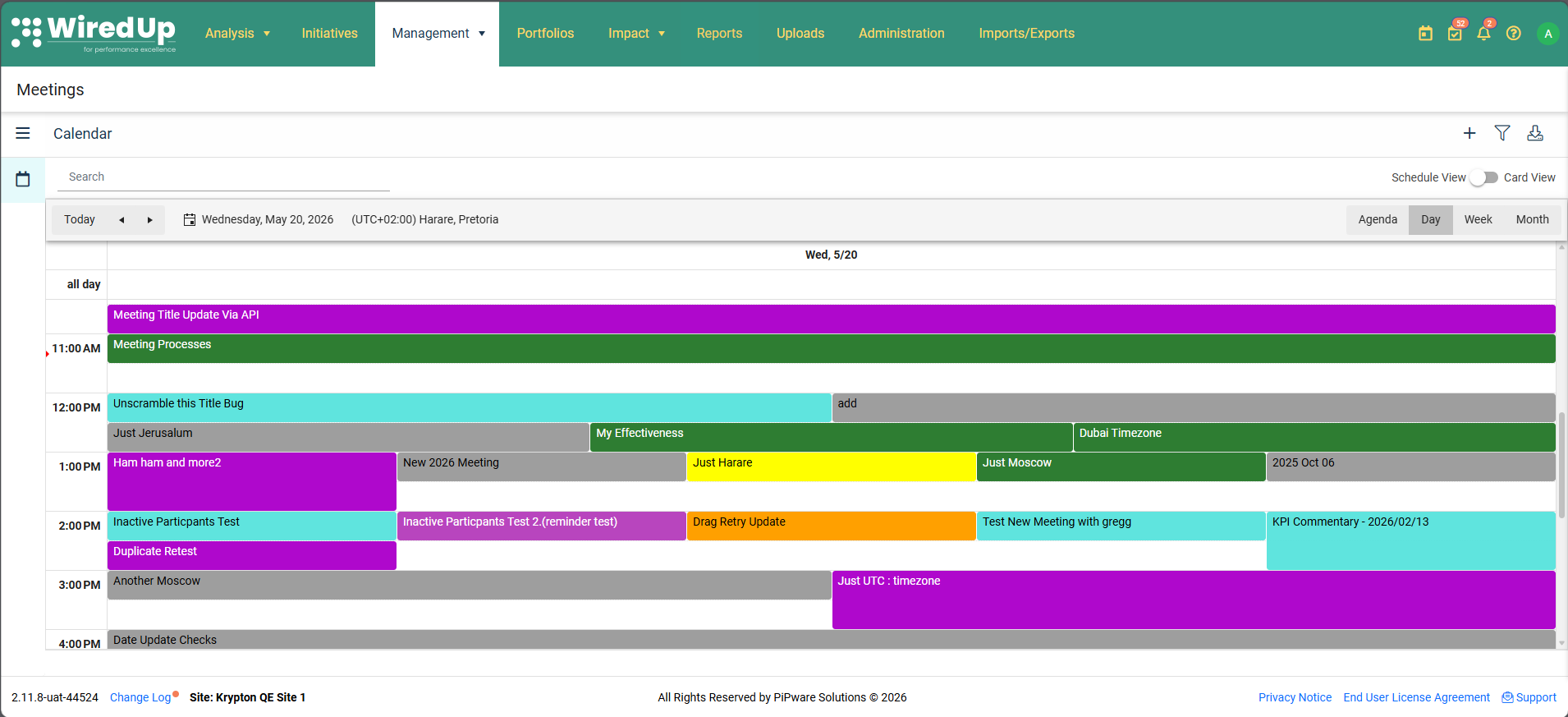
- Shows meetings for the selected day
- Displays detailed time slots and meeting information for a single day
3. Week View
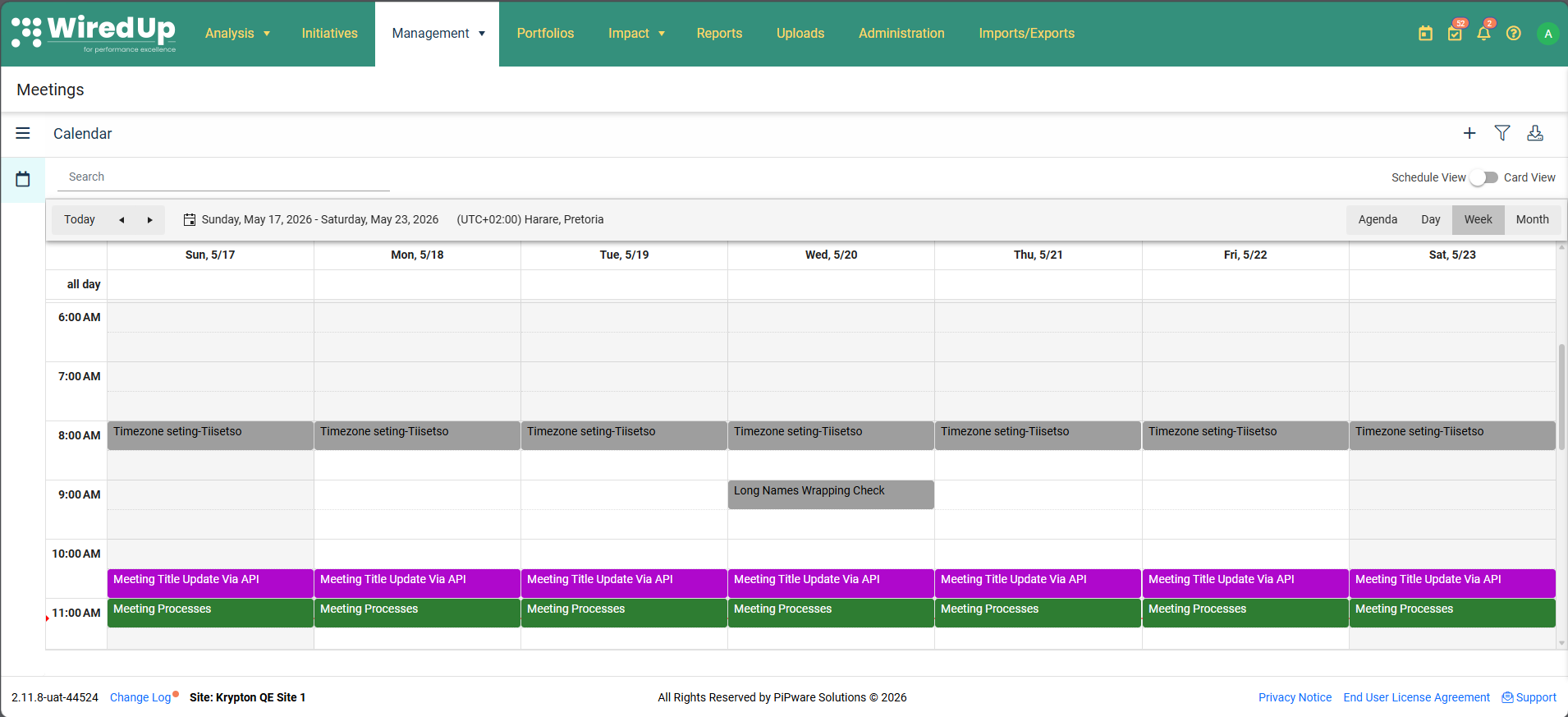
- Displays meetings scheduled for the week
- Provides a weekly overview of all meeting instances
4. Month View
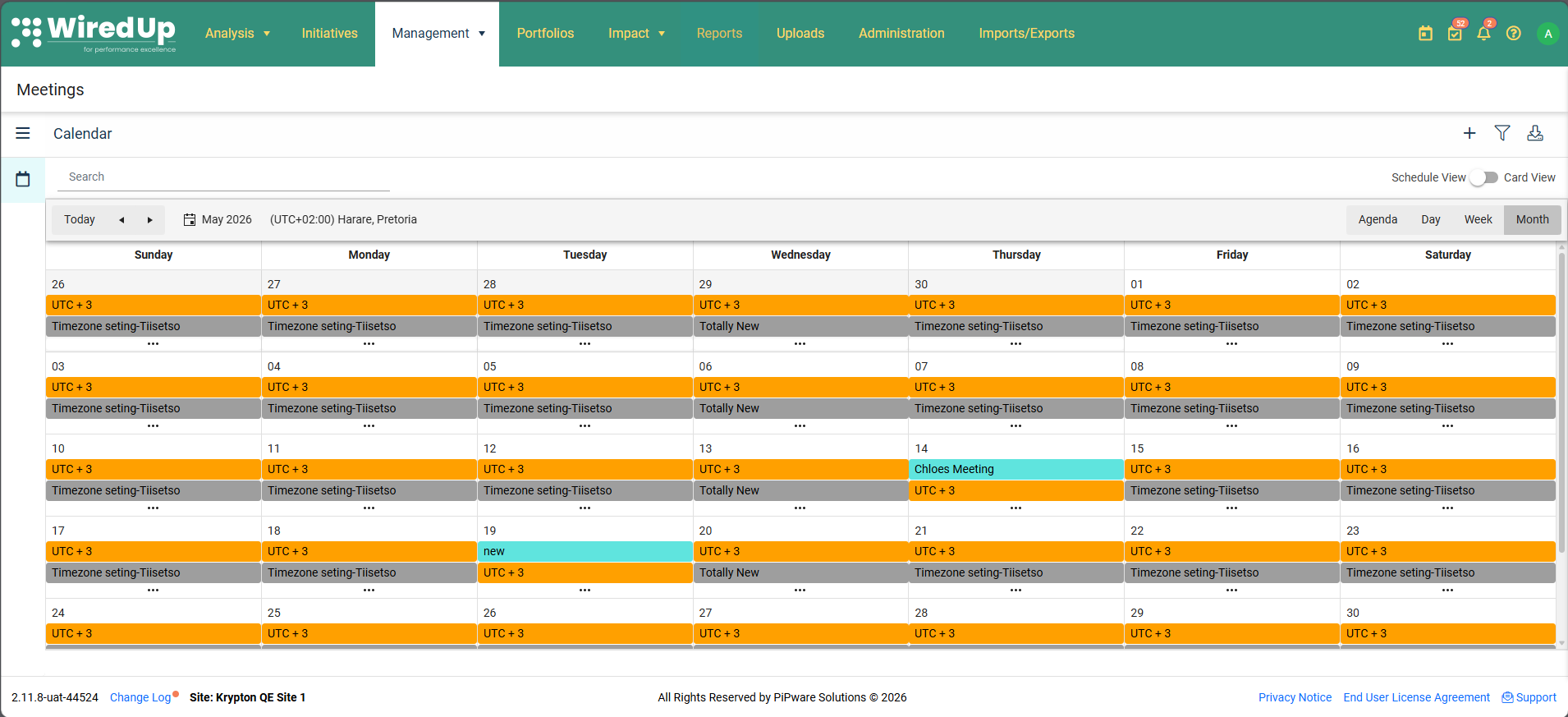
- Displays all meetings scheduled for the month
- Provides a high-level view of meeting distribution across the month
Navigating Schedule View
1. Navigation Controls
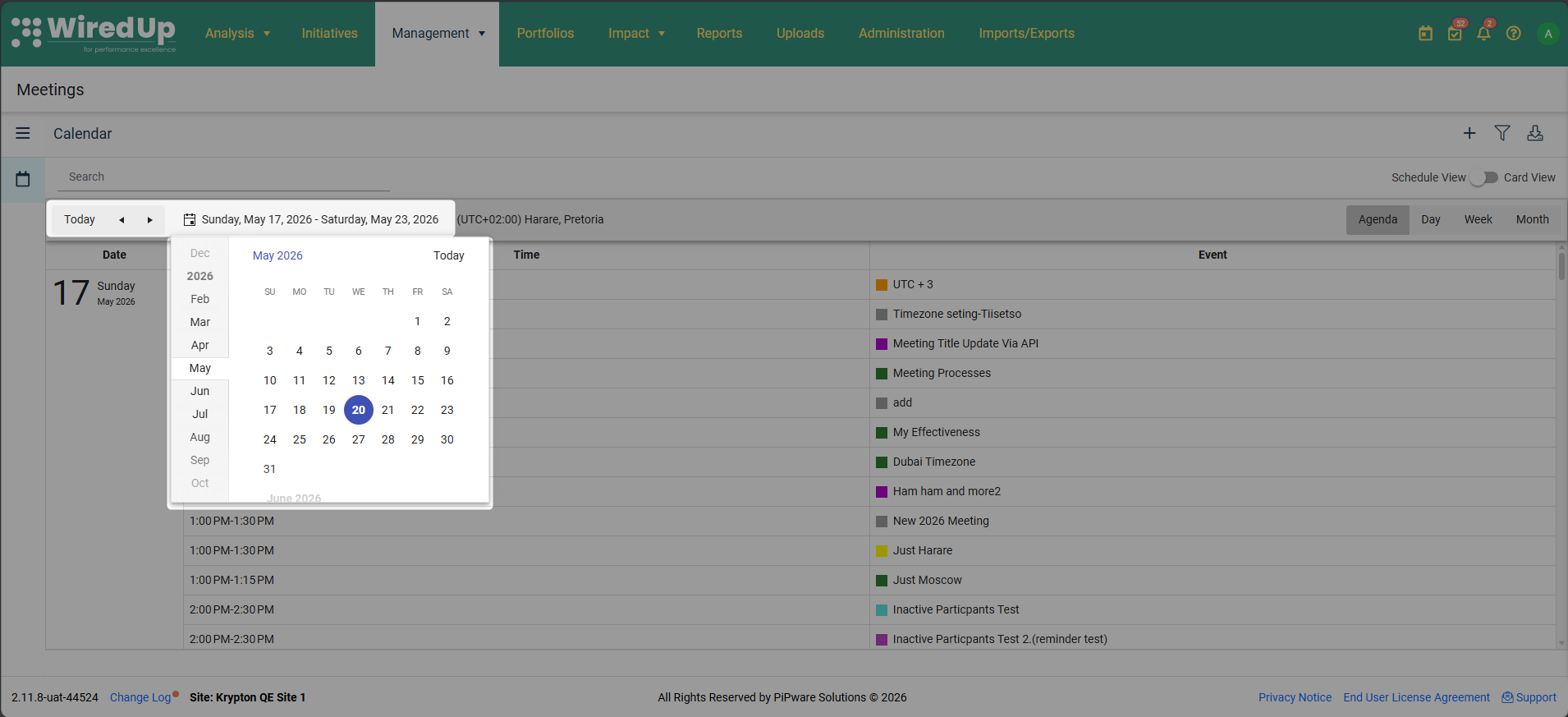
- Use the navigation arrows on the top-left side of the screen to move to the next or previous time slot
- Click the calendar icon on the time period specified to select a preferred date
2. Rescheduling Meetings
- On the Day, Weekly and Monthly view, you can reschedule a meeting by dragging and dropping the meeting instance to the desired future date and time
Note: WiredUp will prevent rescheduling if there are overlapping meeting instances between the original and target datesViewing Meeting Details
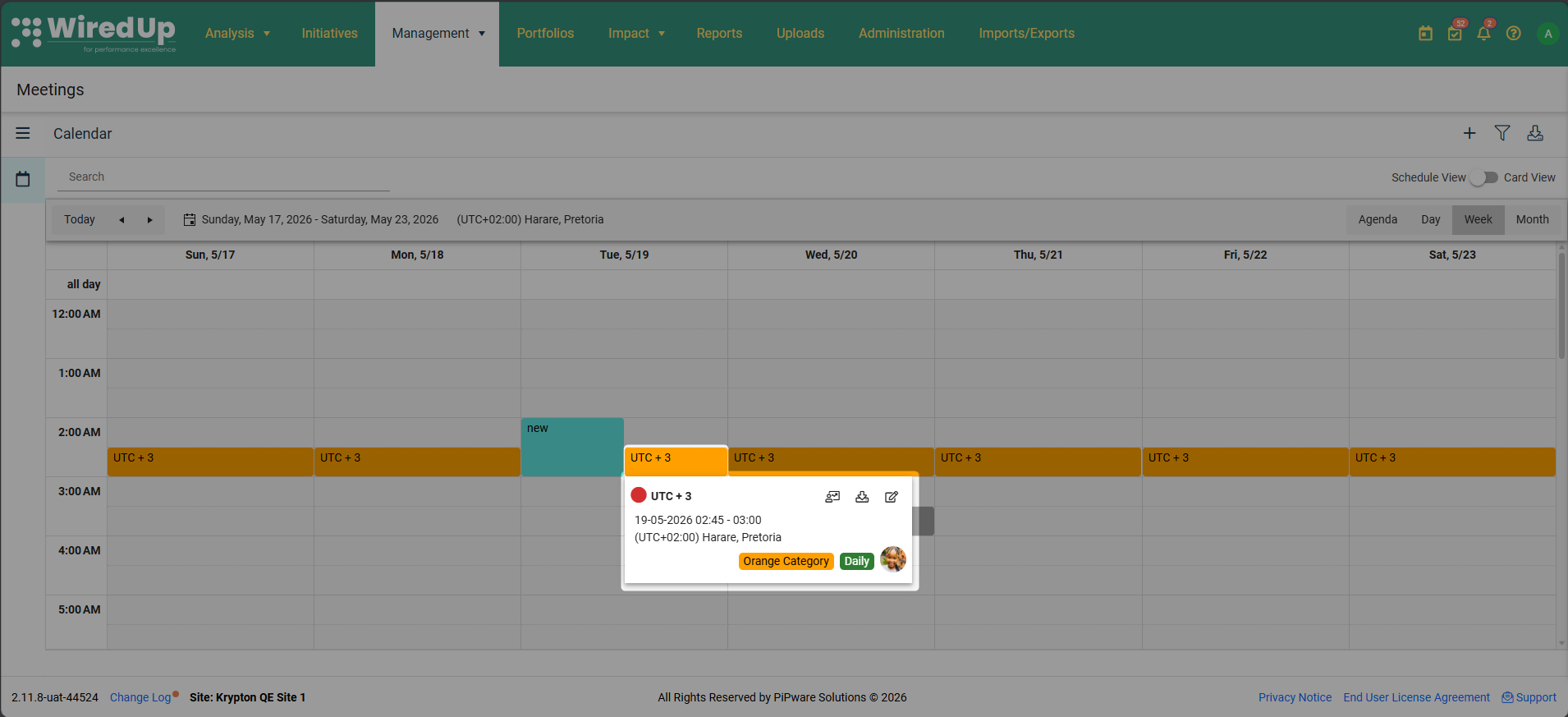
- Click on any meeting instance in the calendar to view the meeting card with full details
Interacting with Meetings in Agenda View
You can now click on any meeting in the Agenda view to display a quick details popover, allowing you to interact with meetings without switching to a different calendar view.
To view meeting details and actions in Agenda view:
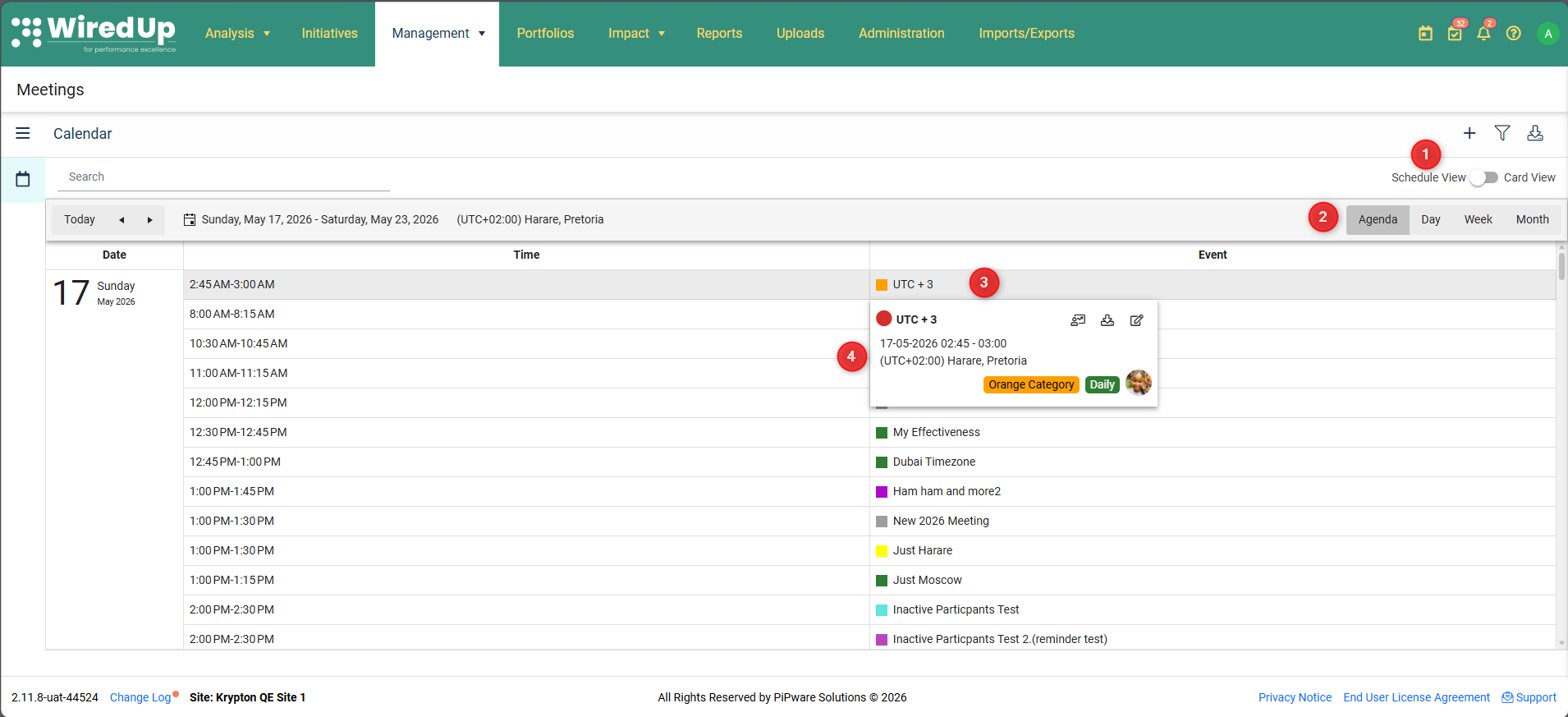
- Navigate to the Schedule View
- Select Agenda view from the calendar view options
- Click on any meeting row in the list
- A popover will appear displaying the meeting details
To dismiss the popover:
- Click anywhere outside the popover, or
- Click on another meeting to view its details
Note: This popover is identical to the one that appears when clicking meetings in the Month view.
Card View
The Card view displays meetings as individual cards, providing a comprehensive overview of each meeting series with quick access to key actions.
Card View Display Options
When you switch to Card view, additional viewing options appear at the top-right:
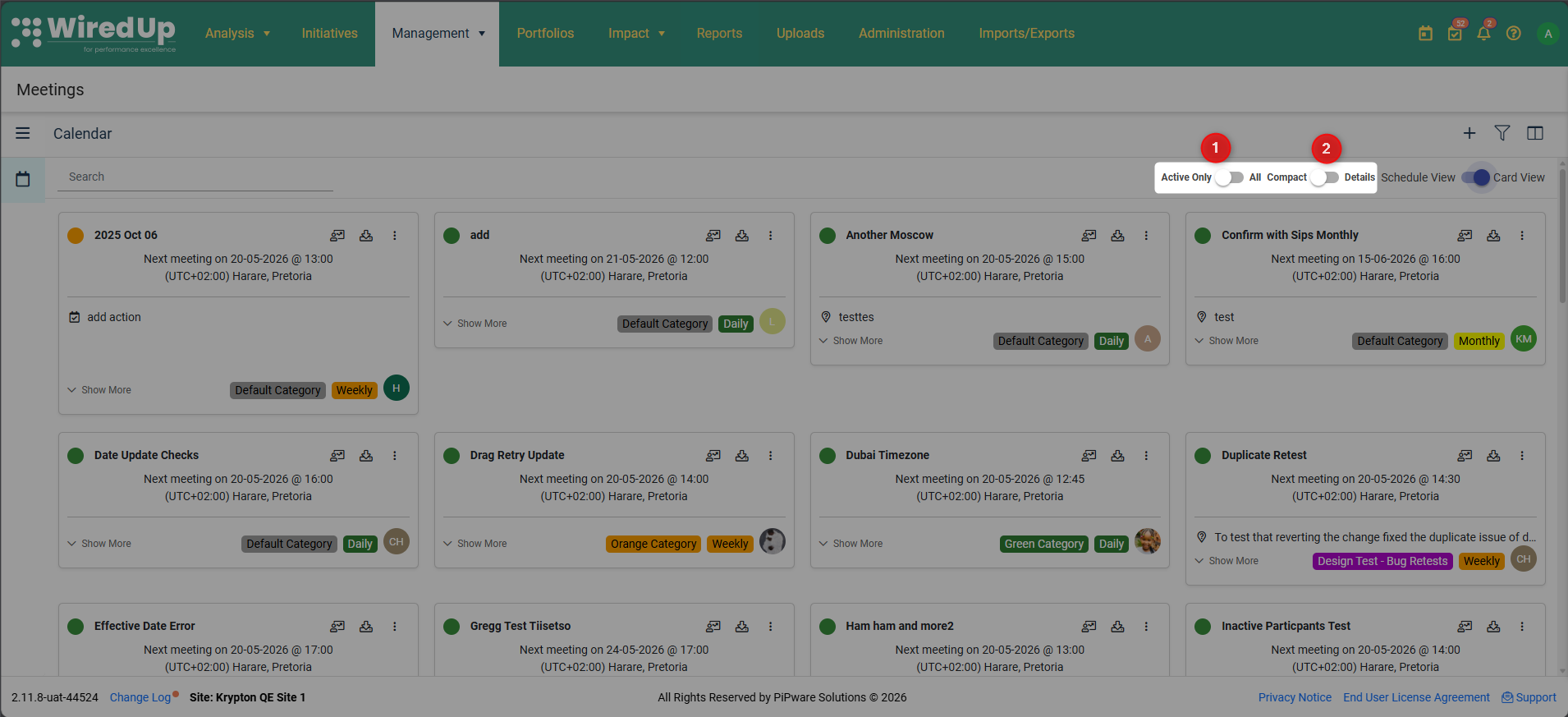
1. Active Only vs All
- Active Only: Show only active meetings
- All: Display both active and inactive meetings
2. Compact vs Details
- Compact: Shows a condensed view of meeting cards
- Details: Expands all cards to show more comprehensive information
Each meeting card displays important information and provides quick access to key functions:
Meeting Status Indicator
The status of the meeting is located to the left of the meeting title. To obtain further information about the reason for the meeting's status, hover over the colored circle, and a tooltip will appear providing additional details.
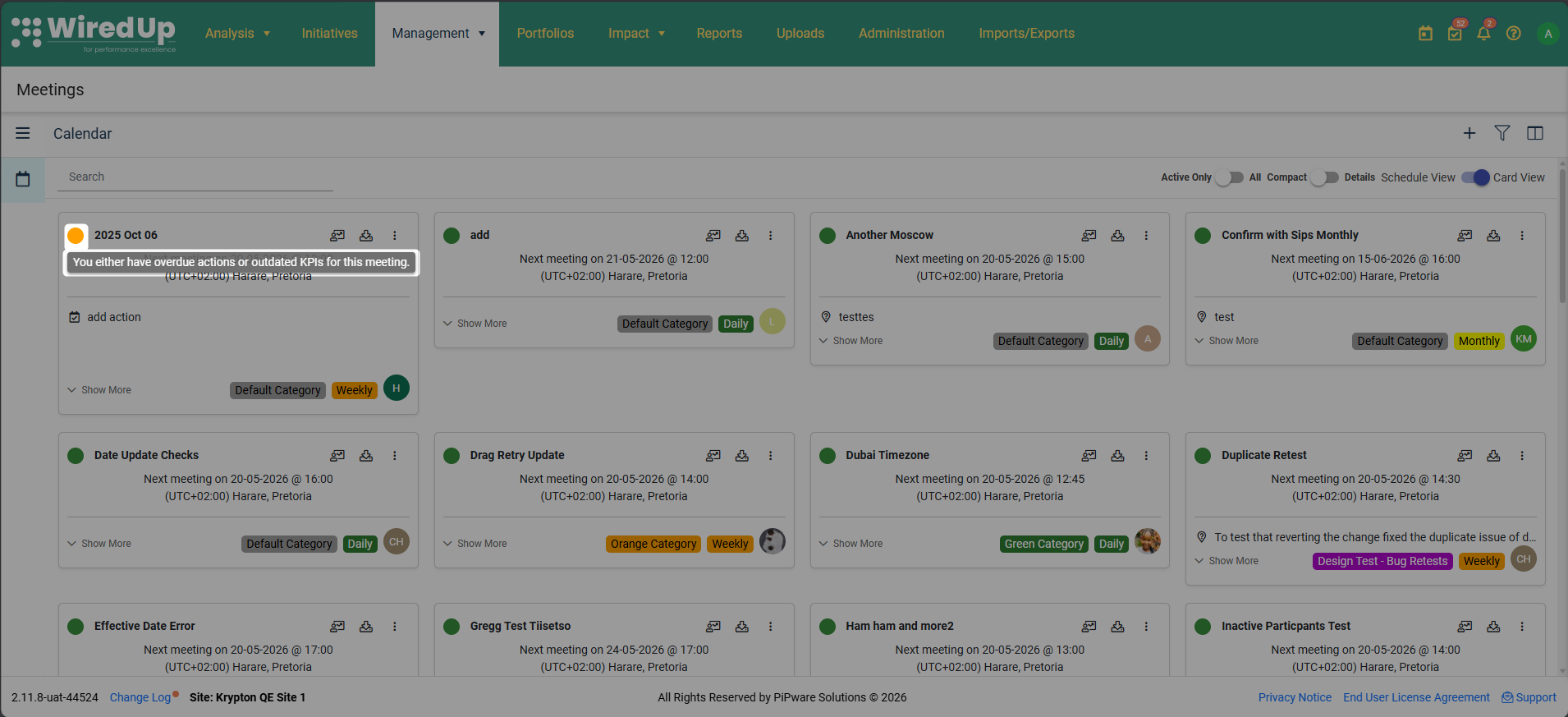
Meeting status colors indicate:
- Red status: There are both overdue actions and outdated KPIs for the meeting instance
- Amber status: Either incomplete actions or outdated KPIs for the meeting instance
- Green status: No outstanding actions and no outdated KPIs for the meeting instance
Meeting Information
Below the meeting title, the following information is displayed:
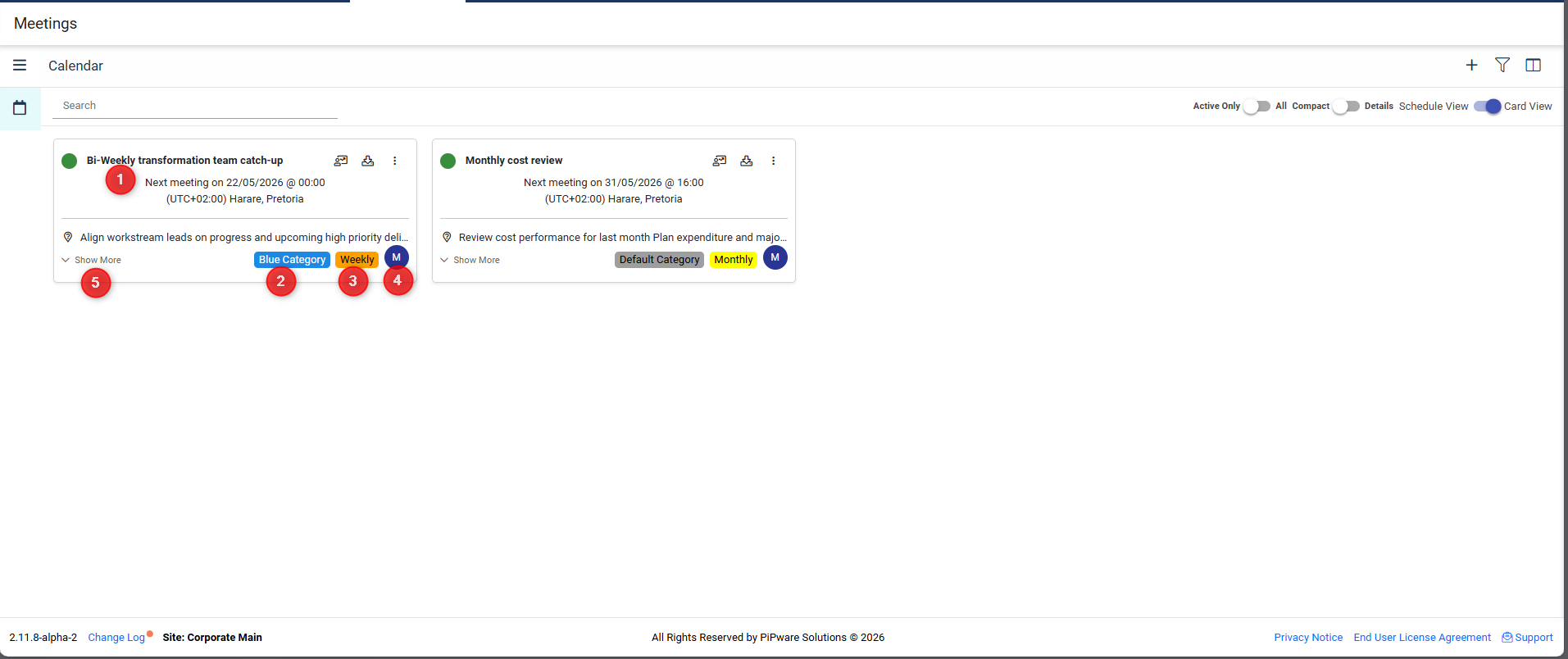
- Next scheduled meeting date and time (based on your time zone)
- Meeting category (configured on Administration > Meeting Categories)
- Meeting frequency (daily, weekly, or monthly)
- Organizer avatar and name
- Click Show More to expand the card to display additional information
Meeting Card Actions
The following icons are displayed on the right side of the meeting cards:
1. Capture Icon
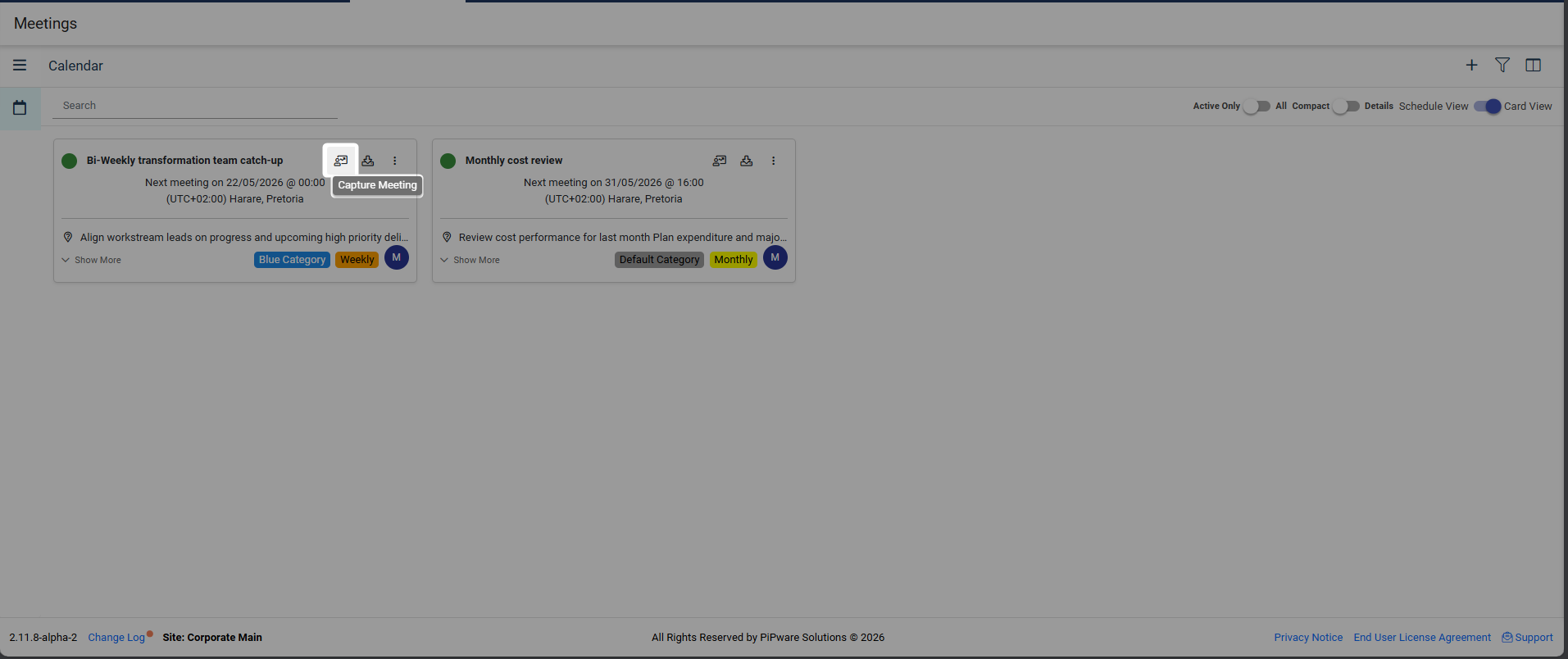
- Click here to capture the meeting details for the meeting instance
- Opens the meeting capture screen where you can record notes, actions, and outcomes
For more information, please see this article: Capture Meeting : WiredUp
2. Download Invite Icon
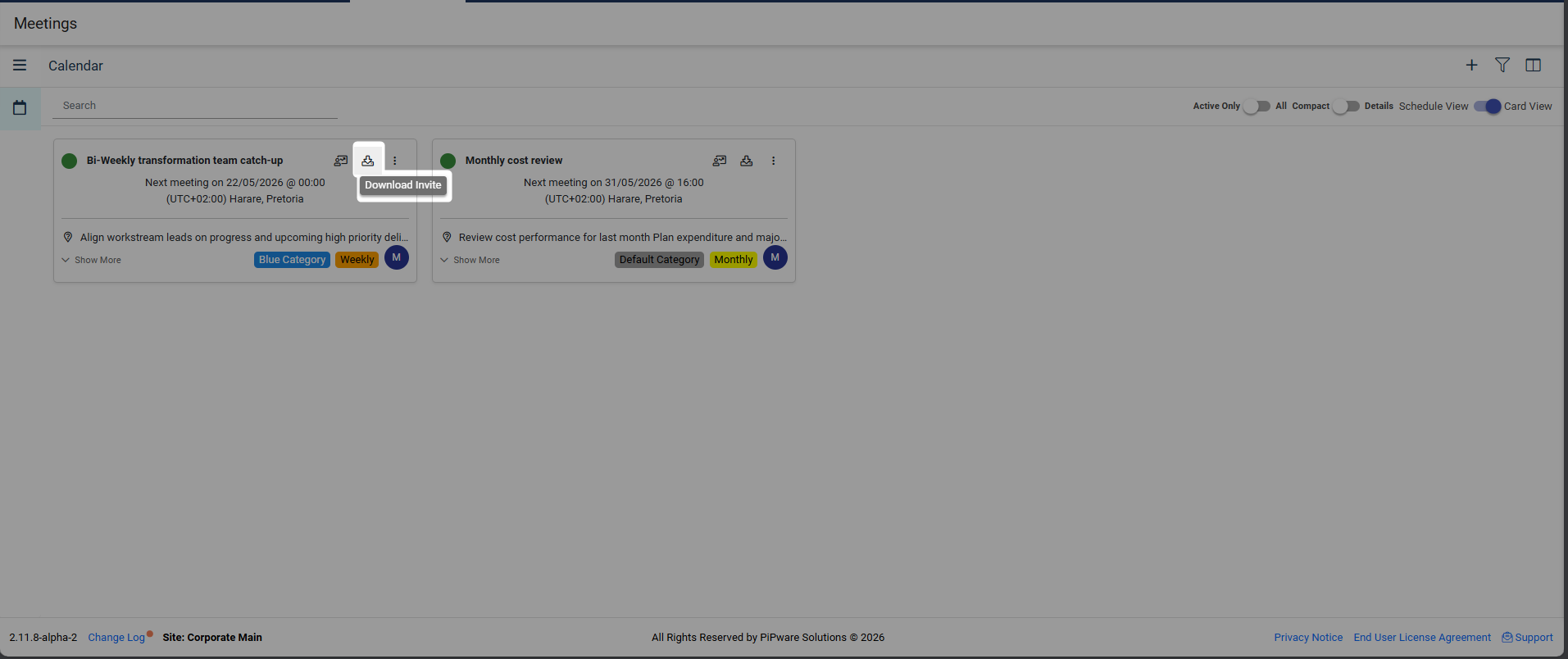
- Click here to download the meeting invite to include in your emailing app
- Share the invite with participants via email or other communication channels
3. Three-Dot Menu
- Click this menu to access additional options:
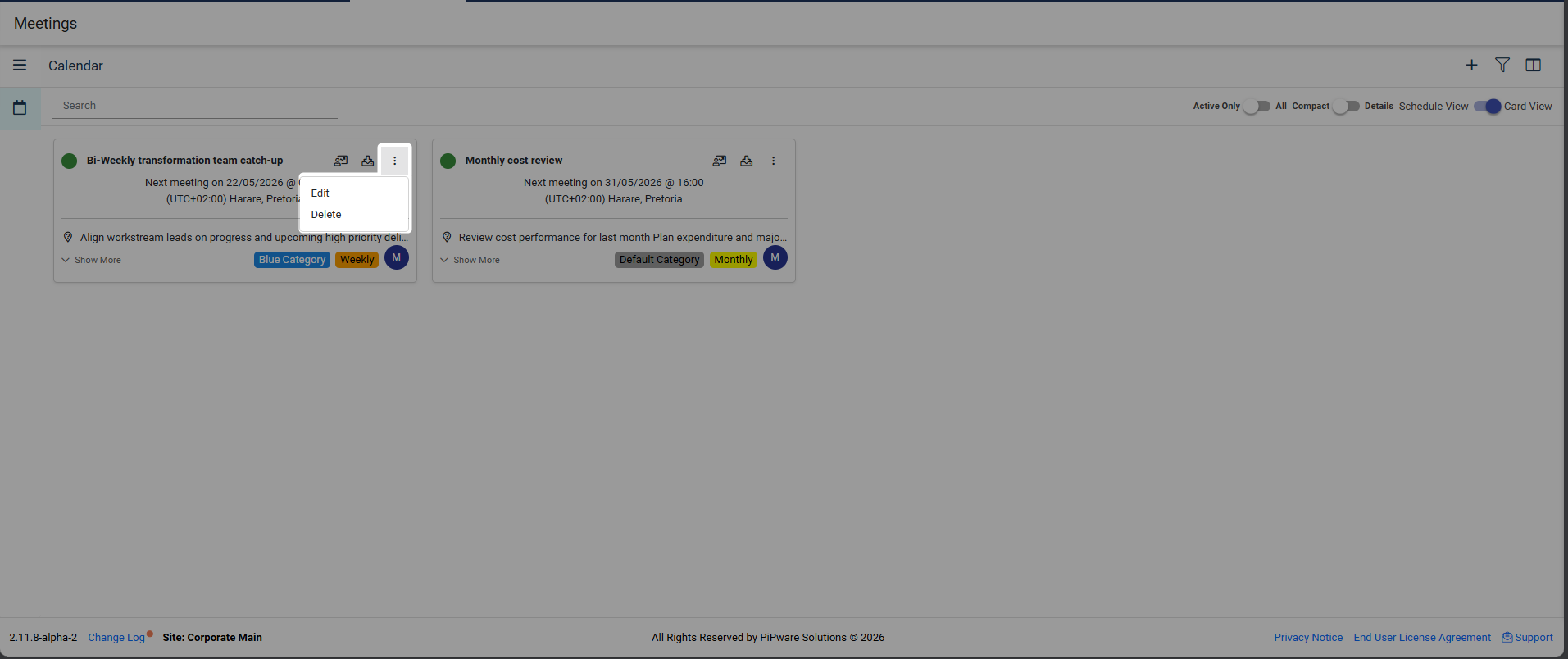
- Edit: Edit the meeting series details. For more information, see: Edit a Meeting
- Delete: Delete the meeting series
Permissions
You need to be a Meeting Administrator to be able to view and make changes to a meeting. Meeting administrator permissions are configured under role permissions in the Administration module.
Meeting Administrators can:
- Create new meeting series
- Edit existing meeting series
- Delete meeting series
- Capture meeting details
- Manage participants and roles
- Configure processes and targets
Next Steps
- Add a new meeting: Learn how to create a new meeting series with all necessary details
- Capture meeting details: Record meeting notes, actions, and outcomes for each meeting instance
- Edit a meeting series: Make changes to existing meeting series
- Create meeting categories: Set up custom categories to organize your meetings
- Add meeting roles: Define custom roles for meeting participants