
In This Article
How to Access the Outstanding Actions Report
Report Navigation and Controls
Overview
The Outstanding Actions Report provides a comprehensive view of all actions that require attention across your WiredUp site. This report helps users track, monitor, and manage actions from various sources including Ideas, RARs, and Meetings. The report displays actions based on their status, due dates, and other key attributes, making it easy to identify overdue items and prioritize work.
This article explains how to access the Outstanding Actions Report, understand the information displayed, use filters to refine your view, and interpret the various status indicators.
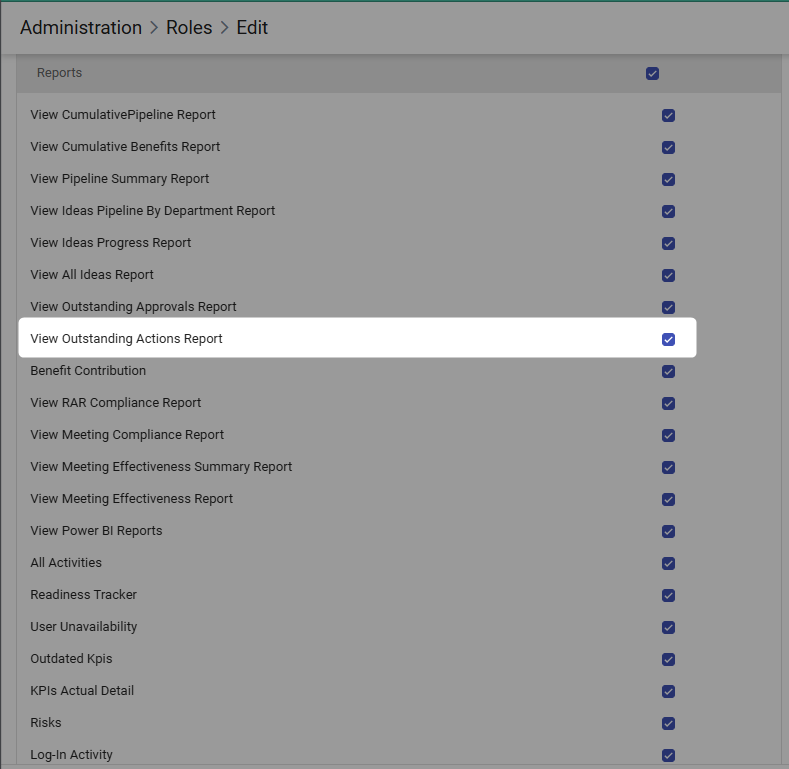
To view the Outstanding Actions Report, users must have the "View Outstanding Actions Report" permission enabled in their role settings. This permission is configured by administrators in the Administration > Roles > Edit section under the Reports permissions.
How to Access the Outstanding Actions Report
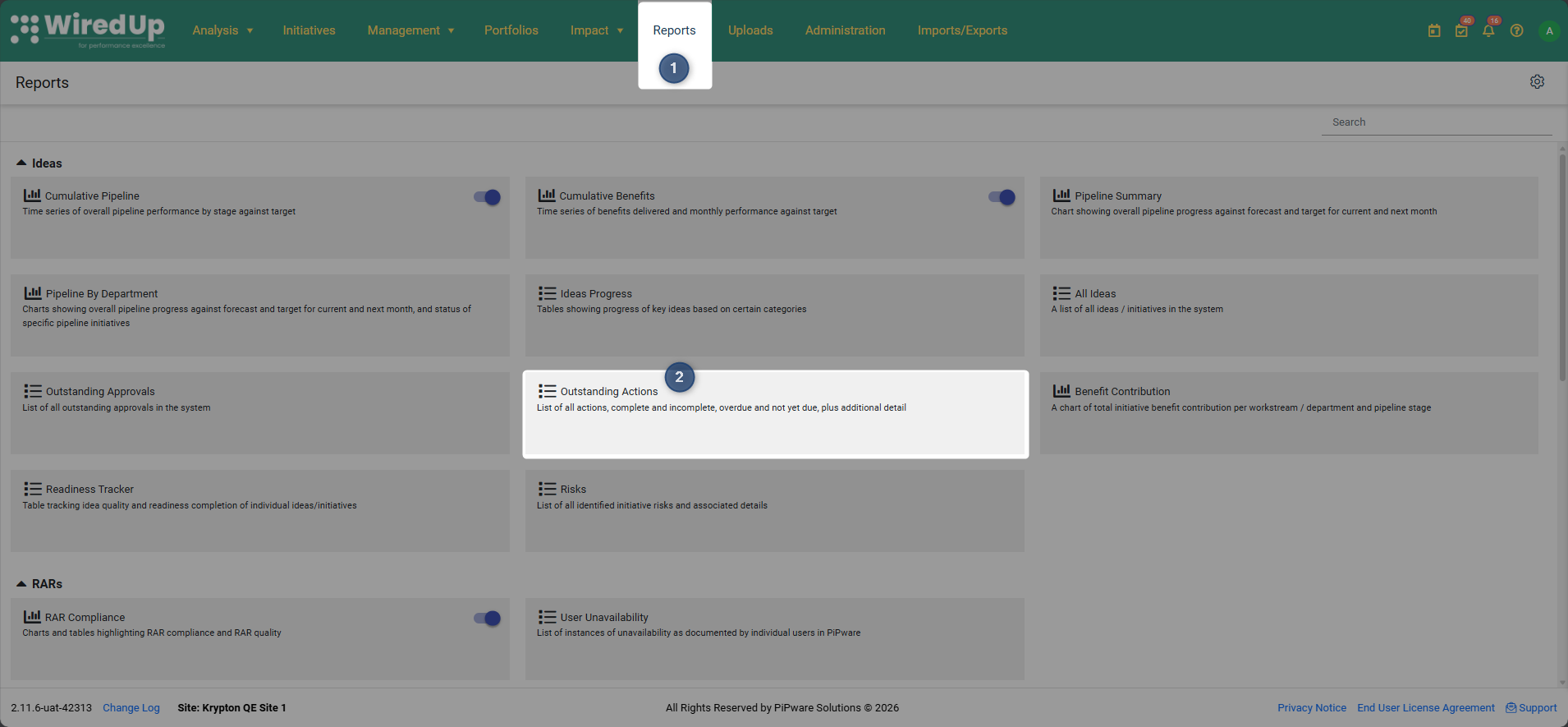
- Navigate to the Reports menu in the top navigation bar
- Select Outstanding Actions from the reports list
- The report will load showing all outstanding actions based on the default filters
- When you first open the report, it displays actions with the following default filters:
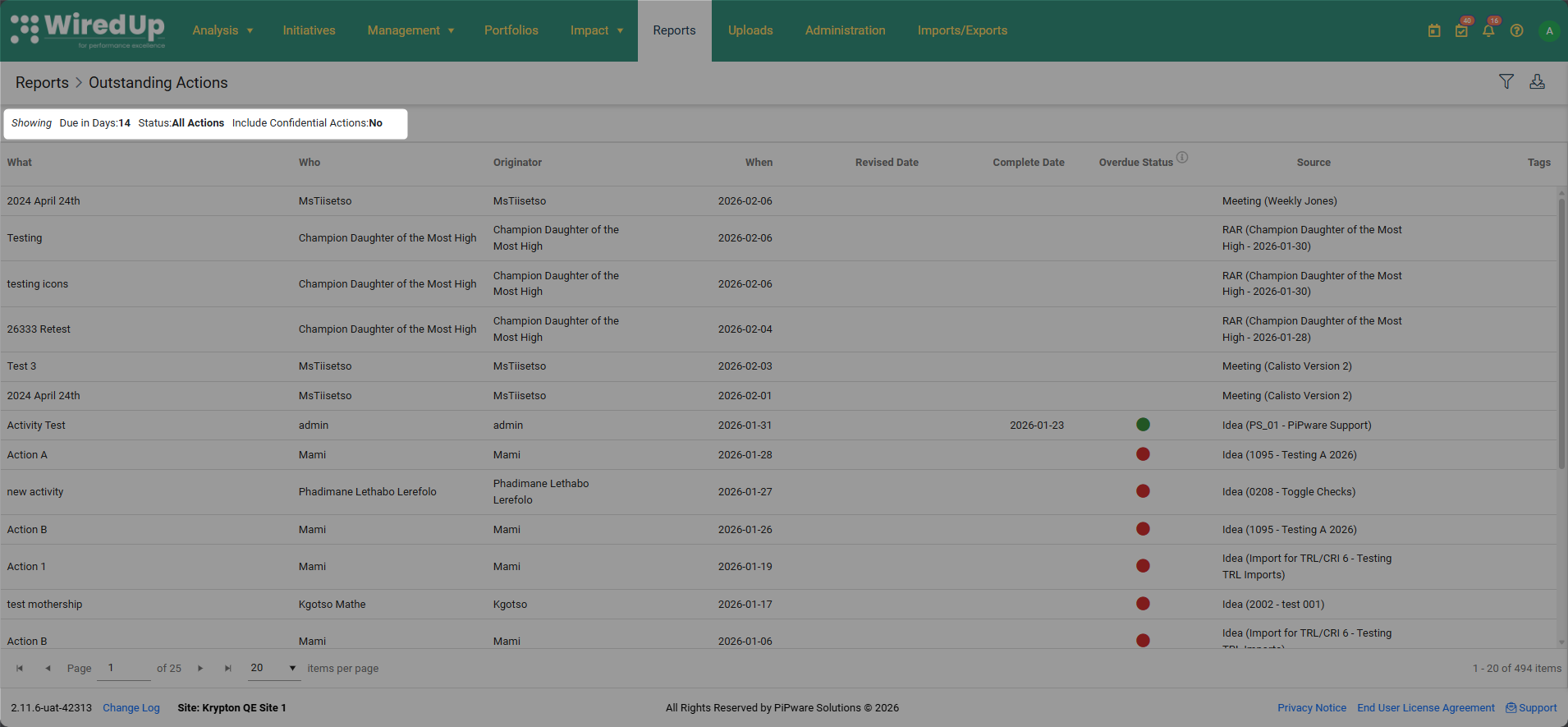
- Due in Days: 14 (shows actions due within the next 14 days)
- Status: Show Outstanding Only
- Include Confidential Actions: No
These default filters are displayed at the top of the report for easy reference.
Report Columns
The Outstanding Actions Report displays the following columns:
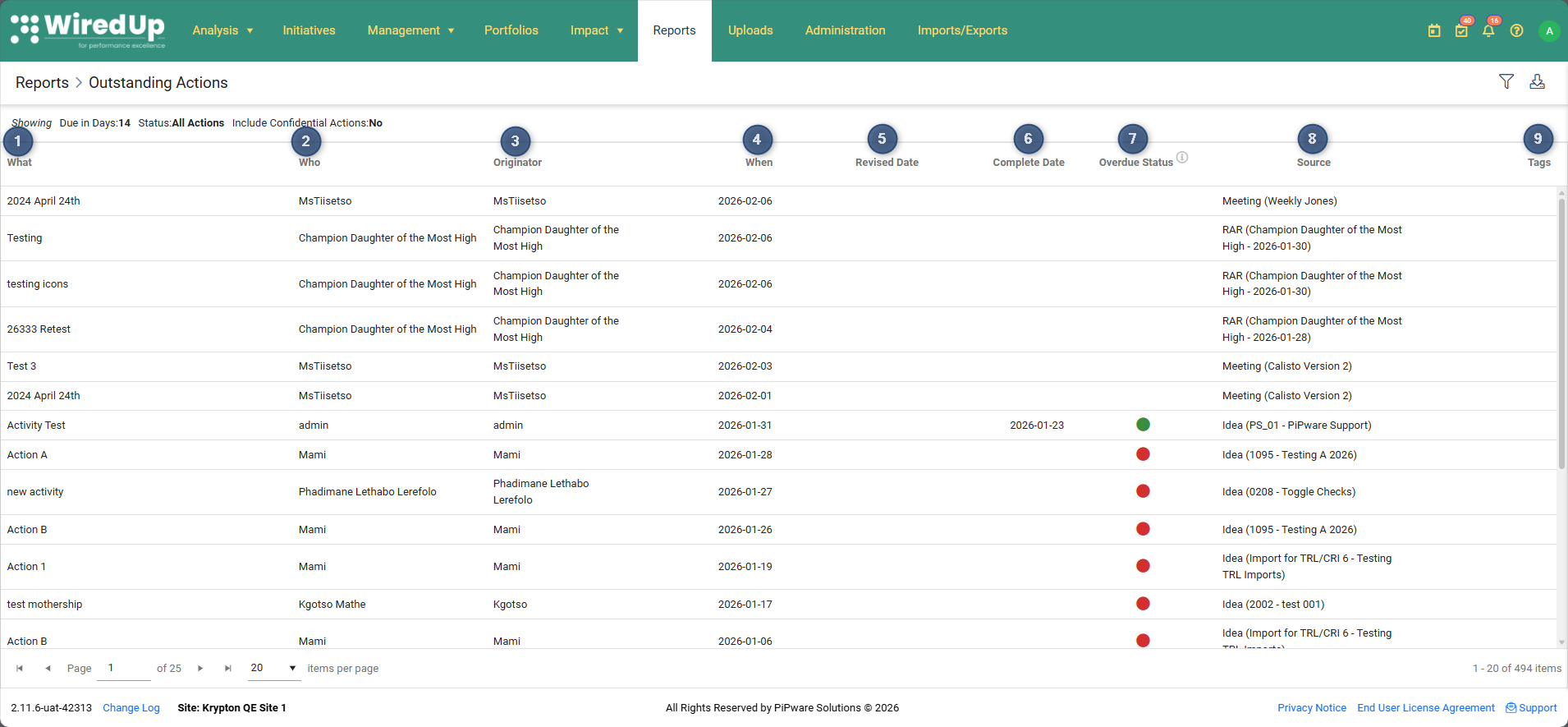
- What - The action description or title
- Who - The person assigned to complete the action
- Originator - The person who created or originated the action
- When - The due date for the action (sorted by default)
- Revised Date - Any updated or revised due date
- Complete Date - The date the action was completed (if applicable)
- Overdue Status- A visual indicator showing the action's status. Click on the 'i' icon to display a tooltip explaining the status options displayed:
- Green circle - Action is completed
- Red circle - Action is overdue
- Blank - Action is not overdue or completed
- Source - The origin of the action (e.g., RAR, Idea, Meeting) with reference details. For actions related to Ideas, click on the Idea link to navigate directly to that idea.
- Tags - Any tags associated with the action
Report Navigation and Controls
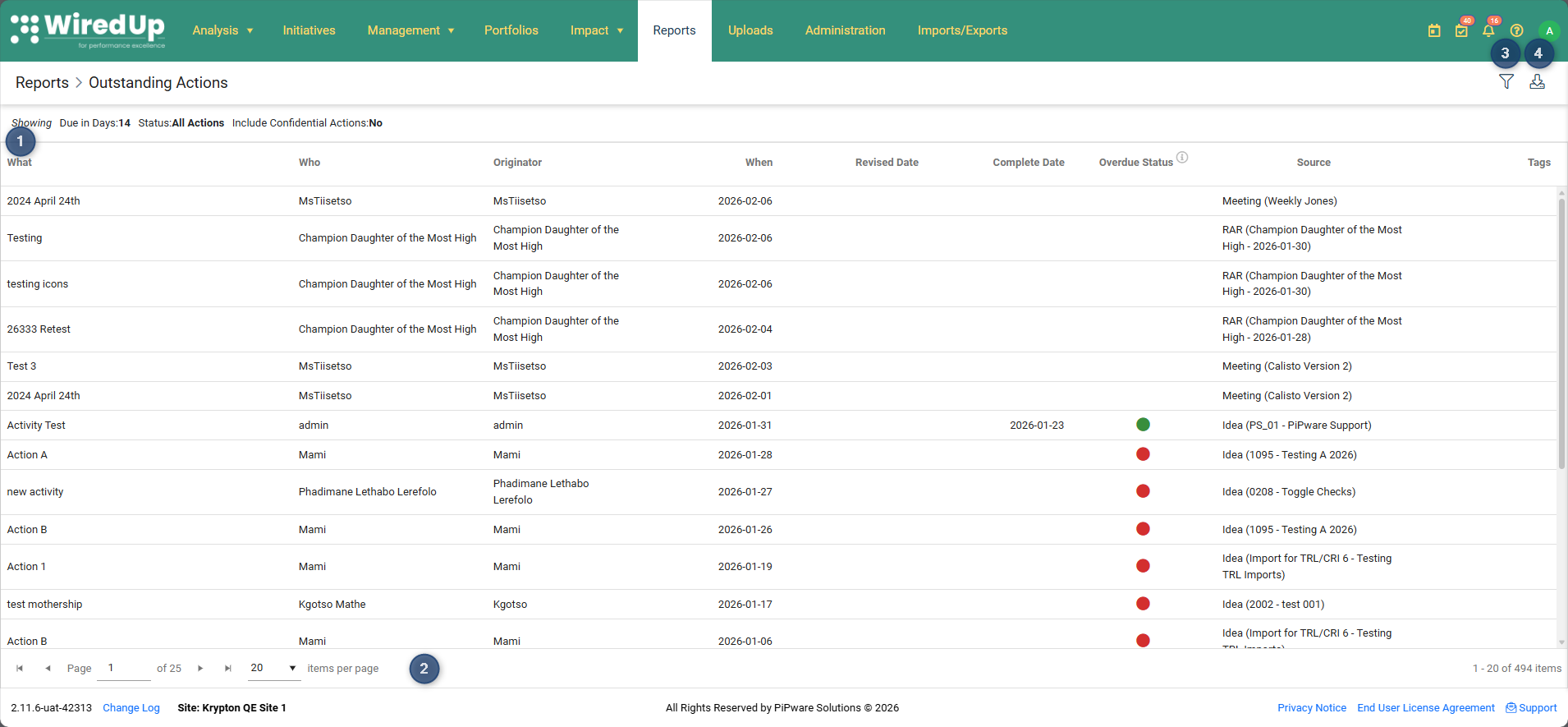
- Sorting: Click on any column header to sort the data. The "When" column is sorted by default to show the earliest due dates first
- Page Controls: Located at the bottom of the report, allowing you to navigate between pages and adjust the number of items displayed per page
- Filter Icon: Opens the filter panel to refine your view
- Download Icon: Allows you to download the report in Excel format
Using Filters
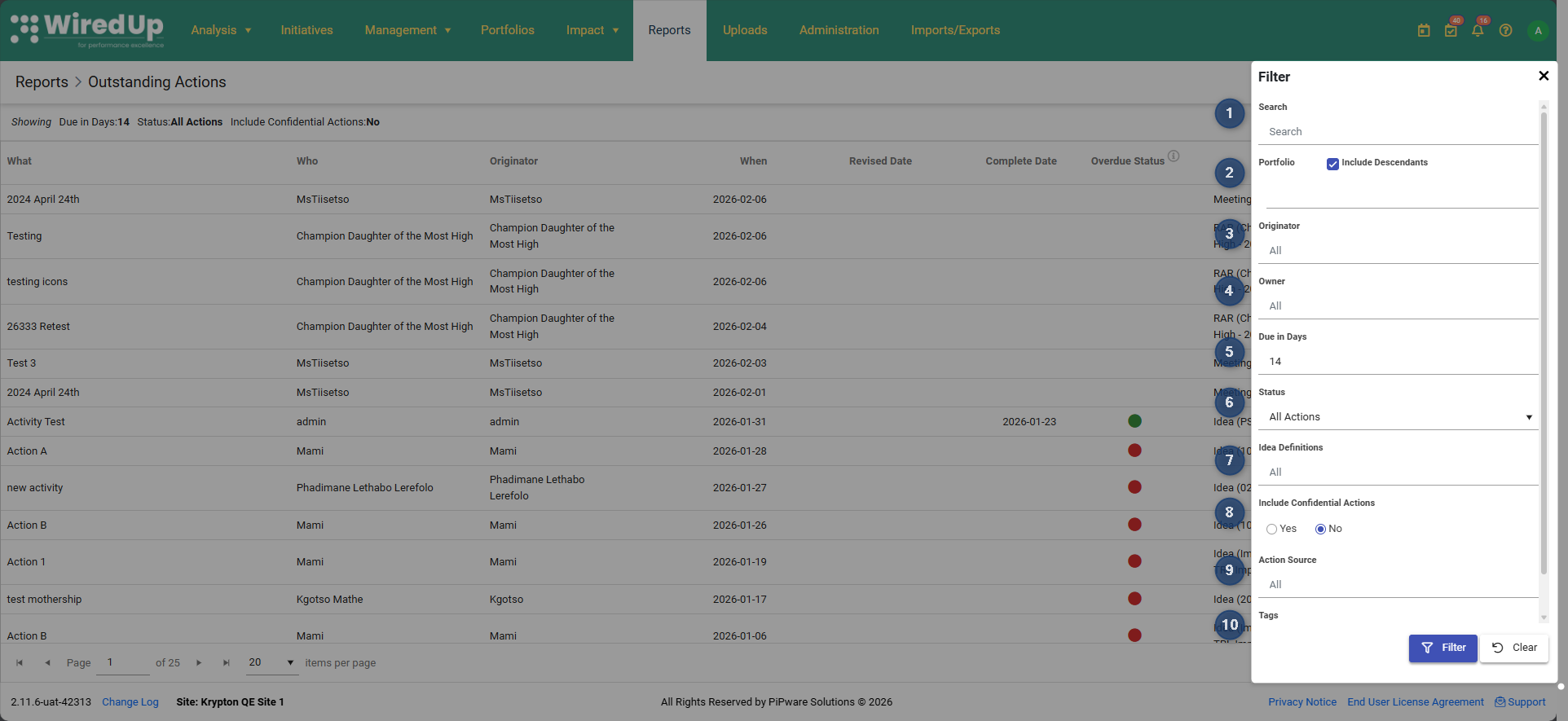
The Outstanding Actions Report offers powerful filtering capabilities to help you find specific actions. Click the Filter icon in the top right corner to access the filter panel. You can click the Fikter button to apply the filters, or click the Clear button to clear the selected filters.
Available Filters
- Search - Free text search to find specific actions
- Portfolio - Filter by specific portfolio(s)
- Option to "Include Descendants" (include sub-portfolios)
- Originator - Filter by who created the action
- Default: "All"
- Owner - Filter by who is assigned to the action
- Default: "All"
- Due in Days - Set the timeframe for due dates
- Default: 14 days
- Status - Filter by action completion status:
- Show Outstanding Only (default)
- Show Overdue Only
- Show Completed Only
- All Actions
- Idea Definitions - Filter by specific idea/initiative definitions
- Default: "All"
- Include Confidential Actions - Choose whether to include confidential actions
- Options: Yes / No (default: No)
- Action Source - Filter by where the action originated:
- All (default)
- Idea
- RAR
- Meeting
- Tags - Filter by specific tags assigned to actions
Best Practices
- Regular Monitoring: Check the Outstanding Actions Report regularly to stay on top of due dates and overdue items
- Use Status Filters: Switch between "Show Outstanding Only" and "Show Overdue Only" to prioritize your work
- Portfolio Filtering: If you manage multiple portfolios, use the Portfolio filter to focus on specific areas
- Due Date Management: Adjust the "Due in Days" filter to plan ahead or focus on immediate priorities
- Export for Sharing: Use the download function to export the report to Excel and share action lists with team members or stakeholders
- Navigate to Source: Click on Idea links in the Source column to view full context and details