
In This Article
Bulk Uploads and Locked Periods
Overview
KPI period locking provides a robust mechanism to protect historical KPI data from unauthorized changes. By locking periods, you can ensure that completed periods—such as previous financial years, quarters, or custom date ranges—remain unchanged unless explicitly modified by authorized users. This feature maintains data integrity, supports governance requirements, and provides a complete audit trail of all changes to locked periods. Locks can be configured to automatically extend forward as time progresses, or you can manually define specific date ranges to protect.
Who Can Lock Periods
Only the KPI Owners can:
- Lock and unlock KPI periods
- Remove locked periods
- Edit values within locked periods (all edits are audited)
All other users cannot edit any values, targets, or columns within locked periods.
Accessing Period Locks
To manage period locks:
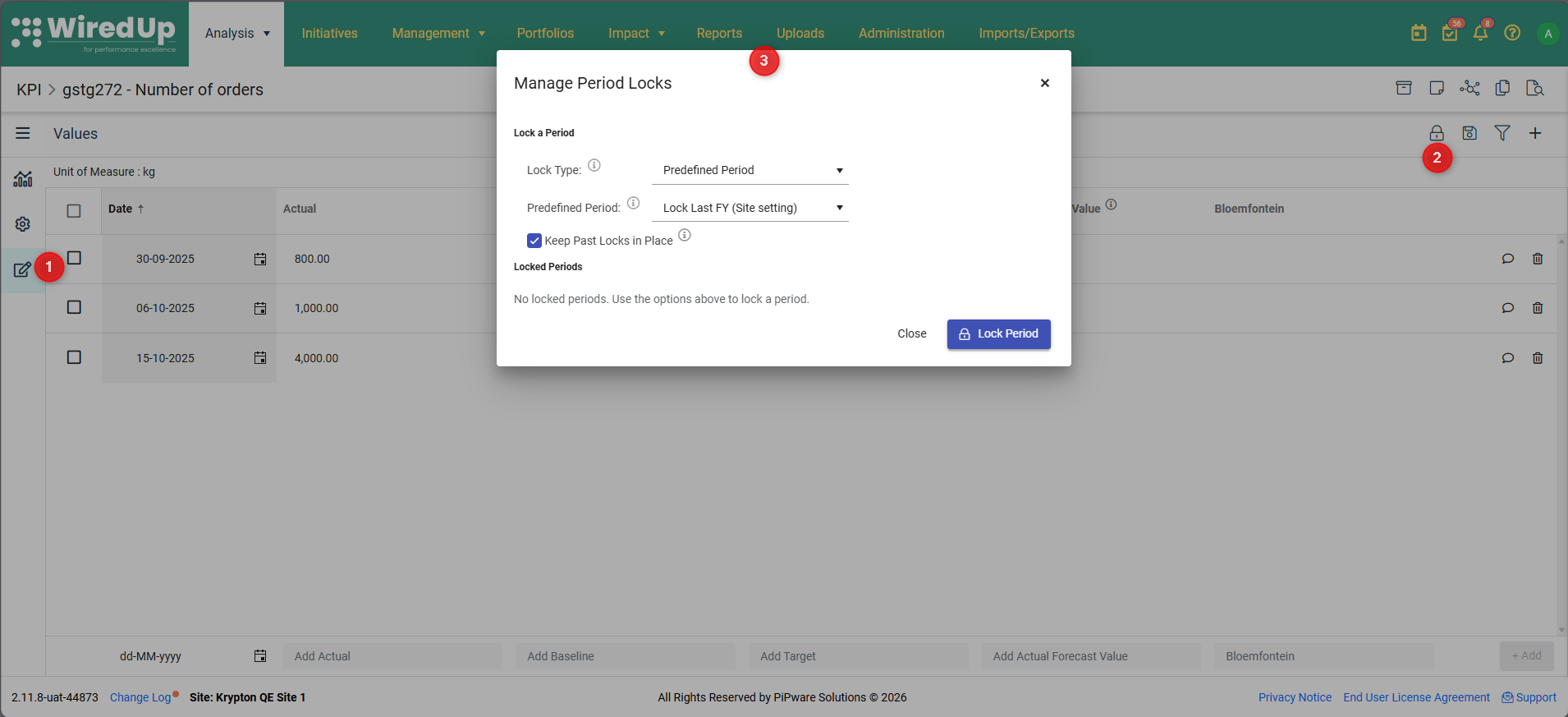
- Open the KPI Values page for the KPI you want to manage
- Click the Manage Period Locks button in the function bar (next to the Save and Filter icons)
- The Manage Period Locks modal will open
Note: Non-owners can see the Manage Period Locks button, but it will be disabled/greyed out.
Understanding Lock Types
You can lock periods using one of two methods:
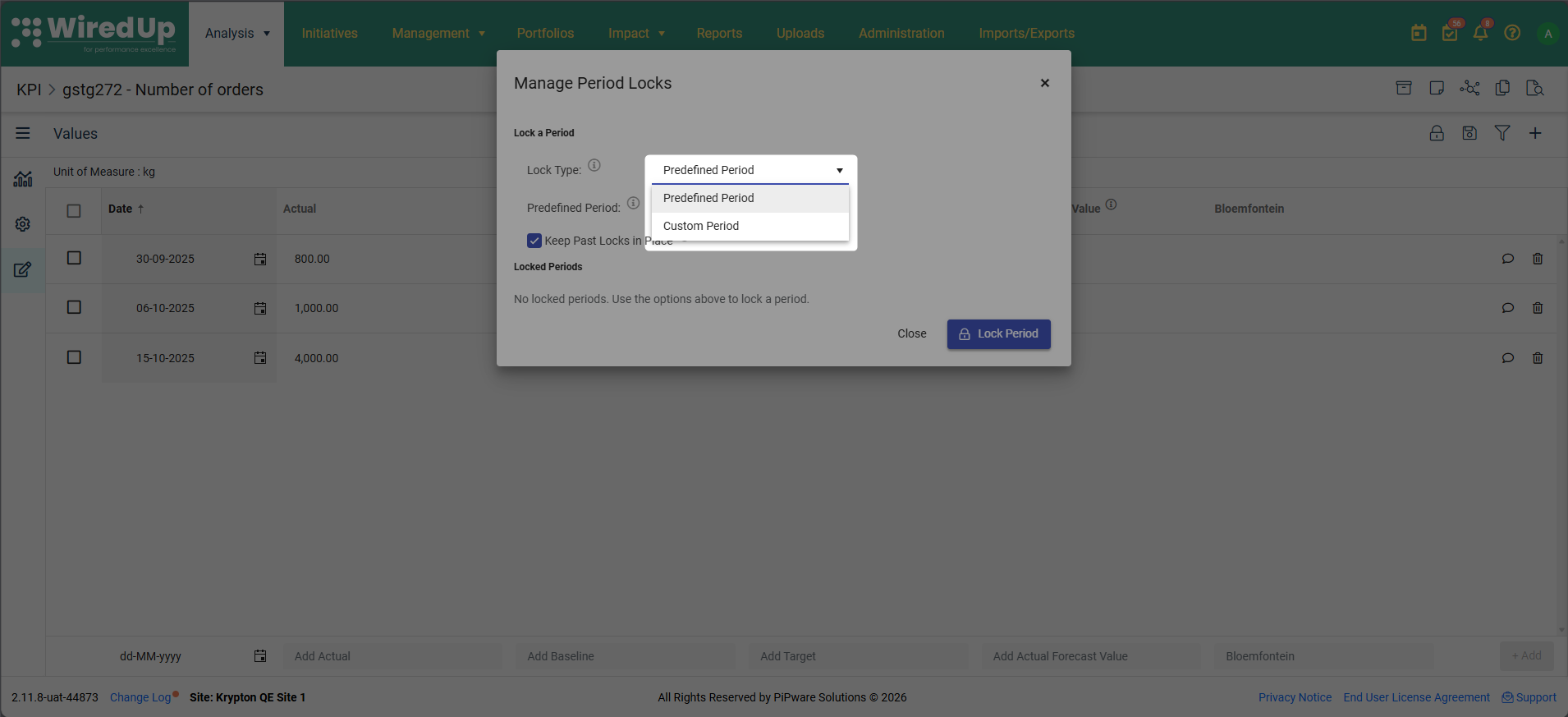
- Predefined Period — A rolling period that automatically updates over time as months are completed. The lock is calculated from the last completed month and extends forward automatically via a background job.
- Custom Period — A fixed date range that you manually specify. You can add multiple custom ranges, and each appears as a separate locked period.
Important: Only one lock type (Predefined or Custom) can be active on a KPI at a time. Switching between lock types will remove your existing lock configuration.
Locking a Predefined Period
Predefined periods automatically extend forward as time progresses, ensuring your historical data remains protected without manual intervention.
To lock a predefined period:
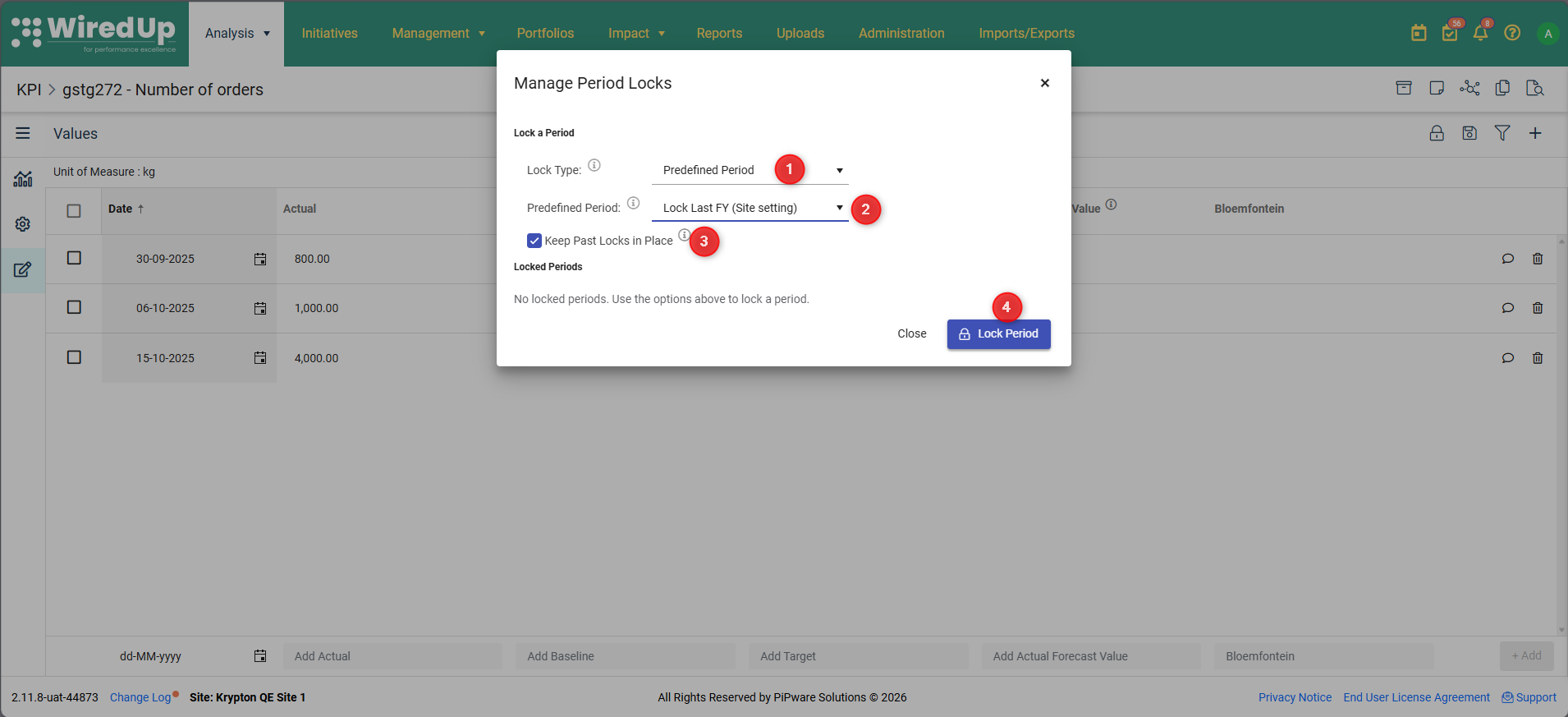
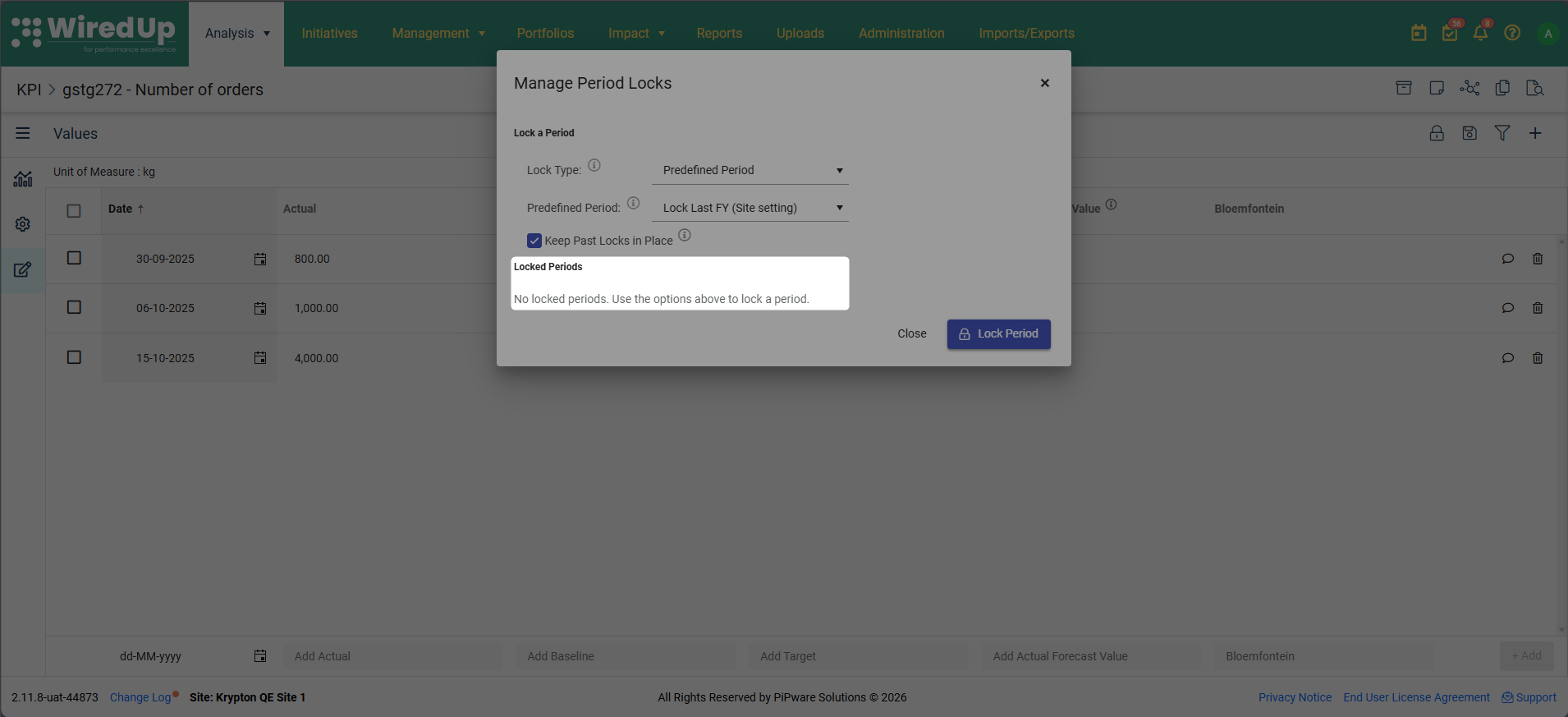
- In the Manage Period Locks modal, select Predefined Period from the Lock Type dropdown
- Choose your desired period from the Predefined Period dropdown:
- Lock Last FY — locks the full previous financial year (this is based on configured site setting)
- Lock Last 12 Months — locks the last 12 completed months
- Lock Last 6 Months — locks the last 6 completed months
- Lock Last Quarter — locks the last completed quarter
- Choose whether to keep past locks in place:
- Keep Past Locks in Place (checked) — previously locked periods remain locked as time moves forward. The locked range grows continuously.
- Keep Past Locks in Place (unchecked) — the lock window slides forward. Periods that no longer fall within the selected range are automatically unlocked.
- Click Lock Period
Example — Lock Last 6 Months with Keep Past Locks in Place ON:
- March 2026: Locks September 2025 → February 2026
- April 2026: Adds March 2026 to the lock. September 2025 remains locked. Range: September 2025 → March 2026
- May 2026: Adds April 2026 to the lock. All previous months remain locked. Range: September 2025 → April 2026
Example — Lock Last 6 Months with Keep Past Locks in Place OFF:
- March 2026: Locks September 2025 → February 2026
- April 2026: Adds March 2026, removes September 2025. Range: October 2025 → March 2026
- May 2026: Adds April 2026, removes October 2025. Range: November 2025 → April 2026
Locking a Custom Period
Custom periods allow you to lock specific date ranges manually. You can add multiple custom ranges as needed.
To lock a custom period:
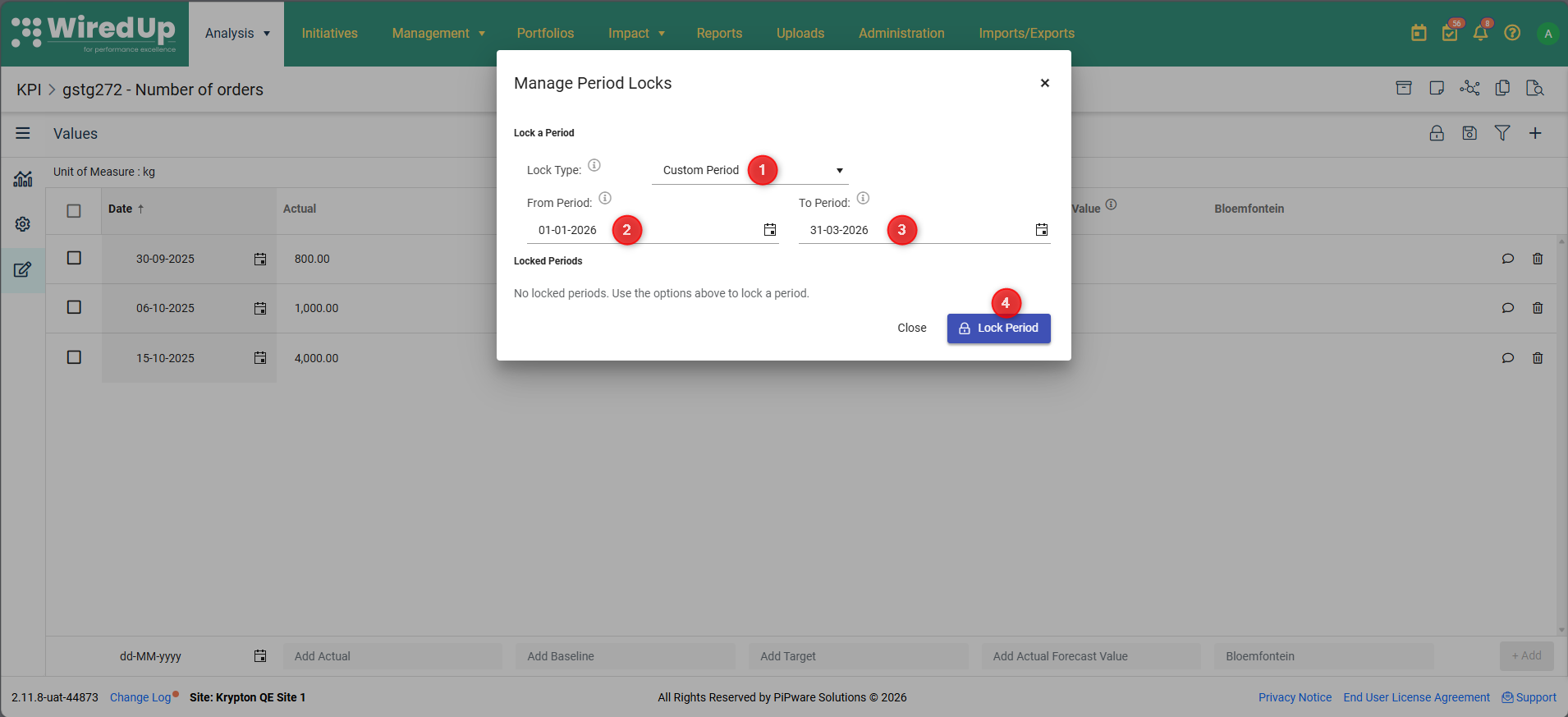
- In the Manage Period Locks modal, select Custom Period from the Lock Type dropdown
- Select the From Period date (start of the locked range)
- Select the To Period date (end of the locked range)
- Click Lock Period
The custom range will appear in the Locked Periods table. You can add additional custom ranges by repeating these steps.
Viewing Locked Periods
All currently active locked periods are displayed in the Locked Periods section at the bottom of the Manage Period Locks modal.
- Predefined locks appear as one consolidated row showing the full extent of the locked range.
- Custom locks appear as individual rows, one for each manually added range.
If no periods are locked, you'll see: "No locked periods. Use the options above to lock a period."
Removing Locked Periods
To remove a locked period:
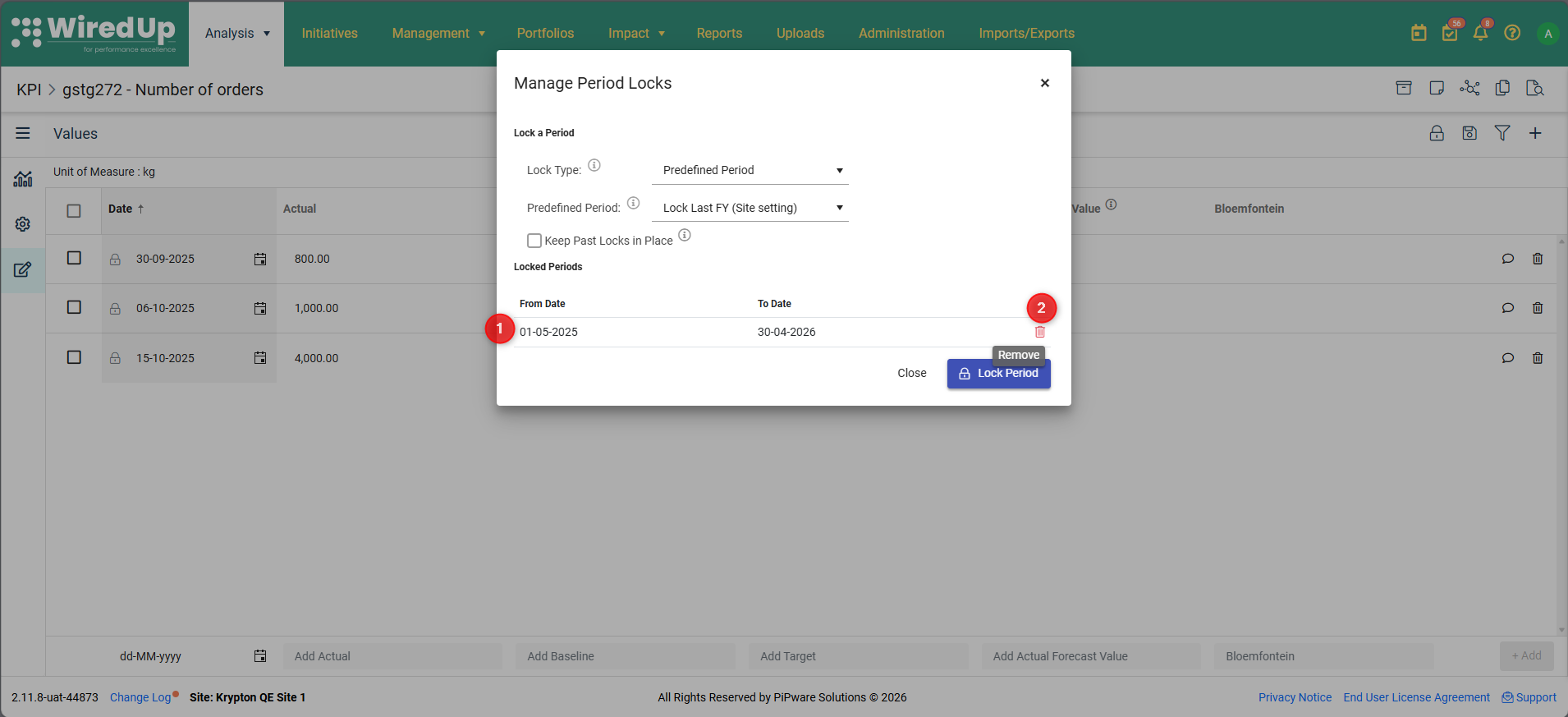
- In the Locked Periods section, locate the period you want to remove
- Click the Remove icon next to the period
- Confirm the removal when prompted
Important:
- Removing a predefined lock cancels the rolling background job entirely — the lock will no longer auto-extend
- Removing a custom lock removes only that specific date range
- All removal actions are recorded in the audit trail
Working with Locked Periods
Visual Indicators:
Locked rows on the KPI Values page are easy to identify:
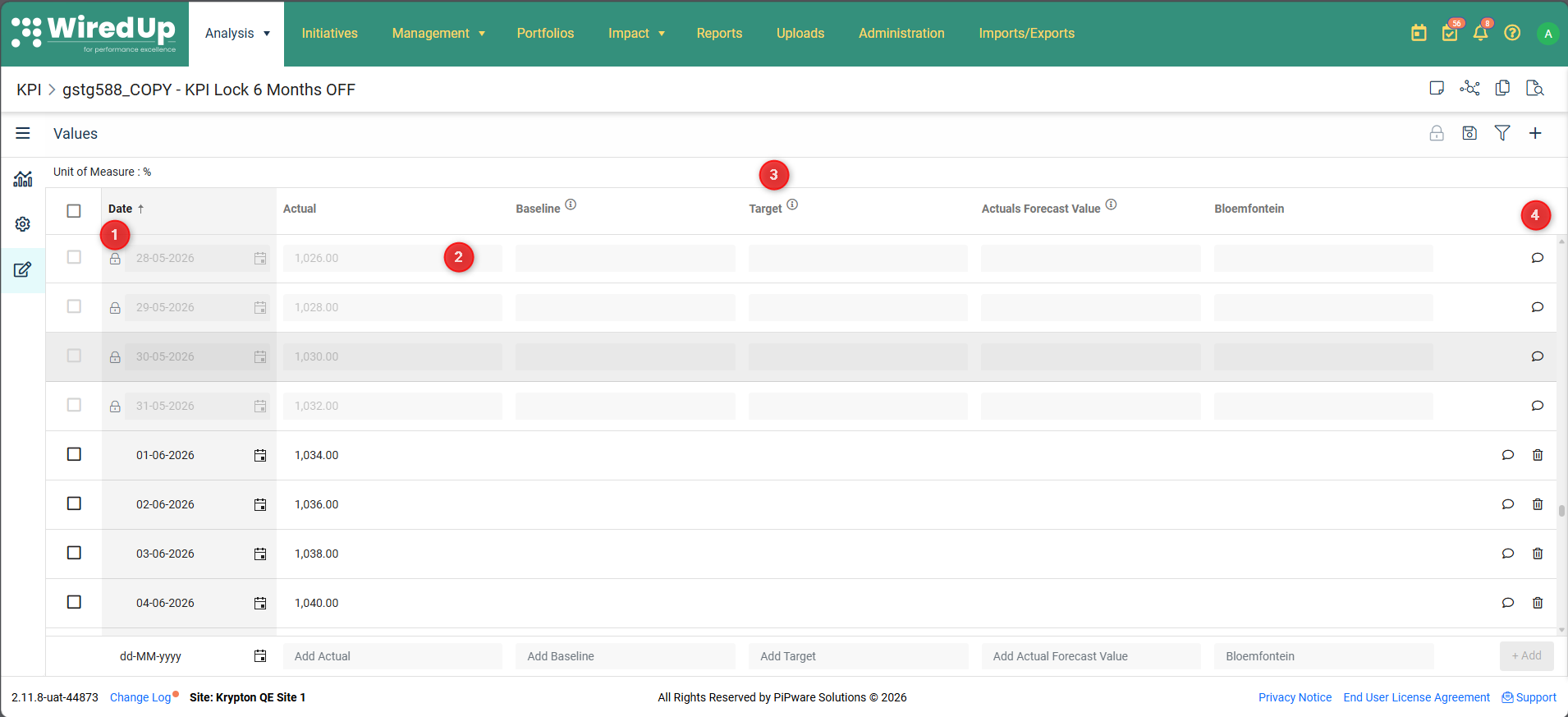
- A lock icon appears on each locked row
- Locked rows have a muted/light grey background
- All value entry fields are disabled for non-owners
- The delete icon is hidden for non-owners
Attempting to Edit:
If you try to edit a locked field as a non-owner, you'll see the message:
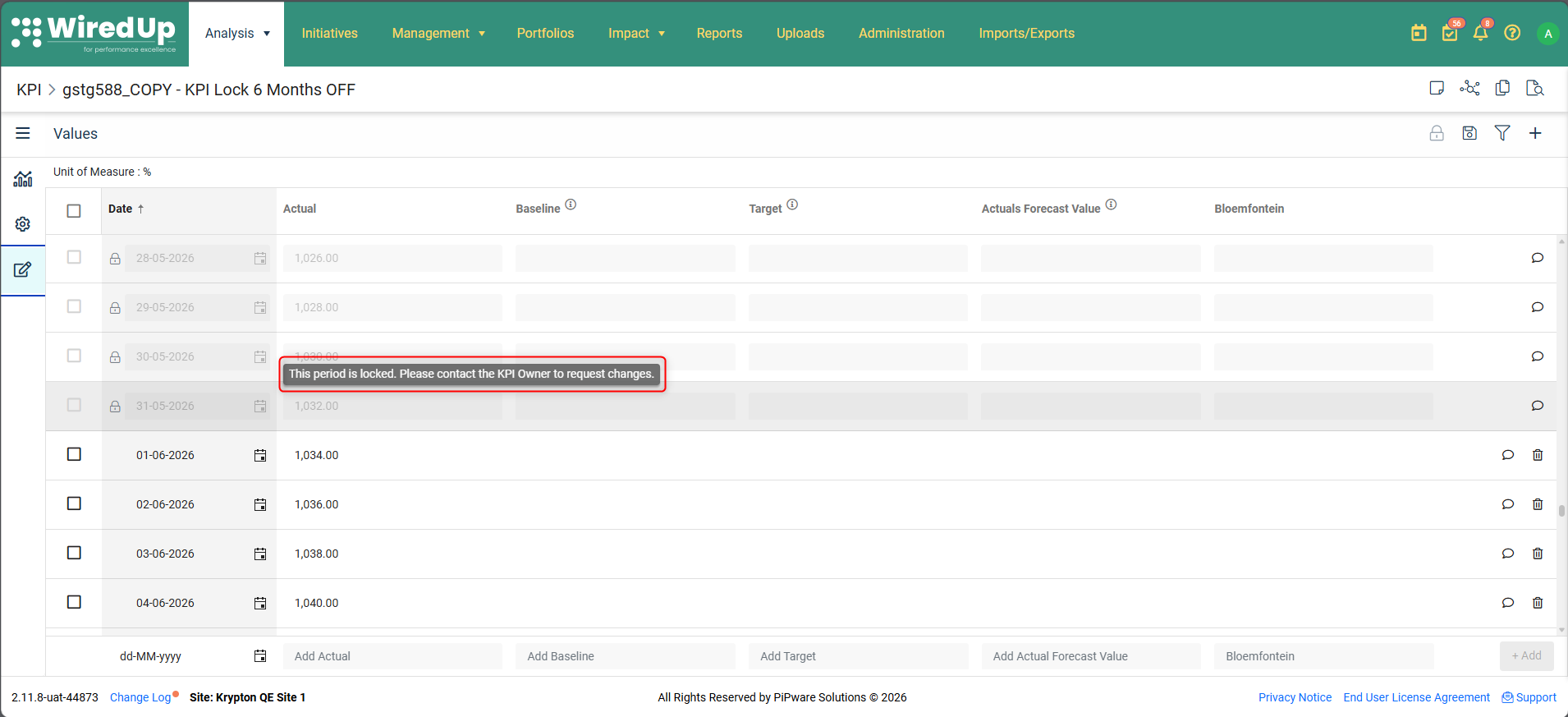
"This period is locked. Please contact the KPI Owner to request changes."
Owner Edits:
The KPI Owner can edit values within locked periods directly without removing the lock. All such edits are automatically recorded in the audit trail.
Bulk Uploads and Locked Periods
When you perform a bulk import or API upload that includes rows falling within a locked period:
- Locked period rows are skipped — they are not applied to the KPI
- Non-locked period rows are processed as normal
- An informational message is displayed after the upload:
- "One or more rows were not imported because they fall within a locked period. Please contact the KPI Owner to unlock the period before re-importing these rows."
- Skipped rows and the reason are recorded in the KPI changelog
What Gets Locked
Period locking applies to all value columns on the KPI Values page:
- Actual
- Baseline
- Target
- Actuals Forecast Value
- All custom target columns configured for the KPI
This applies to all KPI types: Manual Input, Calculated, and Initiative Output.
Audit Trail
All lock-related actions are automatically recorded in the KPI changelog, including: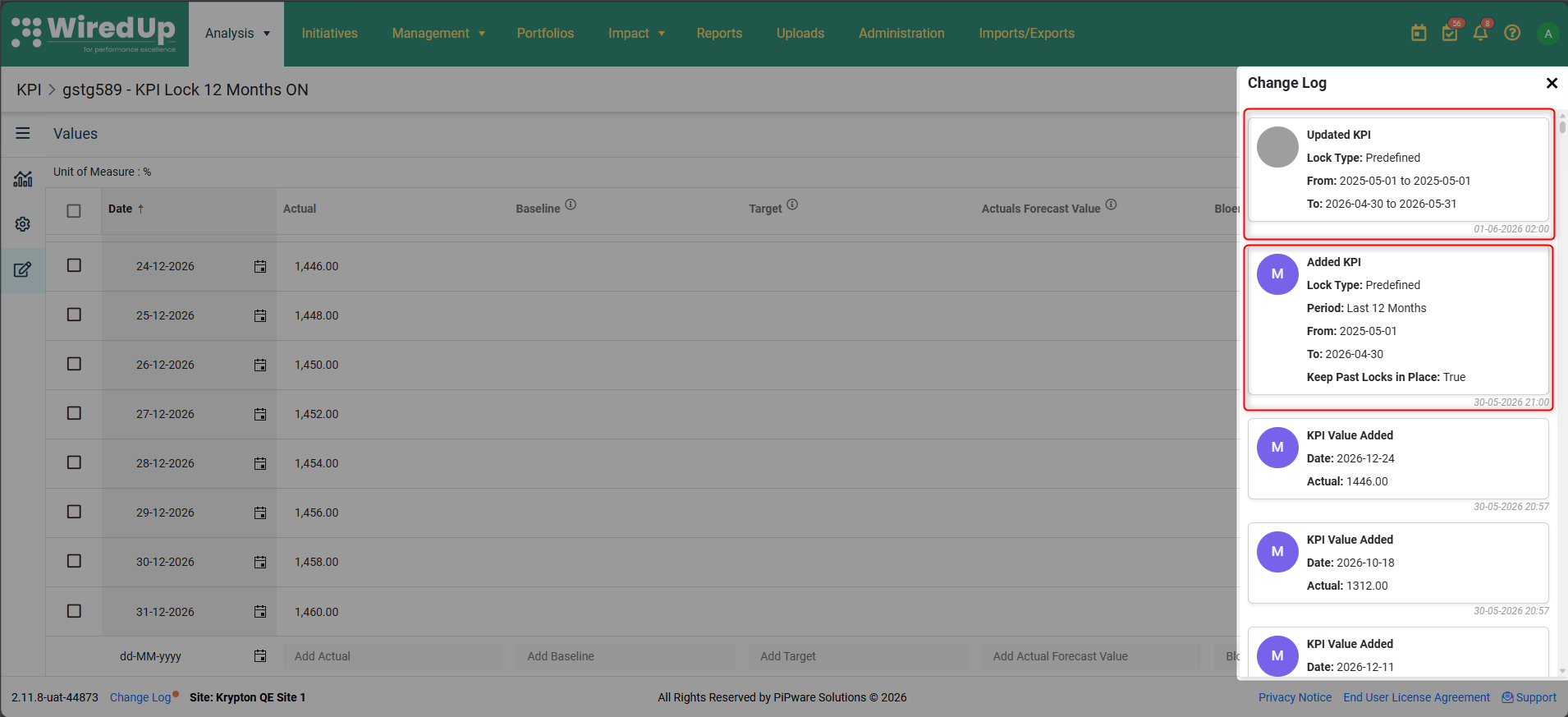
- Period locked (custom or predefined)
- Predefined lock extended by the system
- Predefined lock updated (when the window slides)
- Period lock removed
- Values edited within locked periods
- Upload rows skipped due to locked periods
Each entry includes the user who performed the action (or "System" for automated updates) and a timestamp.
Note: A background job runs automatically to extend predefined locks forward as time progresses. The job runs at the start of each new month and only processes KPIs with an active predefined lock configured. All automated lock extensions are recorded in the audit trail.